Permission
The Permission functionality lets you manage access and roles across your workspace. You can use it to manage members, assign roles, and configure business lines to optimize space utilization and operational workflows.
Manage members
The Members module is designed to help you oversee and control member access within the platform. It provides tools to manage invitations, assign roles, and maintain an organized member list.
View member
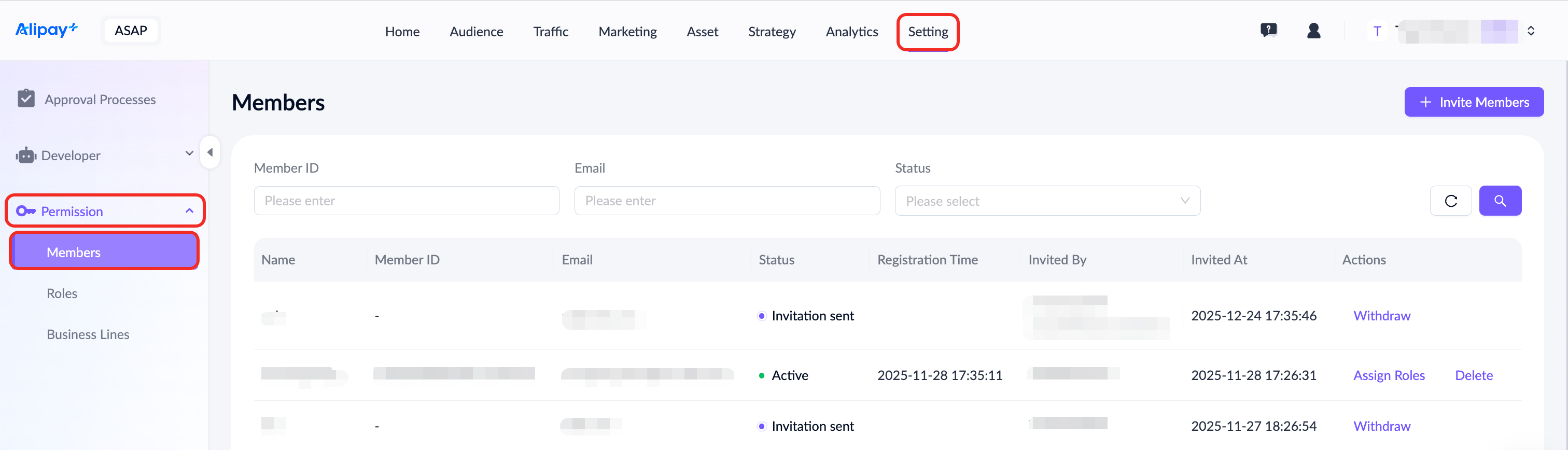
Navigate to Setting > Permission > Members to access a list of all members within the current space. This list supports searching and filtering by member ID, email and status, providing comprehensive oversight of membership status.
Invite member
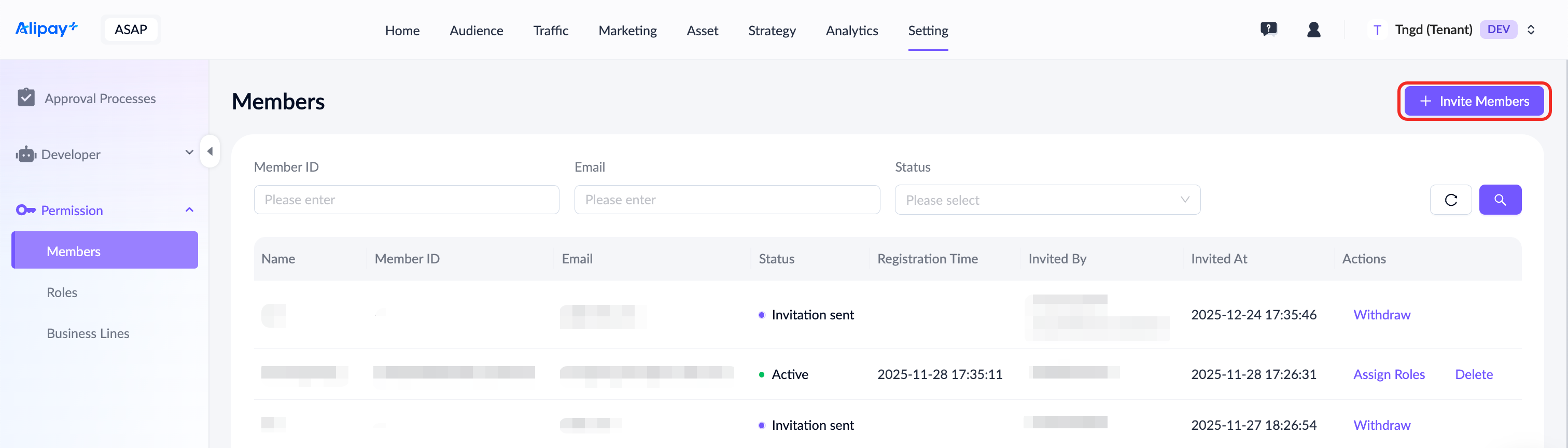
On the Members page, click Invite Members in the top-right corner to open the Invite Members dialog.
Step 1: Enter each invitee's first name, last name, and email address. You can invite up to 10 members at a time.
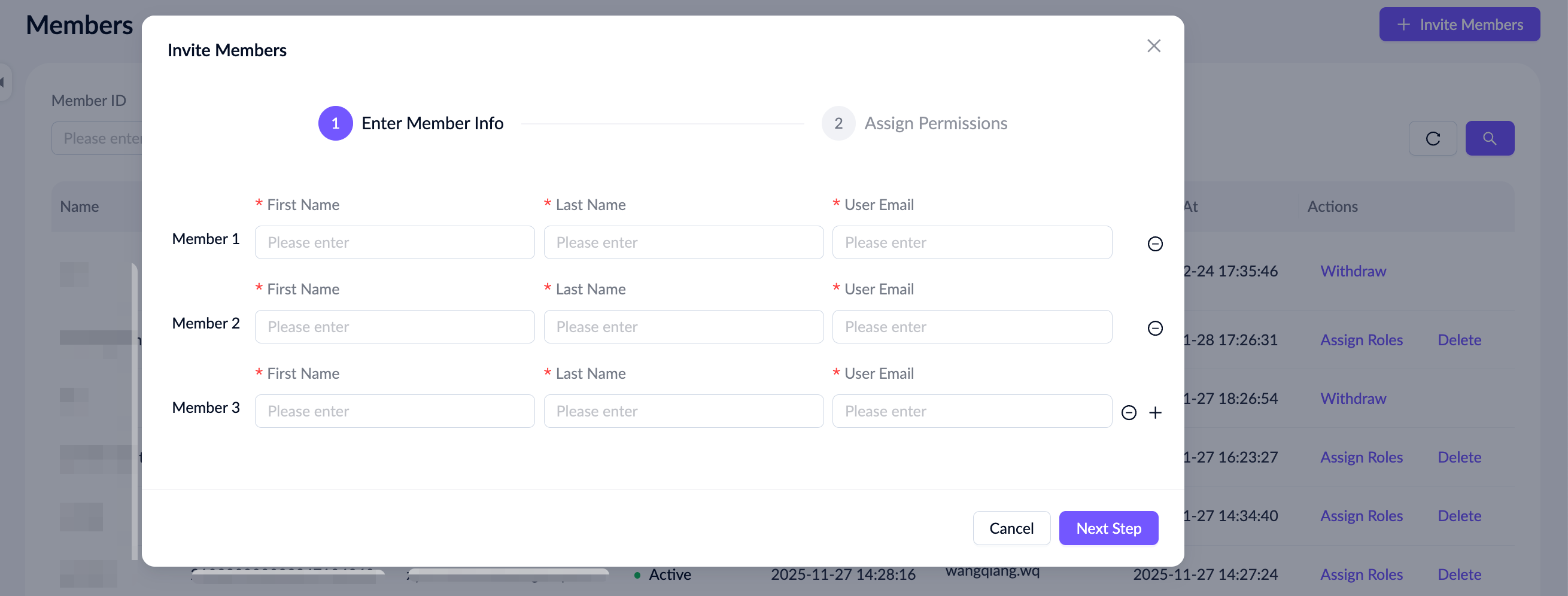
Once an invitation is sent, the entered information for each member cannot be modified. After completing all fields, click Next Step to proceed to the permissions setup.
Step 2: Assign the permissions for designated members.
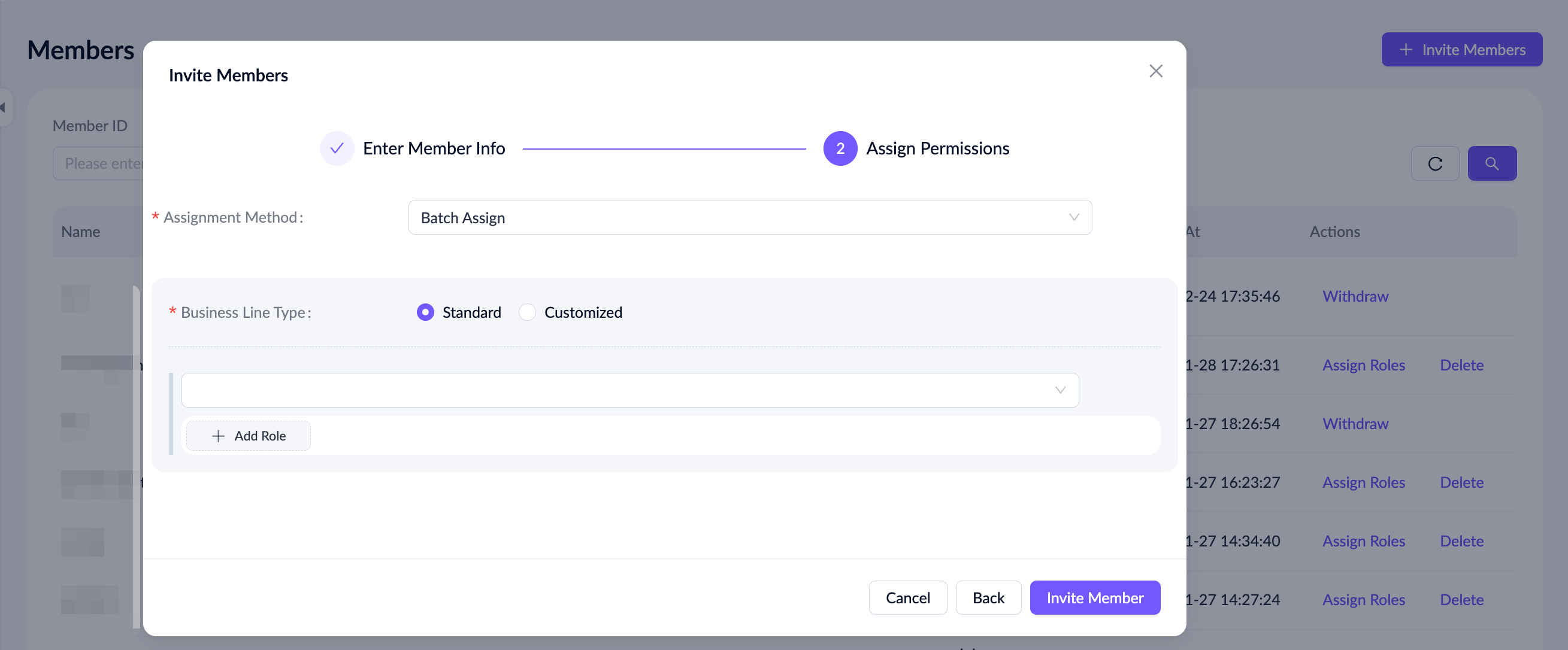
All permissions set in this step apply to every invited member listed on the previous page. All of the members will share the same assigned business line and corresponding roles. You can grant multiple business lines and roles to the invited members.
After clicking Invite Member, an invitation is sent to each provided email address. At the same time, each invited member is added to the member list with a status of Invitation sent.
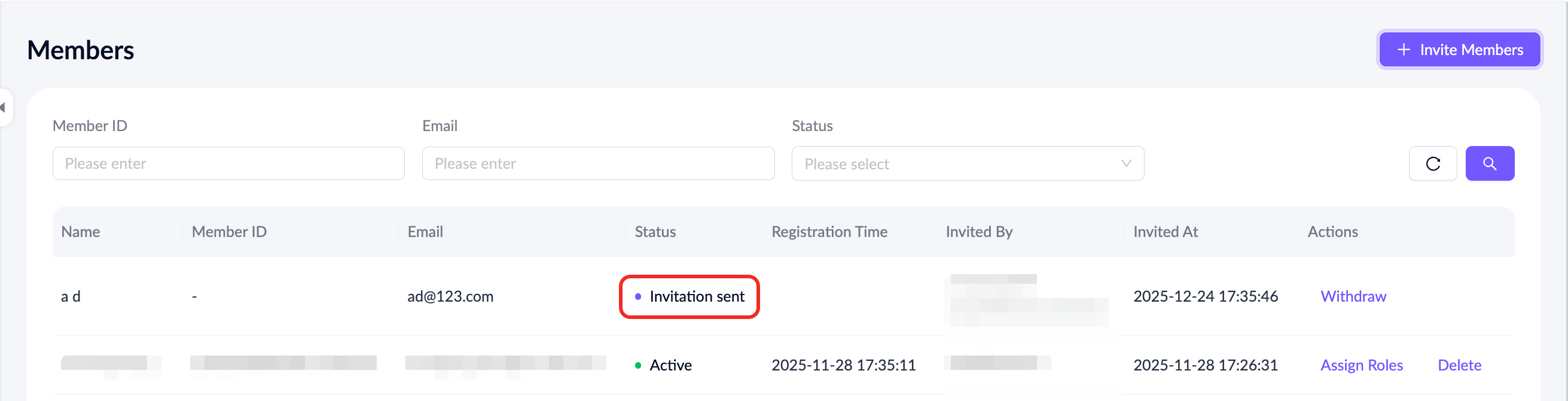
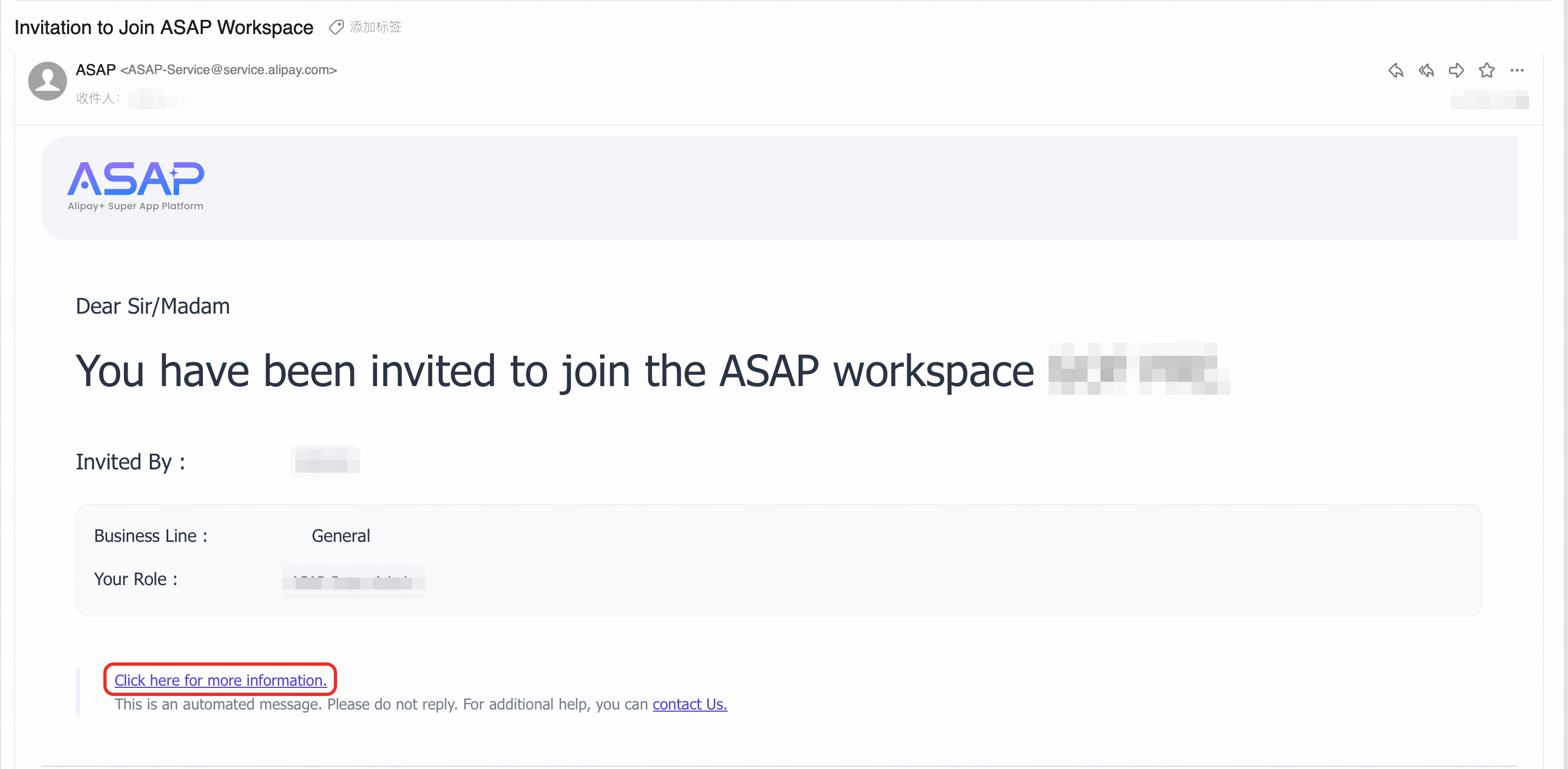
Step 3: The invited member clicks the link in the email to accept the invitation. Once accepted, their status on the Members page is automatically updated to Active.
Withdraw invitation
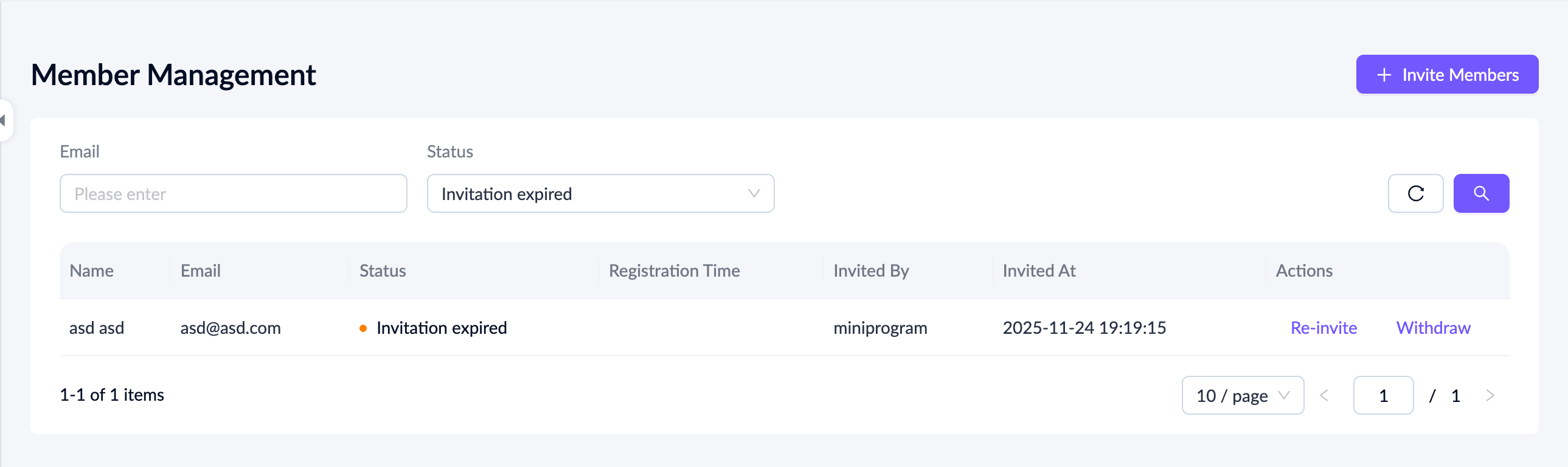
You can withdraw an invitation before it is accepted, specifically when its status is Invitation sent or Invitation expired. On the members list page, locate the member and click Withdraw under the Actions column.
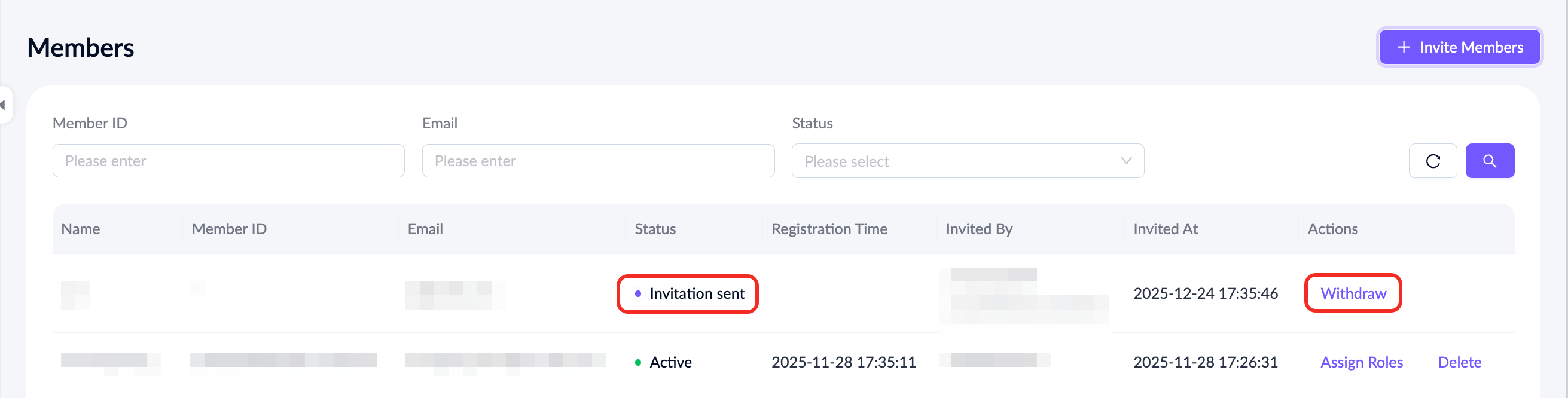
Note: This action cannot be undone. Once withdrawn, the invitation record is removed from the list, and the member is no longer able to join the workspace via the invitation link.
Re-invite member
If an invited user does not accept the invitation within one year, its status changes to Invitation expired on the member list. Click Re-invite next to their entry to send a new invitation email and update the invite link.
Assign Role
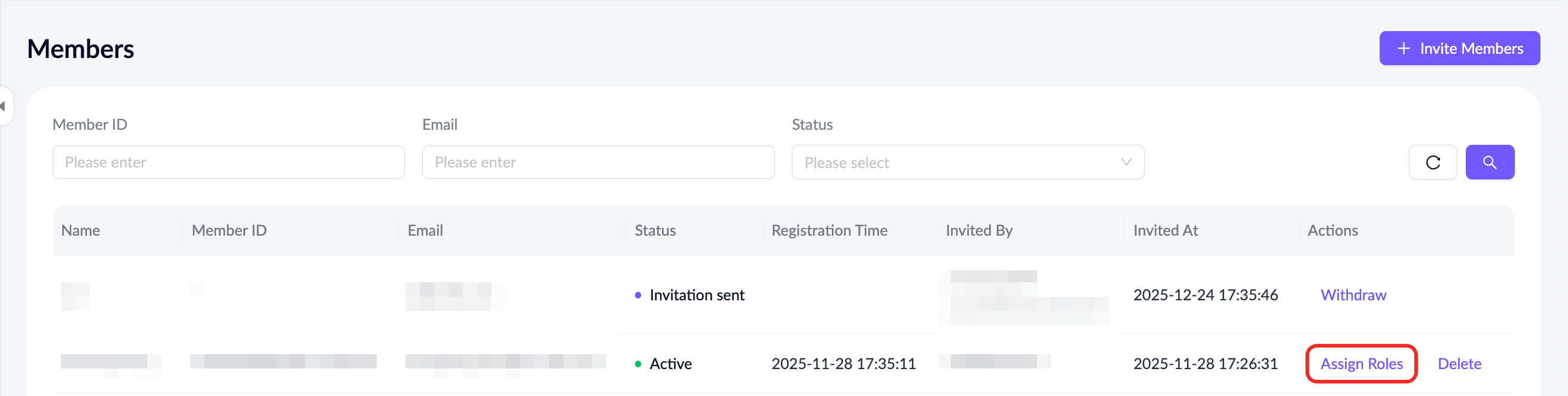
On the members list page, select a member who is in Active status, then click Assign Roles to open the dialog.
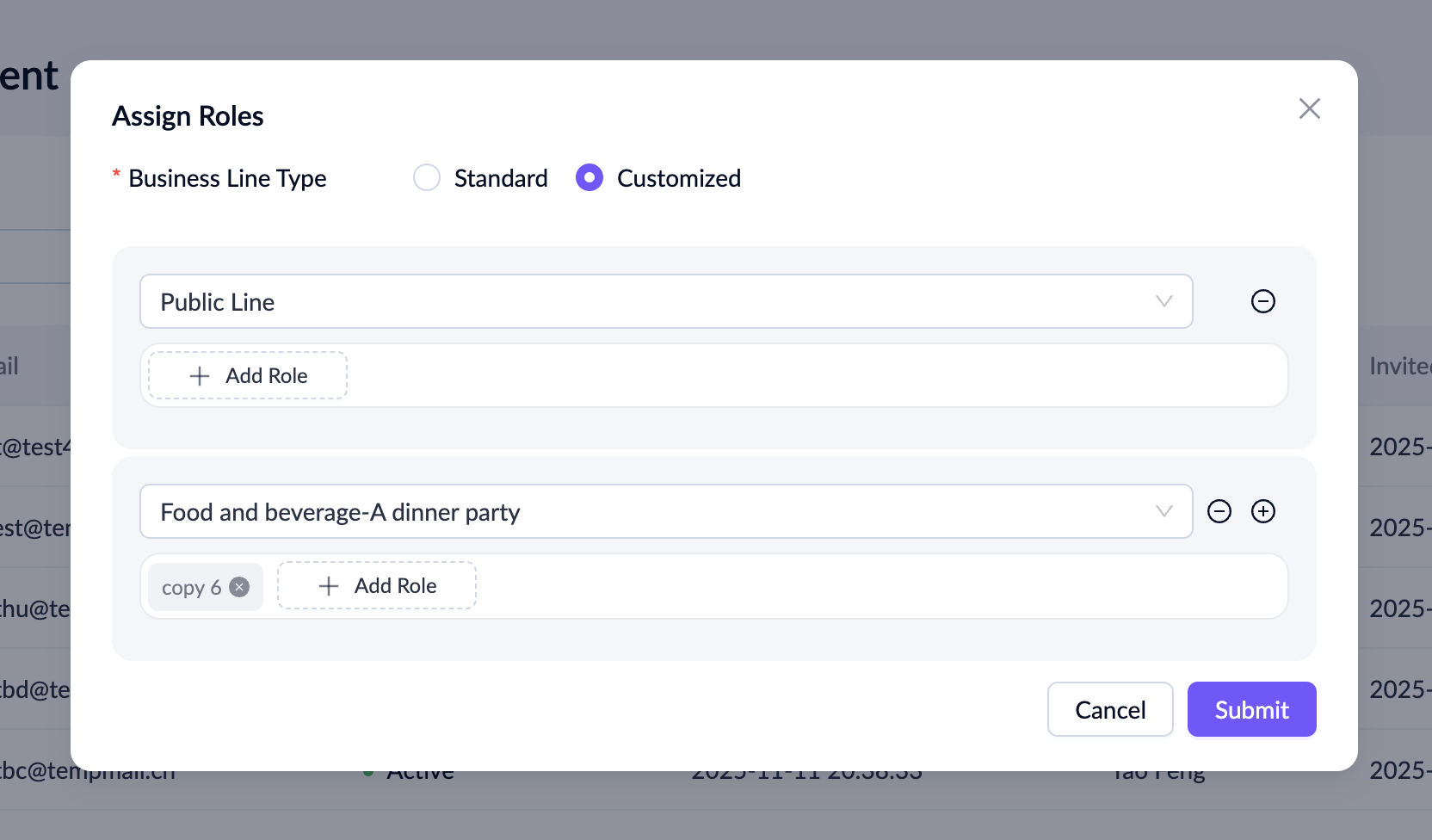
Set up their corresponding business line and role, then click Submit.
Delete member
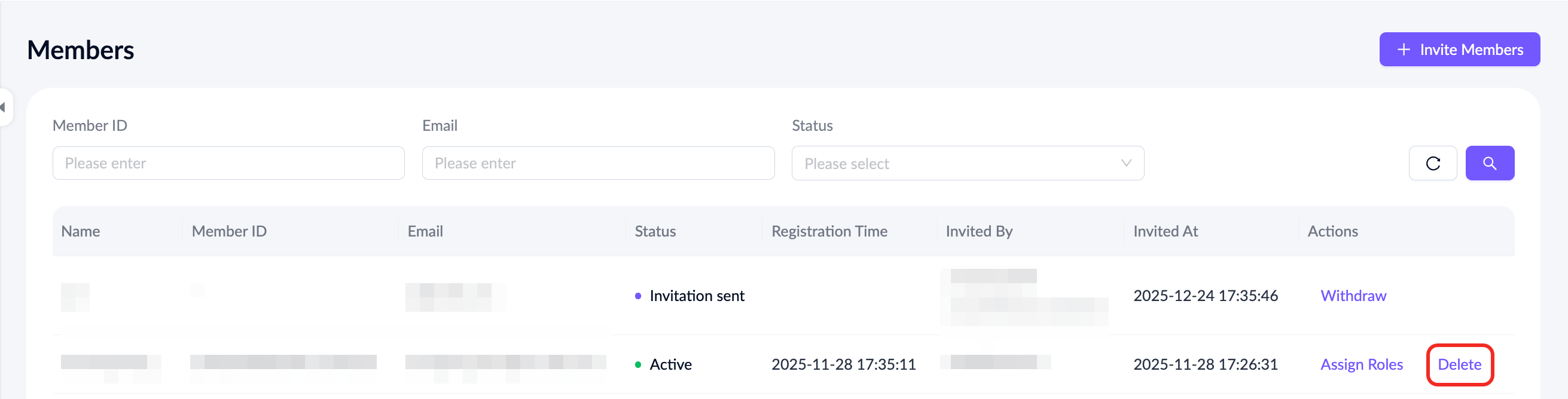
To remove a member who has already joined the workspace, find them on the member list page and click Delete.
In the pop-up window, click Delete to confirm the action and completely revoke their access.
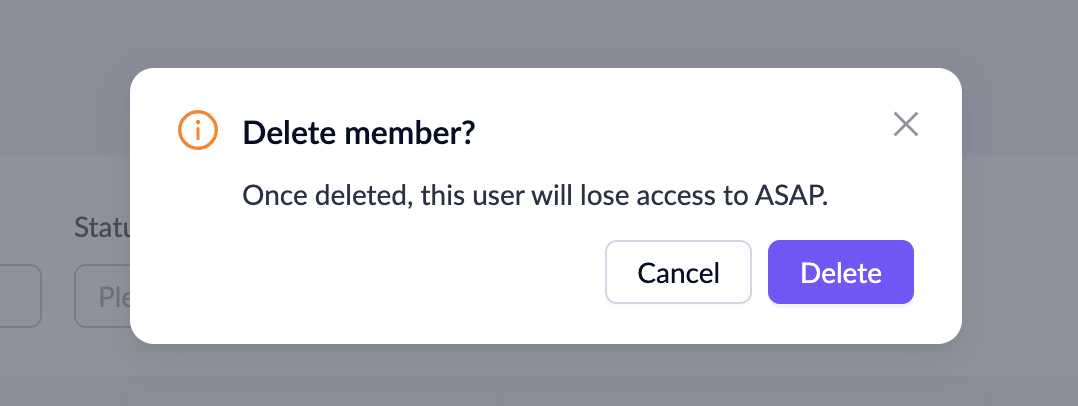
Note: Deleted members will no longer be able to access the workspace or rejoin it through their previous invitation emails.
Manage Roles
The Roles module allows you to efficiently define business roles for your workspace and assign members to them.
View role
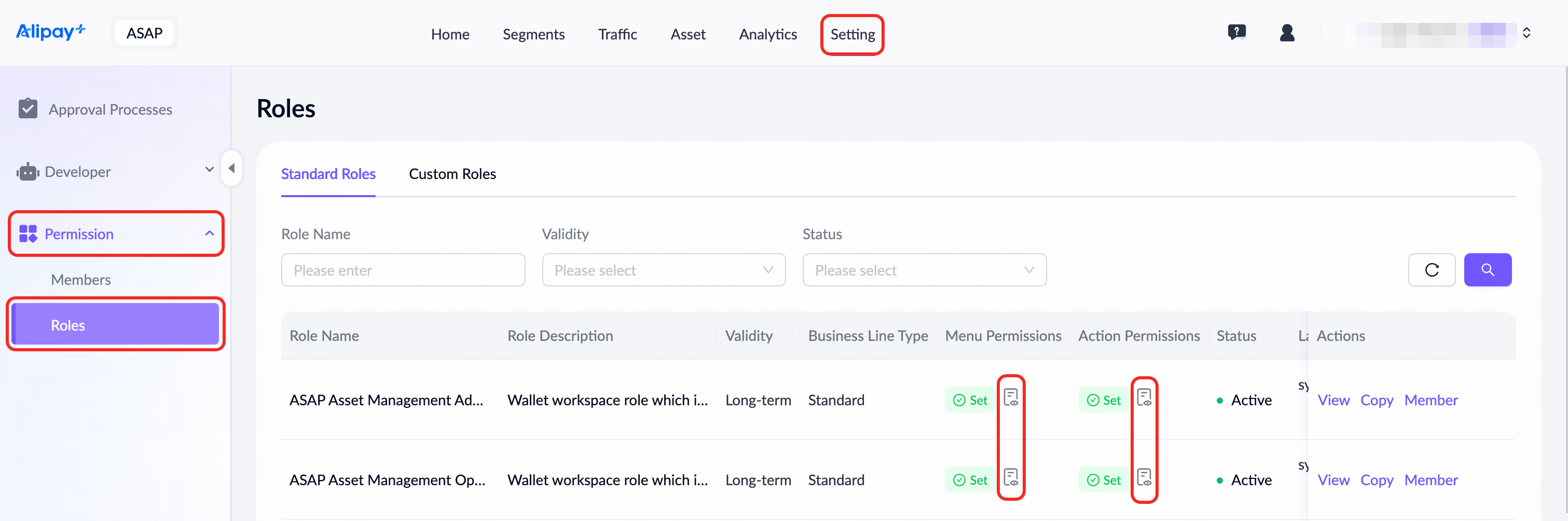
Navigate to Setting > Permission > Roles to explore both standard and custom roles available within the space.
- Standard Roles: Predefined by the ASAP platform and can only be viewed or used to add members within a tenant or merchant workspace.
- Custom Roles: Defined within the current workspace and can be configured with specific business lines and permissions as needed.
To view the permissions of each role, click the icon in the Menu Permissions and Action Permissions column.
Create role
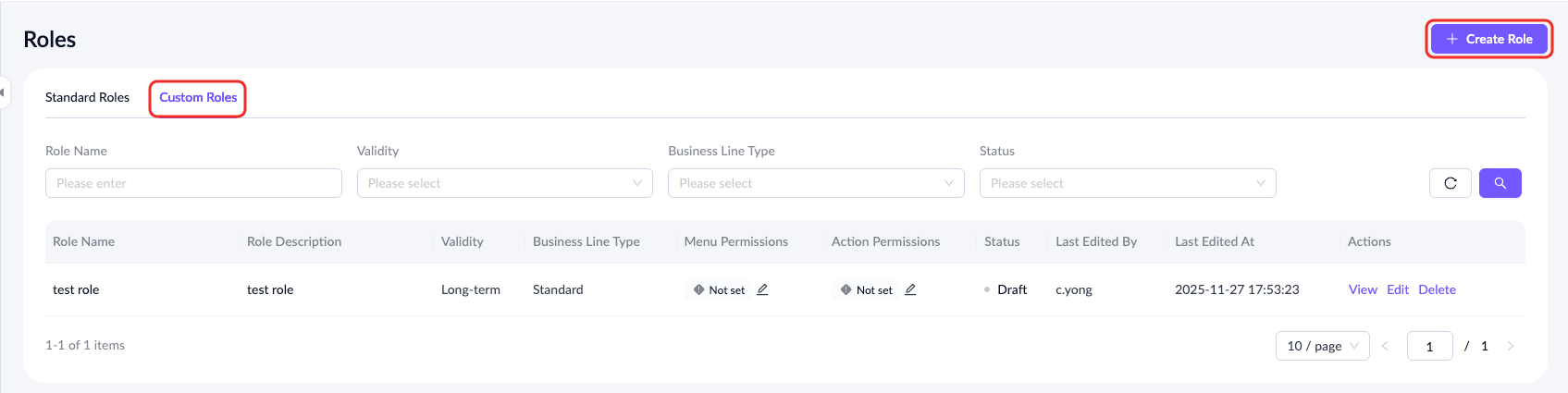
When the existing roles do not meet your business needs, switch to the Custom Roles tab and click Create Role in the top-right corner to create a new one.
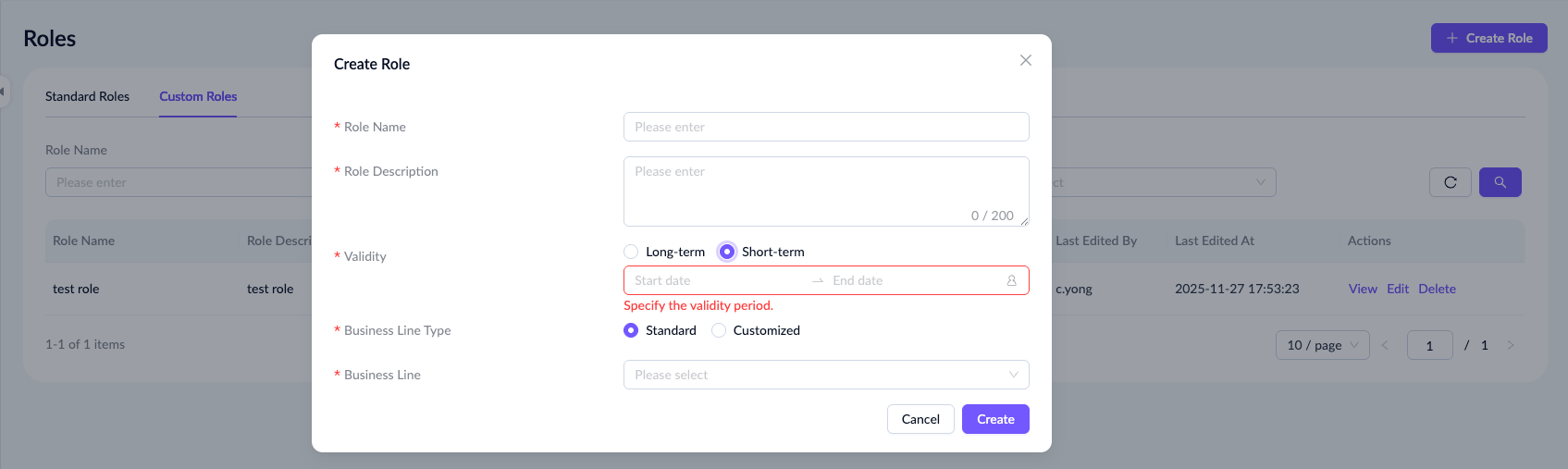
In the pop-up window, enter the role name, description, validity period, and business line, then click Submit to proceed.
Note: If you select Short-term for the validity, you must also specify the exact start and end time for the role.
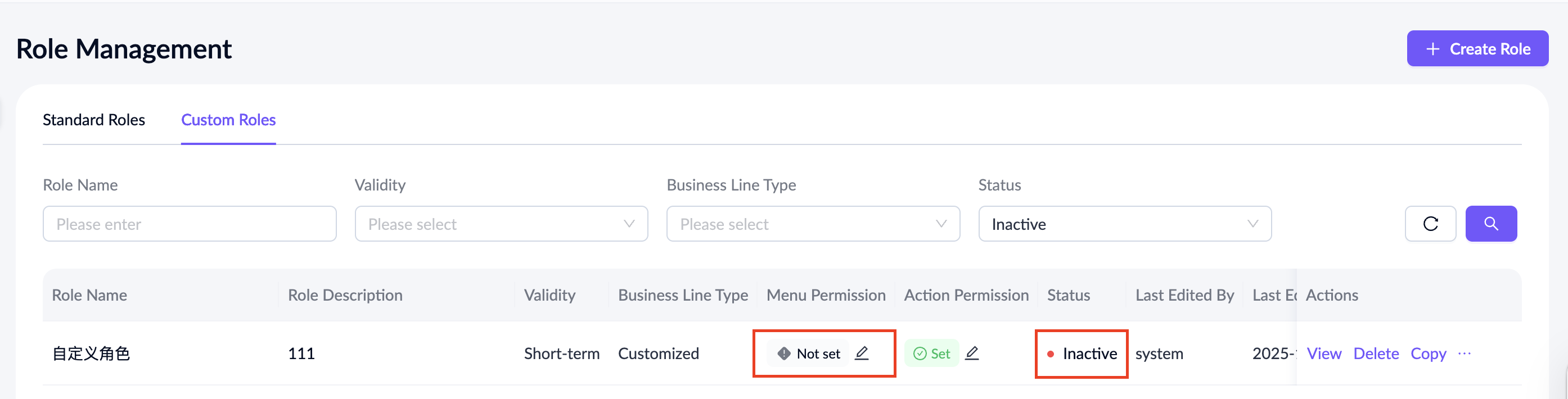
After submission, the new role appears in the Custom Roles list. Newly added roles have menu permissions in a Not Set status and will only take effect after these permissions are configured on the list page.
Note: For a short-term role, its status will automatically change to Inactive once the specified end time has passed.
Copy role
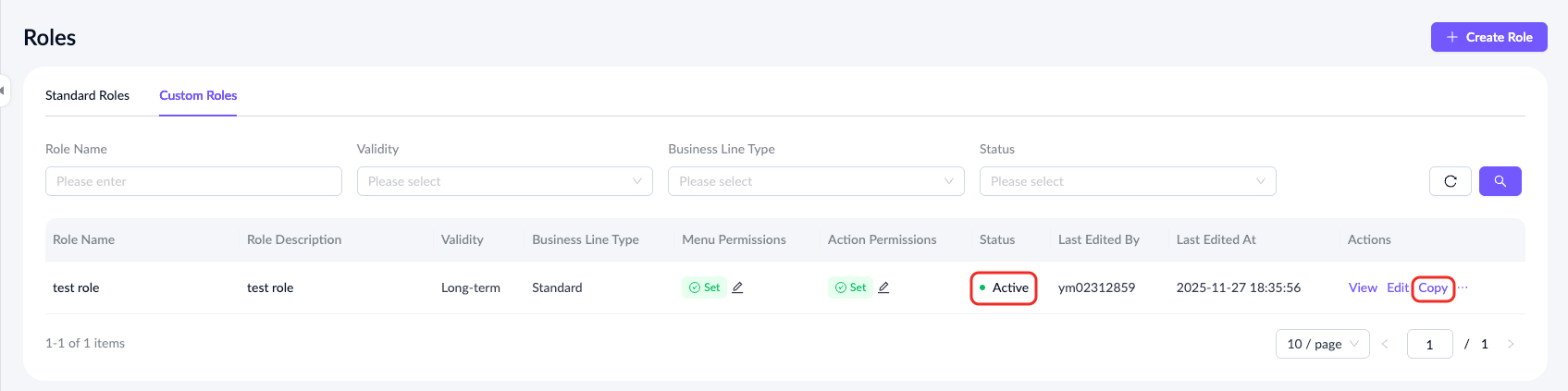
You can copy any role in Active status from either the Standard Roles or Custom Roles list. Click Copy under the Actions column to open the Copy Role dialog.
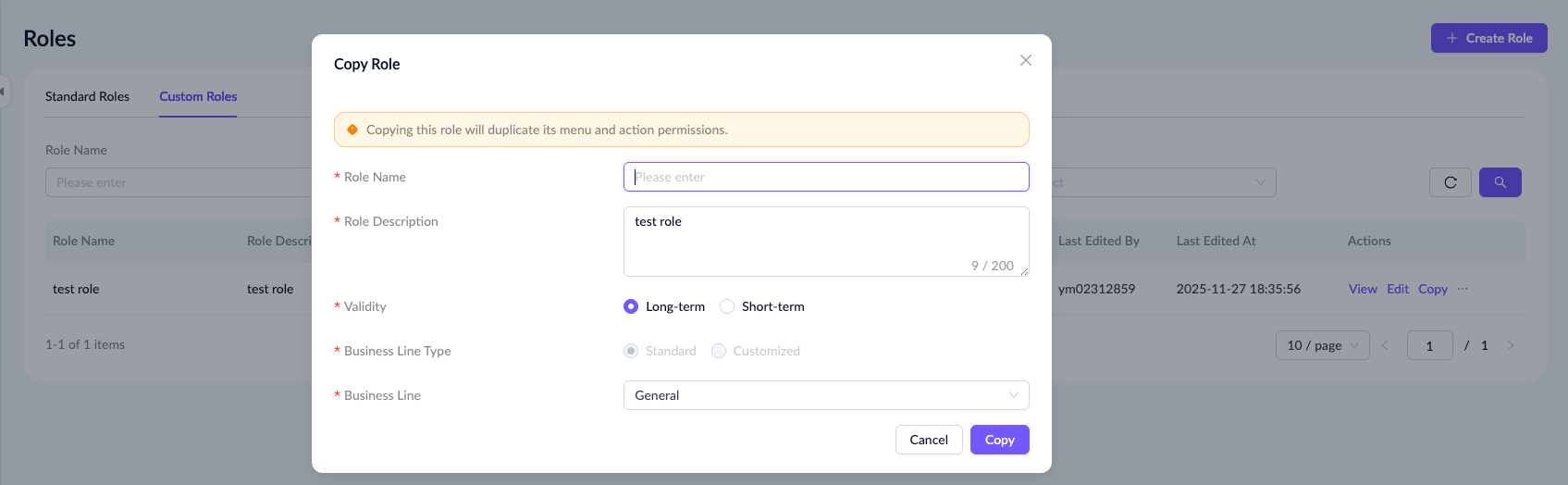
All information, including the description, validity period, business line, and all menu and action permissions, will be copied, except for the role name.
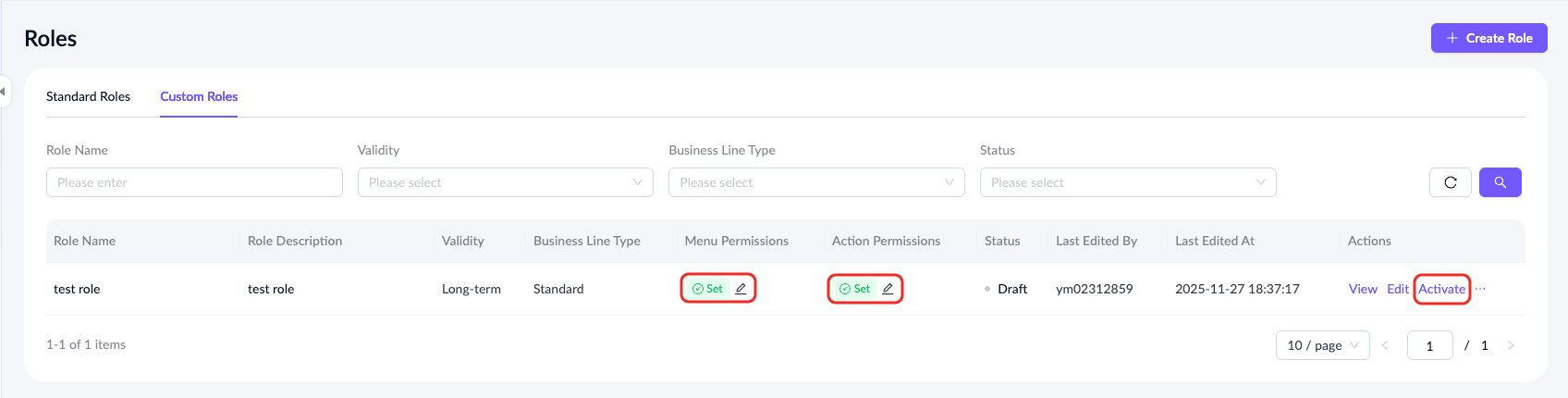
After submission, the copied business role appears in Draft status and must be activated before it can be used. If you need to edit the menu or action permissions for this role, select and edit it from the Roles list.
Edit role
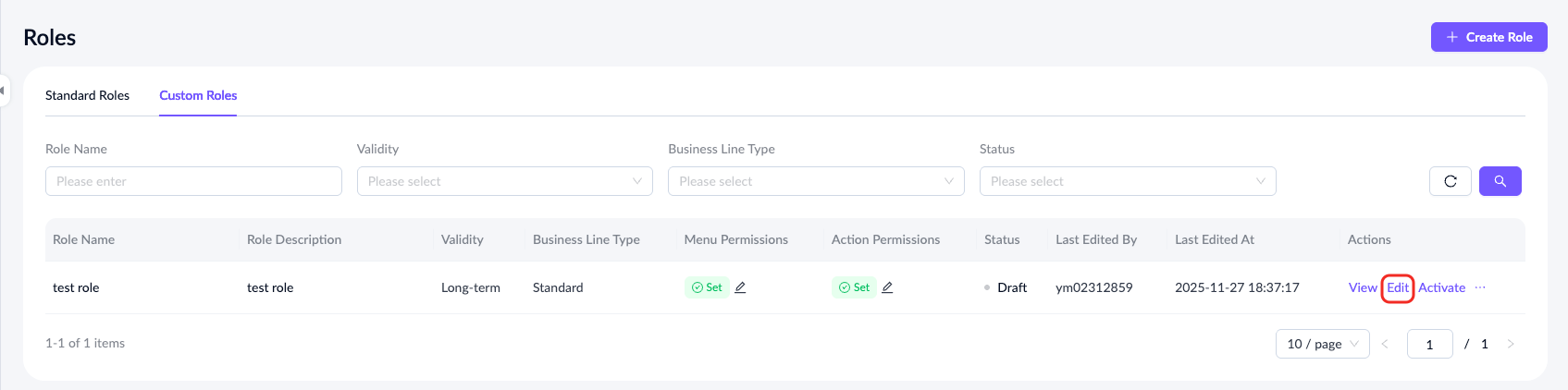
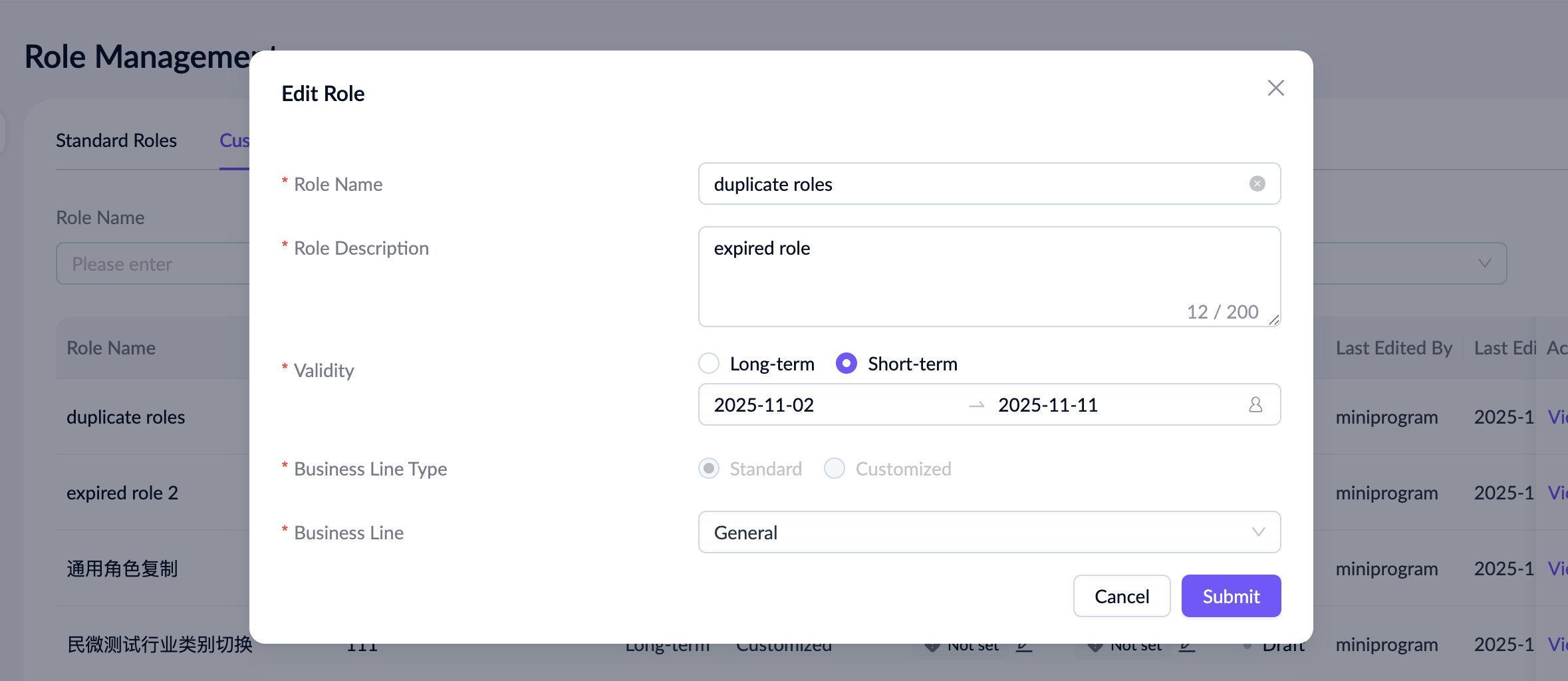
On the list page, you can also edit the roles to update their name, description, validity period, and business line. This function is essential for maintaining alignment with evolving business needs.
Delete role
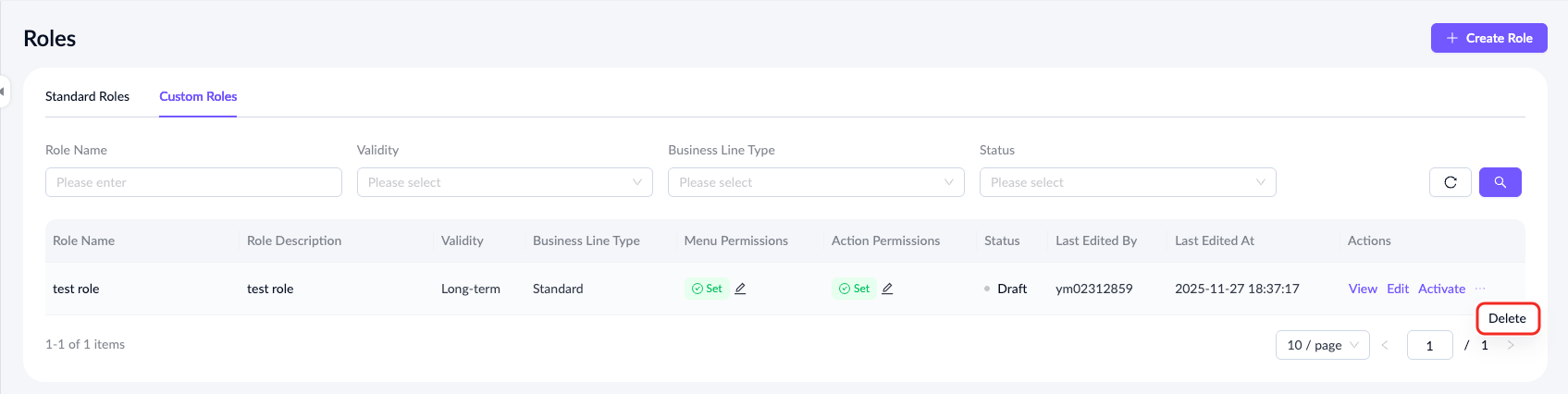
You can delete a role when it is in Draft or Inactive status. This helps maintain an organized and efficient role structure within the space.
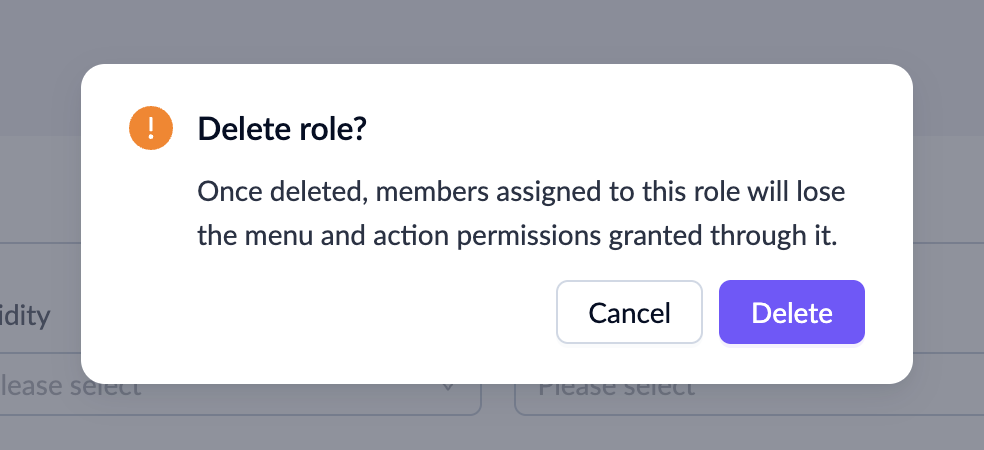
Note: Deleting a role removes all granted menu and action permissions.
Manage Member
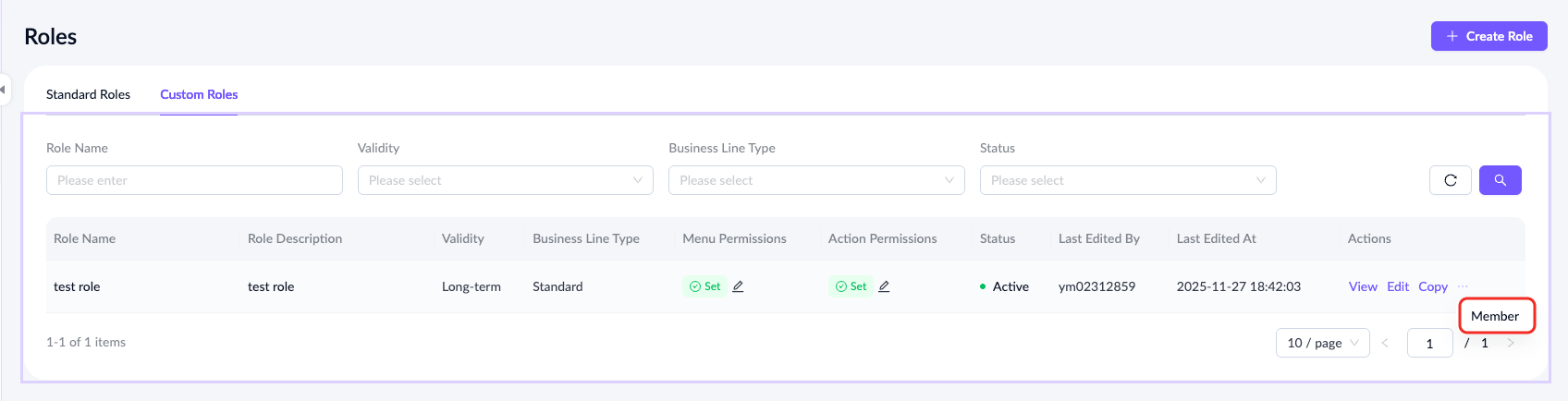
For roles with an Active status, you can click Member under the Actions column to manage the current member list under that role, including delete, add, or update.
- Delete member
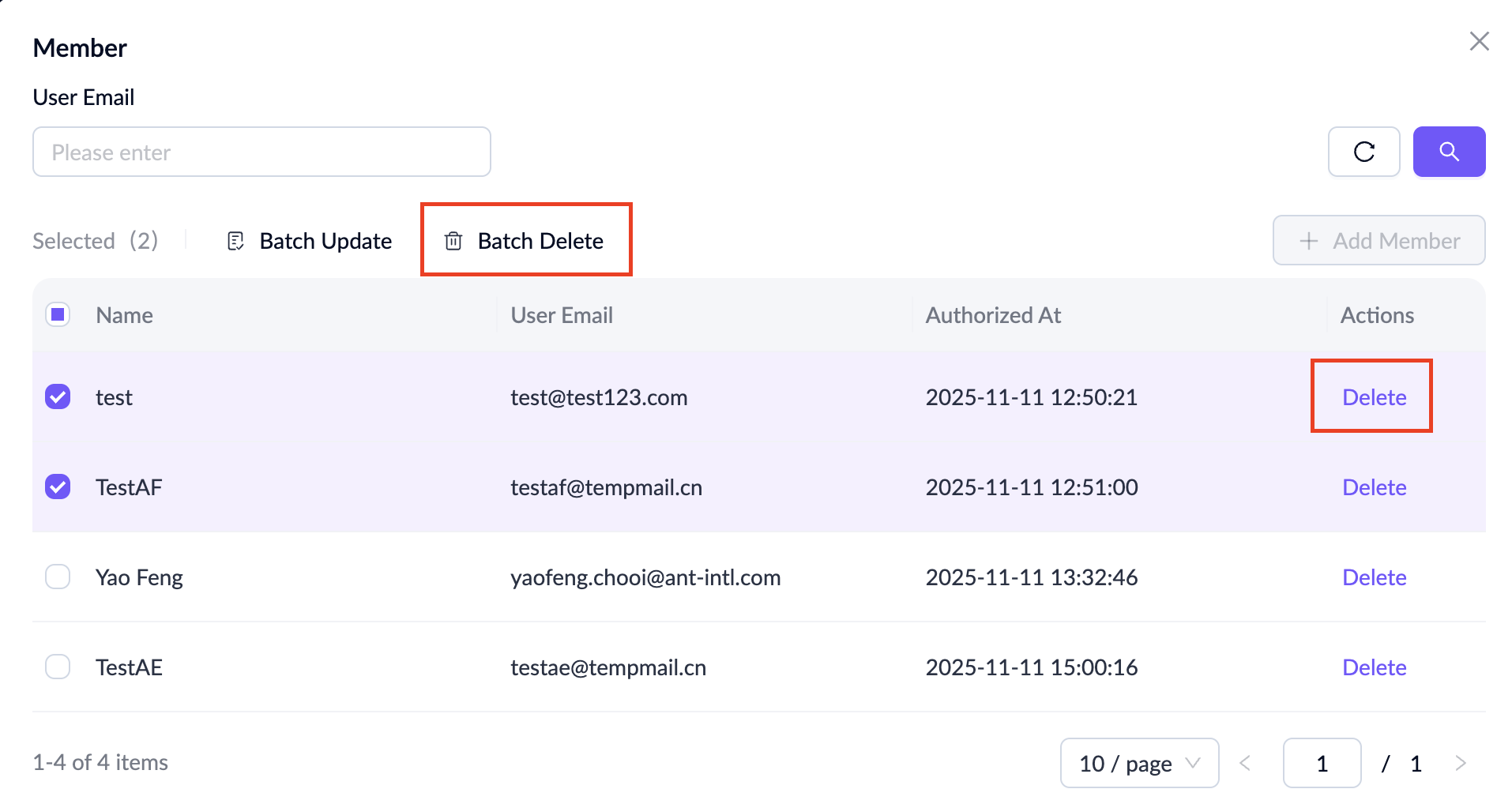
You can delete individual members by clicking Delete under the Actions column or delete multiple members at once using the Batch Delete option after selecting them.
- Add member
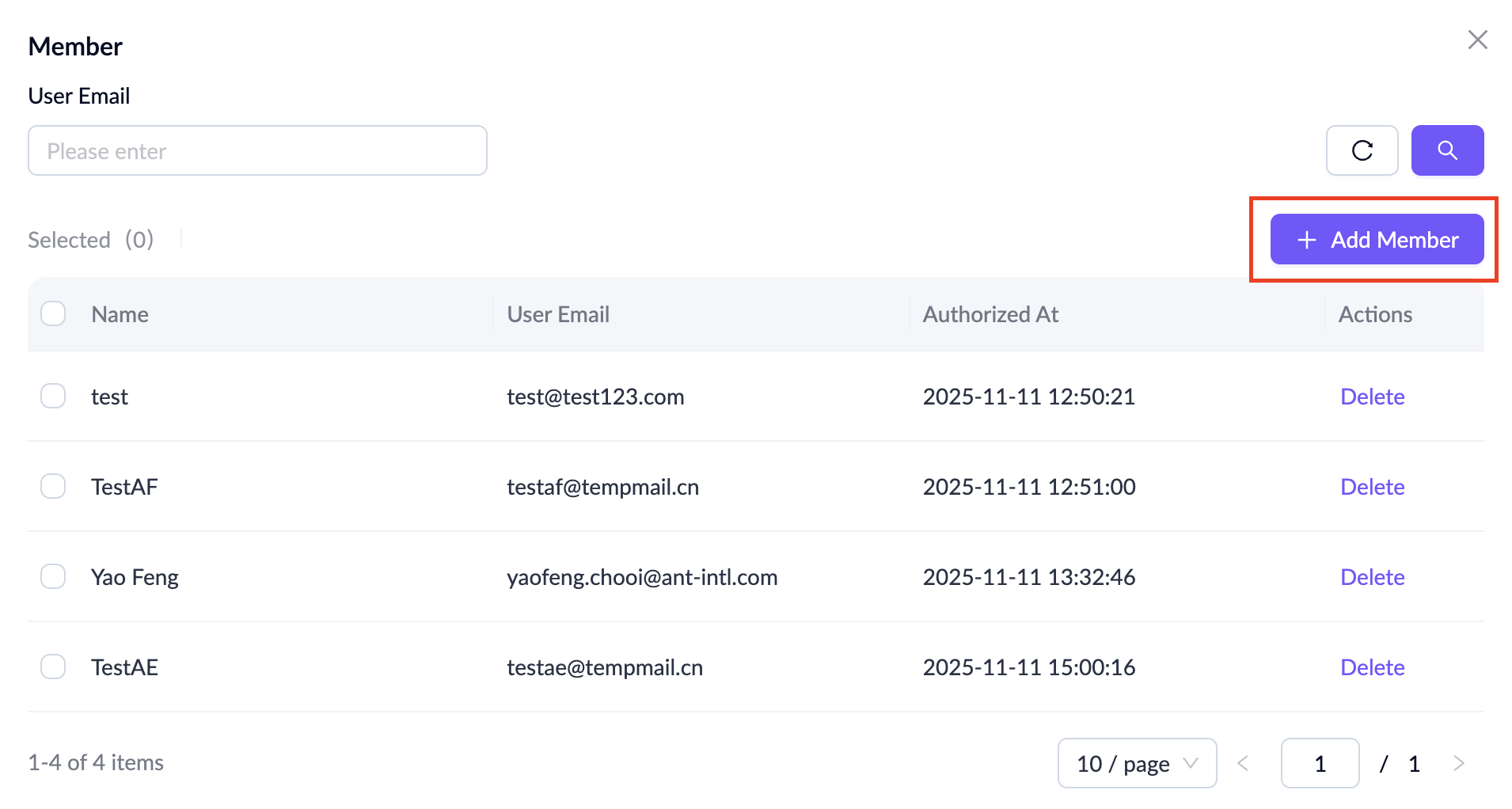
To add members to the role, click Add Member in the top-right corner of the page.
You can then search for existing workspace members by email, select the ones you want, and click OK to add them to the role.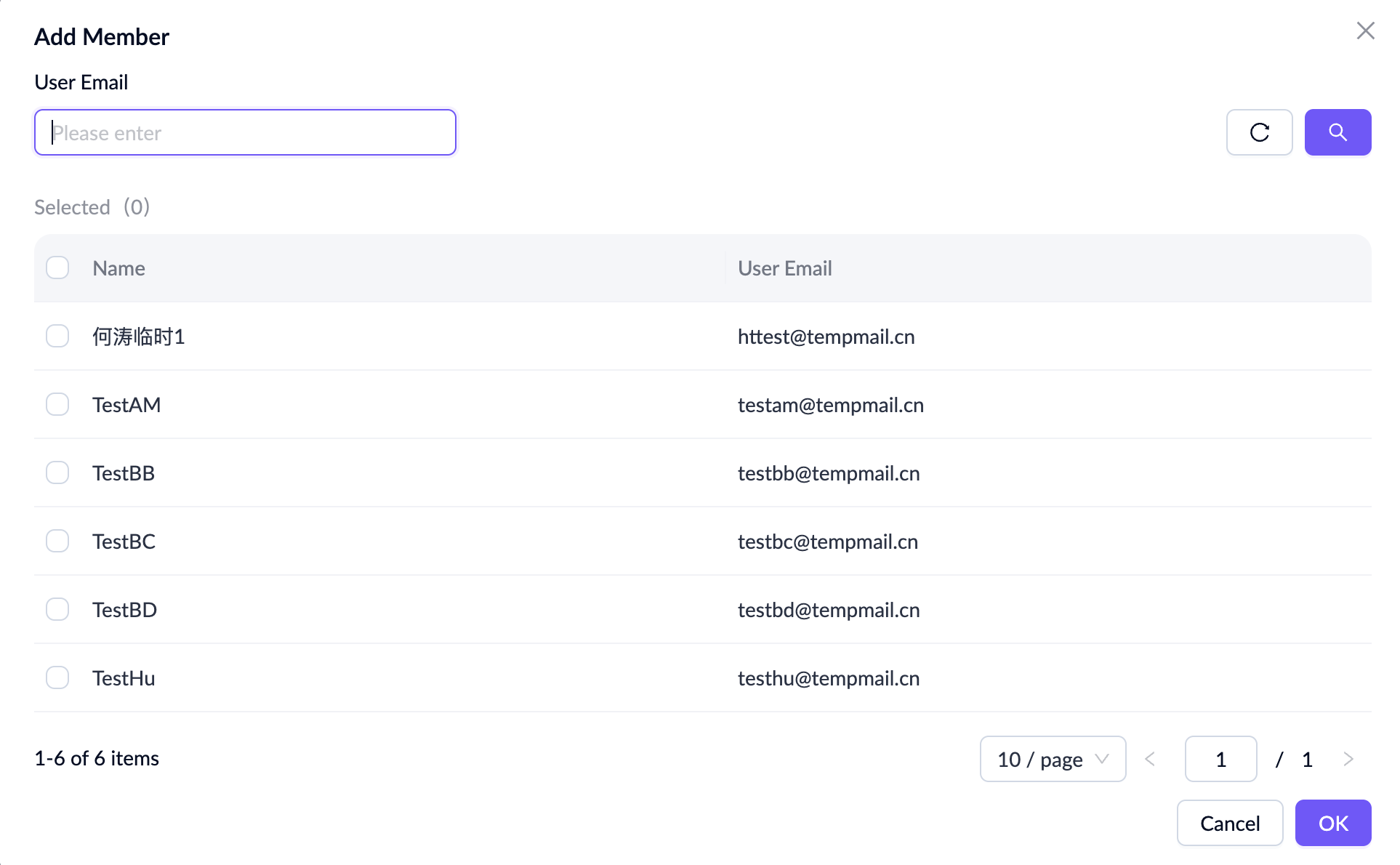
- Update member
After selecting multiple members, you can also use the Batch Update function to modify their assigned roles.
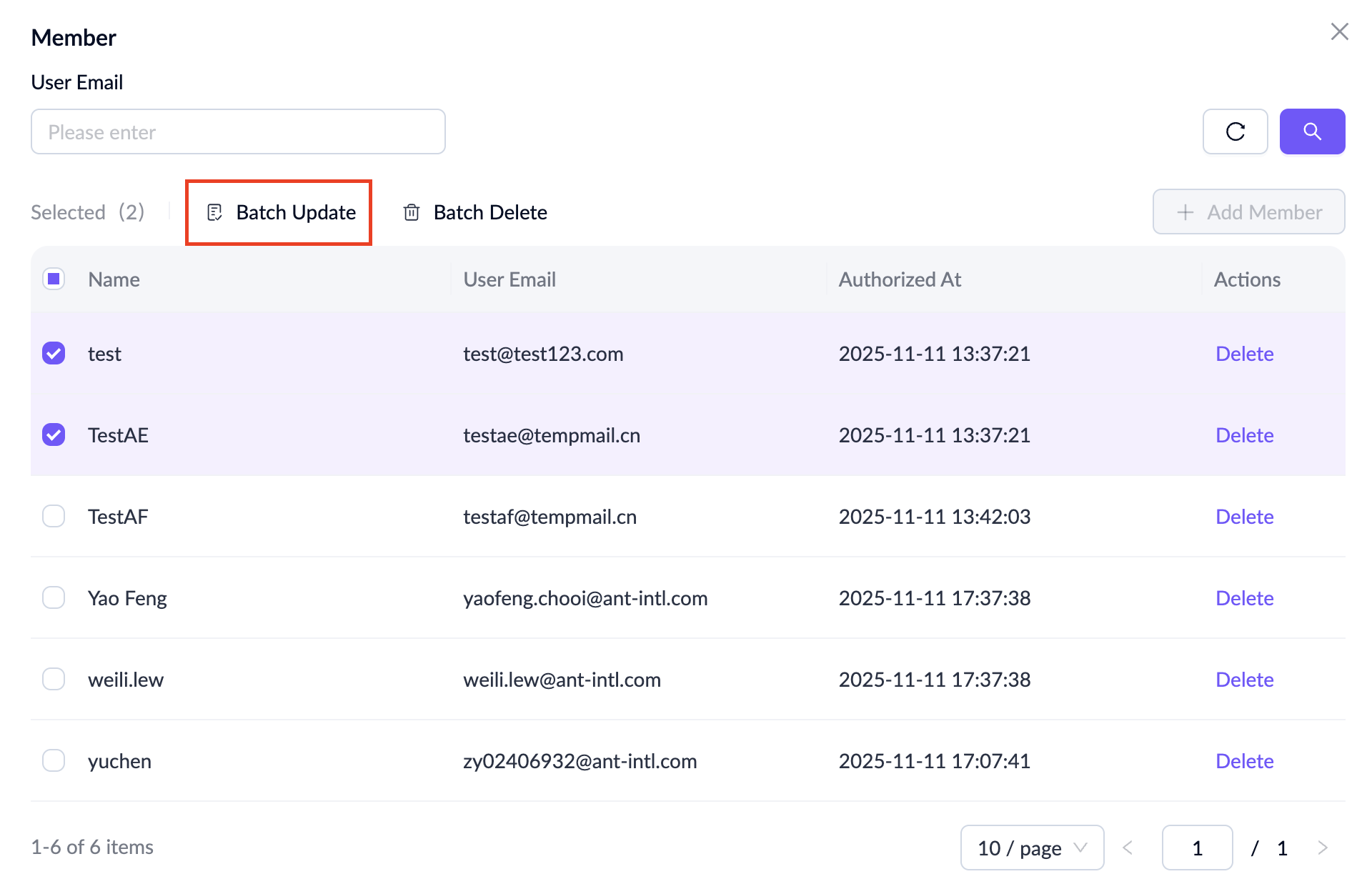
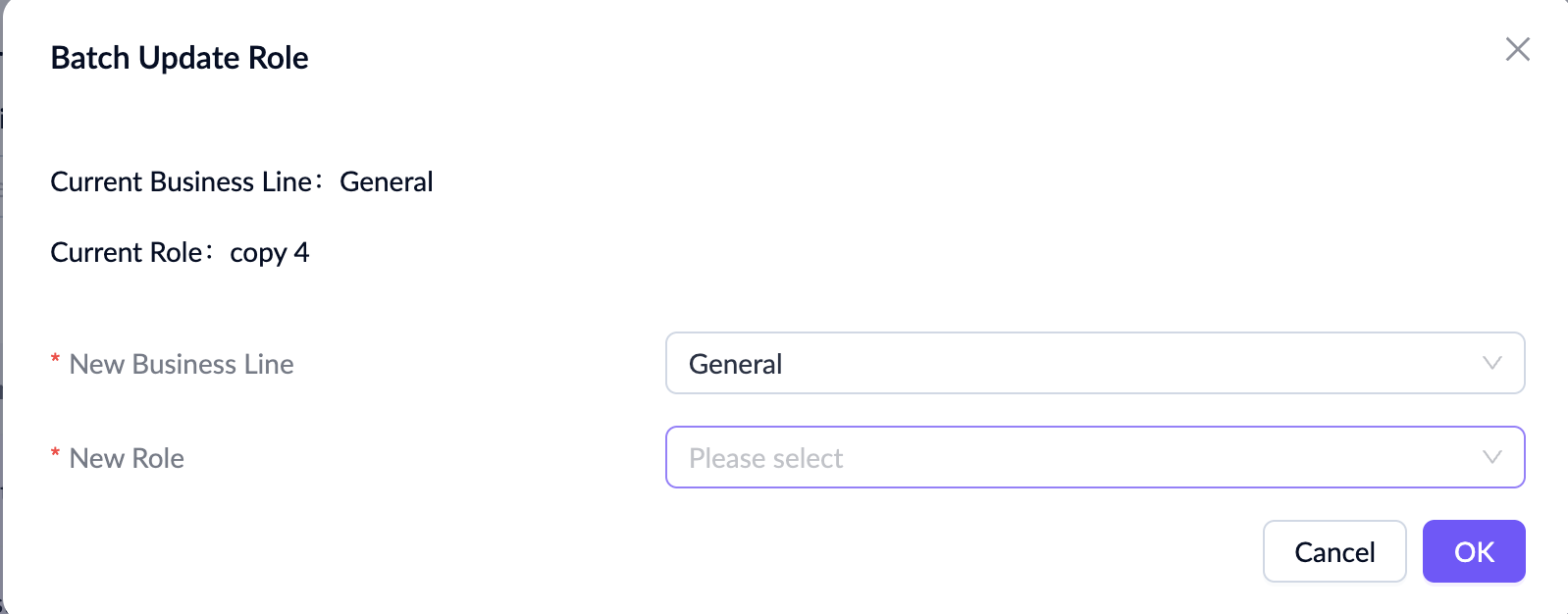
When changing roles, you must first select the target business line and then choose the corresponding target role within that business line.
Manage Business Lines
The Business Lines module allows you to configure and organize business structures. You can add, edit, and delete business lines to support role assignments.
View business line
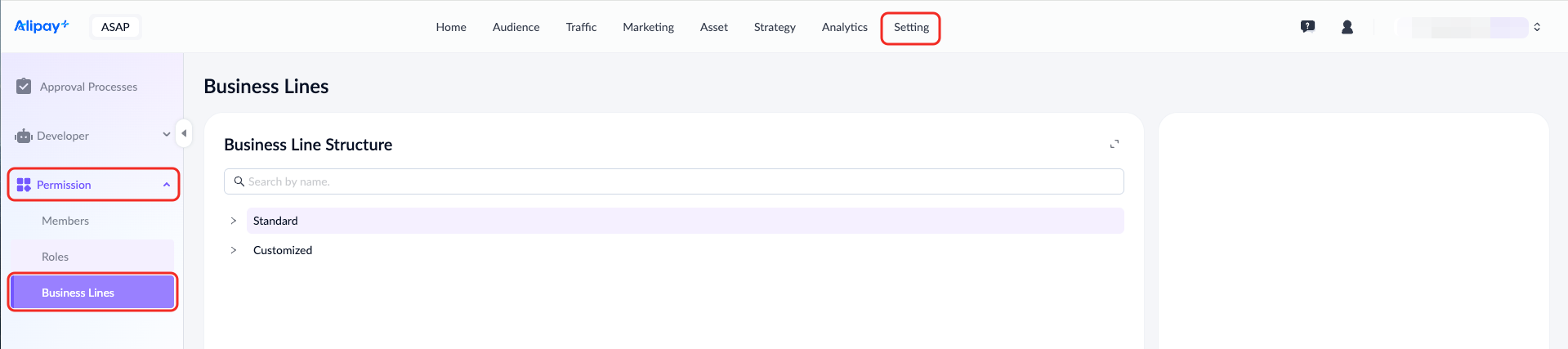
Navigate to Setting > Permission > Business Lines to view the business line structure.
Add business line
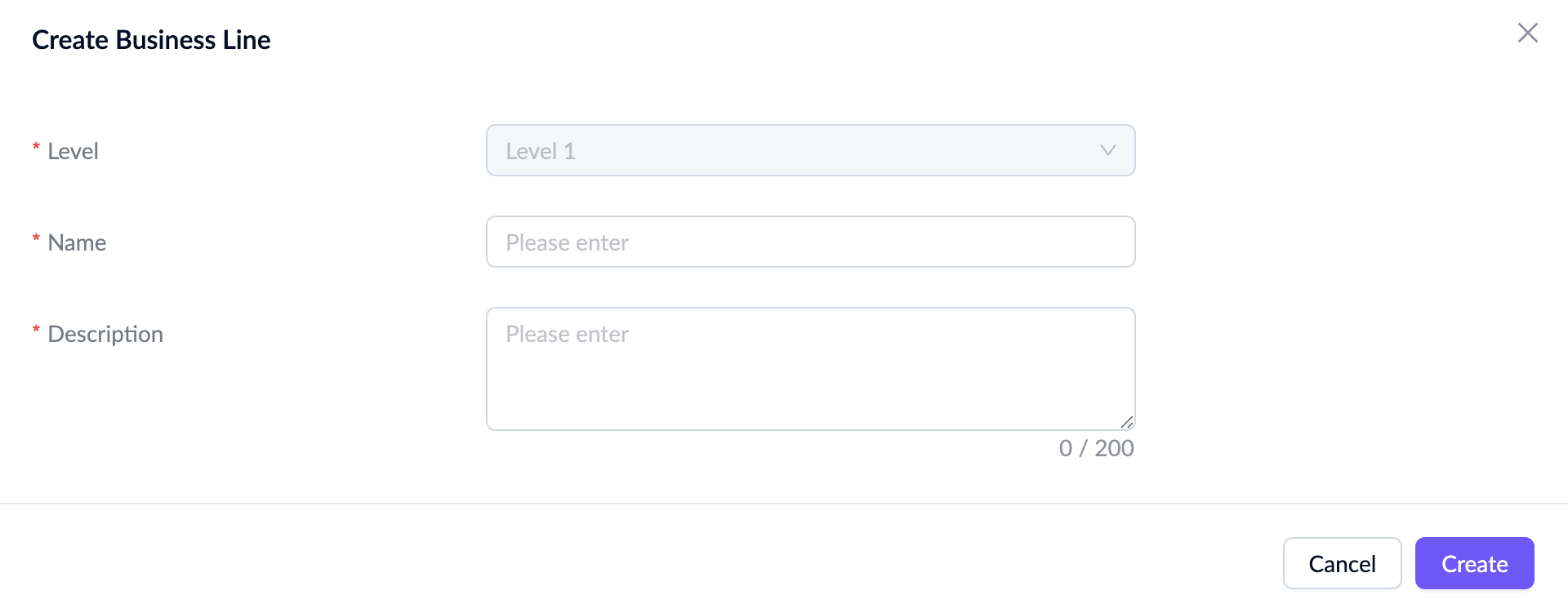
In the tenant workspace, you can only add a customized business line. Before adding the first business line, you need to select a Customized business line in the structure and click Add Subitem.
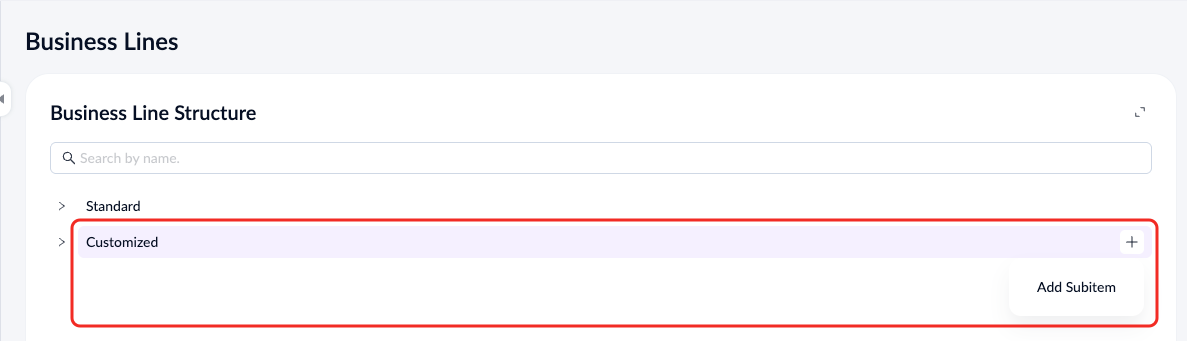
When adding the first business line, its hierarchy level is fixed at Level 1, and you cannot select a parent node.
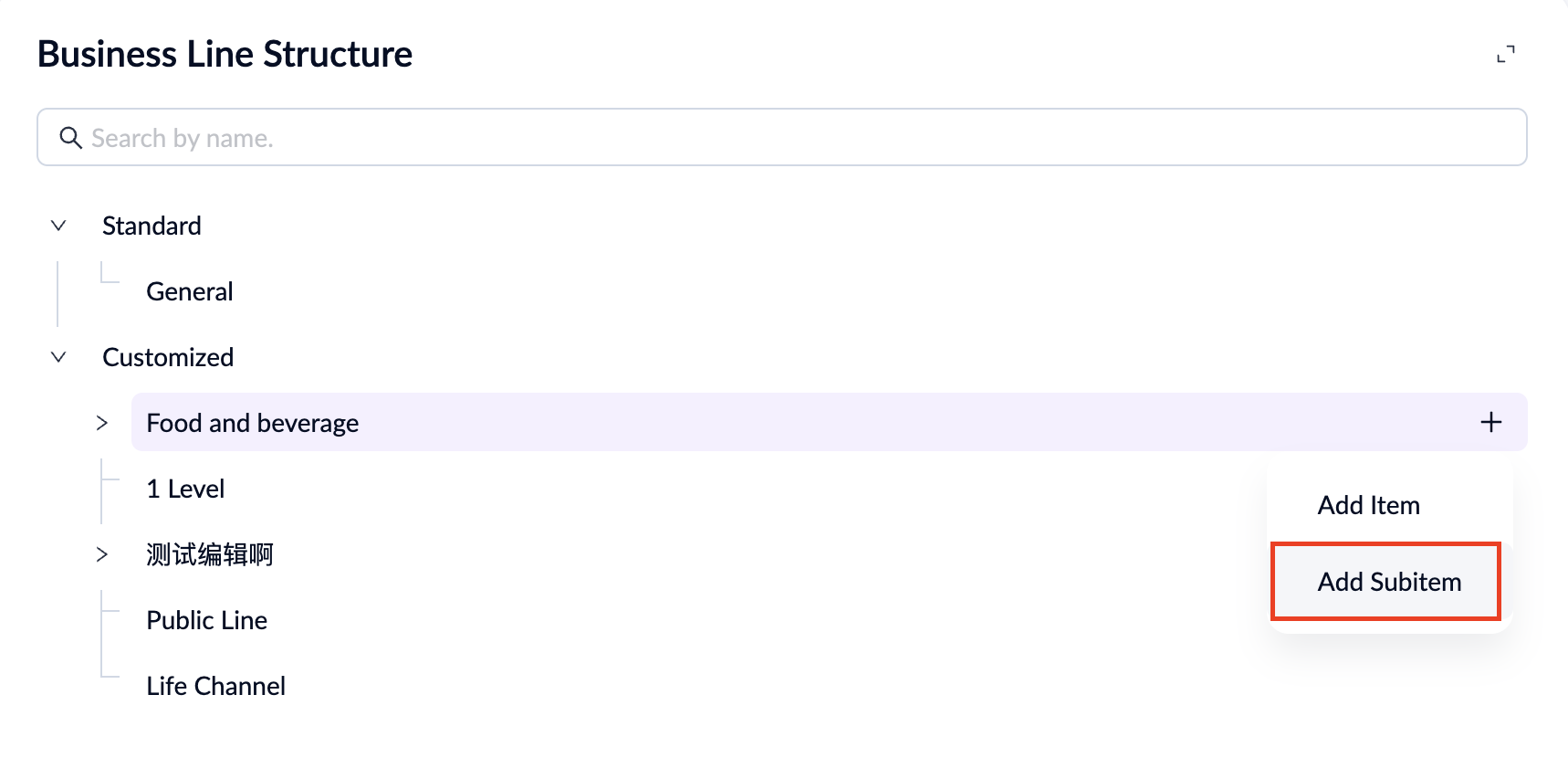
After adding the first business line, you can add additional business lines by adding subitems in the structure.
In the pop-up window, the business line level and parent business line will be automatically filled in based on the selected node.
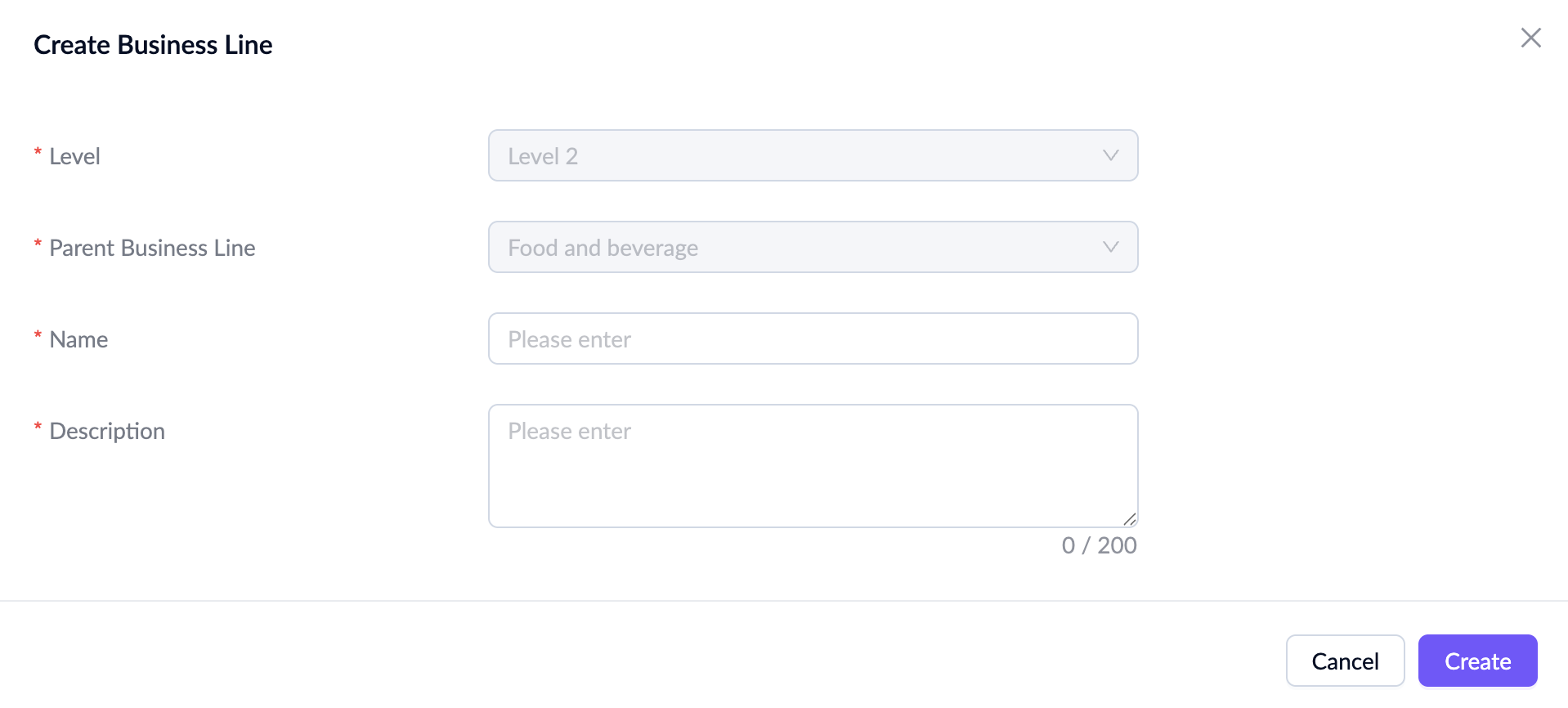 After entering the required information and successfully creating the new business line, it will appear in the business line structure.
Edit business line
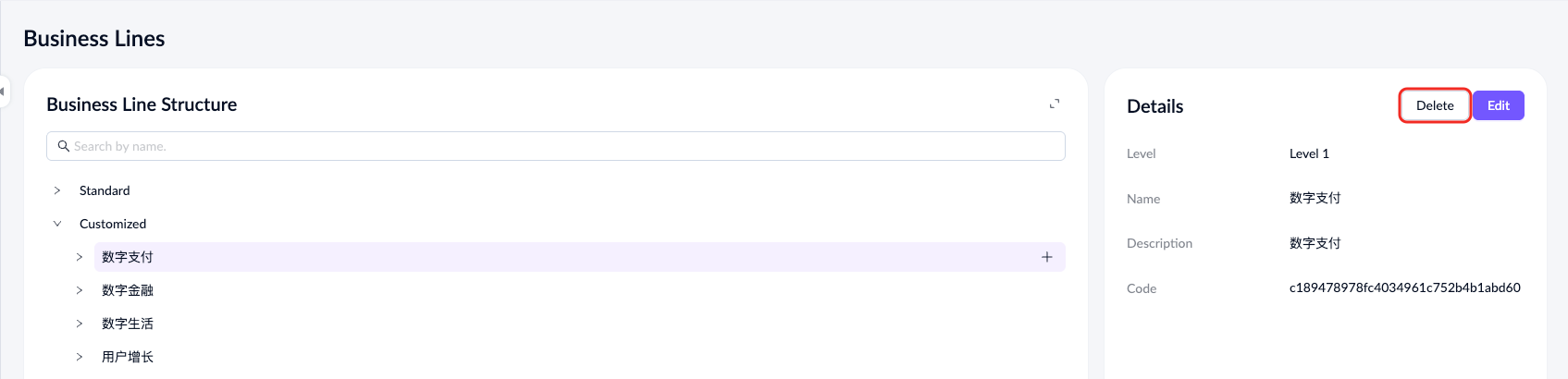
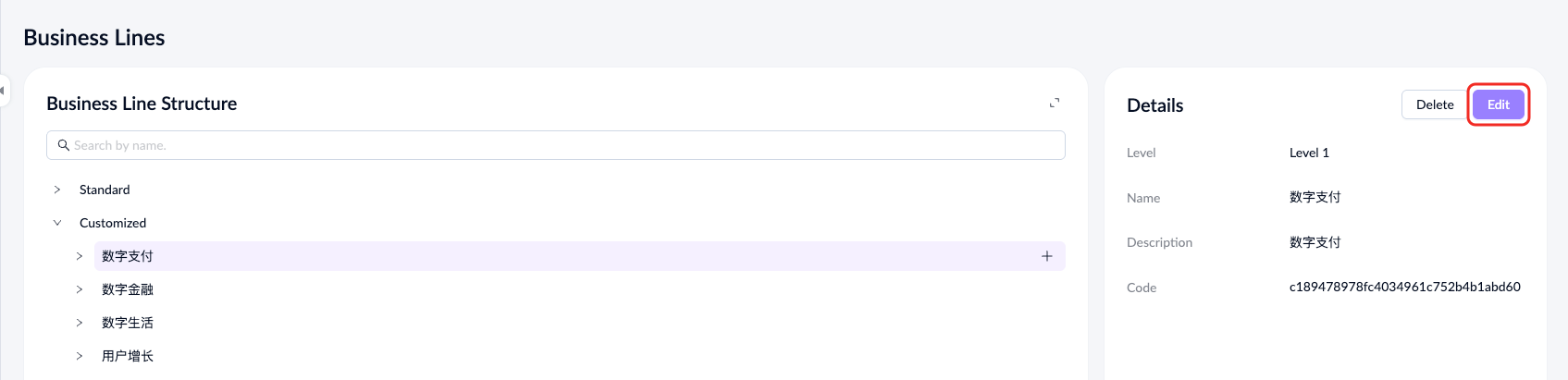
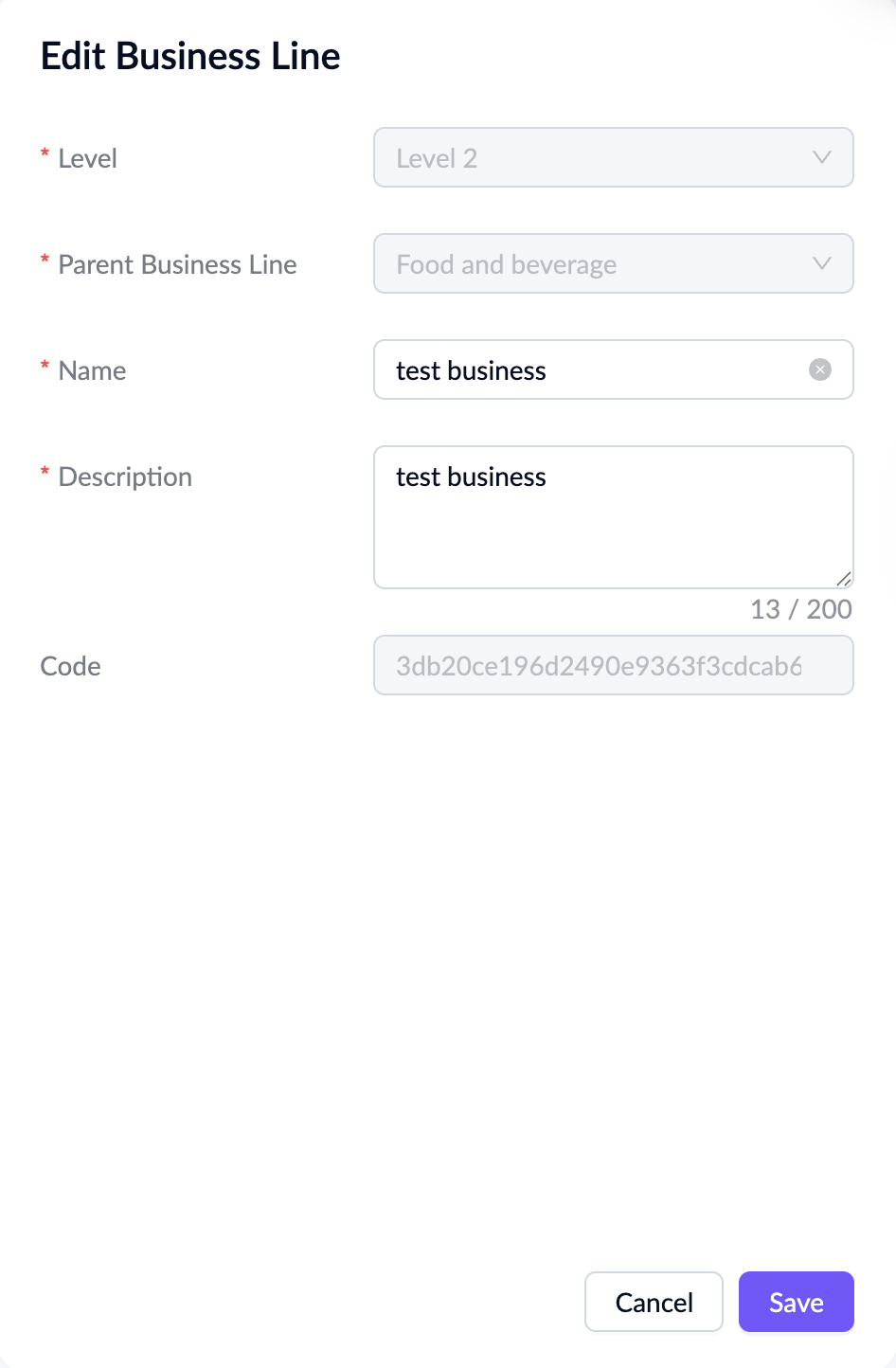
Click a business line in the structure to see its details in the right-side panel. Click Edit in the details panel to change the name and description.
Delete business line
Click Delete in the details panel to remove the business line.
Note: Deleting a business line will affect the roles and members associated with it.