Segment targeting
ASAP provides the capability for various entities, such as merchants, stores, and users to effectively select their target users and carry out precise marketing. This document provides a comprehensive guide to creating and managing user segments.
Create a segment
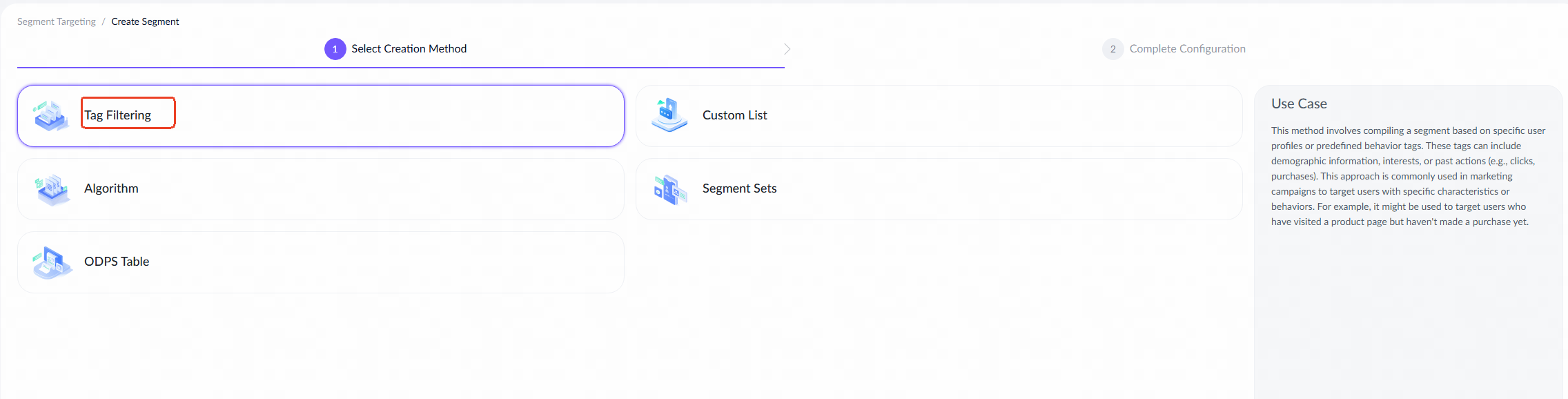
Multiple methods for creating segments are provided, including Tag Filtering, Algorithm, Custom List, ODPS Table, and Segment Sets. Each method offers distinct advantages to cater to specific business needs. Follow the detailed instructions to create a segment.
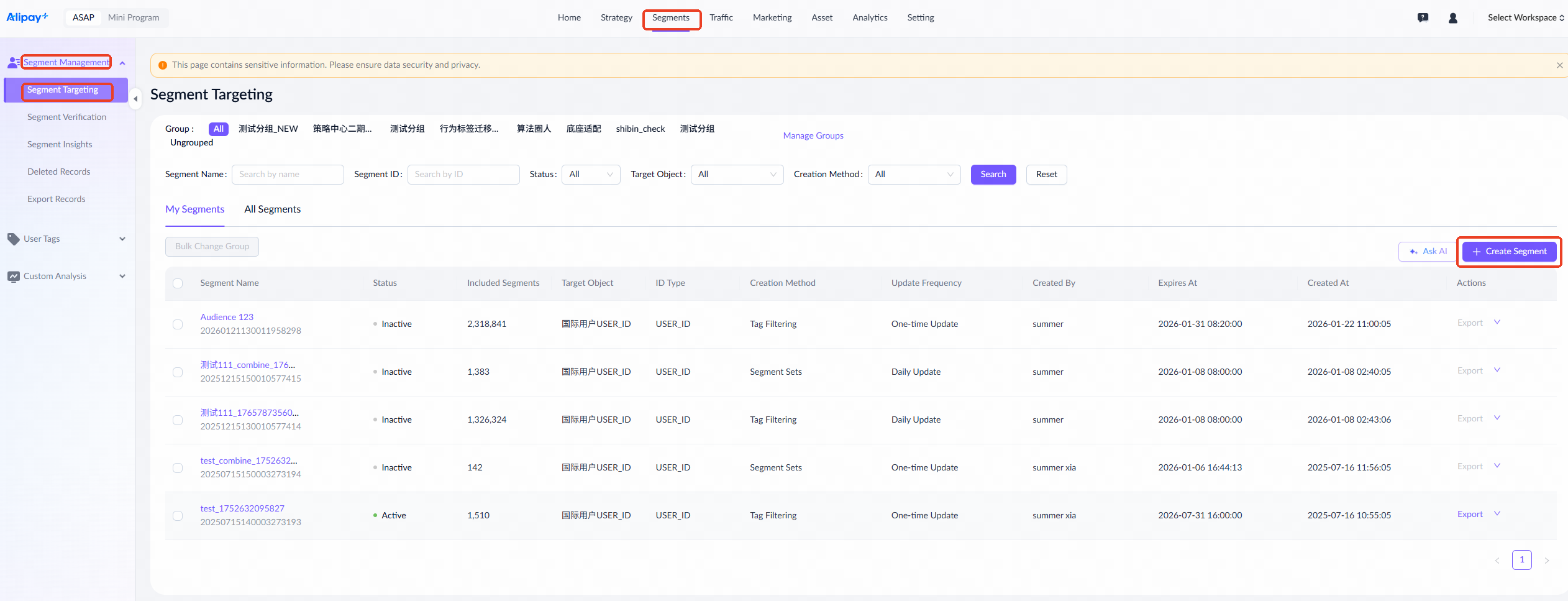
Go to Segments > Segment Management > Segment Targeting to access the segment management page, then click + Create Segment.
Select one of the following methods to create a segment:
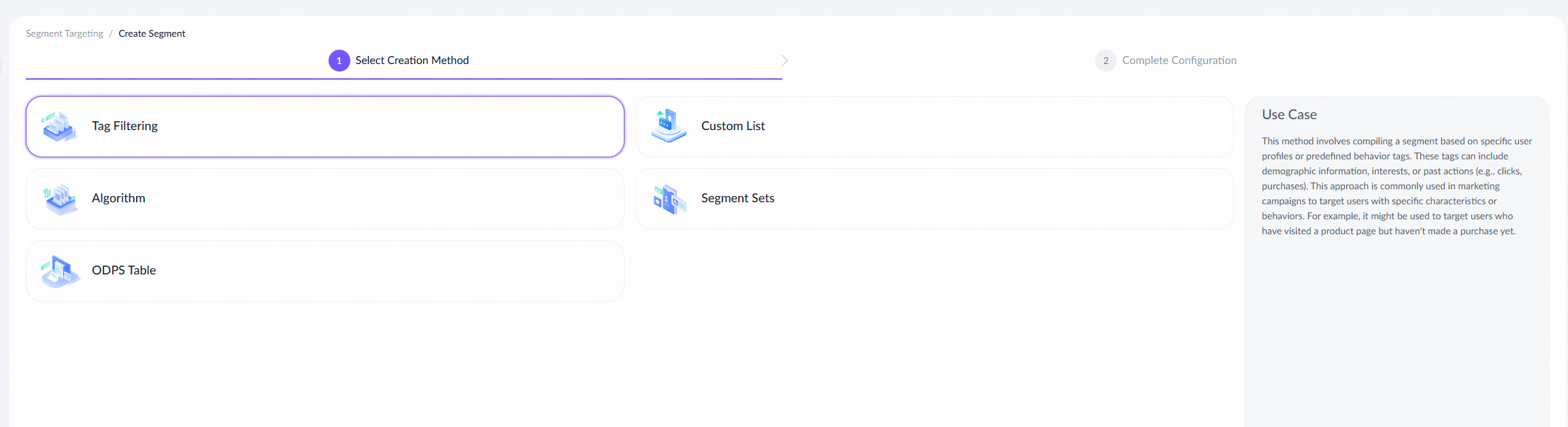
Method | Description |
This method compiles a segment based on specific user profiles or predefined behavior tags, including demographic information, interests, or past actions (e.g., clicks, purchases). This approach is commonly used in marketing campaigns to target users with specific characteristics or behaviors. For example, it might be used to target users who have visited a product page but haven't made a purchase yet. | |
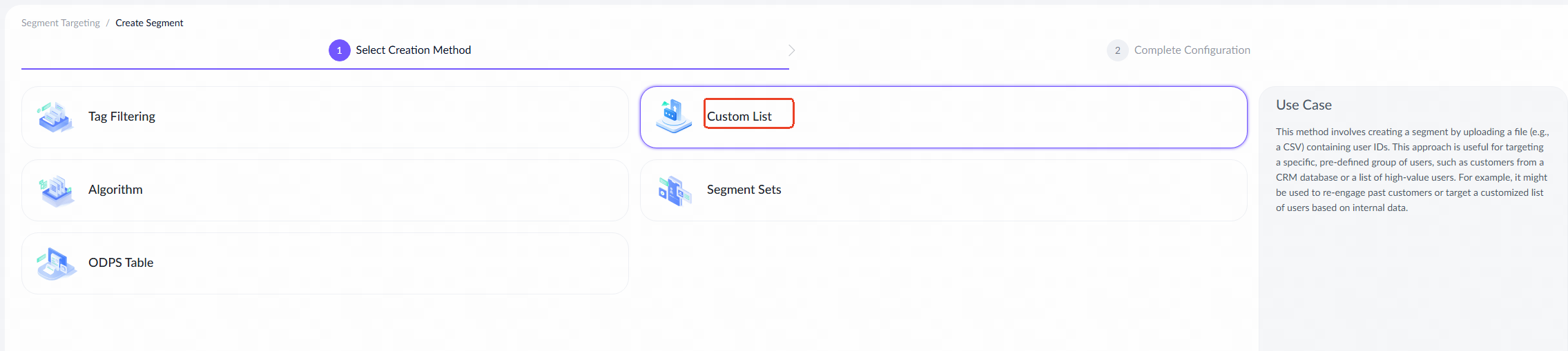
This method involves creating a segment by uploading a file (e.g., a CSV) containing user IDs. This approach is useful for targeting a specific, pre-defined group of users, such as customers from a CRM database or a list of high-value users. For example, it might be used to re-engage past customers or target a customized list of users based on internal data. | |
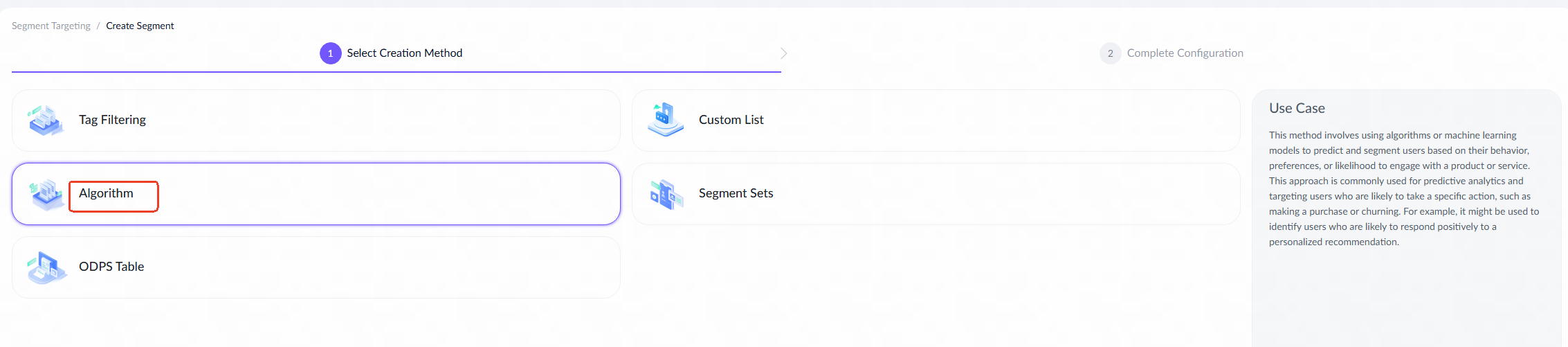
This method involves using algorithms or machine learning models to predict and segment users based on their behavior, preferences, or likelihood to engage with a product or service. This approach is commonly used for predictive analytics and targeting users who are likely to take a specific action, such as making a purchase or churning. For example, it might be used to identify users who are likely to respond positively to a personalized recommendation. | |
This method involves creating a segment by combining or modifying existing segments using set operations (e.g., intersection, union, difference). This approach is useful for refining or customizing existing segments. For example, it might be used to create a new segment that includes users from two different segments or excludes users who have already completed a specific action. | |
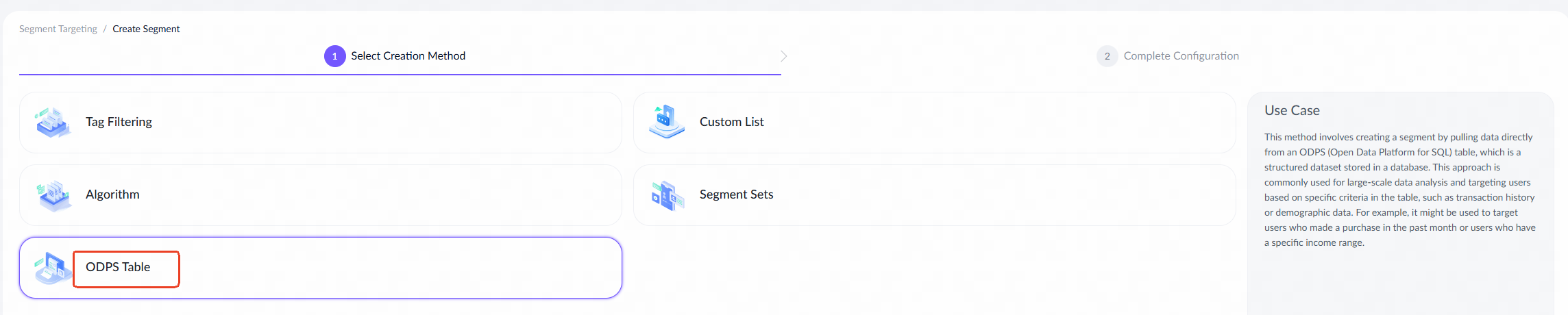
This method involves creating a segment by pulling data directly from an ODPS (Open Data Platform for SQL) table, which is a structured dataset stored in a database. This approach is commonly used for large-scale data analysis and targeting users based on specific criteria in the table, such as transaction history or demographic data. For example, it might be used to target users who made a purchase in the past month or users who have a specific income range. |
Tag filtering
Take the following steps to create a segment via tag filtering:
- Select Tag Filtering to proceed to the segment creation page.
- Complete the following required information on the creation page.
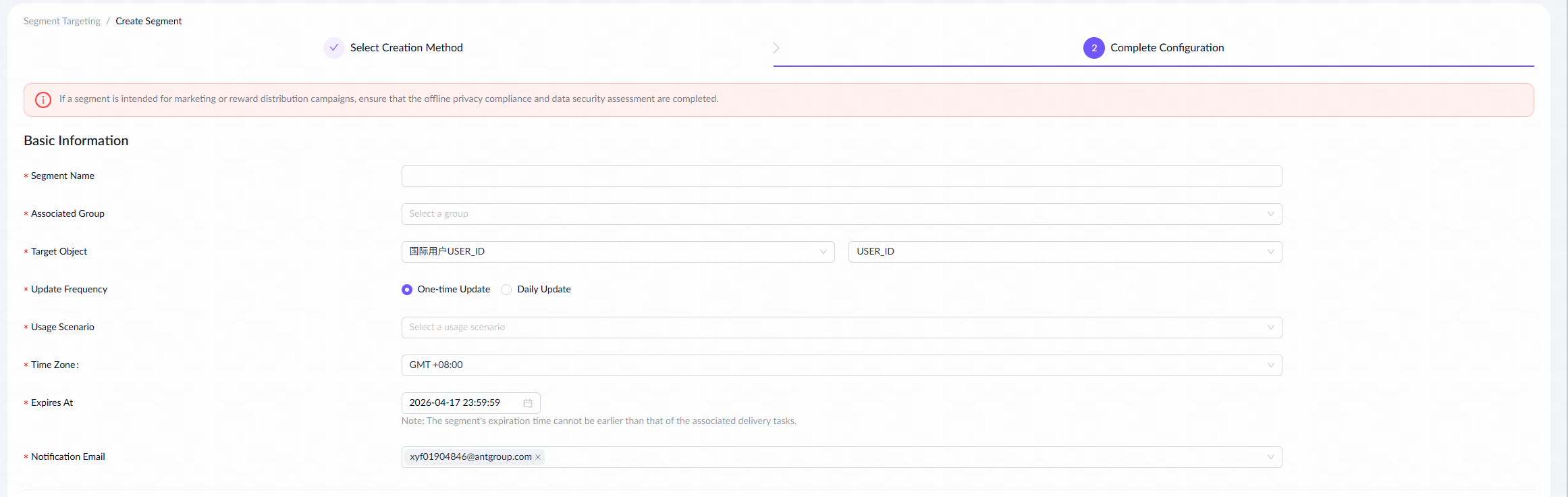
For a detailed explanation of each field and the fill-in instructions, see the following table:
Field name | Description |
Segment Name | The name of the segment. |
Associated Group | Sub-groups within the operations team that manage segments effectively. |
Target Object | The specific entities within the segment, such as users, merchants, or stores. |
Update Frequency | The frequency at which the segment is updated. Valid values are:
|
Usage Scenario | The scenarios in which the segment is used, including Insight Analysis, Messages/Ad Delivery, Reward Distribution, and Leads Distribution.
|
Time Zone | The time zone of the segment. |
Expires At | The date and time when the segment is no longer valid for task delivery. The segment's expiration time cannot be earlier than that of the associated marketing campaigns or delivery tasks. |
Time-sensitive | Applicable only when Daily Update is selected as the update frequency. Select Yes if using the segment could lead to customer complaints or financial losses, ensuring marketing activities trigger only with the latest data. |
Notification Email | The email address for receiving notifications about the segment creation status. |
- Add tags for segment creation.
- Method 1: Choose and add tags from the drop-down menu within the tag rule group.
- Method 2: Search and select tags from the tag list.
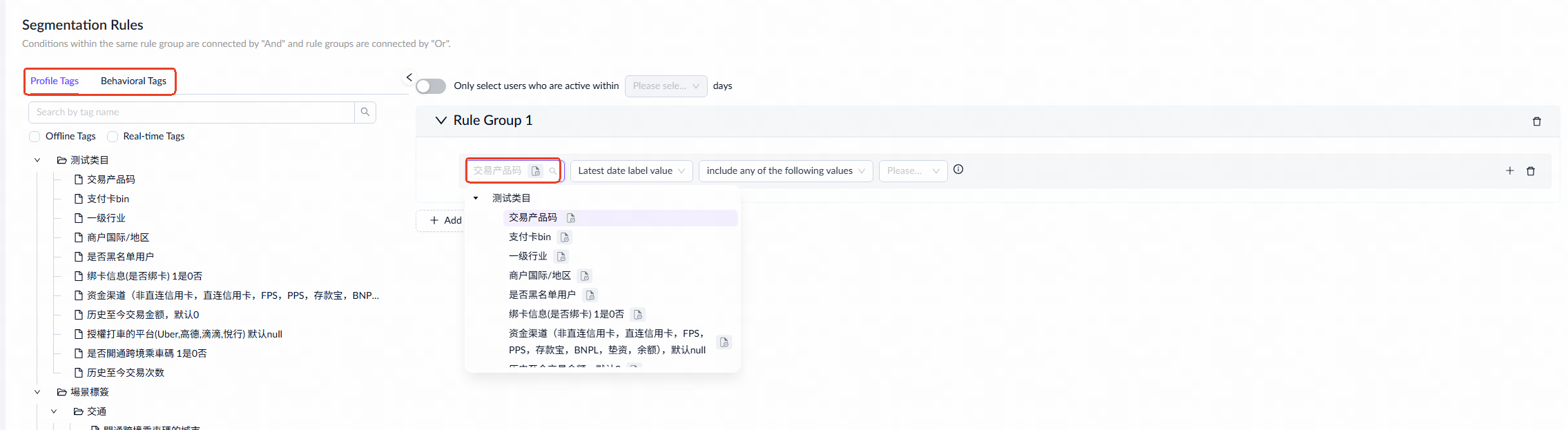
- Configure filter rules.
- Profile Tags
Profile tags define an entity's basic attributes. Usually, the latest tag values are used for user selection, but historical data may also be needed. You can choose from the following three date range options:
- Latest date label value: Select users based on tag values from the most recent date, typically T-1, but sometimes T-2.
- Specifies a date label value: Select users based on tag values from a specific date.
- Label values change at two time points: Select users based on the change in tag values between two specified dates.
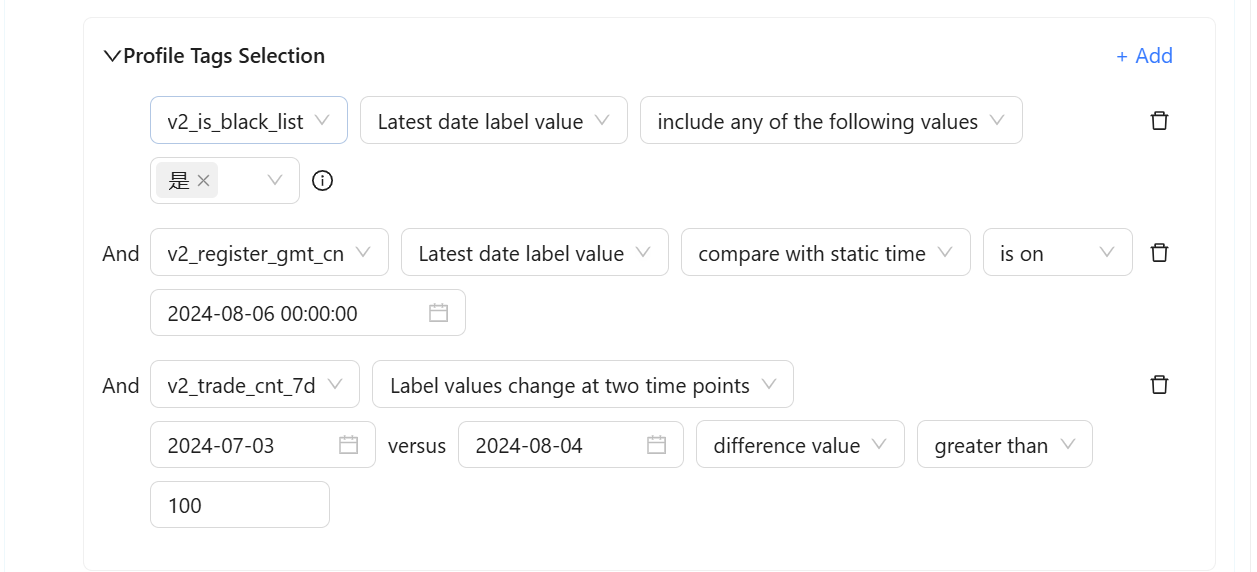
For the filter method, refer to the following table for configuration:
Tag data type | Sample tag | Date range | Filter method | Usage example |
Enumeration | Cities enabled for cross-border ride codes |
|
| [Cities enabled for cross-border ride codes] [Latest date label value] [Include any of the following values] [Shenzhen, Guangzhou, Shanghai] This indicates: On the latest date, users who enabled cross-border ride codes for any of the following cities: Shenzhen, Guangzhou, or Shanghai are selected. |
Boolean | v2_is_black_list (Whether on the risk control blacklist) |
|
| [v2_is_black_list] [Latest date label value ] [Include any of the following values ] [Yes] This indicates: |
Date/Time | v2_register_gmt_cn (User registration time) |
|
| [v2_register_gmt_cn] [Latest date label value] [compare with static time] [is on] [2024-08-06 00:00:00] This indicates: |
Number | v2_trade_cnt_7d (Number of user transactions in the last 7 days) |
| Difference value
| [v2_trade_cnt_7d] [Label value change at two time points] [ 2024-07-30] versus [2024-08-04] [difference value] [greater than] [100] This indicates: |
- Behavior Tags
Behavior tags capture specific user actions and interactions on our platform, enabling insights into user behavior, preferences, and engagement levels. For targeted campaigns or analysis, recent behavior tags are typically used, providing the latest user activity insights. However, historical behavior tags can be crucial for identifying trends and refining strategies. Profile tag user selection has the following types of date selection ranges:
- Fixed time: Select users based on the change in tag values between two specified dates.
- Dynamic time: Select users based on the change in tag values between two dynamic dates, such as T-6 and T+2.
For example, you can select users whose transaction count is no smaller than four between 2025-03-26 and 2025-04-01. Additionally, you can enhance segment precision by adding tag attributes. Note that the selection method varies by attribute data type.
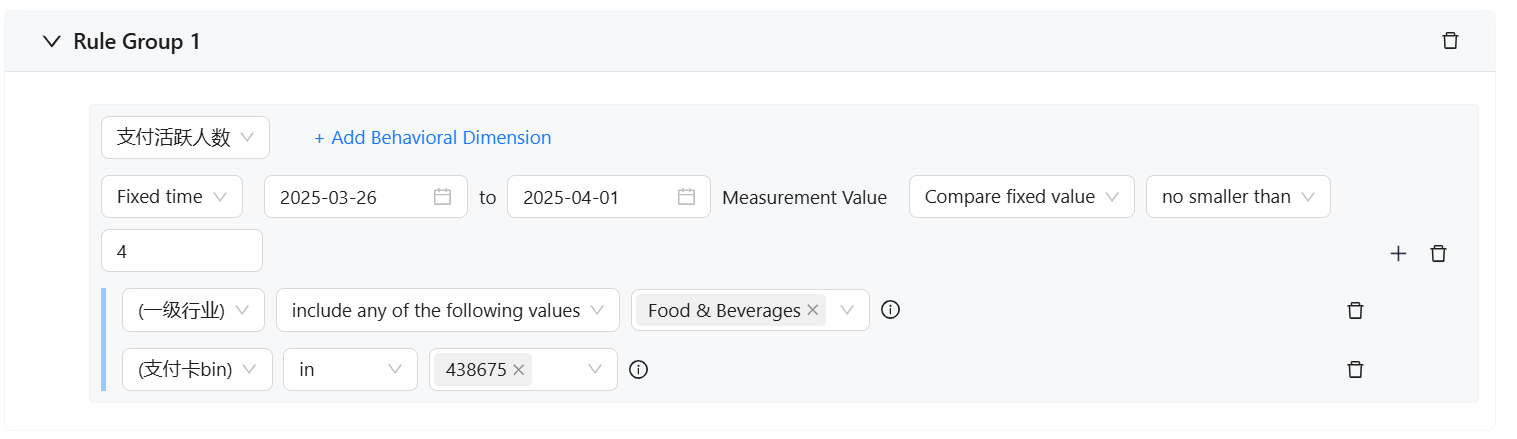
Refer to the following table for the filtering methods of behavior dimensions based on different data types:
Tag data type | Sample tag | Filter method | Usage examples |
Enumeration | 1st level industry |
| [1st level industry] [includes any of the following values] [Food & Beverages] This indicates: |
Number | Card BIN No |
| [Card BIN No] [equal] [438675] This indicates: |
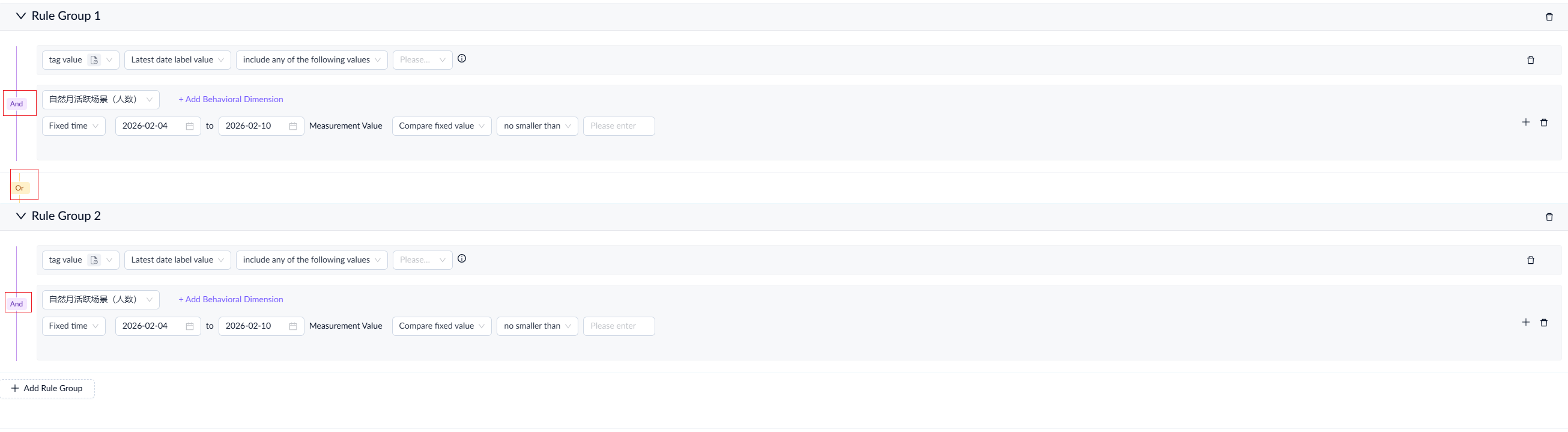
Note: Conditions within a rule group have an 'AND' relationship, requiring users to meet all criteria to qualify. Different rule groups have an 'OR' relationship, meaning that meeting any single group's criteria filters in the corresponding segment.
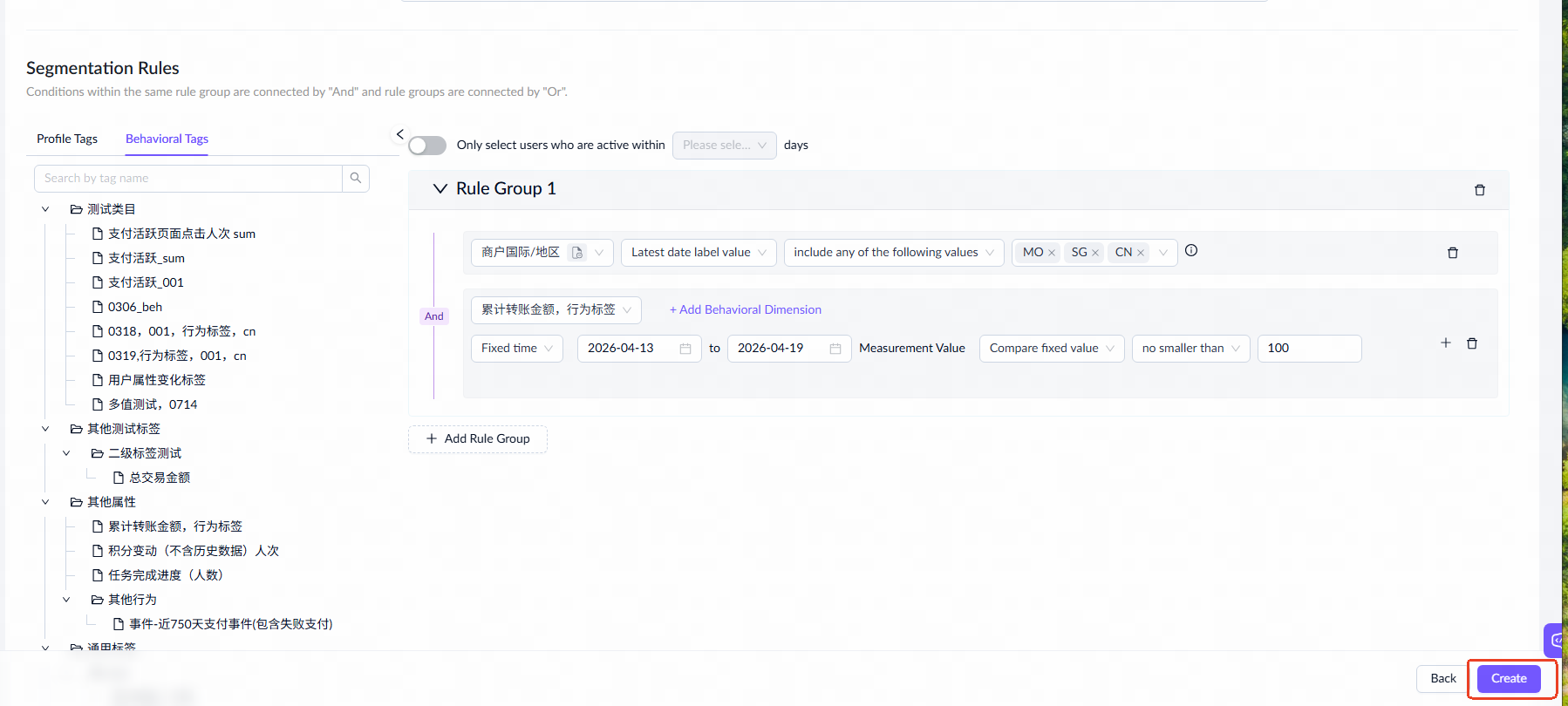
- Click Create to view the estimated segment size and review the automatically generated SQL based on the selection rules to ensure the logic is correct.
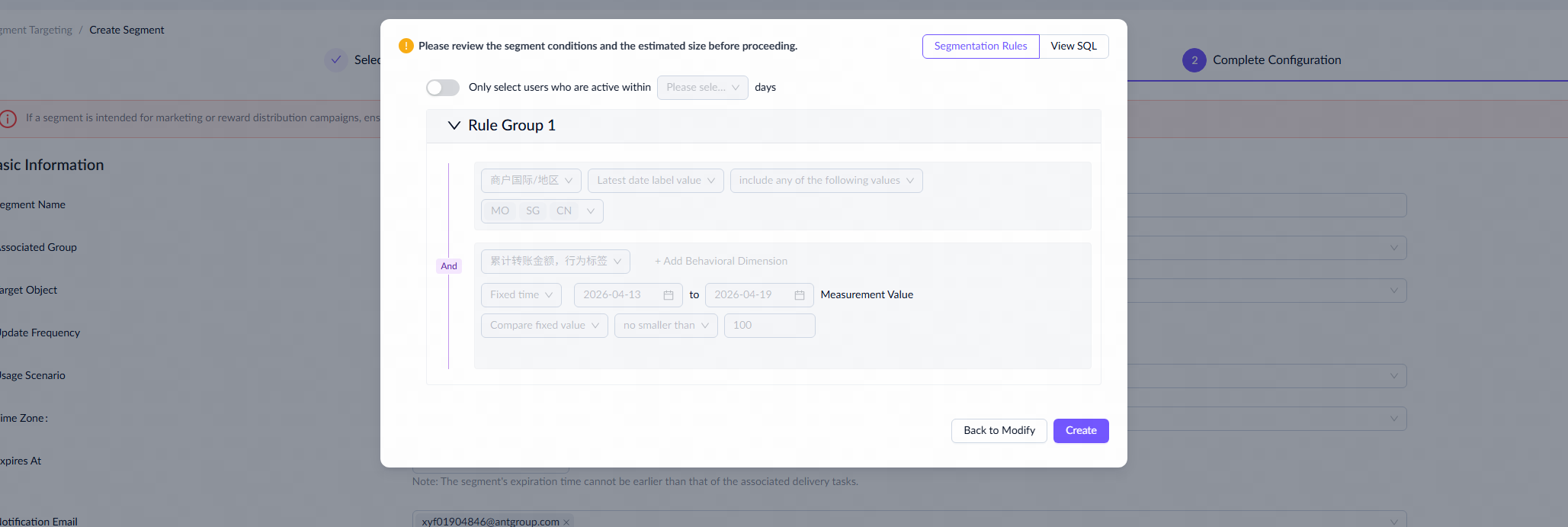
Once the creation is complete, you will be redirected to the segment list page, where the segment will be in a Generating status. It may take some time to complete.

When the segment status updates to Active, it has been created successfully and is ready for use in task configuration.

Tag filtering and segment combination
On the creation page, users can select an existing segment and combine it with the current one to create a new segment. This allows users to merge different creation methods, further refining the segment to meet specific needs.
Take the following steps for segment combination:
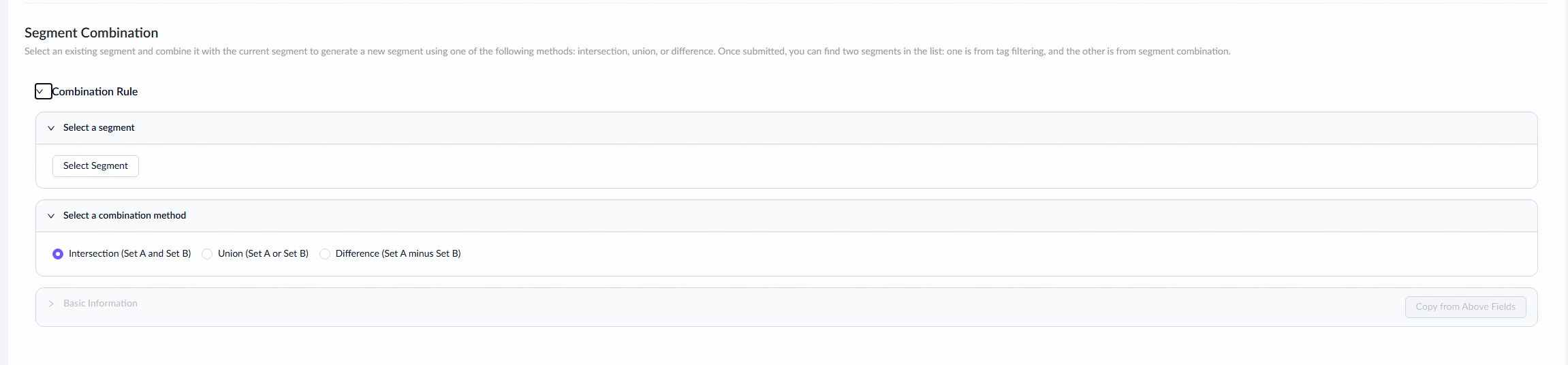
- Go to the Segment Combination section. Click the drop-down arrow to expand the section and view the configuration details.
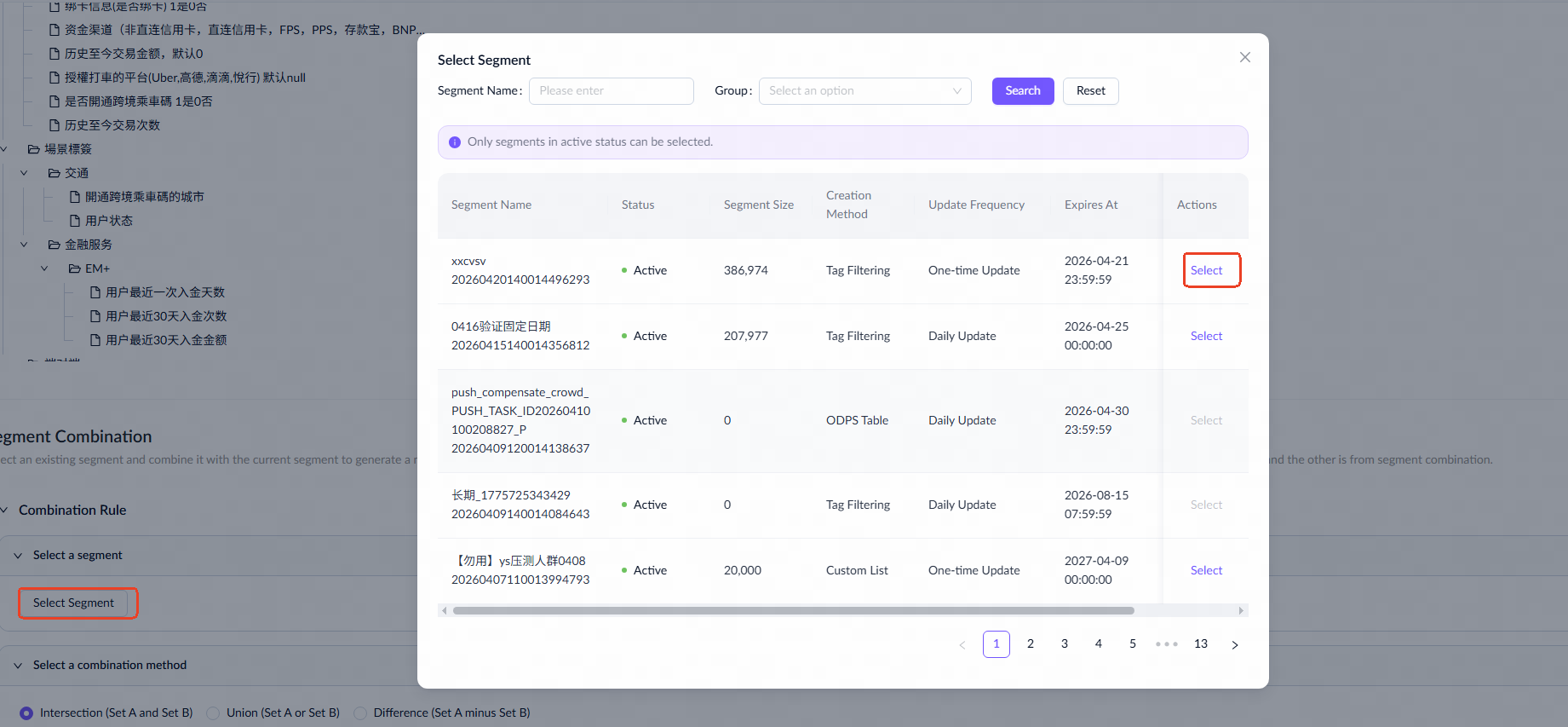
- Click Select Segment to open the segment list page, where you can choose the segment you want to combine. Then, click Select.
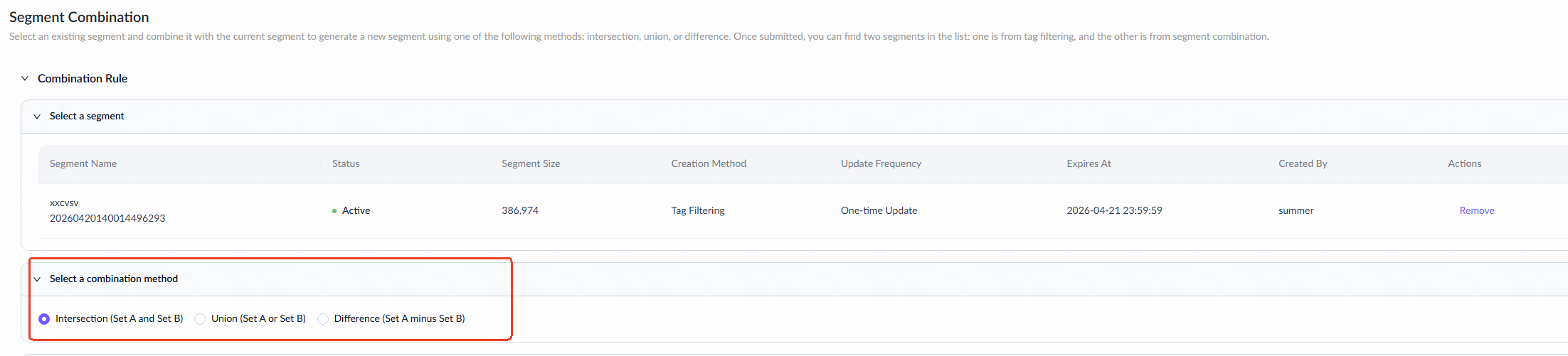
- Select one of the following combination methods:
- Intersection (Set A & Set B): Users common to both segments.
- Union (Set A or Set B): Users from both segments, meeting either condition.
- Difference (Set A minus Set B): Users in one segment but not in the other.
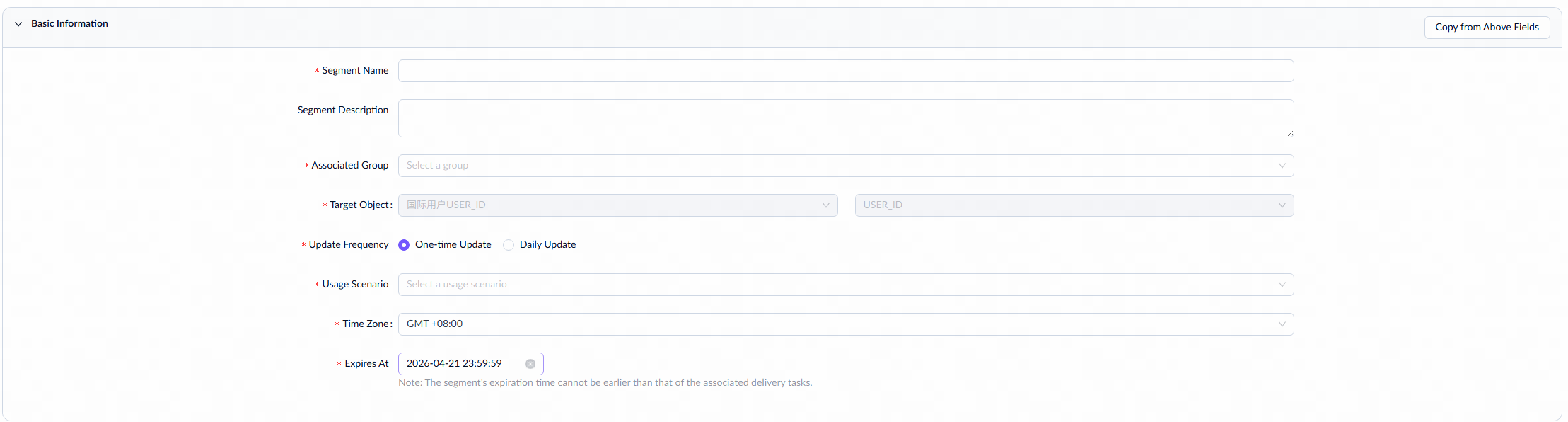
- Fill in the basic information for the combined segment. You can click Copy from Above Fields to use previously entered details (excluding the segment name) or enter new information manually.
- Click Create to complete the process, then return to the segment list to check the segment's status.
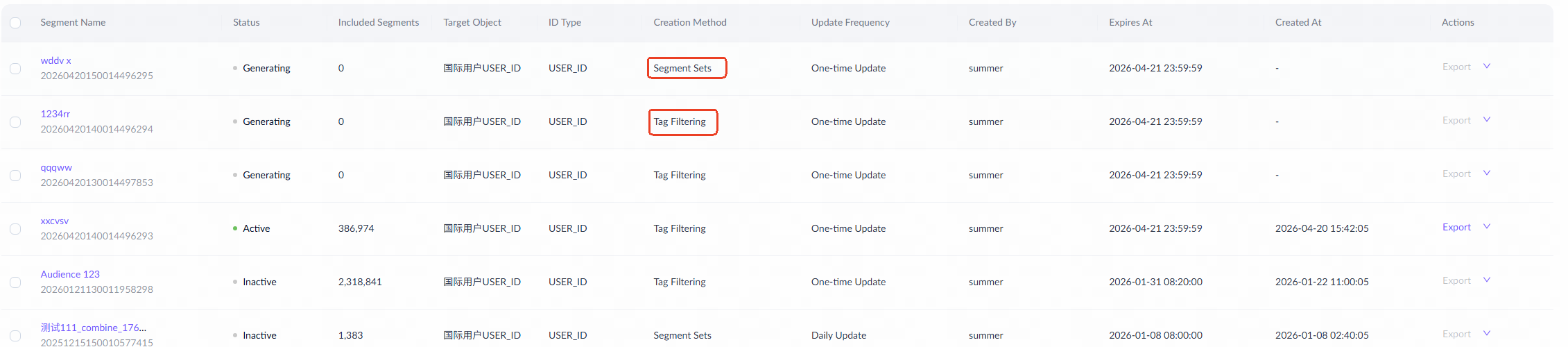
Once created, you will see two segments in the list: one from tag filtering and the other from segment combination. When the segment status is updated to Active, it is ready for task configuration.
Custom list
Take the following steps to create a segment via file upload:
- Select Custom List to proceed to the segment creation page.
- Complete the following required information on the creation page.
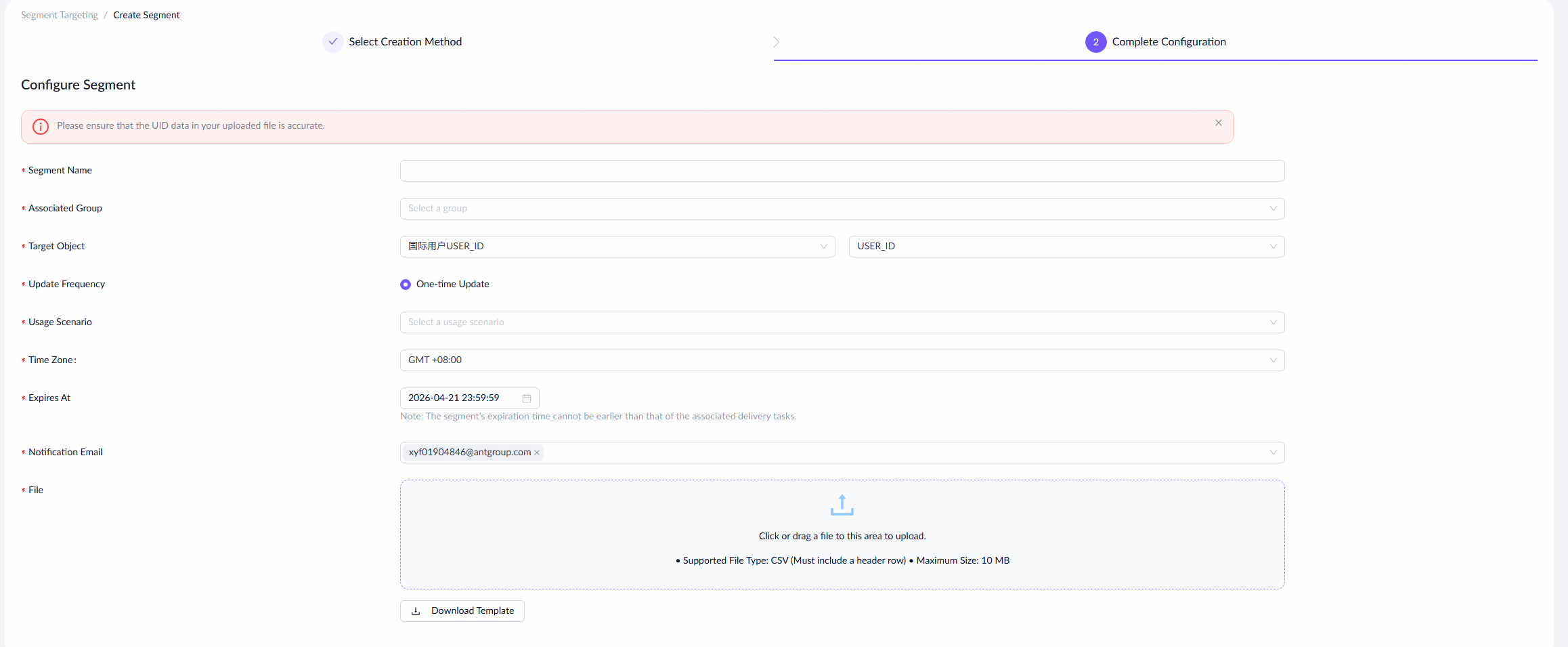
For a detailed explanation of each field and the fill-in instructions, see the following table:
Field name | Description |
Segment Name | The name of the segment. |
Associated Group | Sub-groups within the operations team that manage segments effectively. |
Target Object | The specific entities within the segment, such as users, merchants, or stores. |
Update Frequency | The frequency of updating the segment. The value defaults to One-time Update. |
Usage Scenario | The scenarios in which the segment is used, including Insight Analysis, Messages/Ad Delivery, Reward Distribution, and Leads Distribution.
|
Time Zone | The time zone of the segment. |
Expires At | The date and time when the segment is no longer valid for task delivery. The segment's expiration time cannot be earlier than that of the associated delivery tasks. |
Notification Email | The email address for receiving notifications about the segment creation status. |
File Upload | Download the file template and fill in the merchant or user ID information. Please note the following requirements for the file:
|
- Click Create to return to the segment list page.
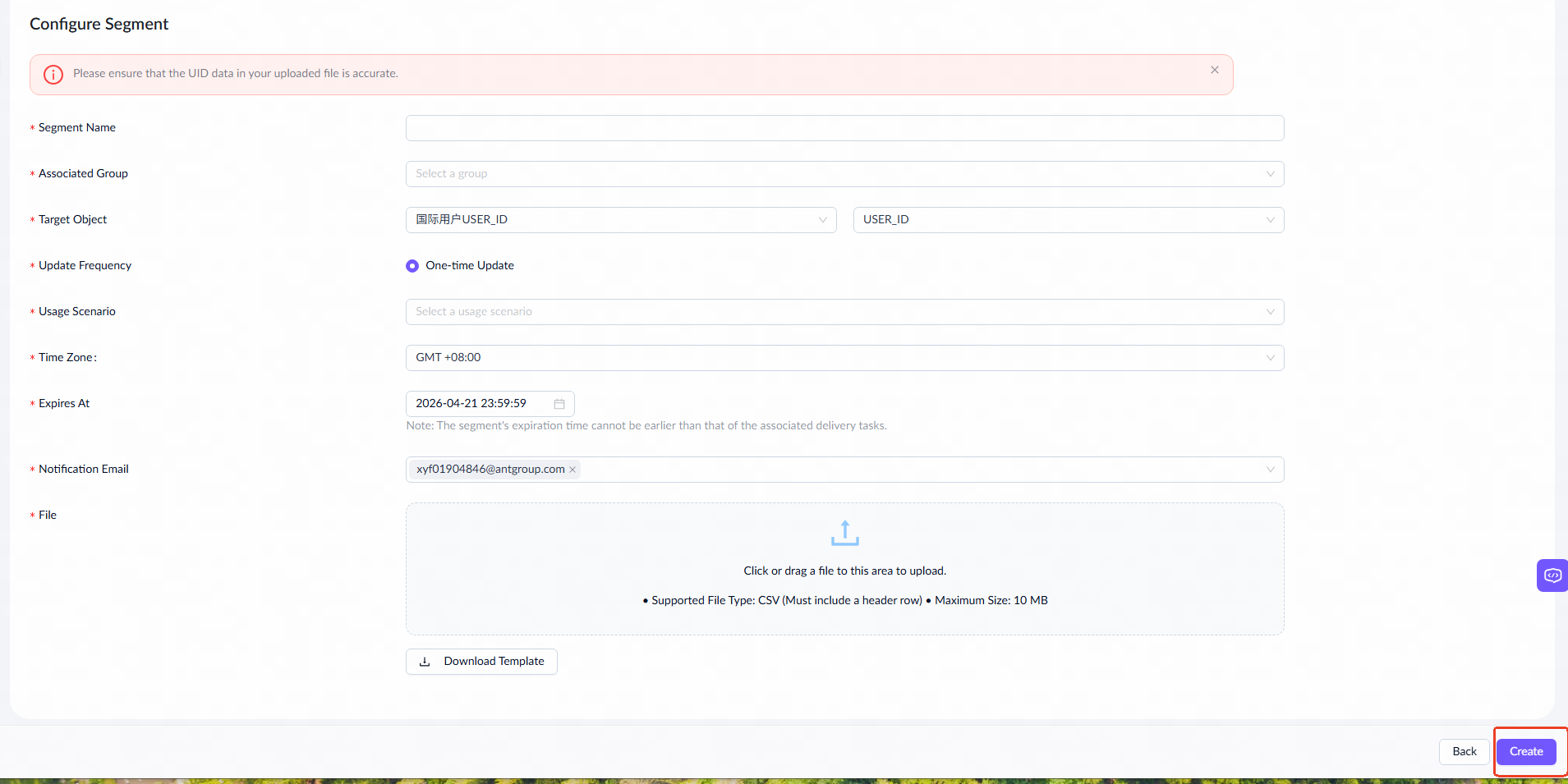
Once the segment status is updated to Active, the segment is successfully created and is ready for task configuration.

Algorithm
Currently, the mini-program platform only supports the Lookalike algorithm, which expands the seed segment by finding users similar to the selected seed users.
Take the following steps to create a segment via algorithm:
- Select Algorithm to proceed to the segment creation page.
- Complete the following required information on the creation page.
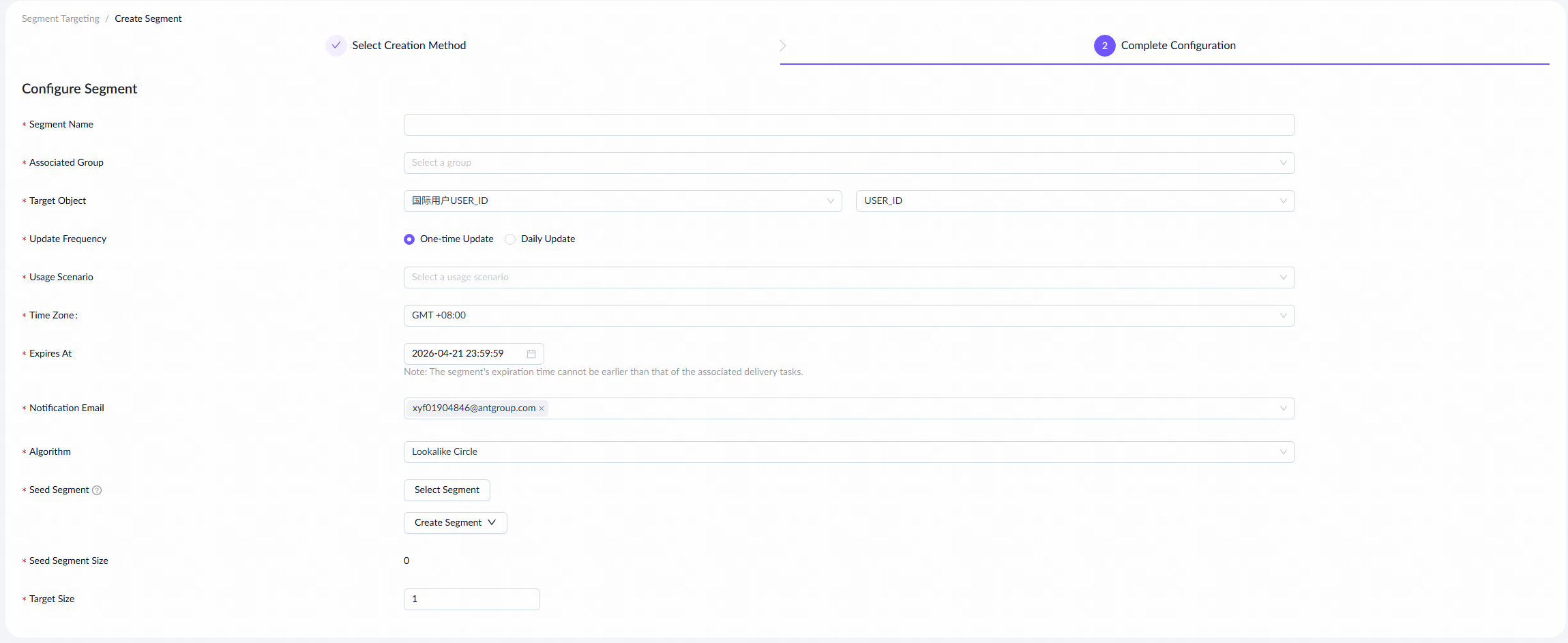
For a detailed explanation of each field and the fill-in instructions, see the following tables:
Field name | Description |
Segment Name | The name of the segment. |
Associated Group | Sub-groups within the operations team that manage segments effectively. |
Target Object | The specific entities within the segment, such as users, merchants, or stores. |
Update Frequency | The frequency at which the segment is updated. Valid values are:
|
Usage Scenario | The scenarios in which the segment is used, including Insight Analysis, Messages/Ad Delivery, Reward Distribution, and Leads Distribution.
|
Time Zone | The time zone of the segment. |
Expires At | The date and time when the segment is no longer valid for task delivery. The segment's expiration time cannot be earlier than that of the associated delivery tasks. |
Notification Email | The email address for receiving notifications about the segment creation status. |
Algorithm | Select the algorithm model to generate the segment. Currently, ASAP supports only the Lookalike algorithm, which expands the seed segment by finding users similar to the selected seed users. |
Seed Segment | The segment that helps the algorithm find more users with similar traits and behaviors more efficiently. You can define a seed segment using one of the following methods:
|
Seed Segment Size | The number of entities in the selected seed segment. |
Target Size | The expected number of users after amplifying the seed segment. |
- Click Create. You will be redirected back to the segment list page.
- Once the segment status is updated to Active, the segment is successfully created and is ready for task configuration.

Segment sets
Take the following steps to create a segment by combining segments:
- Select Segment Sets to proceed to the segment creation page.
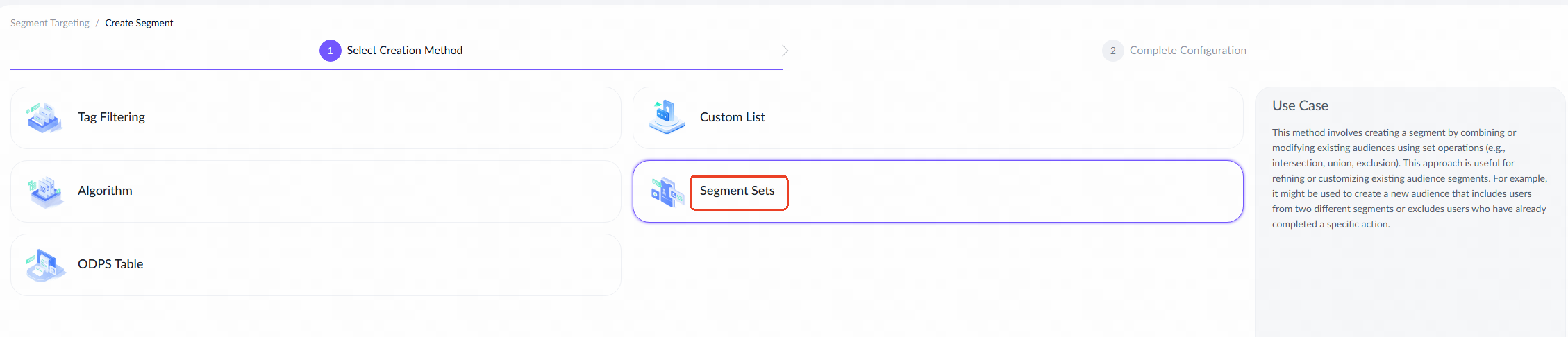
- Complete the following required information on the creation page.
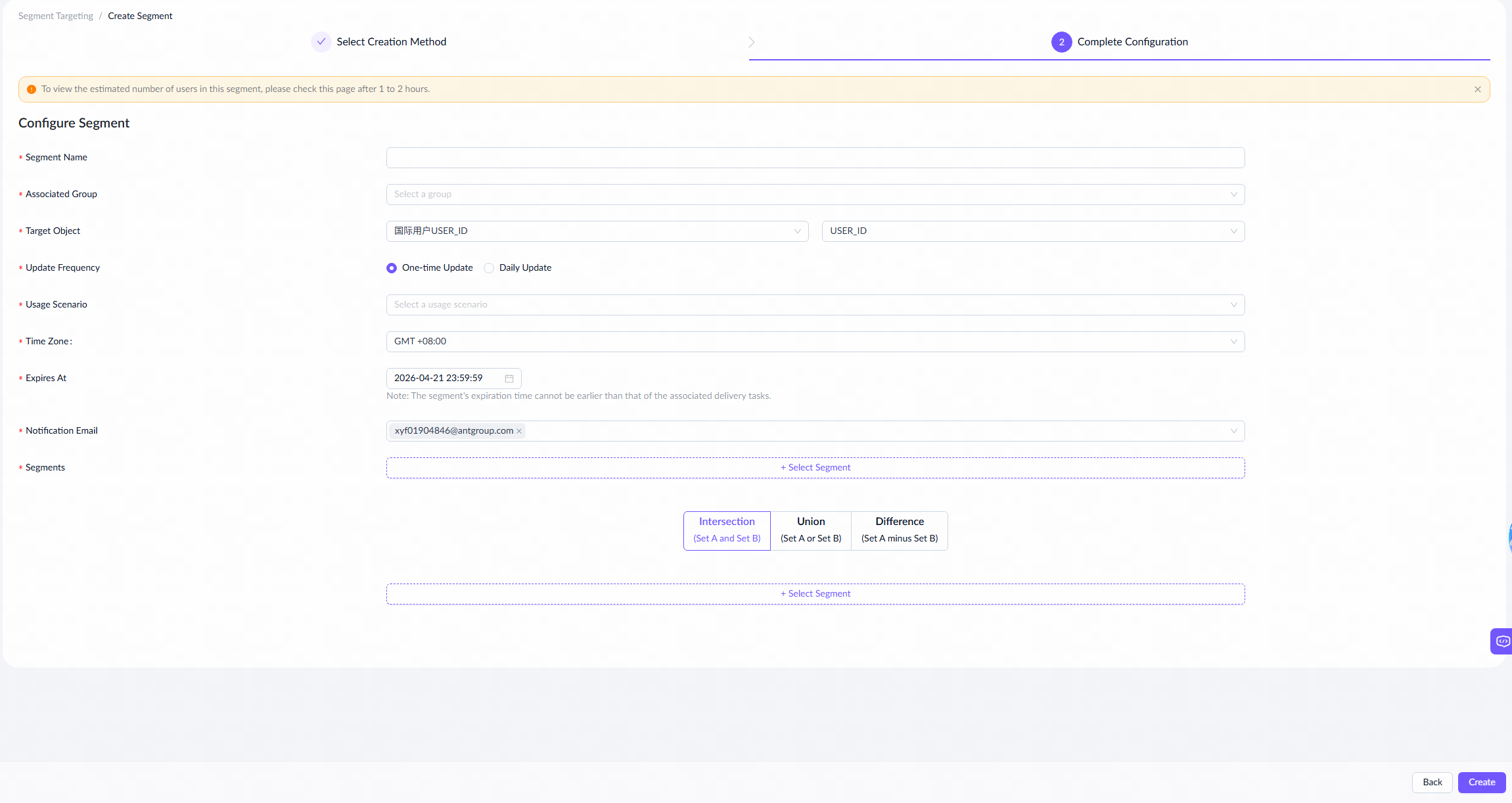
For a detailed explanation of each field and the fill-in instructions, see the following table:
Field name | Description |
Segment Name | The name of the segment. |
Associated Group | Sub-groups within the operations team that manage segments effectively. |
Target Object | The specific entities within the segment, such as users, merchants, or stores. |
Update Frequency | The frequency at which the segment is updated. Valid values are:
|
Usage Scenario | The scenarios in which the segment is used, including Insight Analysis, Messages/Ad Delivery, Reward Distribution, and Leads Distribution.
|
Time Zone | The time zone of the segment. |
Expires At | The date and time when the segment is no longer valid for task delivery. The segment's expiration time cannot be earlier than that of the associated delivery tasks. |
Notification Email | The email address for receiving notifications about the segment creation status. |
Segments | Pre-created segments for combination. Note that only active segments can be selected. |
Combination Method | Select one of the following methods to create a new segment by combining two pre-existing segments.
|
- Click Create. You will be redirected back to the segment list page.
- Once the segment status is updated to Active, the segment has been successfully created and is ready for task configuration.

ODPS table
ODPS selection is based on Alibaba Cloud's large-scale data computing service. By analyzing and manipulating data, it helps efficiently filter target users. Depending on operational needs, specific users can be screened (e.g., purchase history or activity levels) by writing SQL queries in ODPS.
Note: ASAP assumes no responsibility for the accuracy of data in ODPS tables. For target segments used in marketing campaigns, ensure that the ODPS table meets quality standards by confirming with the table owner. Users are fully responsible for the accuracy of all input data and the results generated.
Take the following steps to create segments via an ODPS table:
- Select ODPS Table to proceed to the segment creation page.
- Complete the following required information on the creation page.
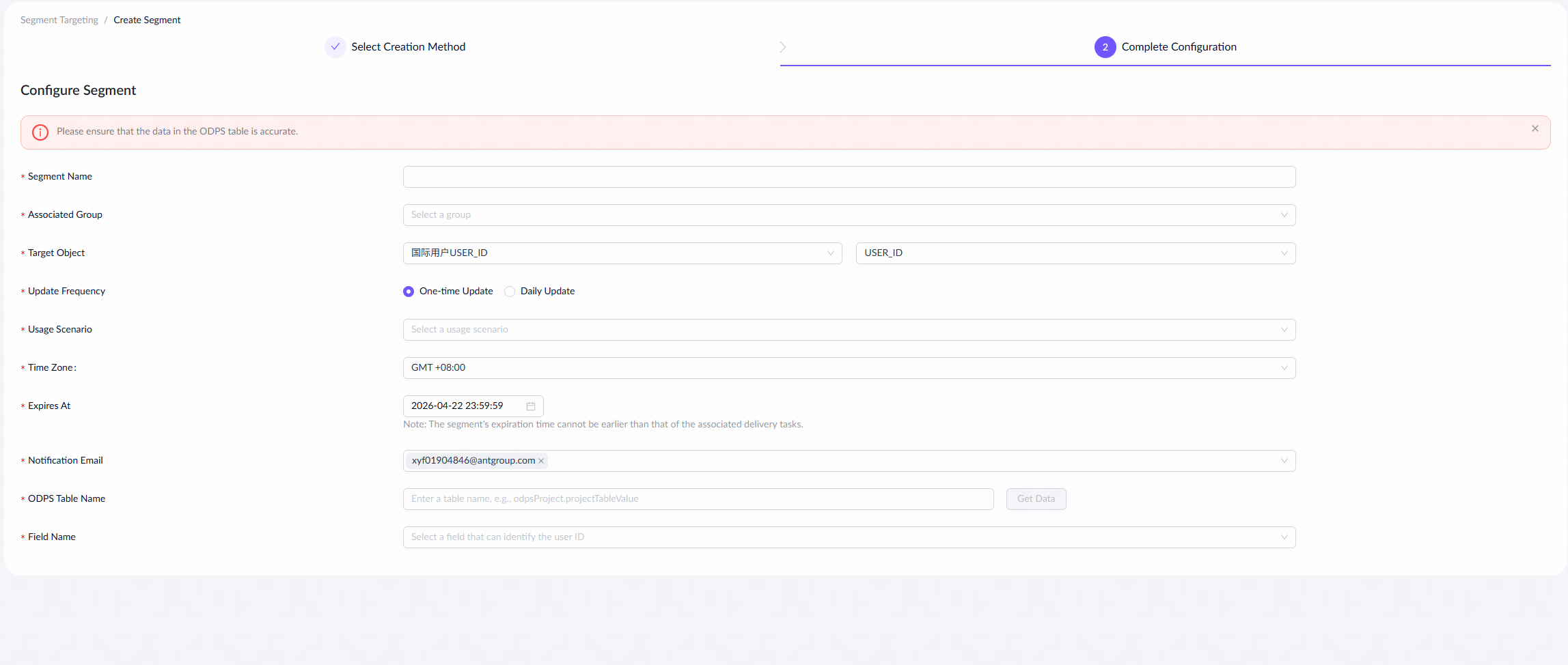
For a detailed explanation of each field and the fill-in instructions, see the following table:
Field name | Description |
Segment Name | The name of the segment. |
Associated Group | Sub-groups within the operations team that manage segments effectively. |
Target Object | The specific entities within the segment, such as users, merchants, or stores. |
Update Frequency | The frequency at which the segment is updated. Valid values are:
|
Usage Scenario | The scenarios in which the segment is used, including Insight Analysis, Messages/Ad Delivery, Reward Distribution, and Leads Distribution.
|
Time Zone | The time zone of the segment. |
Expires At | The date and time when the segment is no longer valid for task delivery. The segment's expiration time cannot be earlier than that of the associated delivery tasks. |
Notification Email | The email address for receiving notifications about the segment creation status. |
ODPS Table Name | Enter the ODPS table name. Click Get Data to retrieve the fields from the table. |
Field Name | Select a field that can identify the user ID from the loaded table fields. |
- Click Create. You will be redirected back to the segment list page.
- Once the segment status is updated to Active, the segment has been successfully created and is ready for task configuration.

Manage segment
This section outlines how to manage segments, including grouping, viewing, exporting, extending validity, deleting, and verifying them.
Group segment
Segment grouping involves creating, editing, and deleting segment groups.
Create a segment group
To create a group, take the following steps:
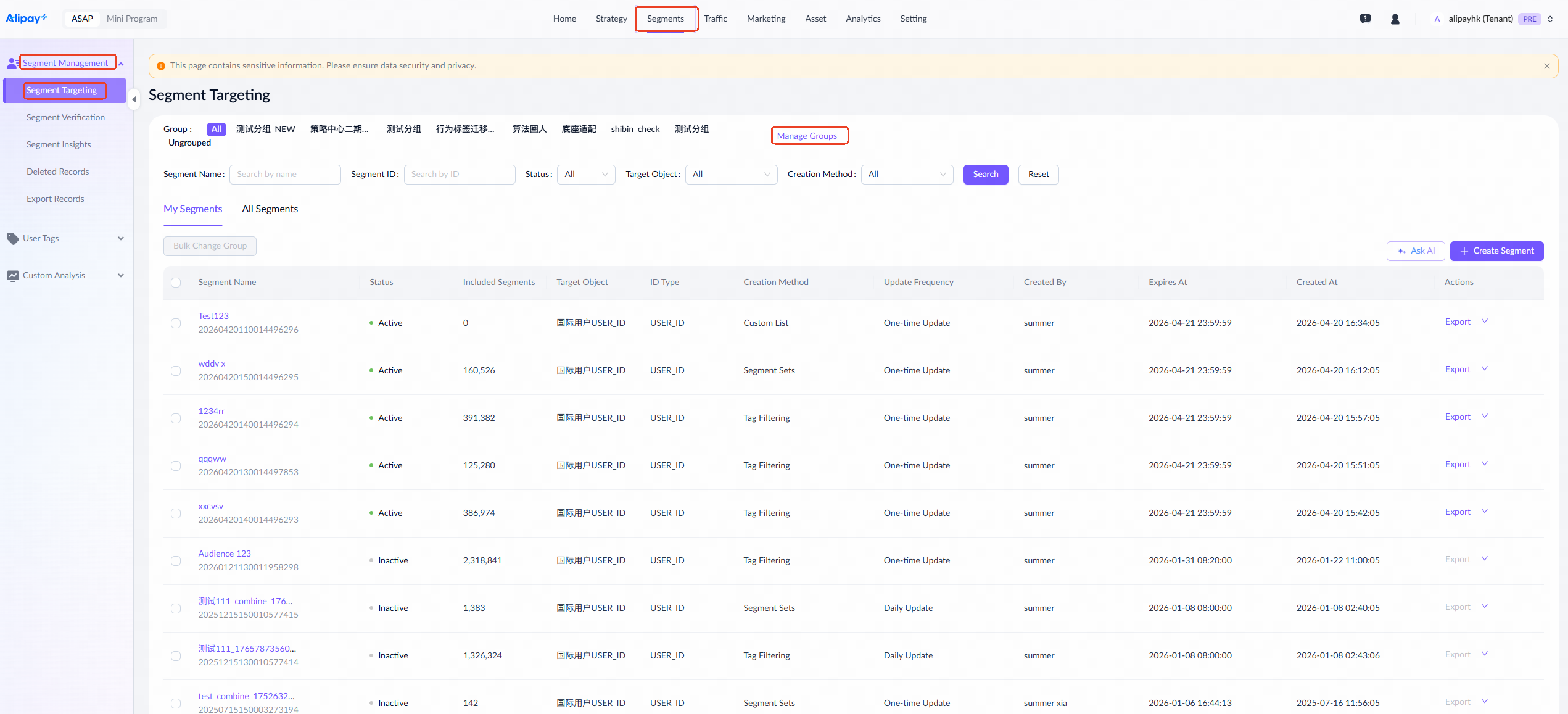
- Go to Segments > Segment Management > Segment Targeting to access the segment management page. Click Manage Groups at the top-right corner.
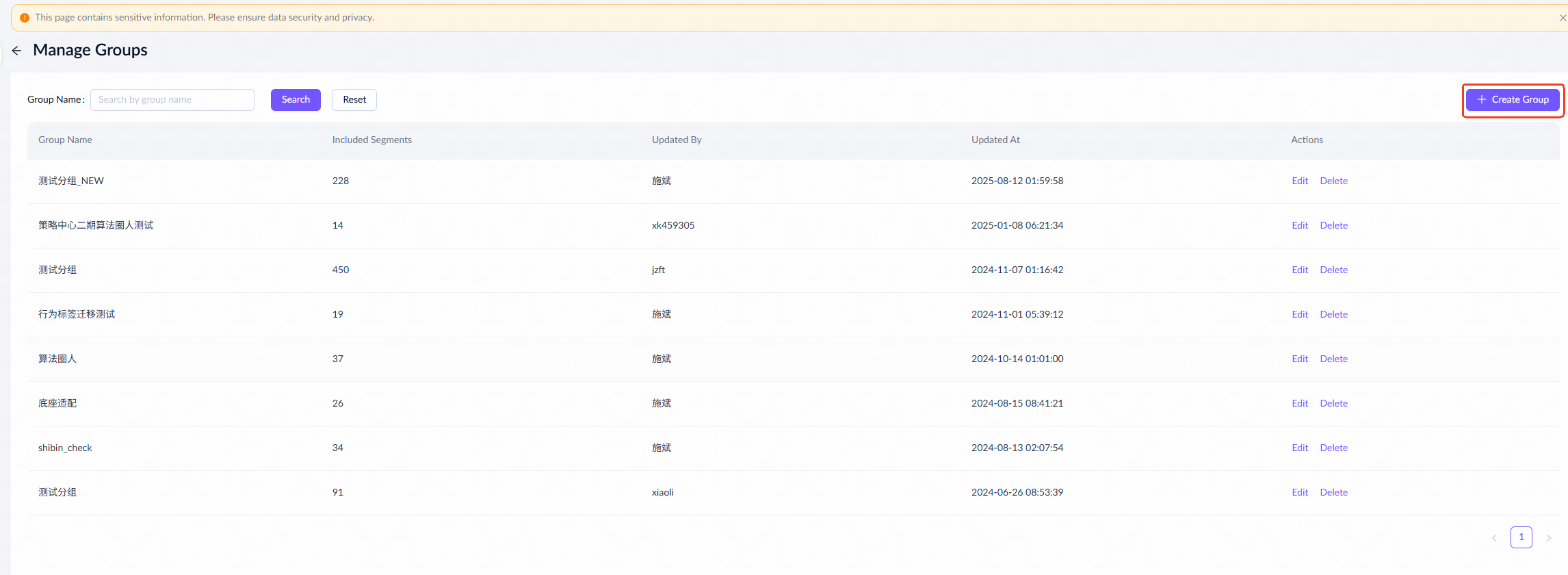
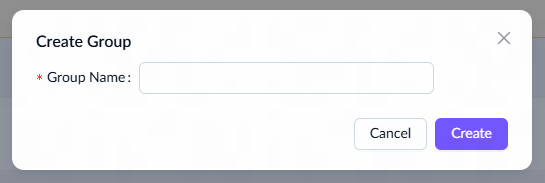
- Click + Create Group.
- Enter the group name and click Create.
Edit a segment group
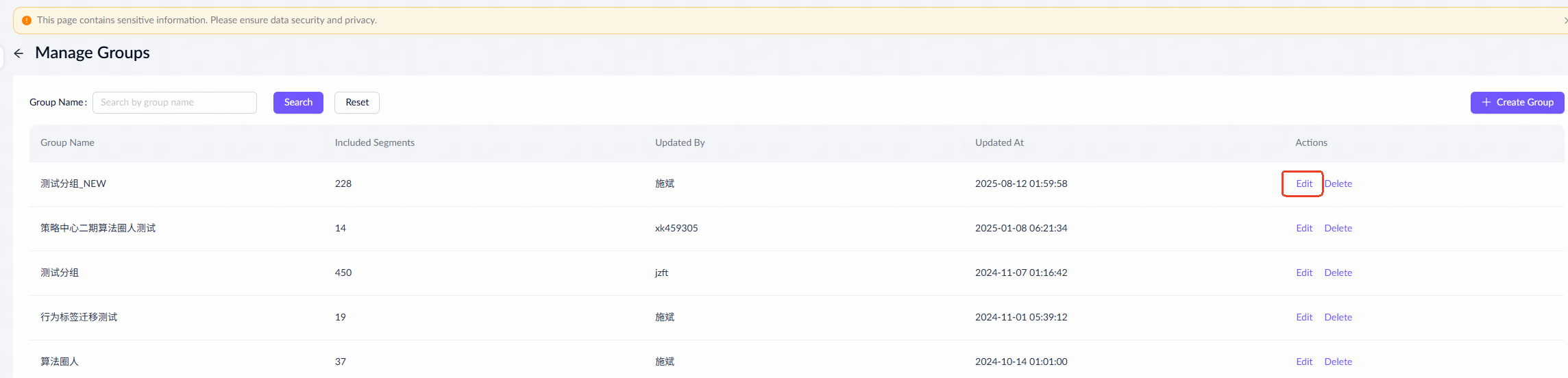
To edit a group, take the following steps:
- On the group management page, select the group you want to edit and click Edit in the actions column.
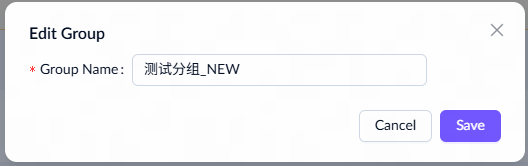
- Modify the group name as needed and click Save.
Delete a segment group
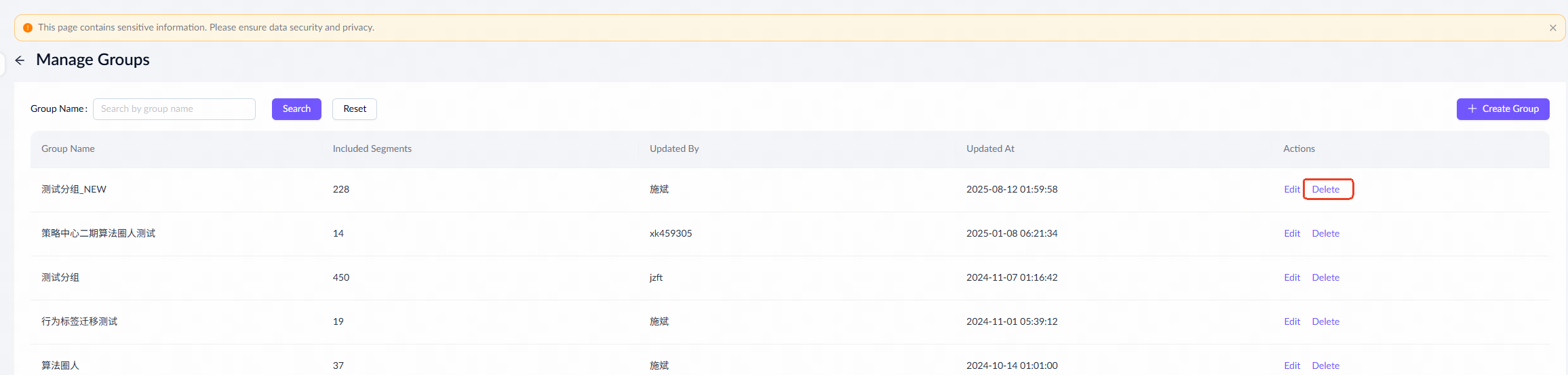
To delete a group, take the following steps:
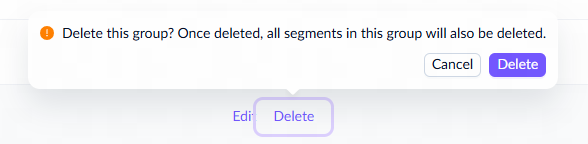
- Select the group you want to delete. Click Delete.
- After confirming, click Delete again.
View a segment
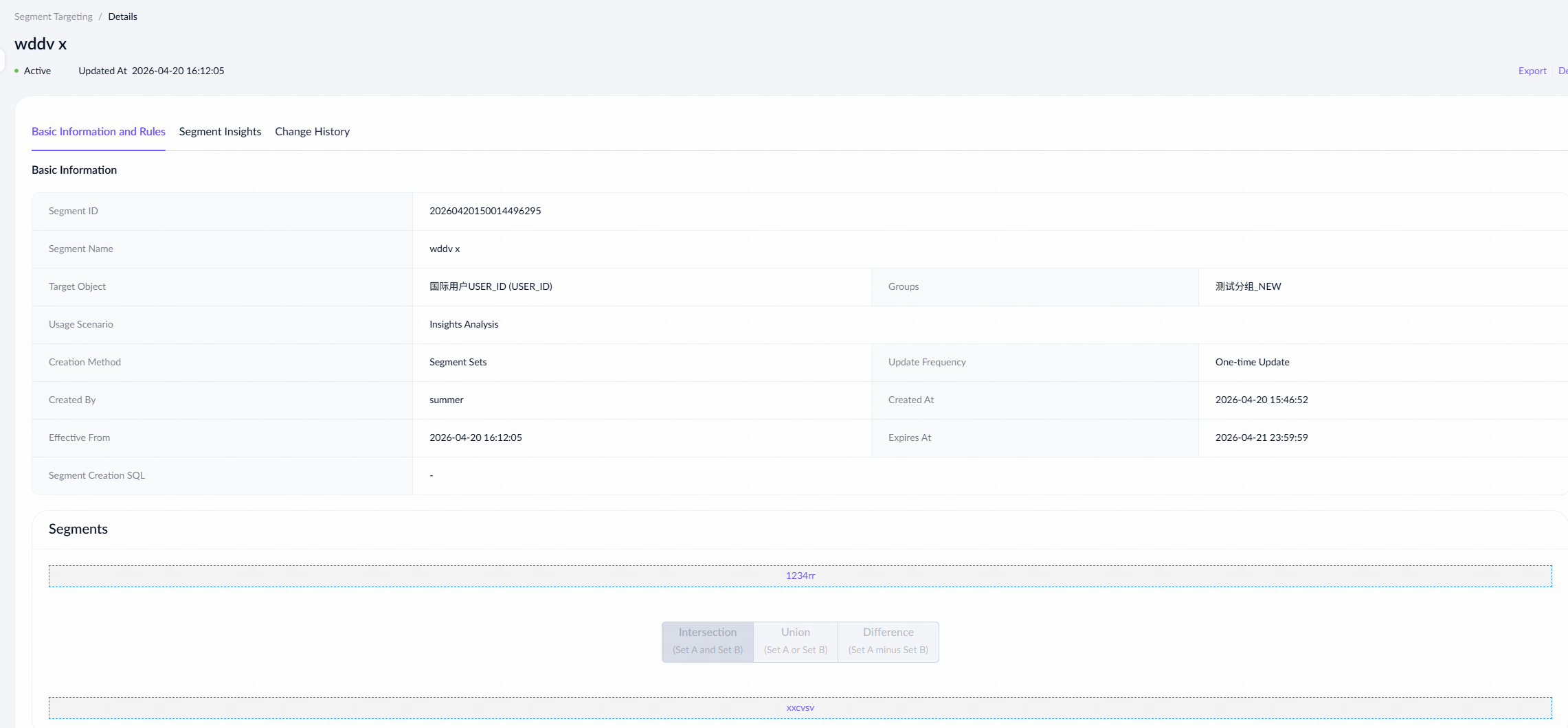
To view segment details, take the following steps:
- Go to Segments > Segment Management > Segment Targeting to access the segment list.
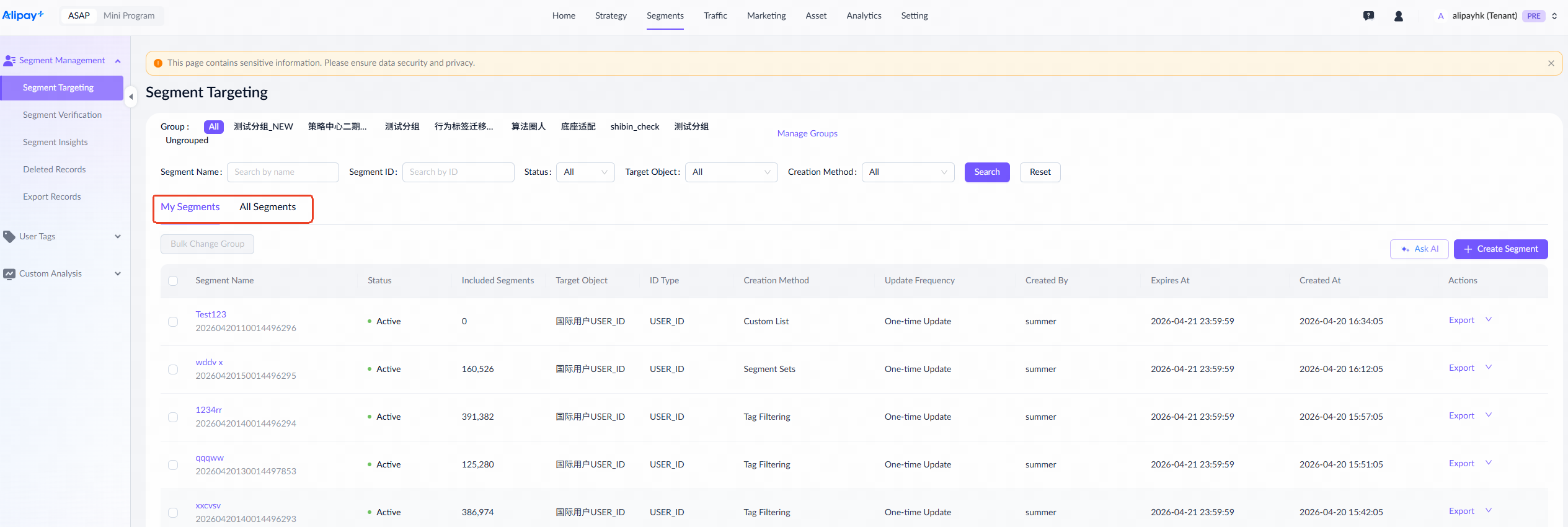
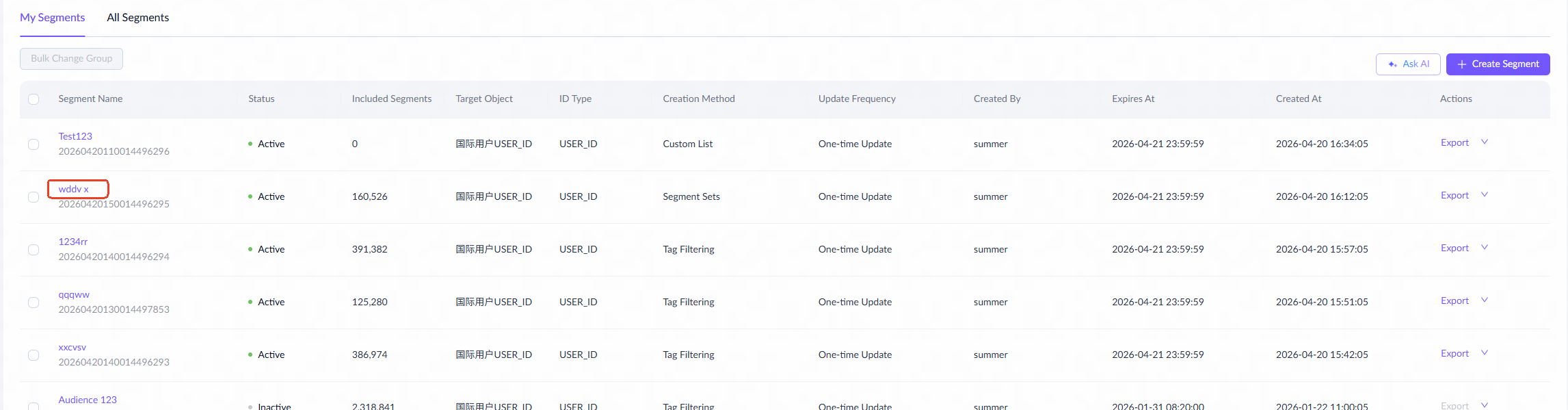
- Select a segment and click its name to access its details page.
Export a segment
After creating a segment, you can initiate the export process, which generates a download record. Refer to the following steps to export segments:
- Go to the segment list page, select the segment you want to export, and then click Export in the actions column to create an export task.
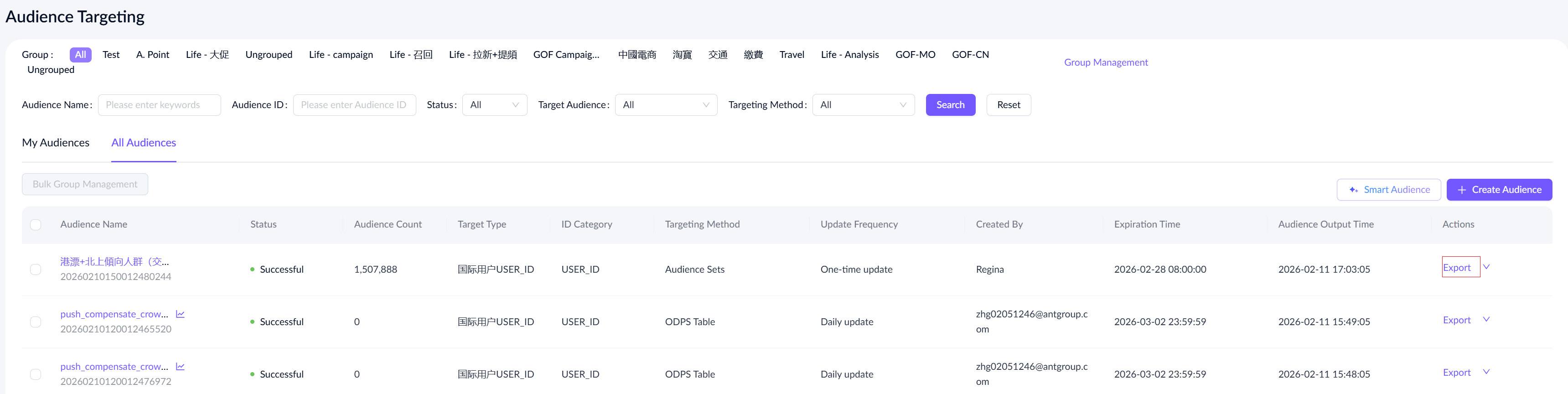
- To view export records and download the segment data to your local storage, refer to the Export Records guides.
Extend validity
The segment has an expiration date set at creation. Once expired, it's no longer available for downstream tasks on the platform. Ensure the expiration date aligns with the marketing campaign's duration. If the segment is nearing expiration during an active campaign, take the following steps to extend its validity.
- Go to the segment list page, select the segment for which you want to extend the validity, and then click Extend Validity in the actions column.
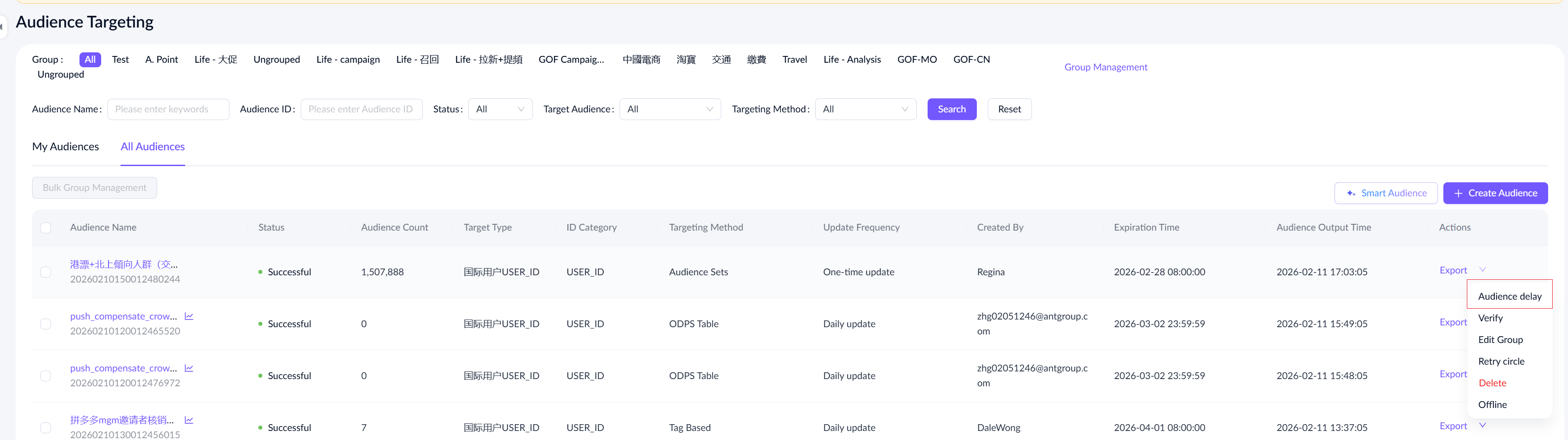
- Choose the new expiration date and time, then click Save.
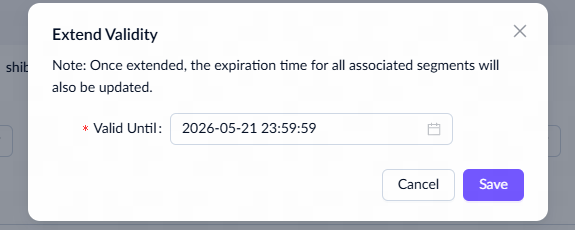
- Return to the segment management page to view the updated expiration time.

Delete a segment
To delete a segment, take the following steps:
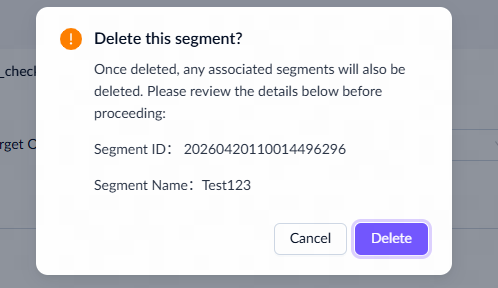
- Go to the segment list page, select the segment you want to delete, and then click Delete in the actions column.
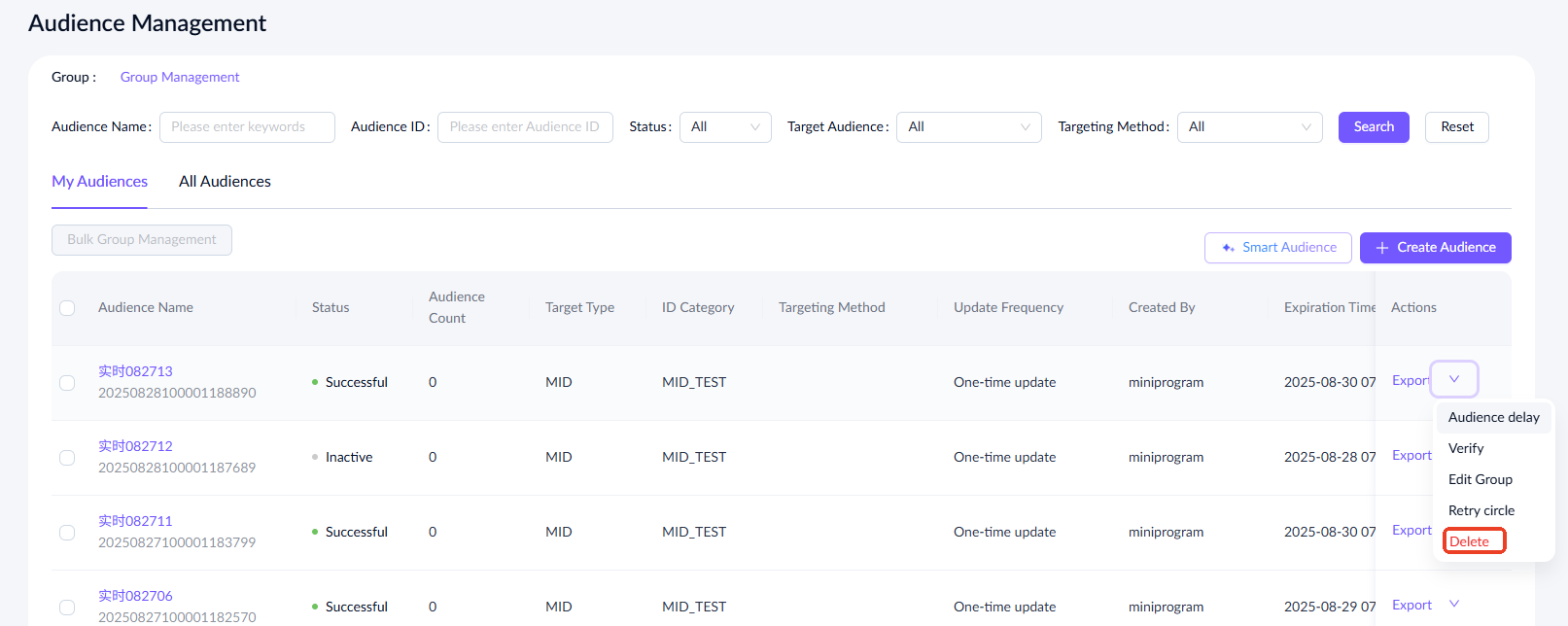
- In the confirmation pop-up, click Delete again after confirming the segment ID and name.
Note: Ensure no active marketing campaigns or delivery tasks are using this segment before deletion, as this action cannot be undone.
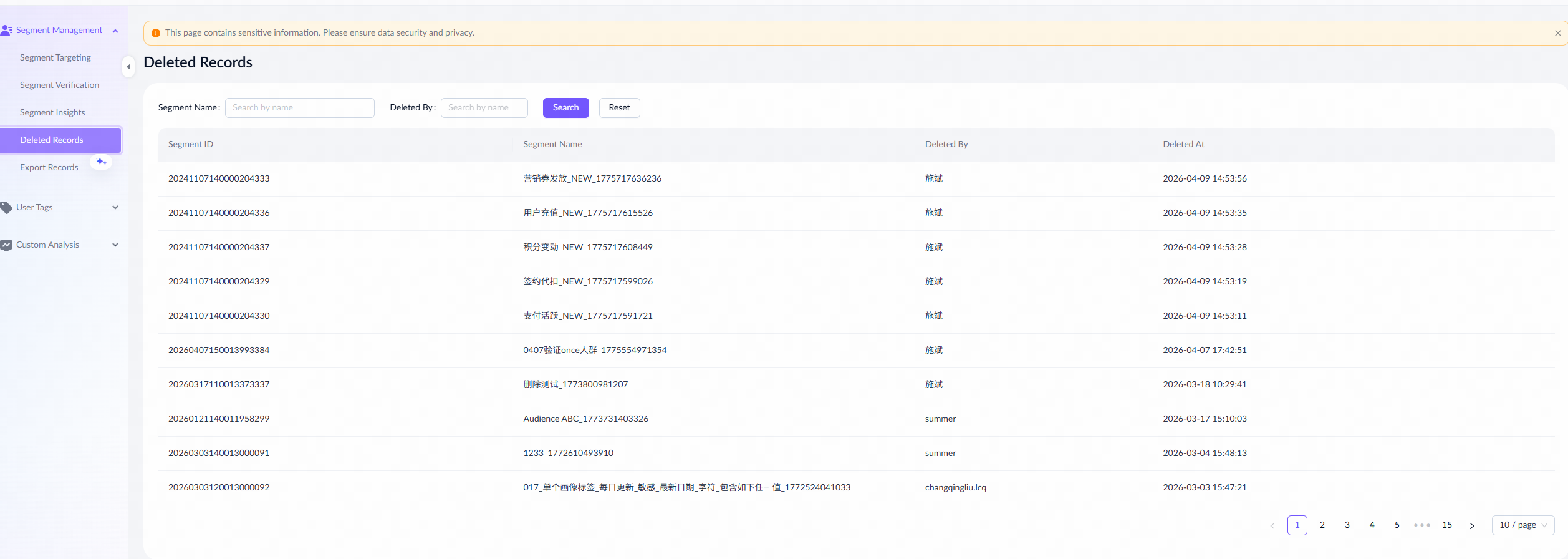
- Check the Deleted Record page manually to view the deletion results.
Verify a segment
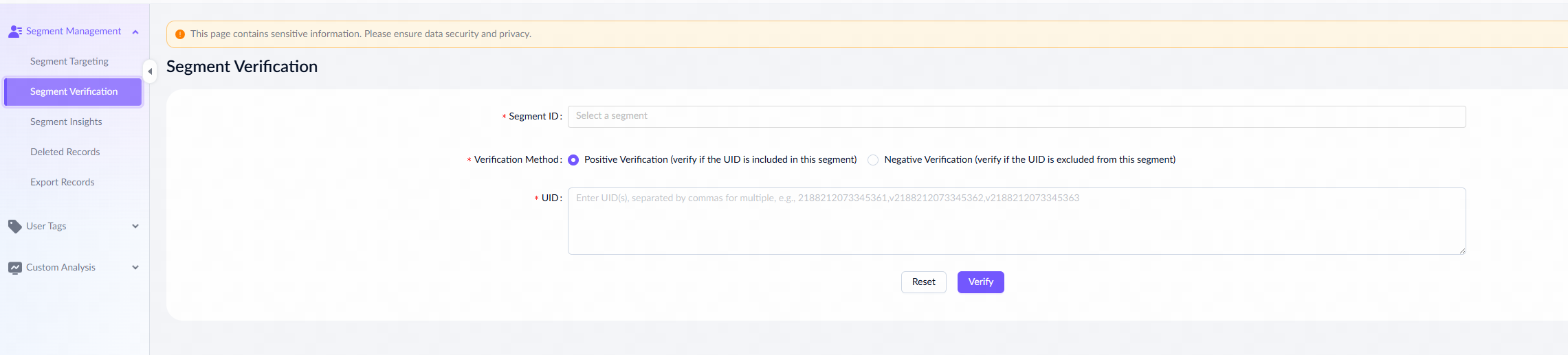
To check if a user ID is included in or excluded from a segment, go to the segment list page, select the segment you want to verify, and click Verify in the actions column. Alternatively, go to Segments > Segment Management > Segment Verification to directly access the verification page. For additional guidance, refer to Segment Verification.