Content selection
Content collections are curated sets of delivery content tailored to meet the needs and preferences of the target audience. This document provides an overview of creating and managing content collections.
Access the content collection list
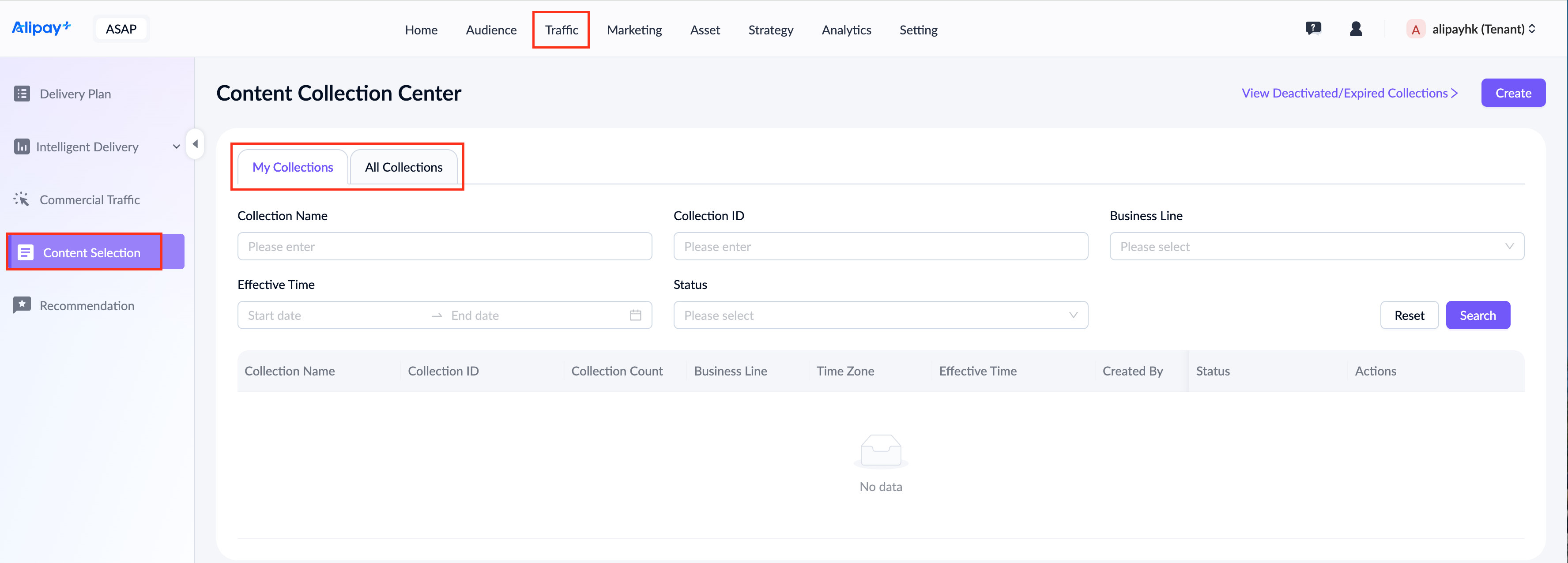
To access the content collection list, go to Traffic > Content Collection Center, where you can view My Collections and All Collections. The My Collection tab includes both your created collections and those you manage. You can search for a specific collection using various criteria, including creation name, creation ID, business line, effective time, and collection status.
Content collections in different statuses support various operations. For the status flow, see Status flow of content collections.
Status | Supported actions |
Draft | Edit / Activate / Duplicate / Manage Admin |
Pending Effectiveness | View / Duplicate / Deactivate / Manage Admin |
Pending Content Selection | View / Duplicate / Deactivate / Manage Admin |
Selecting Content | View / Duplicate / Deactivate / Manage Admin |
Activated | View / Duplicate / Deactivate / Manage Admin |
Create a content collection
Take the following steps to create a content collection:
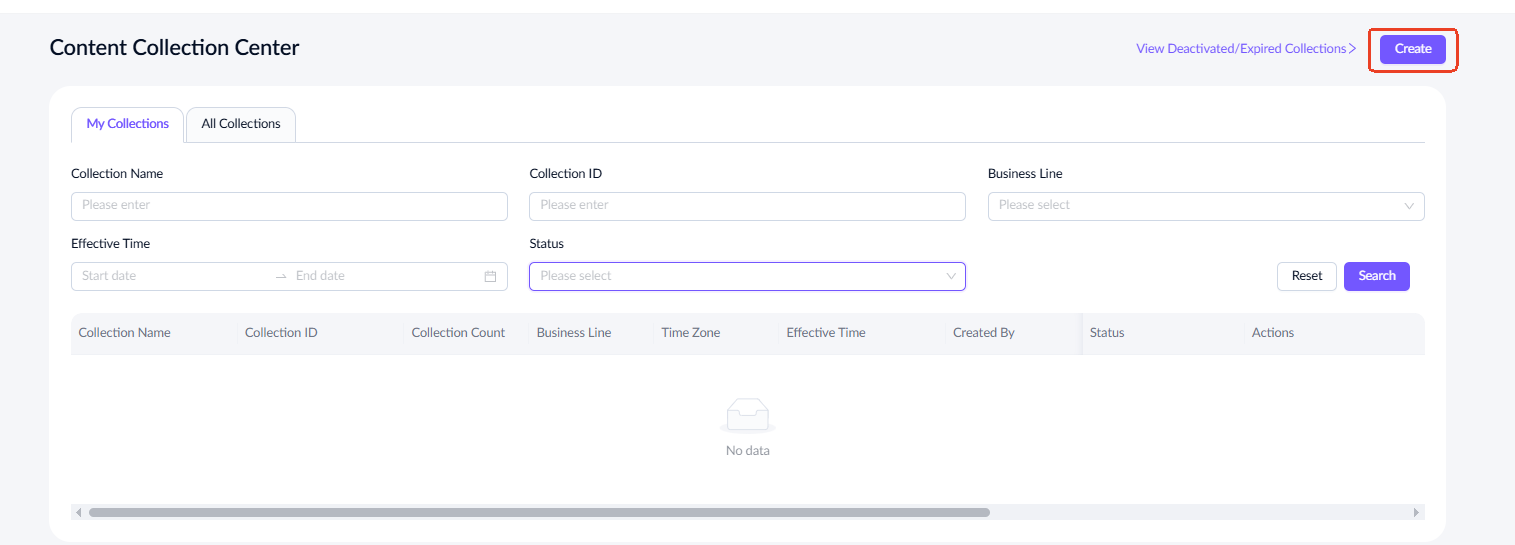
- Click Create at the top right corner to start.
- Complete the basic information of the content collection and click Next Step to proceed.
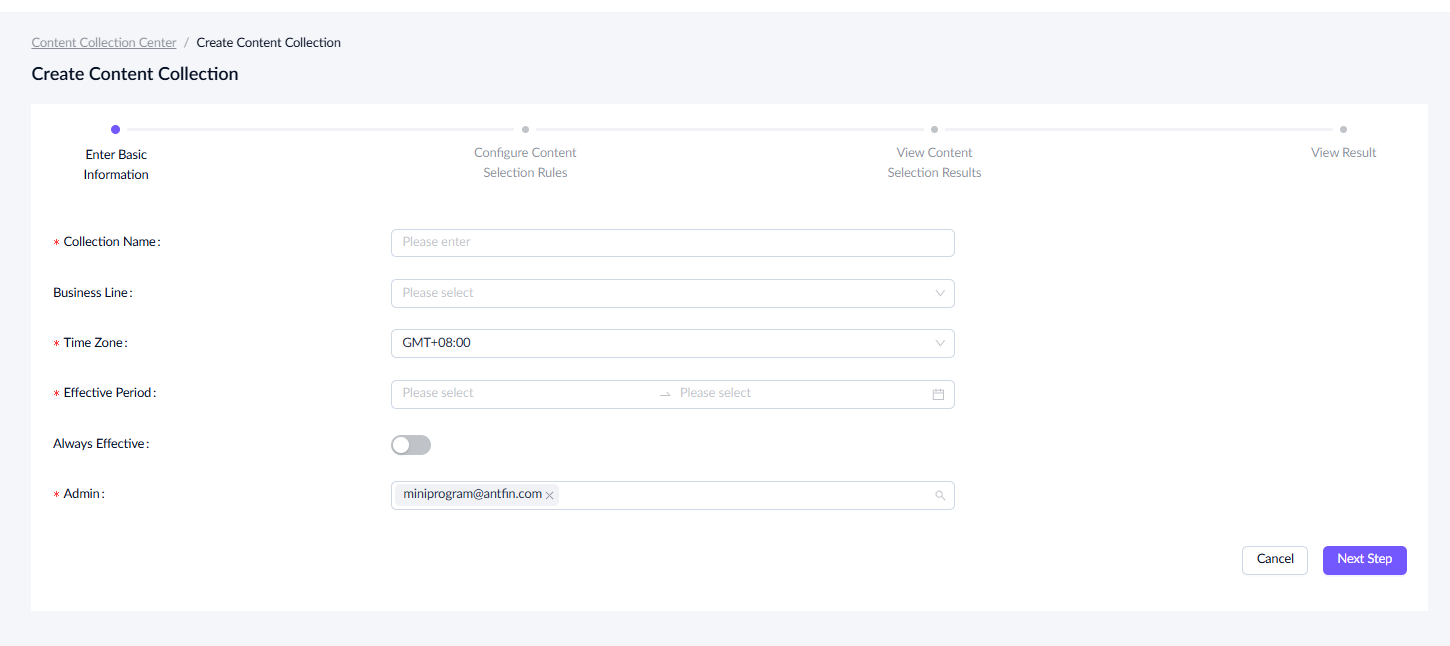
For a detailed explanation of each field and the fill-in instructions, see the following table:
Field name | Description |
Collection Name | The unique name of a content collection. |
Business Line | The business line the content collection belongs to. |
Time Zone | The time zone of the delivery region. The default setting is GMT+8. |
Effective Period | The time range during which the content collection is active. |
Always Effective | Determines whether the content collection is always effective. This option is disabled by default. When enabled, the end date will be set to 2,999 years after the creation date, and the Effective Period field will be hidden. |
Admin | The admin user of the content collection, defaulting to the creator. Admins can activate or deactivate content collections. You can manually add multiple admins by entering their email addresses.
|
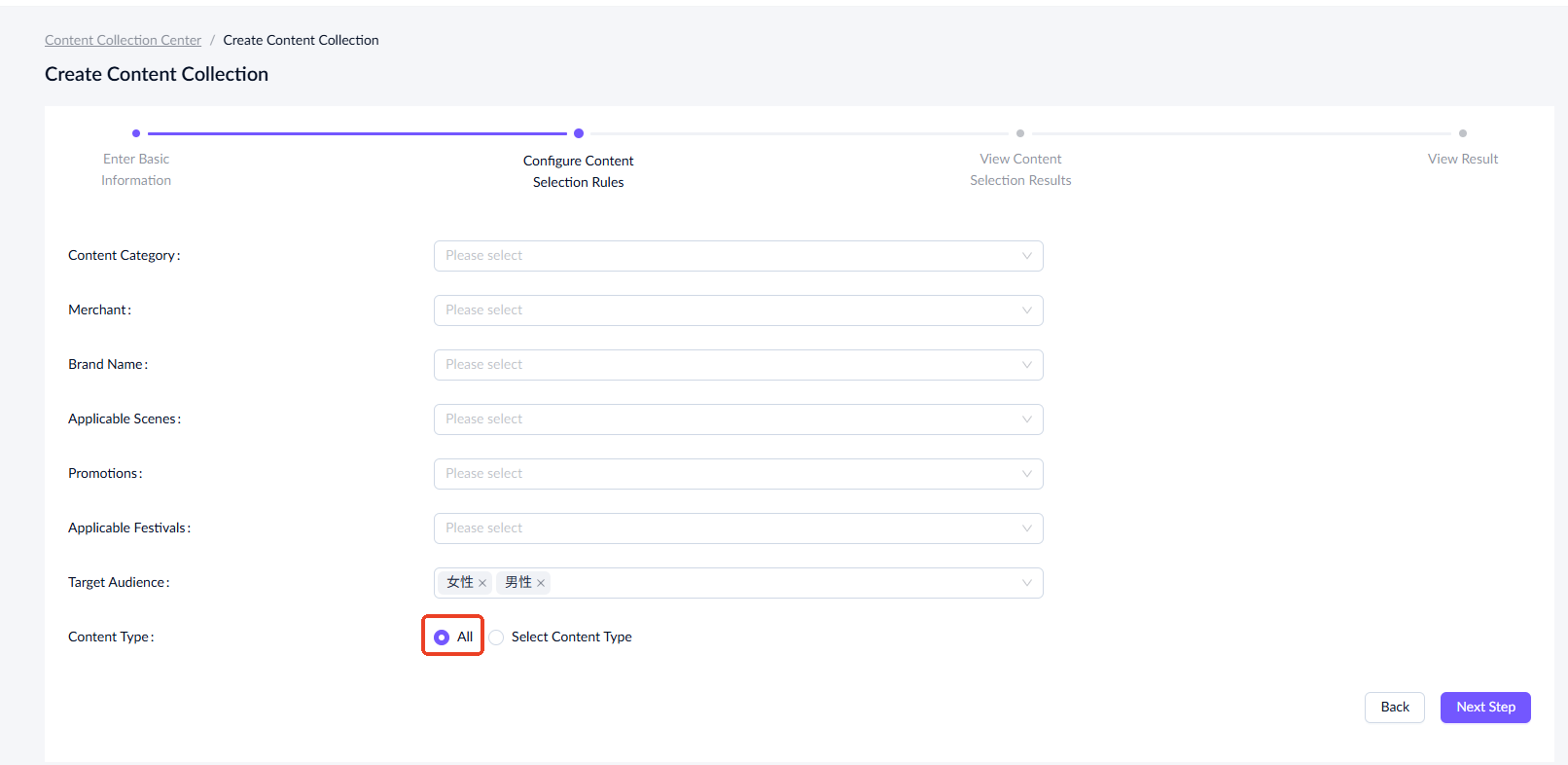
- Configure selection rules for the content collection. You can filter content by configuring Content Type in three ways
- All: Filter across all content types by configuring at least one general filter field, such as content category, merchant, brand name, scenes, promotions, festivals, or target audience, to specify your preferred content.
- Select Content Type: Specify the desired content types, such as merchant (商户) or benefit (权益), and then configure the content selection rules for those specific types.
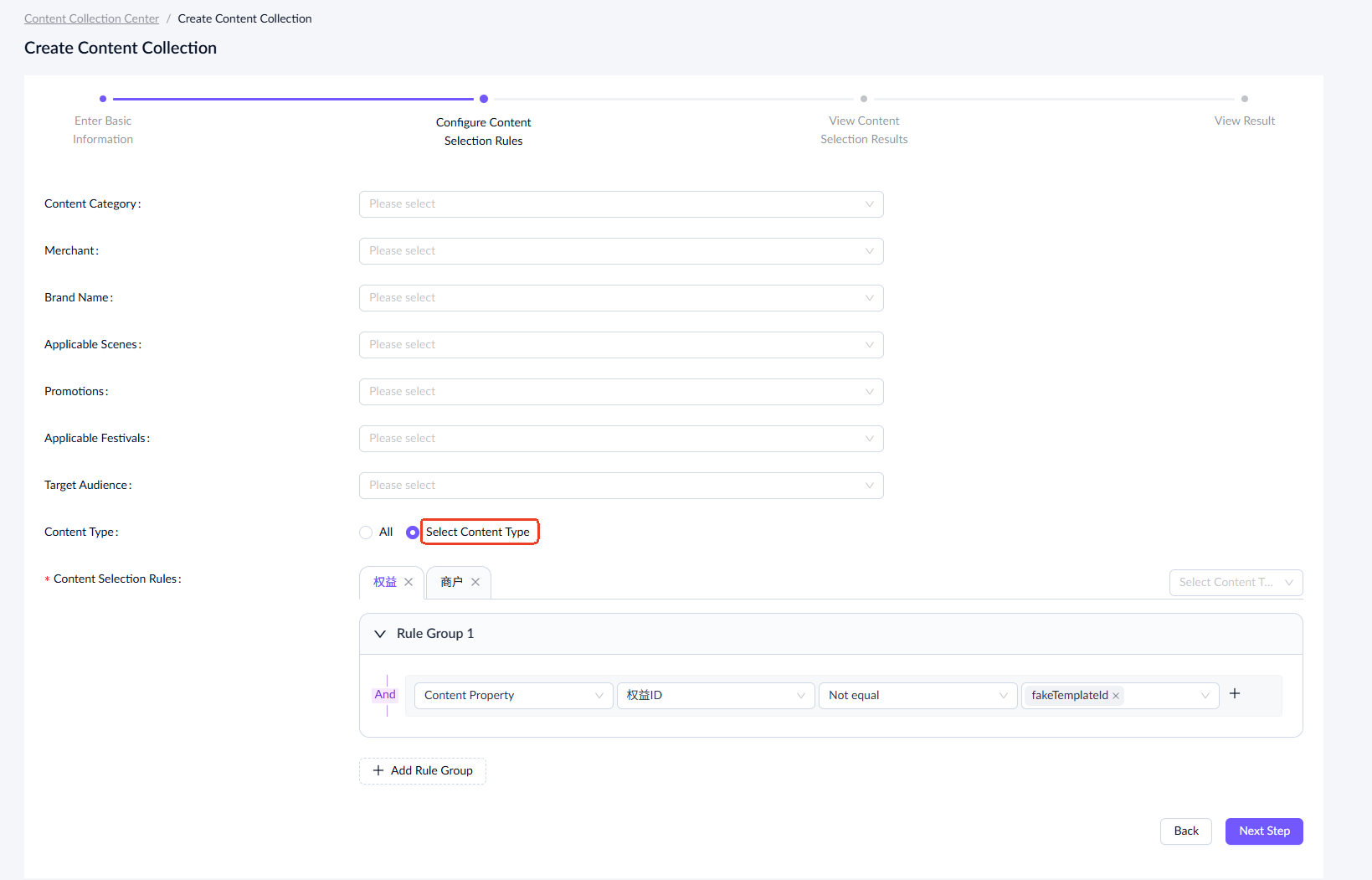
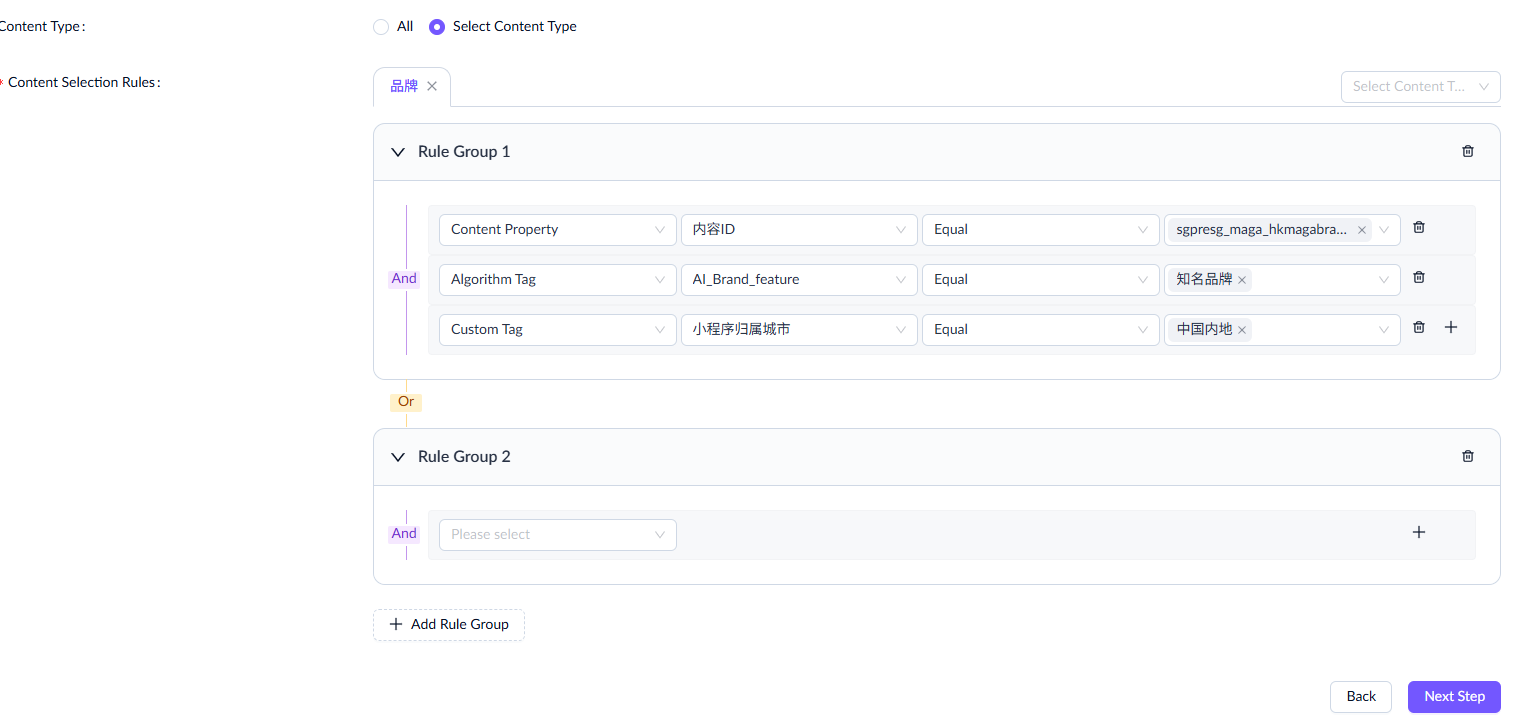
For each content type, filter by Content Property, Algorithm Tag, or Custom Tag. You can create up to 10 rule groups.
- Conditions within the same rule group have an AND relationship (the content must meet all conditions).
- Different rule groups have an OR relationship (the content must meet at least one group's conditions).
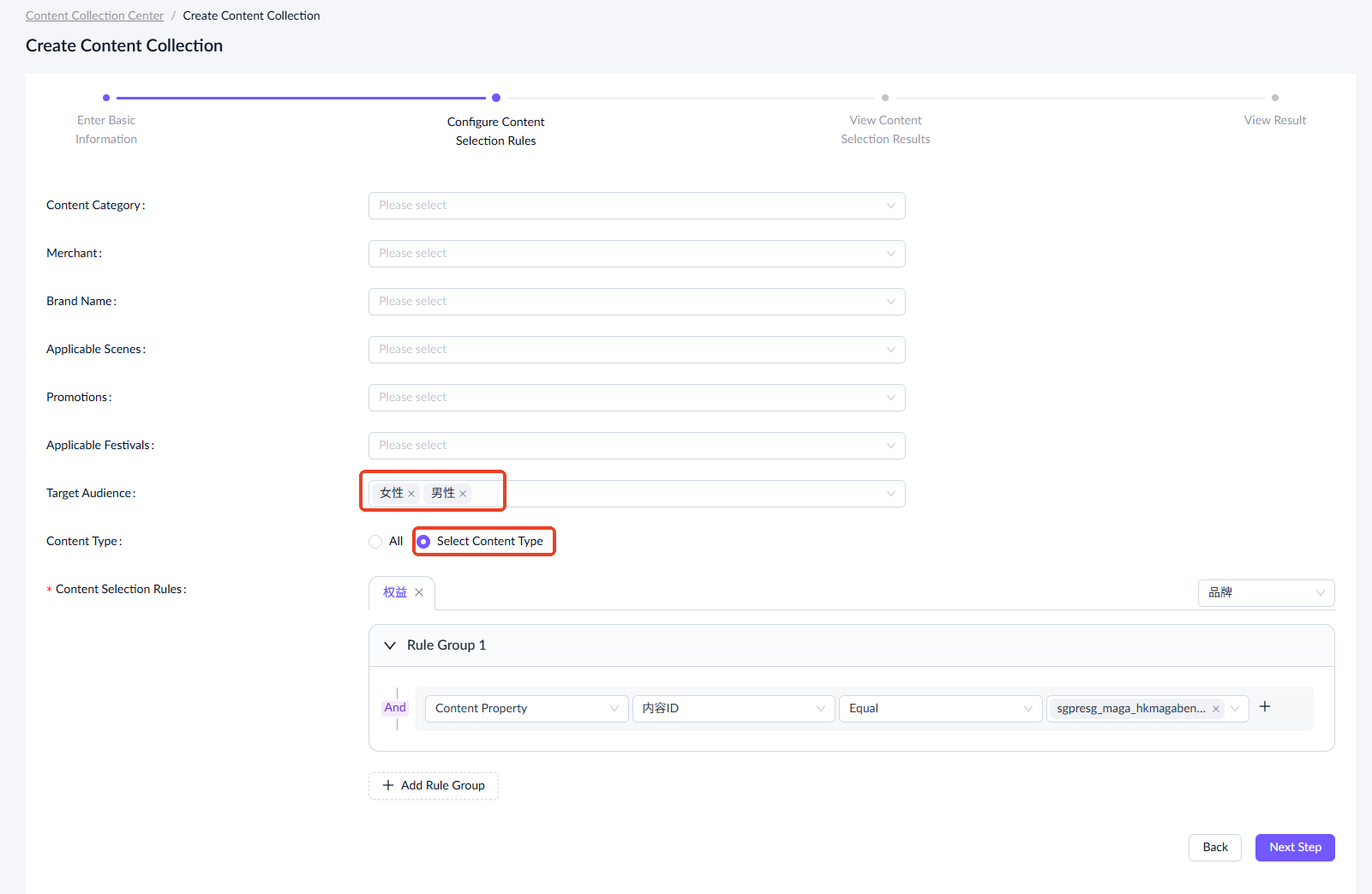
- Combine Both Methods: Using All with general filters may return multiple content types. To refine the results, combine them with the Select Content Type method to specify your desired types and obtain the intersection of the two filtering approaches.
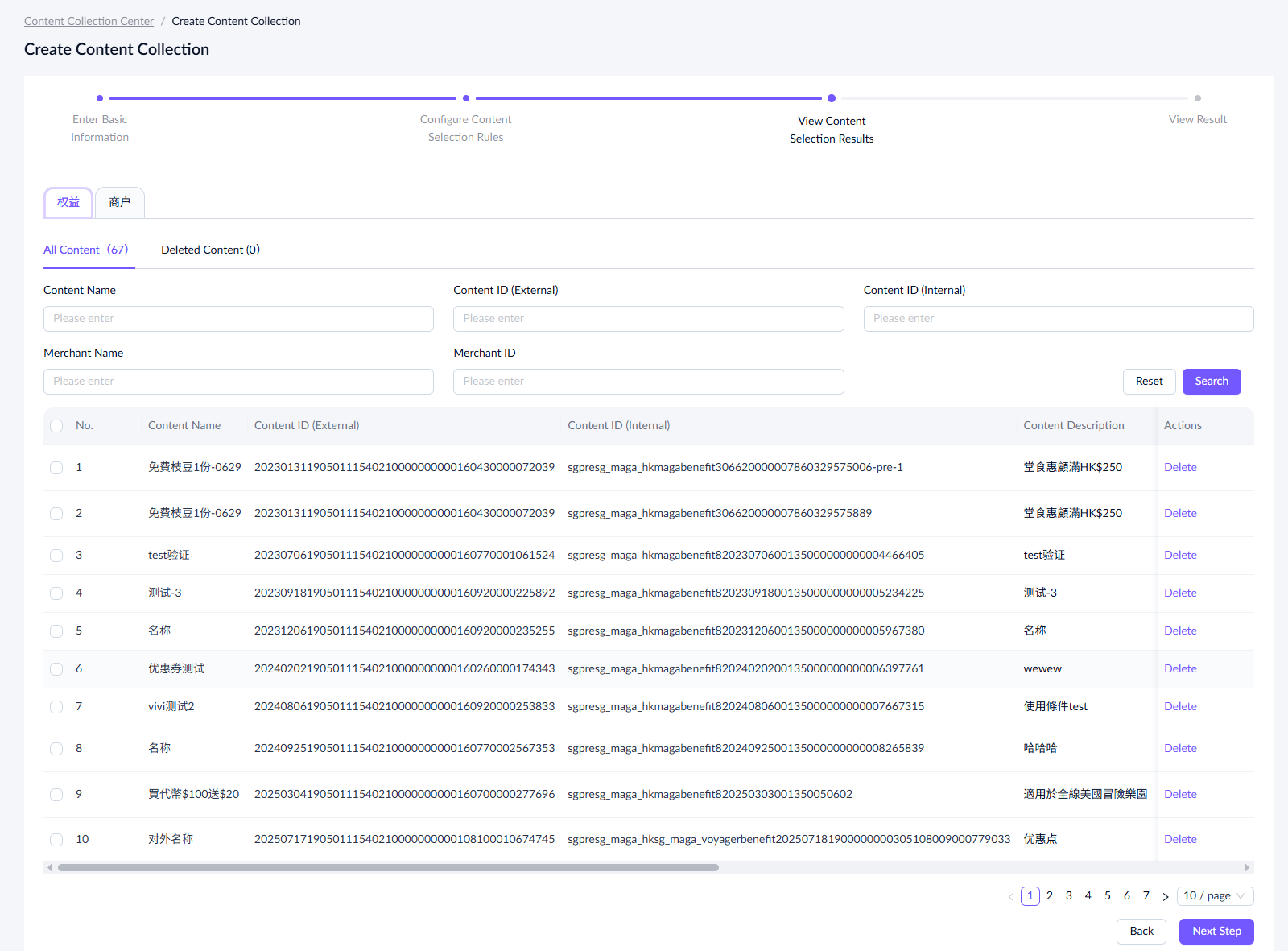
- After configuring the content selection rules, click Next Step to view a preview of the results. Note that this preview does not reflect the actual filtered results, as the content selection task will only begin when the content collection reaches its effective time. Once that occurs, the results will be updated in real time.
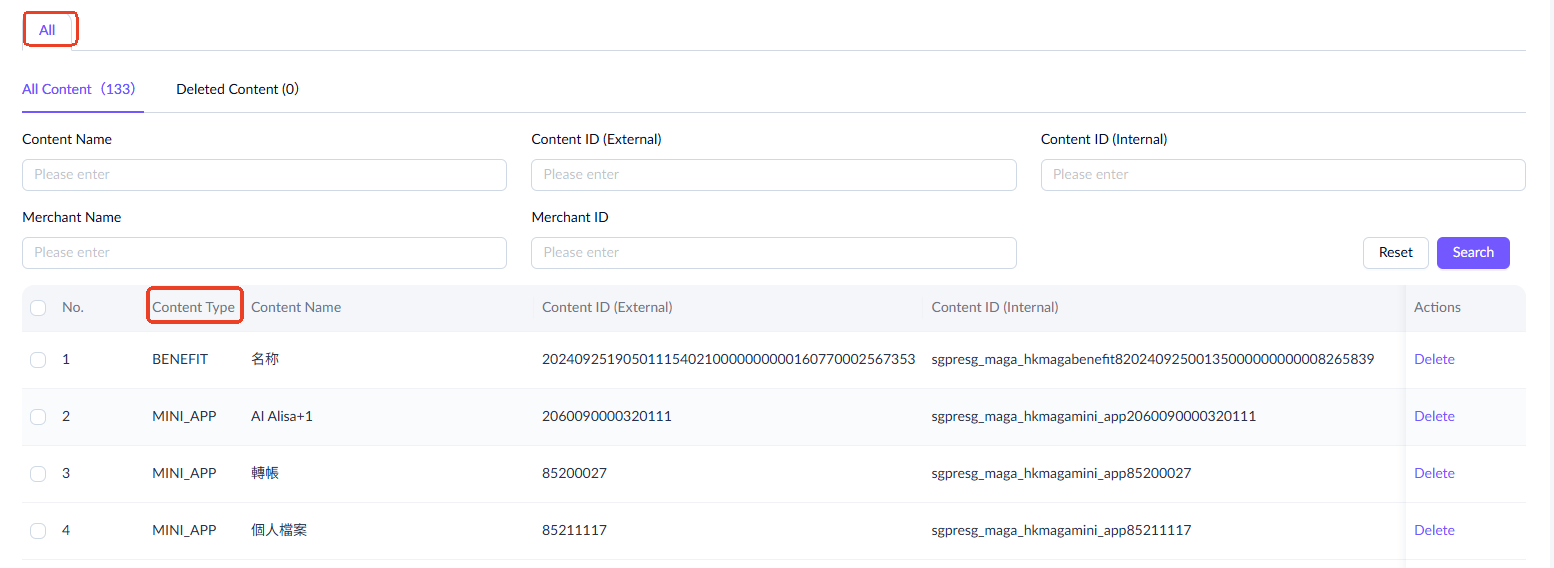
If you choose to filter all content types using only the general filter fields, the content list will include a Content Type field.
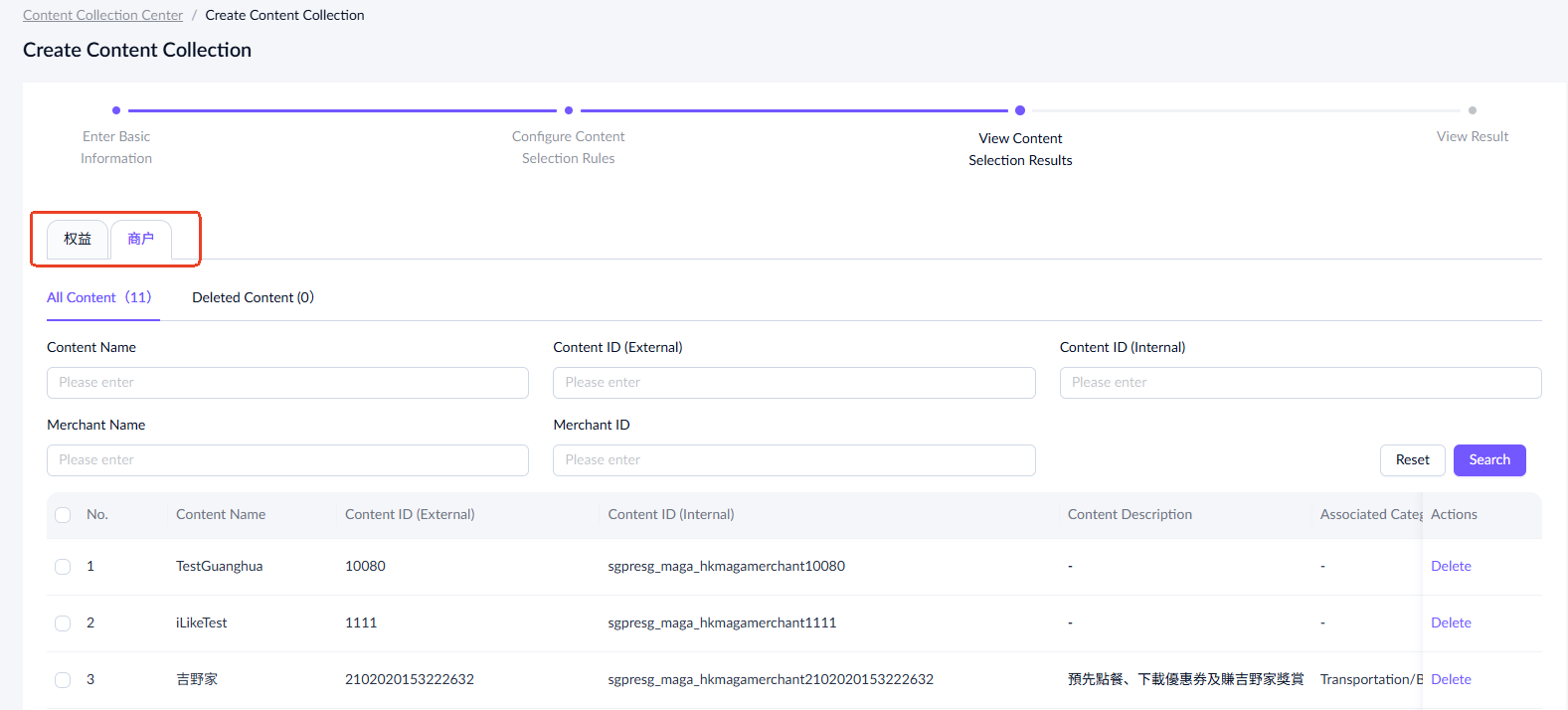
If you select specific content types, they will appear as tabs above the table, allowing you to switch between them to view the filtered results. Note that the table header may differ for each content type.
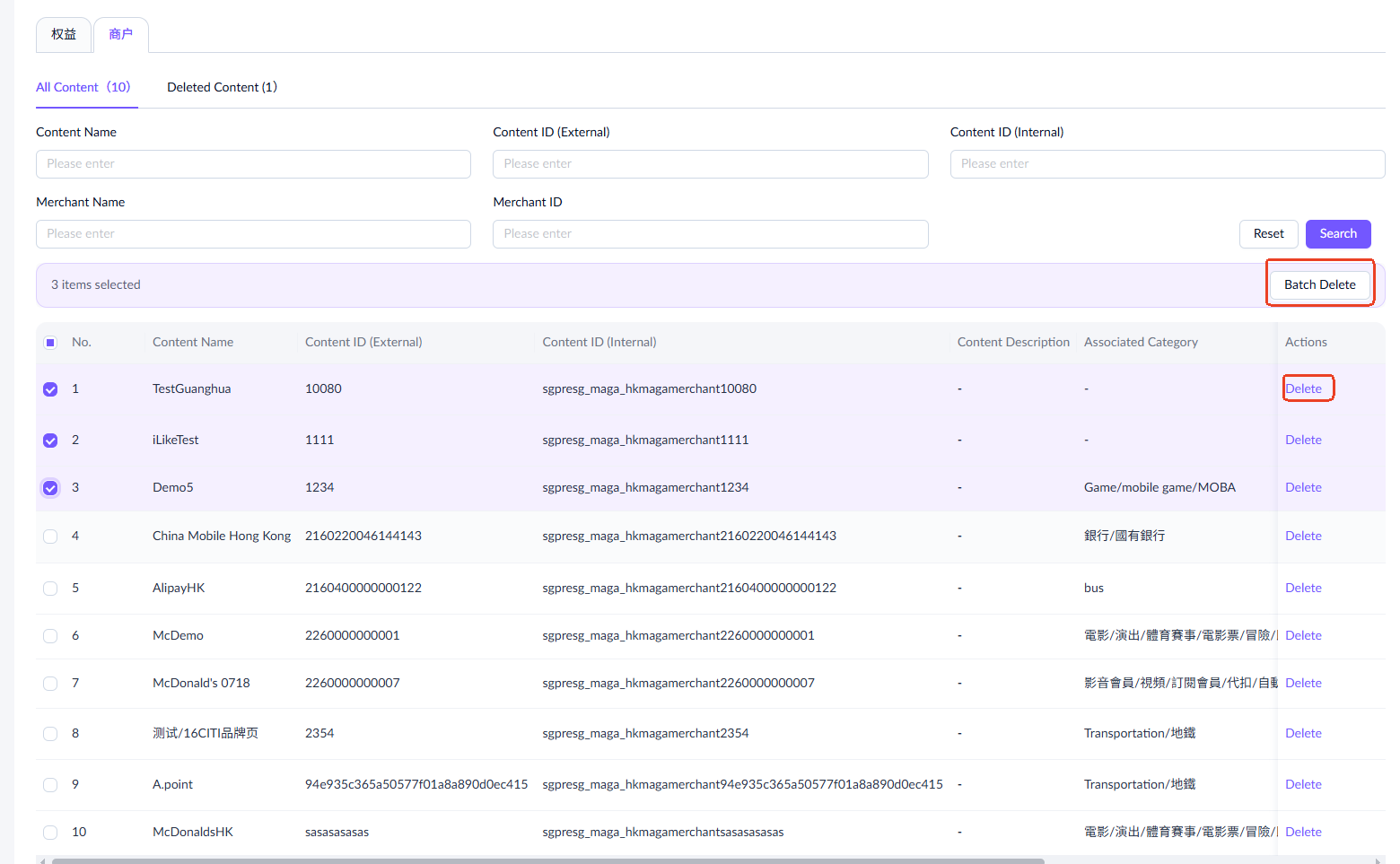
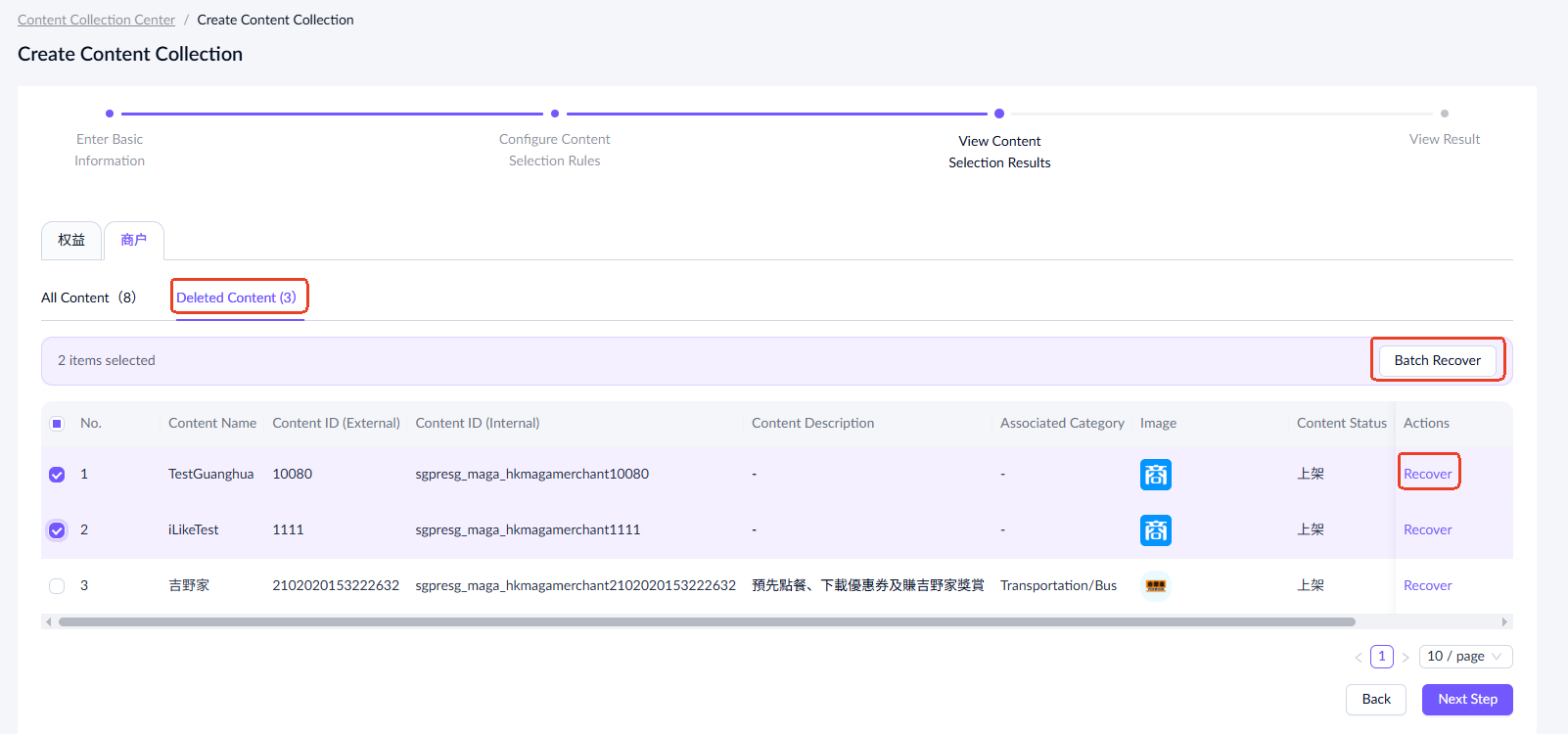
You can click Delete to remove individual items from the list. To delete multiple items, select them and click Batch Delete. You can delete up to 300 items at a time.
Deleted items appear under the Deleted Content tab, where you can recover them individually or in batches.
Note:
If you go back to modify the selection rules after previewing results, a confirmation dialog will appear when you click Next Step:
- To update the results, select Apply Latest Rules.
- To keep the existing list, select Keep Previous Rules.

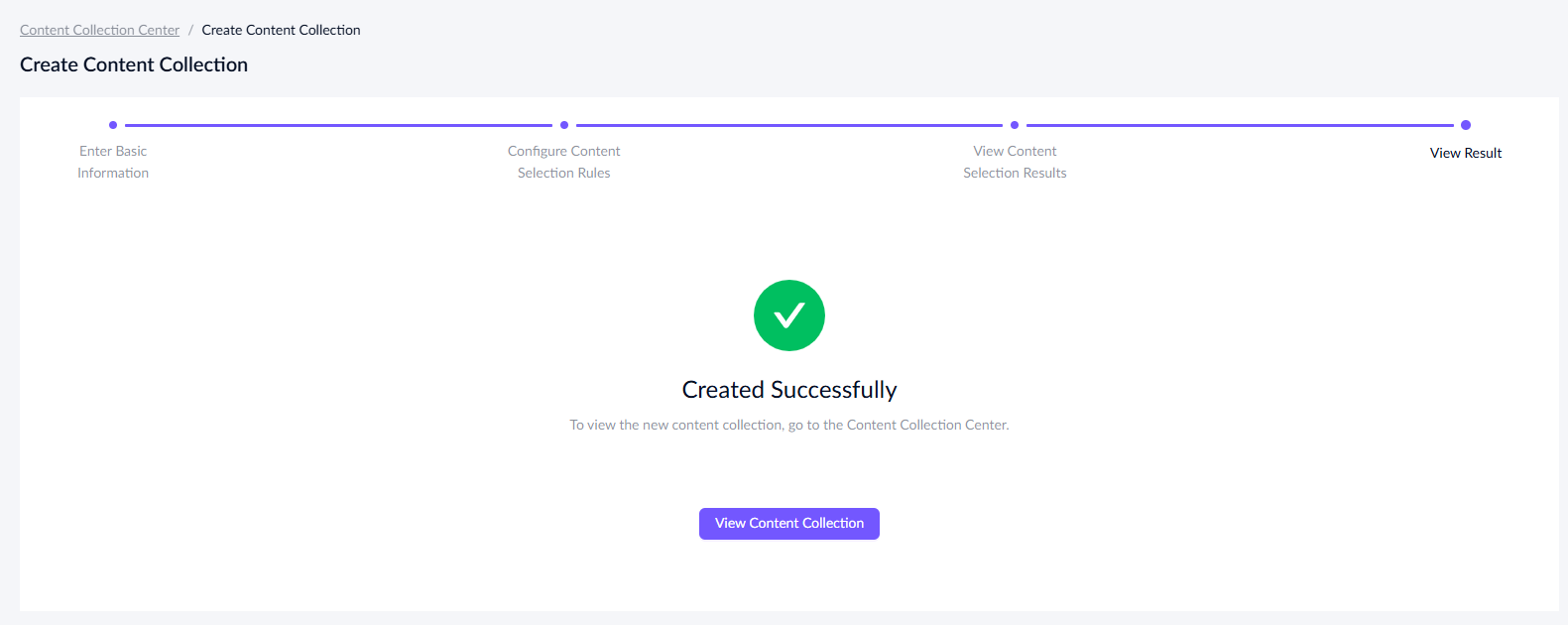
- Click Next Step to submit and create the content collection. Once created, its status will be marked as Draft. You can click View Content Collection to return to the content collection list.
View a content collection
To view a content collection, go to the content collection list page and select a specific collection. Click View in the Actions column to access the details page.
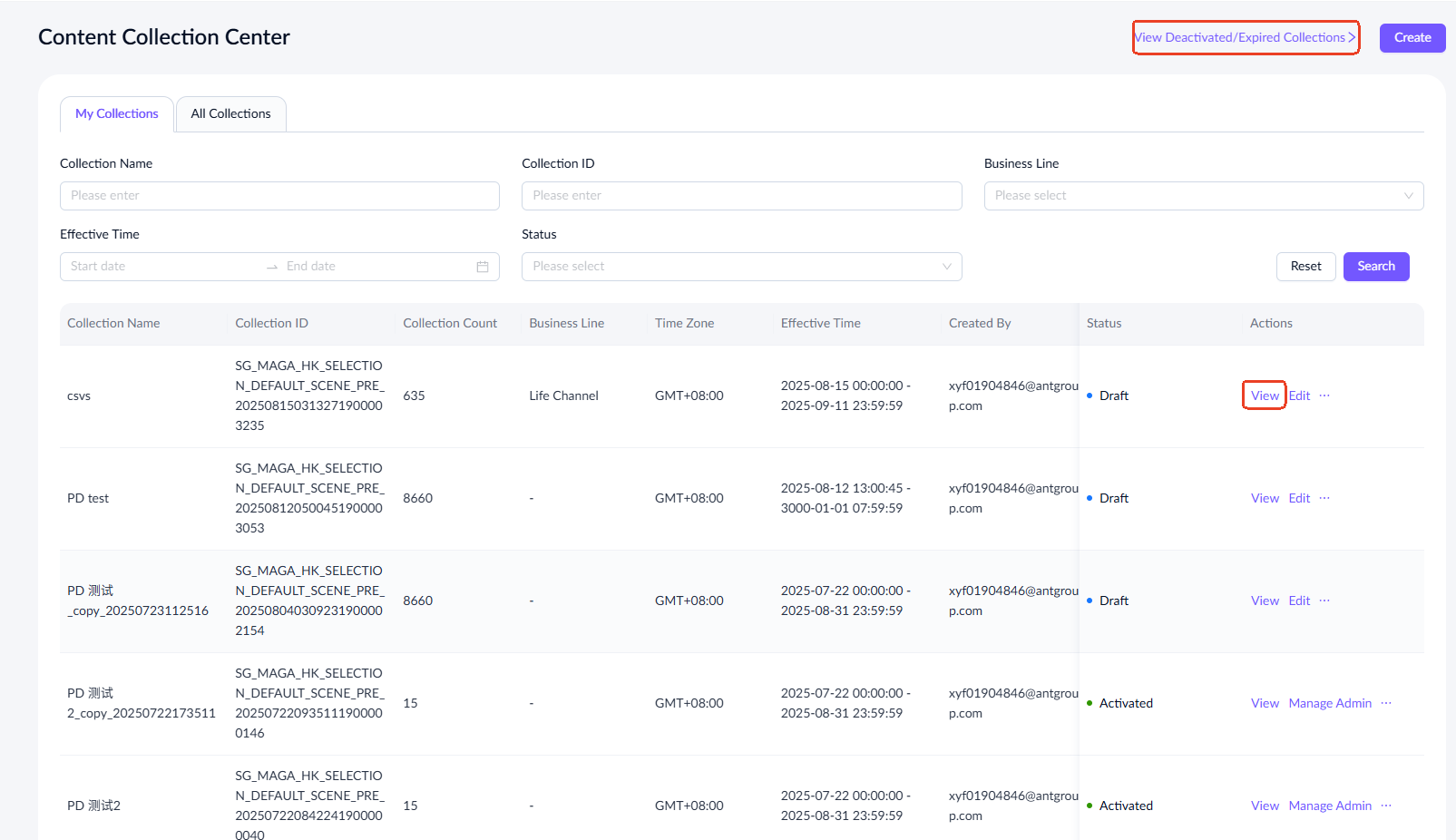 To view deactivated or expired content collections, click View Deactivated/Expired Collection at the top right corner.
Edit a content collection
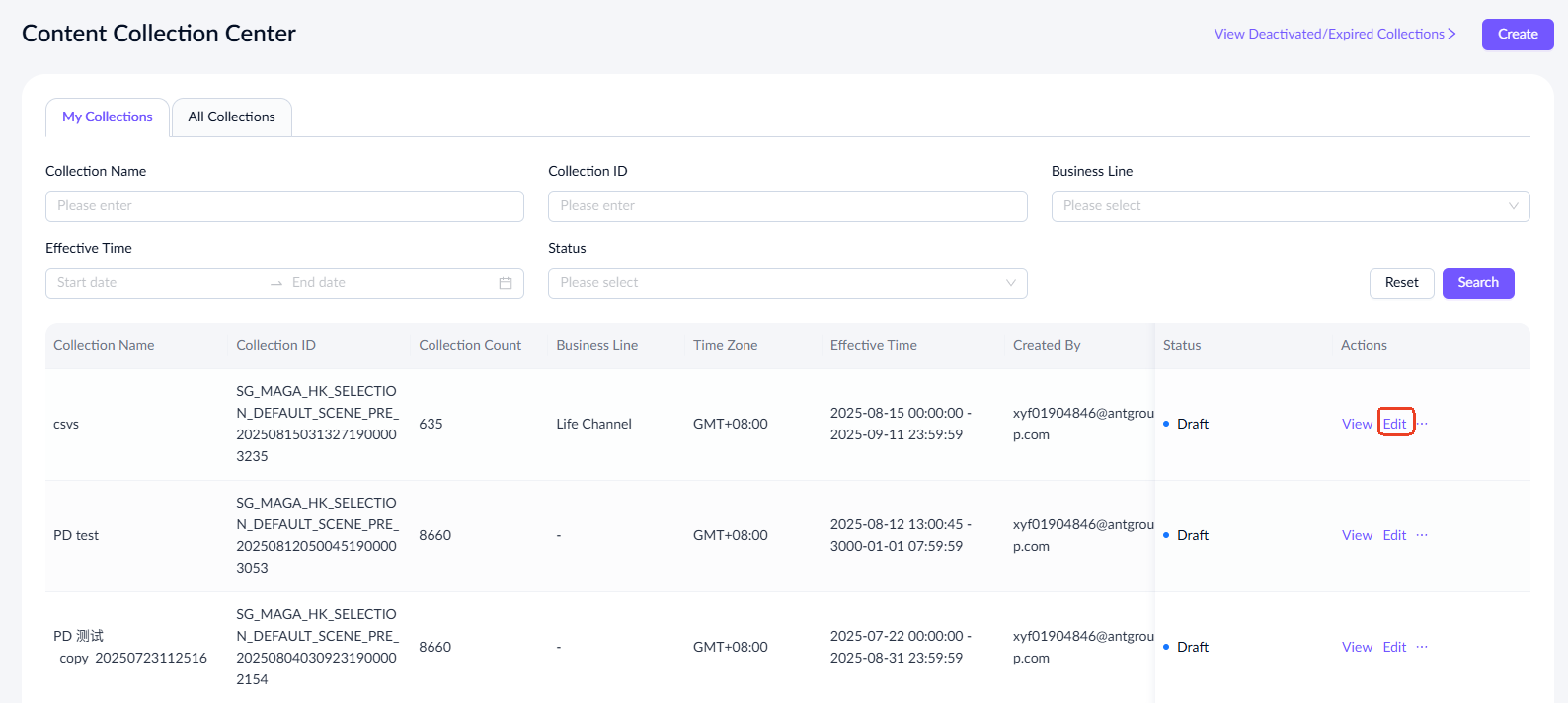
To edit a content collection, go to the content collection list page and select a specific collection. Click Edit in the Actions column to access the editing page.
Duplicate a content collection
You can create a new collection by duplicating an existing one:
- Go to the content collection list page and select a specific collection. Click Duplicate in the Actions column.
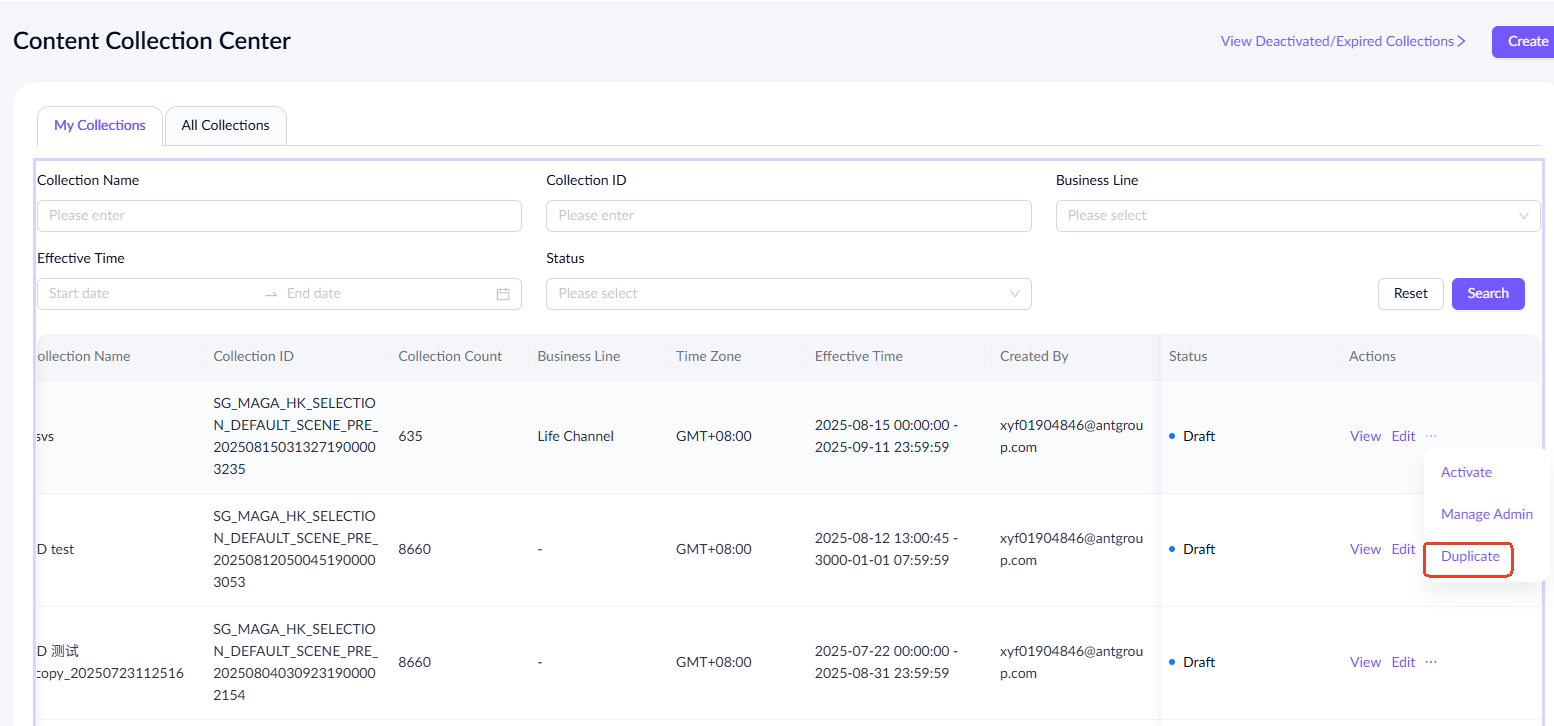
- Confirm and click Duplicate again.

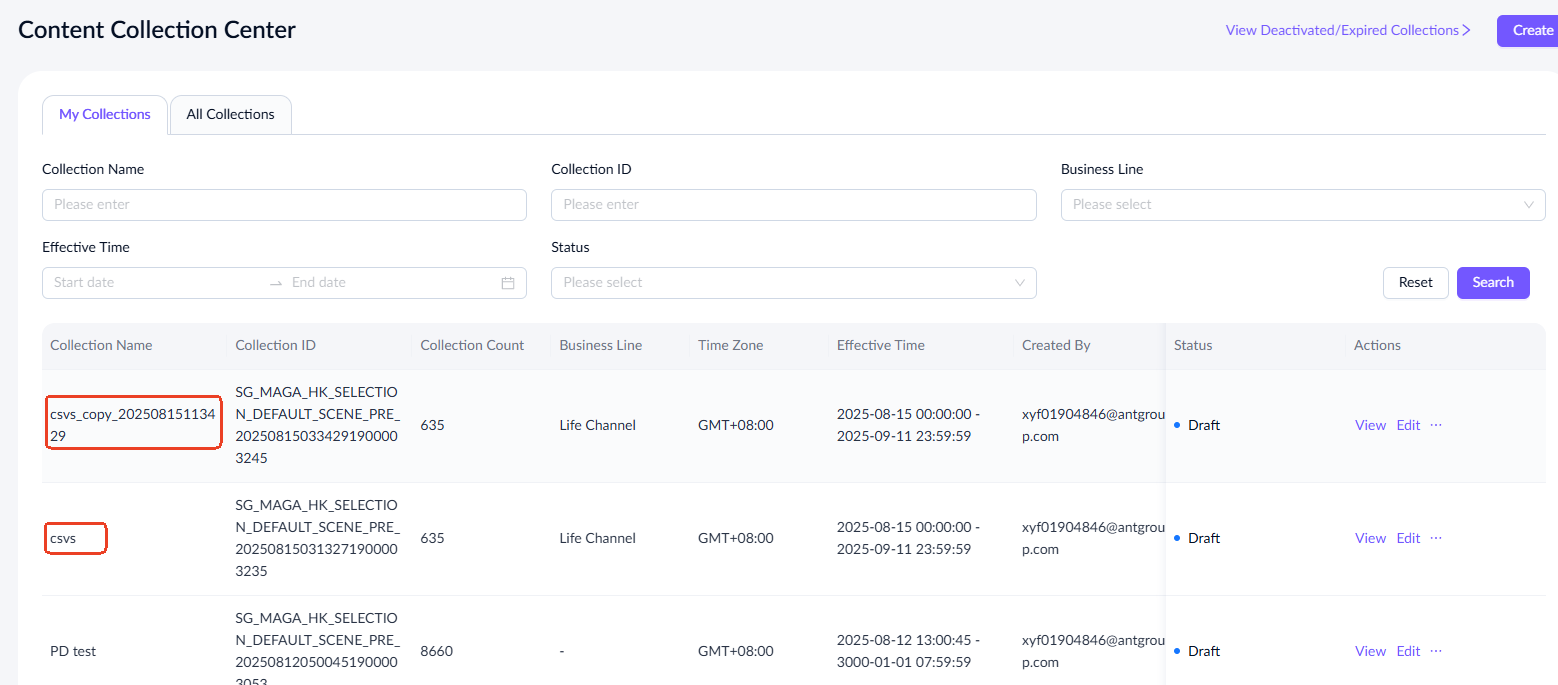
- The copied content collection will show in the format {original name}_copy_YYYYMMDDHHMMSS and will have a status of Draft. You can then click Edit to make modifications as needed.
Status flow of content collections
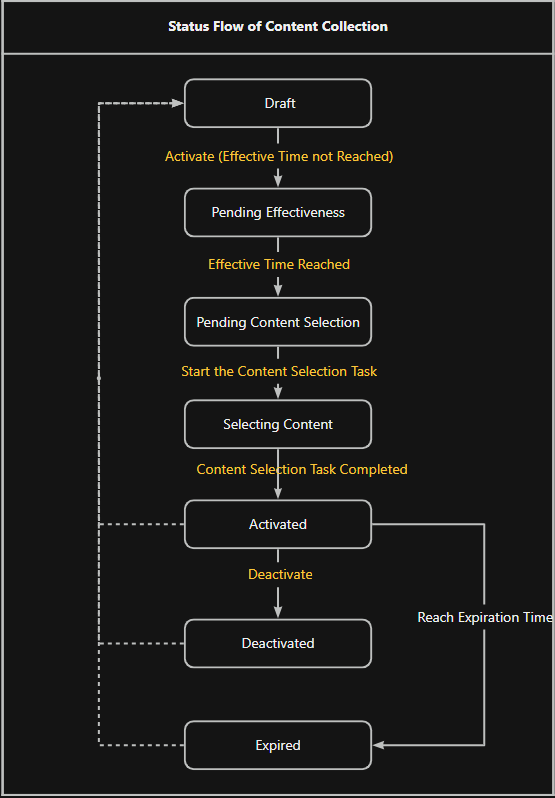
After creating a content collection, the collection goes through the following statuses:
- Draft: The default status when created.
- Pending Effectiveness: After activation, if the effective time has not yet reached.
- Pending Content Selection: A brief status before content selection.
- Selecting Content: Content filter rules are being applied.
- Activated: Content selection has been completed.
- Deactivated: Only the selection task is halted. The collection still exists but it is no longer updated.
- Expired: The collection is past its effective end date.