
Delivery plan
There are two types of delivery plans: manually created and system-generated. Manually created delivery plans are designed to manage the traffic of multiple delivery tasks across different display spaces. System-generated delivery plans are used for routine delivery tasks within various business lines, with each line having its own automatically created plan. This document primarily focuses on the creation and management of manually created delivery plans.
Access the delivery plan list
To access the delivery plan list, go to Traffic > Delivery Plan. Here, you can view all manually created plans. You can also search for plans using criteria such as plan name, plan ID, budget type, plan status, or creator.
Note: Delivery plans that are automatically generated by the system are not included in the list. For more details, refer to System-created delivery plans.
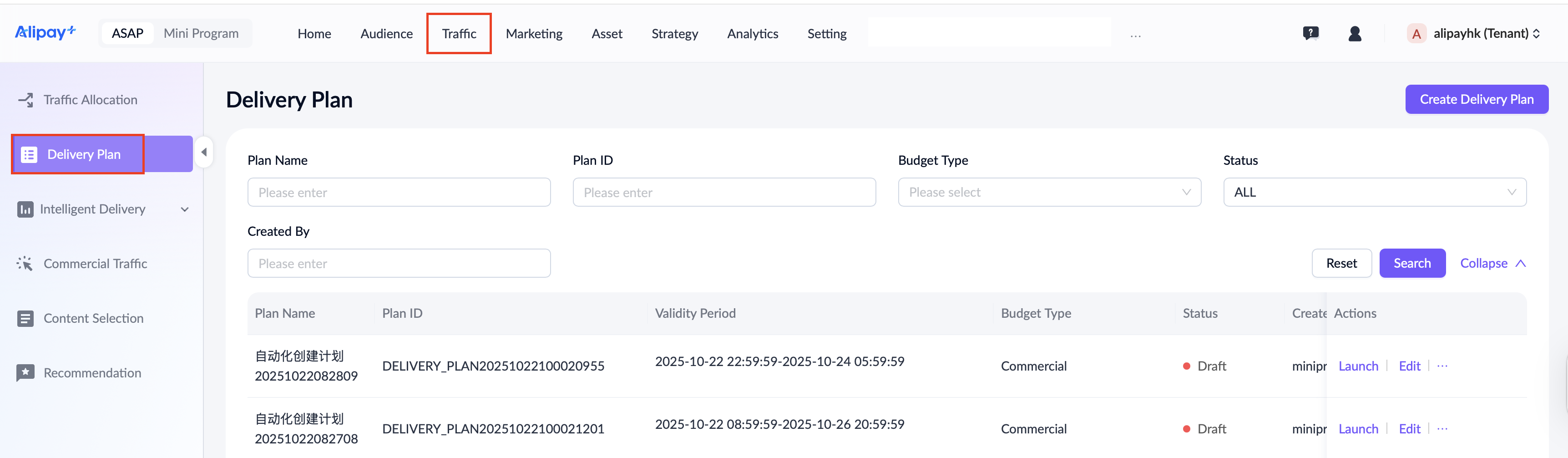
Create a delivery plan
Take the following steps to create a delivery plan:
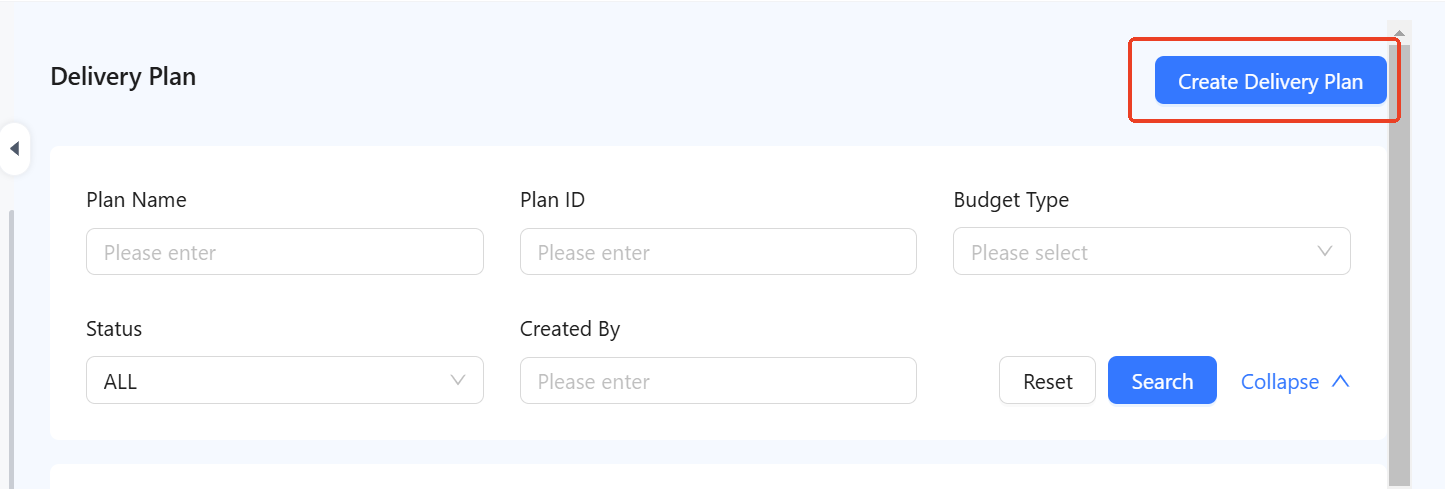
- Click Create Delivery Plan at the top right of the plan list page.
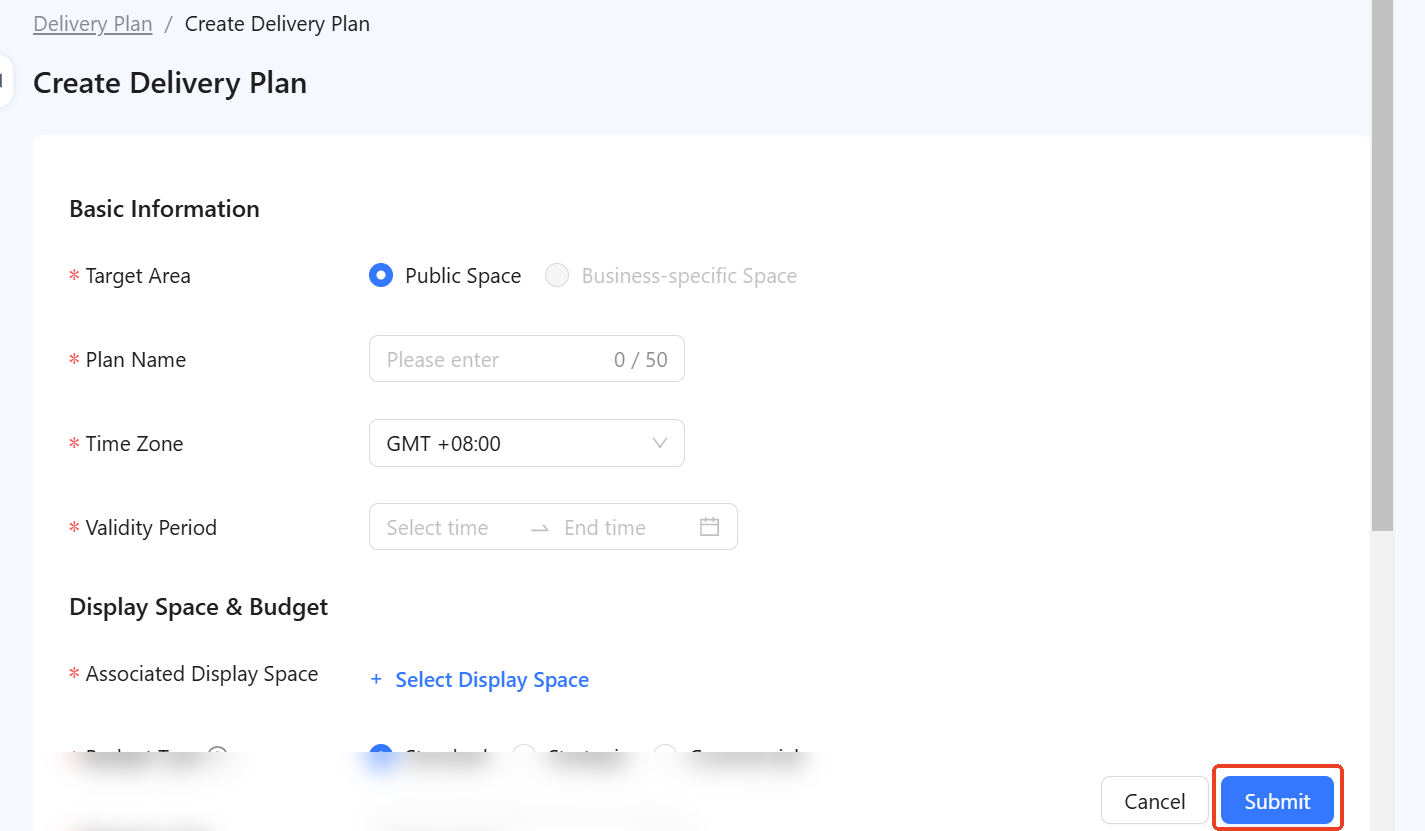
- Complete the following required information on the plan creation page.
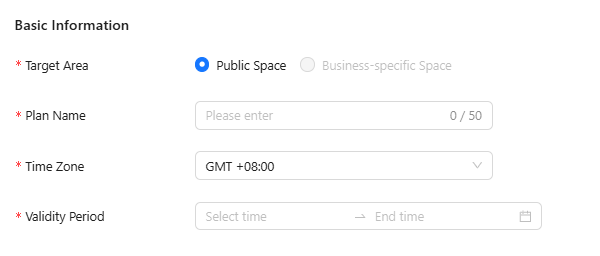
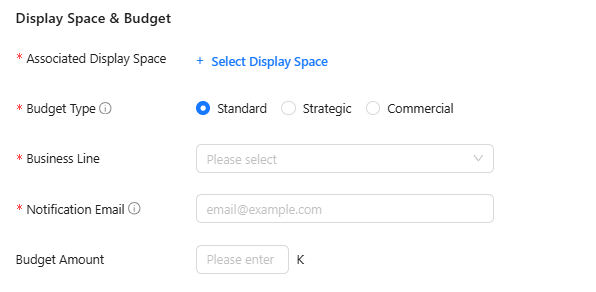
For a detailed explanation of each field and the fill-in instructions, see the following table:
Field name | Description |
Target Area | The area where tasks associated with this plan are delivered. There are two options:
Currently, only public space is available for selection. |
Plan Name | Name of the plan, limited to 50 characters. |
Time Zone | Time zone of the delivery plan. |
Validity Period | Effective period of the delivery plan. |
Associated Display Space | Display space associated with the delivery plan. |
Budget Type | Types of budget used by the delivery plan:
All three budget types are classified as guaranteed budgets, ensuring the exposure of delivery tasks. |
Business Line | This field is available only when the Standard budget type is selected. The business lines include life channel, digital life, digital payment, user growth, and finance. |
Budget Amount | The traffic budget allocated for the delivery plan. There is no specific maximum limit because the plan may extend over multiple months. The minimum amount must be greater than 0. |
Notification Email | Email address to receive notifications when traffic usage reaches 70%, 80%, 90%, 95%, and 100%. |
- Click Submit to create the delivery plan in draft status.
Edit a delivery plan
To edit a delivery plan, select the desired plan from the list and click Edit in the actions column to access its editing page.
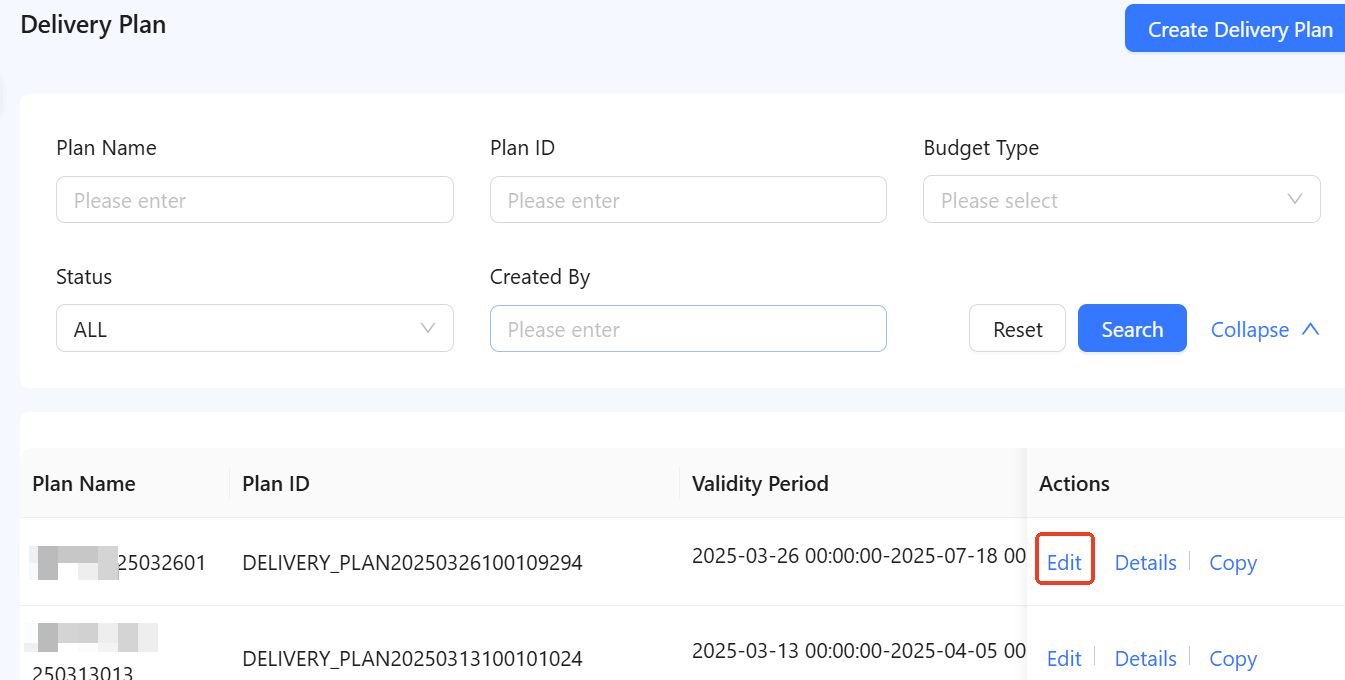
Both draft and launched delivery plans are editable. For launched plans, edits do not affect their launched status. The editable fields vary depending on the plan's status.
Refer to the following table for editing details:
Field name | Editable in draft status? | Editable in launched status? |
Target Area | Yes | No |
Plan Name | Yes | No |
Time Zone | Yes | No |
Validity Period | Yes | Yes |
Associated Display Space | Yes | No |
Budget Type | Yes | No |
Budget Amount | Yes. The amount can be increased or decreased. | Yes. The amount can only be increased. |
Business Line | Yes | No |
Notification Email | Yes | No |
View a delivery plan
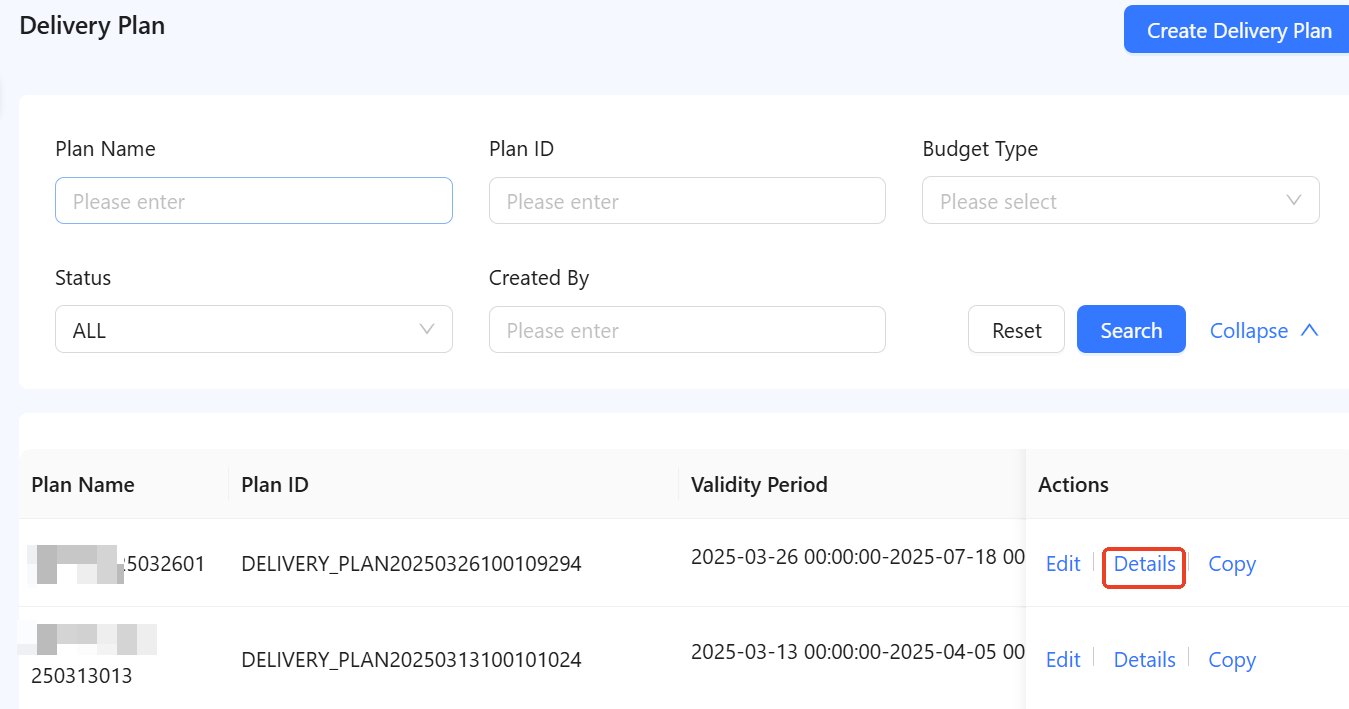
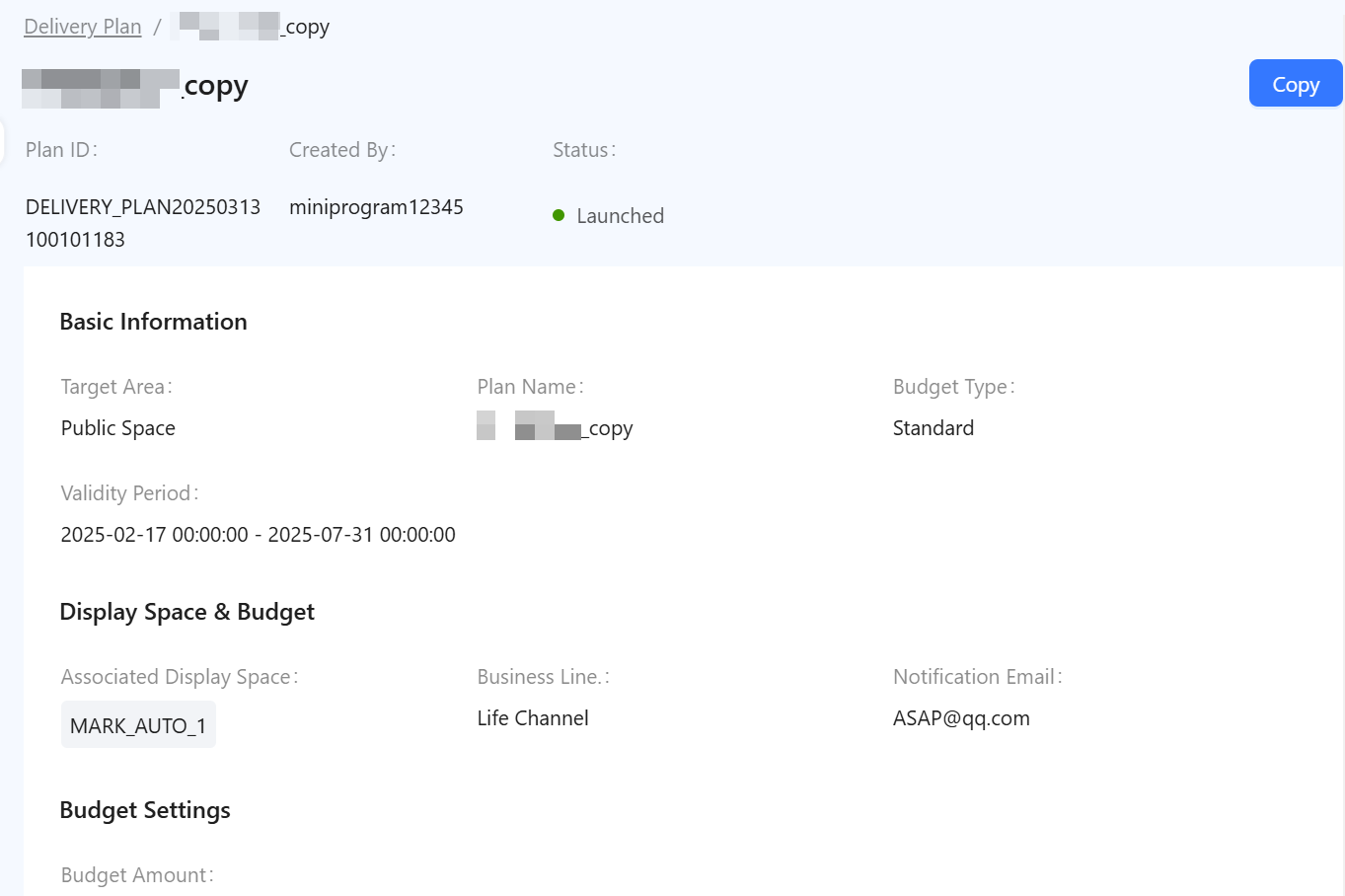
To view a specific plan, click Details in the actions column on the delivery plan list page to access the plan's detail page.
Copy a delivery plan
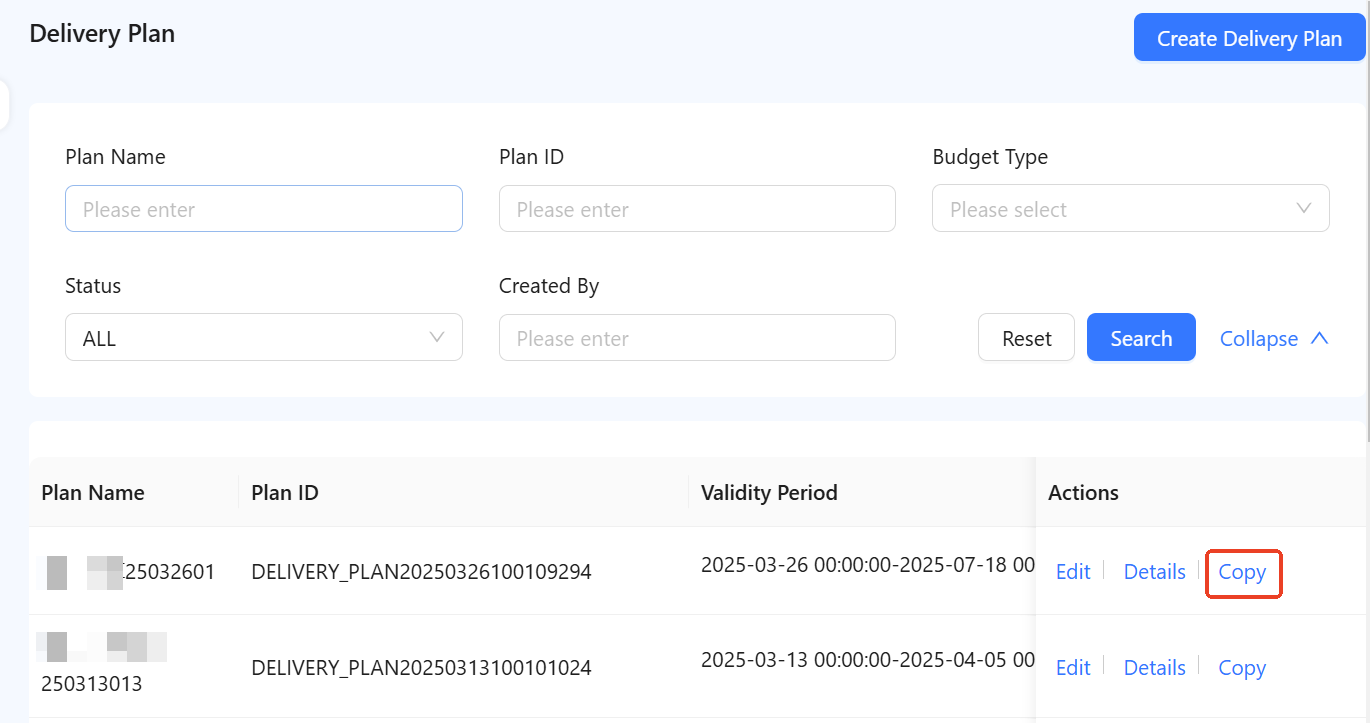
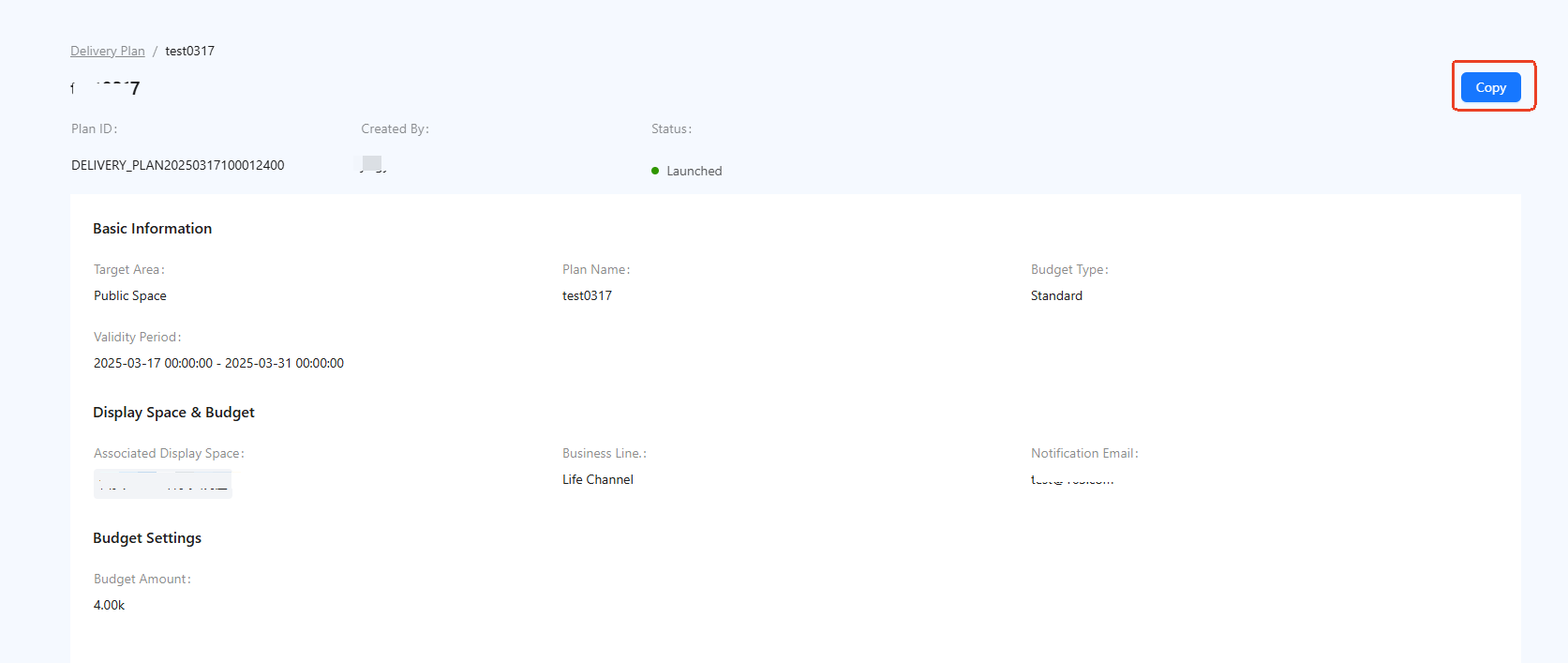
To copy a delivery plan, select the desired plan on the delivery plan list page and click Copy in the actions column. Alternatively, you can go to the details page of the selected plan and click Copy in the upper-right corner.
System-created delivery plans
When you create a delivery task under Traffic > Operational Space with the Standard budget type, the system automatically applies a system-generated delivery plan for your selected business line.
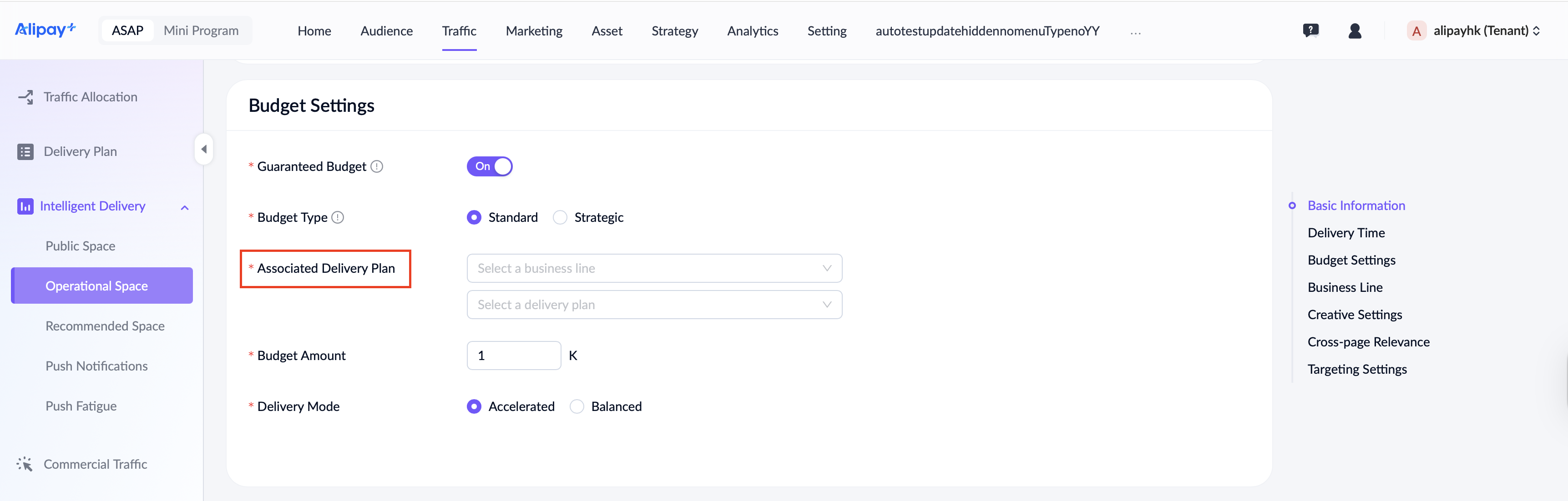
System-created plans streamline the process by providing default plans for each business line. This feature allows users to select a business line directly, automatically applying the default plan without the need to create one manually. These automatically created plans do not appear on the delivery plan list and require no management. To understand the configuration of these delivery plans, refer to the following table:
Field name | Description |
Plan Name | Formatted as "Business Line Name + '_' + defaultPlan". For example, "LifeChannel_defaultPlan". |
Time Zone | Configured to match your local time zone. |
Validity Period | Set for a relatively long duration to ensure continuous operation. |
Associated Display Space | Associated with all display spaces under the business line and all public spaces. Any new public spaces or business line display spaces will automatically sync with the delivery plan. |
Budget Type | Set to the standard budget type. Each business line has an automatically created delivery plan. |
Budget Amount | No budget limit is enforced. The delivery plan is linked to the specific business line for traffic budgeting. |
Notification Email | This field is left empty. |