
Recommended space
To display specific content to users through display spaces, it is essential to create delivery tasks. The ASAP platform enables operators to create and manage these tasks, which are categorized into the following four types:
- Operational Space Tasks: Deliver static content to spaces (banners, badges, and cards) through detailed, manual configuration by operators, focusing on precise targeting.
- Recommended Space Tasks: Deliver both dynamic and static content to card and feed spaces, utilizing specific criteria for content filtering and algorithms for intelligent task delivery.
- Commercial Tasks: Manage paid advertising and merchant partnership content.
- Push Tasks: Send notifications or messages directly to users' mobile devices.
This guide explains how to create and manage delivery tasks in recommended spaces, which have the following characteristics:
- Utilizes algorithms to evaluate and deliver both dynamic and static content.
- Supports specifying slots for content delivery, limited to static creatives.
- Contextual relevance settings do not apply to tasks delivered to recommended spaces.
- Tasks use the competitive budget, requiring no budget settings or association with delivery plans.
Basic concepts
Terms | Definition |
Content | Items delivered to display spaces, which include
|
Content Selection | Select suitable content based on configured rules. The filtered content dynamically changes as the content library updates. |
Target Slot | Specific positions within a display space designated for the delivery of static content. Slots are numbered from left to right, top to bottom. |
Access the task list
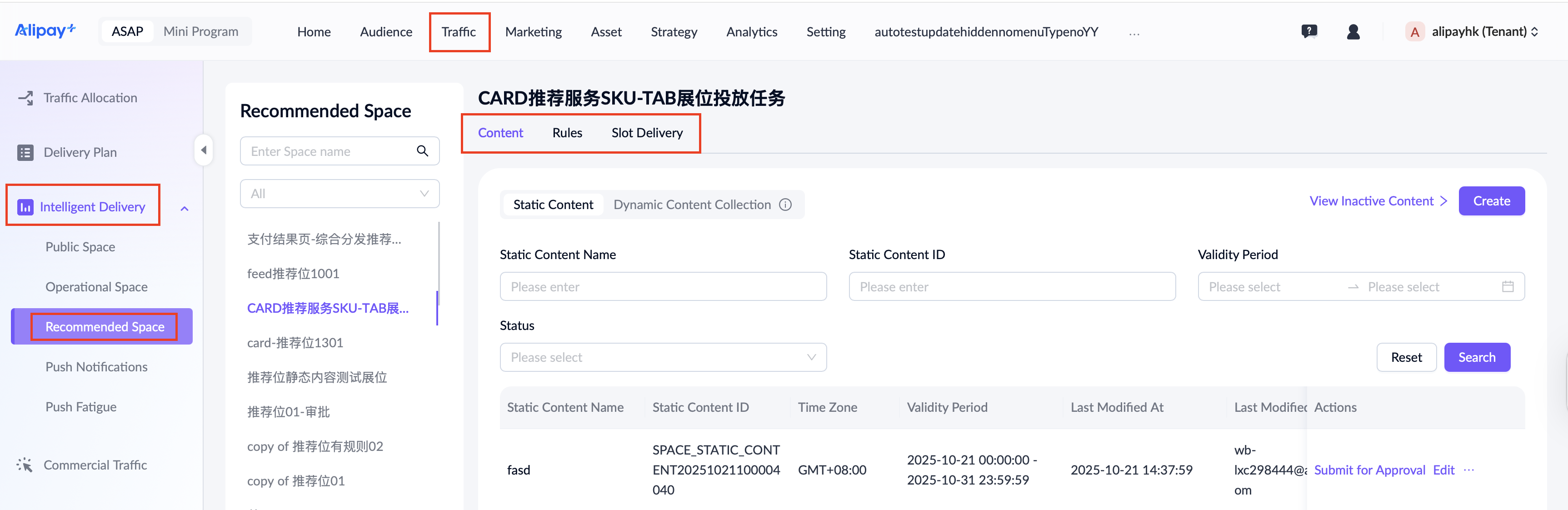
To access the task list page, go to Traffic > Intelligent Delivery > Recommended Space. In the left pane, select a recommended space. The space name appears at the top of the page. Use the following tabs to manage tasks for the selected space:
- Content: Manage content to be delivered to the selected recommended space.
- Rules: Set up match rules and content diversification rules.
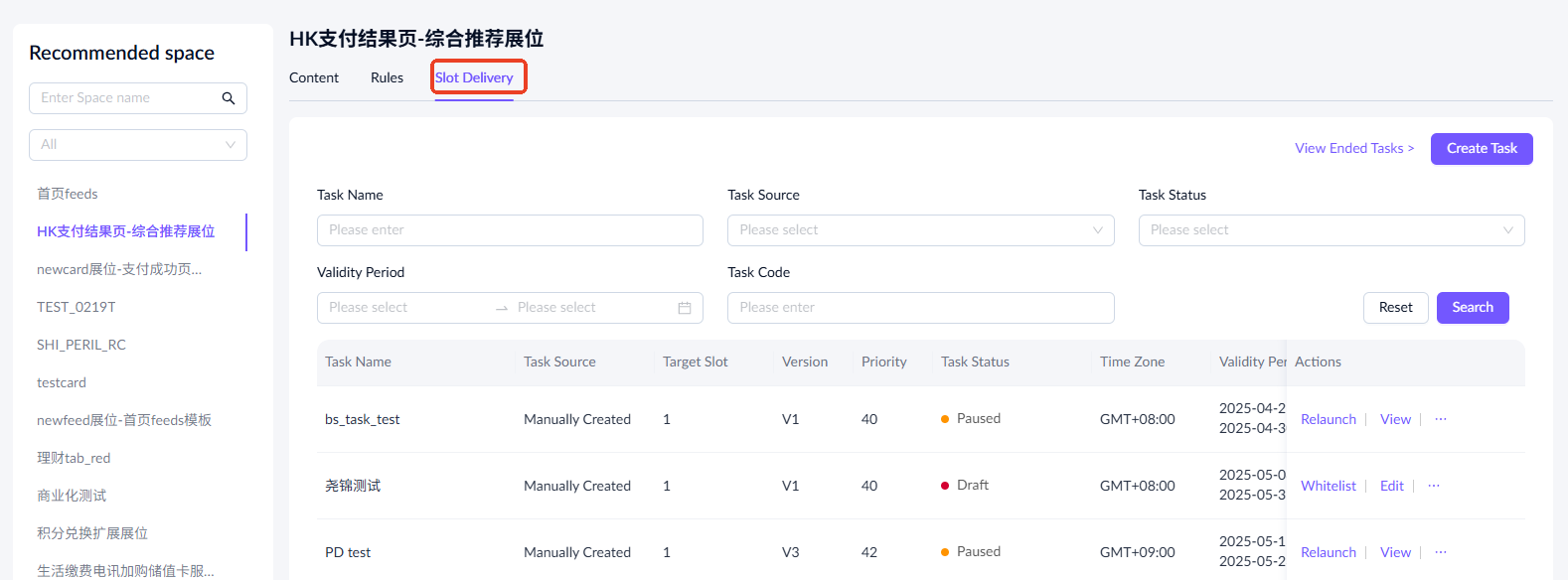
- Slot Delivery: Deliver static creatives to specific slots within the recommended space.
Content
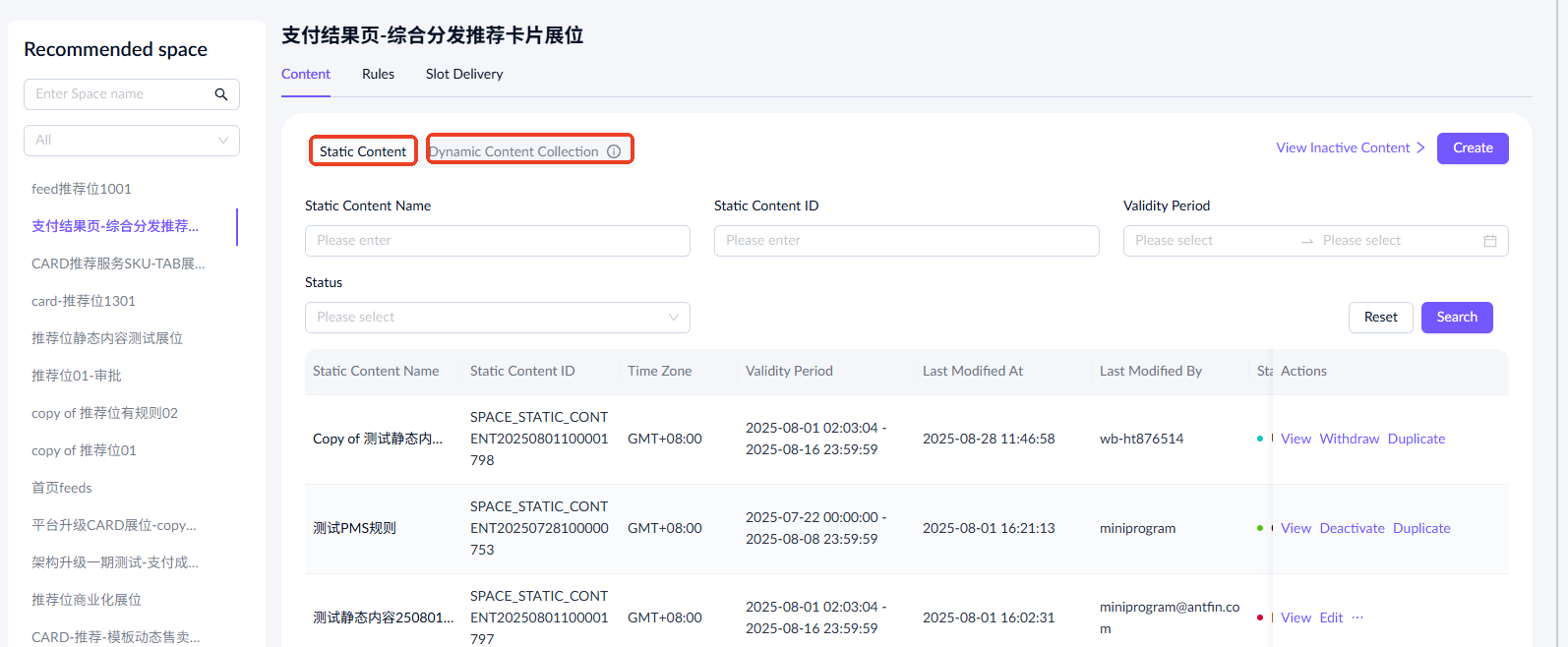
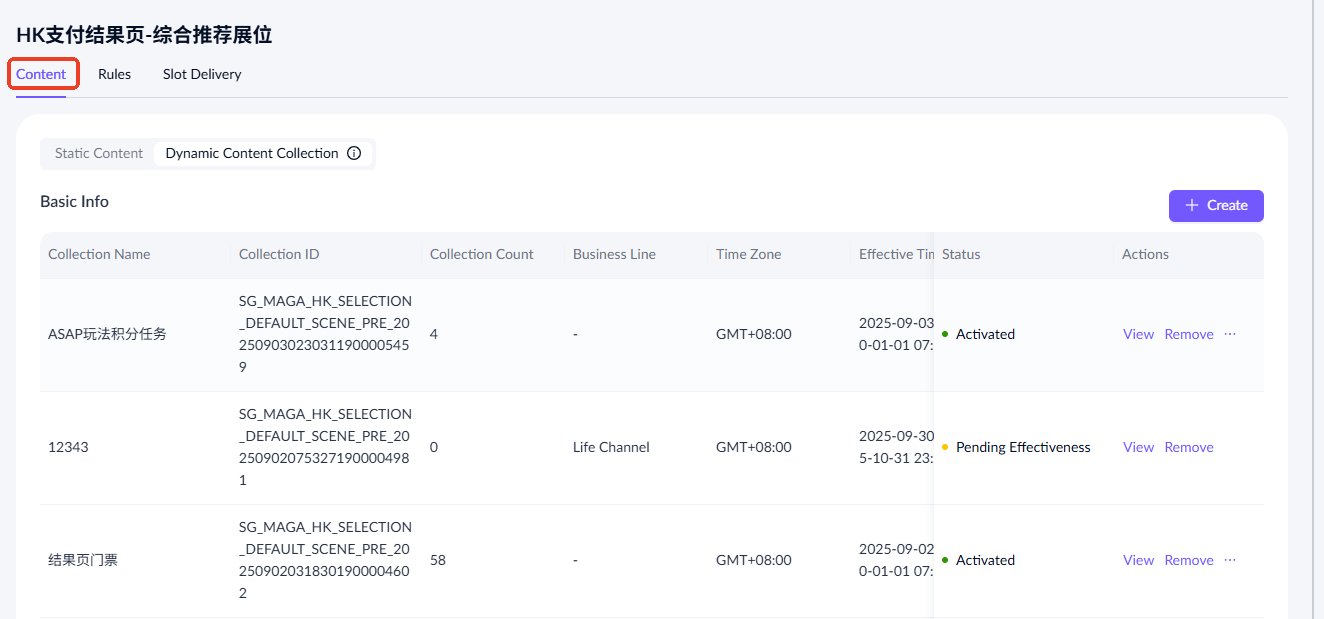
Select a specific recommended space to access the content configuration page. There are two types of content: Static Content and Dynamic Content Collection.
Static content
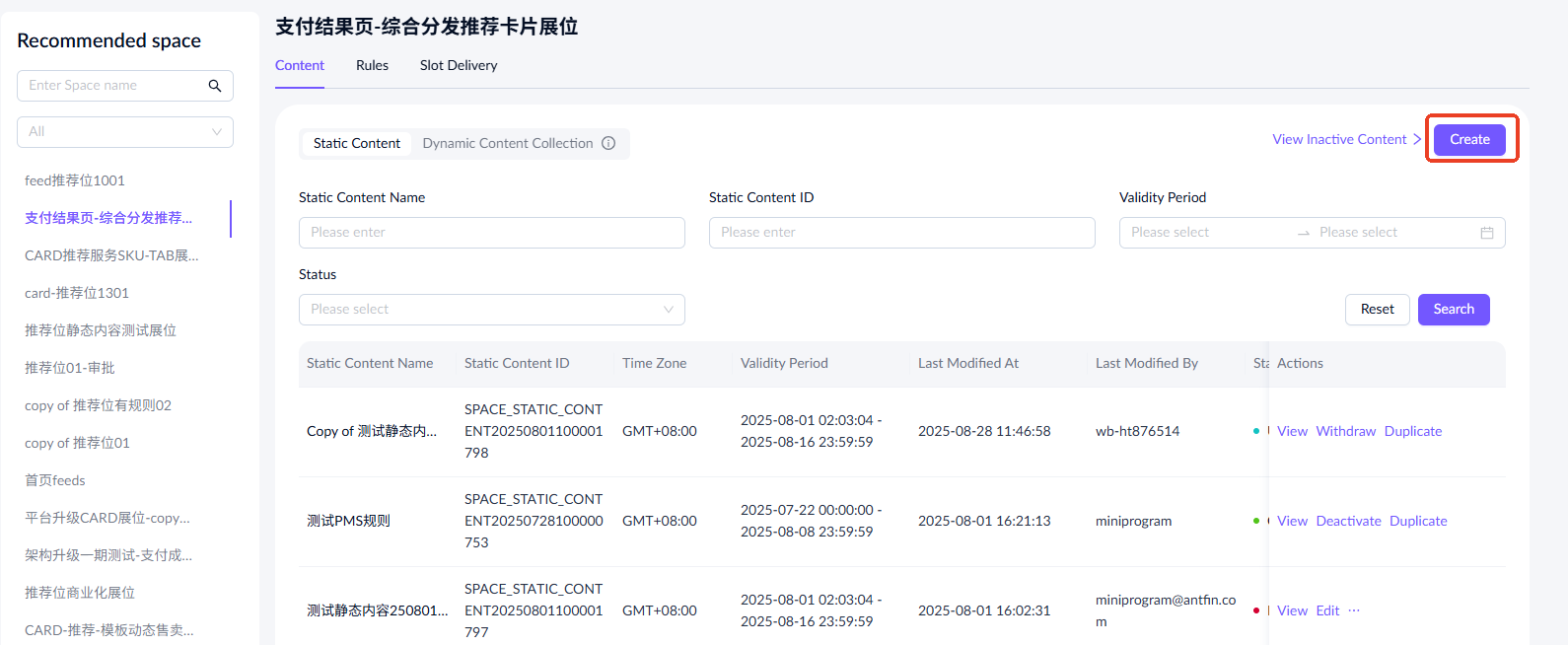
Under the Static Content tab, you can view, search, or create static content. You can filter existing content by name, content ID, status, and validity period. To create new static content, take the following steps:
- Click Create in the top-right corner.
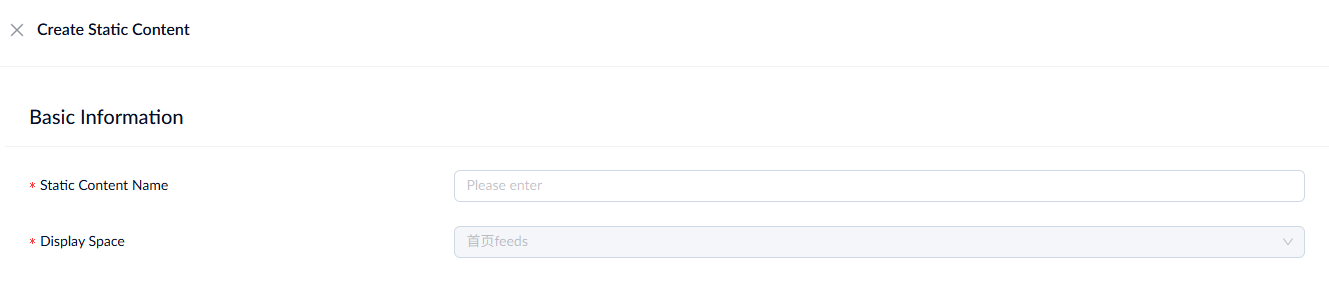
- Enter the basic information.
- Static Content Name: A unique name for the static content.
- Display Space: The display space to which the static content is delivered. It is automatically filled with the space selected on the content list page. To change it, return to the content list page, select a different display space, and create the static content again.
- Complete the required information for delivery time.
- Time Zone: The time zone of the delivery region. The value defaults to GMT+8.
- Validity Period: The time range during which the static content is active.
- Recurrence Pattern: The recurring delivery times for static content within its validity period. By default, the None option is selected, indicating that the task is delivered continuously throughout the validity period. You can also configure the schedule to run daily, weekly, or monthly. For monthly recurrence, select specific days for delivery. If you select a date that does not exist in a particular month (e.g., 31st), delivery won't occur on that date.

- Configure the static creative by clicking Apply Existing Creative. The fields required for configuration are determined by the attribute information of the display space associated with the static content. After configuration, click Confirm, and the static creative will be displayed.

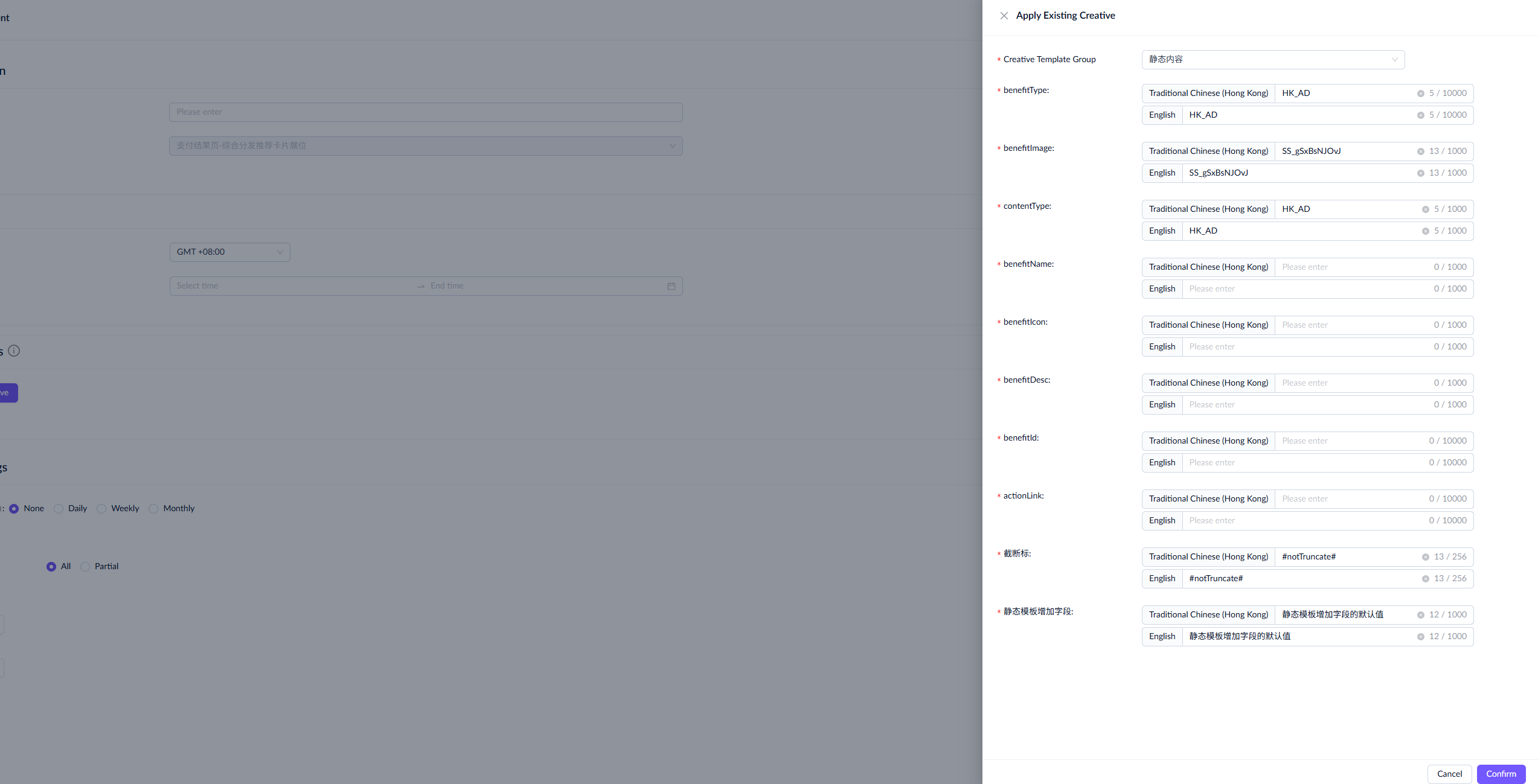

- Configure the targeting settings. For detailed information, refer to the Targeting Settings section in the Operational Placement guide.

- Click Submit in the top-right corner. The static creative is created in Draft status.
Dynamic content collection
The Dynamic Content Collection tab lists all existing dynamic content collections. To create a new content collection, click Create in the top-right corner. For detailed creation steps, refer to the Content Collection Center.
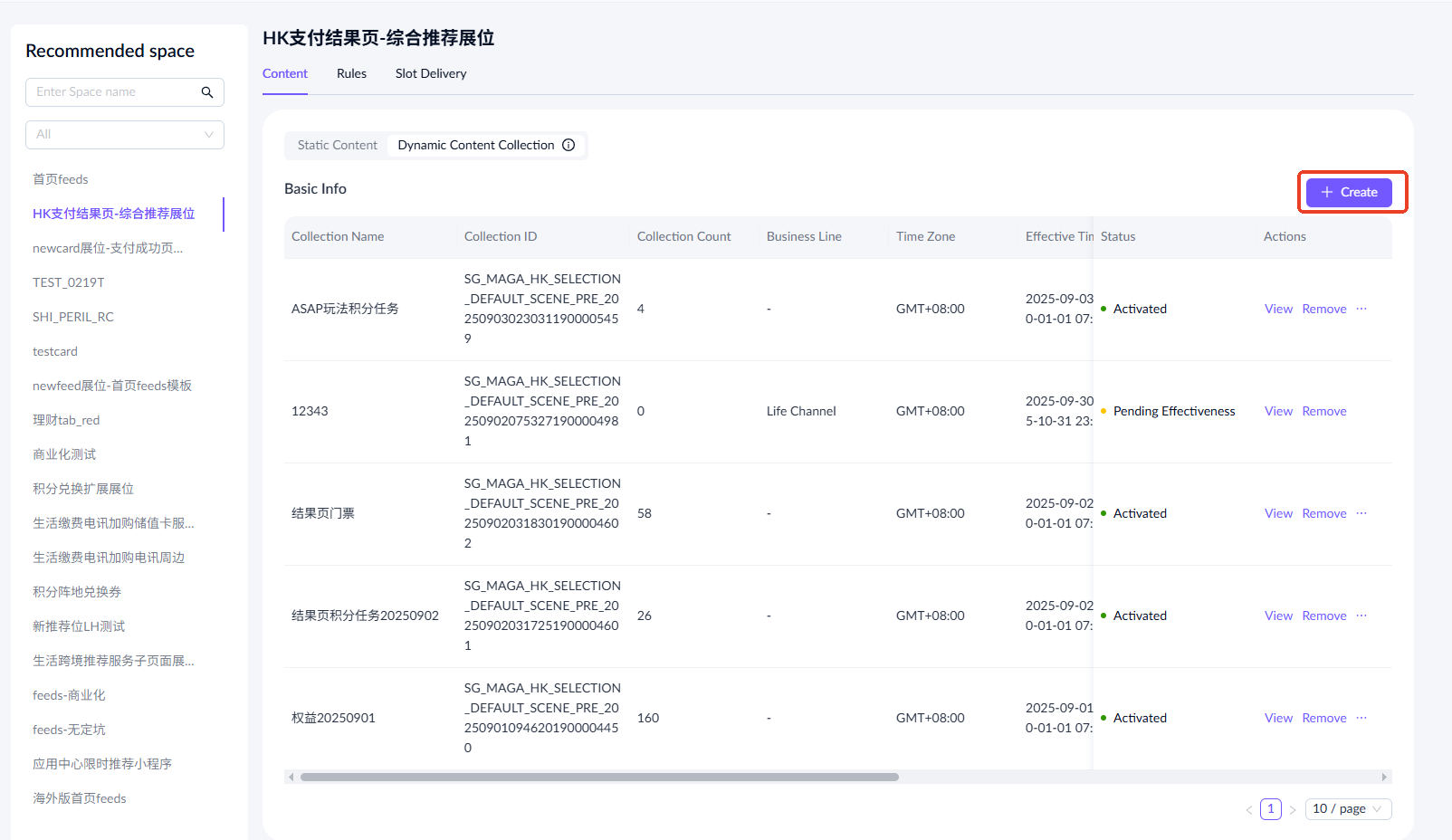
Content collections in different statuses support various operations:
Status | Supported actions |
Pending Effectiveness | View / Remove |
Pending Content Selection | View / Remove |
Selecting Content | View / Remove |
Activated | View / Remove / Duplicate |
Deactivated | View / Remove / Duplicate |
Expired | View / Remove / Duplicate |
Note:
- You can duplicate an existing content collection to create a new one.
- Removing a content collection disassociates it from the current display space.
- If only one content collection is associated with the current display space, it cannot be removed.
Rules
To configure match rules and content diversification rules, switch to the Rules tab.
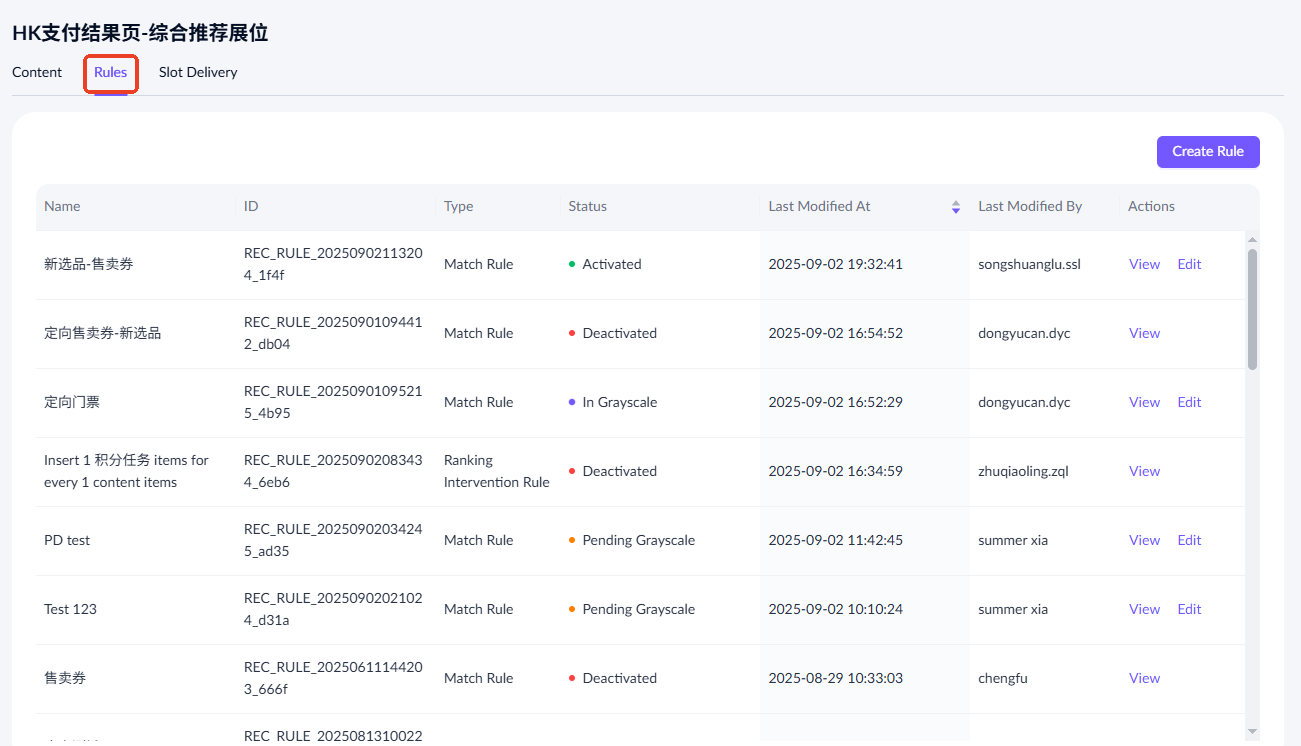
Note: The recommended spaces must have their content configured before setting up the rules.
Match rules
Match rules deliver tailored content, such as coupons, to a specific audience.
Create a match rule
Take the following steps to create a match rule:
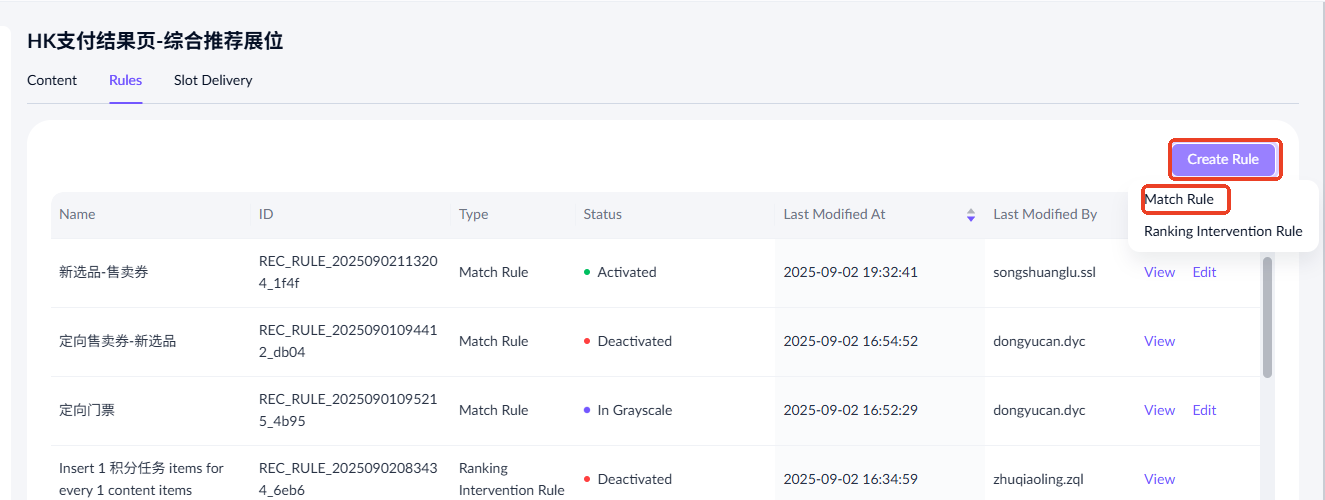
- Click Create Rule > Match Rule to access the rule creation page.
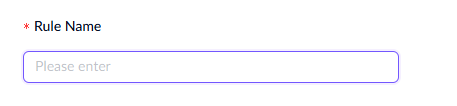
- Assign a unique name to the rule.
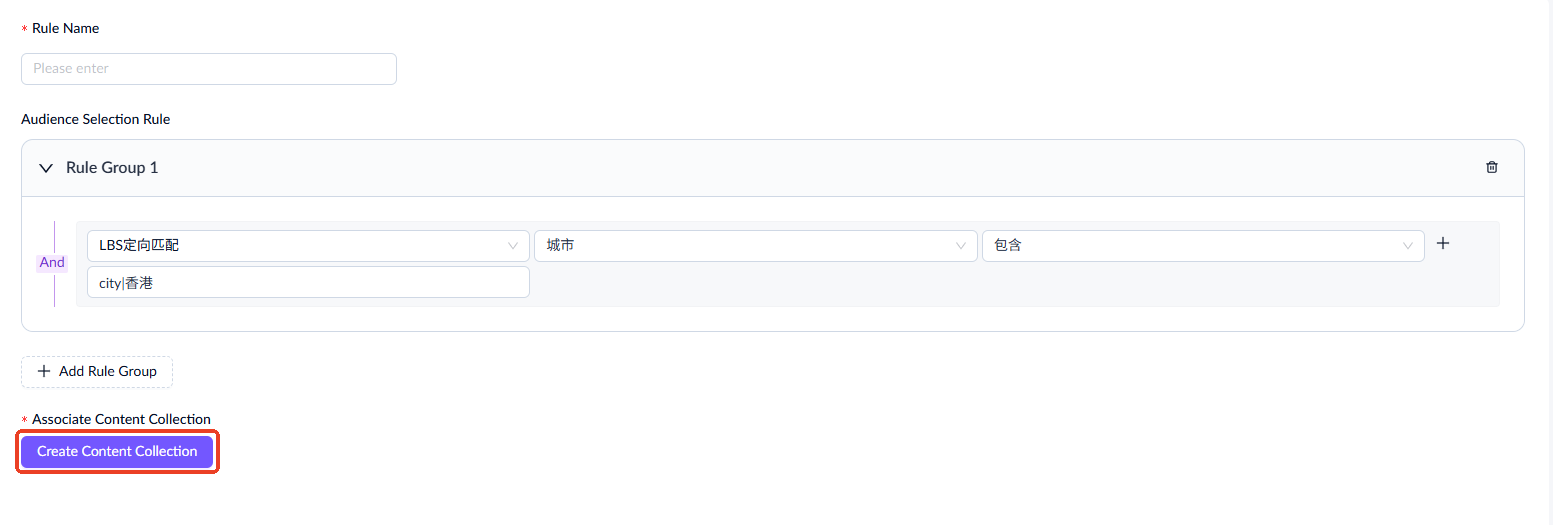
- Define the target audience.

- Associate content with this rule by clicking Create Content Collection. For detailed creation steps, refer to the Content Collection Center. Note that each match rule can only be associated with one content collection.
Once created, the content collection will be in Draft status, and you can view its details or delete it.
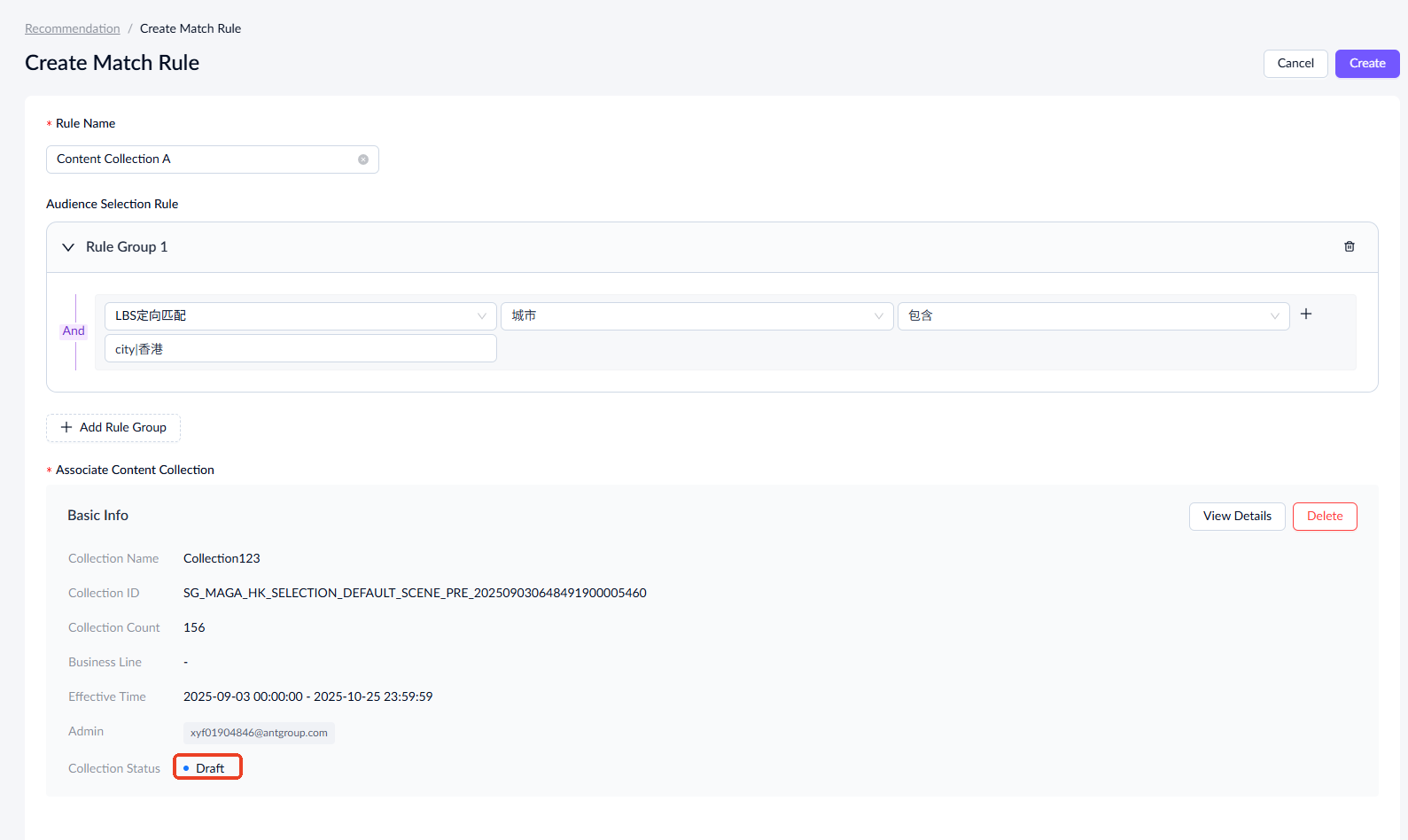
- Click Create to submit the match rule, which will automatically activate the content collection simultaneously. Note that the status of the content collection does not affect the activation of the match rule.
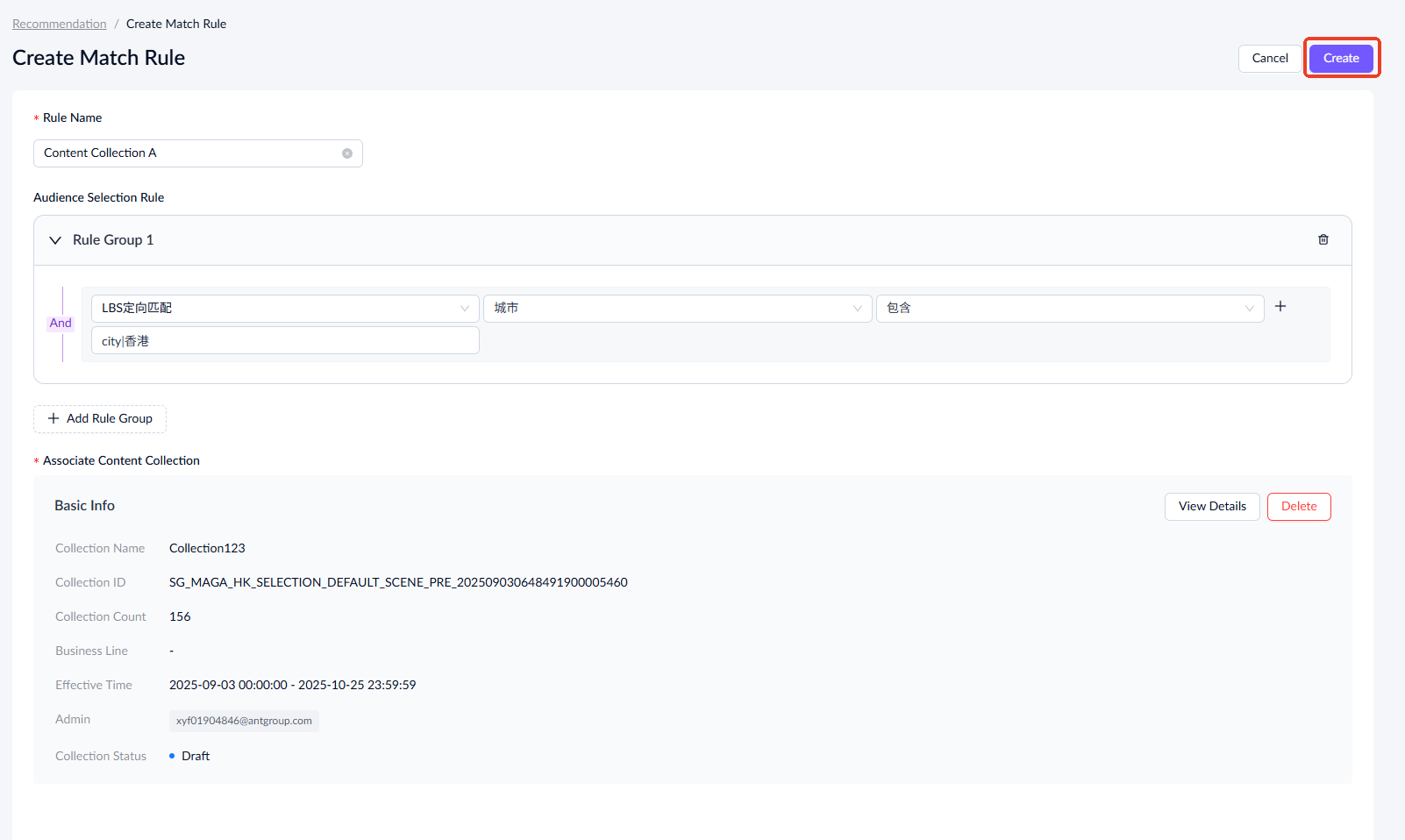
Note:
- The content collection in a match rule is shown only to the defined audience. If no audience is set, it will not be delivered.
- The content collection configured under the Content Tab is accessible to all audiences.
Status flow
Once created, a match rule moves through the following statuses:
Pending grayscale
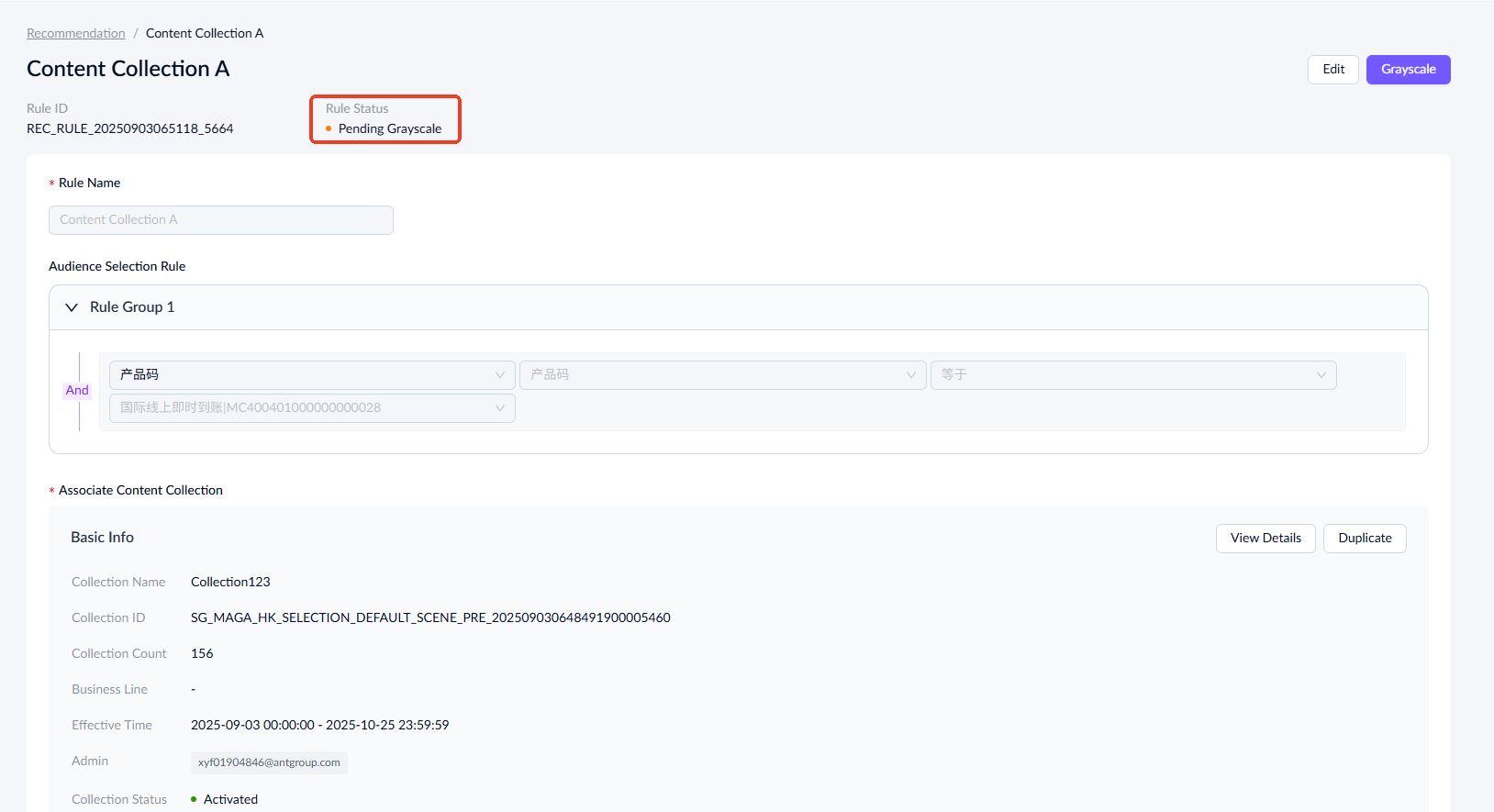
In this status, you can edit the rule or start the grayscale process. 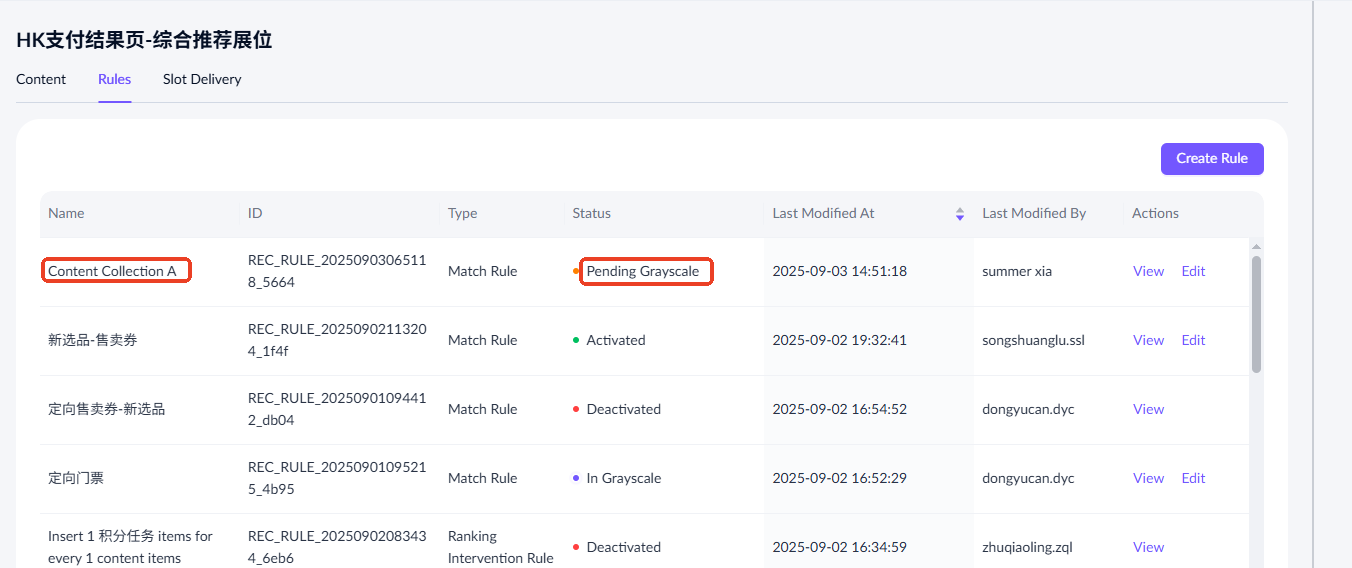
- Edit: Click Edit in the Actions column or click View to access the rule's detail page, where you can also find the Edit button at the top right. After editing and submitting, the rule's status remains Pending Grayscale.
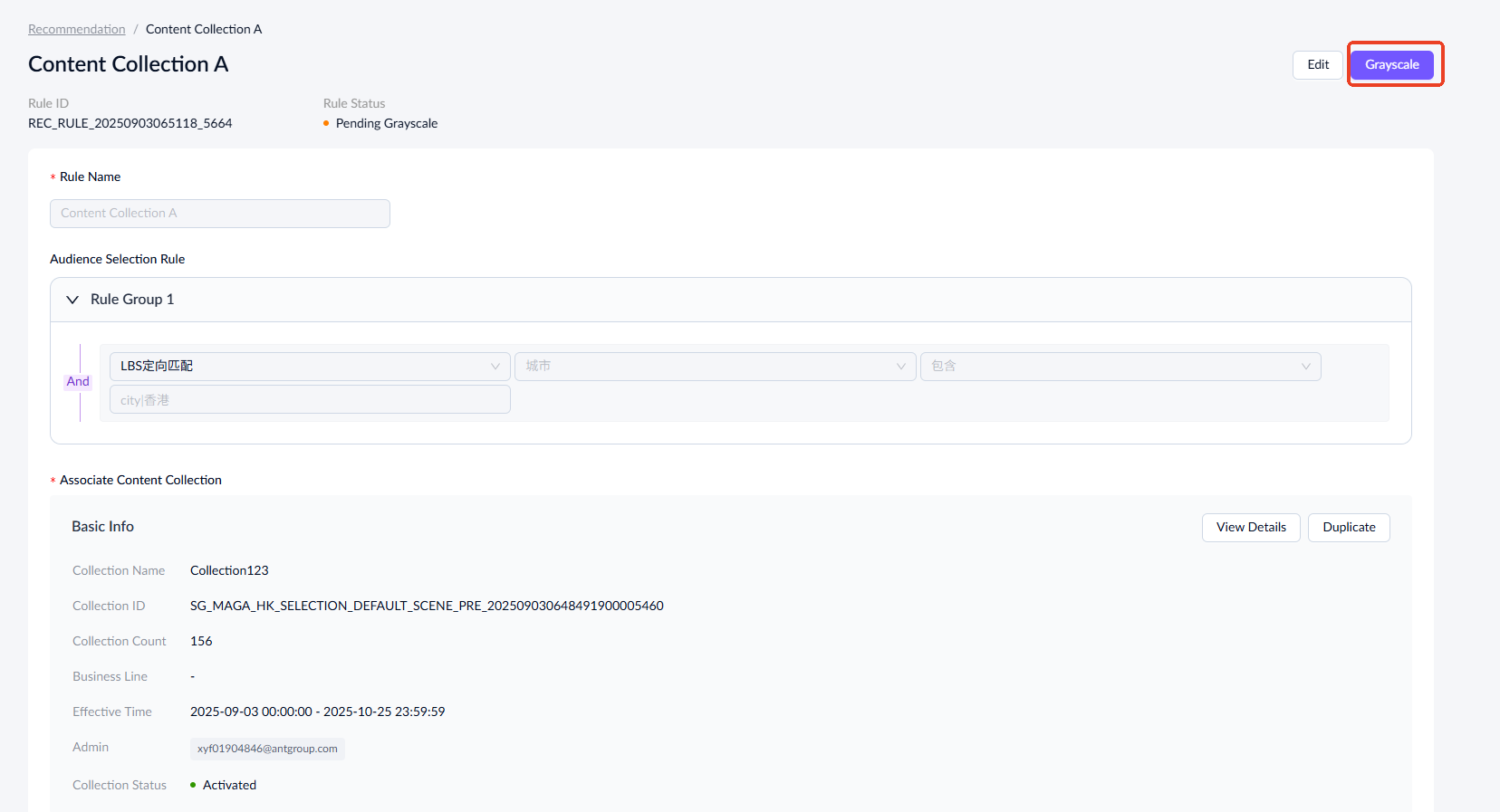
- Grayscale: Click Grayscale at the top right of the rule's detail page. Set the grayscale release ratio and click OK. The rule status is updated to In Grayscale.

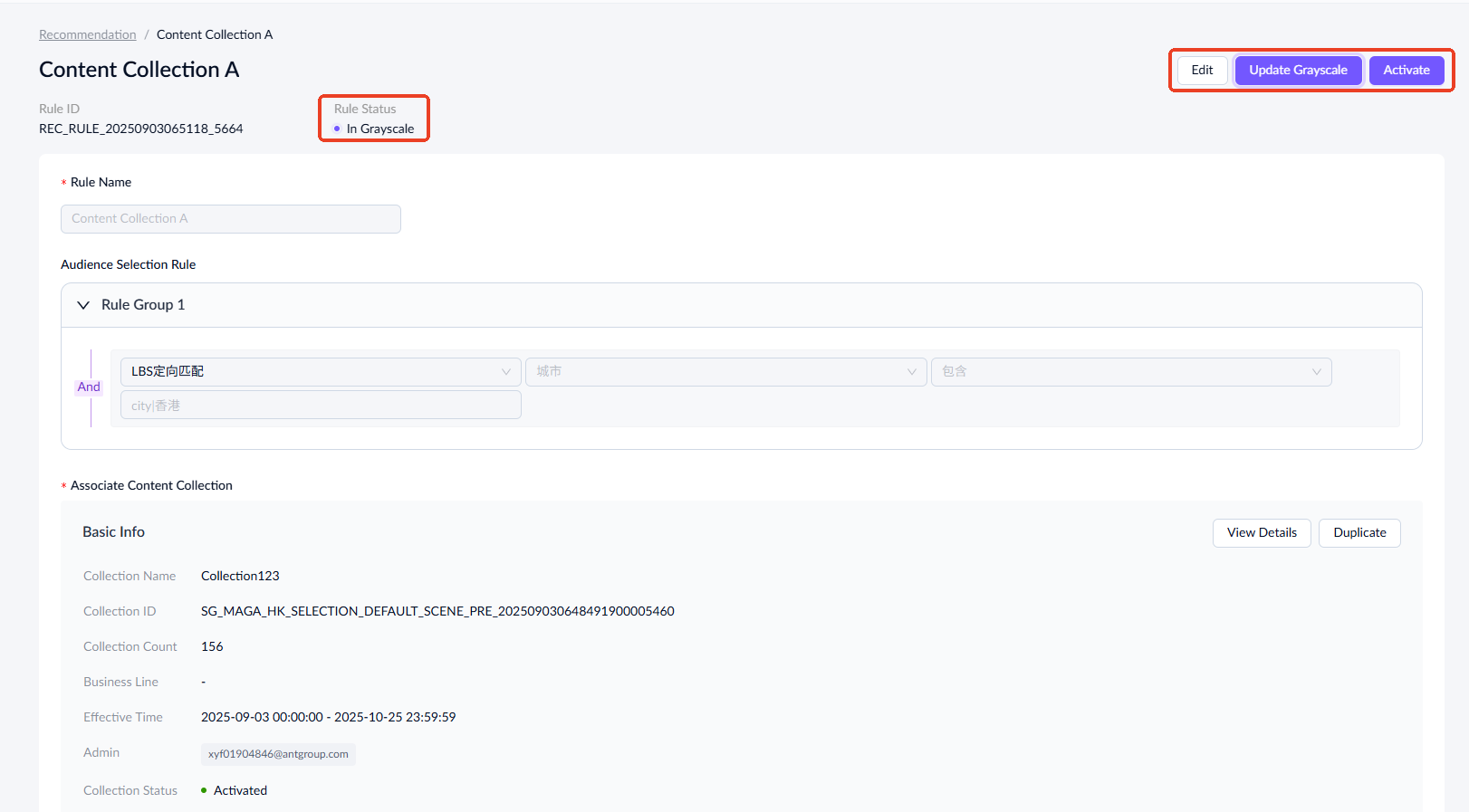
In grayscale
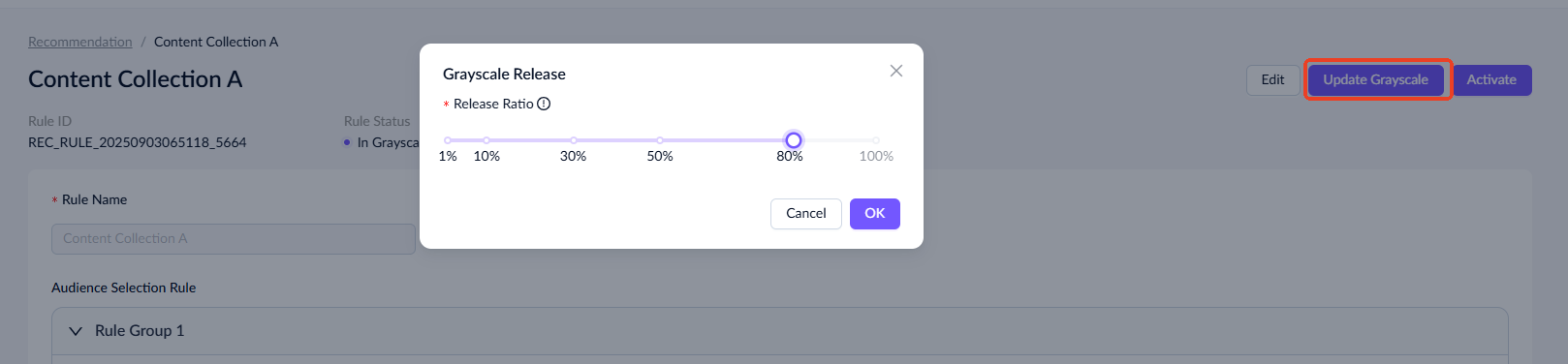
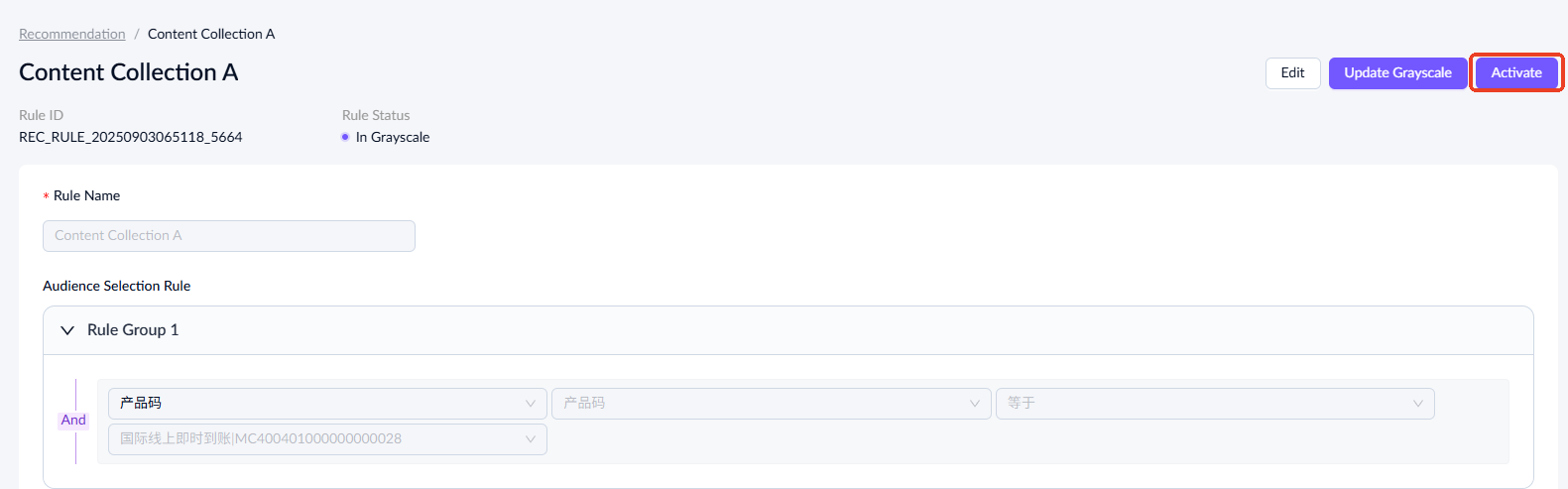
In this status, you can edit, adjust the grayscale release ratio, or activate the rules.
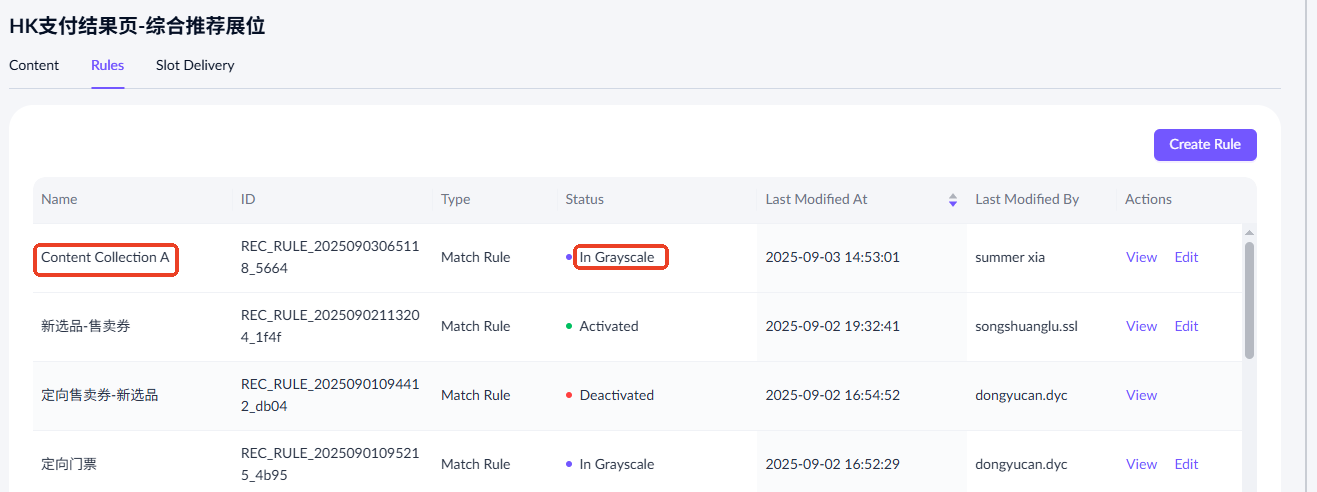
- Edit: Click Edit in the Actions column to access the rule's editing page. Note that once you submit the changes, the rule status reverts to Pending Grayscale.

- Update Grayscale: Click Update Grayscale at the top right of the rule's detail page. Adjust the release ratio as needed and click OK.
- Activate: Click Activate to make the rule live. After confirmation, the rule status is updated to Activated.

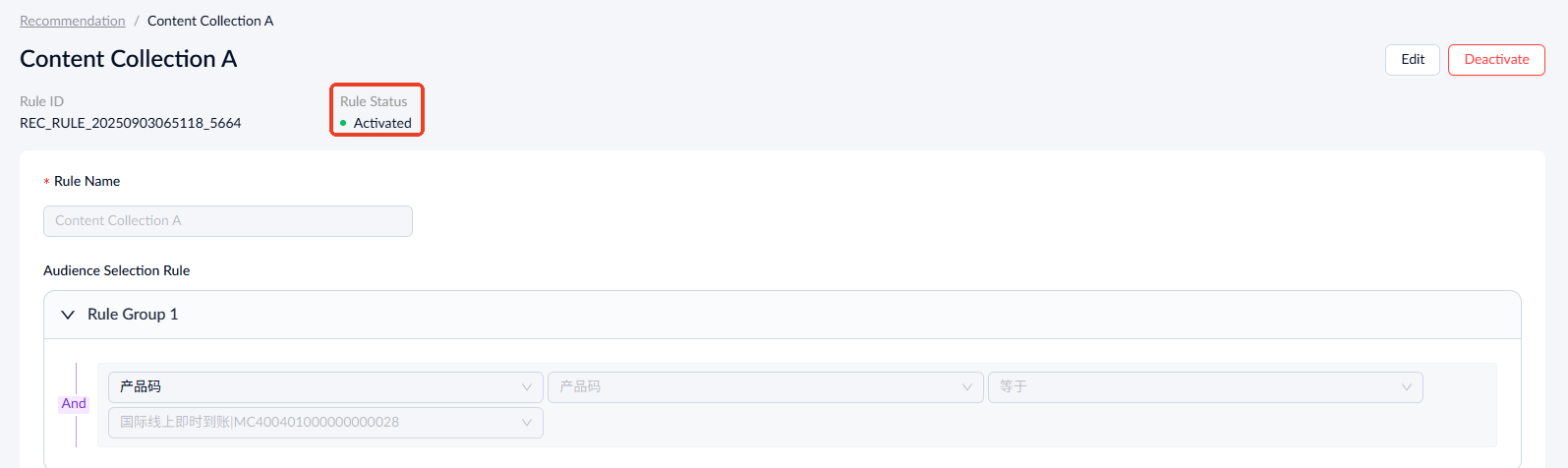
Activated
In this status, rules can be edited or deactivated.
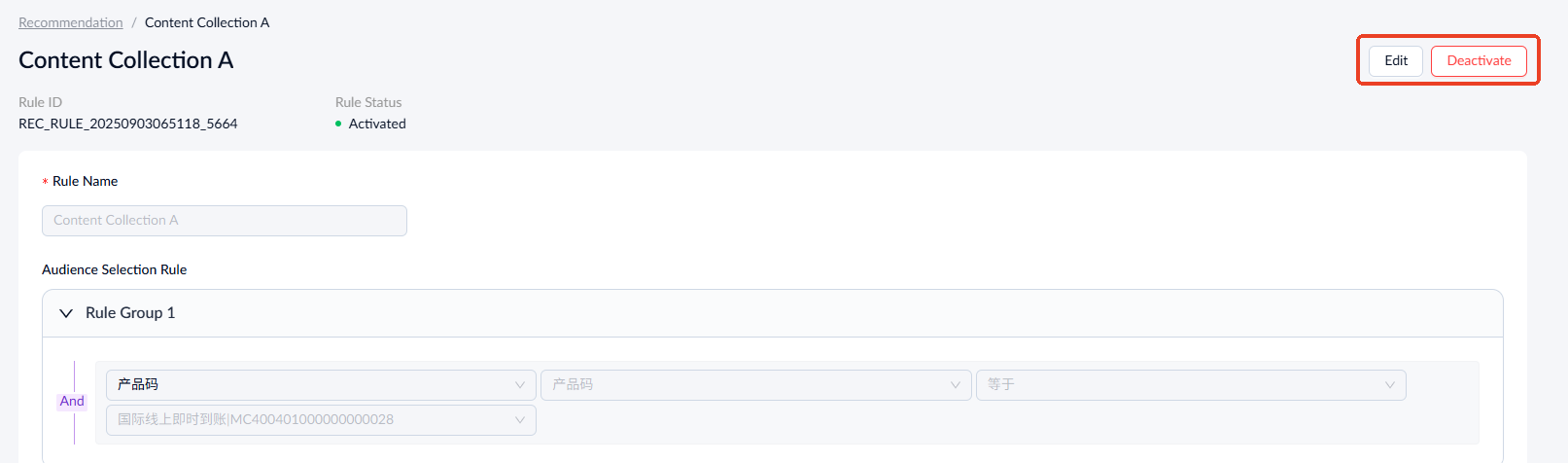
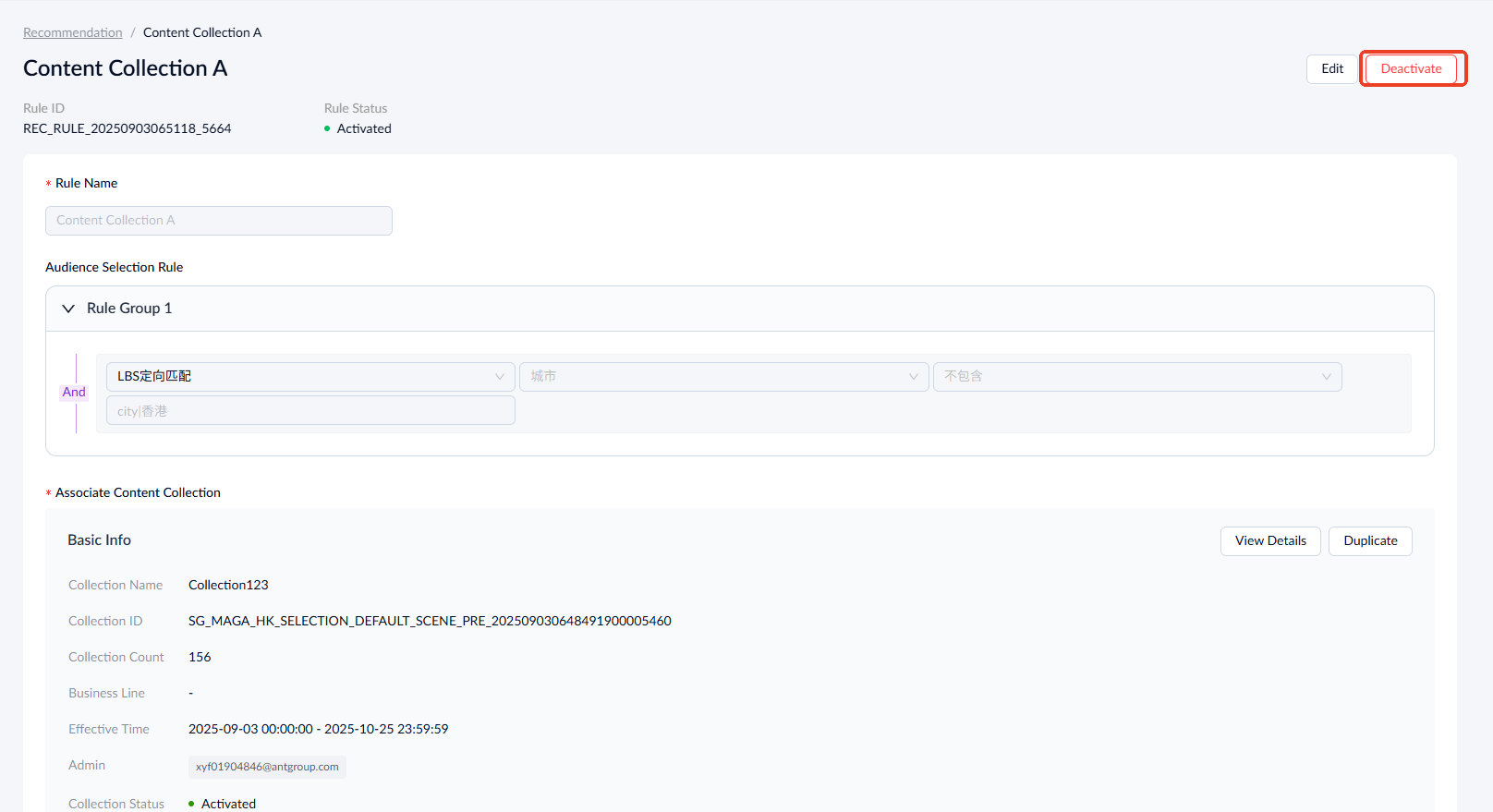
- Edit: Rules in the Activated status can be edited. However, when you submit the changes, a copy of this rule is automatically created. The original version remains Activated, while the copy's status defaults to Pending Grayscale and can continue through the release process. Once the copy's status becomes Activated, it replaces the original version, which is then deactivated.

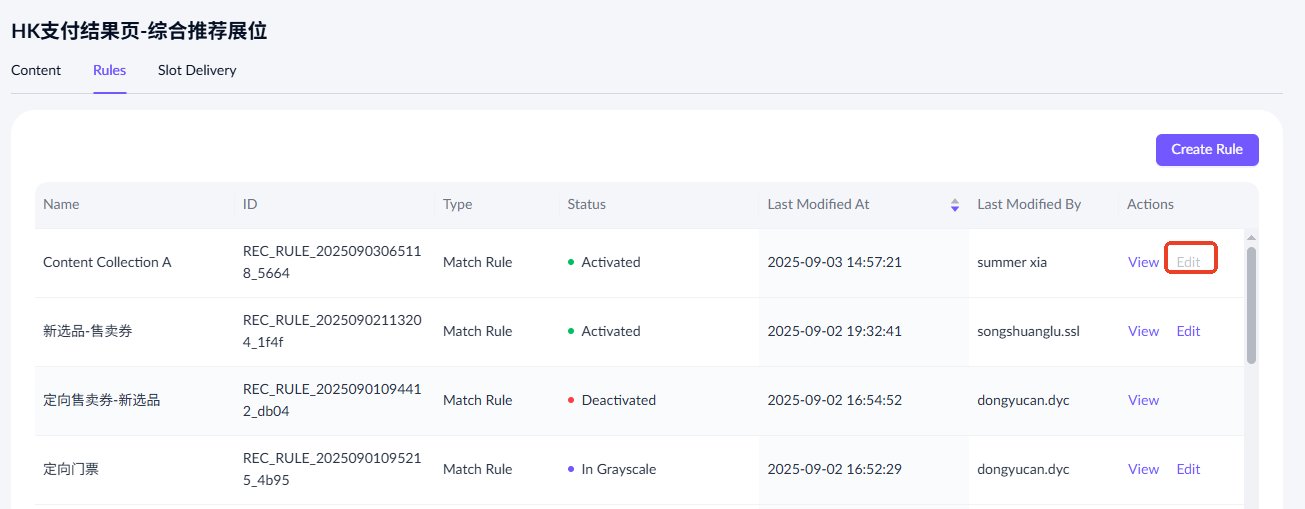
Note: If a rule has a working copy, the Edit button is disabled. To enable editing, click View to access the rule's details page. Then, click View Working Copy in the yellow notification bar to activate the copy.
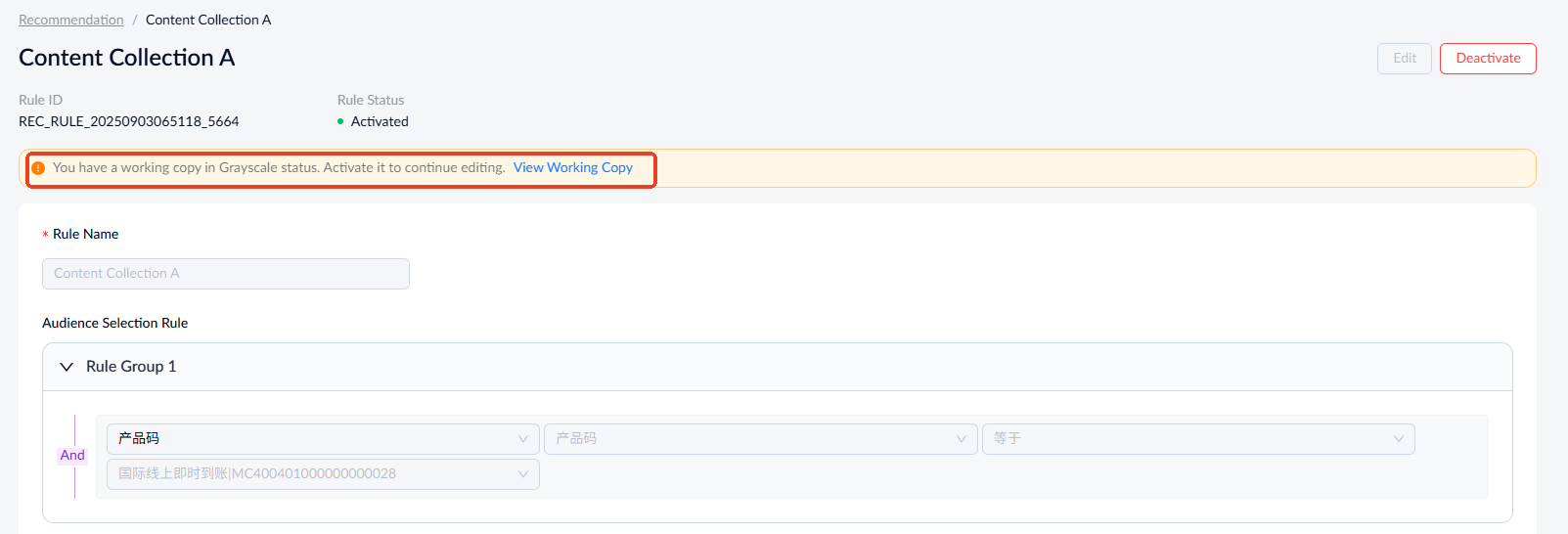
- Deactivate: Click Deactivate at the top right of the rule's detail page. After confirmation, the rule status is updated to Deactivated.


Ranking intervention rules
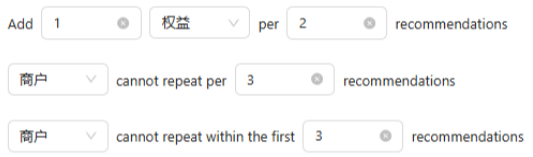
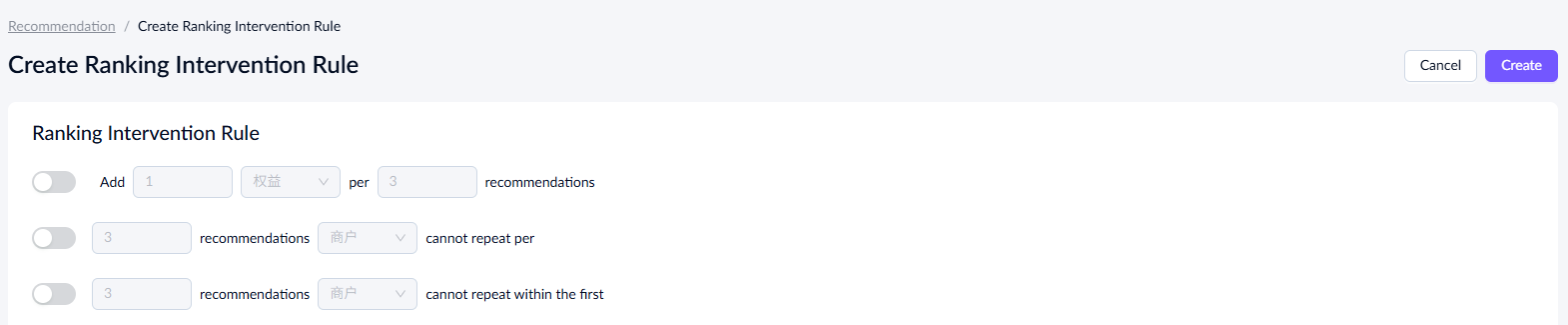
Ranking intervention rules outline the intervention strategy for ranking content in recommended spaces. The rules are prioritized from highest to lowest as first, second, and third.
In the event of conflicts, higher-priority rules take precedence.
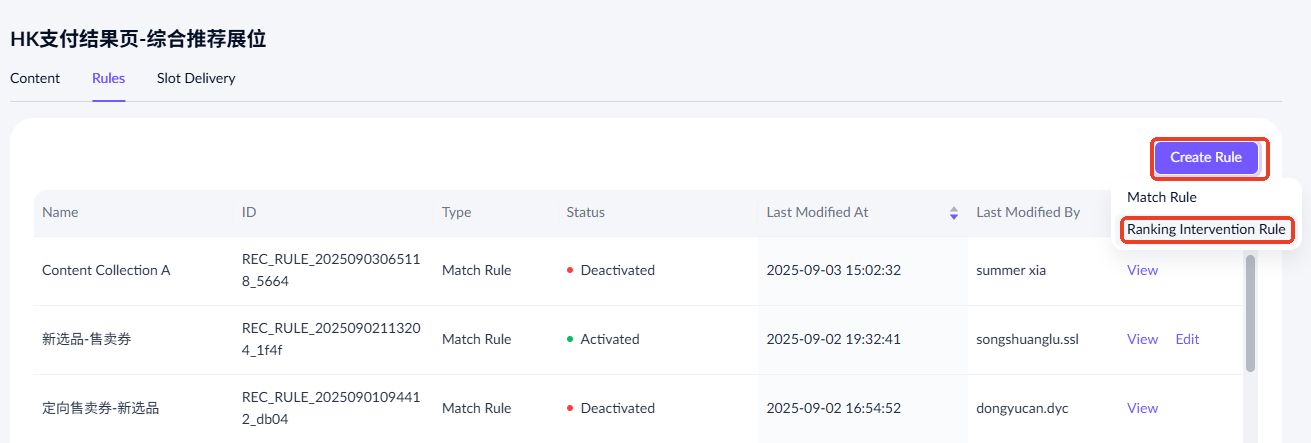
Create a ranking intervention rule
- Click Create Rule > Ranking Intervention Rule to access the rule creation page.
2. Turn on the rule configuration toggles and complete the configuration as needed.
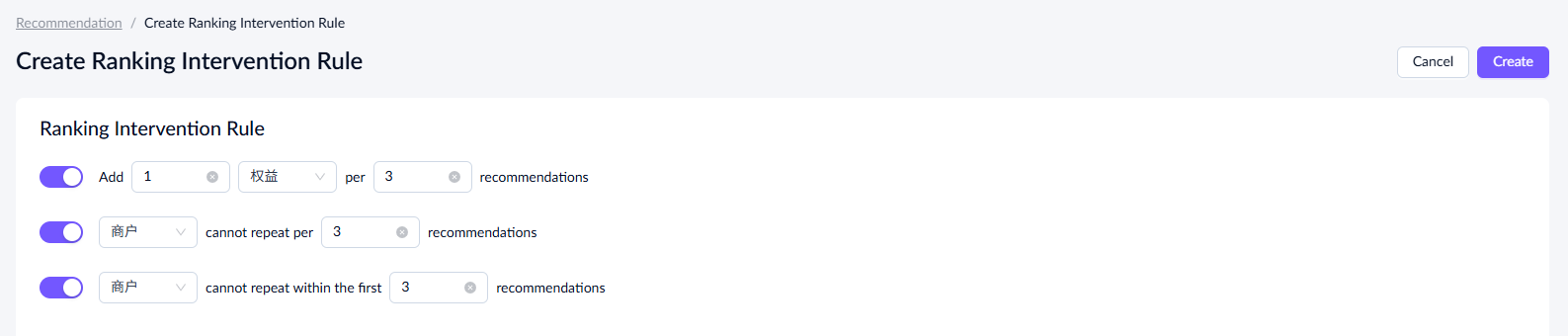
- Click Create to create the configured rules.
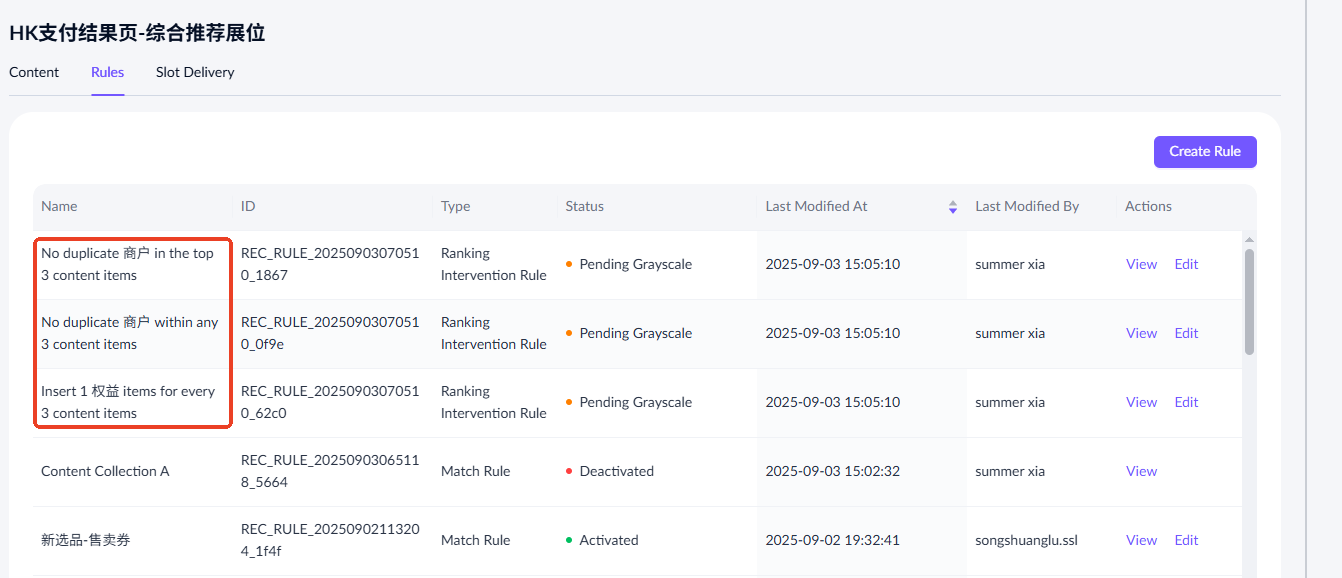
If all three rules have been configured and created, the toggle will be disabled, and no more rules can be created.
Status flow
The status flow for content diversification rules is identical to that of match rules. For details, please refer to the status flow of match rules.
Slot delivery
The recommended spaces also support specifying slots for task delivery, but the task type must be static creatives. Switch to the Slot Delivery tab to get started.
Create task
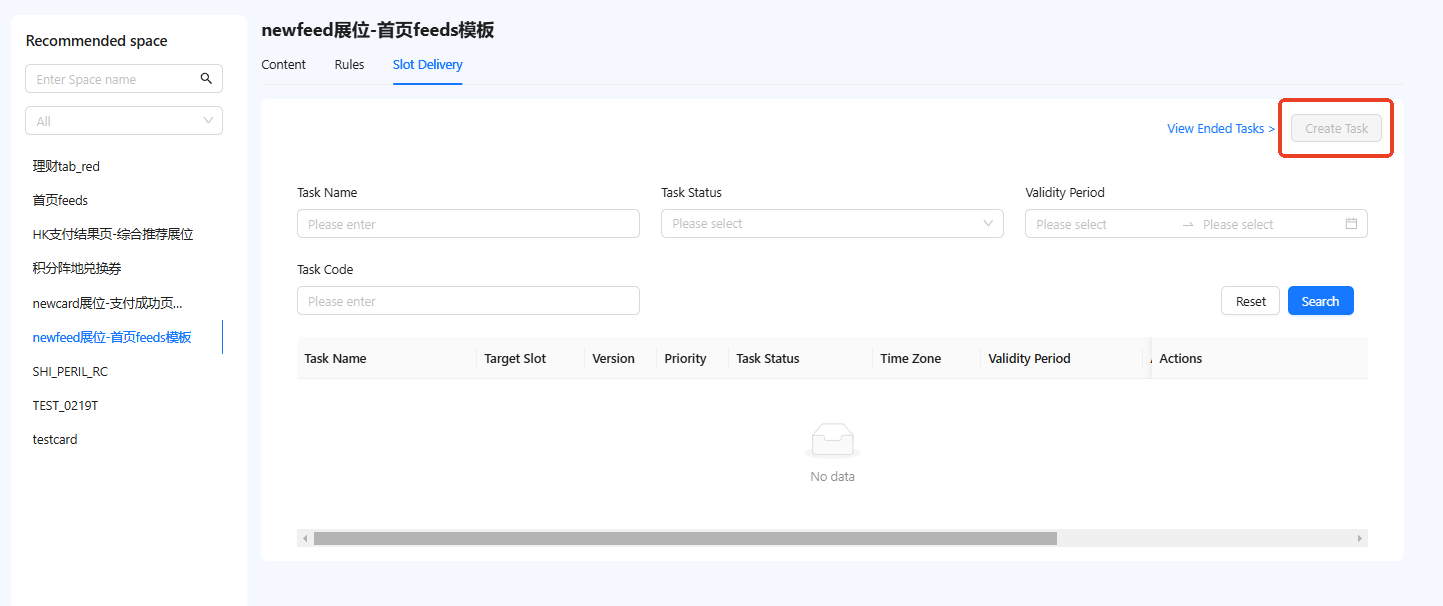
To deliver tasks to specific slots, the selected recommended space must have slots configured; otherwise, the Create Task button is disabled.
Click Create Task to access the creation page. For detailed instructions on configuring each module, refer to the following sections:
Note:
- The Target Slot field in the Basic Info section, though optional, must not be left empty.
- Contextual Relevance and Budget Settings do not apply to slot delivery.
Task workflow
Task operations and workflows are consistent with those for operational placements. Refer to the Operational Placement content for detailed instructions.