Operational space
To display specific content to users through display spaces, it is essential to create delivery tasks. The ASAP platform enables operators to create and manage these tasks, which are categorized into the following four types:
- Operational Space Tasks: Deliver static creatives to spaces through detailed, manual configuration by operators, focusing on precise targeting.
- Recommended Space Tasks: Filter content using specific criteria and employ algorithms to intelligently deliver it to card and feed spaces.
- Commercial Tasks: Manage tasks related to paid advertising and merchant partnerships.
- Push Tasks: Send notifications or messages directly to users' mobile devices.
This document primarily guides users through the process of creating and managing delivery tasks within the operational space.
Basic concepts
Terms | Definition |
Badge | A type of static creative, represented as an icon located at the top right of an image or text. |
Guaranteed Budget | Ensures guaranteed exposure for delivery tasks by allocating fixed traffic to them. |
Target Slot | Specific positions within a display space where tasks are targeted for delivery. Slots are organized numerically, progressing from left to right and top to bottom. |
Creative Settings | Creatives refer to images designed for display on the client side. In operational spaces, only static creatives, such as fixed images or text badges, can be delivered. |
Manual Mode | A mode of creating an image or style set that is manually assembled from selected materials and copies, following a specific template. |
Automatic Mode | A mode of creating an image that is automatically assembled by the system from selected materials and copies, following a predefined template. |
Material | The components that make up a creative, such as an object or a sentence. Smart materials can be reused independently to create new creatives. |
Contextual Relevance | Ensures the content on the user's initial page and the subsequent page after clicking are related and cohesive. |
Display Frequency | Determines how often the same content can be shown to the same user within a specified time frame, helping to prevent user fatigue from repetitive exposure. |
Access the task list
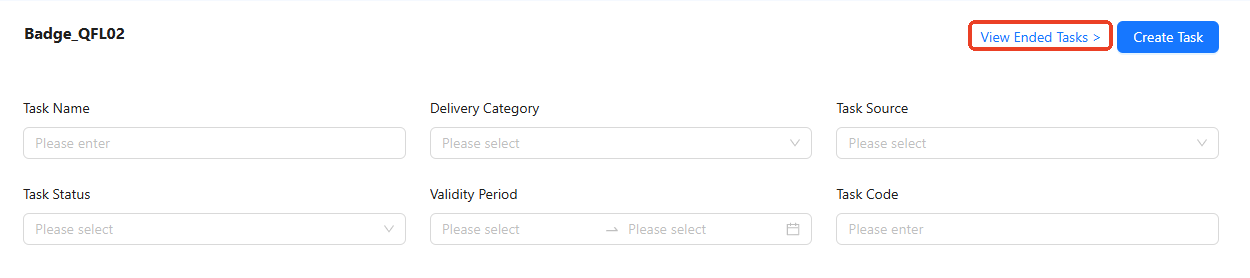
To access the task list page, go to Growth > Traffic Management & Delivery > Intelligent Delivery > Operational Placement. Tasks are organized by spaces, so start by selecting a specific operational space from the left. Once selected, the space name is displayed at the top of the page, and all associated delivery tasks, if any, are shown in the task list.
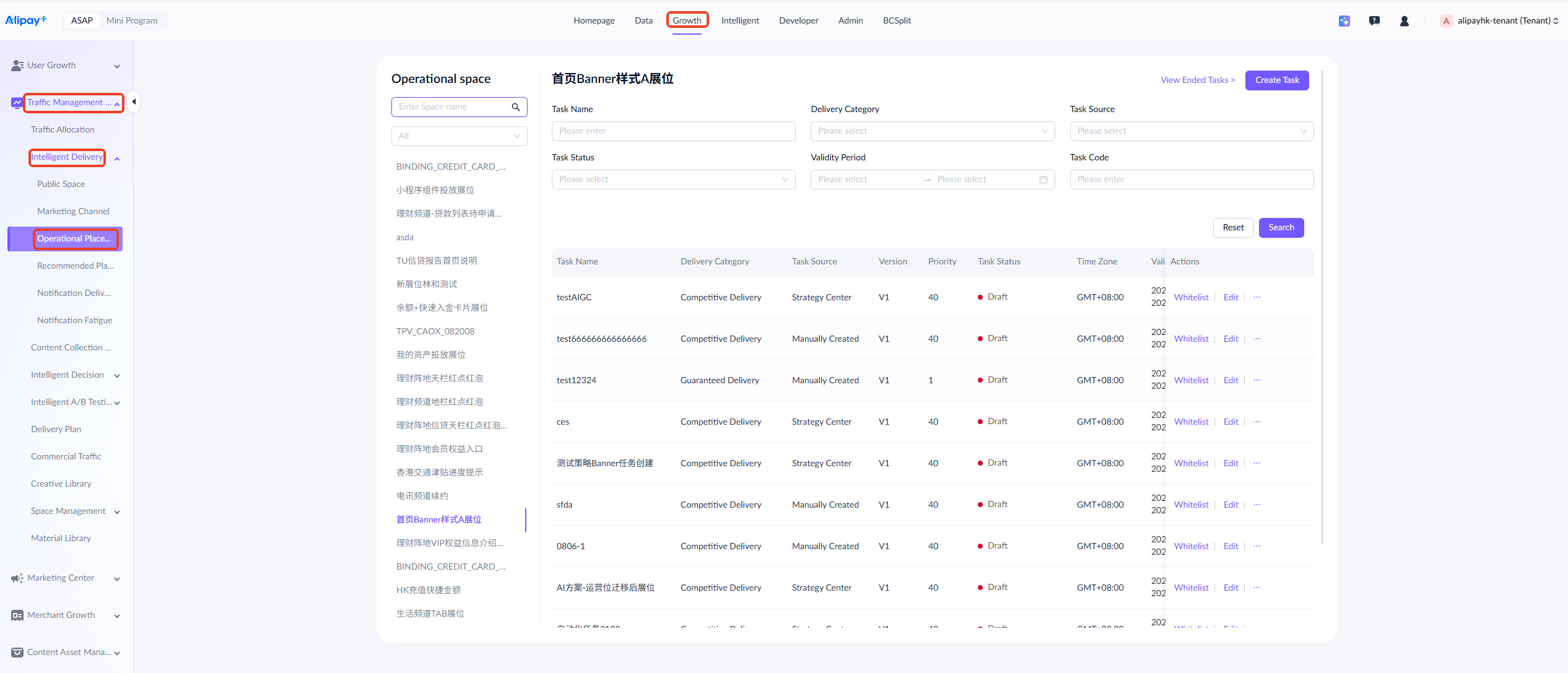
To find a specific delivery task, use filters such as task name, delivery category, task source, etc.

To check ended tasks, click View Ended Tasks located at the top right of the page.

Create tasks
Take the following steps to create a delivery task:
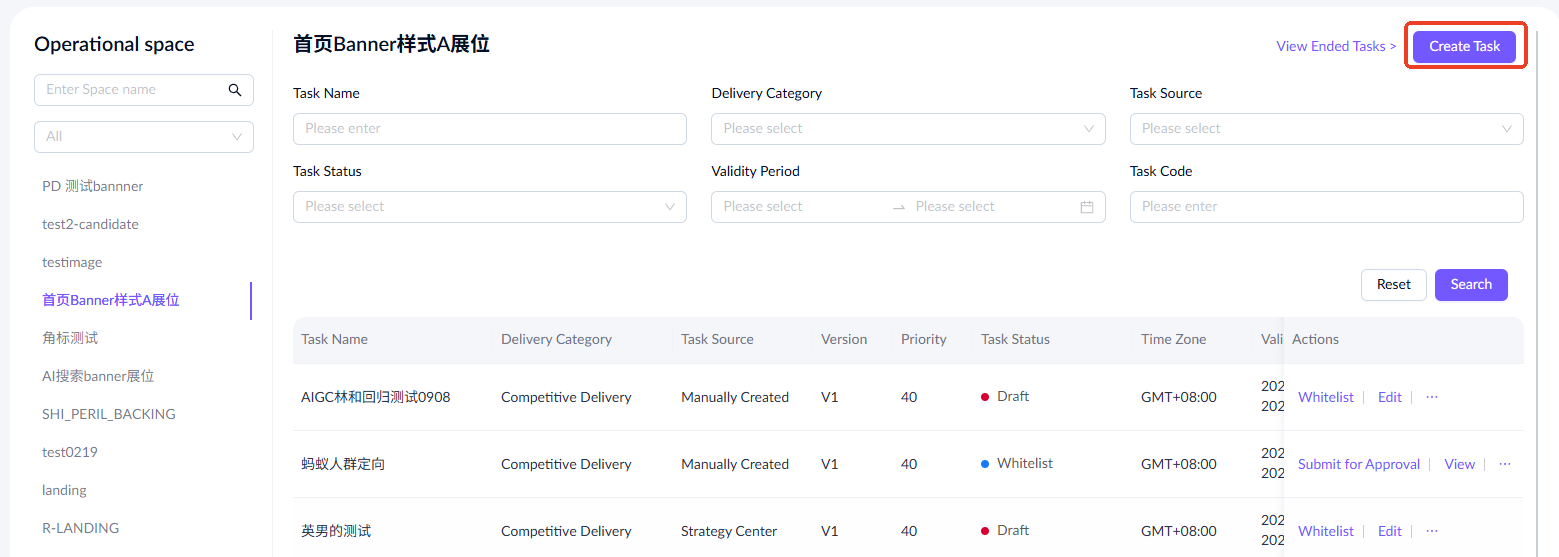
- Click Create Task in the top-right corner of the screen.
- Complete the required information to create a delivery task, including the following modules:
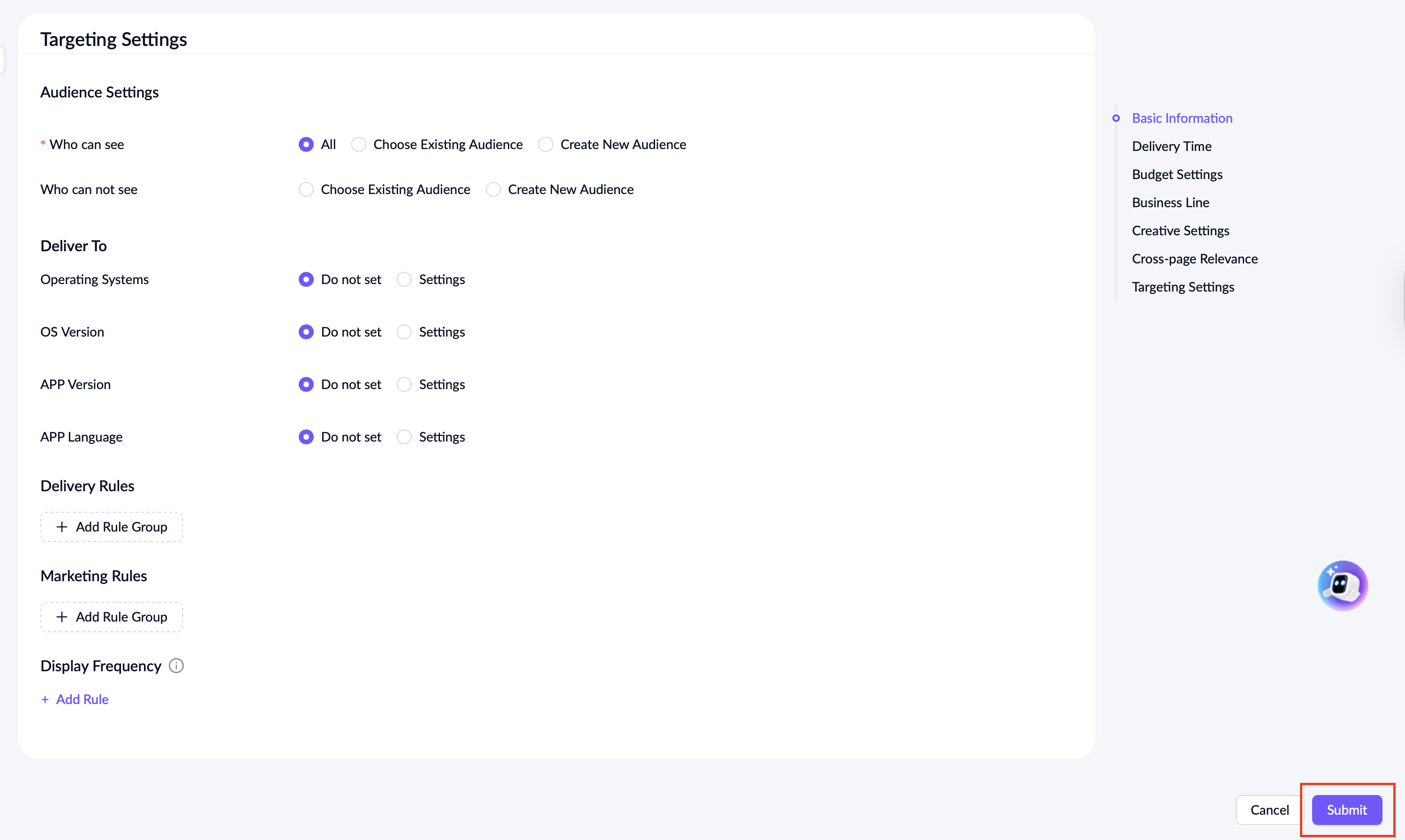
- Click Submit in the bottom-right corner of the screen.
Basic information
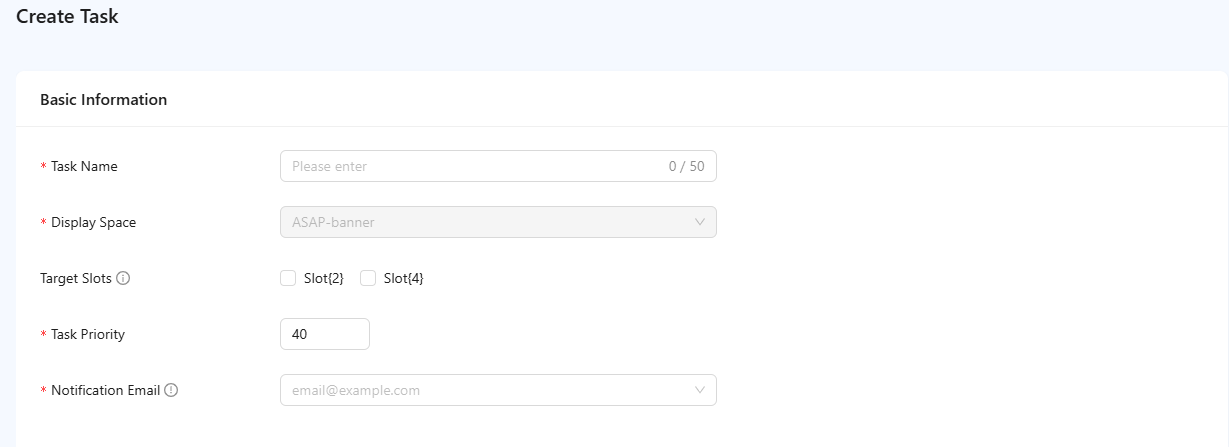
Complete the following required information on the task creation page. For a detailed explanation of each field and the fill-in instructions, see the following table:
Field name | Description |
Task Name | The unique name of a task, limited to 50 characters. |
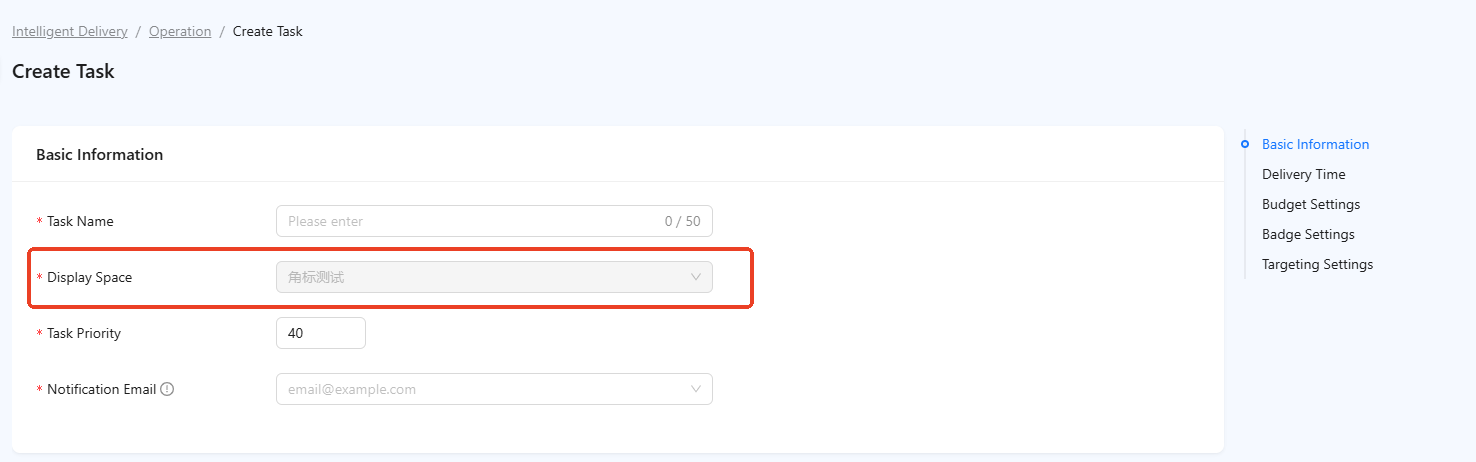
Display Space | The display space that the task is associated with. It is automatically filled with the space selected on the task list page. To change it, return to the task list page, select a new display space, and create the task again. |
Target Slot | Specific positions within a display space where tasks are targeted for delivery. Slots are organized numerically, progressing from left to right and top to bottom. Note that the available slots are determined by the space configuration. |
Task Priority | The delivery priority of the task, ranging from 1 to 99, with lower numbers indicating higher priority. The default setting is 1. |
Notification Email | Email address to receive notifications when traffic usage reaches 70%, 80%, 90%, 95%, and 100%. |
Delivery time
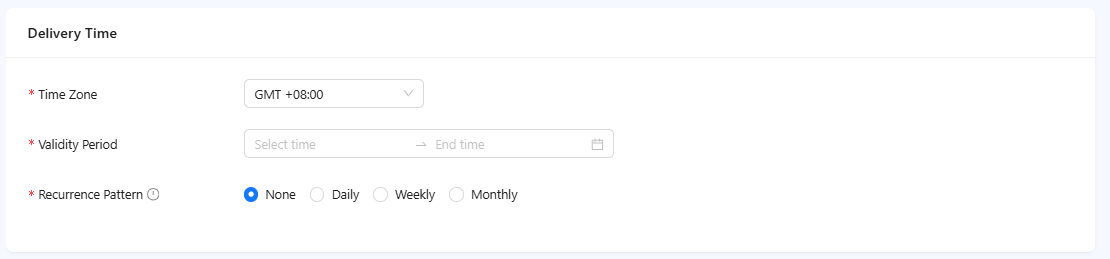
Complete the following required information for delivery time. For a detailed explanation of each field and the fill-in instructions, see the following table:
Field name | Description |
Time Zone | Time zone of the region where the task is delivered. |
Validity Period | The effective period during which the delivery task is active. |
Recurrence Pattern | The recurring delivery times for static content within its validity period. By default, the None option is selected, indicating that the task is delivered continuously throughout the validity period. You can also configure the schedule to run daily, weekly, or monthly. For monthly recurrence, select specific days for delivery. If you select a date that does not exist in a particular month (e.g., 31st), delivery won't occur on that date. |
Budget settings
Budget settings apply when the toggle switch is set to Guaranteed Budget. If it is set to the default off position, the traffic for this delivery task comes from the competitive budget. Complete the following required information for budget settings.
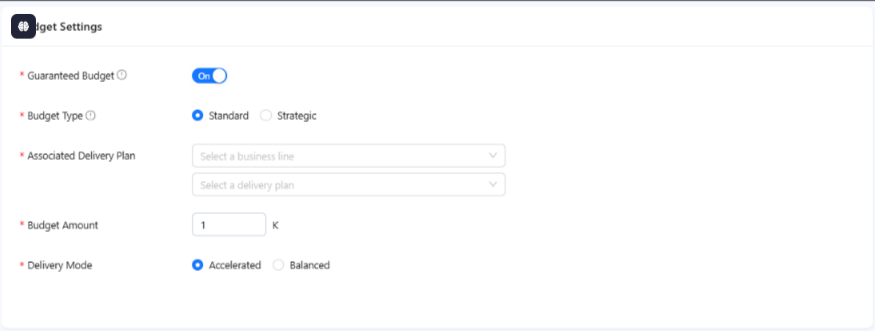
For a detailed explanation of each field and the fill-in instructions, see the following table:
Field name | Description |
Guaranteed Budget | Fixed traffic allocation. Turn this option on to allocate a fixed amount of traffic, ensuring the task's exposure. If turned off, traffic allocation depends on performance metrics like click-through rate. |
Budget Type | Types of budget.
|
Associated Delivery Plan | The delivery plan associated with the task.
|
Budget Amount | The traffic budget for the delivery plan. Once a business line is selected, the system will display the remaining budget for that line. |
Delivery Mode | Method of budget consumption.
|
Creative settings
Creative settings allow you to configure static creatives for display to end users. The display of configuration items varies depending on space type and whether the space supports AIGC (AI-generated content).
Non-badge spaces and non-AIGC supporting spaces
For non-badge spaces and those that do not support AIGC, only the Supported Languages field is always displayed on the current page. If the space is configured with multiple display rule groups, the Display Rule and Style fields will also be shown. Additional configuration items can be accessed by clicking Apply Existing Creative.
The Supported Languages are the languages supported by this task, with default values derived from the languages configured for the display space associated with this task. You can adjust these languages as needed, but the default language (the first option in the dropdown) cannot be removed.
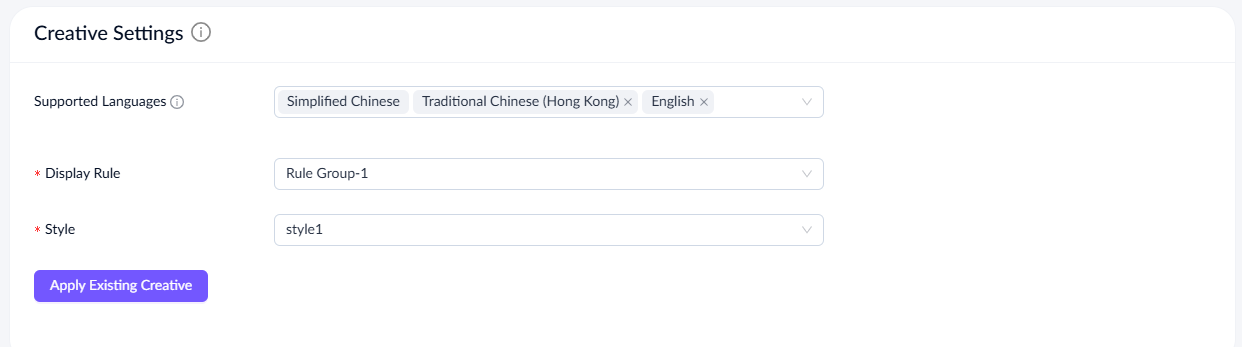
Click Apply Existing Creative to access other configuration items. The fields displayed are dynamically rendered and determined by the attributes of the selected display space. For detailed information, see Display Rules Settings in the Space Management guide.
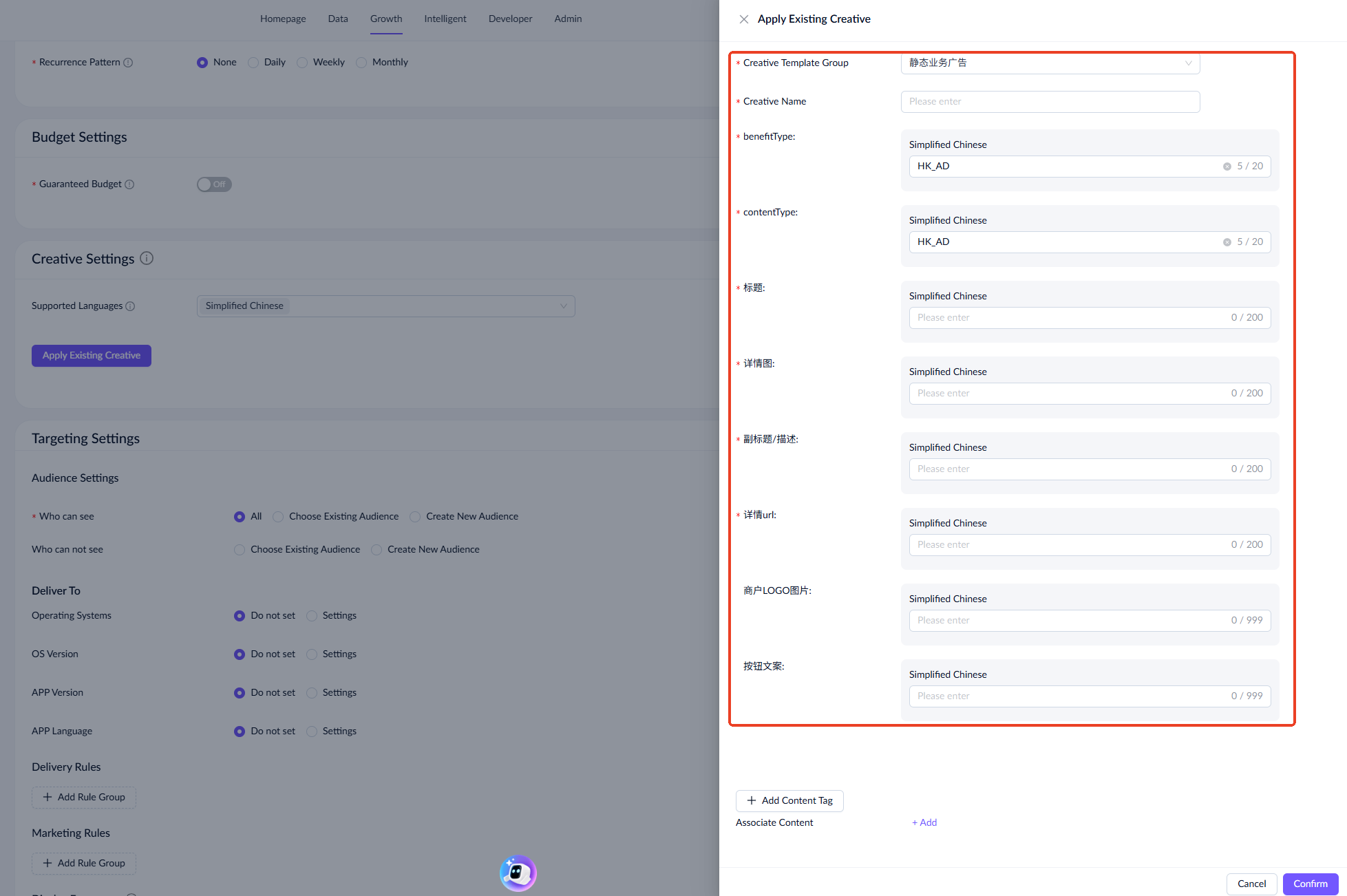
Badge Spaces or AIGC Supporting Spaces
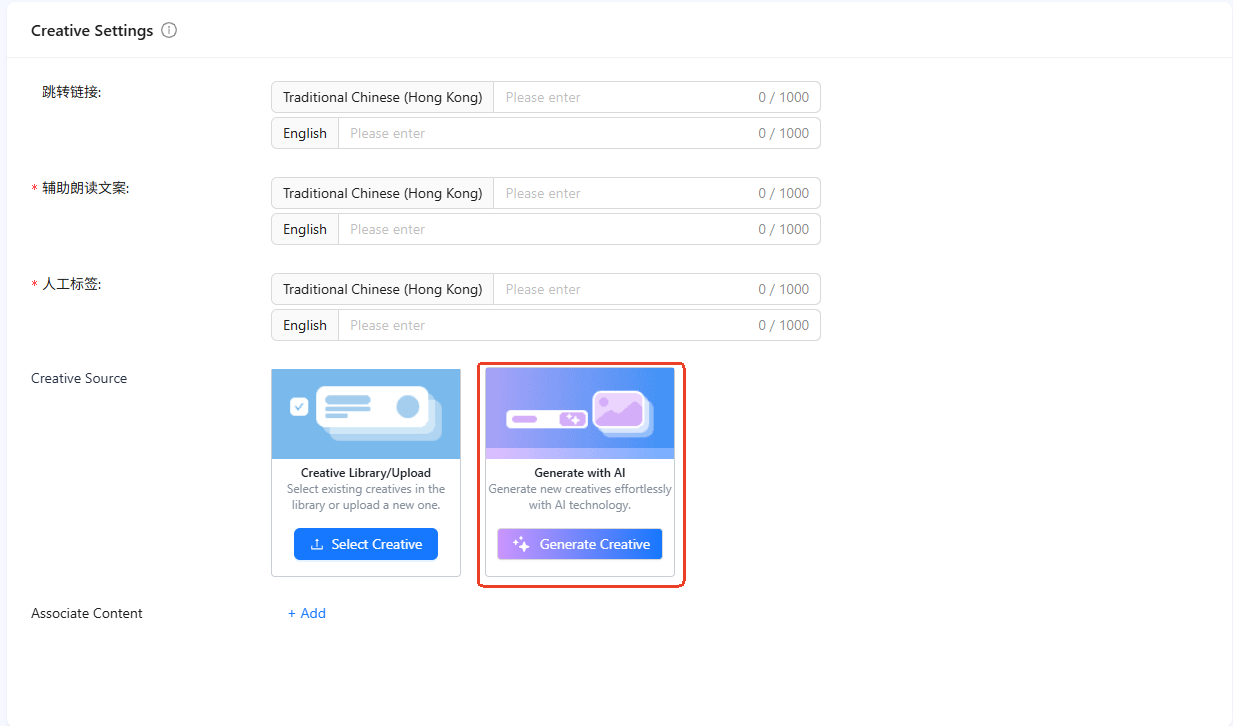
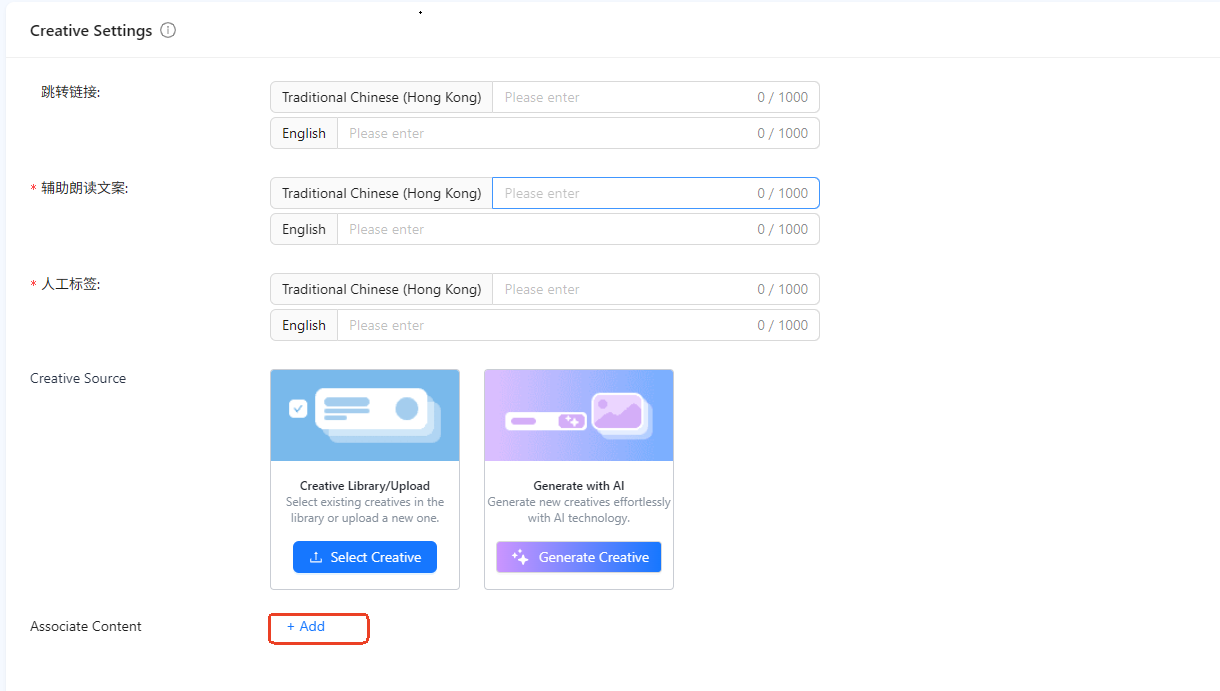
For badge spaces or those that support AIGC, all creative configuration fields are displayed on the current page. If the space supports AIGC, the Creative Source field will appear. This field has two configuration methods; for more details, see Creative Source.
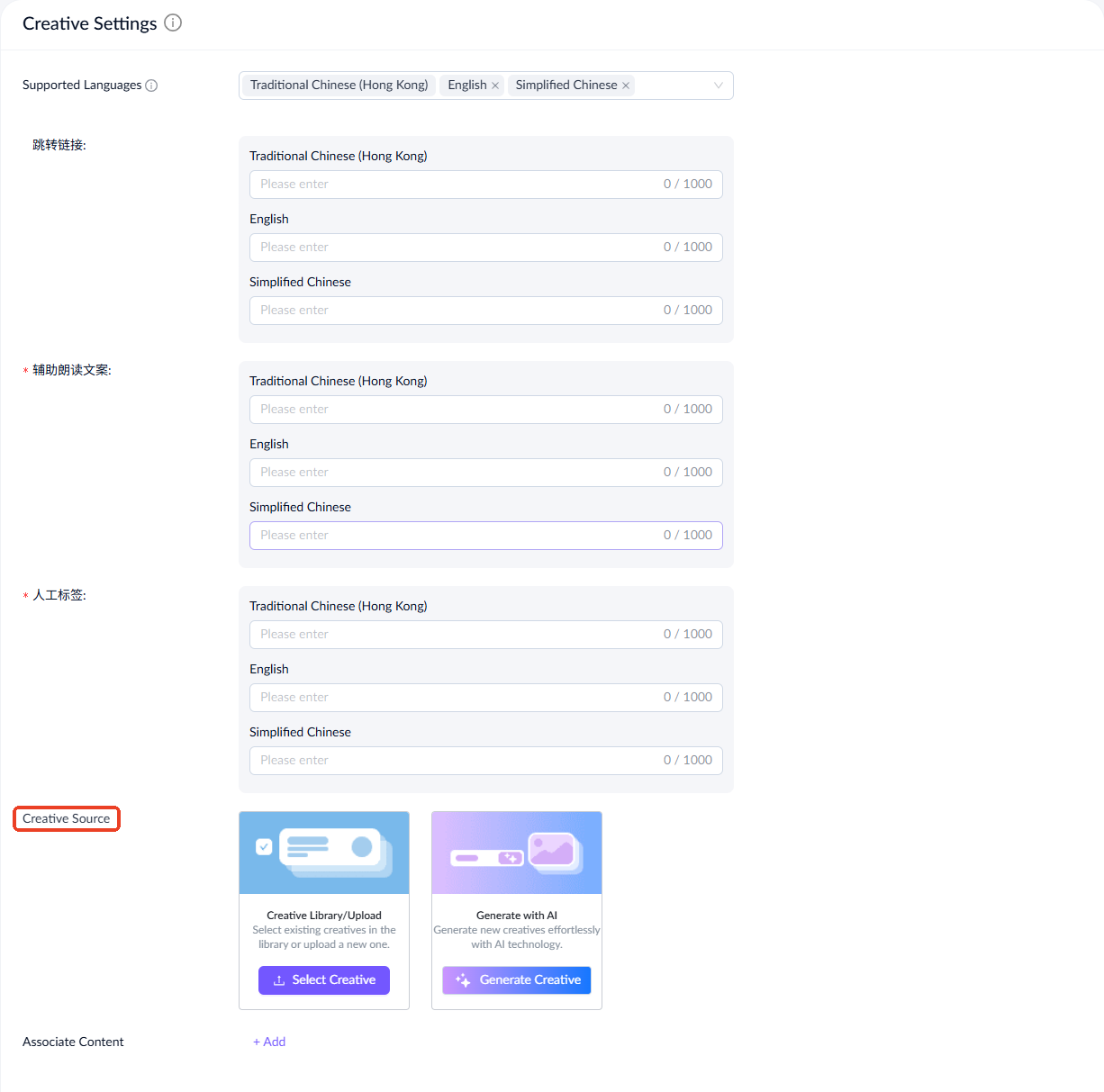
Creative Source
You can configure creatives using one of the following two methods:
- Creative Library/Upload: Select existing creatives from the creative library or upload a new one.
- Generate with AI: Generate new creatives using AI technology.
Creative Library/Upload
Take the following steps to select existing creatives from the creative library or upload a new one:
- Click Select Creative to access the creative list page.
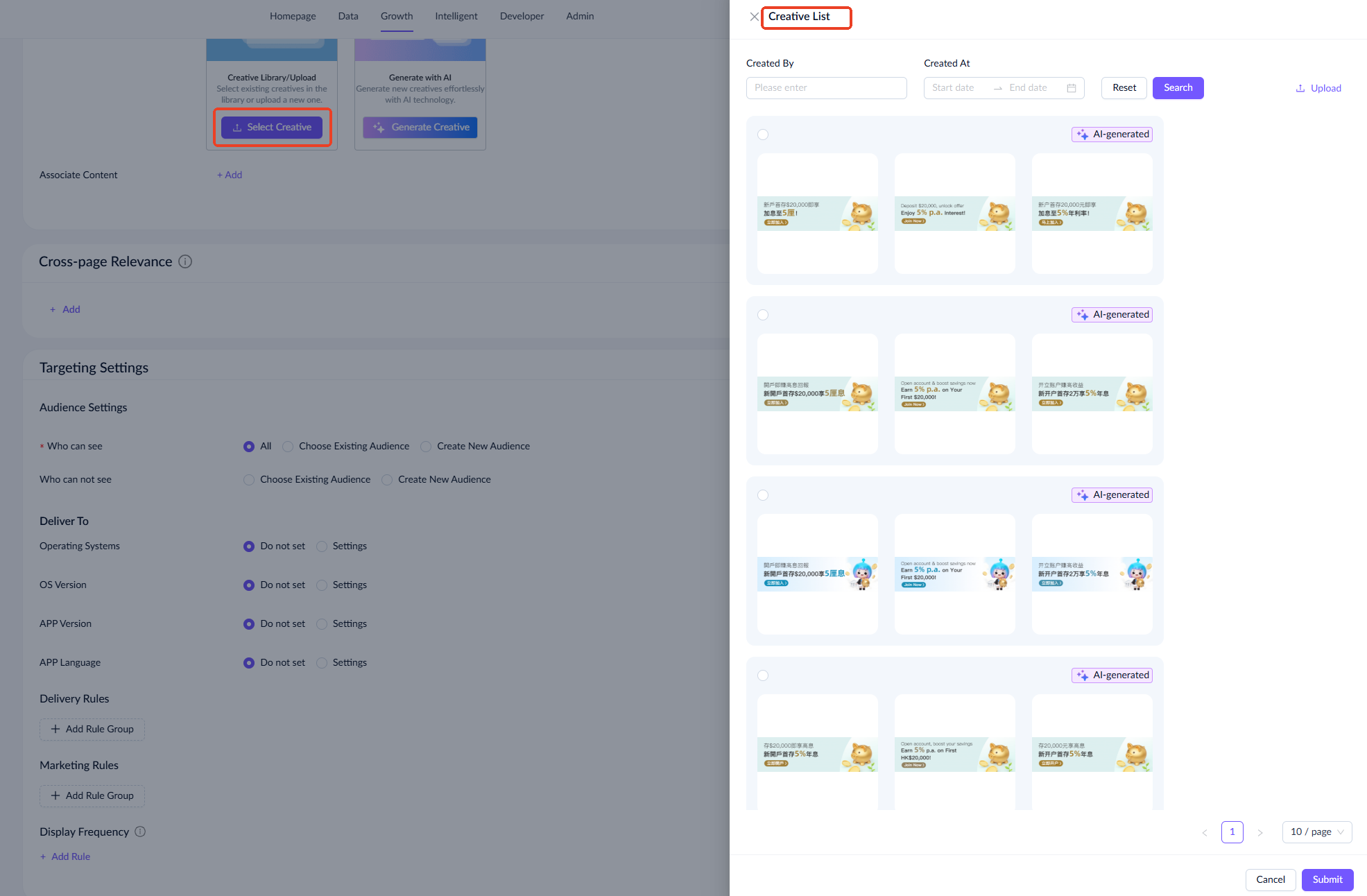
- The creative list will display creative groups that match all your selected languages. Choose a creative group, and you can search for creatives by creator or creation time. If no options meet your needs, click Upload to add new creatives.
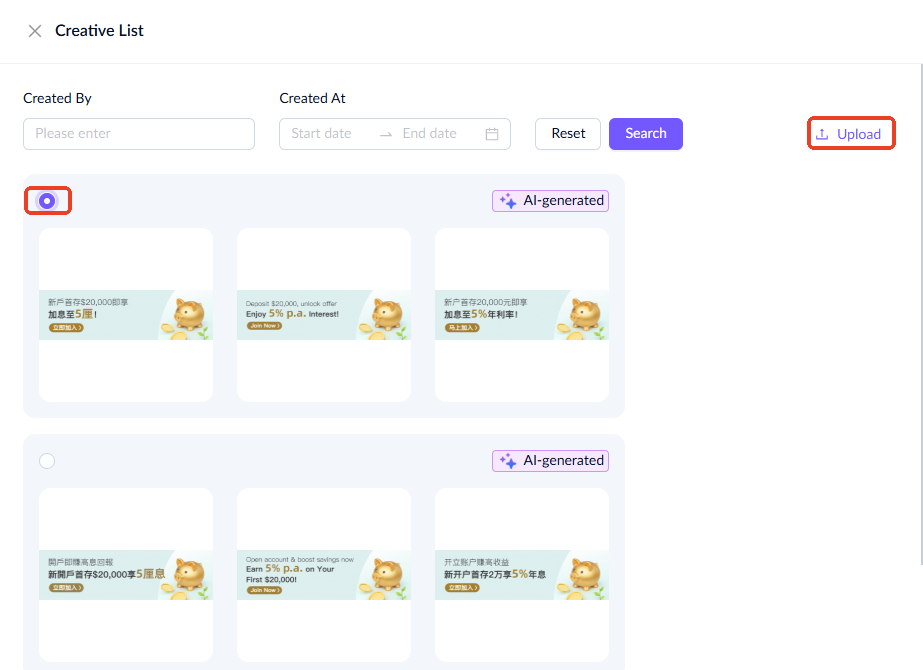
- (Optional) Click Upload to add creatives in the required languages, then click Submit. The uploaded creatives will be added to the creative list.
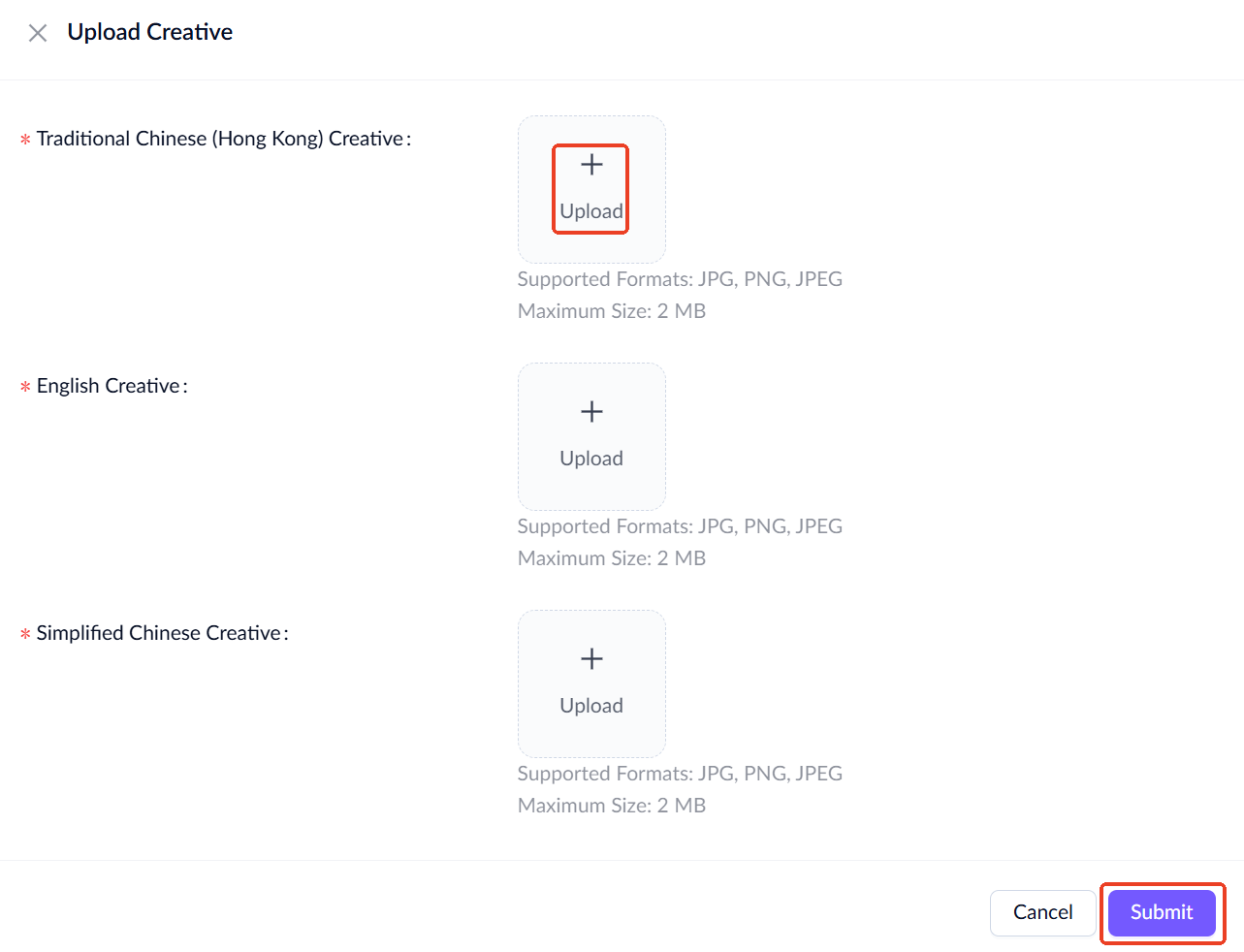
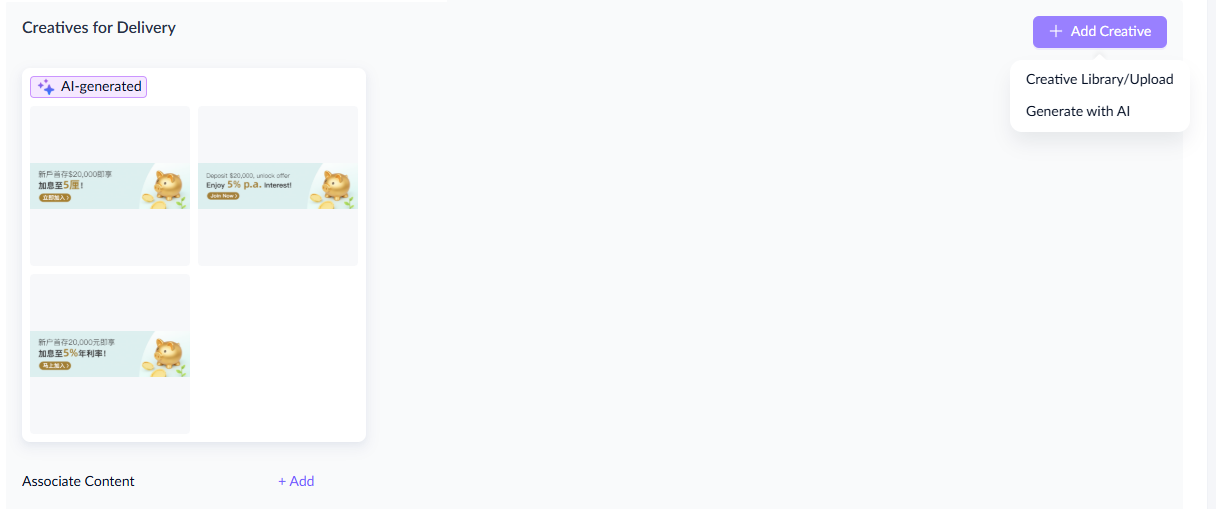
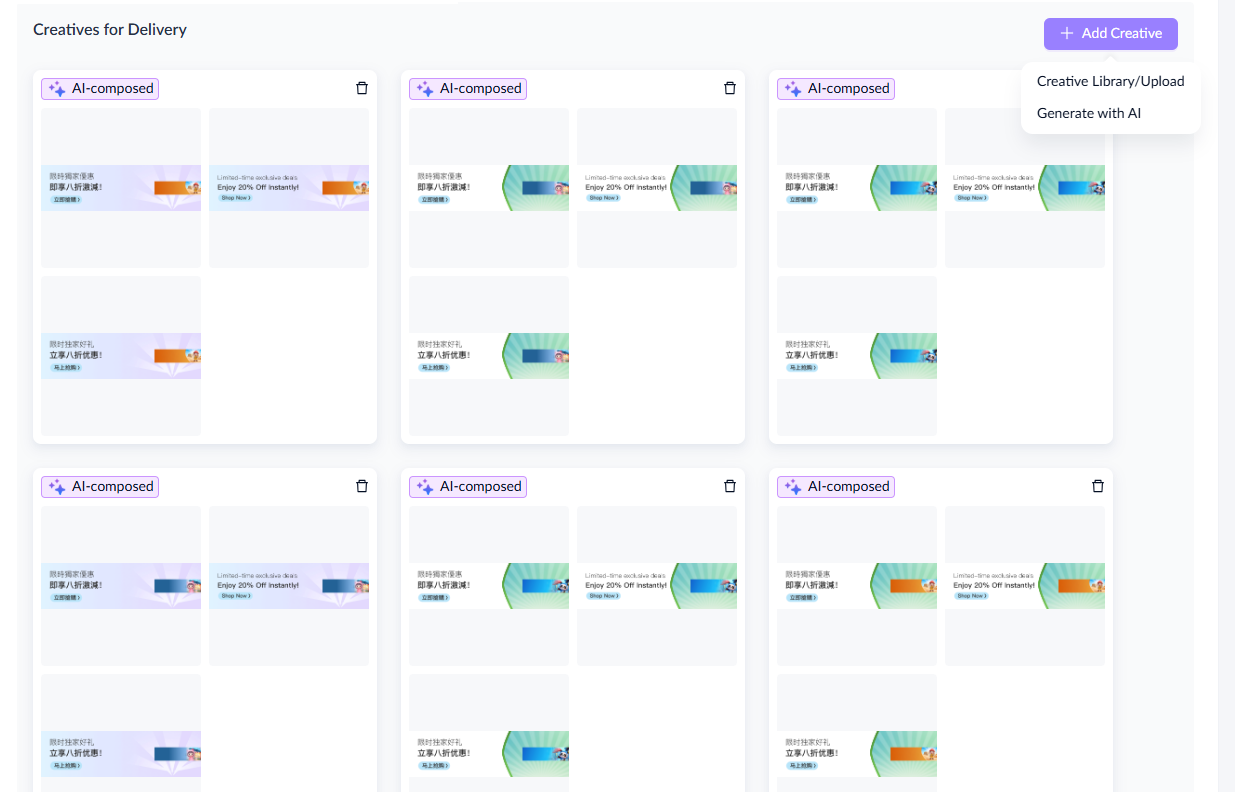
- After confirming selections, click Submit. The creatives you select or upload will be displayed under Creatives for Delivery. To add more creatives, click Add Creatives, select Creative Library/Upload, and repeat the process.
Generate with AI
Take the following steps to generate new creatives using AI technology:
- Click Generate Creative to access the creative generation page.
- Select a creative template.
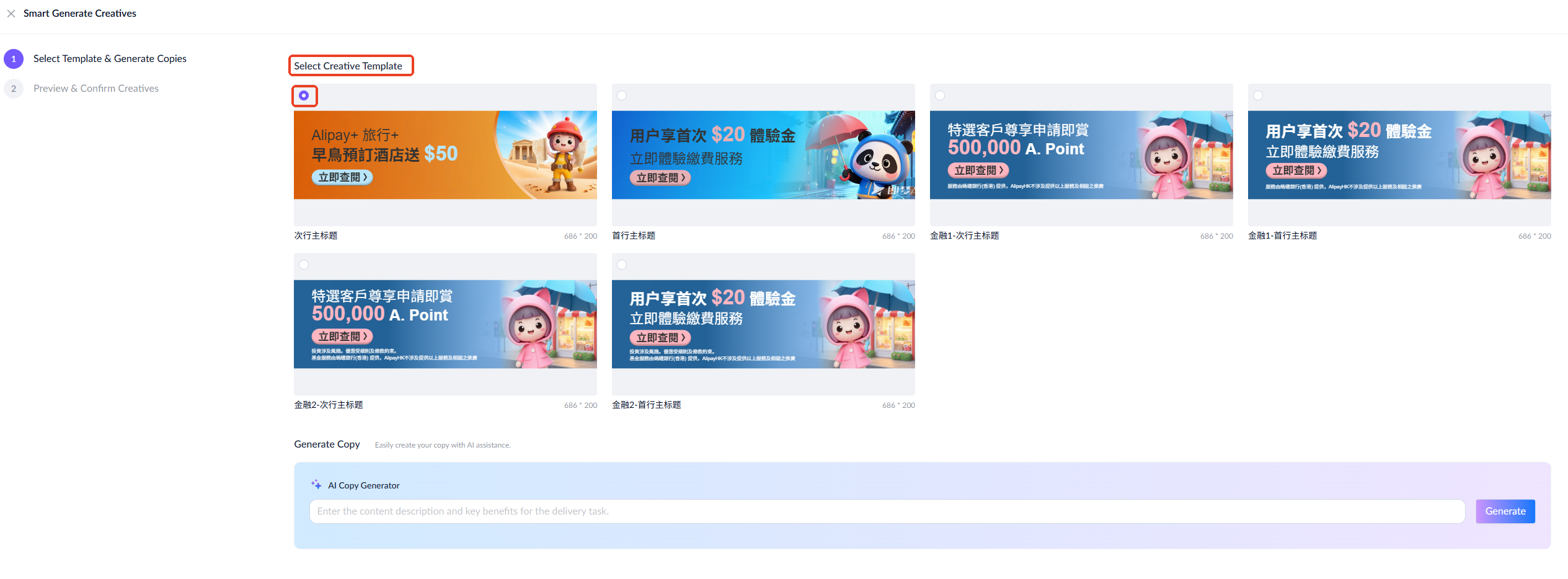
- Enter a copy prompt and click Generate. By default, five sets of copies are generated, from which you can select up to three. Note that the languages of the generated copies are determined by the supported languages set in the Creative Settings.
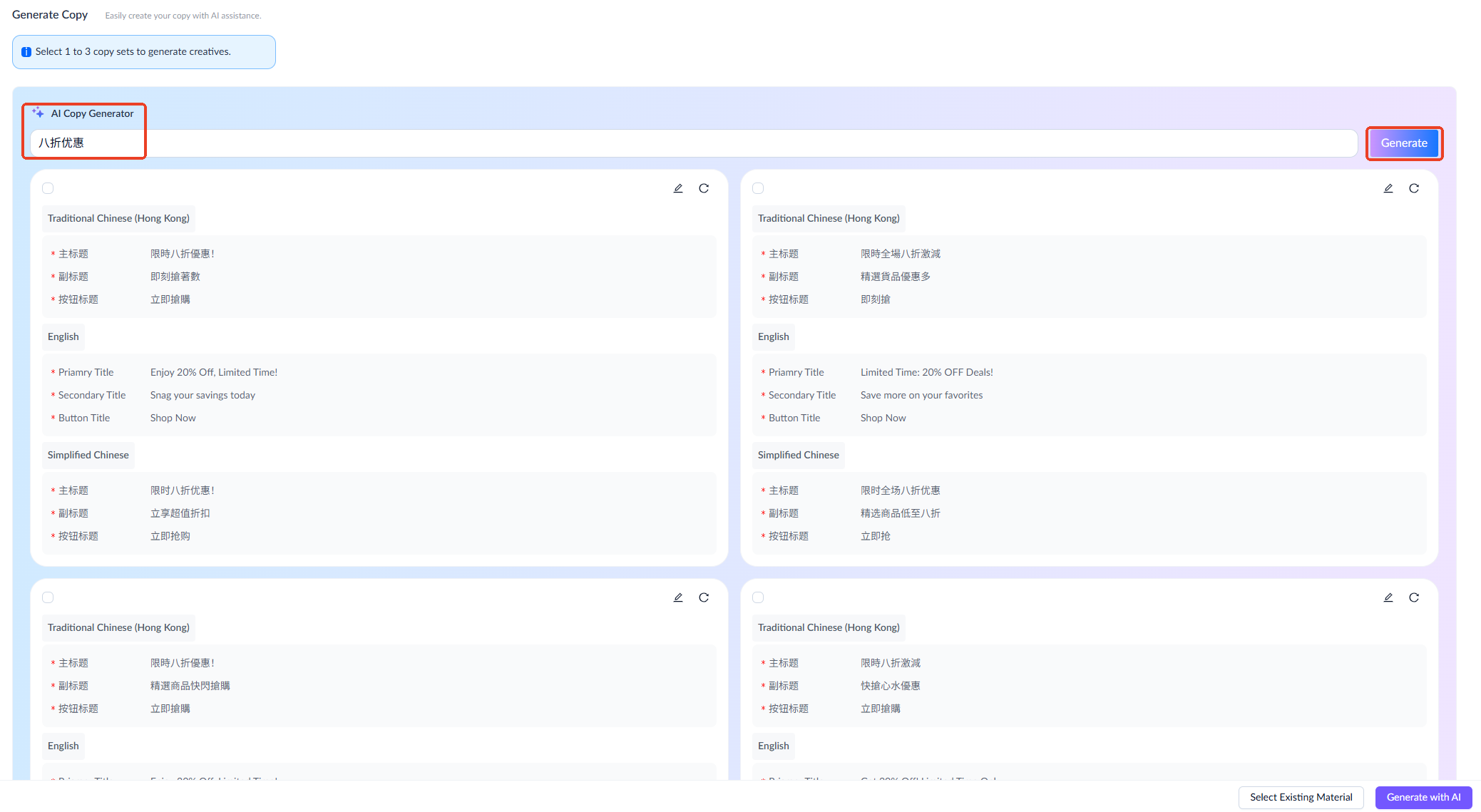
- After selecting copies, if you prefer to set the creative's background and material manually, click Select Existing Material. Otherwise, click Generate with AI for automatic completion.
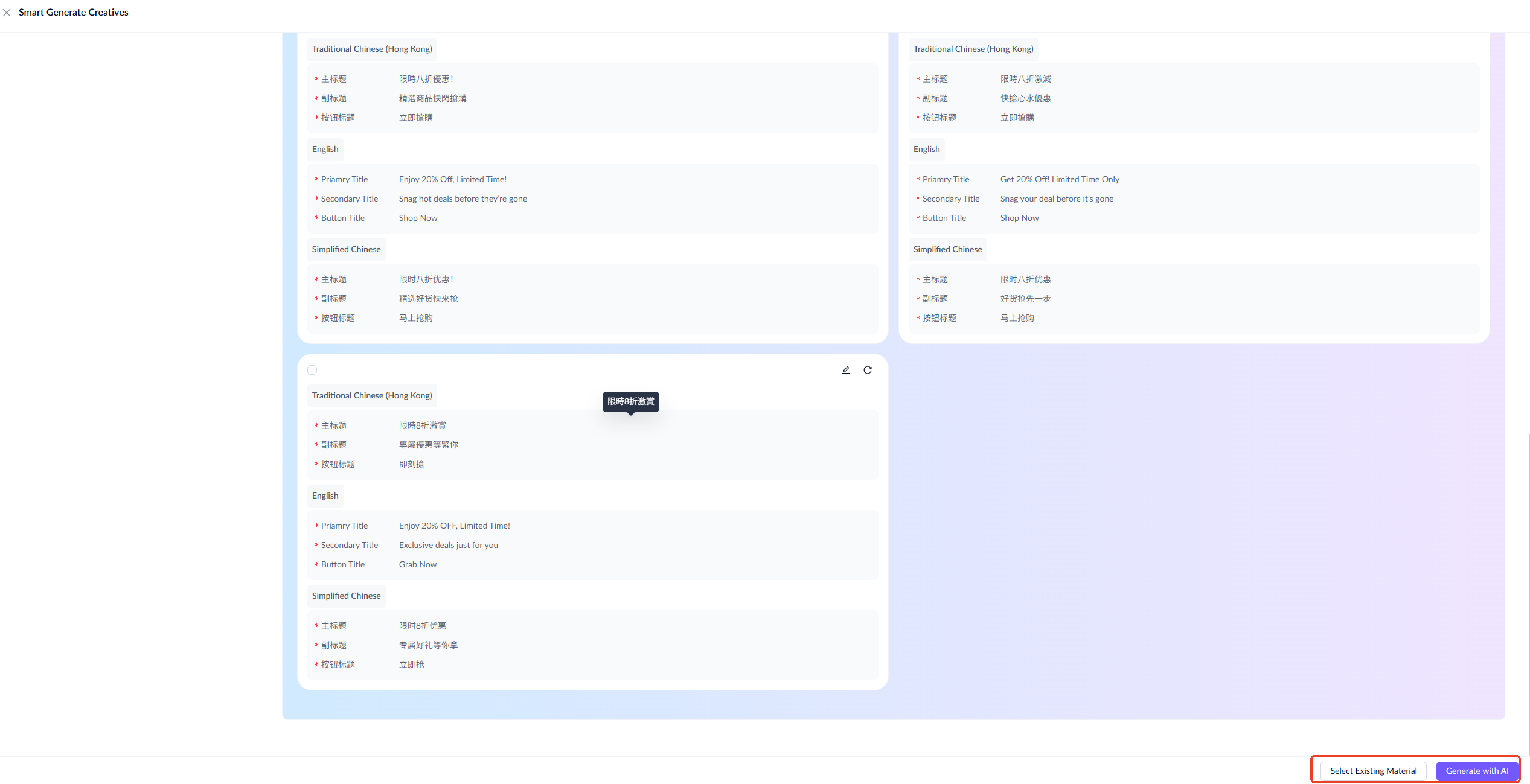
- If you select existing material, you can choose up to two backgrounds and three materials. You can filter materials by criteria such as time, scene, creative, and user.
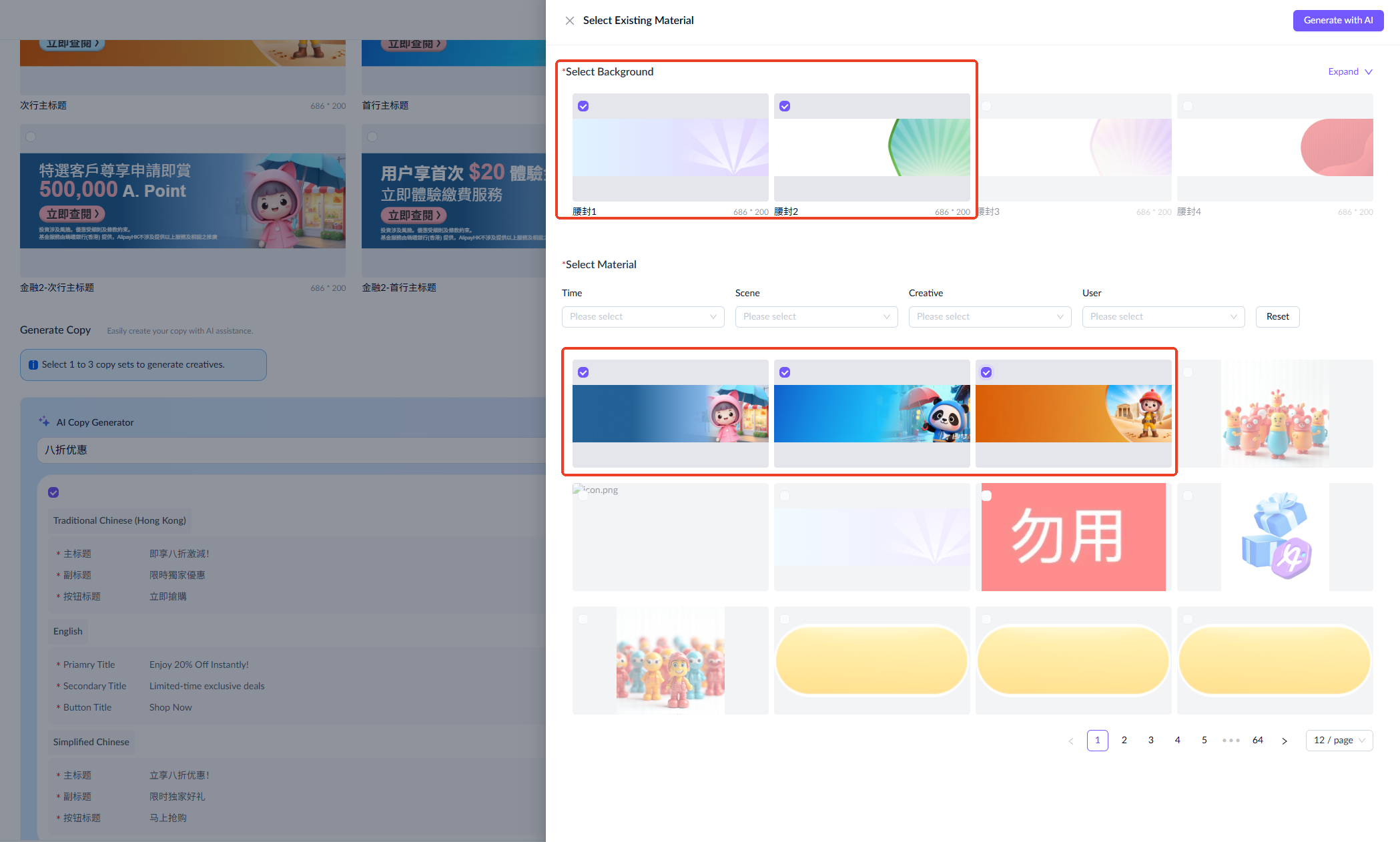
- Click Generate with AI in the upper right corner. AI will synthesize the creative based on your chosen backgrounds, materials, and previously generated copies.
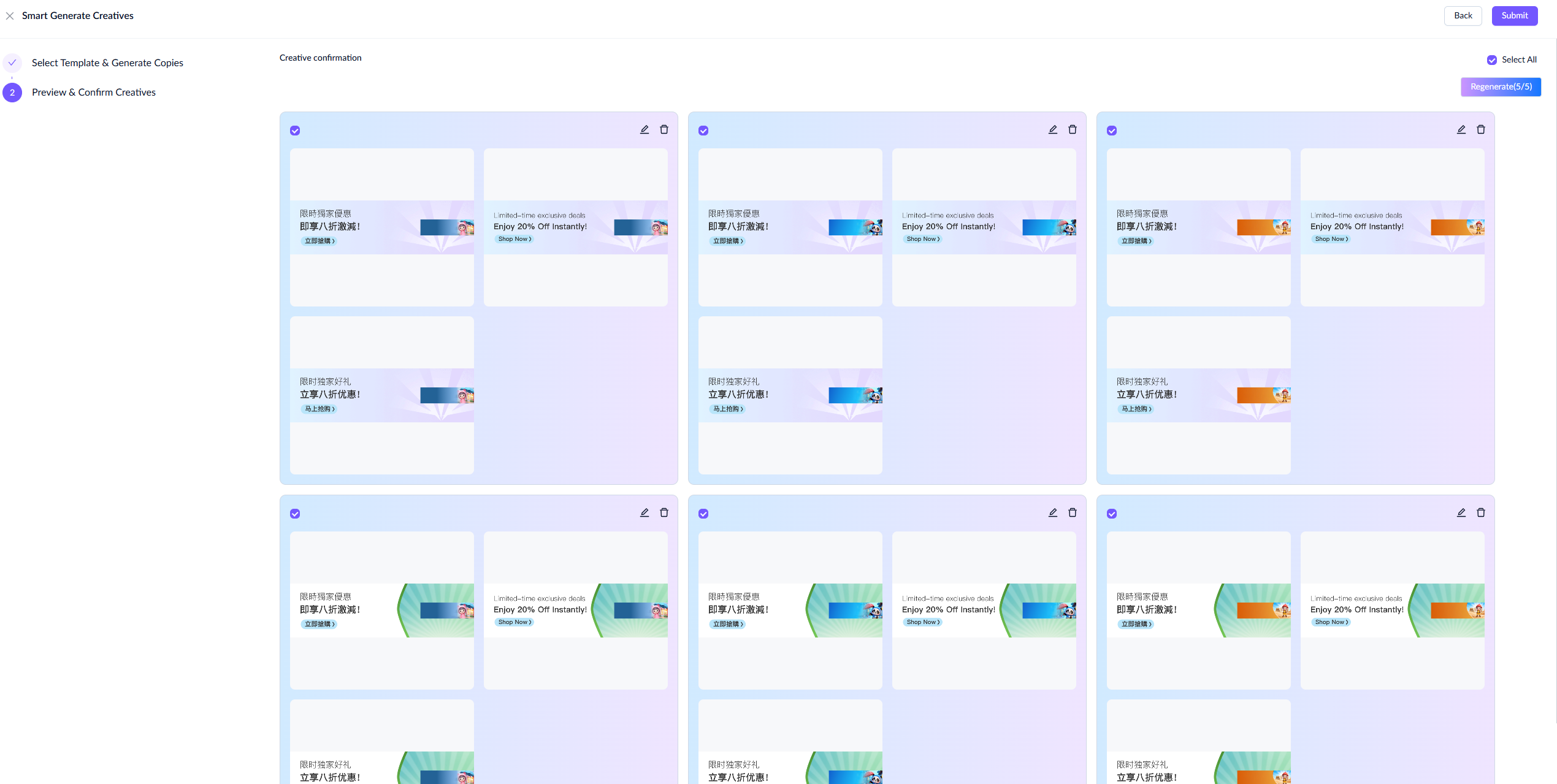
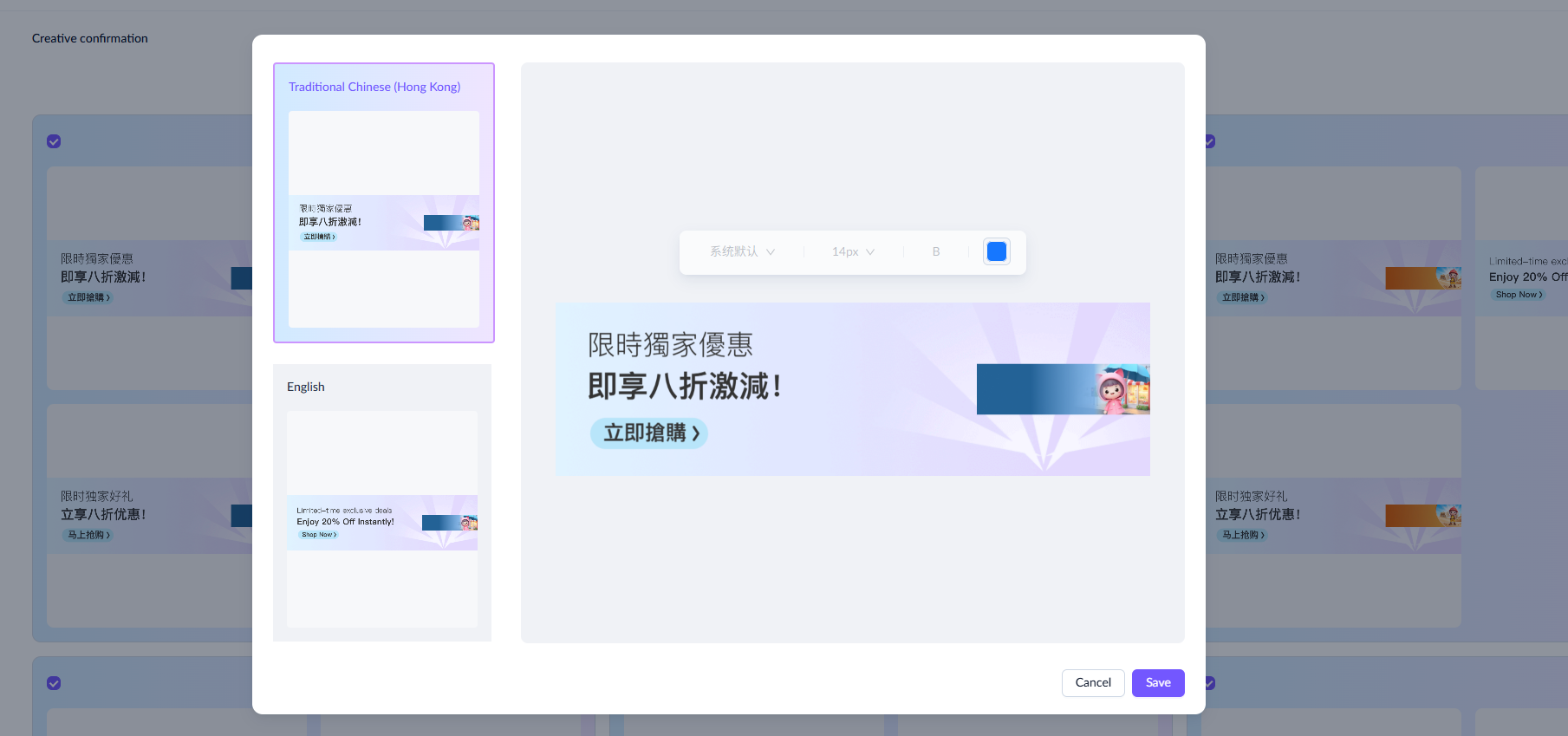
- Check if the AI-generated creatives meet your expectations. Make edits if necessary, and save your changes.
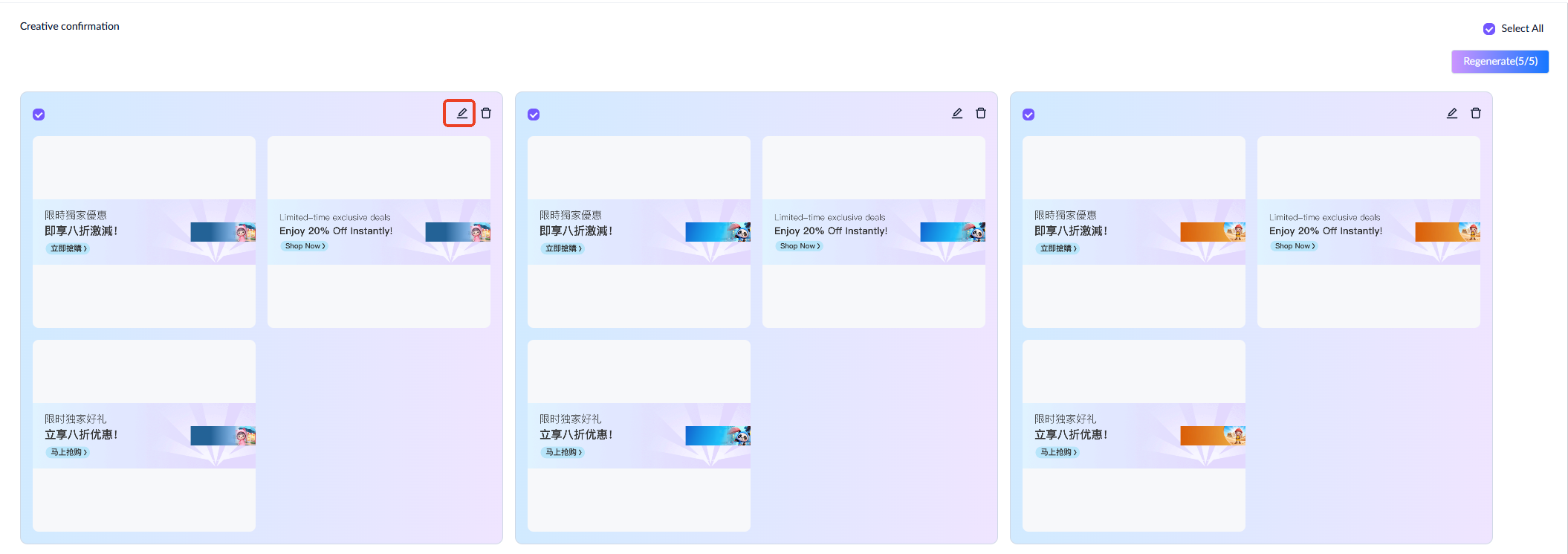
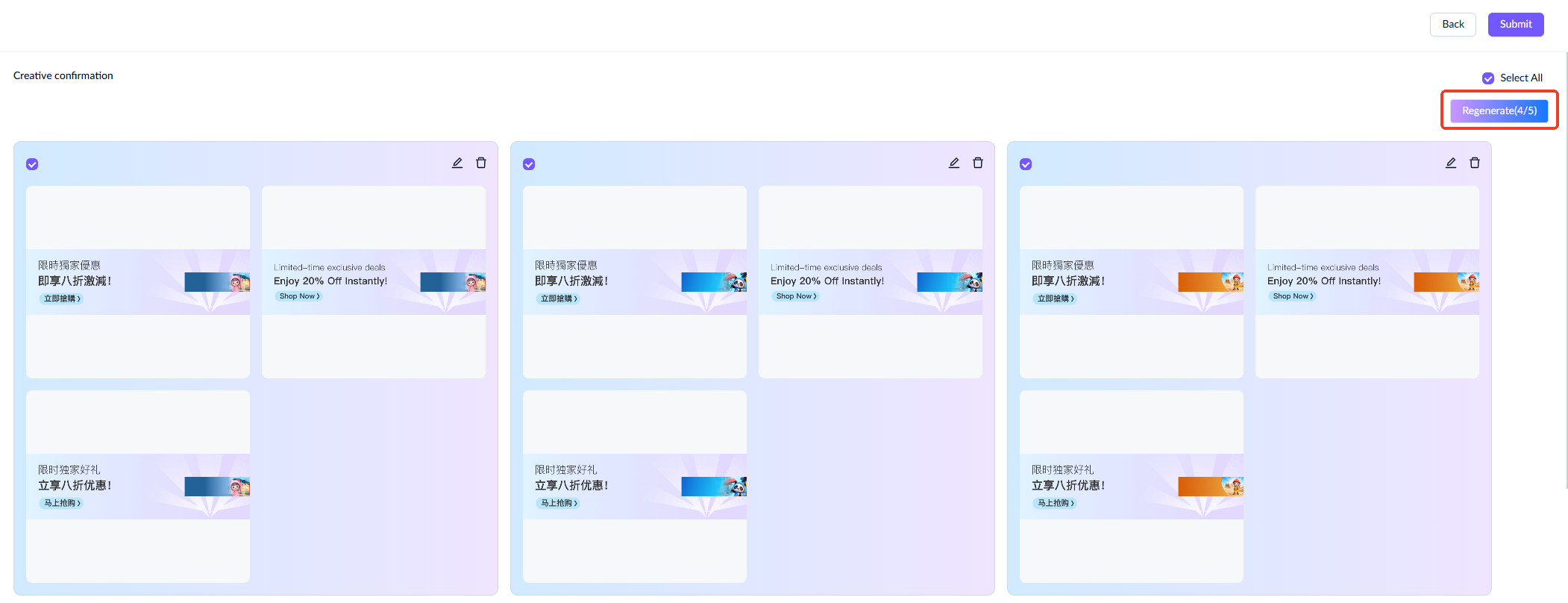
- If the generated creatives do not meet your needs, click Regenerate to create new creatives based on the same conditions. You can initiate the regeneration process up to 5 times.
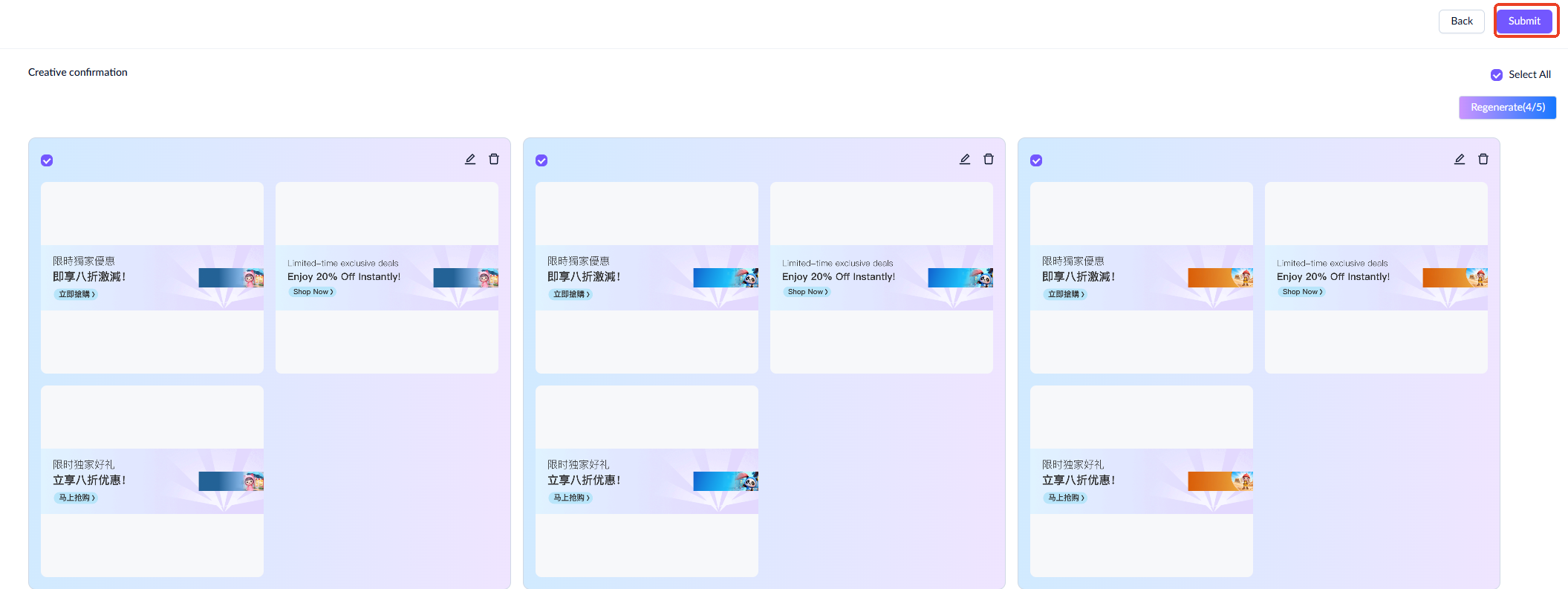
- After confirming the creatives, click Submit and the creatives will be displayed under Creatives for Delivery. To create more, click Add Creative, select Generate with AI, and repeat the process.
(Optional) Associate content
After configuring the creatives, you can optionally associate the creatives with specific content for algorithm analysis. Click Add next to Associate Content.
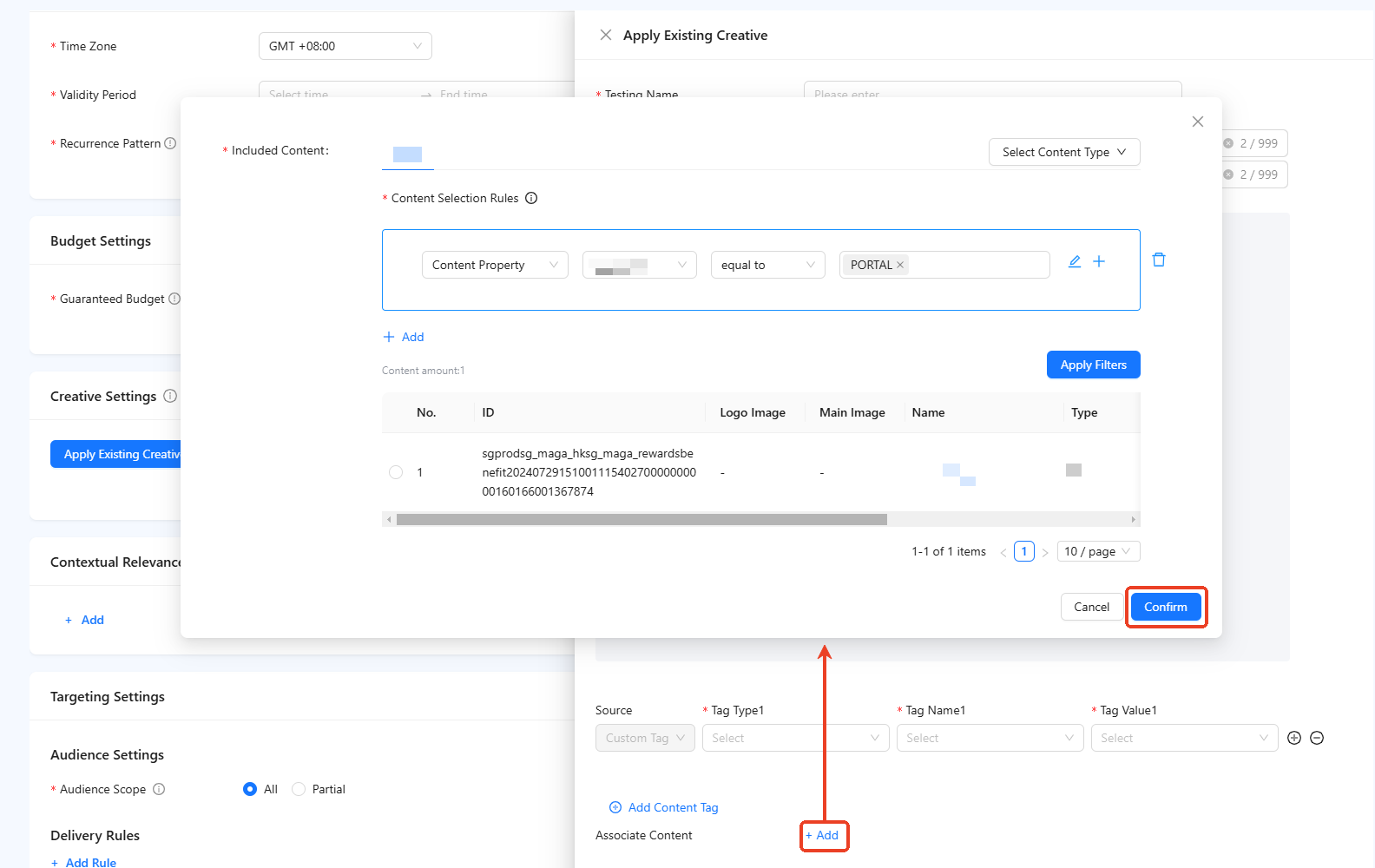
Select at least one content type and apply selection rules to filter the results. Select a content item from the filtered results and click Confirm.
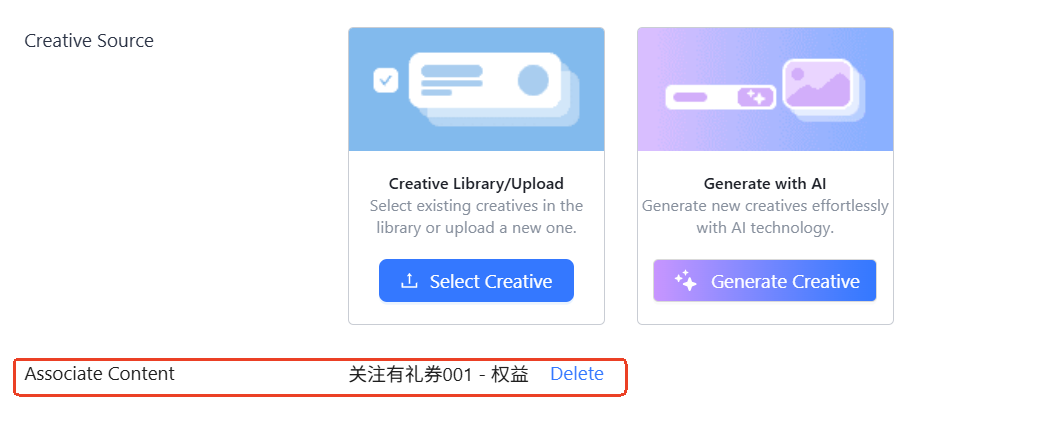
The selected content will be displayed next to Associate Content. To modify the content, delete the existing selection before adding a new one.
Badge settings
Operational spaces support two types of static creative configurations: images and badges. If the badge space type is selected to create a delivery task, the badge settings module is required.
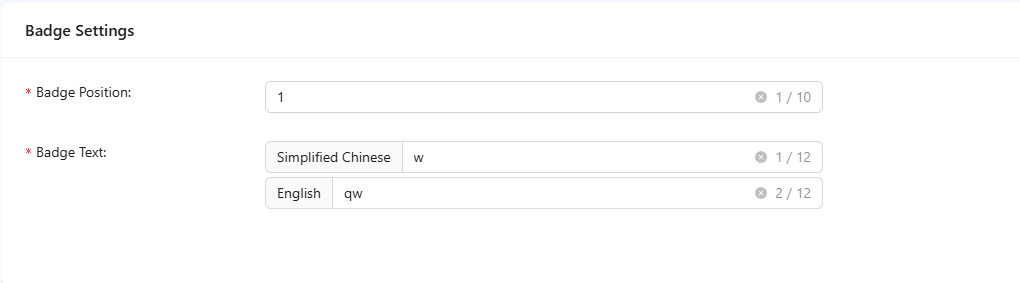
Complete the following required information for badge settings. For a detailed explanation of each field and the fill-in instructions, see the following table:
Field name | Description |
Badge Position | The specific position of the badge. |
Badge Text | The text displayed on the badge, with a limit of up to 5 characters. |
Note: The badge is editable only when its associated task is in draft status. Its operational status matches the task's status. For instance, if the task is in a gray release state, the badge will be in the same state.
Targeting settings
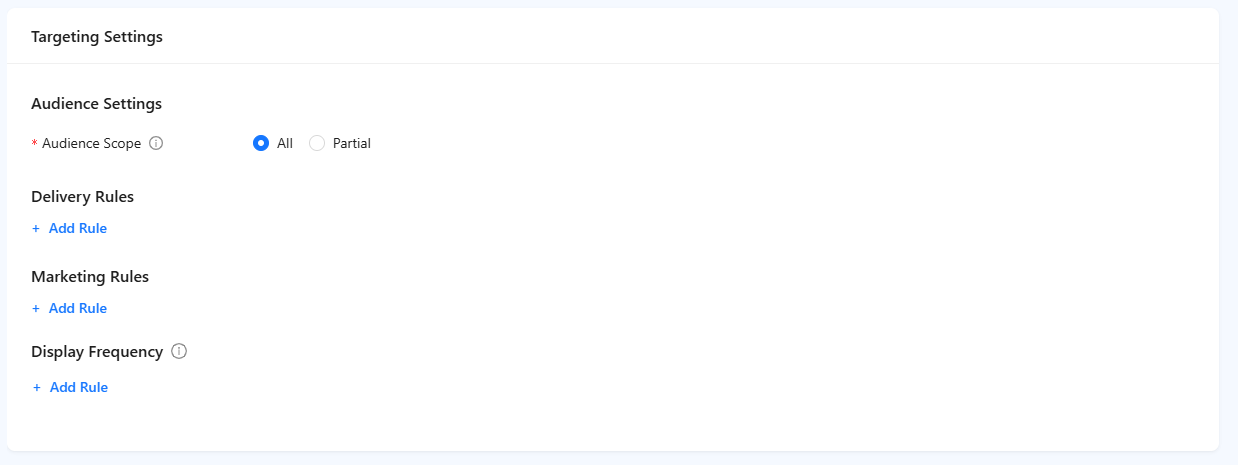
Target settings include a range of configurations essential for task delivery. These configurations involve defining the target audience, setting delivery and marketing rules, and determining the display frequency.
Audience settings
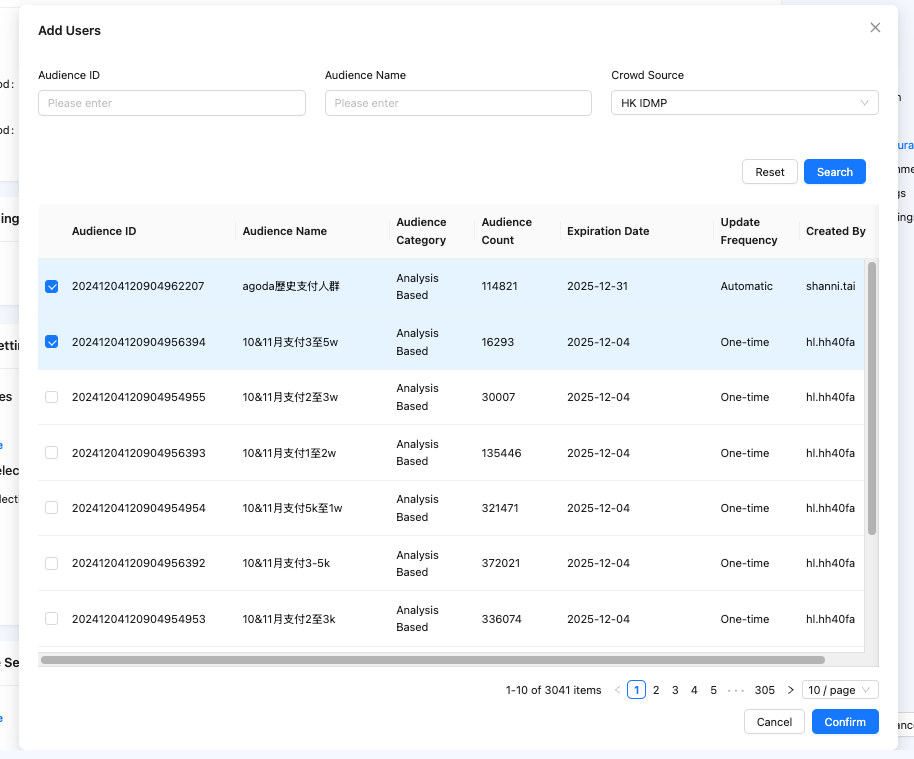
In this section, select the group of people who can view the delivery task. If you choose a partial audience scope, ensure at least one audience is configured in either the whitelist or blacklist. There is no limit on the number of audiences, but an audience cannot be on both lists simultaneously.
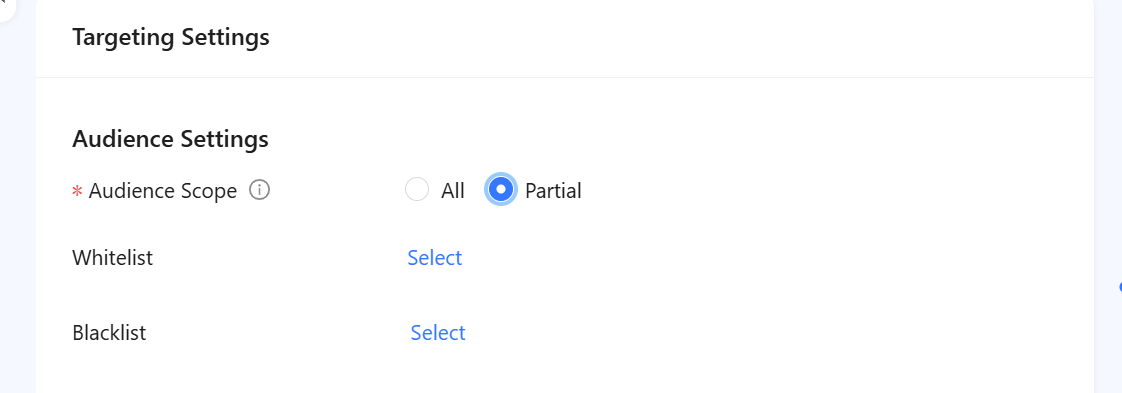
Select your desired audience by filtering by audience ID, audience name, or crowd source, and multiple selections are allowed. If an audience is added to the whitelist, it will be grayed out in the blacklist and cannot be selected. Similarly, if an audience's validity period is shorter than the task's validity period, it will be grayed out and cannot be selected.
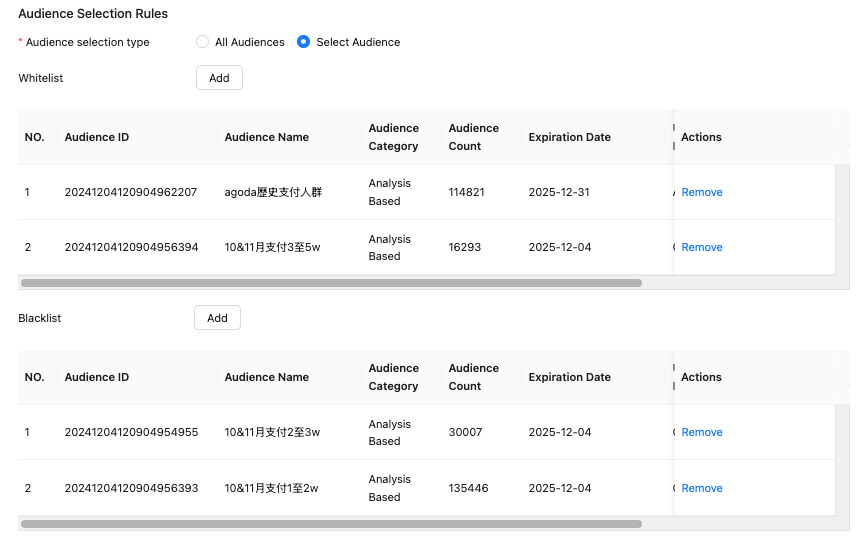
After confirming your selection, the audience will be displayed in the whitelist and blacklist sections.
Delivery & marketing rules
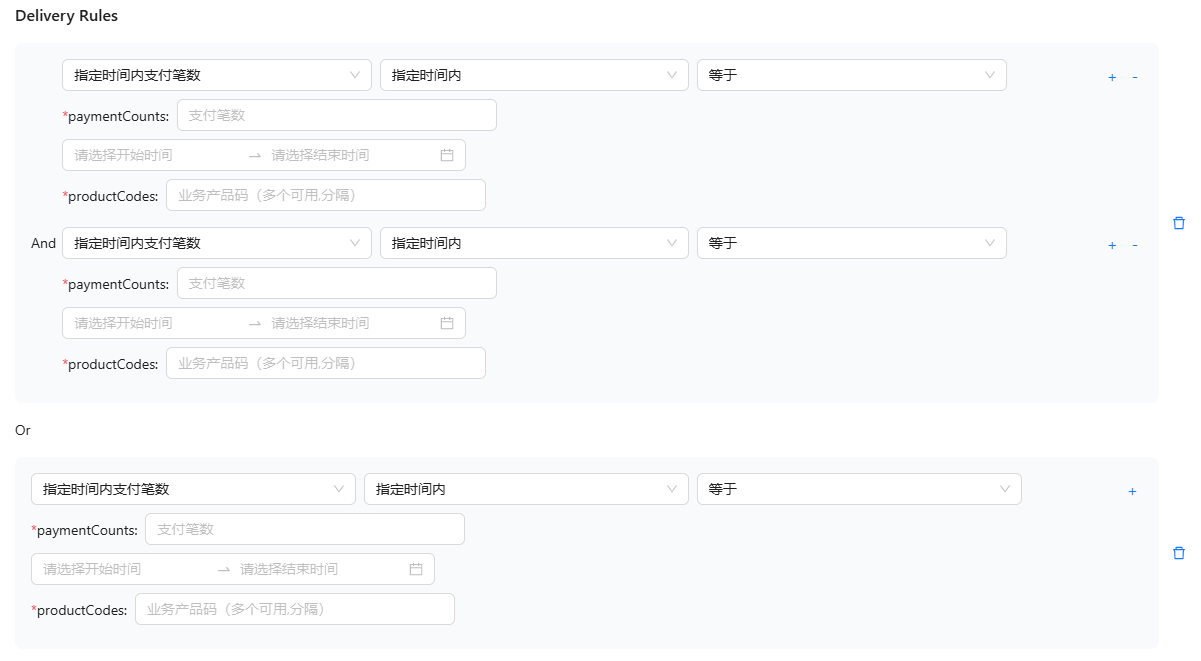
These two sections support configuring multiple rules using "And"/"Or" relationships. The "Or" relationship allows any of the specified rules to be satisfied, while the "And" relationship requires all selected rules to be satisfied simultaneously.
Display frequency
This section allows you to set limits on how often the same content can be shown to the same user within a specified time frame, helping to prevent user fatigue from repetitive exposure. For example, you can limit the display of badges to two exposures across three display spaces on the homepage within a day.
We offer two time configuration options:
- Consecutive Period: Customize the time period as needed.
- Task Active Period: Align with the validity period of the delivery task.

Cross-page relevance
These settings ensure that the task's source and landing page content are logically connected, providing users with a seamless and relevant experience. Note that Creative Settings must be configured before setting up Cross-page Relevance.
The operational space supports cross-page relevance between tasks or static creatives.

Add Landing page task
Take the following steps to establish cross-page relevance between tasks:
- Click Add > Landing Page Task to access the configuration page.
- Choose a display space type and a specific space first. You can use the task name for precise searching, then click Search.
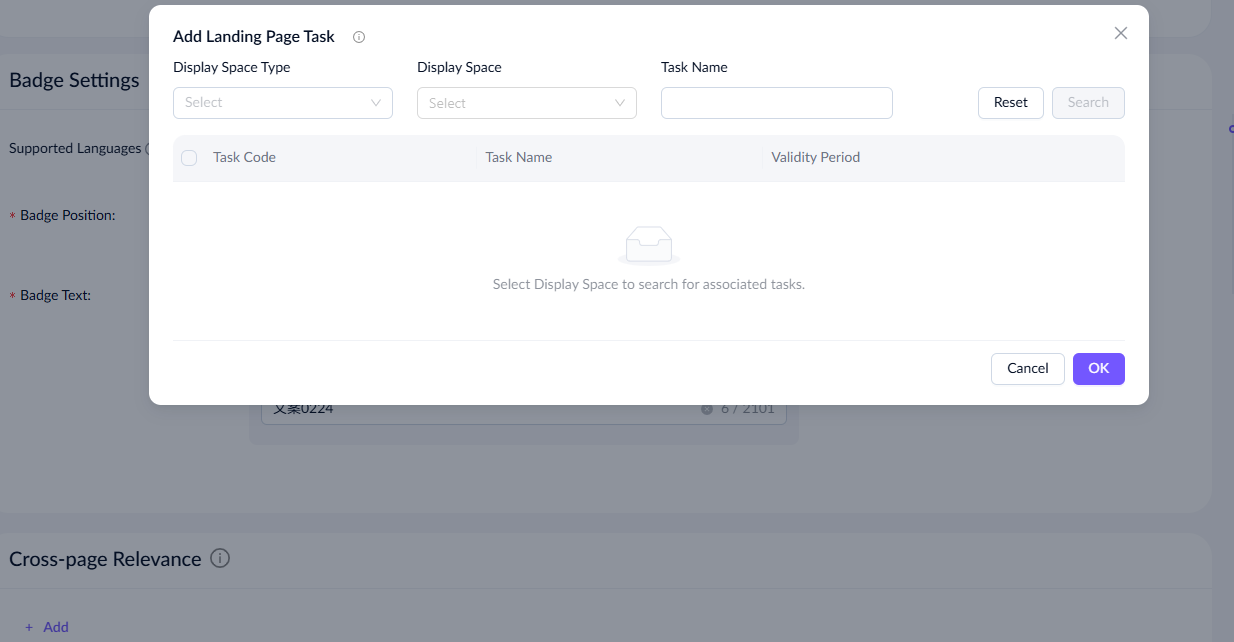
- Select the desired delivery tasks from the search results, and then click OK.
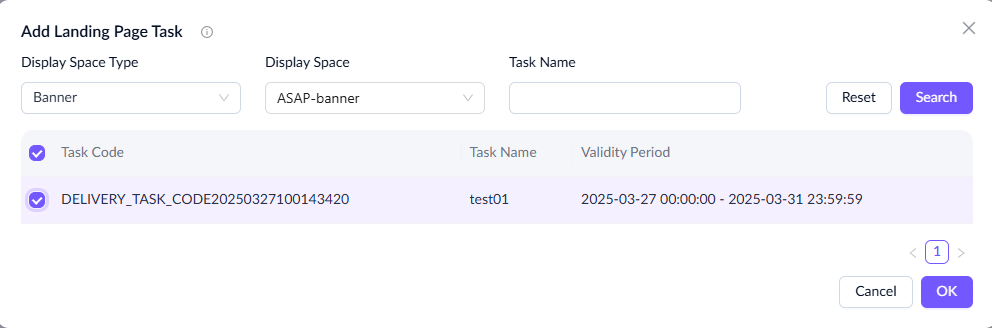
- View the details of the landing page task.

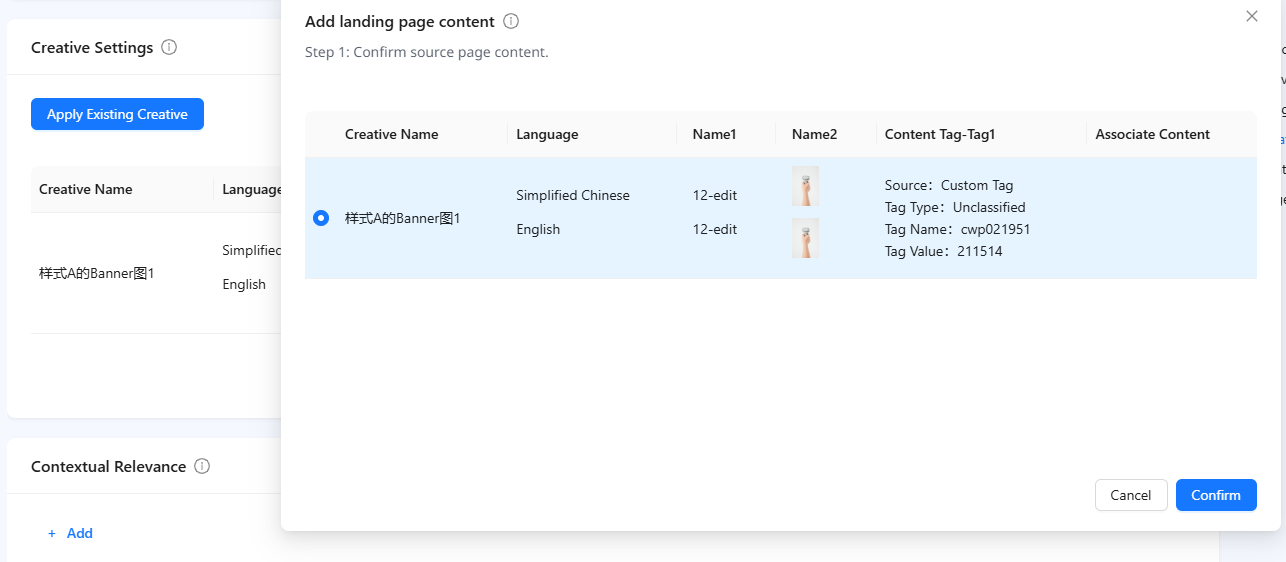
Add landing page content
Take the following steps to establish cross-page relevance between tasks:
- Click Add > Landing Page Content to access the configuration page.
- Confirm the source page content configured in the creative setting module. After verification, click Confirm.
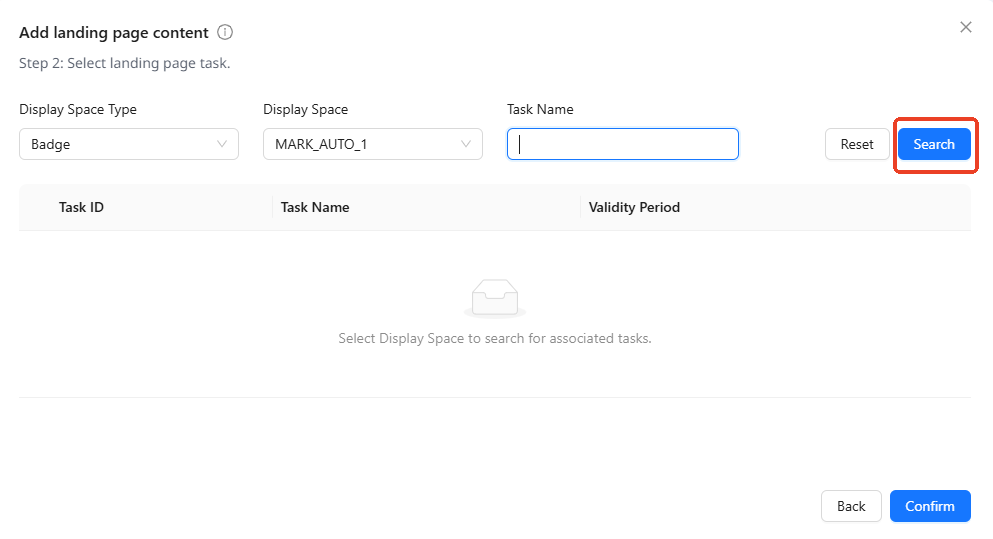
- Choose a display space type and a specific space. You can use the task name for precise searching, then click Search.
- From the search results, select the desired delivery tasks and click Confirm.
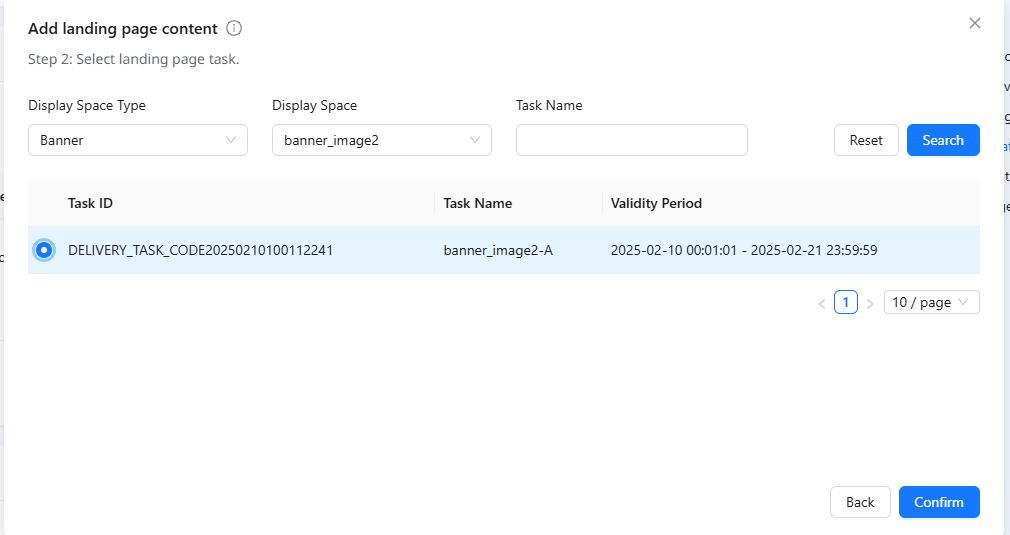
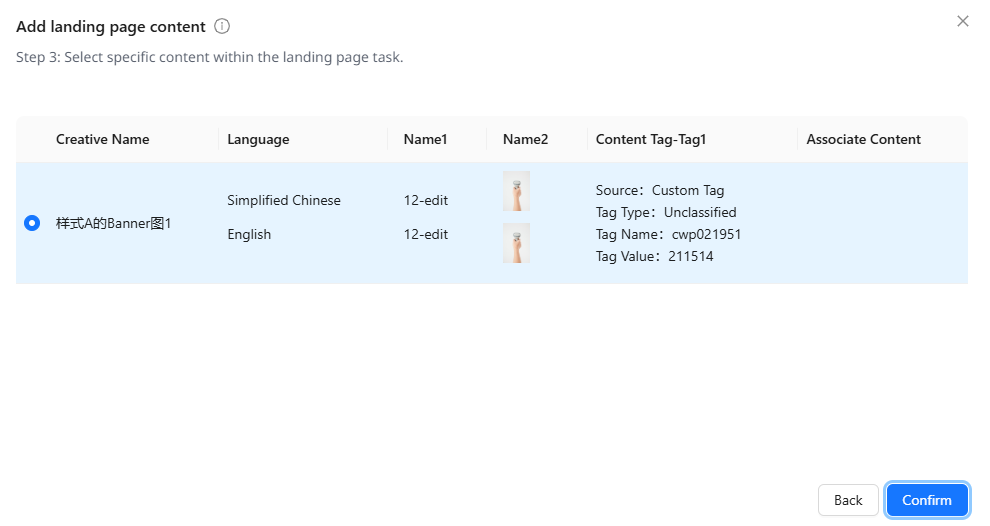
- Select a specific piece of content within the landing page task, and click Confirm.
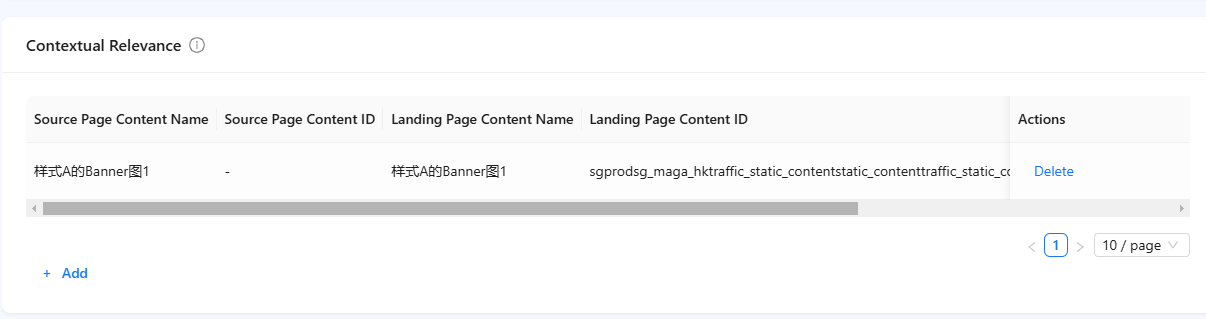
- View the details of the added landing page content.
Edit tasks
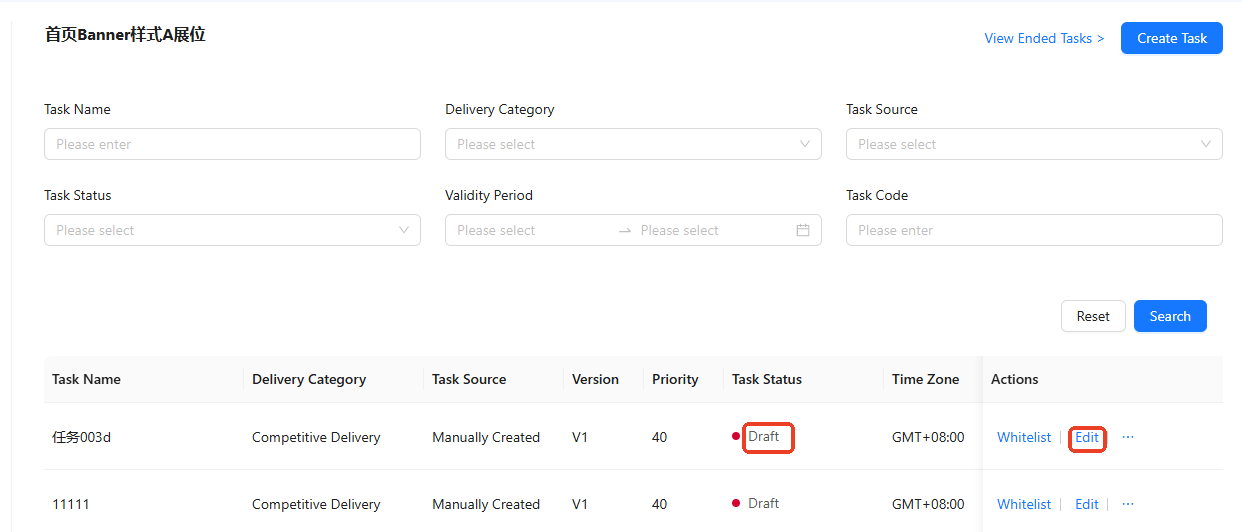
To edit a delivery task, select a specific task on the task list page and click Edit in the action column to access its editing page. Tasks are editable only when they are in draft status. Refer to the following table for editing details:
Field name | Editable in draft status? |
Task Name | No |
Display Space | No |
Target Slot | Yes |
Task Priority | Yes |
Notification Email | Yes |
Time Zone | Yes |
Validity Period | Yes |
Recurrence Pattern | Yes |
Guaranteed Budget | No |
Budget Type | Yes |
Associated Delivery Plan | Yes |
Budget Amount | Yes. It can be increased or decreased. |
Delivery Mode | Yes |
Creative Settings | Yes |
Audience Settings | Yes |
Delivery Rules | Yes |
Display Frequency | Yes |
Cross-page Relevance | Yes |
View tasks
Delivery tasks are categorized into ongoing tasks and ended tasks.
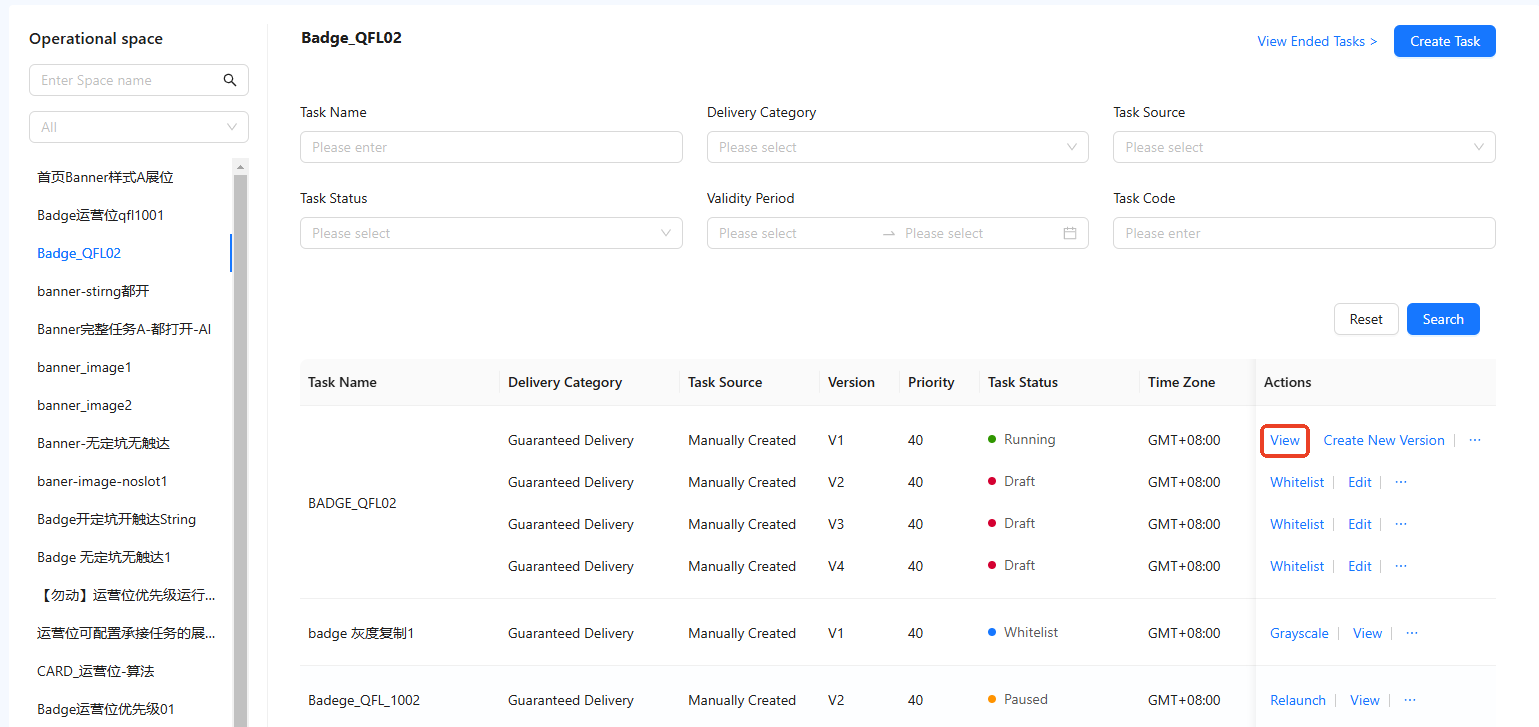
- Ongoing Tasks: Tasks in one of the following statuses: Draft, Whitelist, Grayscale, or Running. Click View for a specific task on the task list page to access the task's details page.
- Ended Tasks: Tasks that have been completed or manually terminated. Operators can view completed tasks by clicking View Ended Tasks at the top right of the task list page.
Copy tasks
To copy a delivery task, select a specific task on the task list page and click Copy in the action column to access the duplication page. Refer to the following table for the duplication details:
Field name | Is copied? |
Task Name | No |
Display Space | Yes |
Target Slot | No |
Task Priority | No, default configuration |
Notification Email | No, default configuration |
Time Zone | No, default configuration |
Validity Period | No |
Recurrence Pattern | No, default configuration |
Guaranteed Budget | Yes |
Budget Type | Yes |
Associated Delivery Plan | Yes |
Budget Amount | Yes |
Delivery Mode | Yes |
Creative Settings | Yes |
Audience Settings | Yes |
Delivery Rules | No |
Display Frequency | No |
Cross-page Relevance | Yes |
Task workflows
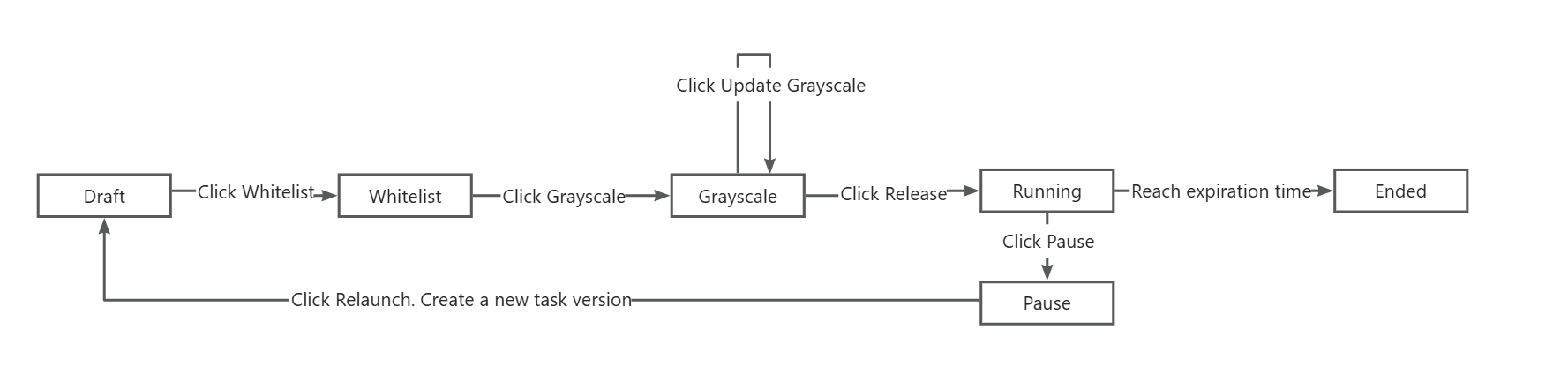
Refer to the following diagram for the various states of a delivery task and their transitions:
Whitelist testing
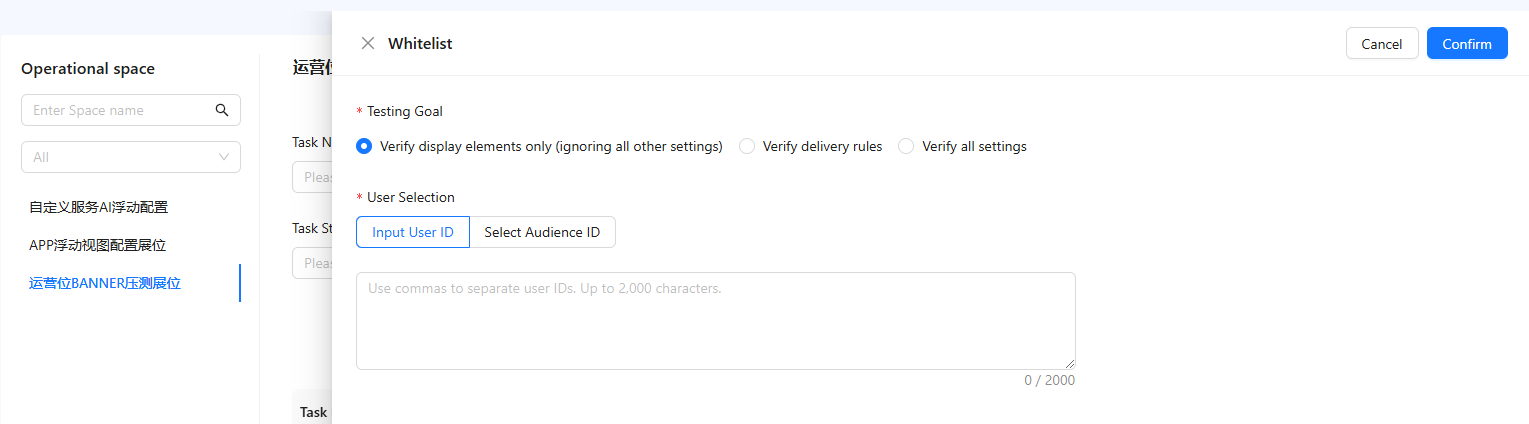
For tasks in draft status, you can initiate whitelist testing by clicking Whitelist in the action column. Take the following steps for whitelist testing:
1. Select a testing goal and test users. You can choose users by entering individual user IDs, separated by commas, or by selecting an existing audience ID.
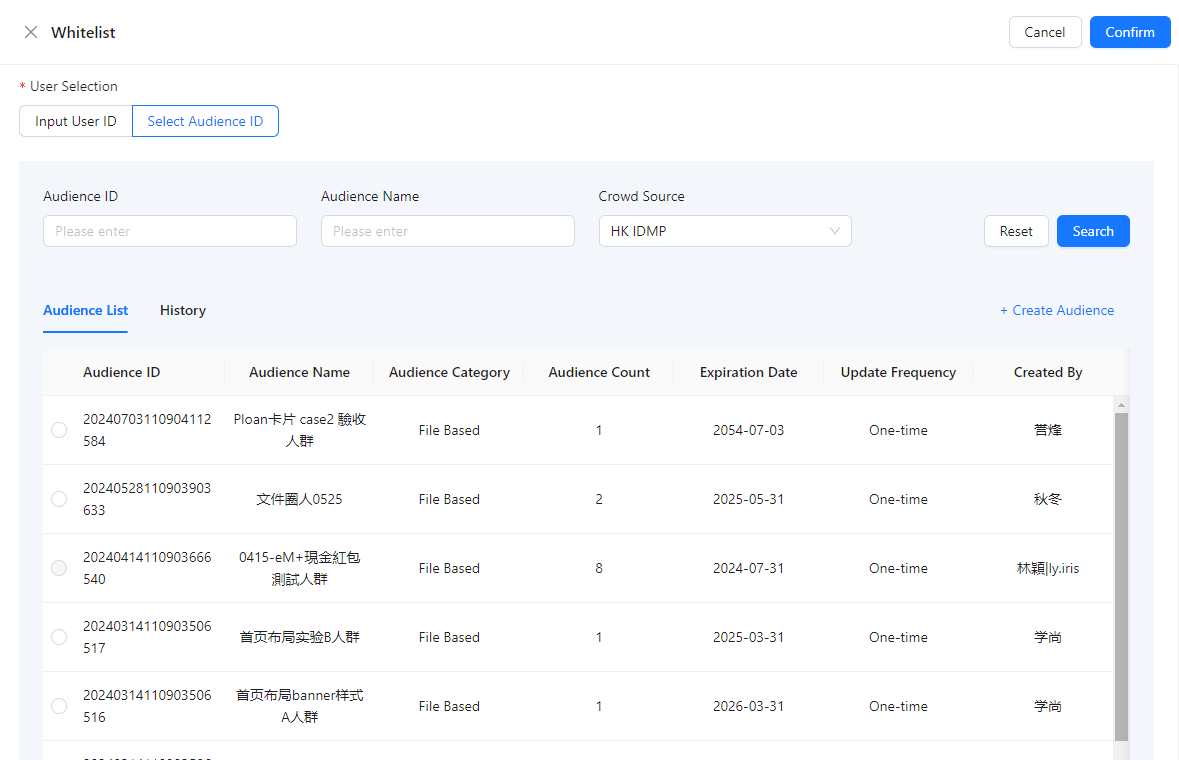
- To view historical whitelist audiences, click History.
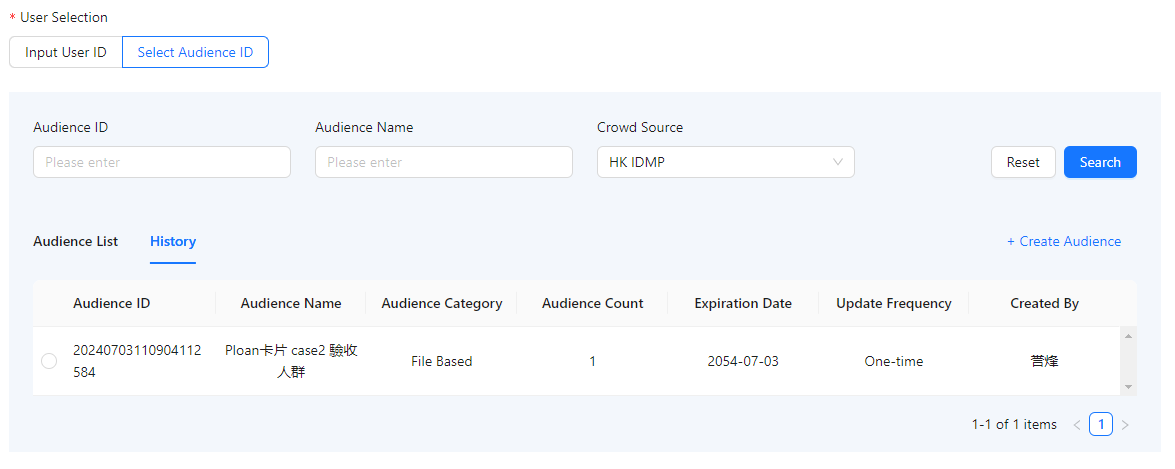
- If no suitable audience is available for selection, you can create a new audience by clicking Create Audience at the top right of the audience list.
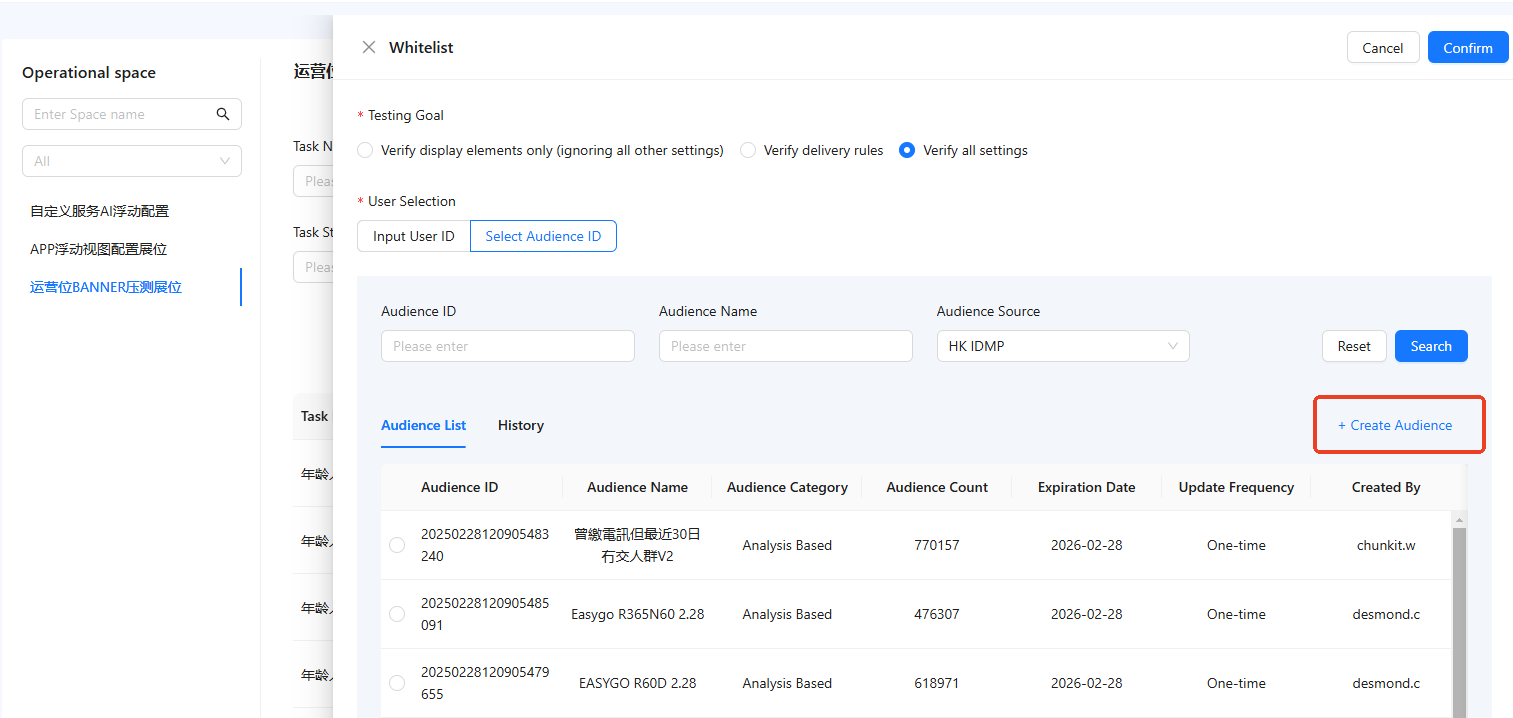
- After completing the configuration, click Confirm to transition the task into whitelist status.
Grayscale testing
For tasks in whitelist status, you can initiate grayscale testing by clicking Grayscale in the action column. In the grayscale testing pop-up, choose the desired release ratio and click Confirm to transition the task into grayscale status. While in this status, tasks can be rolled back to the whitelist status or advanced to the release stage. 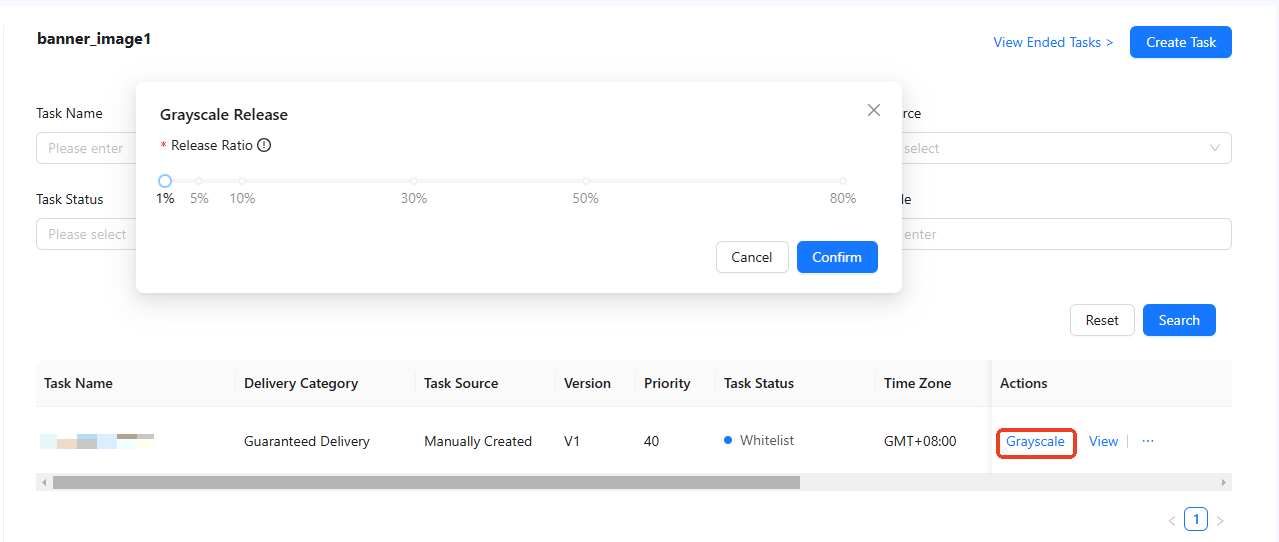
The grayscale testing process allows operators to choose either a fixed baseline grayscale ratio or a custom ratio that suits the task's needs. The maximum allowed ratio is 80%. The ratio can be updated multiple times, with each change requiring secondary confirmation via a pop-up to ensure accuracy.
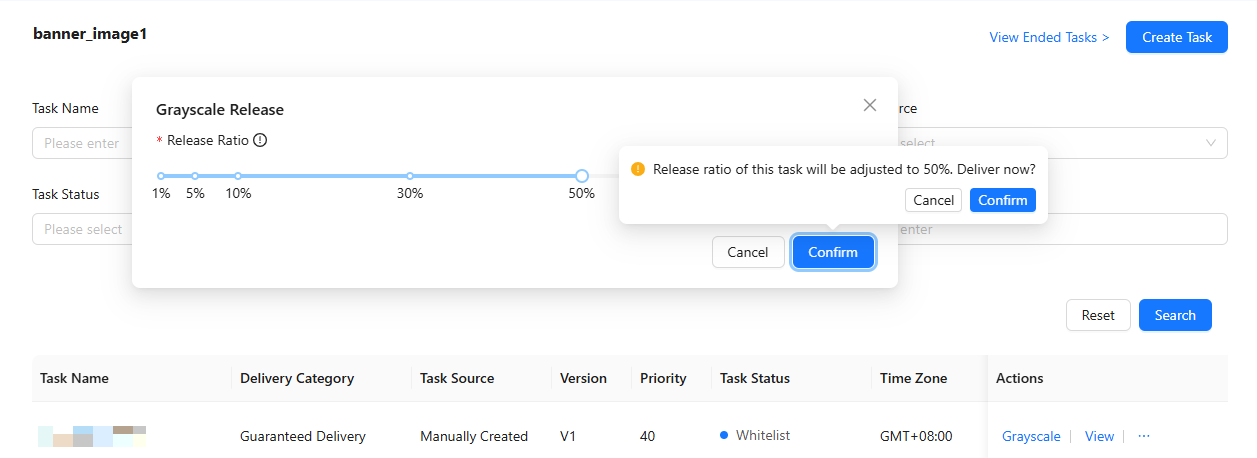
Release task
For tasks in grayscale status, click Release to transition the task into the released status. During this status, tasks can be viewed, copied, have new versions created, or paused.

Pause task
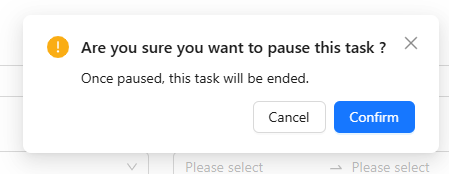
For tasks in released status, click Pause to move the task into paused status. In this state, tasks can be relaunched, viewed, copied, or ended.
Relaunch task
For tasks in paused status, click Relaunch to automatically create a new draft version of the task.
End task
For tasks that are not running, clicking End will deactivate the task, making it no longer visible in the task list. It will then appear in the ended tasks list, with all related information retained in the database.