Category management
ASAP provides a standard categorization system that encompasses merchant, goods, and service categories to facilitate the categorization and tagging of merchants and content assets in the ASAP content center. By implementing these categories, ASAP ensures consistent content management and precise marketing.
Category
Note: Wallet operators only have view permission on category attributes and category trees.
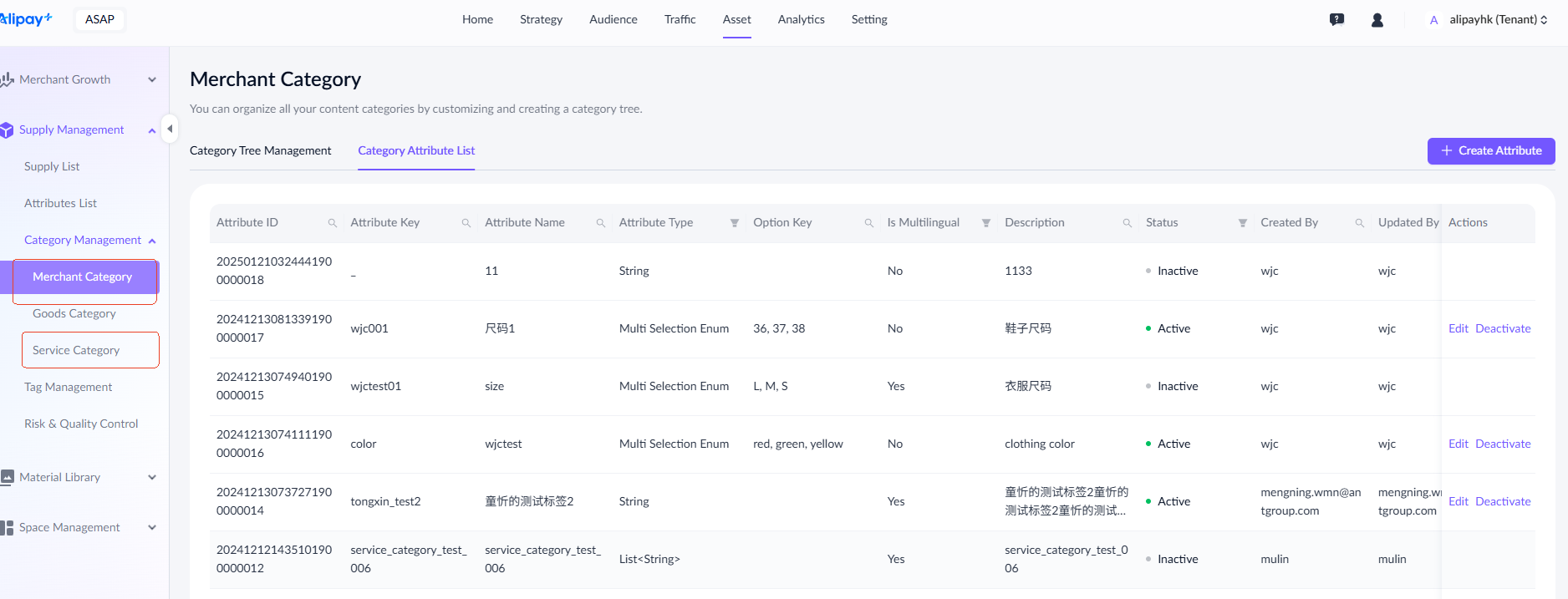
Navigate to Asset > Supply Management > Category Management. Select Merchant Category, Goods Category, or Service Category as needed to proceed to the details page.
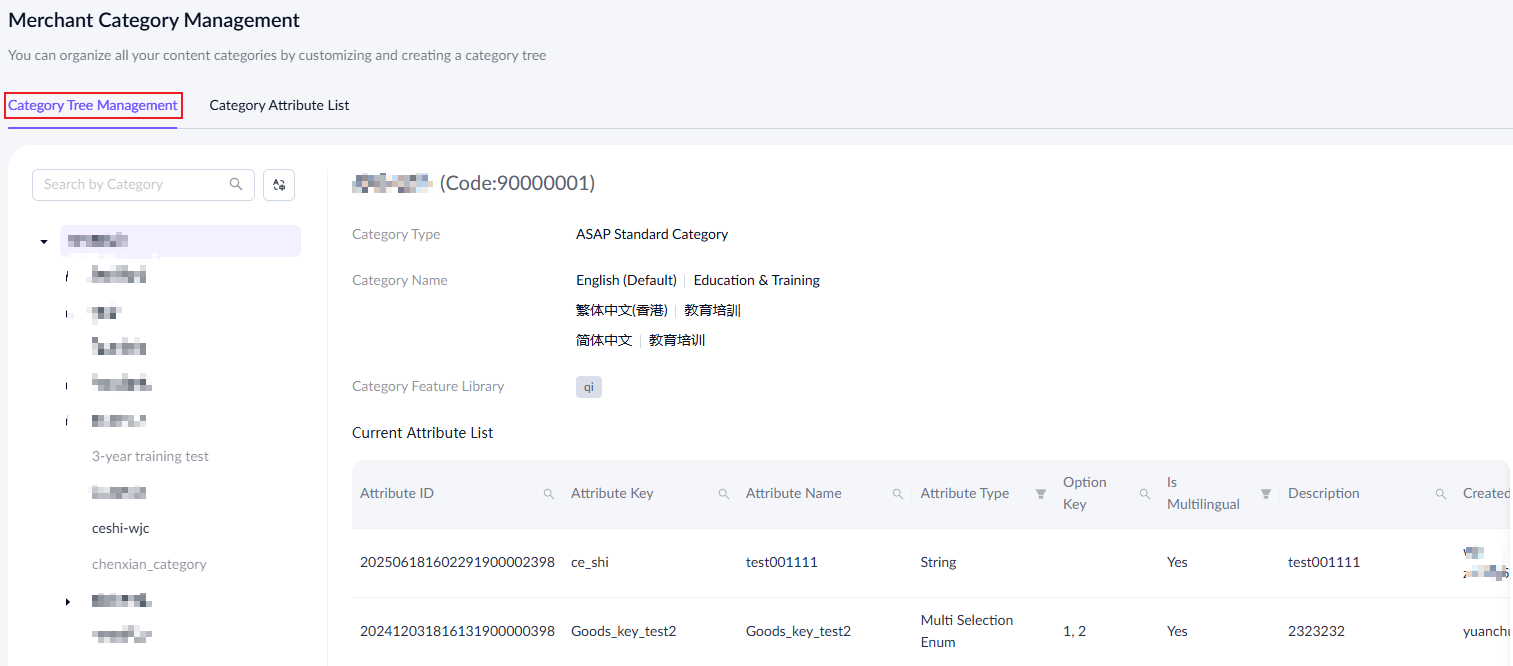
On the Category Tree Management page with a hierarchical view of categories and their attributes, you can:
- Select a category to view its associated attributes.
- Filter the attributes in the displayed list to further customize your view.
On the Category Attribute List page, you can:
- View the comprehensive list of attributes of the selected category.
- Use filters such as Attribute ID and Field Type to narrow down the display results.
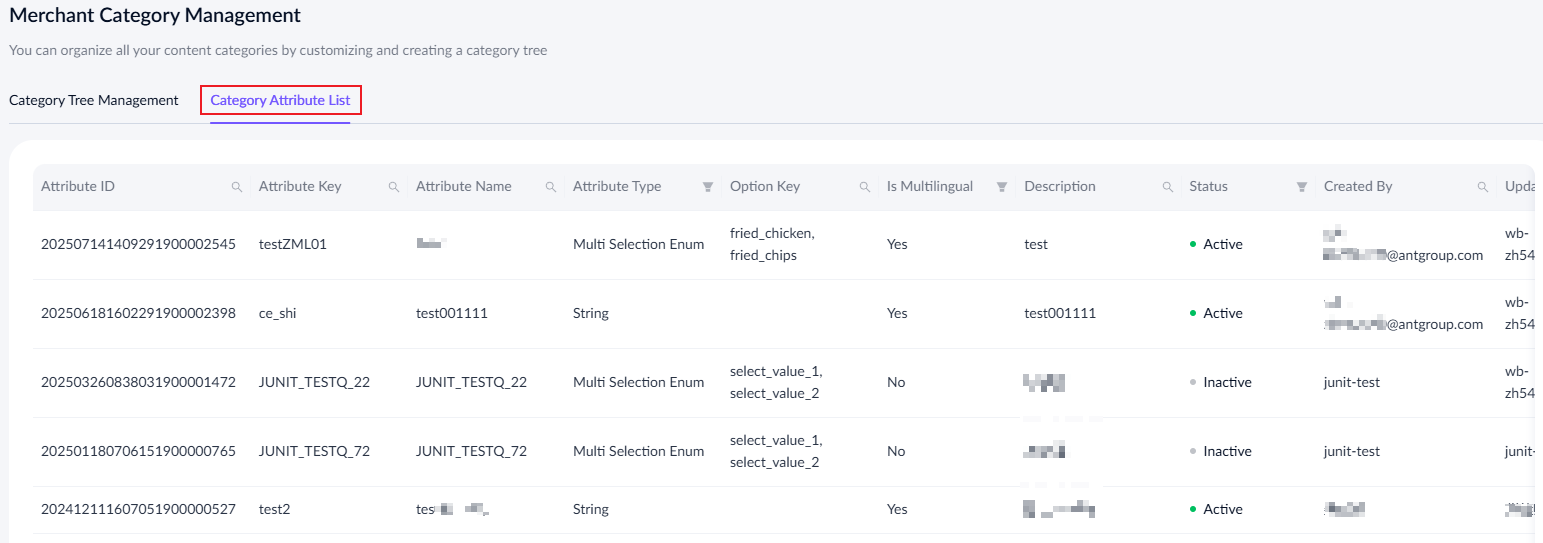
Category attribute template
View category attribute template
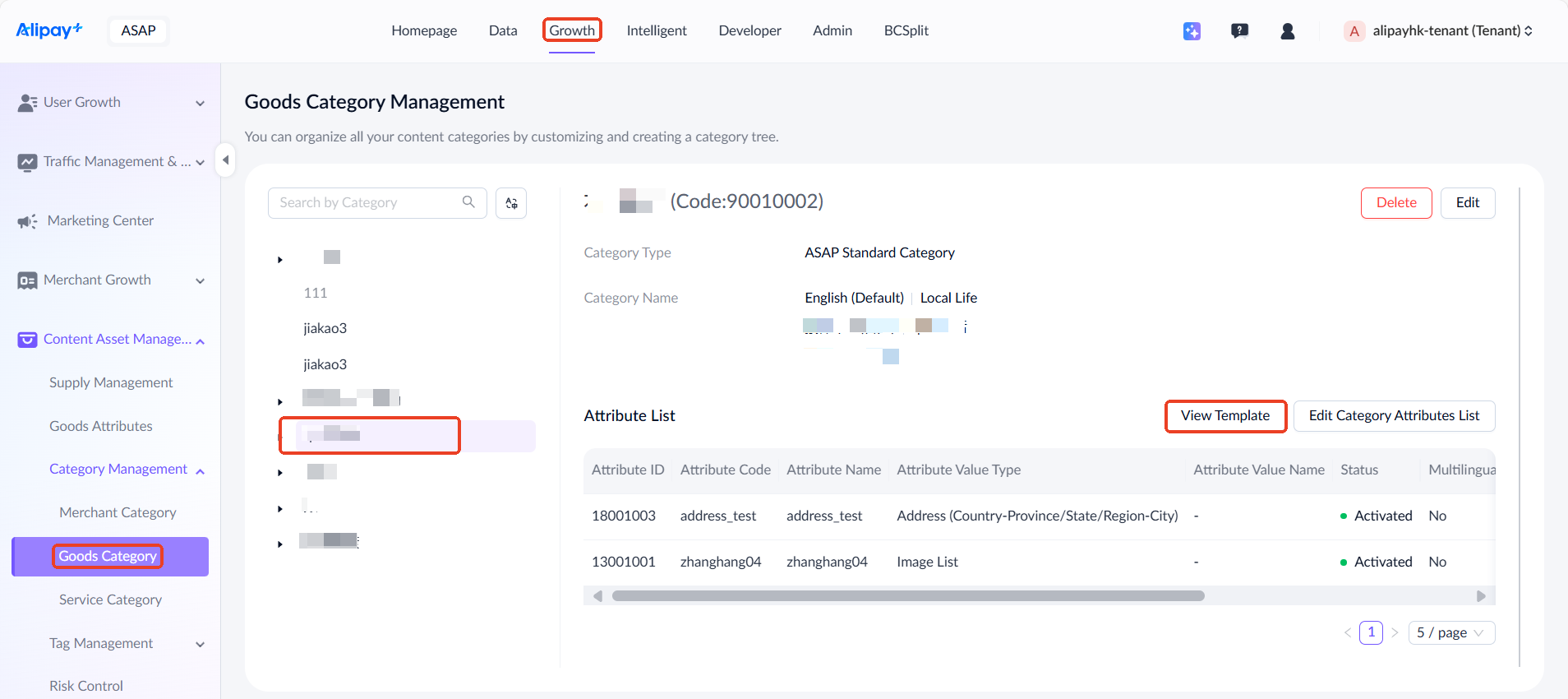
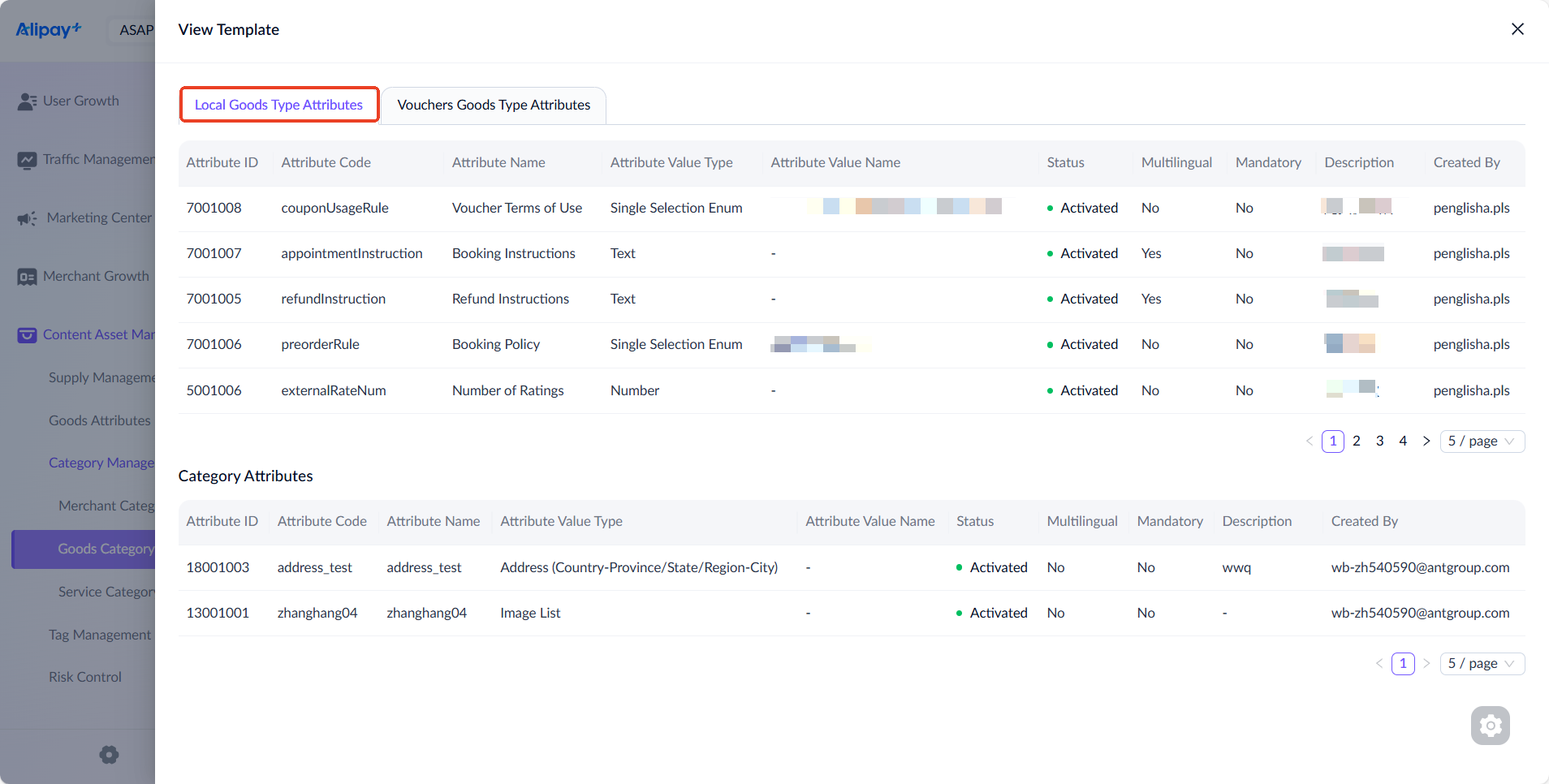
Within Goods Category management, you can add attributes created or edited in Goods Attributes to specific Goods Categories. These attributes are then combined with the existing Goods Type Attributes within the category to generate templates for the categorized items.
- Navigate to Growth > Content Asset Management > Category Management > Goods Category, then click View Template.

- On the View Template page, a drawer panel displays the goods type attributes, and you can switch between different goods types using the tabs.
Edit category attribute template
- Navigate to Asset > Supply Management > Category Management > Goods Category, then click Edit Category Attribute List.
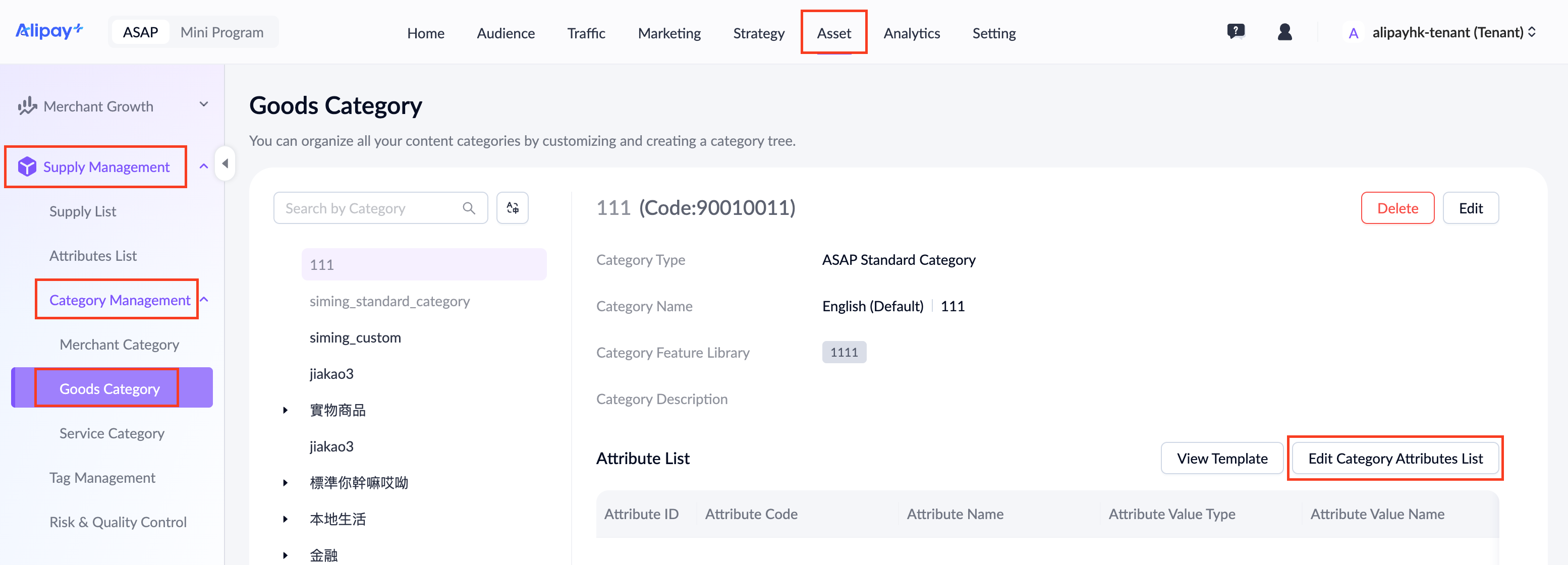
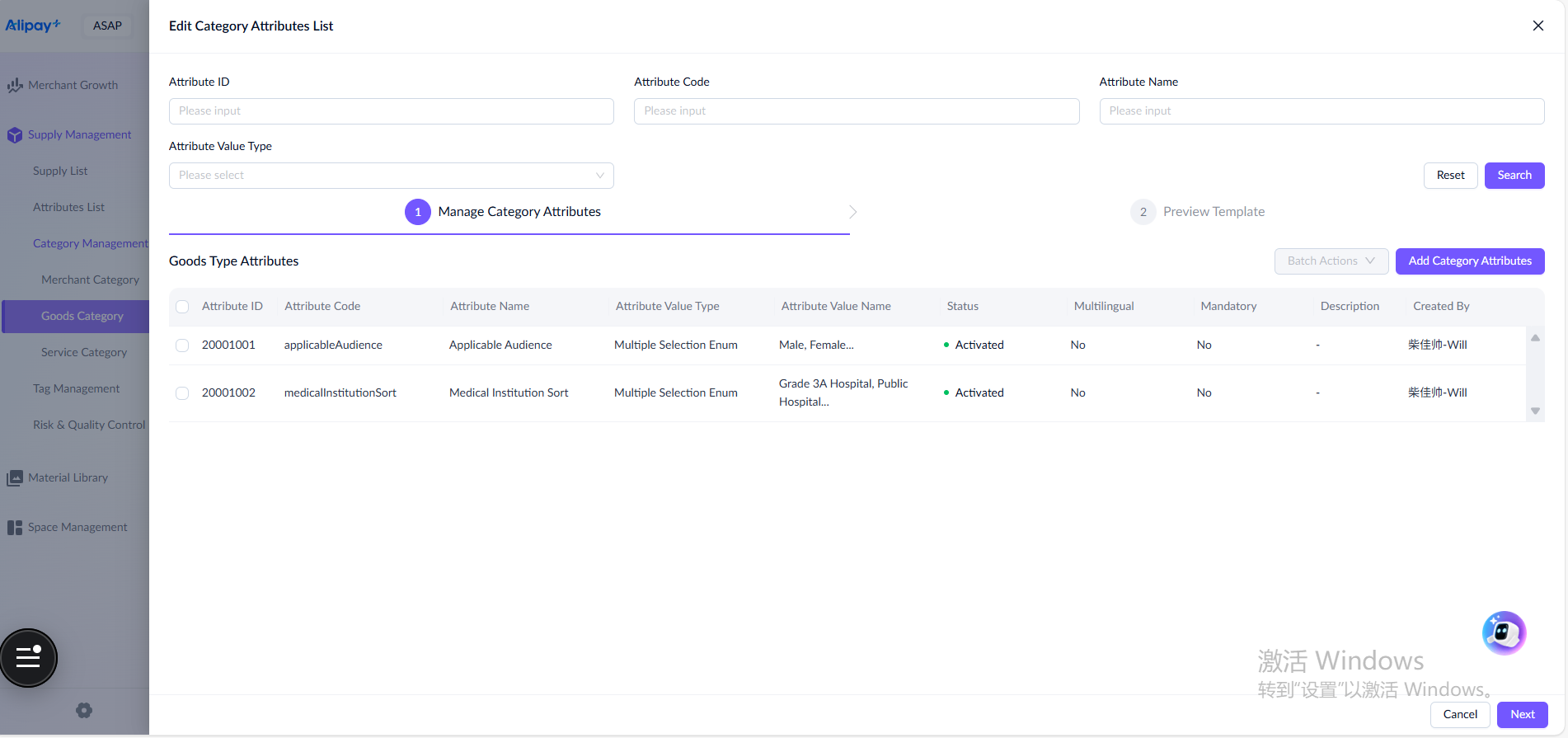
- On the Edit Category Attribute List page, you can view the added category attributes, then click Add Category Attributes to add more attributes to the category.
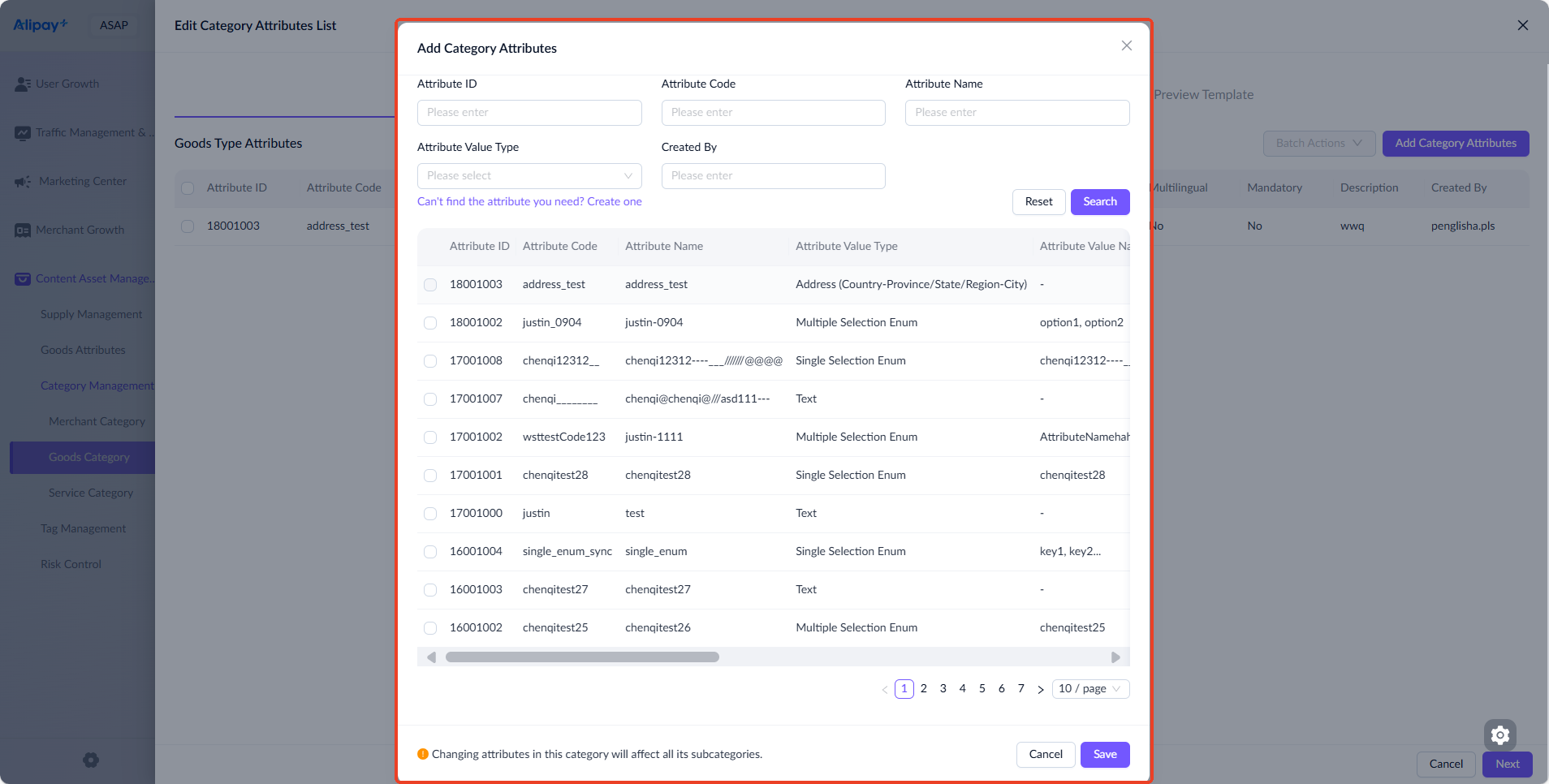
- Select the Category Attributes you want to add. Multiple selections are supported. Click Save to confirm.
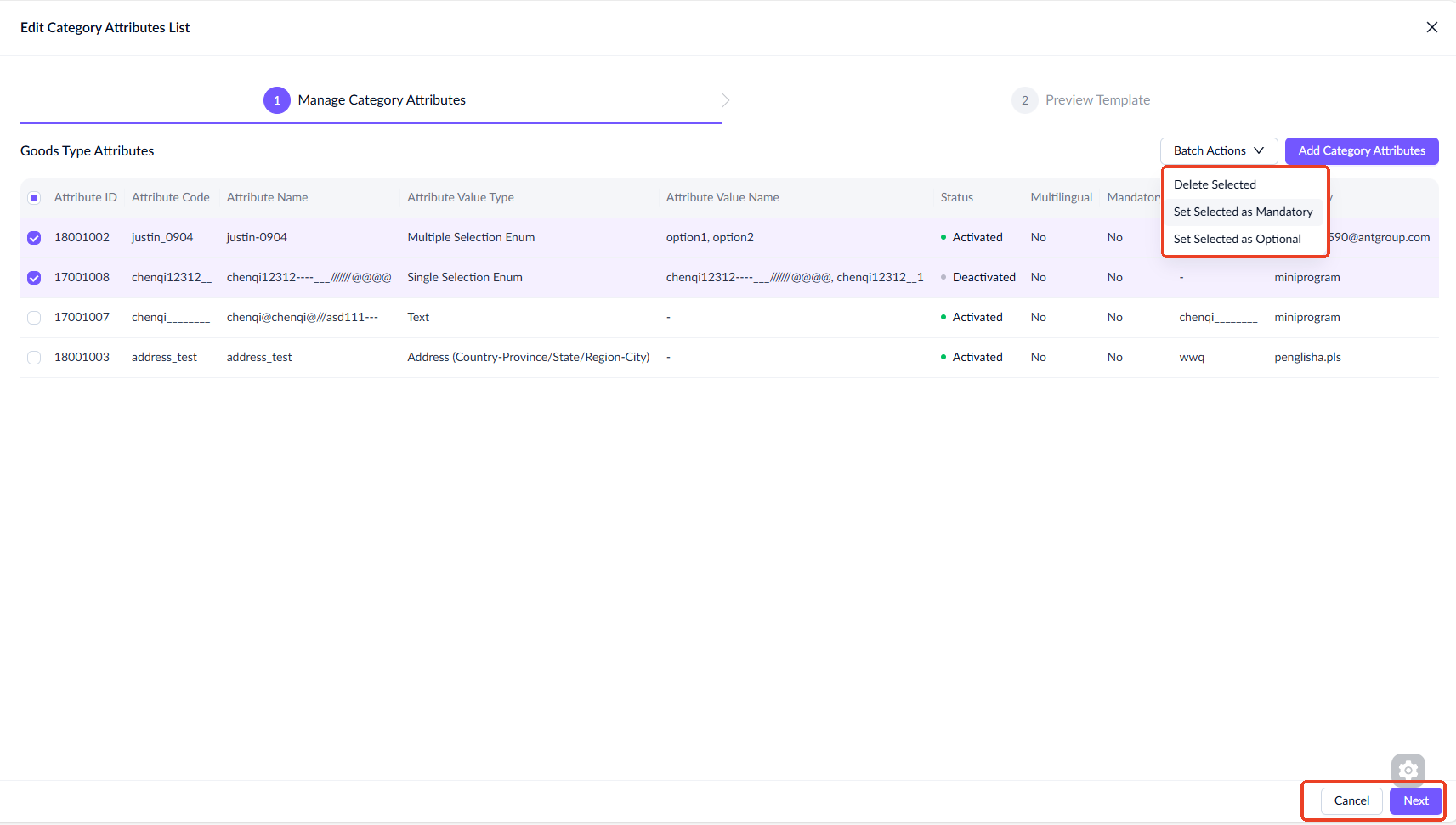
- Return to the Edit Category Attributes List page, review the selected and added category attributes. You can select multiple attributes and mark them as mandatory or optional under Batch Actions, then click Next to proceed.
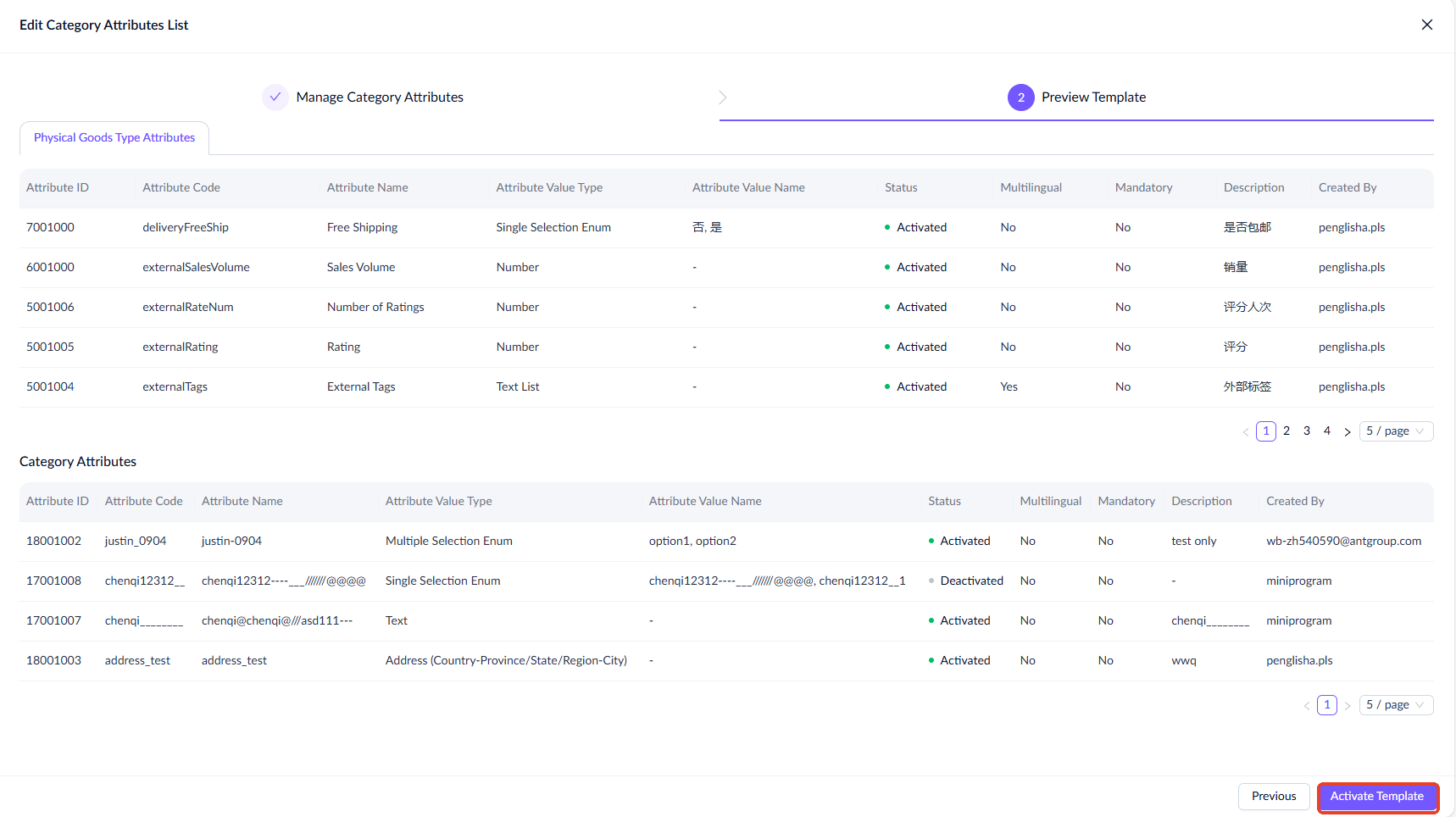
- You can now preview the template. Click Activate Template to save the template. The system will store the category attributes within this category and combine them with the existing goods type attributes to generate templates.