Risk and quality control
The Risk & Quality Control module helps you monitor and manage risk across all content supplies, as well as perform manual checks on active content. Content containing serious issues will be automatically deactivated and hidden from customers. Content with potential issues remains visible by default and requires manual review to determine whether deactivation is needed. By managing risks through both system and manual checks, you can ensure your content remains safe, compliant, and appropriate for your audience.
View risks
Navigate to Asset > Supply Management > Risk & Quality Control to view risk items detected via System Check, Regular Check, or Manual Check. There are two tabs under the module:
- Pending Alerts: Contains content items with risk issues that require manual review, and have not yet been marked as serious issues.
- Processed Alerts: Includes records where all pending risk issues are processed, as well as items automatically deactivated due to serious issues.
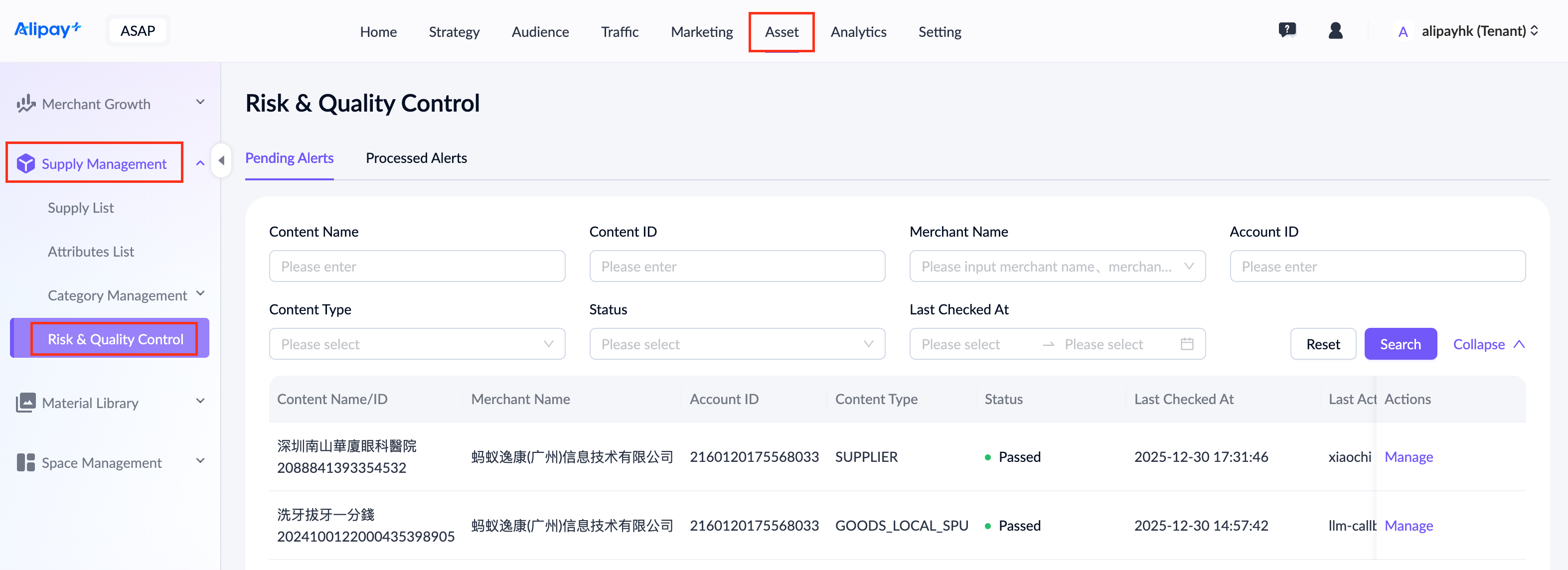
For a detailed explanation of each field, see the following table:
Field name | Description |
Content Name | The name of the content item. |
Content ID | The unique identifier of the content. |
Merchant Name | The name of the merchant who owns the content. |
Account ID | The account ID of the merchant who owns the content. |
Content Type | The category of the content supply. |
Status | The status of the content after the risk check.
|
Last Checked At | The date and time when the content was most recently checked or processed. |
Last Actioned By | The user who performed the most recent action on the content. |
Manage risks
Pending Alerts
Navigate to Asset > Supply Management > Risk & Quality Control > Pending Alerts and click Manage in the Actionscolumn to process pending risks.
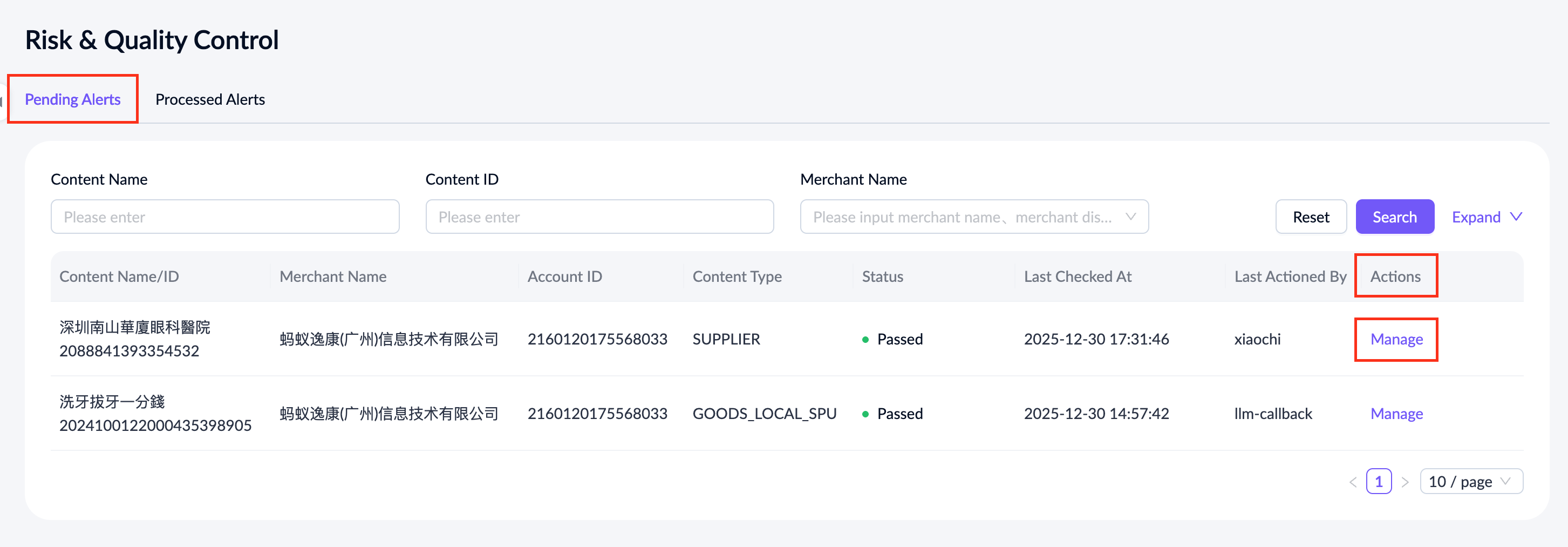
On the Risk List page, you can view the list of items awaiting manual review in the Manage Risk Items section. Select an item and choose one of the following actions:
- Mark as No Risk: If manual review confirms the item is not a risk.
- Mark as Serious Issue: If the item is a serious risk that requires deactivation. Once marked as a serious issue, the content will be locked and cannot be delivered.
- Mark as Potential Issue: If the item is a risk but does not require immediate deactivation.
Once all items in Manage Risk Items section are processed, the record moves to the Processed Alerts list.
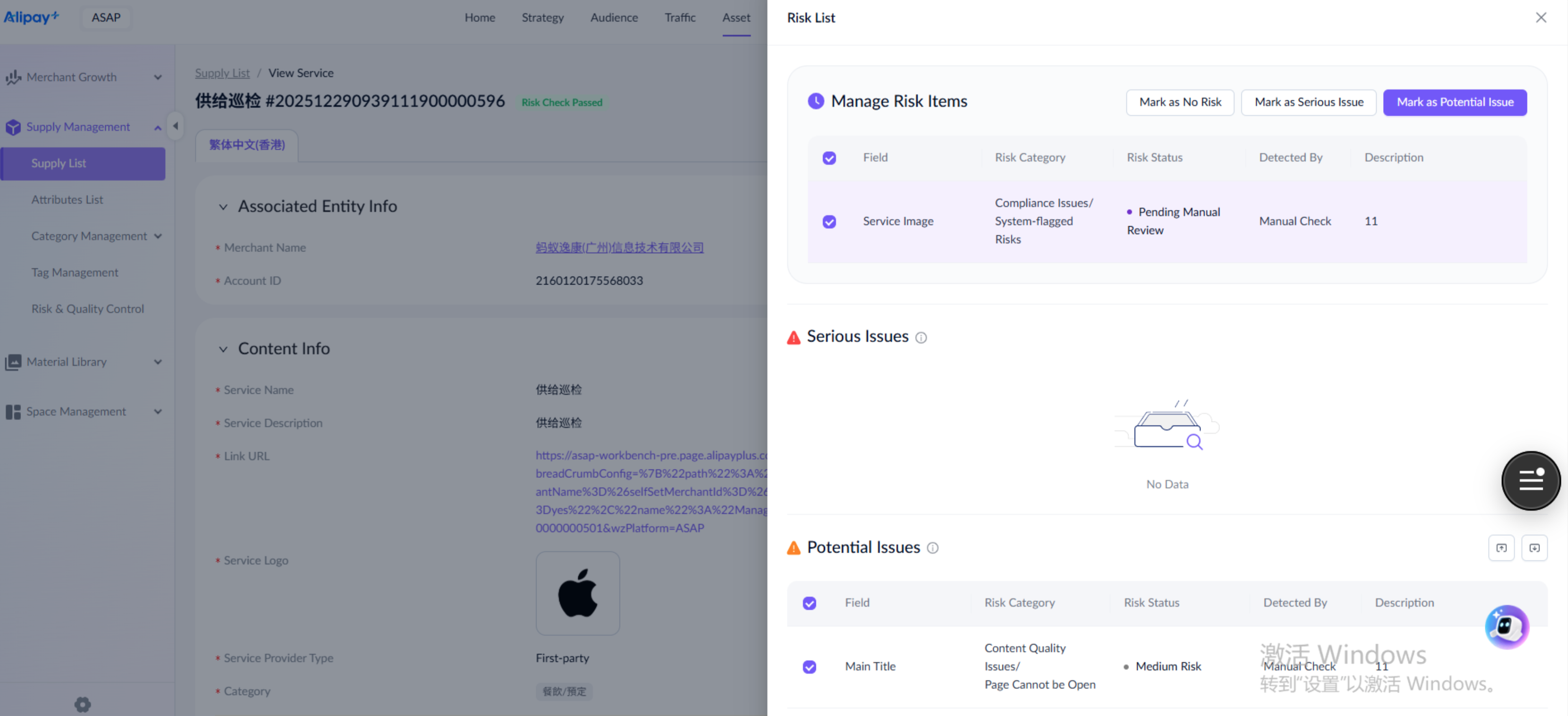
In the Potential Issues section, you can view and manage non‑serious risk issues. Select an item and choose one of the following actions:
- Mark as No Risk: If manual review confirms the item is not a risk.
- Mark as Serious Issue: If the item is a serious risk that requires deactivation. Once marked as a serious issue, the content will be locked and cannot be delivered.
Note: If any item under Manage Risk Items or Potential Issues is marked as a Serious Issue, the record immediately moves to the Processed Alerts list, even if there are still unprocessed issues in the same section.
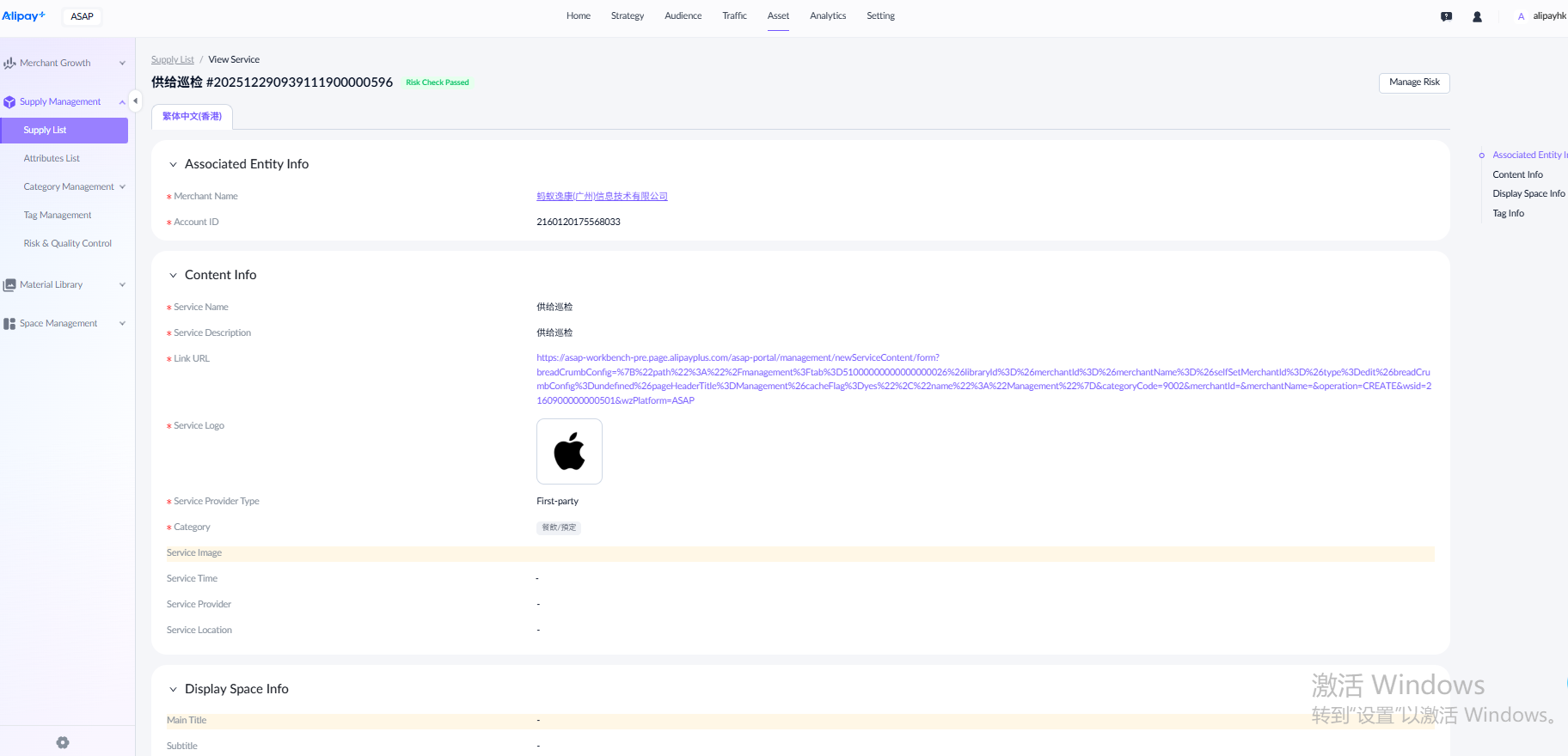
Click the close icon in the top‑right corner of the Risk List to return to the supply details page. Fields with risk issues are highlighted in yellow. You can click these highlighted fields or the Manage Risk button to reopen the Risk List.
Processed Alerts
Navigate to Asset > Supply Management > Risk & Quality Control > Processed Alerts and click View in the Actionscolumn to review or manage risk items.
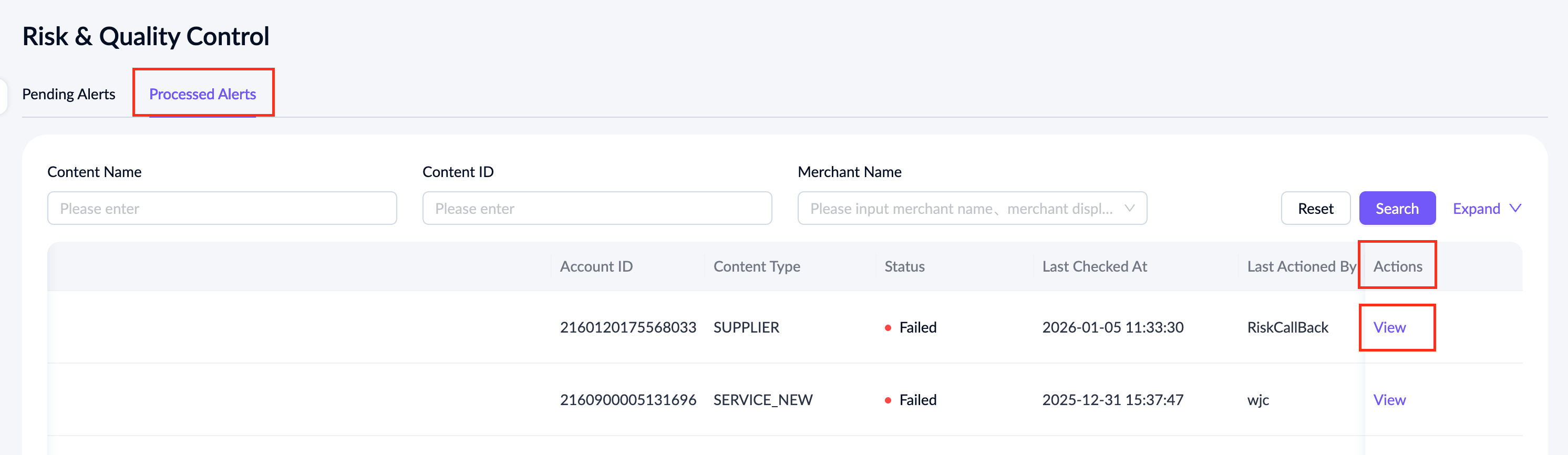
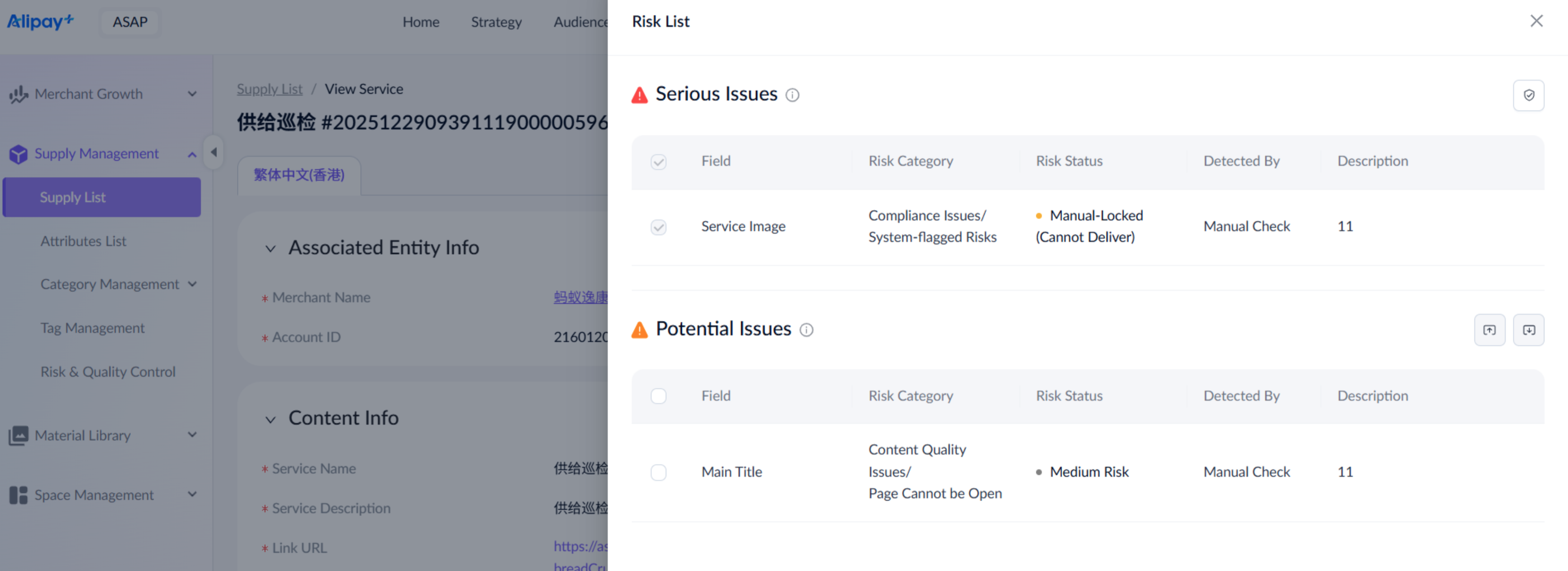
On the Risk List page, you can view and manage serious risk issues in the Serious Issues module. The system selects all serious issues by default, and you can perform batch operations on them.
Note: Once serious issues are batch marked as No Risk, the content will be reactivated and become visible to customers. Make sure the content is safe before proceeding.
In the Potential Issues module, you can view and manage non‑serious risk issues. Select an item and choose one of the following actions:
- Mark as No Risk: If manual review confirms the item is not a risk.
- Mark as Serious Issue: If the item is a serious risk that requires deactivation. Once marked as a serious issue, the content will be locked and cannot be delivered.
Manually check risks
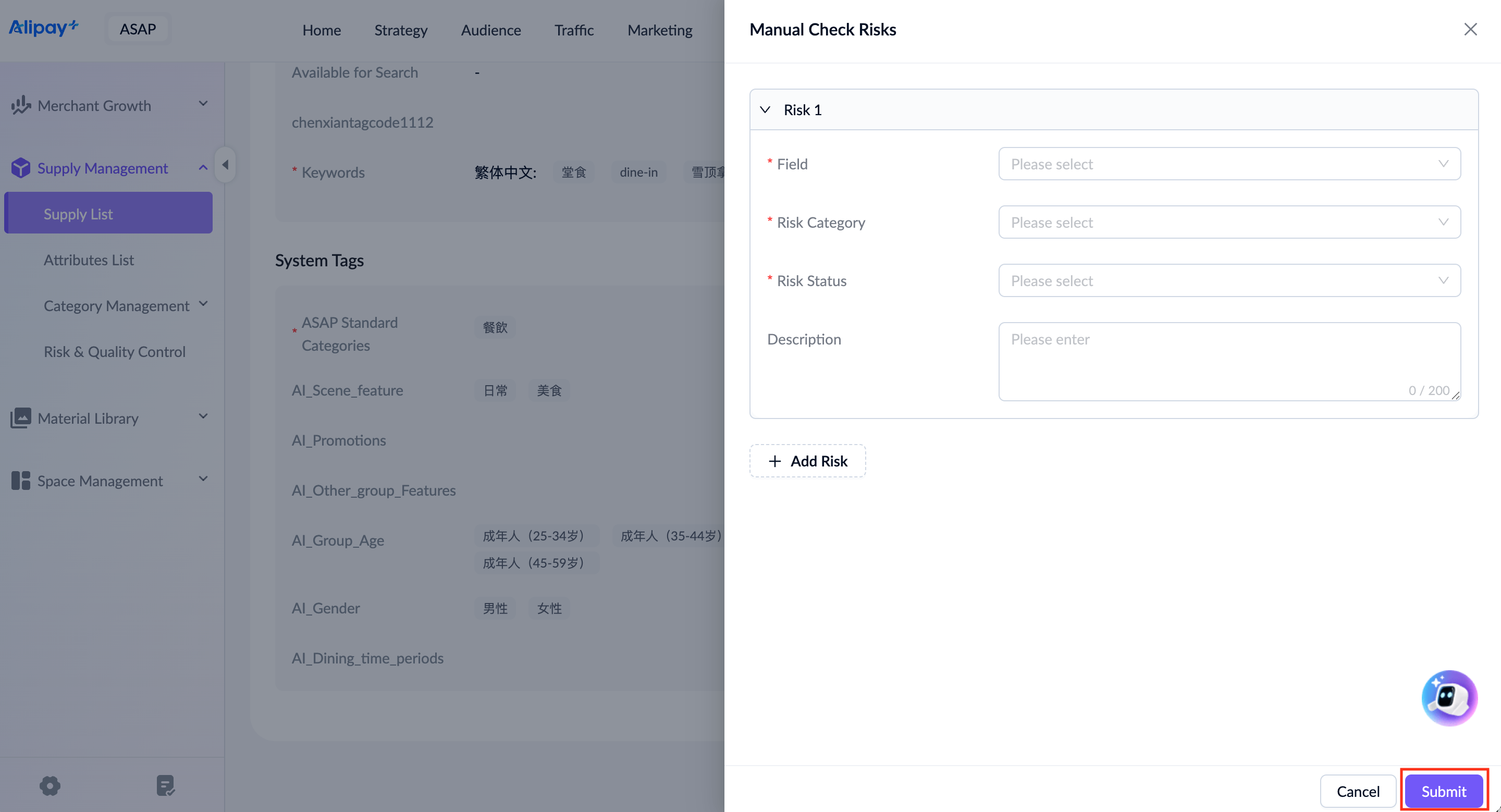
Navigate to Asset > Supply Management > Supply List and click Details to open the details page of the supply.
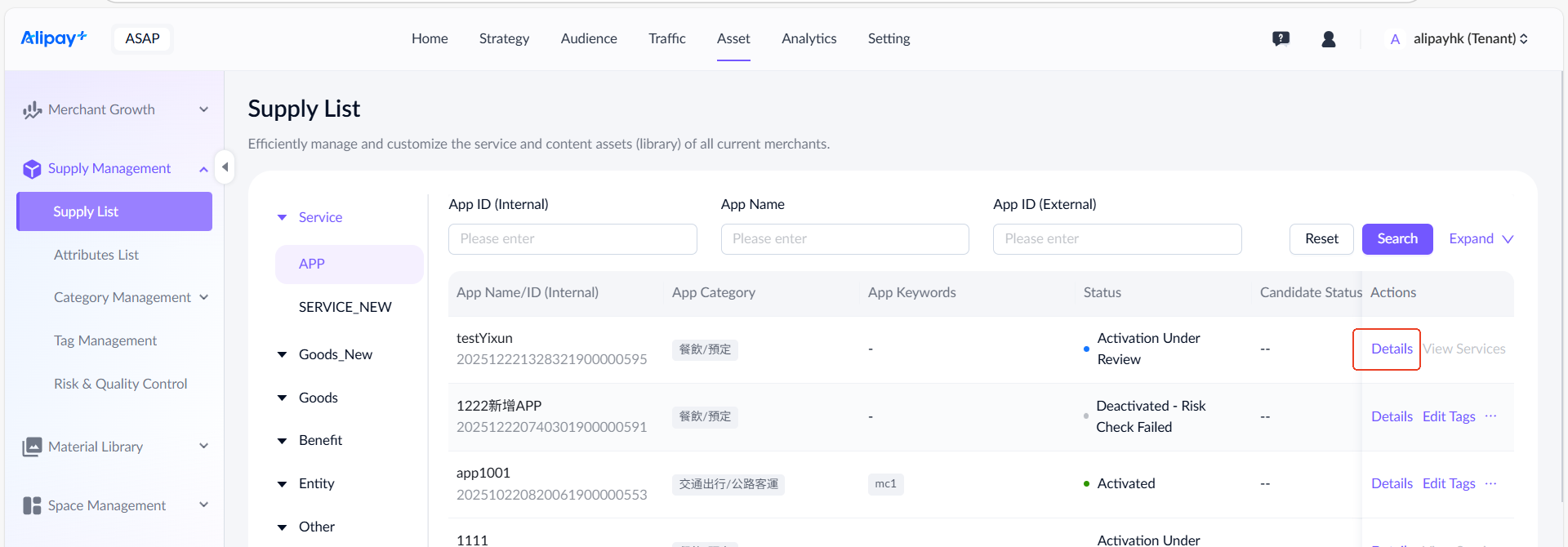
For an activated supply, a manual check risk icon is available on the details page, which allows you to manually report risk issues.
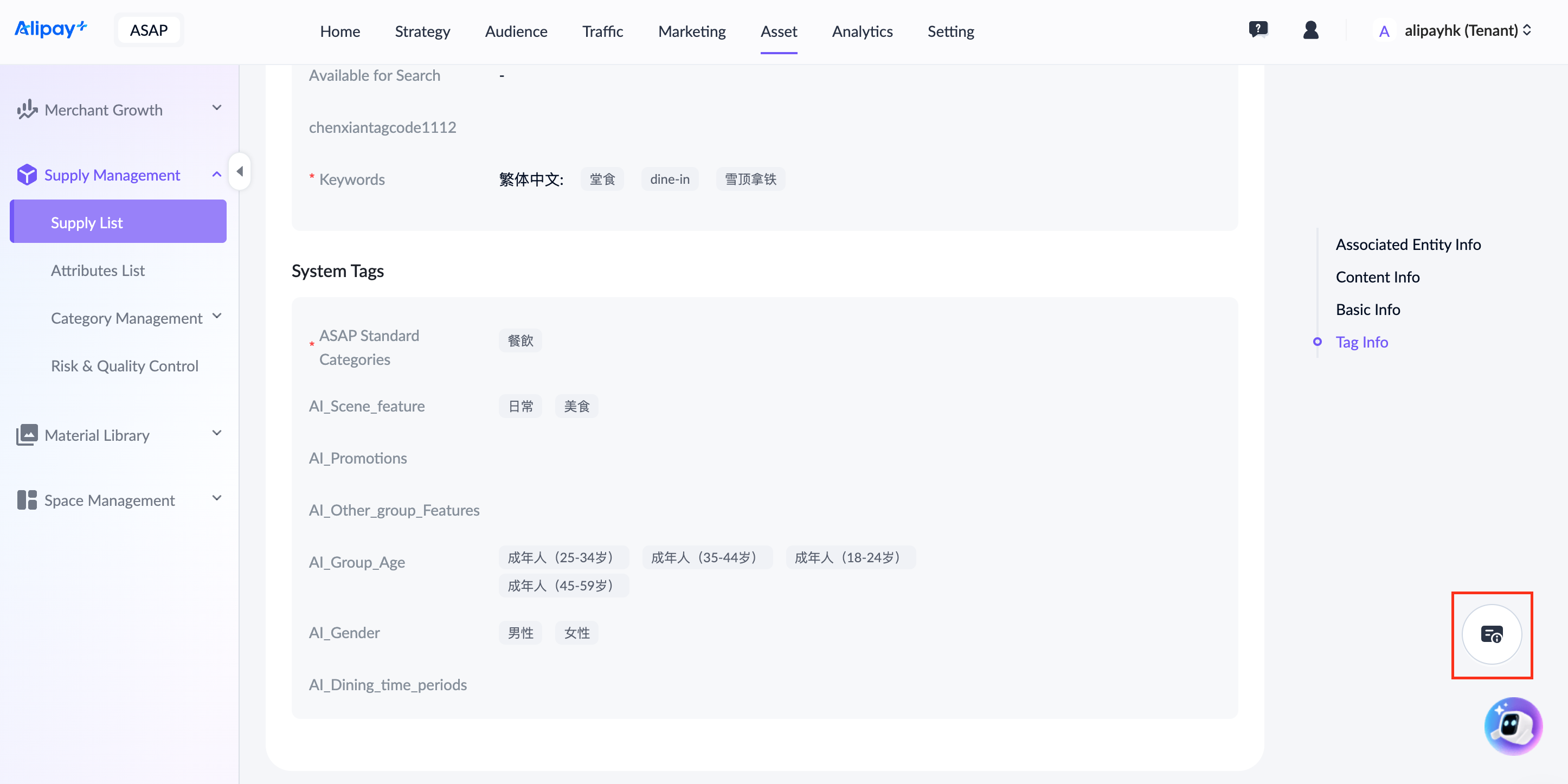
Click the icon to enter the Manual Check Risks page.
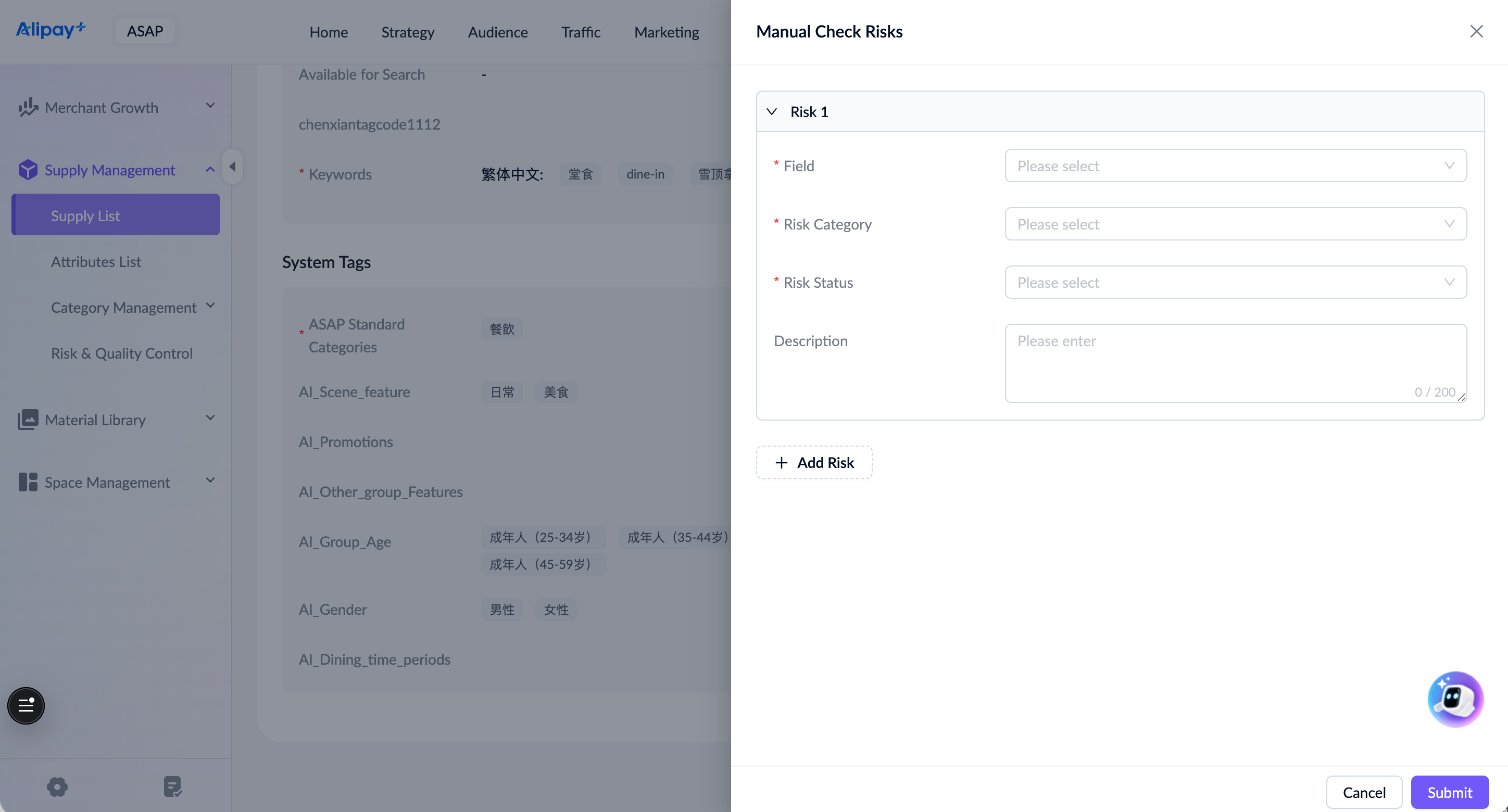
For a detailed explanation of each field, see the following table:
Field name | Description |
Field | Select the specific field where the risk is identified. |
Risk Category | Select the category of the risk issue based on the actual situation. |
Risk Status | Define the actions needed for the risk.
|
Description | Provide a detailed description of the risk issue. |
On the Manual Check Risks page, you can click Add Risk to add a new risk issue.
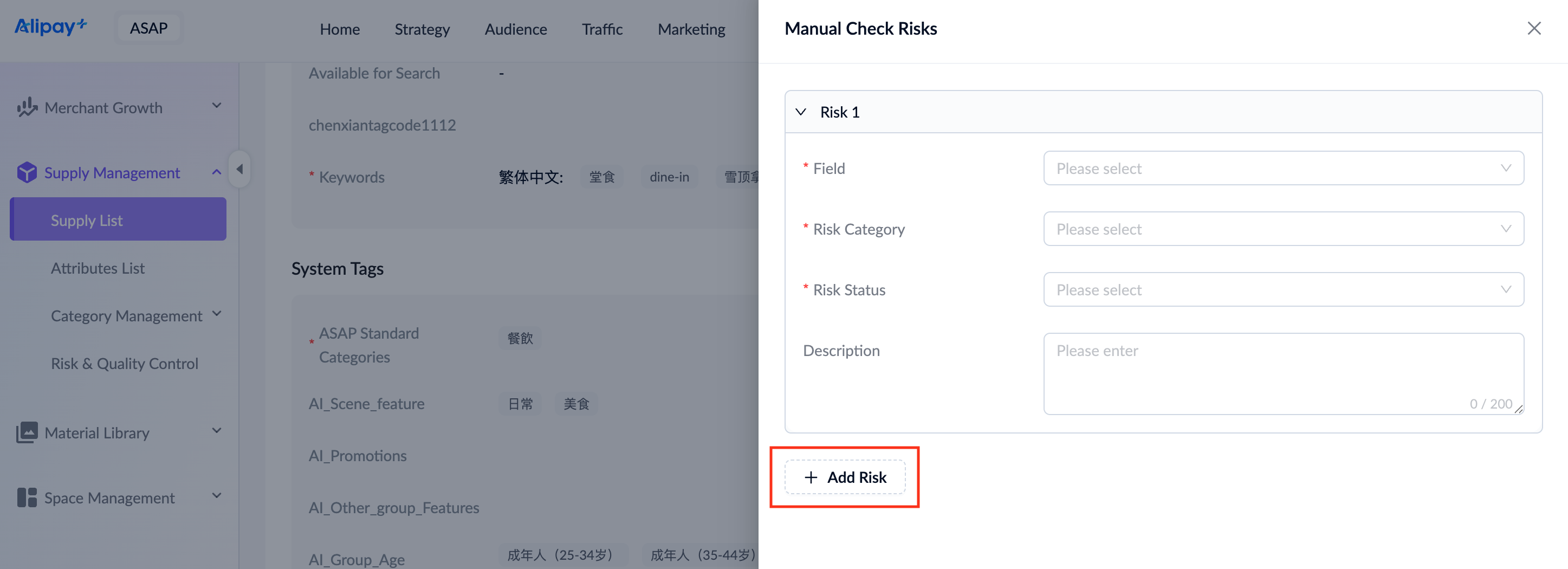
After completing the risk information, click Submit to create a manual check request, which can be viewed and managed in the Risk & Quality Control module.