
Supply list
ASAP presents a wide range of content supplies by category, such as services, goods, and campaigns. You can manage these content supplies on the Supply List page, where you can create, edit, activate, or deactivate a supply, view supply details, and manage tags. You can also add tags for content supplies in batches.
Before you begin
Ensure you have configured the approval process details for the Wallet Content Activation/Edit/Deactivation process, including the approvers and required steps, on the Admin > Approval Management > Approval Processes page. This configuration is required for creating, editing, activating, and deactivating a service.
Global search supply
The Global Search allows you to search for supply across all categories, without manually switching. This feature is especially useful when you are unsure which category a supply belongs to.
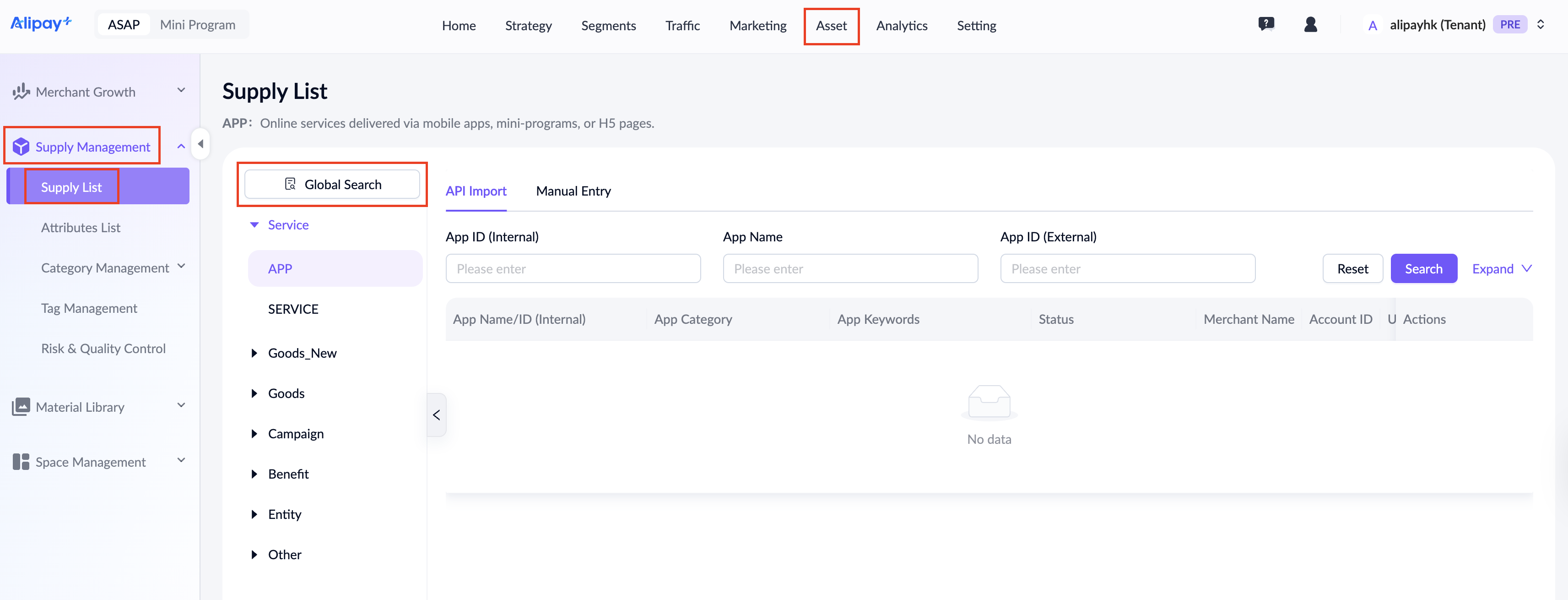
- Log in to the ASAP console, go to Asset > Supply Management > Supply List, and click Global Search.
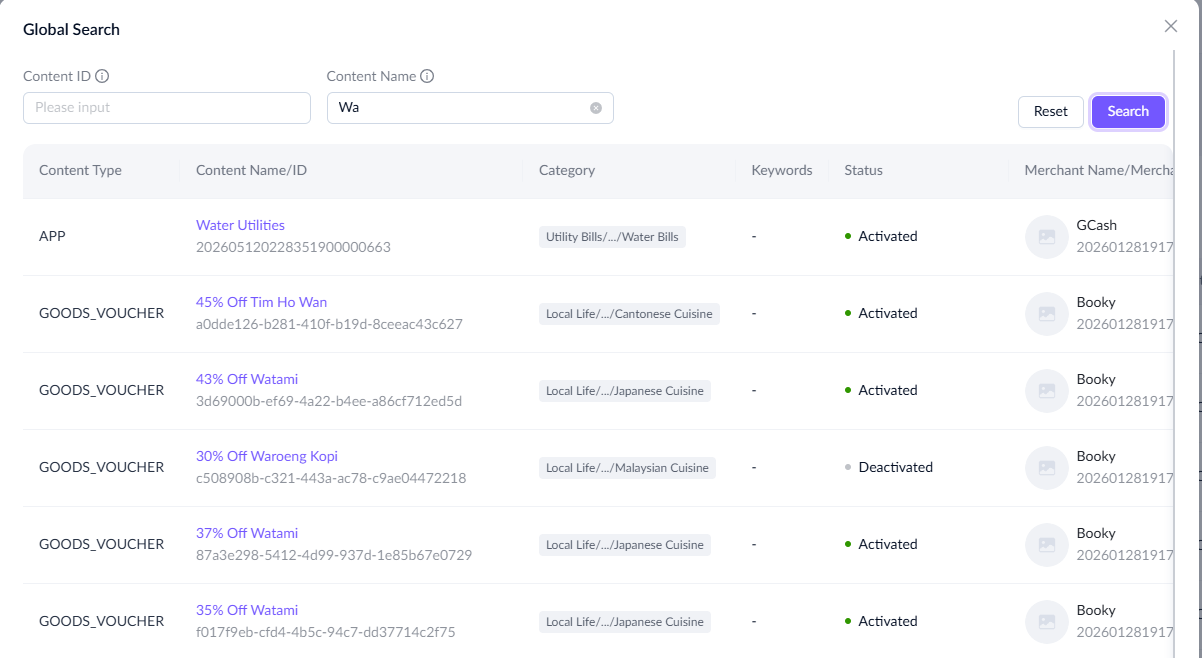
- Enter an Content ID (exact match) or a Content Name (fuzzy match), and click Search to retrieve matching supply.
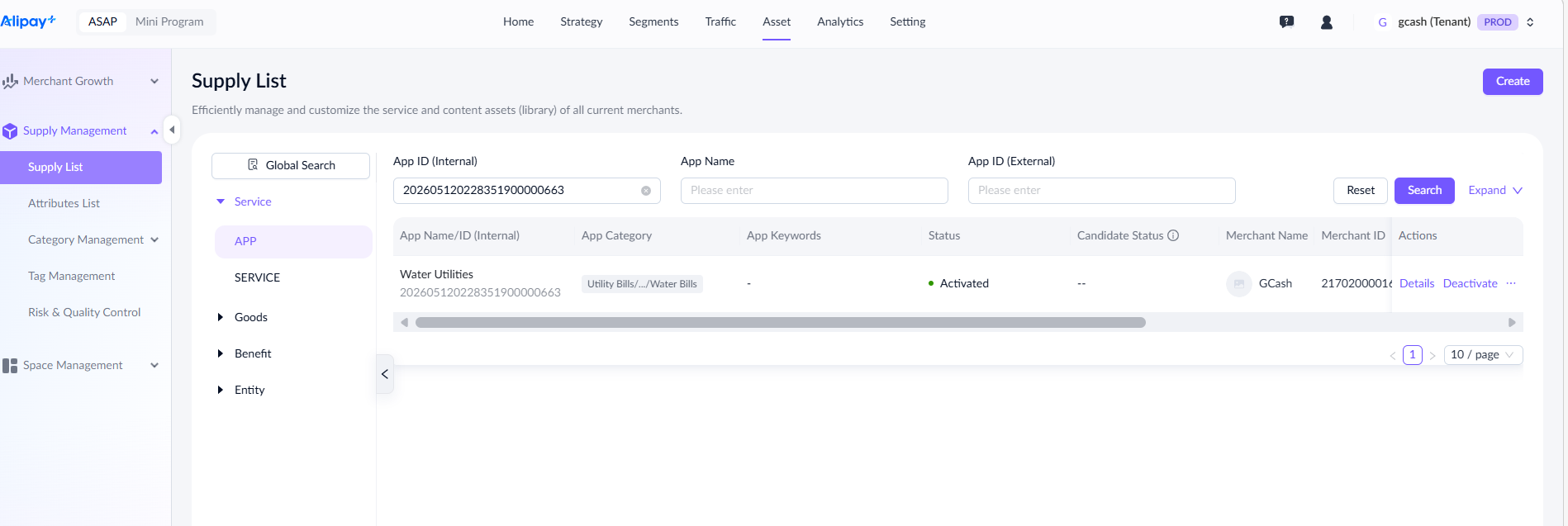
- Click a content name to open its corresponding supply list and supply details in a new page.
Manage service
APP and SERVICE supply can be created via API import or manual entry, each with distinct workflows:
- API Import: Items are non-editable and do not require manual approval. They are activated automatically upon passing the risk check.
- Manual Entry: Items are editable but require both manual approval and risk check before activation.
Refer to the following sections to learn about the services you can manage for each wallet:
Alipay+ and AlipayHK
Manage app
To manage apps, log in to the ASAP console and go to Asset > Supply Management > Supply List > APP.
Note:
- Only ASAP operators and wallet admins can create, edit, activate, deactivate, or delete an app.
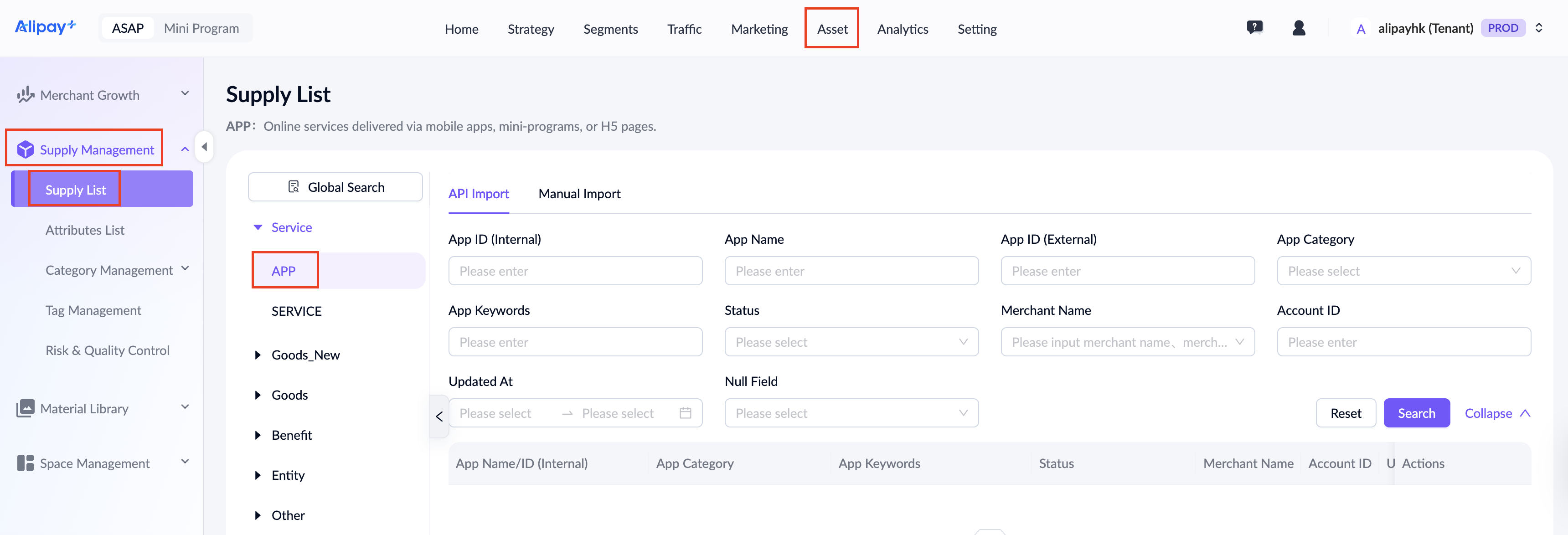
The page lists all app supply records under the current tenant and supports searching by the fields described in the following table:
Field name | Description |
App ID (Internal) | The auto-generated app ID by the ASAP platform. |
App Name | The manually-entered name of the app. |
App ID (External) | The manually-entered app ID. |
App Category | The manually-entered category of the app. Allows selecting multiple categories. |
App Keywords | The manually-entered keywords. Supports Traditional Chinese, English, and Simplified Chinese. |
Status | The status of the official version:
|
Candidate Status | The status of the candidate copy created when editing the official version:
|
Merchant Name | The name of the merchant who owns the app. To find a specific merchant, search by their official name or display name. |
Account ID | The unique identifier for the operational account used for fund settlements. A single merchant can have multiple account IDs. |
Created By | The user who created the app. |
Created At | The creation time of the app. |
Edited By | The user who last edited the app. |
Edited At | The time of the last edit. |
Null Field | Filters for records with empty fields. Allows filtering for null values in Candidate Status and App Keywords fields. |
You can view details, activate, or deactivate an app from the Actions column.
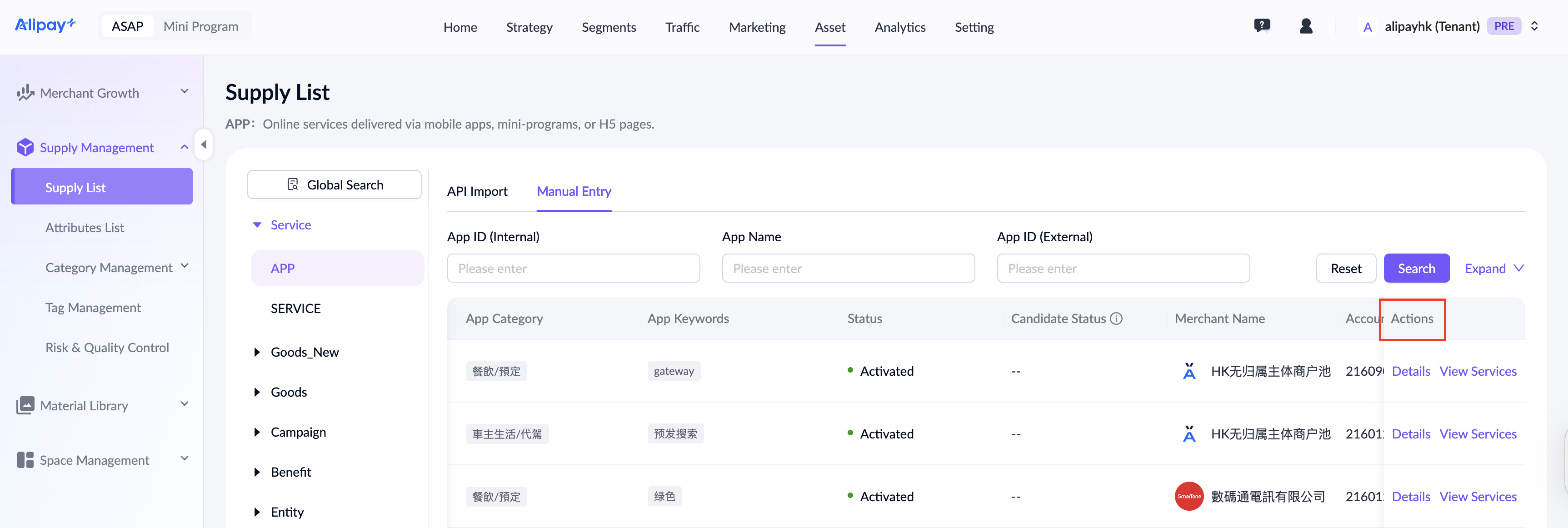
Refer to the following table for details of each action:
Actions | Description |
Details | Click to open the App details page. |
View Services | Open a pop-up displaying the services linked to the app. The action is disabled if no services are linked. |
Activate | Visible for deactivated apps. This action initiates the activation approval workflow. The app is activated upon successful approval.
|
Deactivate | Visible for activated app. This action initiates the deactivation approval workflow. The app is deactivated upon successful approval.
|
Delete | Available when the app status is Pending Submission or Deactivated. Deletion is only allowed if all linked services are in a deactivated state. When an app is deleted, all its linked services are deleted as well. |
Edit Tags | Visible to ASAP Admin only. This action appears when the status is Pending Risk Check/Activated/Deactivated/Deactivated — Risk Check Failed, and opens the AI tagging page upon being clicked. |
Create general app
To create an app, take the following steps:
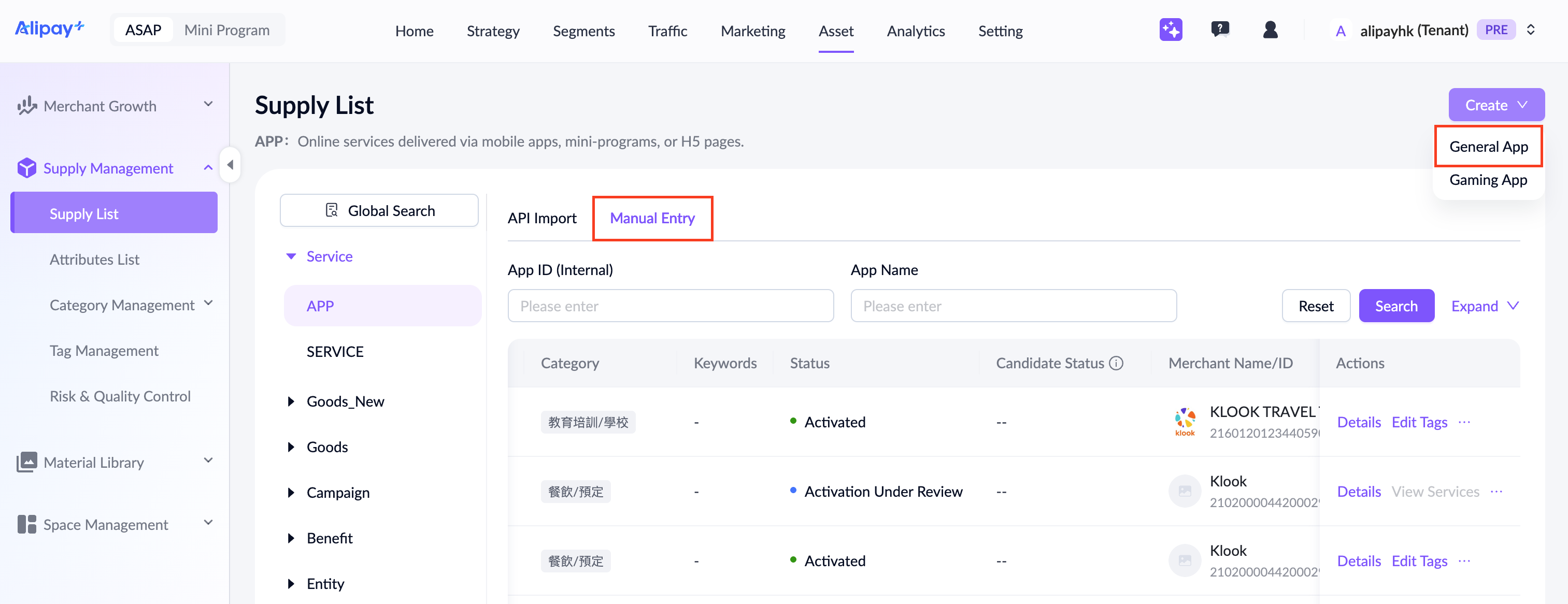
- Navigate to Asset > Supply Management > Supply List > APP, select the Manual Entry tab, then click Create in the top-right corner, and select General App.
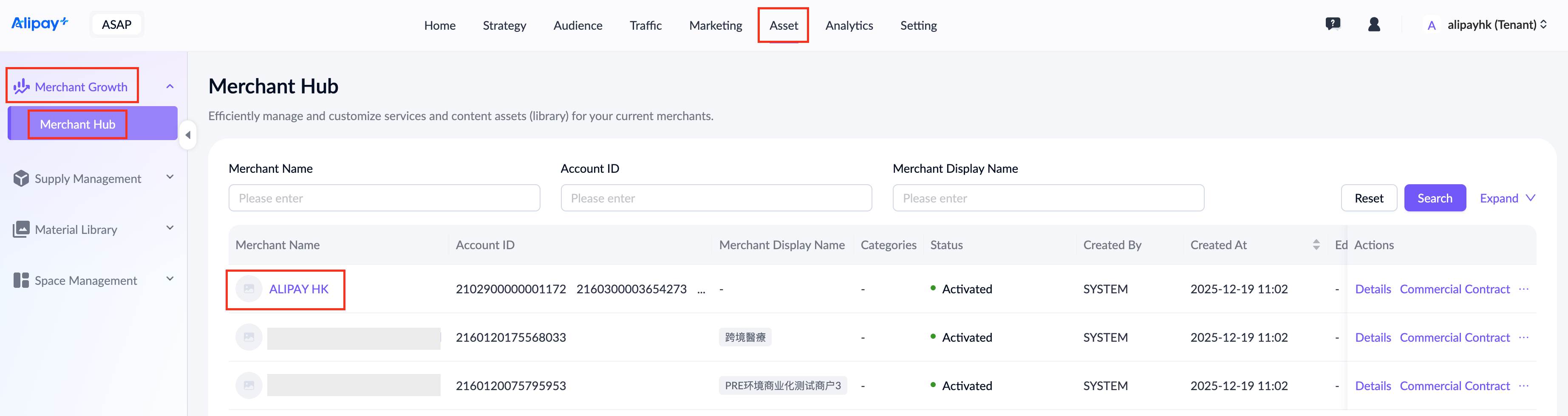
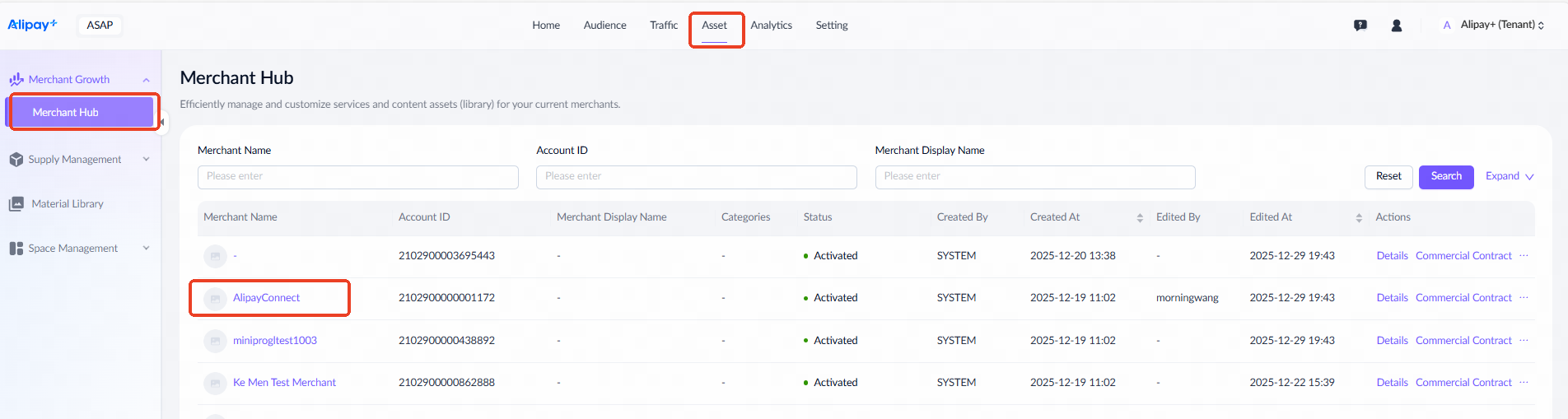
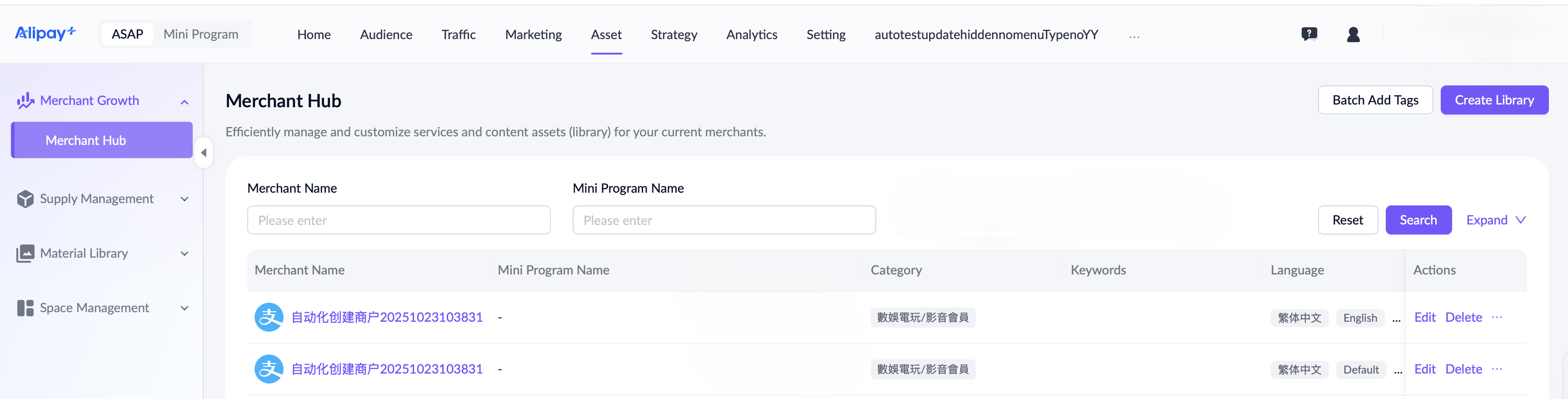
 Alternatively, navigate to Asset > Merchant Growth > Merchant Hub, click a merchant name to enter the merchant's content library, go to the APP tab, and click Create.
Note: When creating an app from the merchant hub, the Merchant Name field defaults to the current merchant and cannot be edited.
- Complete the required information on the Create App page.
Note:
- The Wallet Content Activation/Edit/Deactivation approval workflow must be configured beforehand.
- The newly created app will appear on the app list after submission. If not, refresh the page.
- For first-party and second-party service providers, identify the corresponding merchant entity and account ID before creating the app. For example, in the Alipay+ HK, the merchant entity for Amap Taxi is ALIPAYHK, and its account ID is the ID used for signing and settlement in Hong Kong.
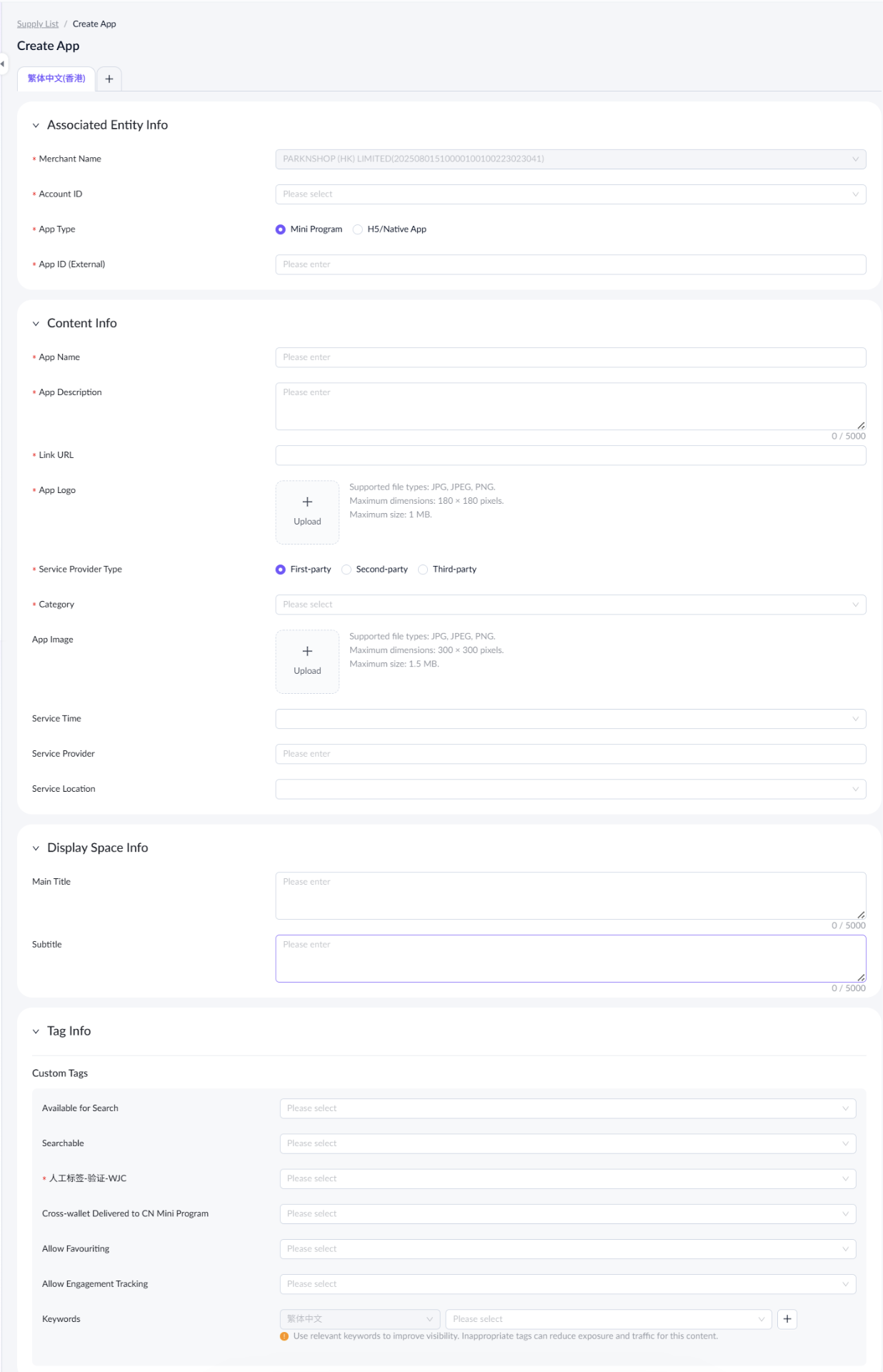
For a detailed explanation of each field, see the following table:
Field name | Description |
Merchant Name | Enter and select the merchant name or display name. This field cannot be edited after submitting. |
Account ID | Enter the unique identifier for the operational account used for fund settlements. A single merchant can have multiple account IDs. |
App Type | Select Mini Program if it is an ASAP platform mini program; select H5/Native App for others. |
App ID (External) | Enter the corresponding App ID. |
App Name | Enter a unique name up to 1024 characters. |
App Description | Enter the details up to 5000 characters. |
Link URL | Enter a link that starts with http:// or https:// for the mini program or H5/native app. Up to 2048 characters allowed. |
App Logo | Mandatory for Traditional Chinese and optional for other language configuration. The logo should fit the following requirements:
|
Service Provider Type | Select the service provider type:
|
Category | Select the corresponding category. |
App Image | Optional. The image size should follow the below requirements:
|
Service Time | Optional. Select the service time with the dropdown option:
|
Service Provider | Optional. Enter the service provider's name. |
Service Location | Optional. Select Global for worldwide service. If the service is limited to specific areas, select the Specific Region. Multiple selections are allowed. |
Main Title | Optional. Enter a descriptive title for marketing scenarios up to 5000 characters. |
Subtitle | Optional. Enter a descriptive subtitle for marketing scenarios up to 5000 characters. |
- After completing all required fields, click Save to submit the content for activation approval. Once approved, the app undergoes a risk check. If it passes, the app will be activated.
Create gaming app
Note: The Gaming App feature is only available on AlipayHK.
To create an app, take the following steps:
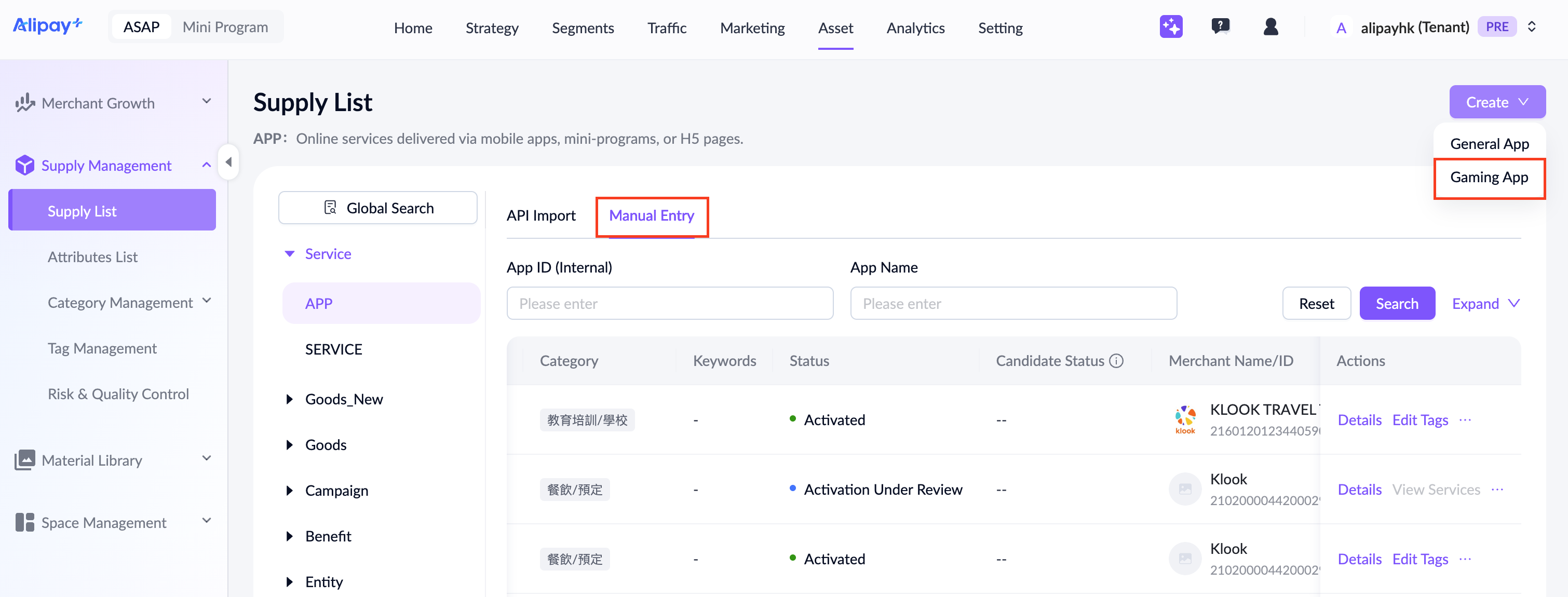
- Navigate to Asset > Supply Management > Supply List > APP, select the Manual Entry tab, then click Create in the top-right corner, and select Gaming App.
- Complete the required information on the Create App page.
Note:
- The Wallet Content Activation/Edit/Deactivation approval workflow must be configured beforehand.
- The newly created app will appear on the app list after submission. If not, refresh the page.
- For first-party and second-party service providers, identify the corresponding merchant entity and account ID before creating the app. For example, in the Alipay+ HK, the merchant entity for Amap Taxi is ALIPAYHK, and its account ID is the ID used for signing and settlement in Hong Kong.
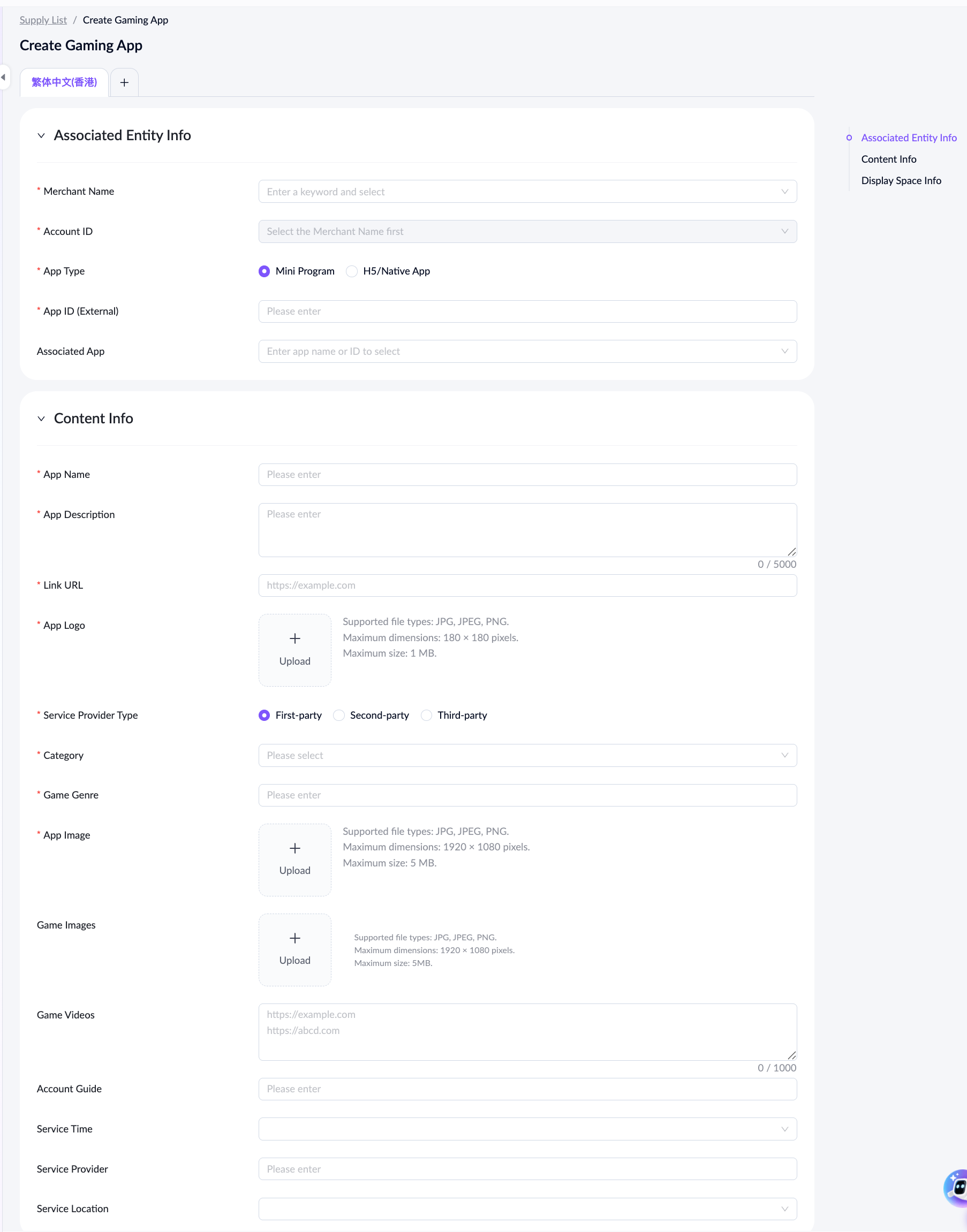
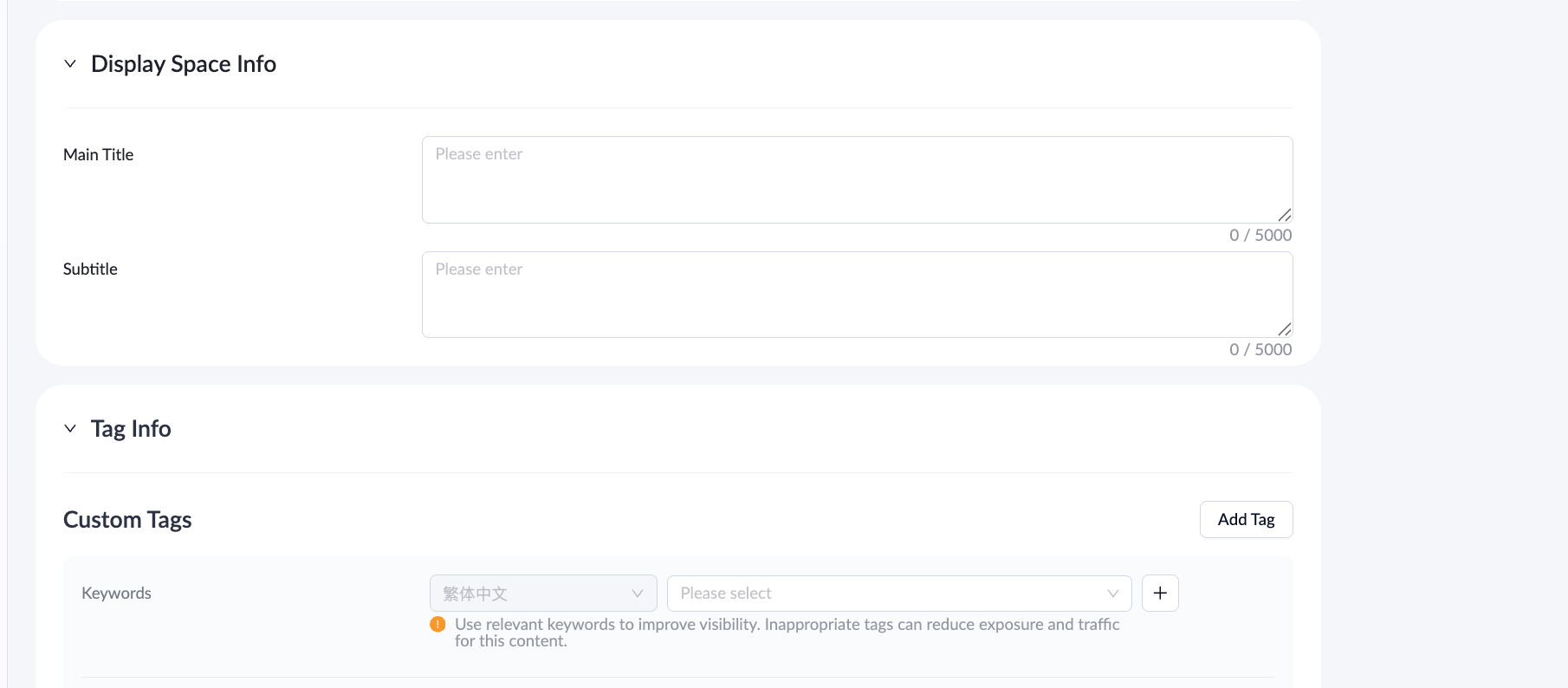
For a detailed explanation of each field, see the following table:
Field name | Description |
Merchant Name | Enter and select the merchant name or display name. This field cannot be edited after submitting. |
Account ID | Enter the unique identifier for the operational account used for fund settlements. A single merchant can have multiple account IDs. |
App Type | Select Mini Program if it is an ASAP platform mini program; select H5/Native Appfor others. |
App ID (External) | Enter the corresponding App ID. |
Associated App | Optional. Enter the app name or ID to select. |
App Name | Enter a unique name up to 1024 characters. |
App Description | Enter the details up to 5000 characters. |
Link URL | Enter a link that starts with http:// or https:// for the mini program or H5/native app. Up to 2048 characters allowed. |
App Logo | Mandatory for Traditional Chinese and optional for other language configuration. The logo should fit the following requirements:
|
Service Provider Type | Select the service provider type:
|
Category | Select the corresponding category. |
Game Genre | Enter the genre of the game, such as RPG. |
App Image | The image size should follow the below requirements:
|
Game Images | Optional. The image size should follow the below requirements:
|
Game Videos | Optional. Enter promotional video links of the game. Multiple links are supported, with one link per line. |
Account Guide | Optional. Enter an account guide link. Only one link is allowed. |
Service Time | Optional. Select the service time with the dropdown option:
|
Service Provider | Optional. Enter the service provider's name. |
Service Location | Optional. Select Global for worldwide service. If the service is limited to specific areas, select the Specific Region. Multiple selections are allowed. |
Main Title | Optional. Enter a descriptive title for marketing scenarios up to 5000 characters. |
Subtitle | Optional. Enter a descriptive subtitle for marketing scenarios up to 5000 characters. |
- After completing all required fields, click Save to submit the content for activation approval. Once approved, the app undergoes a risk check. If it passes, the app will be activated.
Edit app
To edit an app, navigate to Asset > Supply Management > Supply List > APP, select the Manual Entry tab, then click Details to start.
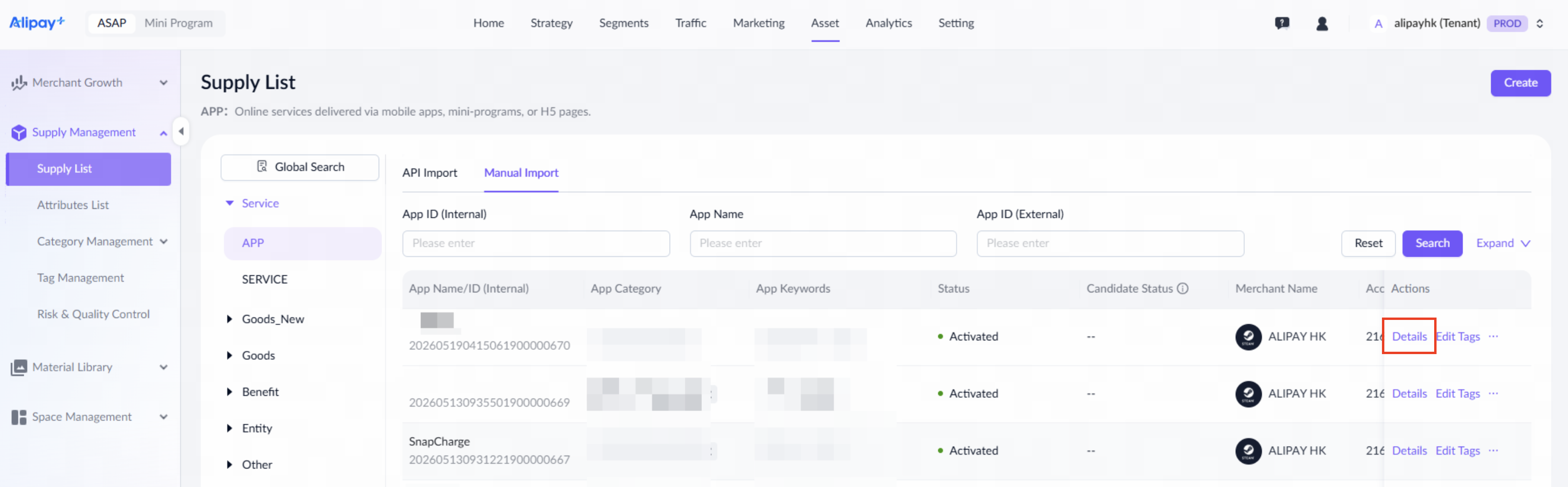
Alternatively, navigate to Asset > Merchant Growth > Merchant Hub, click a merchant name to enter the merchant library, go to the APP tab, and click Details.
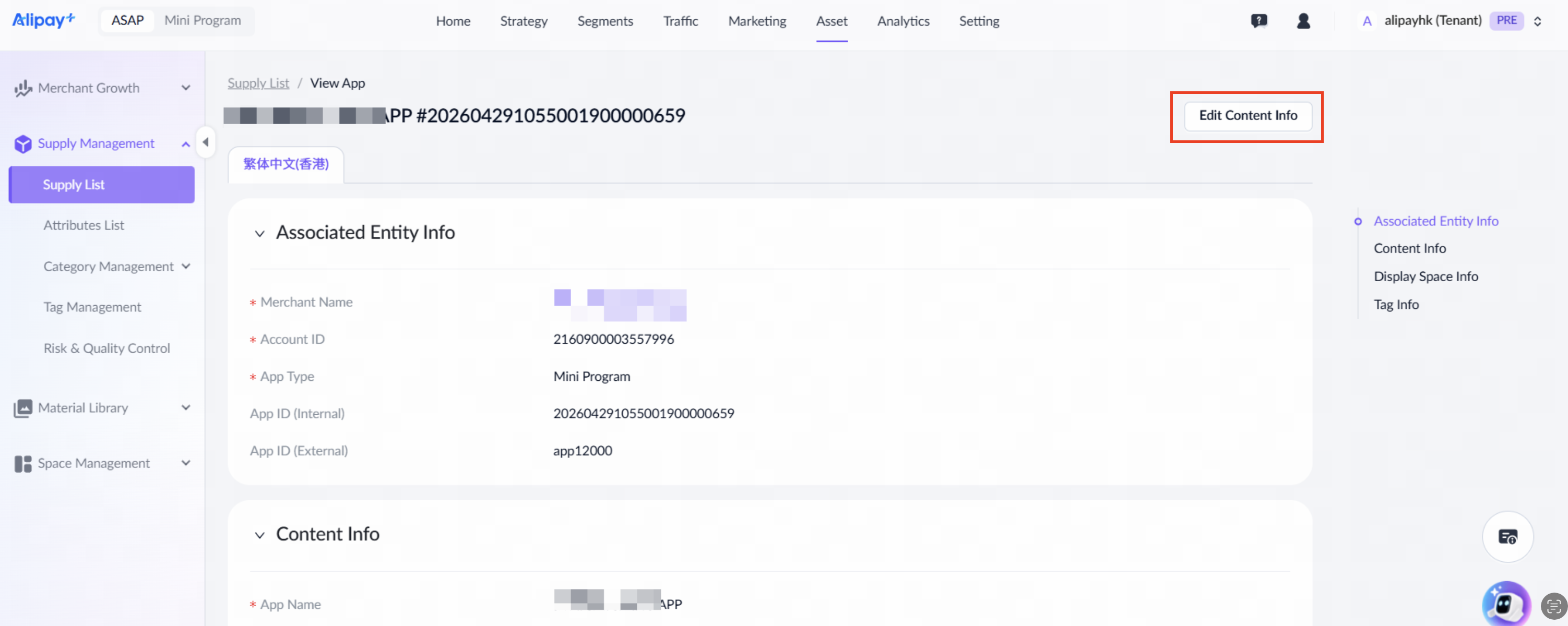
On the app detail page, click Edit Content Info to open the editing page.
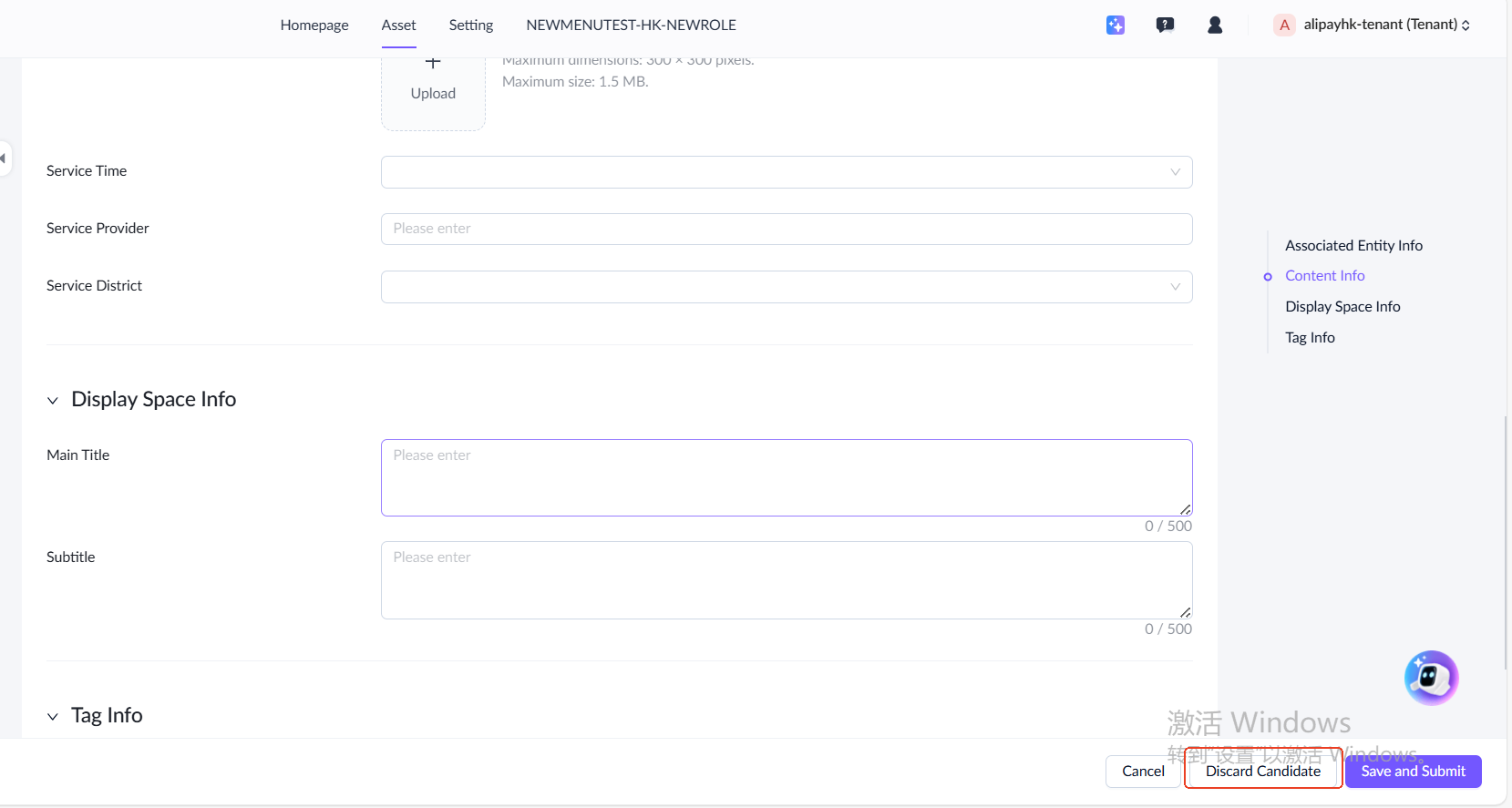
After completing all required fields, click Submit to submit the changes for activation approval.
Note:
- The Wallet Content Activation/Edit/Deactivation approval workflow must be configured beforehand.
You can discard a candidate app while it is in any of the following statuses:
- Pending Submission
- Rejected by Risk Check
- Approval Rejected
Discarding a candidate permanently deletes its data. Discard candidates when they are no longer needed.
Activate or deactivate app
Navigate to Asset > Supply Management > Supply List > APP, then click Activate or Deactivate under the Actions column.
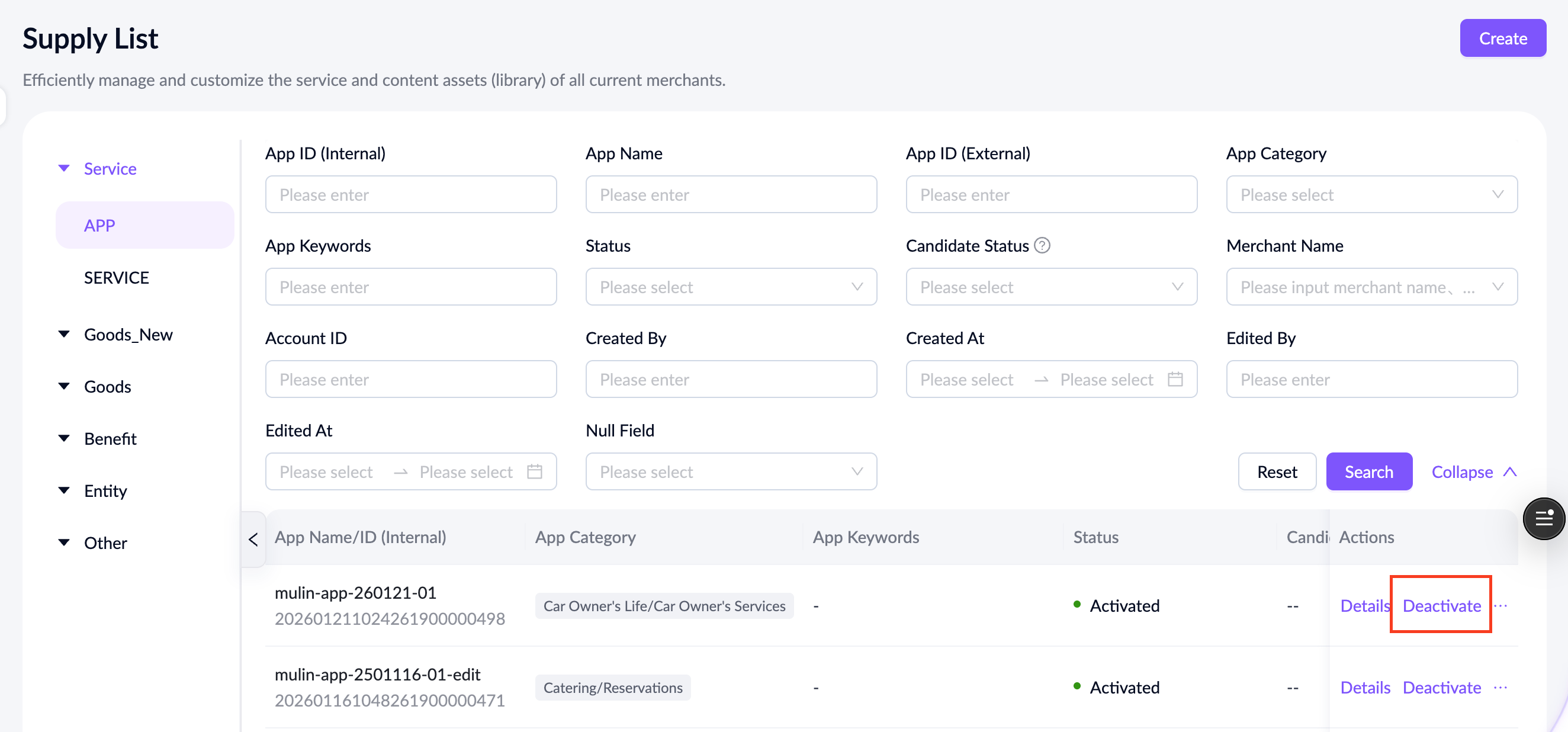
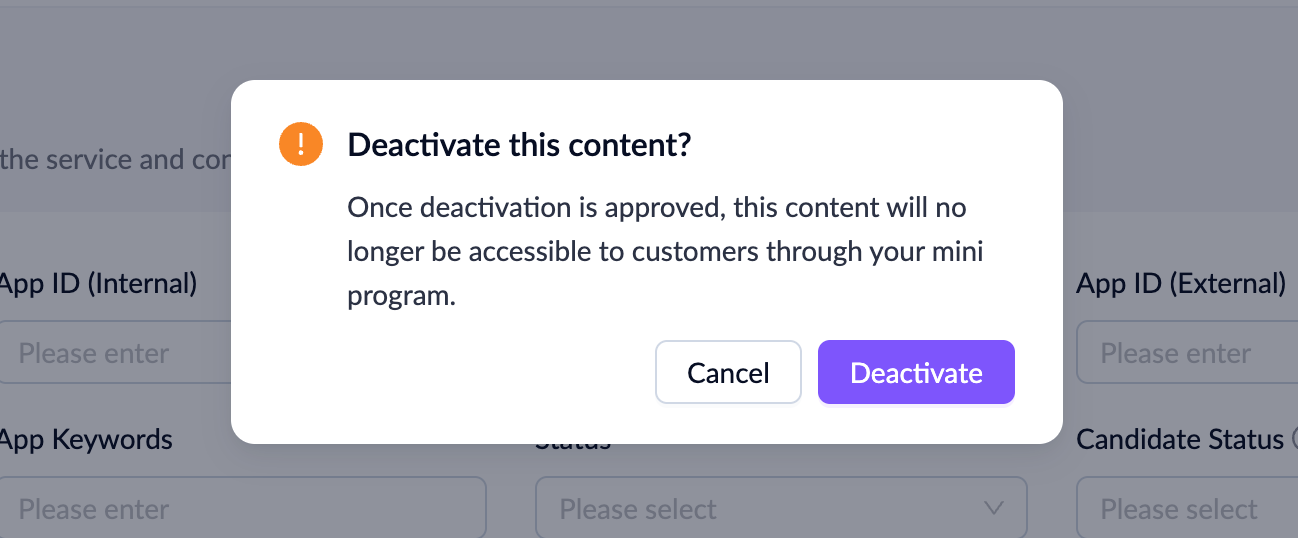
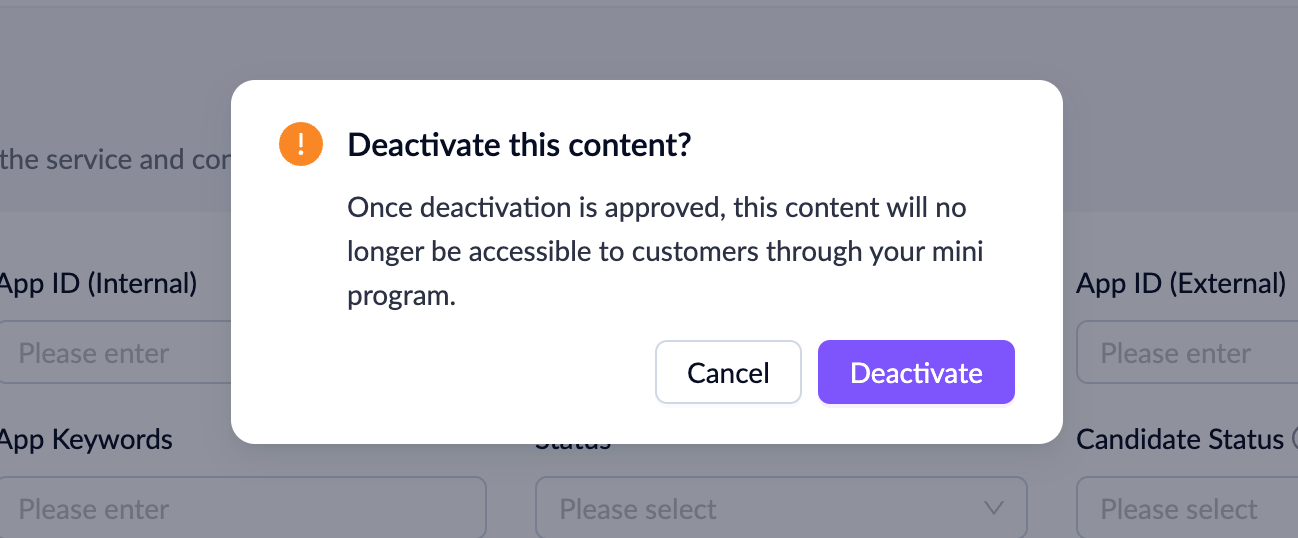
A confirmation dialog will appear. Click Activate or Deactivate to initiate the approval request.
Manage service
To manage a service, log in to the ASAP console and go to Asset > Supply Management > Supply List > SERVICE.
Note:
- Only ASAP operators and wallet admins can create, edit, activate, deactivate, or delete services.
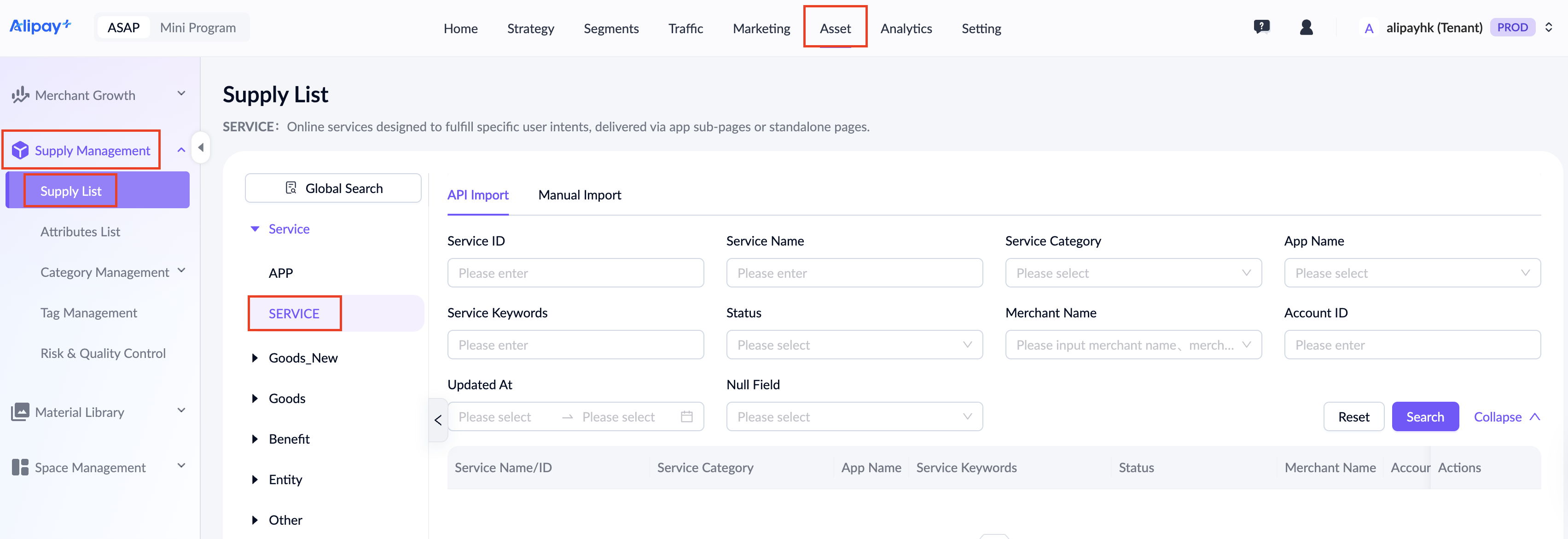
This page displays all services for the current tenant. Refer to the following table for each search field:
Field name | Description |
Service ID | A unique ID auto-generated by the ASAP platform. |
Service Name | The manually-entered name of the service. |
Service Category | The manually-assigned category of the service. Allows multiple selections. |
App Name | The app associated with the service. |
Service Keywords | The manually-entered keywords. Supports Traditional Chinese, English, and Simplified Chinese. |
Status | The status of the official version:
|
Candidate Status | The status of the candidate copy created when editing the official version:
|
Merchant Name | The name of the merchant who owns the service. To find a specific merchant, search by their official name or display name. |
Account ID | The unique identifier for the operational account used for fund settlements. A single merchant can have multiple account IDs. |
Created By | The user who created the service. |
Created At | The creation time of the service. |
Edited By | The user who last edited the service. |
Edited At | The time of the last edit. |
Null Field | Filters for records with empty fields. Allows filtering for null values in Candidate Status and App Keywords fields. |
You can view details, activate or deactivate a service from the Actions column.
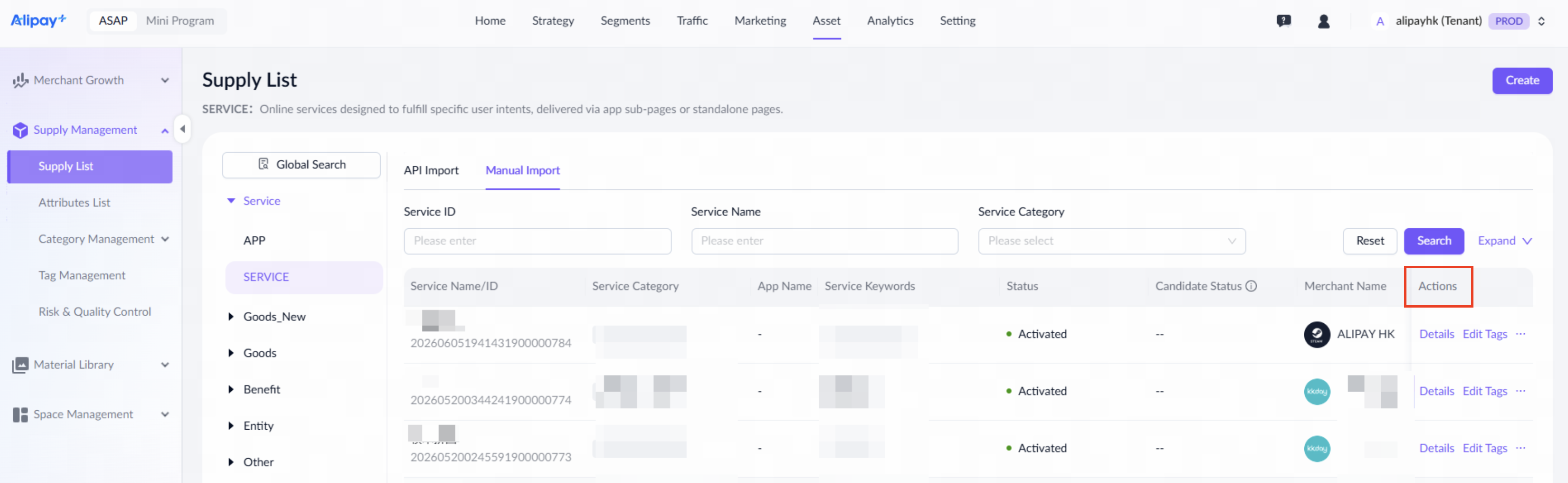
Refer to the following table for details of each action:
Actions | Description |
Details | Click to open the service detail page. |
Activate | Visible for deactivated service. This action initiates the activation approval workflow. The service is activated upon successful approval.
|
Deactivate | Visible for activated service. This action initiates the deactivation approval workflow. The service is deactivated upon successful approval.
|
Delete | Available when the service status is Pending Submission or Deactivated. |
Edit Tags | Visible to ASAP Admin only. This action appears when the status is Pending Risk Check/Activated/Deactivated/Deactivated — Risk Check Failed, and opens the AI tagging page upon being clicked. |
Create service
To create a service, take the following steps:
- Navigate to Asset > Supply Management > Supply List > SERVICE, select the Manual Entry tab, then click Create in the top-right corner.
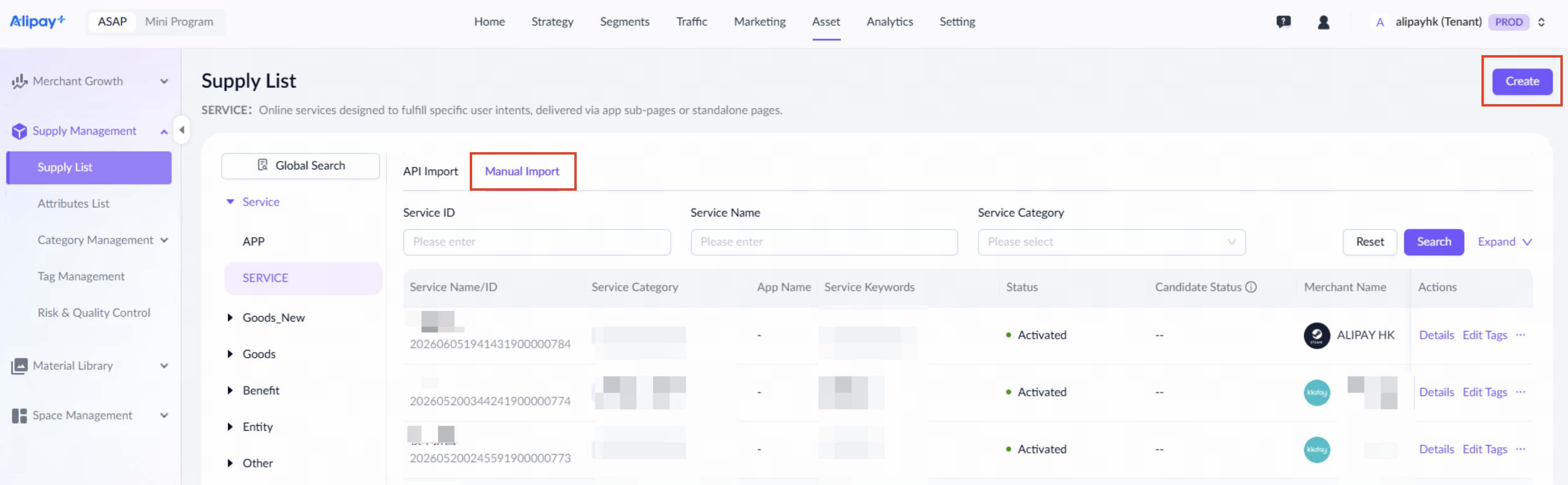
Alternatively, navigate to Asset > Merchant Growth > Merchant Hub, click a merchant name to enter the merchant's content library, go to the SERVICE tab, and click Create.
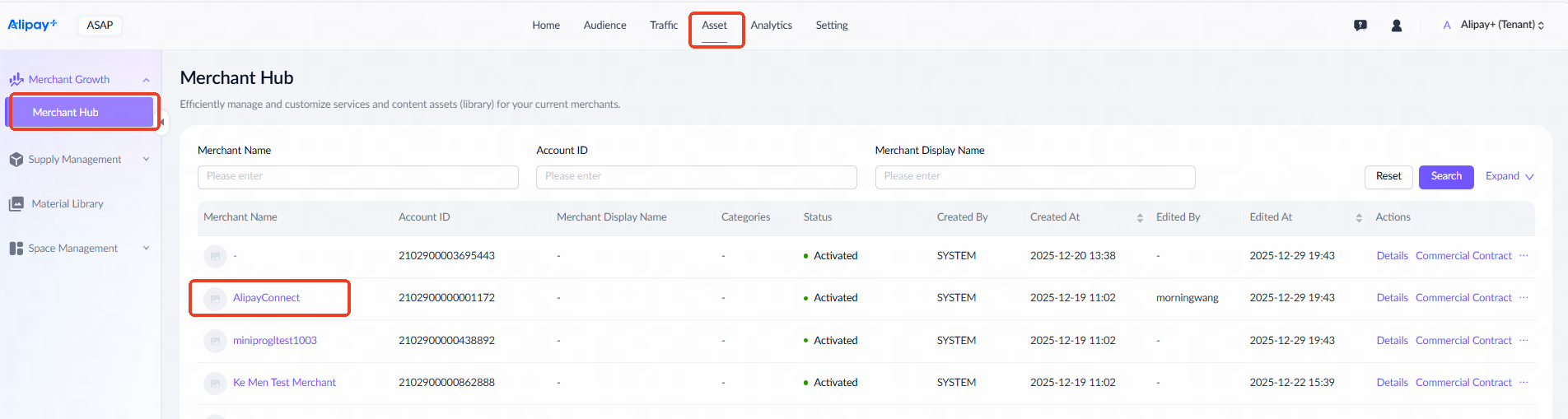
- Complete the required information on the Create Service page.
Note:
- The Wallet Content Activation/Edit/Deactivation approval workflow must be configured beforehand.
- The newly created service will appear on the service list after submission. If not, refresh the page.
- For first-party and second-party service providers, identify the corresponding merchant entity and account ID before creating the service. For example, in the Alipay+ HK, the merchant entity for Amap Taxi is ALIPAYHK, and its account ID is the ID used for signing and settlement in Hong Kong.
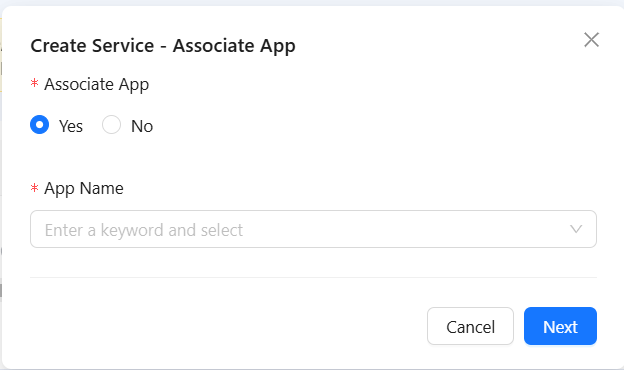
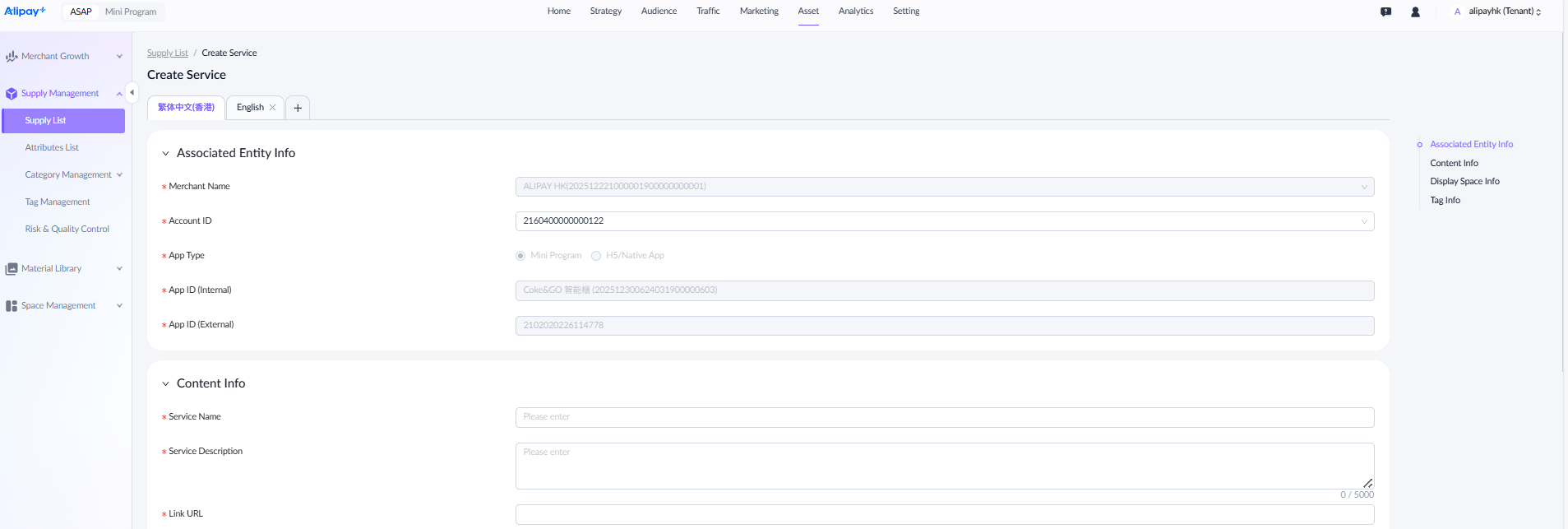
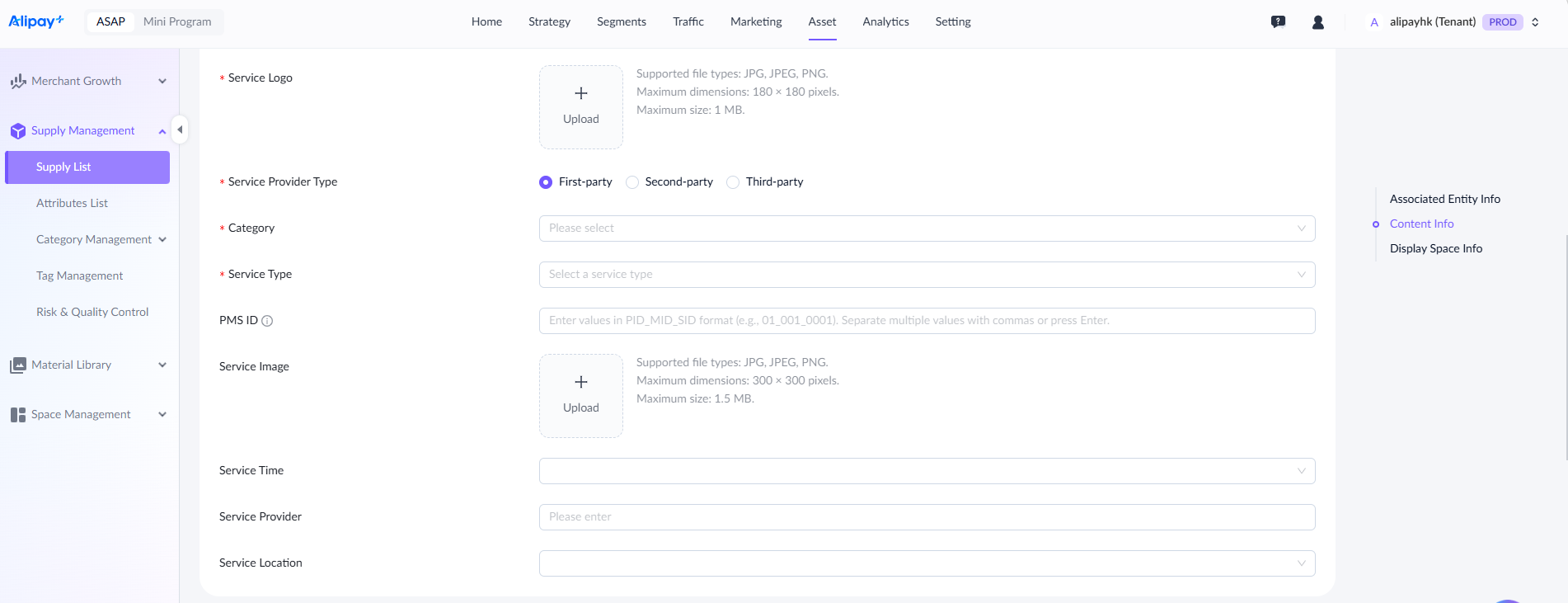
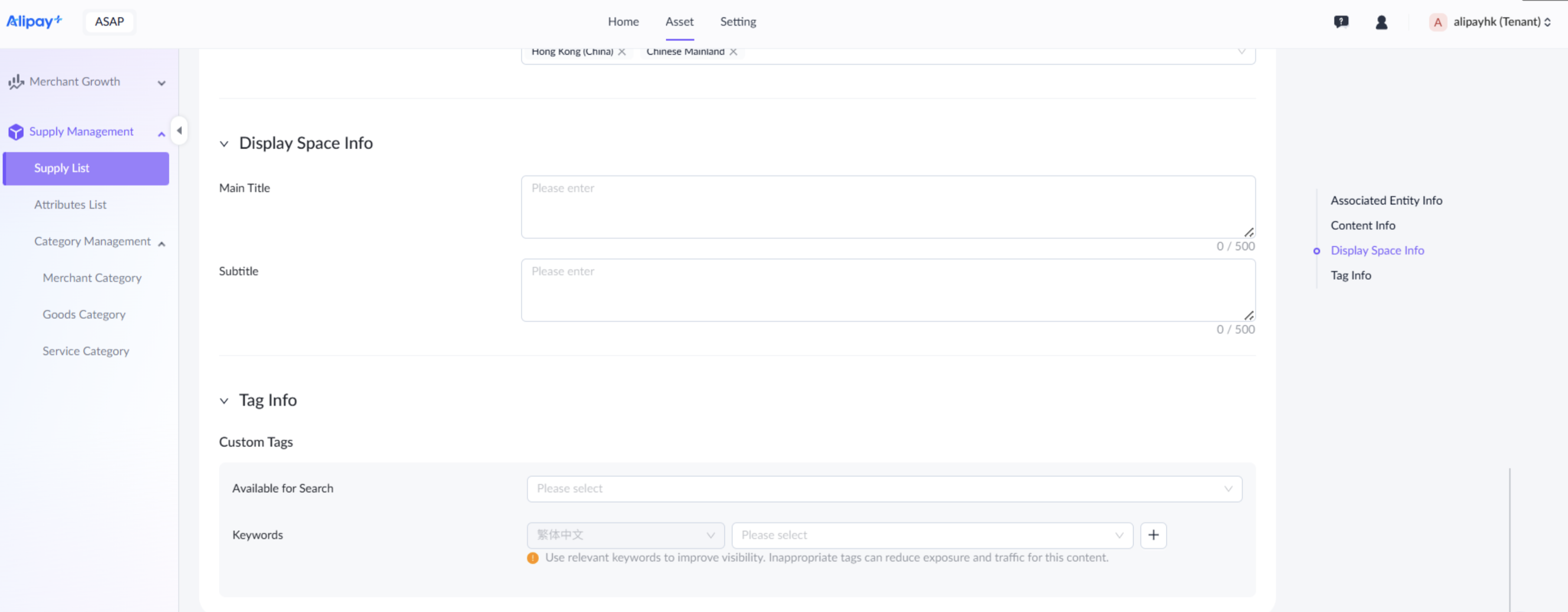
For a detailed explanation of each field, see the following table:
Field name | Description |
Associate App | Select Yes if the service is associated with an app. Otherwise, select No. This field is mandatory and cannot be edited. When an app is associated, some fields below will automatically inherit its values. |
App Name | If the service is associated with an app, App Name must be entered and cannot be edited. |
Merchant Name | Enter and select the name of the merchant. If the service is associated with an app, this field will automatically inherit its values and cannot be edited. |
Account ID | The unique identifier for the operational account used for fund settlements. A single merchant can have multiple account IDs. |
App Type | Only available when an app is associated. The value is inherited from the associated app. |
Service Name | Enter a service name up to 1024 characters. |
Service Description | Enter the details up to 5000 characters. |
Link URL | Enter a link that starts with http:// or https:// up to 2048 characters. |
Service Logo | Mandatory for Traditional Chinese and optional for other language configuration. The logo should fit the following requirements:
This field is inherited from the associated app, but can be edited. If no app is associated, it must be entered manually. |
Service Provider Type | Select the service provider type:
If associated with an app, the value is inherited and cannot be edited. If not associated with an app, the field must be entered manually. |
Category | Enter the corresponding category. This field is inherited from the associated app, but can be edited. Double-click to enter the category from the previous level. If no app is associated, it must be entered manually. |
Service Type | Select the service type:
|
PMS ID | Enter the PMS ID provided by the service provider for this merchant. |
Service Image | Optional. The image size should follow the below requirements:
|
Service Time | Optional. Select the service time with the dropdown option:
This field is inherited from the associated app, but can be edited. If no app is associated, it must be entered manually. |
Service Provider | Optional. Enter the service provider's name. This field is inherited from the associated app, but can be edited. If no app is associated, it can be entered manually. |
Available for Search | Optional. Select Yes if the app can be searched by users. Otherwise, select No. |
Keywords | Optional. The default language is Traditional Chinese, and it also supports English and Simplified Chinese if you want to add more languages. The AI model will recommend keywords based on the other fields you have entered. You can edit these recommendations manually. |
Service Location | Optional. Select Global for worldwide service. If the service is limited to specific areas, select the Specific Region. Multiple selections are allowed. This field is inherited from the associated app, but can be edited. If no app is associated, it can be entered manually. |
Main Title | Optional. Enter a descriptive title for marketing scenarios up to 5000 characters. This field is inherited from the associated app, but can be edited. If no app is associated, it can be entered manually. |
Subtitle | Optional. Enter a descriptive subtitle for marketing scenarios up to 5000 characters. This field is inherited from the associated app, but can be edited. If no app is associated, it can be entered manually. |
- After completing all required fields, click Save to submit the content for activation approval. Once approved, the service undergoes a risk check. If it passes, the service will be activated.
Edit service
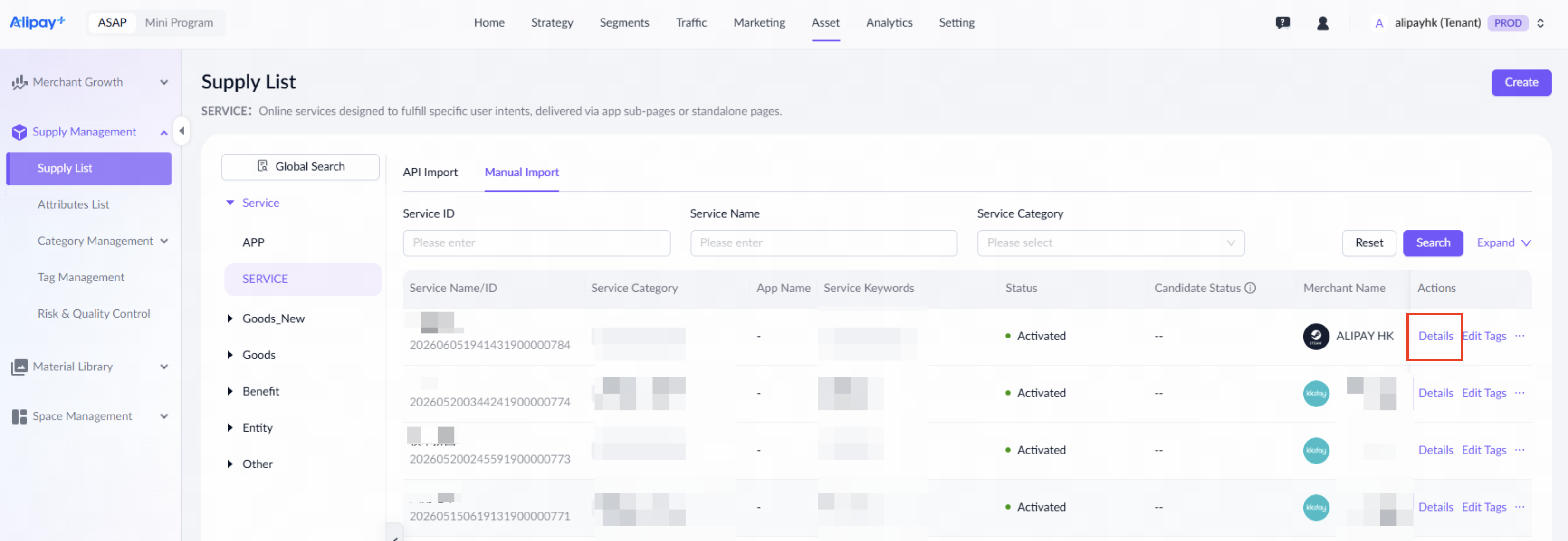
To edit a service, navigate to Asset > Supply Management > Supply List > SERVICE, select the Manual Entry tab, then click Details to start.
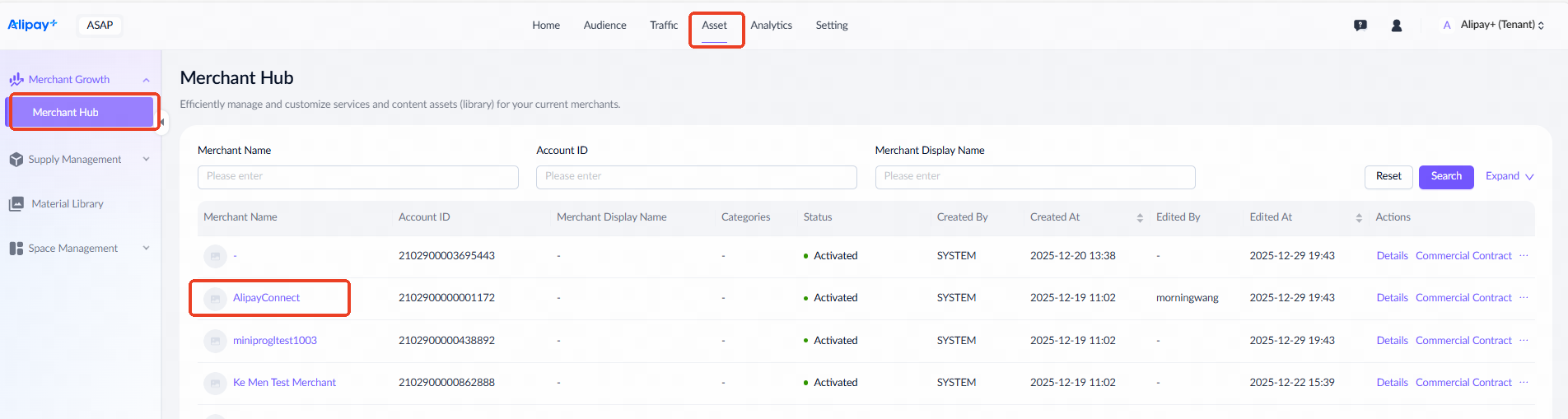
Alternatively, navigate to Asset > Merchant Growth > Merchant Hub, click a merchant name to enter the merchant's content library, go to the SERVICE tab, and click Details.
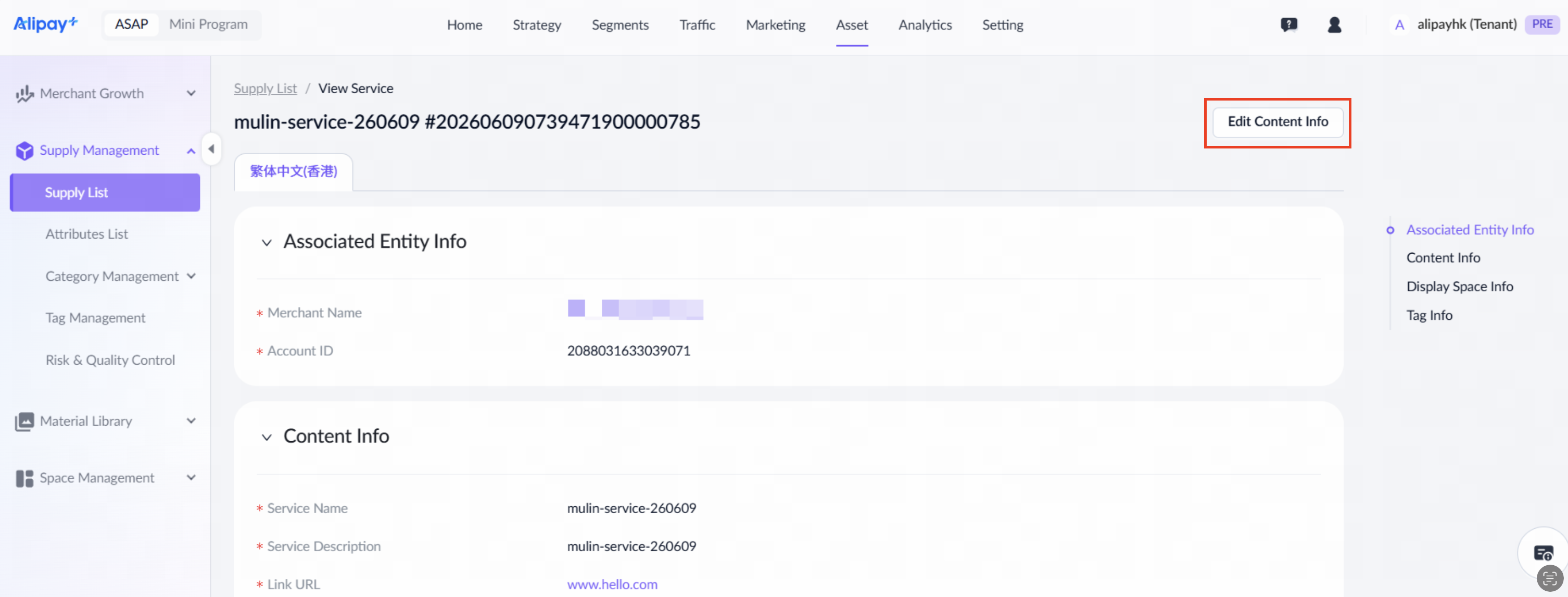
On the SERVICE detail page, click Edit Content Info to open the editing page.
After completing all required fields, click Save and Submit to submit the changes for activation approval.
Note: The Wallet Content Activation/Edit/Deactivation approval workflow must be configured beforehand.
You can discard a candidate service while it is in any of the following statuses:
- Pending Submission
- Rejected by Risk Check
- Approval Rejected
Discarding a candidate permanently deletes its data. Discard candidates when they are no longer needed.
Activate service
To activate a service, navigate to Asset > Supply Management > Supply List > SERVICE, then click Activate to start.
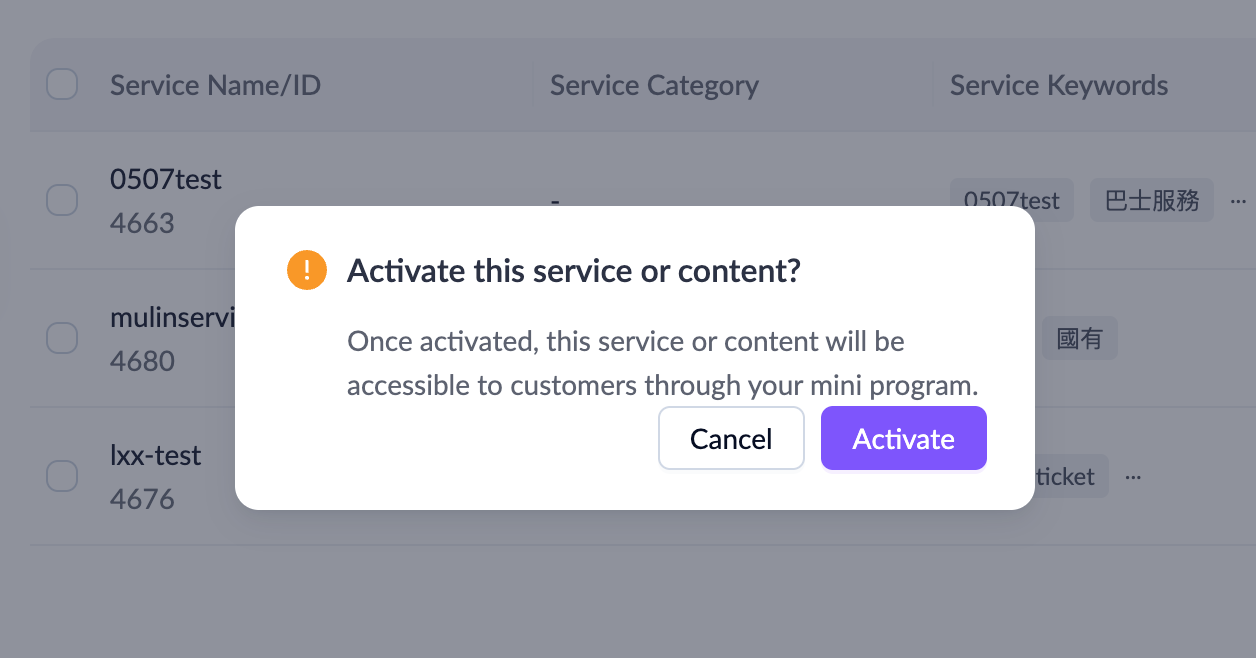
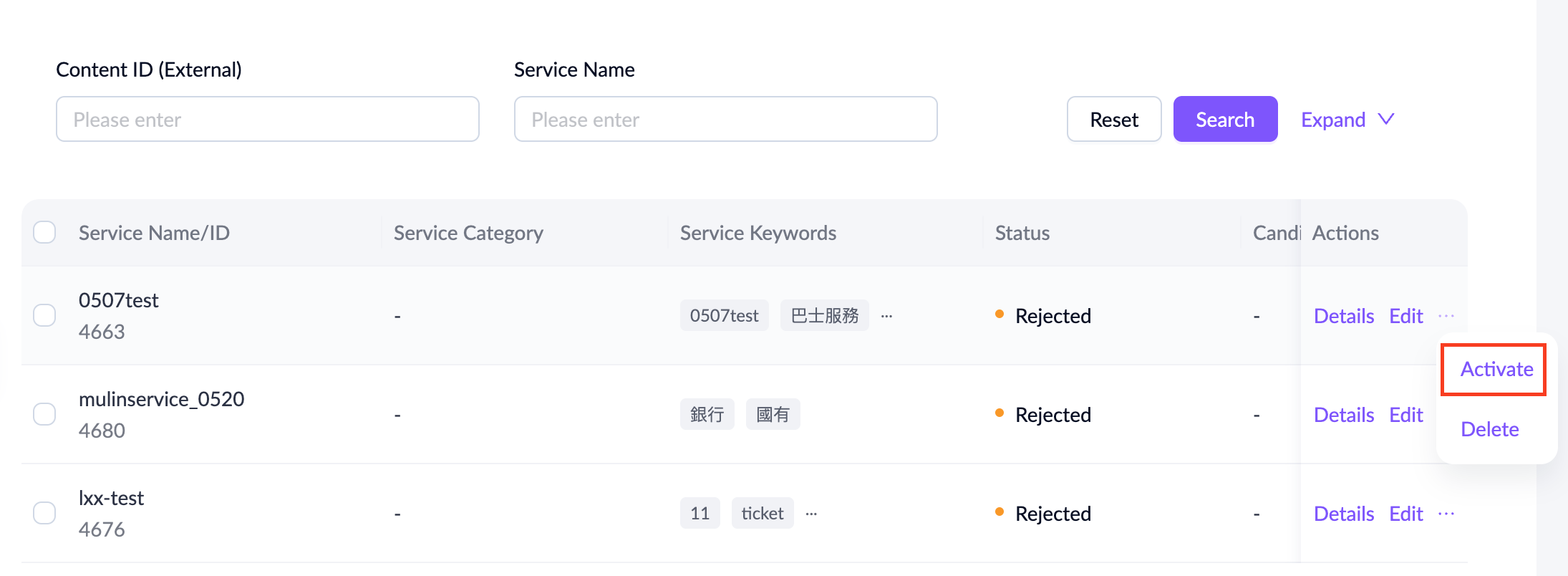 A confirmation dialog will appear. Click Activate to initiate the approval request.
Deactivate service
To deactivate a service, navigate to Asset > Supply Management > Supply List > SERVICE, then click Deactivate.
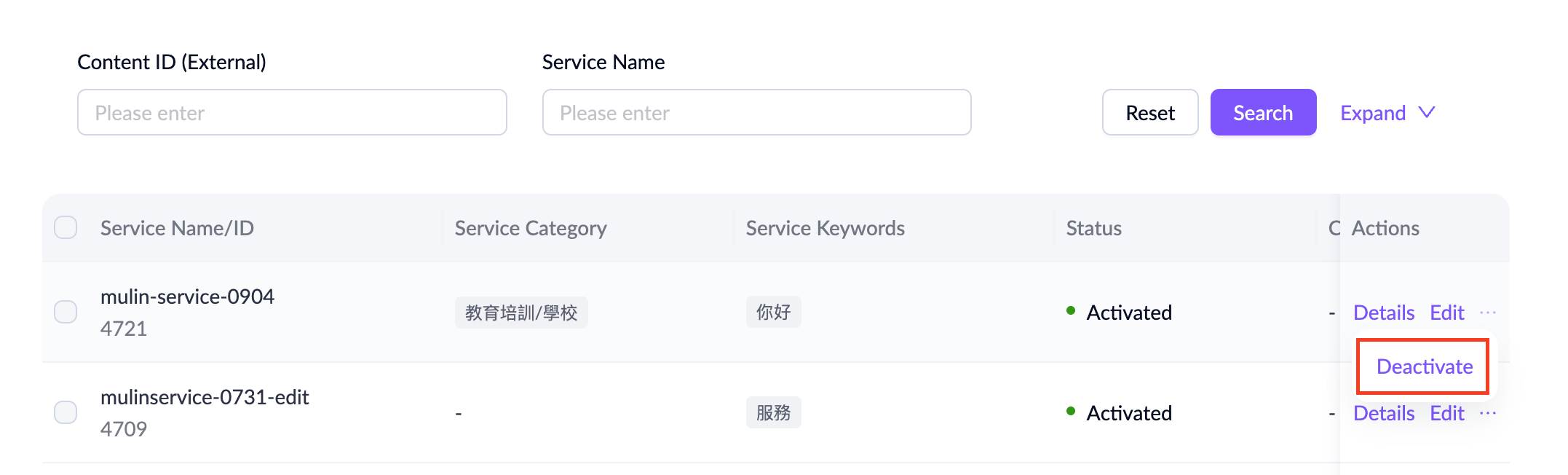
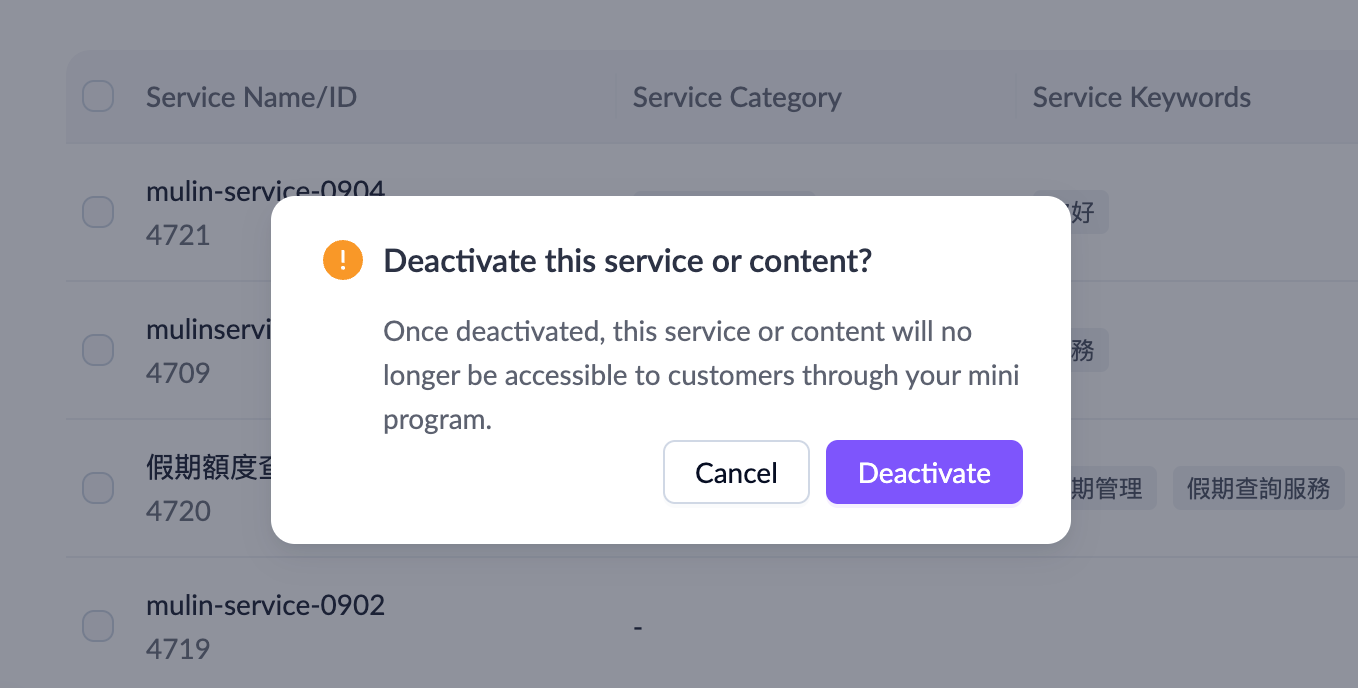
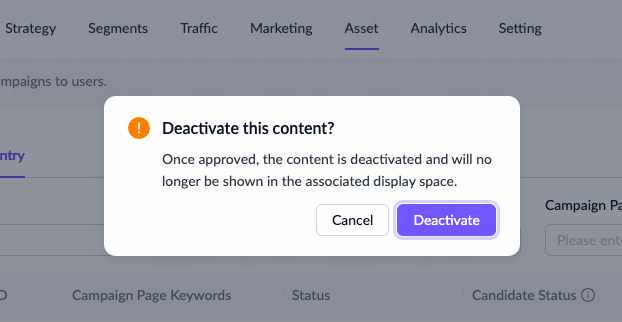
A confirmation dialog will appear. Click Deactivate to initiate the approval request.
Other wallets
Manage app
To manage apps, log in to the ASAP console and go to Asset > Supply Management > Supply List > APP.
Note:
- Only ASAP operators and wallet admins can create, edit, activate, deactivate, or delete an app.
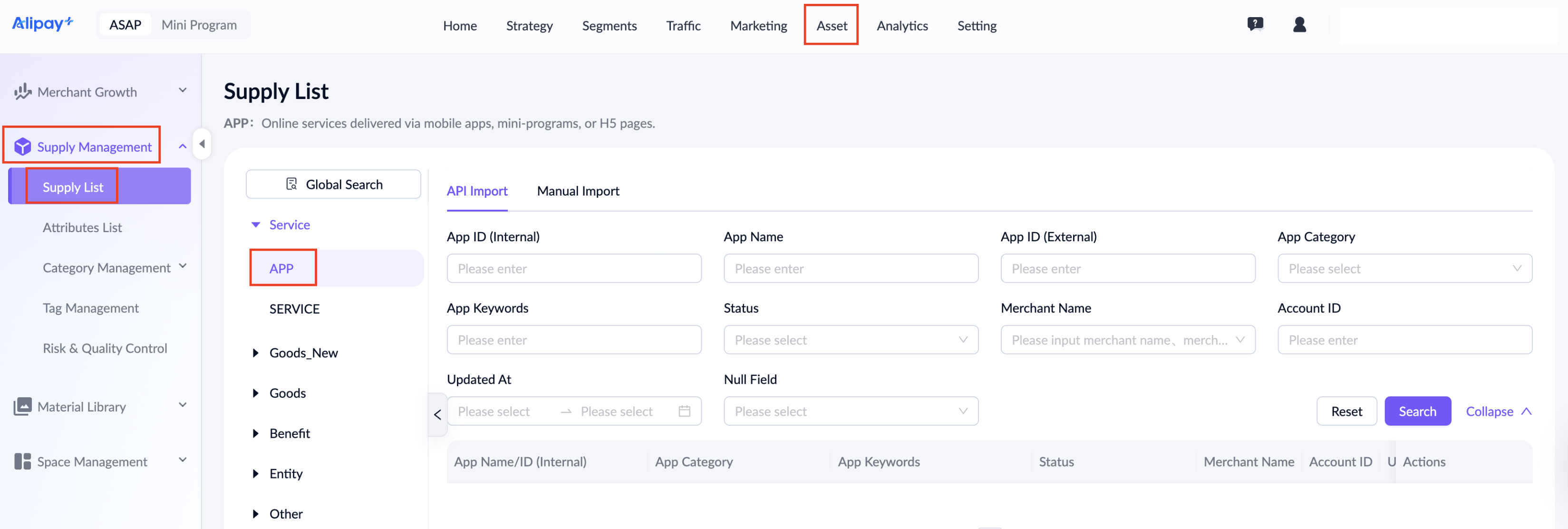
The page lists all app supply records under the current tenant and supports searching by the fields described in the following table:
Field name | Description |
App ID (Internal) | The auto-generated app ID by the ASAP platform. |
App Name | The manually-entered name of the app. |
App ID (External) | The manually-entered app ID. |
App Category | The manually-entered category of the app. Allows selecting multiple categories. |
App Keywords | The manually-entered keywords. Supports Traditional Chinese, English, and Simplified Chinese. |
Status | The status of the official version:
|
Candidate Status | The status of the candidate copy created when editing the official version:
|
Merchant Name | The name of the merchant who owns the app. To find a specific merchant, search by their official name or display name. |
Merchant ID | The ID of the merchant who owns the app. To find a specific merchant, search by their official name or display name in Merchant Hub.
|
Created By | The user who created the app. |
Created At | The creation time of the app. |
Edited By | The user who last edited the app. |
Edited At | The time of the last edit. |
Null Field | Filters for records with empty fields. Allows filtering for null values in Candidate Status and App Keywords fields. |
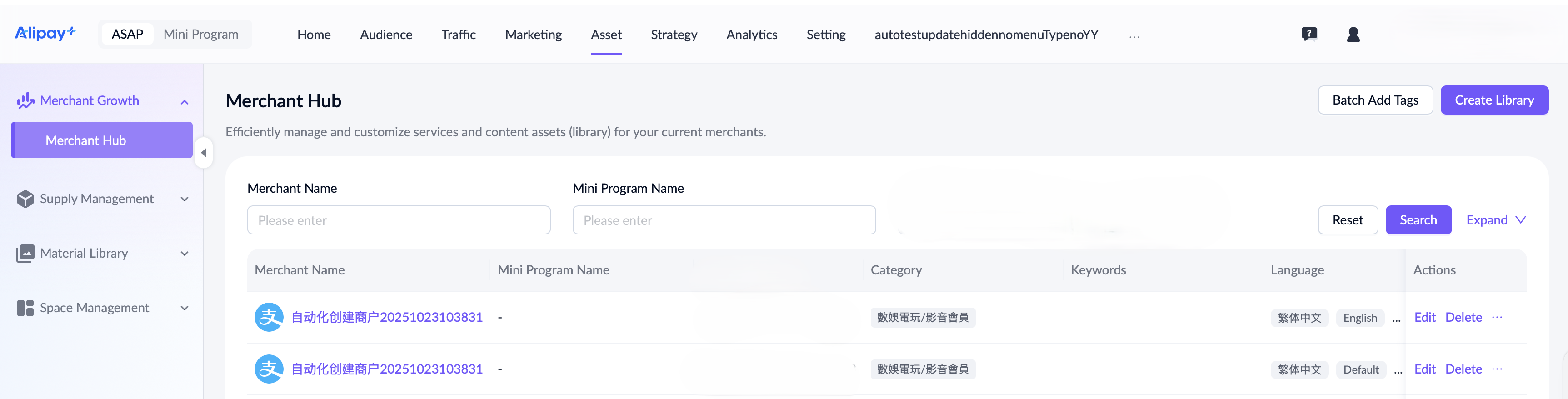
You can view details, activate, or deactivate an app from the Actions column.
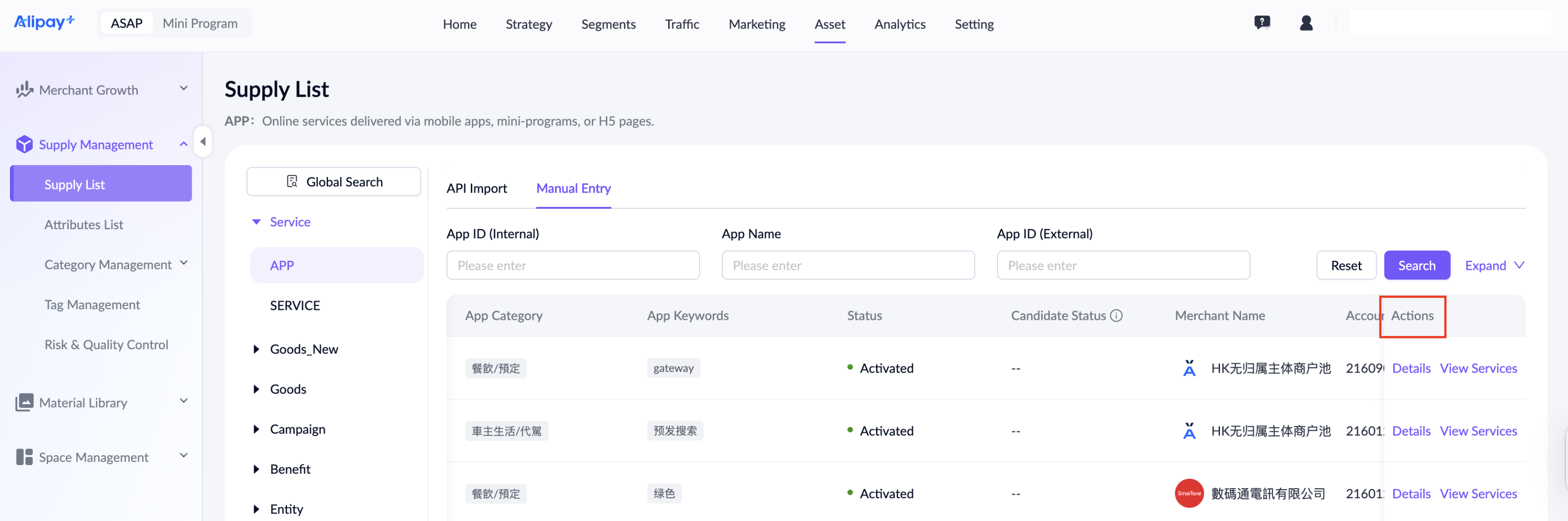
Refer to the following table for details of each action:
Actions | Description |
Details | Click to open the APP details page. |
View Services | Open a pop-up displaying the services linked to the app. The action is disabled if no services are linked. |
Activate | Visible for deactivated apps. This action initiates the activation approval workflow. The app is activated upon successful approval.
|
Deactivate | Visible for activated app. This action initiates the deactivation approval workflow. The app is deactivated upon successful approval.
|
Delete | Available when the app status is Pending Submission or Deactivated. Deletion is only allowed if all linked services are in a deactivated state. When an app is deleted, all its linked services are deleted as well. |
Edit Tags | Visible to ASAP Admin only. This action appears when the status is Pending Risk Check/Activated/Deactivated/Deactivated — Risk Check Failed, and opens the AI tagging page upon being clicked. |
Create app
To create an app, take the following steps:
- Navigate to Asset > Supply Management > Supply List > APP, select the Manual Entry tab, then click Create in the top-right corner.
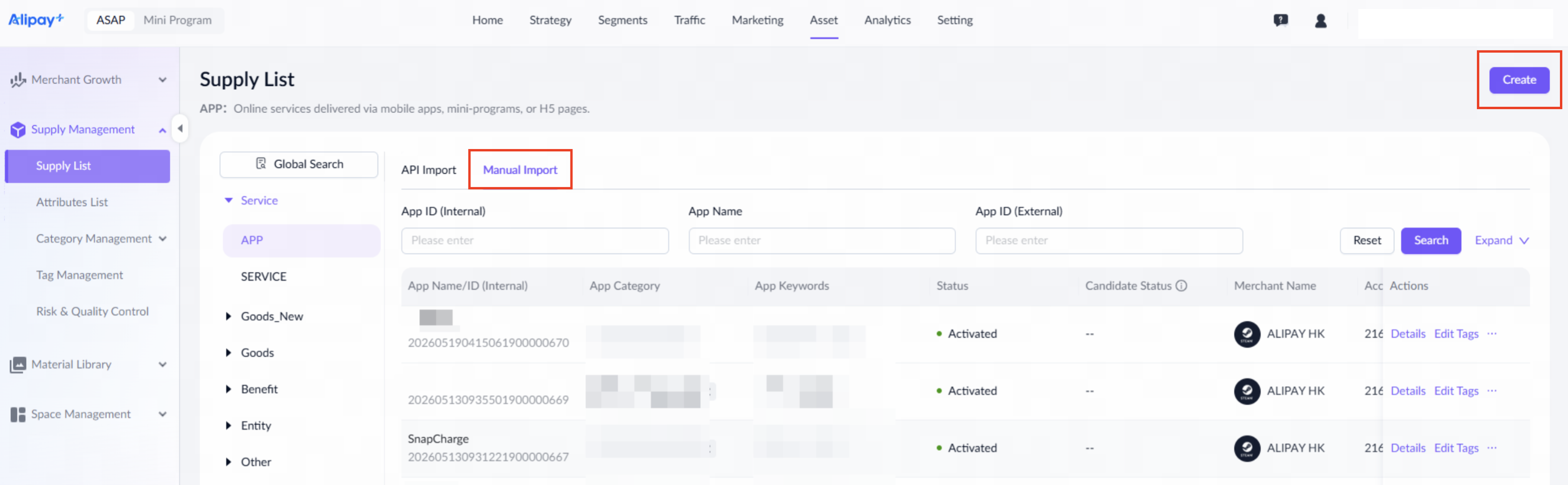
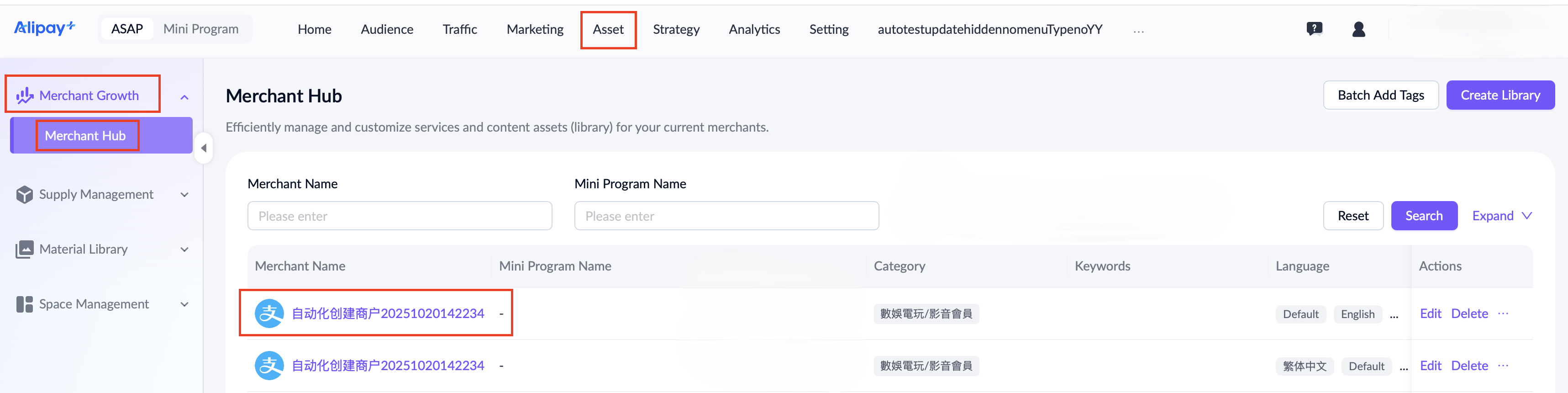
Alternatively, navigate to Asset > Merchant Growth > Merchant Hub, click a merchant name to enter the merchant's content library, go to the APP tab, and click Create.
Note: When creating an app from the merchant hub, the Merchant Name field defaults to the current merchant and cannot be edited.
- Complete the required information on the Create App page.
Note:
- The Wallet Content Activation/Edit/Deactivation approval workflow must be configured beforehand.
- The newly created app will appear on the app list after submission. If not, refresh the page.
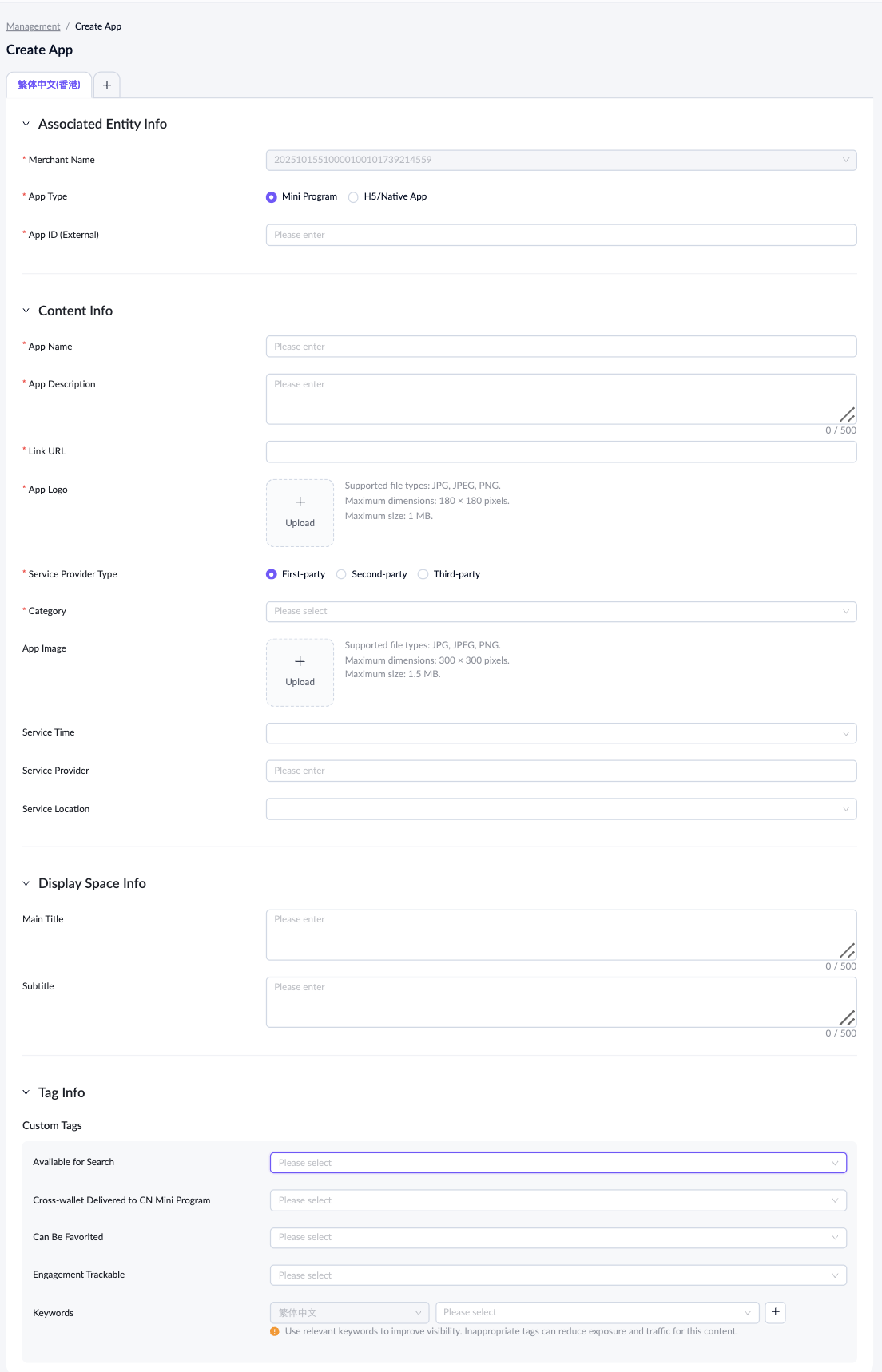
For a detailed explanation of each field, see the following table:
Field name | Description |
Merchant Name | The name of the merchant who owns the app. Select an existing merchant from the dropdown list. It cannot be edited. |
App Type | Select Mini Program if it is an ASAP platform mini program; select H5/Native App for others. |
App ID (External) | Required for international mini program apps. Enter App ID for transaction attribution. |
App Name | Enter a unique name up to 1024 characters. |
App Description | Optional. Enter the details up to 5000 characters. |
Link URL | Enter a link that starts with http:// or https:// for the mini program or H5/native app. Up to 2048 characters allowed. |
App Logo | Mandatory for Traditional Chinese and optional for other language configuration. The logo should fit the following requirements:
|
Service Provider Type | Optional. Select the service provider type:
|
Category | Select the corresponding category. |
App Image | Optional. The image size should follow the below requirements:
|
Service Time | Optional. Select the service time with the dropdown option:
|
Service Provider | Optional. Enter the service provider's name. |
Keywords | Optional. The default language is Traditional Chinese, and it also supports English and Simplified Chinese if you want to add more languages. The AI model will recommend keywords based on the other fields you have entered. You can edit these recommendations manually. |
Service Location | Optional. Select Global for worldwide service. If the service is limited to specific areas, select the Specific Region. Multiple selections are allowed. |
Main Title | Optional. Enter a descriptive title for marketing scenarios up to 5000 characters. |
Subtitle | Optional. Enter a descriptive subtitle for marketing scenarios up to 5000 characters. |
- After completing all required fields, click Save to submit the content for activation approval. Once approved, the app undergoes a risk check. If it passes, the app will be activated.
Edit app
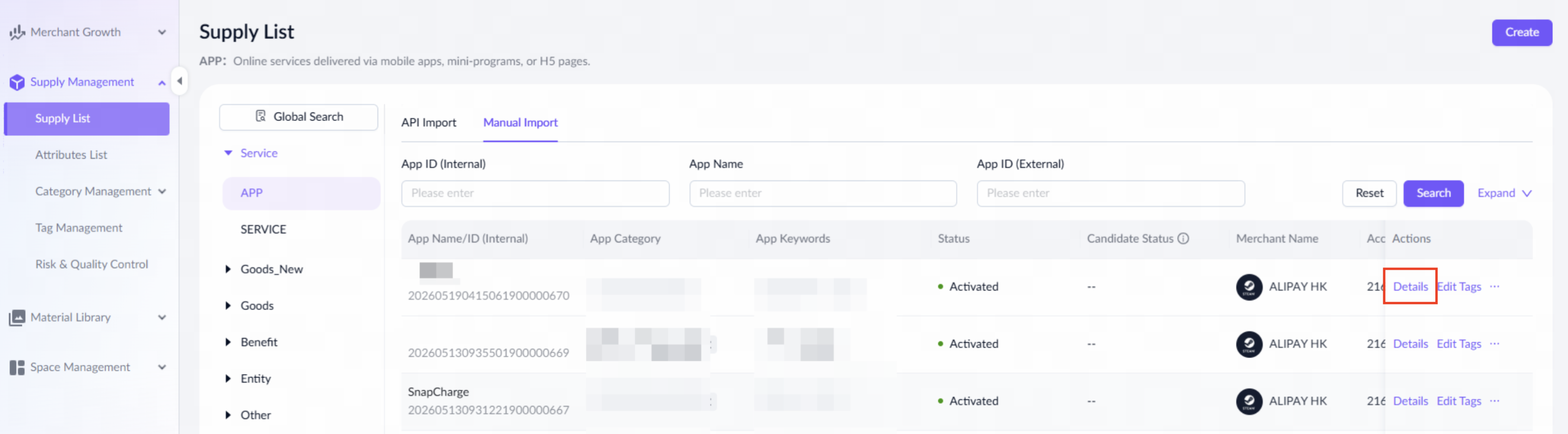
To edit an app, navigate to Asset > Supply Management > Supply List > APP, then click Details to start.
Alternatively, navigate to Asset > Merchant Growth > Merchant Hub, click a merchant name to enter the merchant's content library, go to the APP tab, and click Details.
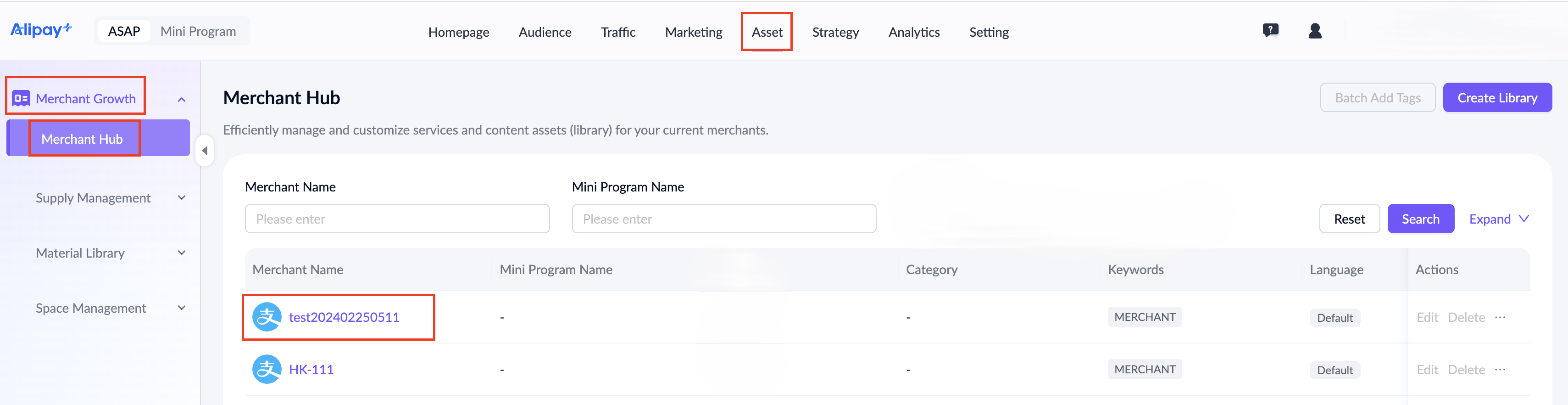
On the app detail page, click Edit Content Info to open the editing page.
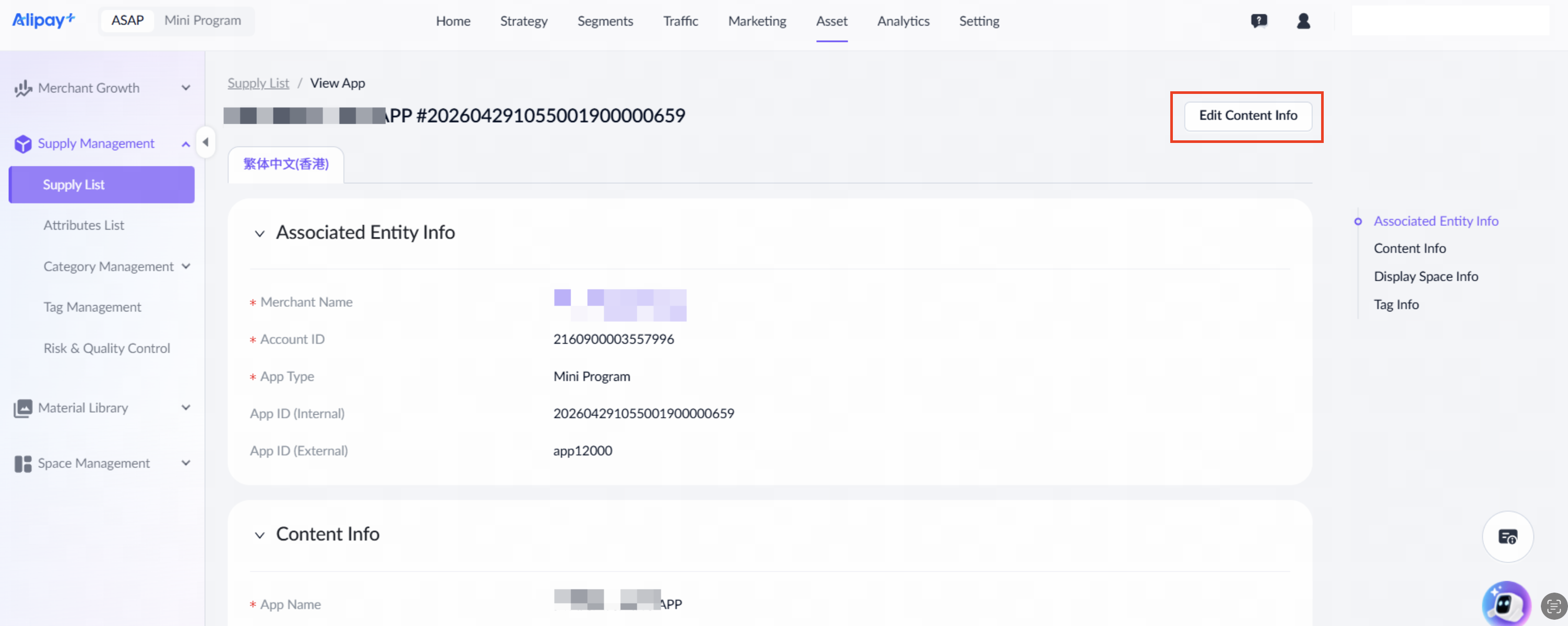
After completing all required fields, click Save and Submit to submit the changes for activation approval.
Note:
- The Wallet Content Activation/Edit/Deactivation approval workflow must be configured beforehand.
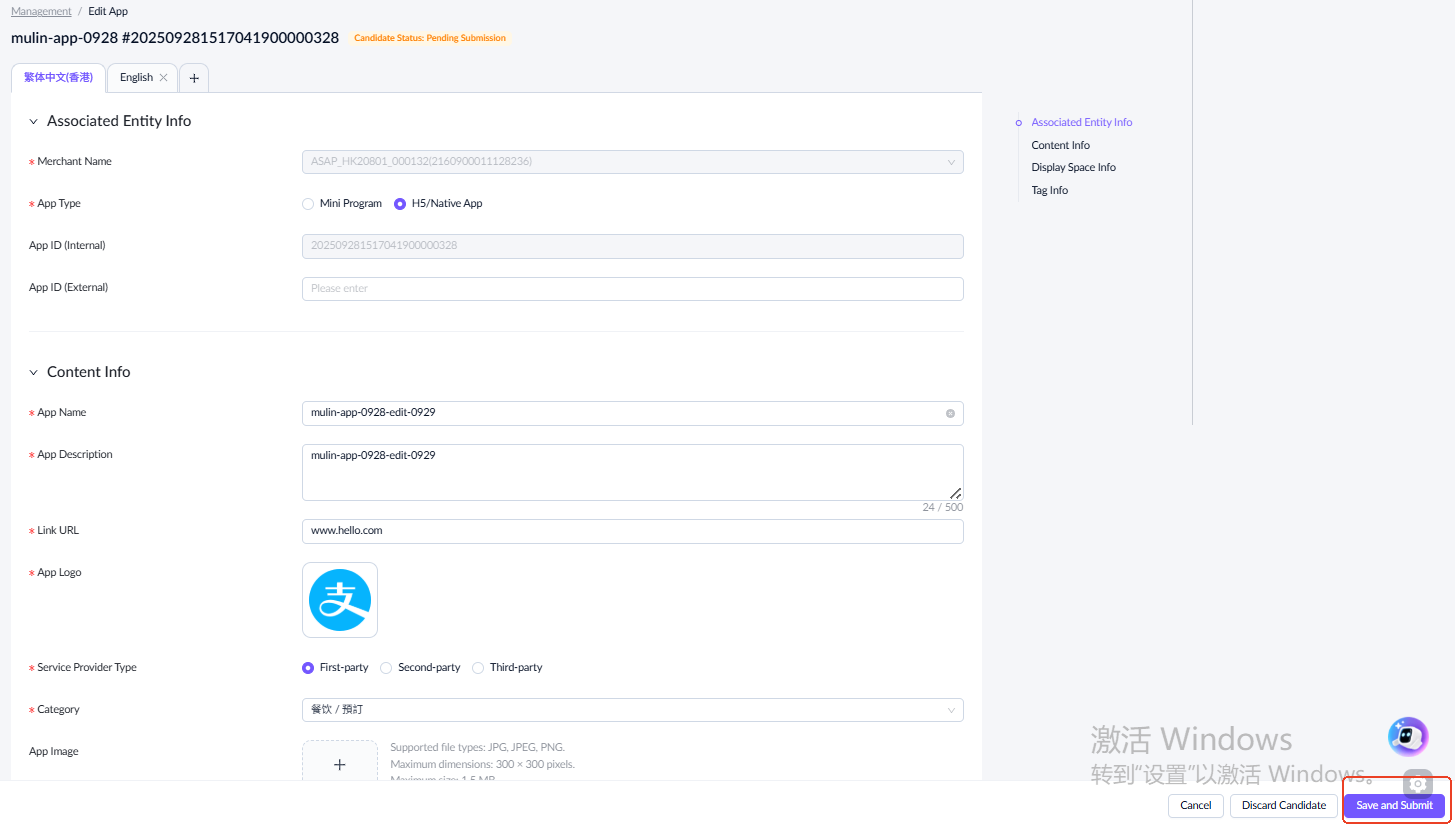
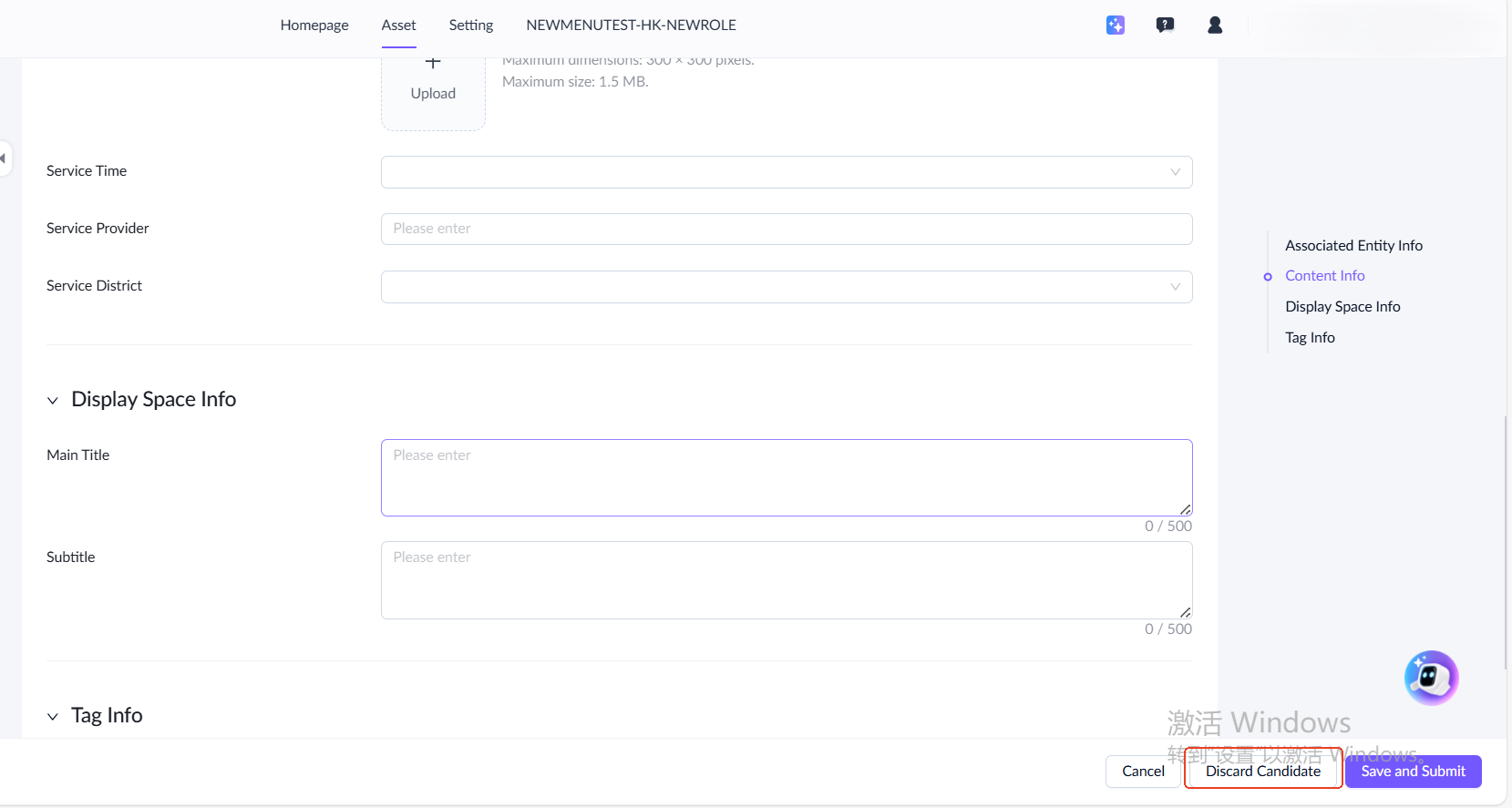
You can discard a candidate app while it is in any of the following statuses:
- Pending Submission
- Rejected by Risk Check
- Approval Rejected
Discarding a candidate permanently deletes its data. Discard candidates when they are no longer needed.
Activate or deactivate app
Navigate to Asset > Supply Management > Supply List > APP, then click Activate or Deactivate under the Actions column.
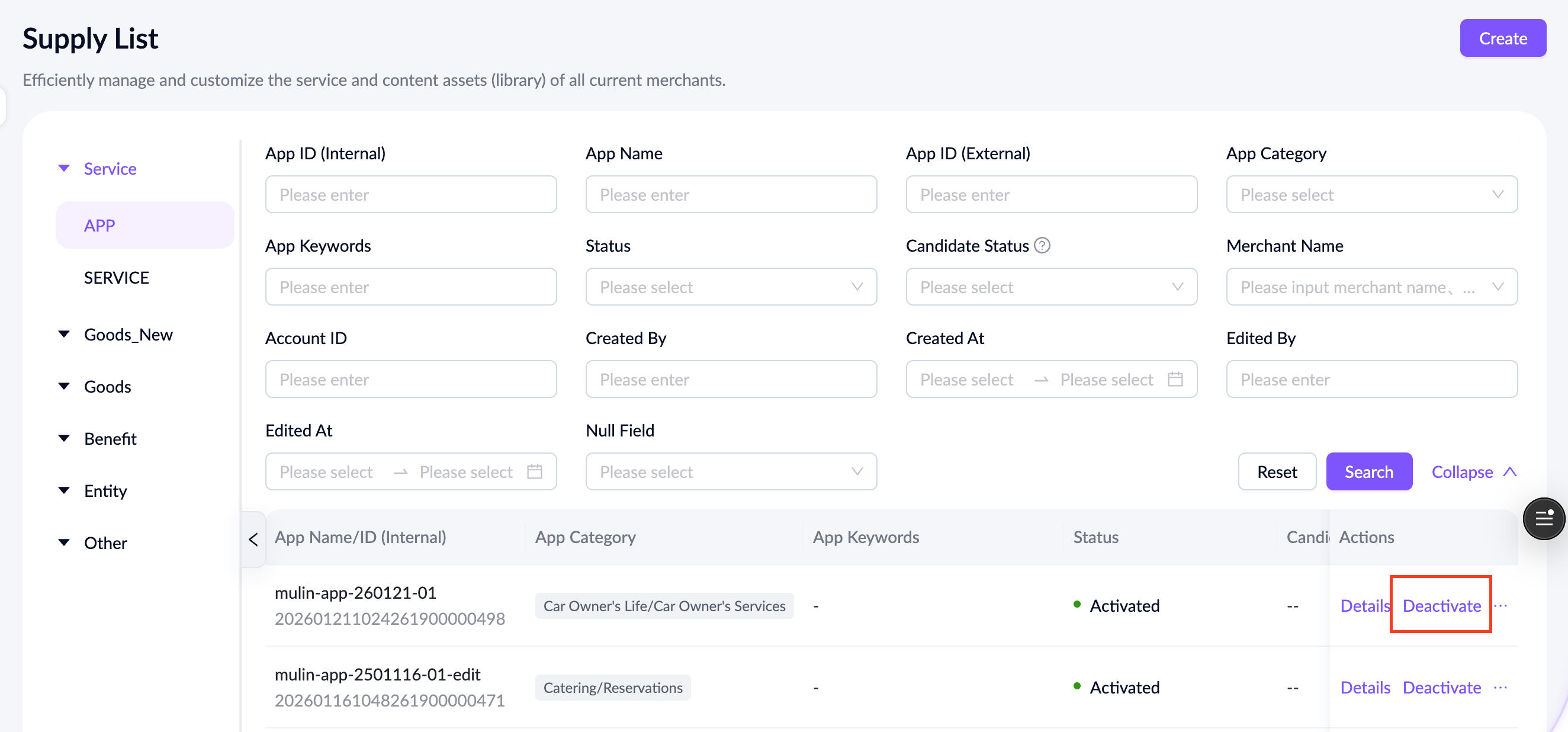
A confirmation dialog will appear. Click Activate or Deactivate to initiate the approval request.
Manage service
To manage a service, log in to the ASAP console and go to Asset > Supply Management > Supply List > SERVICE.
Note:
- Only ASAP operators and wallet admins can create, edit, activate, deactivate, or delete services.
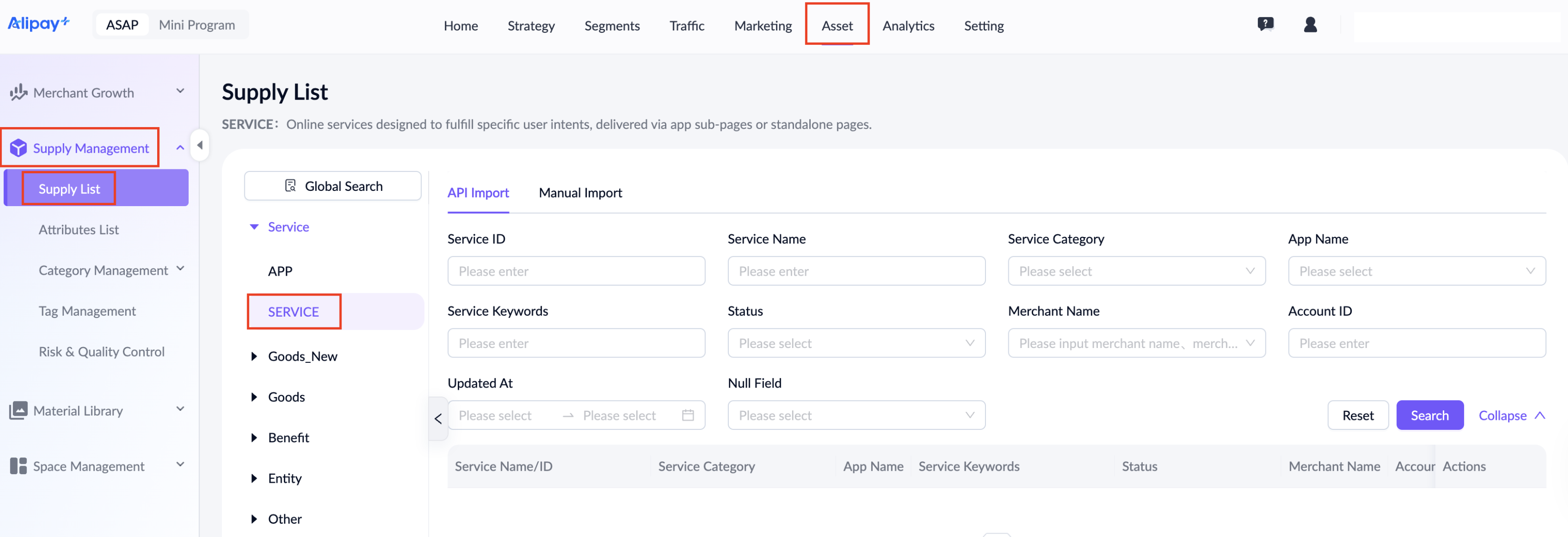
This page displays all services for the current tenant. Refer to the following table for each search field:
Field name | Description |
Service ID | A unique ID auto-generated by the ASAP platform. |
Service Name | The manually-entered name of the service. |
Service Category | The manually-assigned category of the service. Allows multiple selections. |
App Name | The app associated with the service. |
Service Keywords | The manually-entered keywords. Supports Traditional Chinese, English, and Simplified Chinese. |
Status | The status of the official version:
|
Candidate Status | The status of the candidate copy created when editing the official version:
|
Merchant Name | The name of the merchant who owns the service. To find a specific merchant, search by their official name or display name. |
Merchant ID | The ID of the merchant who owns the service.You can search for the corresponding merchant ID in the list in Merchant Hub.
|
Created By | The user who created the app. |
Created At | The creation time of the app. |
Edited By | The user who last edited the app. |
Edited At | The time of the last edit. |
Null Field | Filters for records with empty fields. Allows filtering for null values in Candidate Status and App Keywords fields. |
You can view details, activate or deactivate a service from the Actions column.
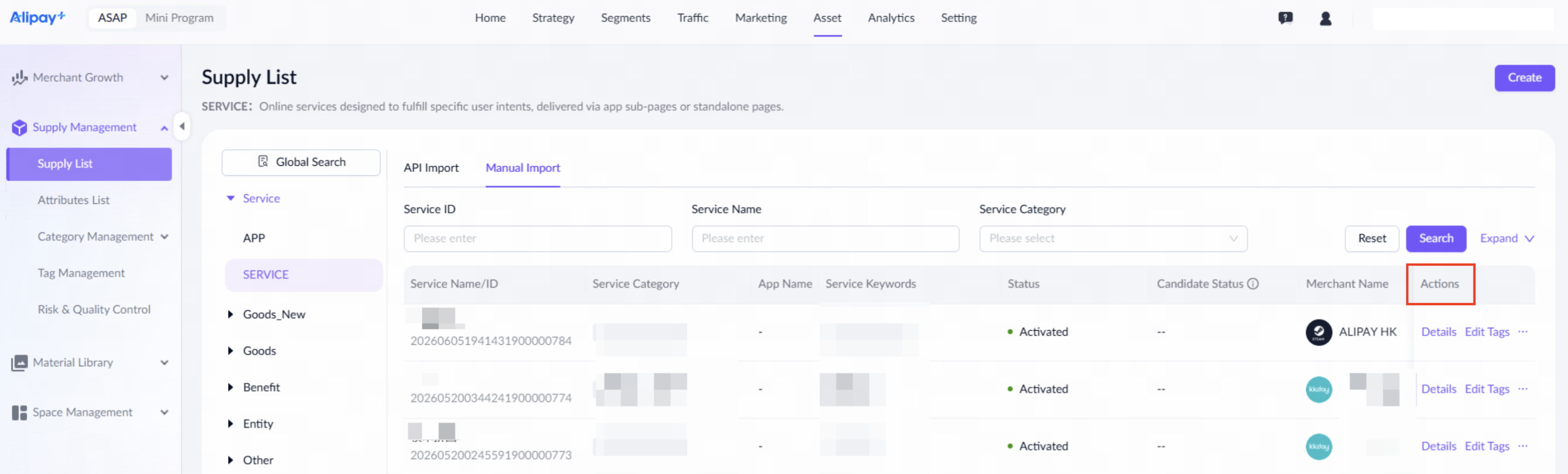
Refer to the following table for details of each action:
Actions | Description |
Details | Click to open the service detail page. |
Activate | Visible for deactivated service. This action initiates the activation approval workflow. The service is activated upon successful approval.
|
Deactivate | Visible for activated service. This action initiates the deactivation approval workflow. The service is deactivated upon successful approval.
|
Delete | Available when the service status is Pending Submission or Deactivated. |
Edit Tags | Visible to ASAP Admin only. This action appears when the status is Pending Risk Check/Activated/Deactivated/Deactivated — Risk Check Failed, and opens the AI tagging page upon being clicked. |
Create service
To create a service, take the following steps:
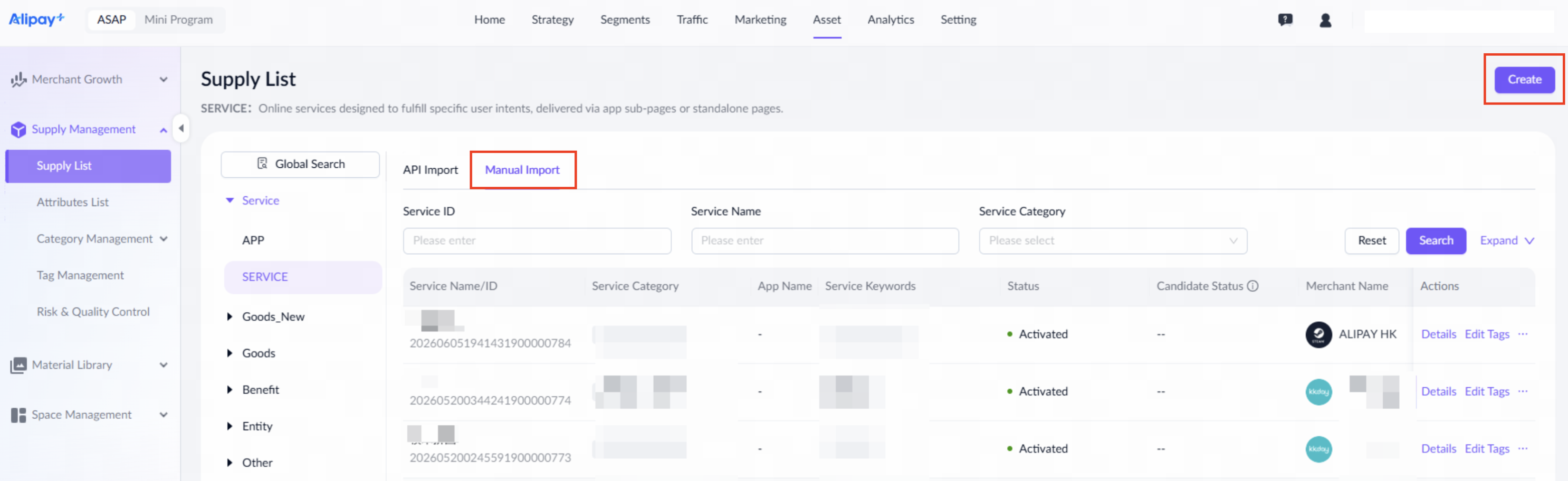
- Navigate to Asset > Supply Management > Supply List > SERVICE, select the Manual Entry tab, then click Create in the top-right corner.
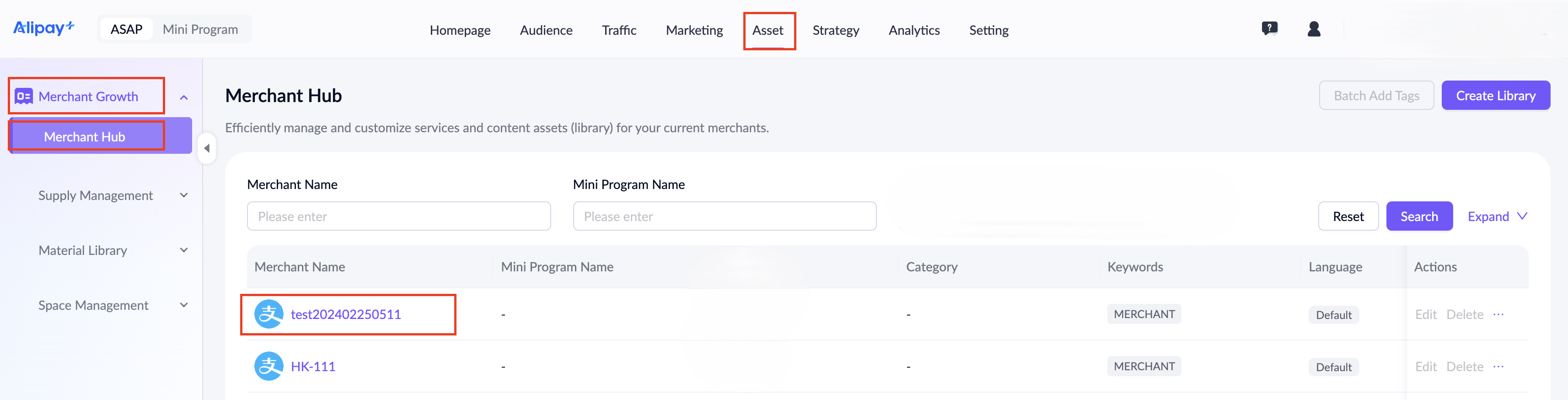
Alternatively, navigate to Asset > Merchant Growth > Merchant Hub, click a merchant name to enter the merchant's content library, go to the SERVICE tab, and click Create.
- Complete the required information on the Create Service page.
Note:
- The Wallet Content Activation/Edit/Deactivation approval workflow must be configured beforehand.
- The newly created service will appear on the service list after submission. If not, refresh the page.
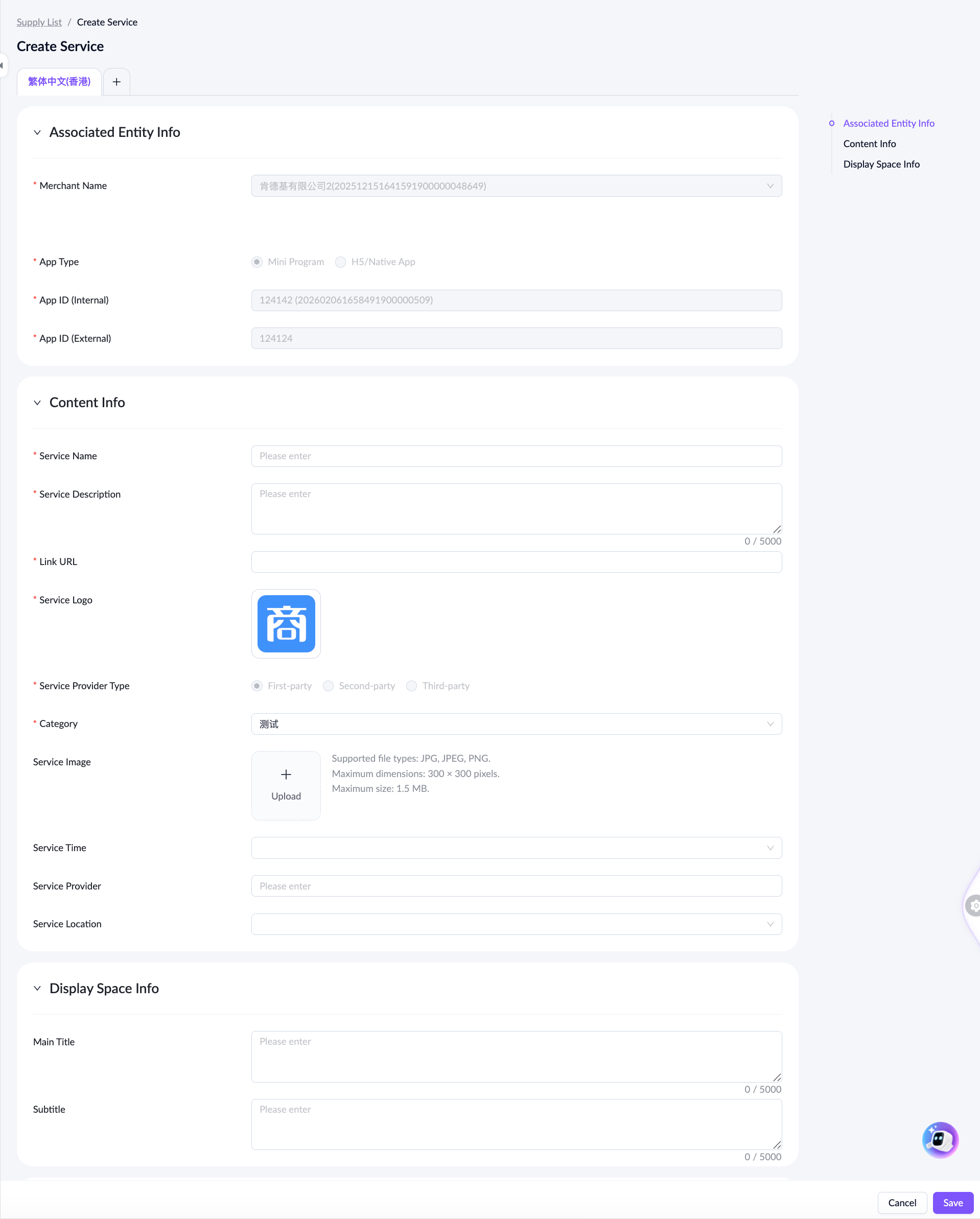
For a detailed explanation of each field, see the following table:
Field name | Description |
Associate App | Select Yes if the service is associated with an app. Otherwise, select No. This field is mandatory and cannot be edited. When an app is associated, some fields below will automatically inherit its values. |
App Name | If the service is associated with an app, App Name must be entered and cannot be edited. |
Merchant Name | Enter and select the name of the merchant. If the service is associated with an app, this field will automatically inherit its values and cannot be edited. |
App Type | Only available when an app is associated. The value is inherited from the associated app.
|
Service Name | Enter a service name up to 1024 characters. |
Service Description | Enter the details up to 5000 characters. |
Link URL | Enter a link that starts with http:// or https:// up to 2048 characters. |
Service Logo | Mandatory for Traditional Chinese and optional for other language configuration. The logo should fit the following requirements:
This field is inherited from the associated app, but can be edited. If no app is associated, it must be entered manually. |
Service Provider Type | Select the service provider type:
If associated with an app, the value is inherited and cannot be edited. If not associated with an app, the field must be entered manually. |
Category | Enter the corresponding category. This field is inherited from the associated app, but can be edited. Double-click to enter the category from the previous level. If no app is associated, it must be entered manually. |
Service Type | Select the service type:
|
Service Image | Optional. The image size should follow the below requirements:
|
Service Time | Optional. Select the service time with the dropdown option:
This field is inherited from the associated app, but can be edited. If no app is associated, it must be entered manually. |
Service Provider | Optional. Enter the service provider's name. This field is inherited from the associated app, but can be edited. If no app is associated, it can be entered manually. |
Keywords | Optional. The default language is Traditional Chinese, and it also supports English and Simplified Chinese if you want to add more languages. The AI model will recommend keywords based on the other fields you have entered. You can edit these recommendations manually. |
Service Location | Optional. Select Global for worldwide service. If the service is limited to specific areas, select the Specific Region. Multiple selections are allowed. This field is inherited from the associated app, but can be edited. If no app is associated, it can be entered manually. |
Main Title | Optional. Enter a descriptive title for marketing scenarios up to 5000 characters. This field is inherited from the associated app, but can be edited. If no app is associated, it can be entered manually. |
Subtitle | Optional. Enter a descriptive subtitle for marketing scenarios up to 5000 characters. This field is inherited from the associated app, but can be edited. If no app is associated, it can be entered manually. |
- After completing all required fields, click Save to submit the content for activation approval. Once approved, the service undergoes a risk check. If it passes, the service will be activated.
Edit service
To edit an app, navigate to Asset > Supply Management > Supply List > SERVICE, select the Manual Entry tab, then click Details to start.
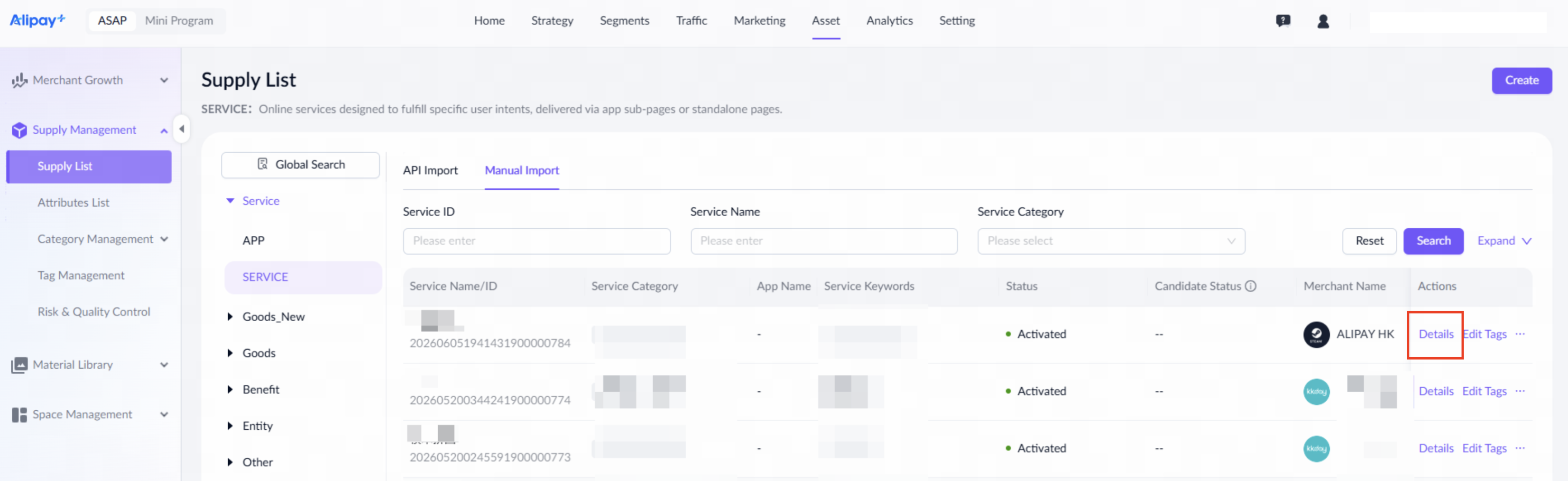
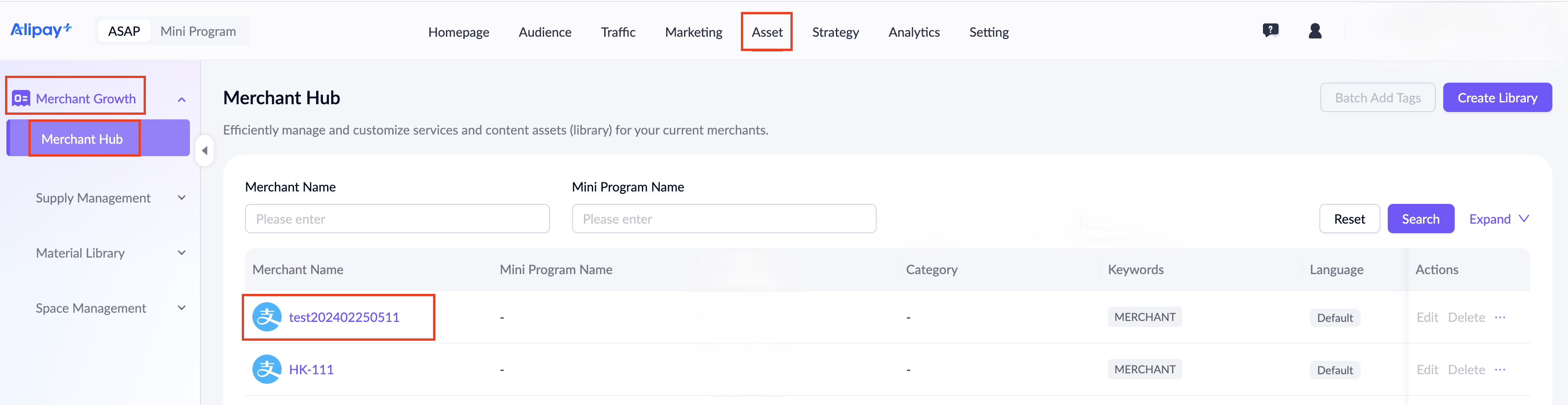
Alternatively, navigate to Asset > Merchant Growth > Merchant Hub, click a merchant name to enter the merchant's content library, go to the SERVICE tab, and click Details.
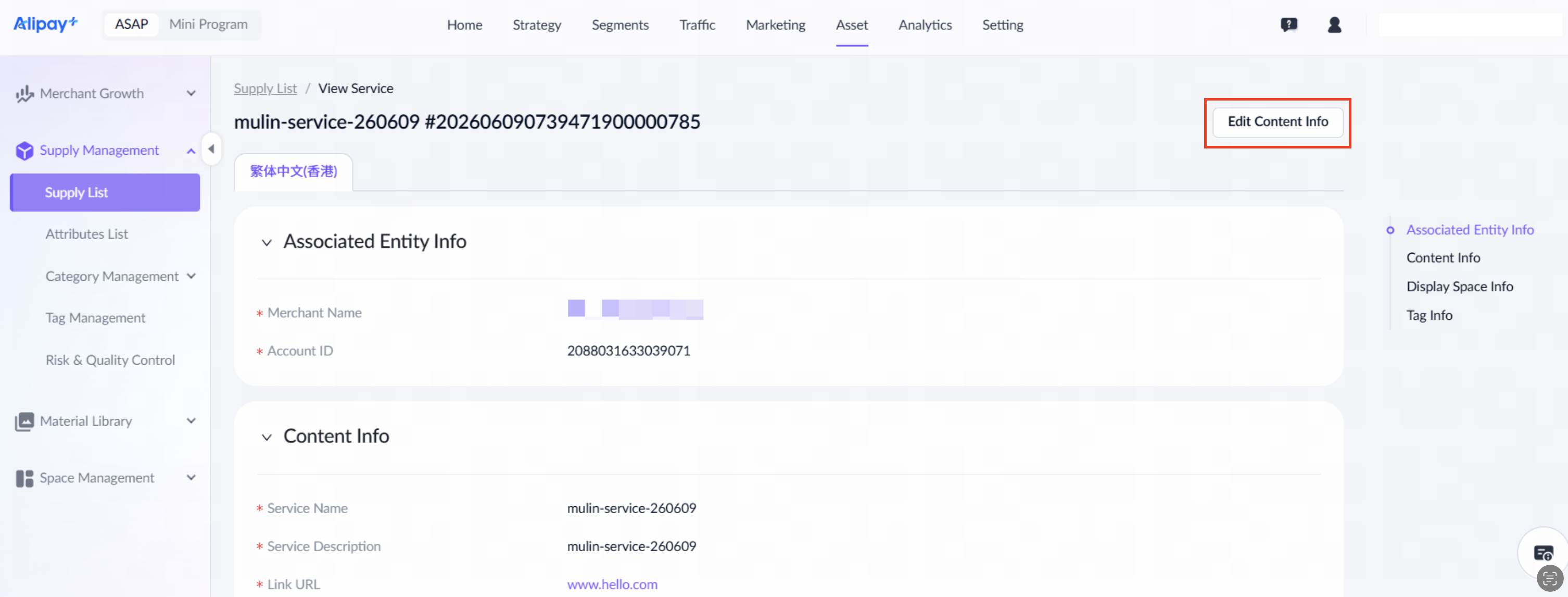
On the detail page, click Edit Content Info to open the editing page.
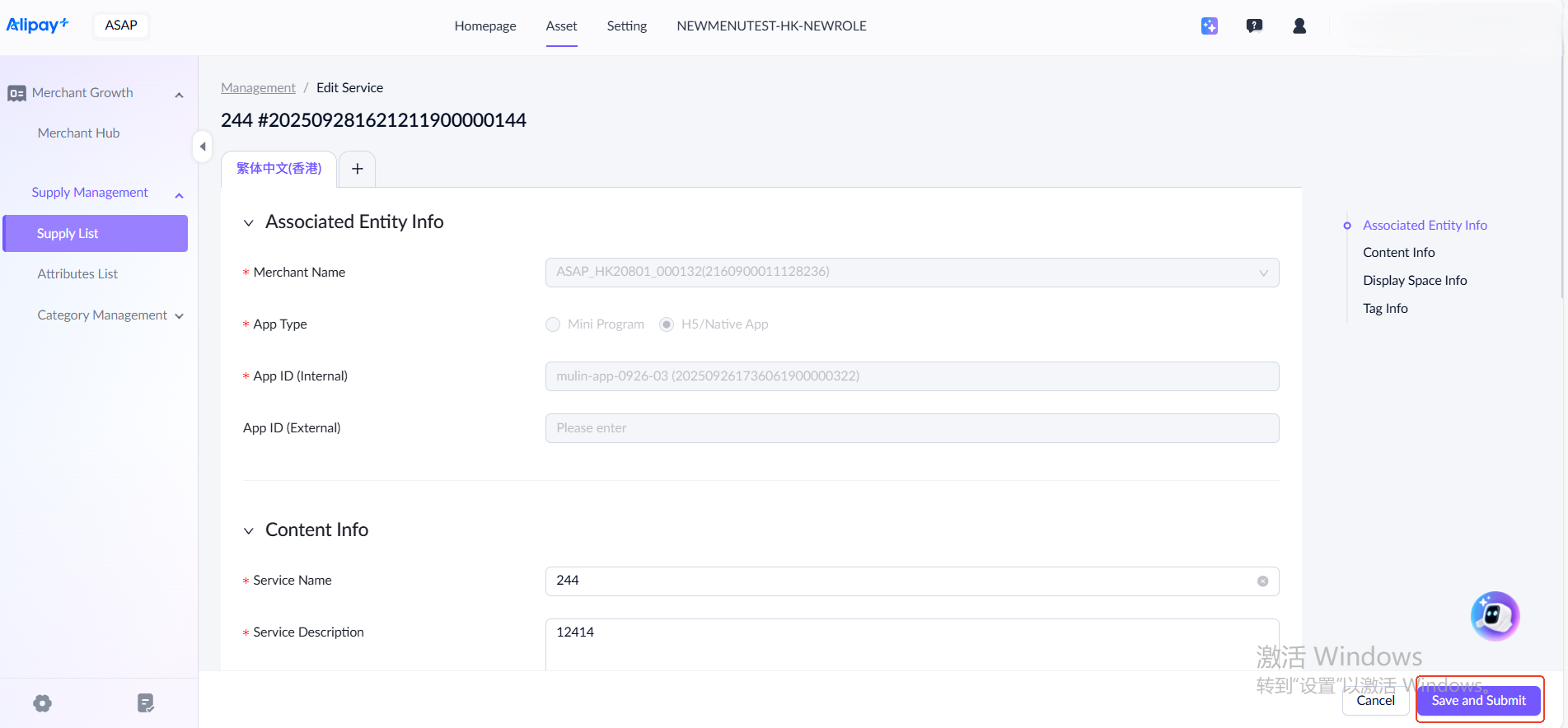
After completing all required fields, click Submit, and a confirmation dialog will appear. The changes take effect after you confirm.
You can discard a candidate service while it is in any of the following statuses:
- Pending Submission
- Rejected by Risk Check
- Approval Rejected
Discarding a candidate permanently deletes its data. Discard candidates when they are no longer needed.
Activate service
To activate a service, navigate to Asset > Supply Management > Supply List > SERVICE, then click Activate to start.
A confirmation dialog will appear. Click Activate to initiate the approval request.
Deactivate service
To deactivate a service, navigate to Asset > Supply Management > Supply List > SERVICE, then click Deactivate.
A confirmation dialog will appear. Click Deactivate to initiate the approval request.
Manage goods
To manage goods, navigate to Asset > Supply Management > Supply List > Goods_New.
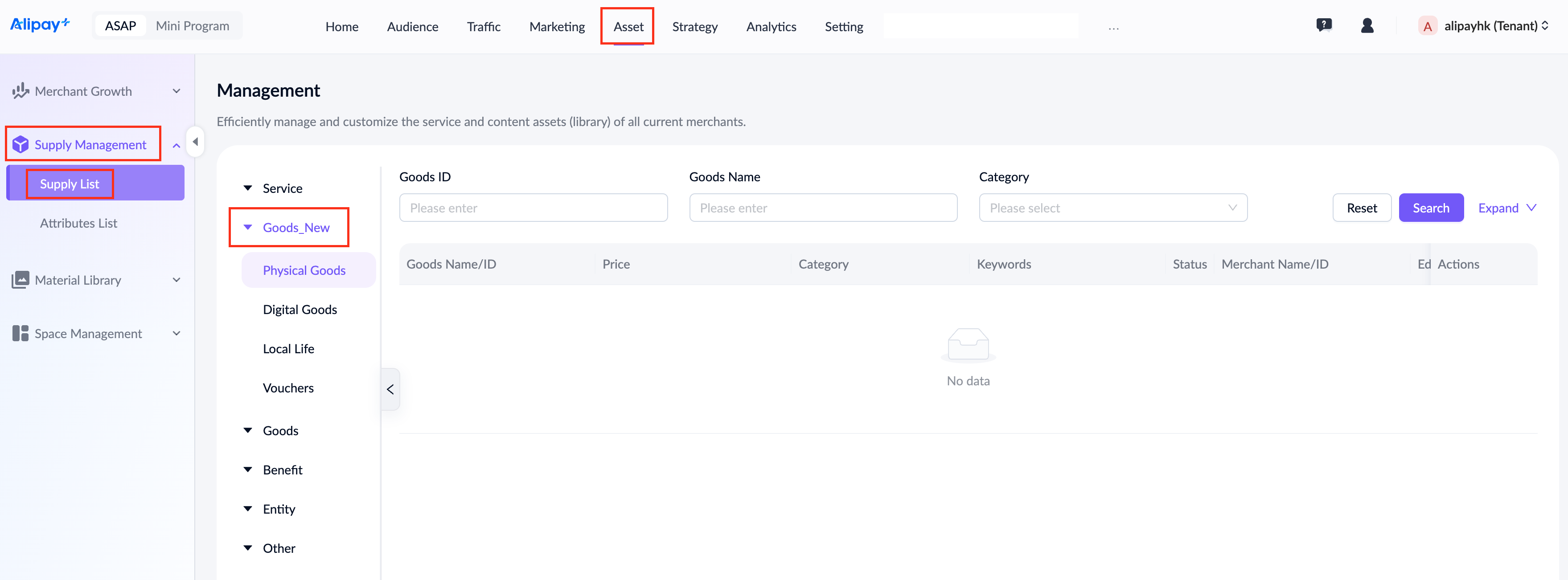
Note: The goods attributes in Goods_New are different from the current supply. The existing supply of Goods will be migrated to Goods_New in the future.
View goods details
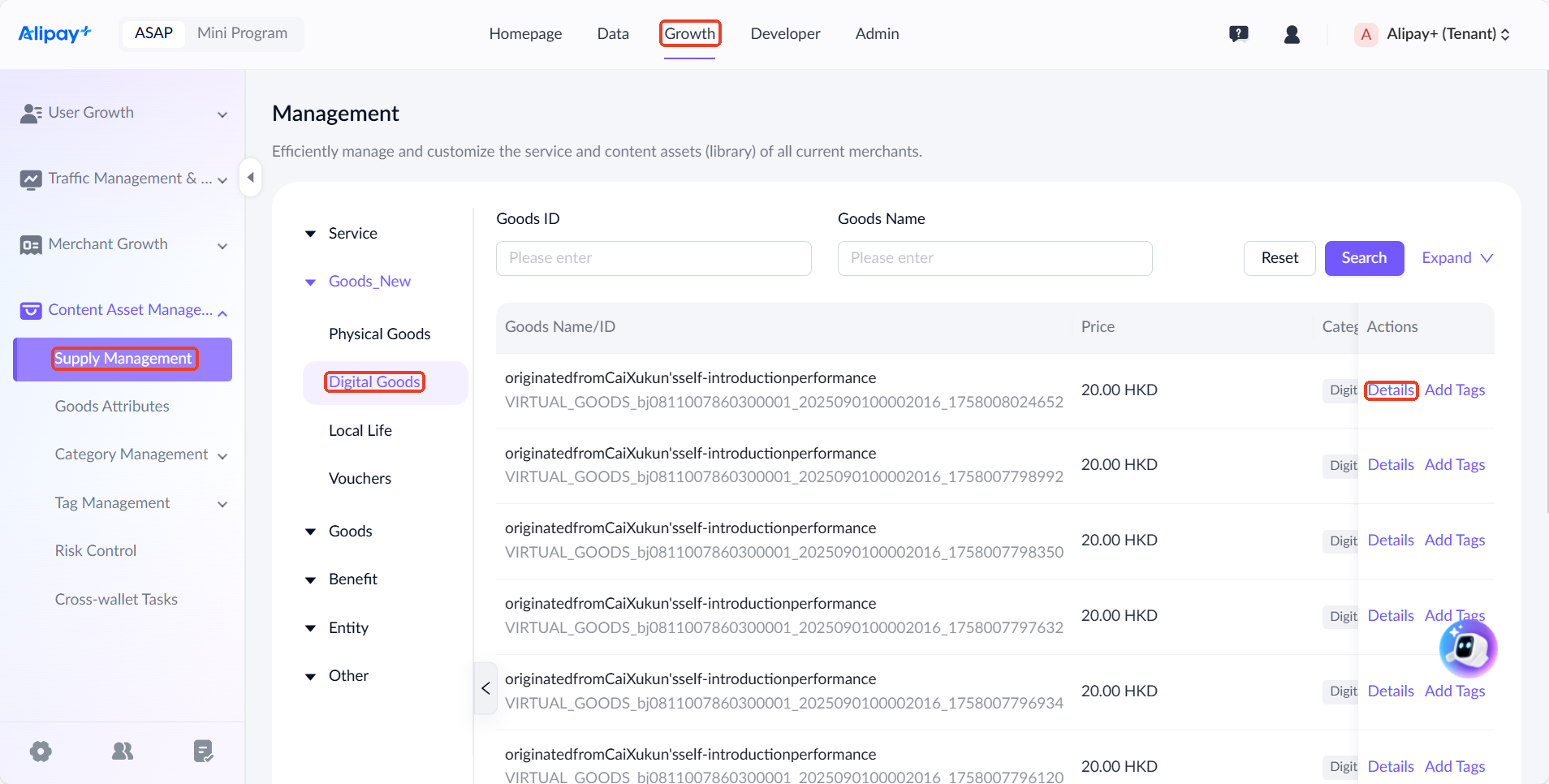
Take Digital Goods as an example, you can view all the created goods on the displayed page.
Following the steps below to view a good's details:
- Use filters such as Goods ID, Goods Name, Category, Keywords, Status, Merchant Name, Merchant ID or Edited At to search for a specific good. Then click Details under the Actions column.
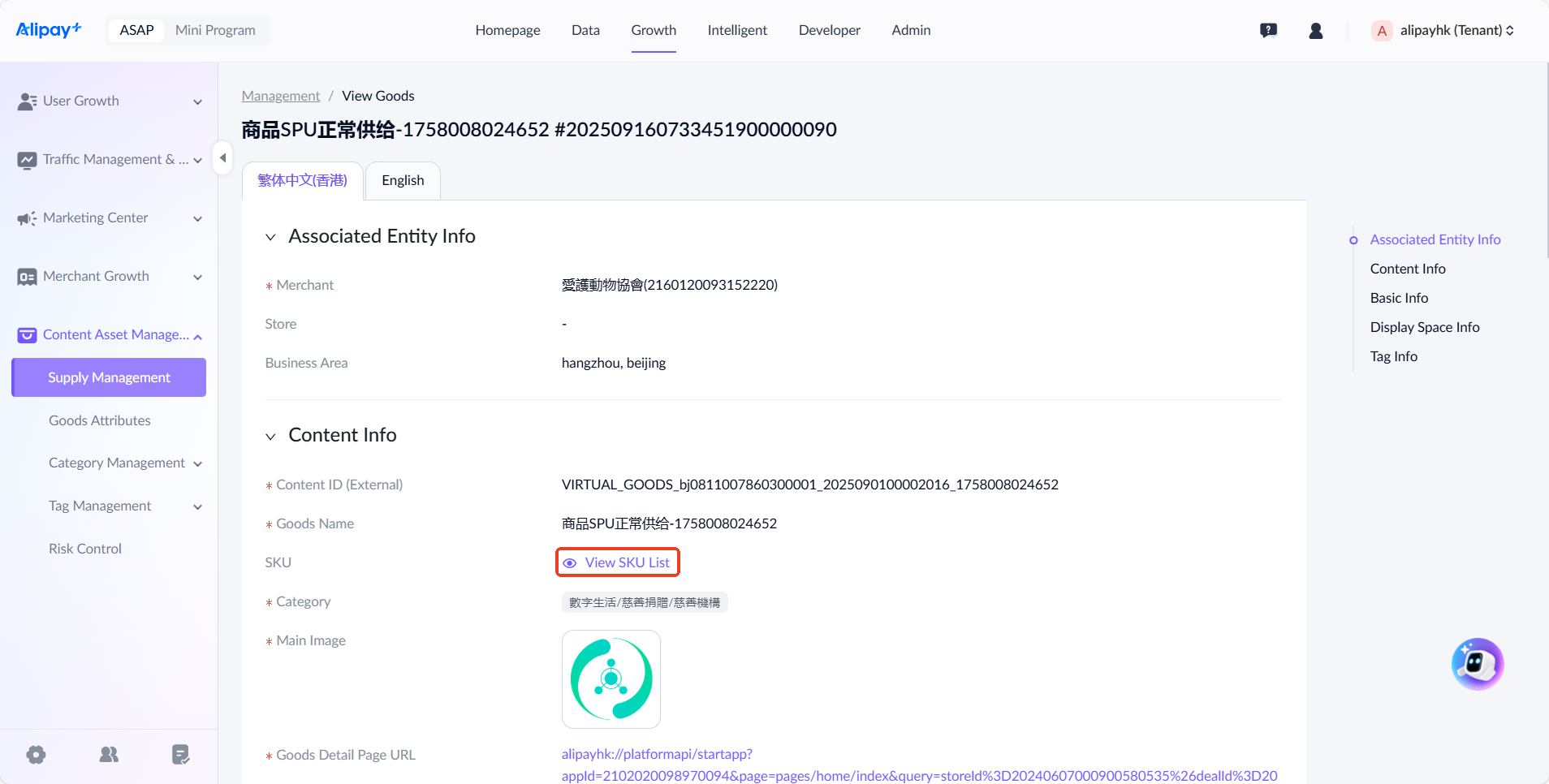
- On the View Goods page, you can view the SPU attributes, which are divided into two categories:
- Basic Attributes: System-generated attributes that are non-editable and can only be managed through the Goods Attributes settings.
- Custom Attributes: Defined and managed by merchants or ASAP Admin.
Click View SKU Attributes to access the SKU list under the SPU attribute.
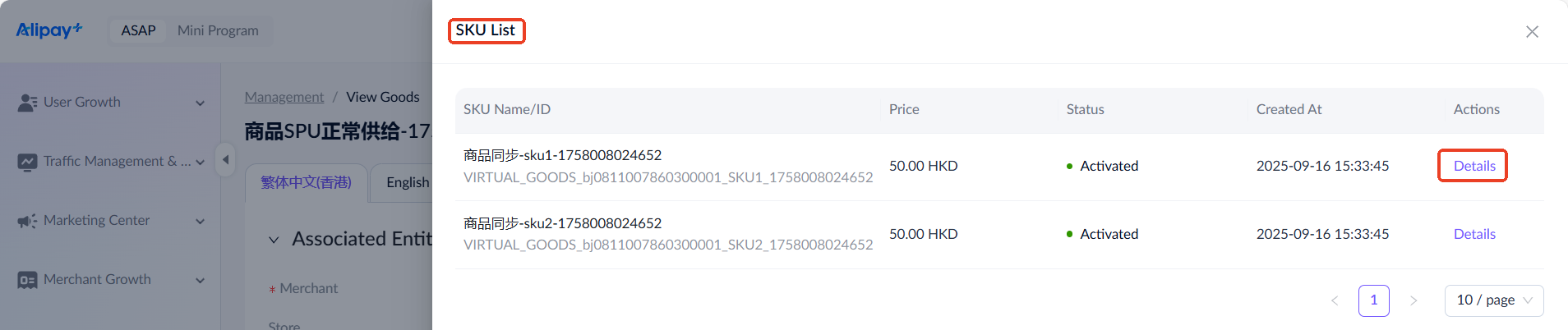
- The SKU List displays SKU name, price, status, and created time. Click Details under the Actions column to view more related information.
- On the SKU Details page, you can view the SKU attributes. Similar to the SPU attributes, these are divided into two categories: Basic Attributes and Custom Attributes.

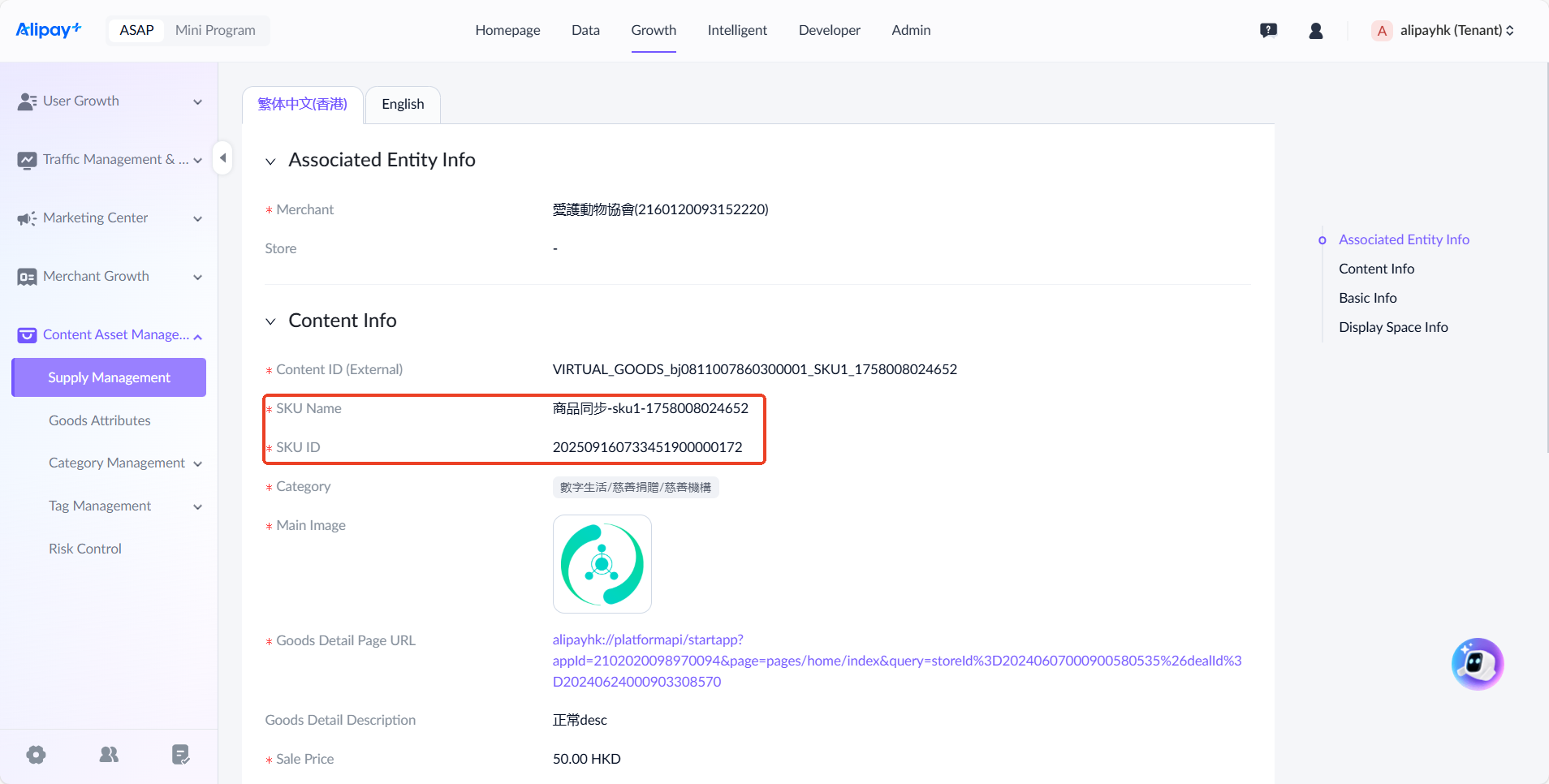
Note: Tags are part of the SPU attributes, so they do not show in SKU lists or details page. However, mandatory SKU fields inherited from the SPU do appear in the SKU details page. Edit Tags and Add Tags for goods supplies work the same way as for other supplies.
Manage campaign
Note: This supply is available for AlipayHK only.
To manage campaign, log in to the ASAP console and go to Asset > Supply Management > Supply List > Campaign. Select the appropriate subcategory:
- DIRECT_REWARD
- REDEMPTION
- ENGAGEMENT_TASK
- CAMPAIGN_PAGE
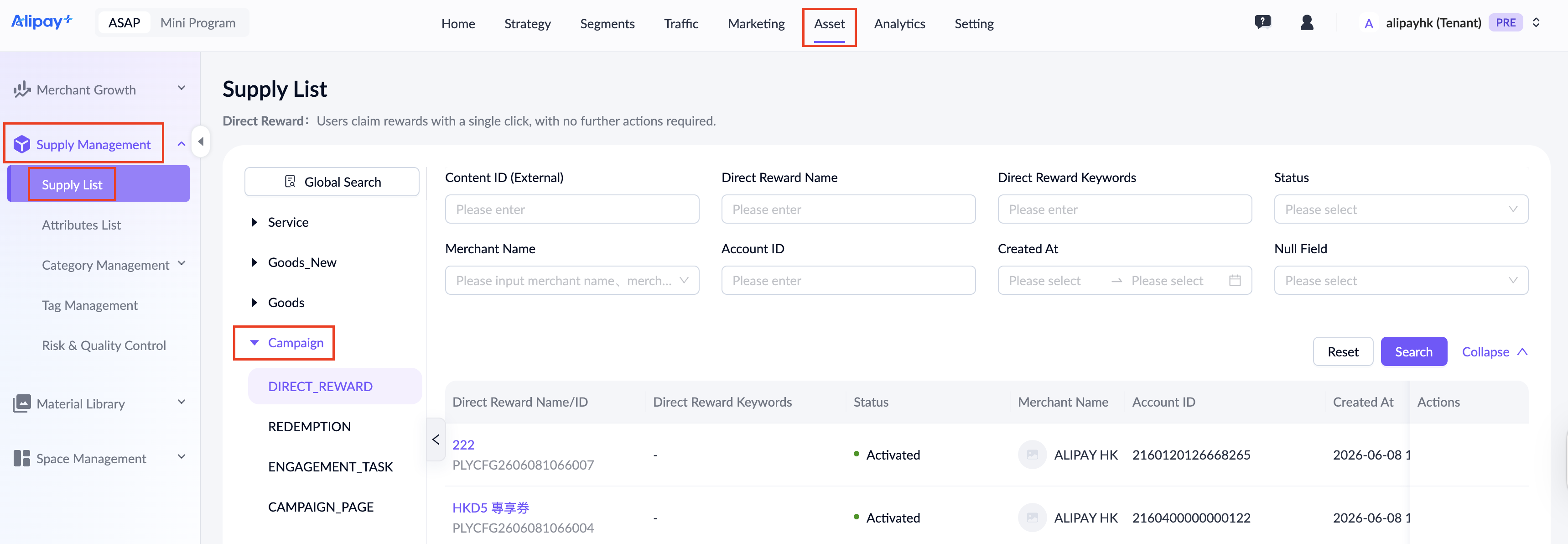
This page displays all campaign supply for the current tenant. Refer to the following table for each search field:
Field name | Description |
Content ID (External) | The content ID of the campaign in external system. |
Campaign Name | The name of Direct Reward, Redemption or Engagement Task campaign and campaign page. |
Campaign Keywords | The keywords of the campaign. |
Status | The status of the campaign:
|
Merchant Name | The name of the merchant who owns the campaign. To find a specific merchant, search by their official name or display name. |
Account ID | The ID of the merchant who owns the campaign. To find a specific merchant, search by their official name or display name in Merchant Hub.
|
Created At | The creation time of the campaign. |
Null Field | Filters for records with empty fields. |
View campaign details
To view the details of a campaign, specify the subcategory, such as DIRECT_REWARD, and click the campaign name under Direct Reward Name/ID.
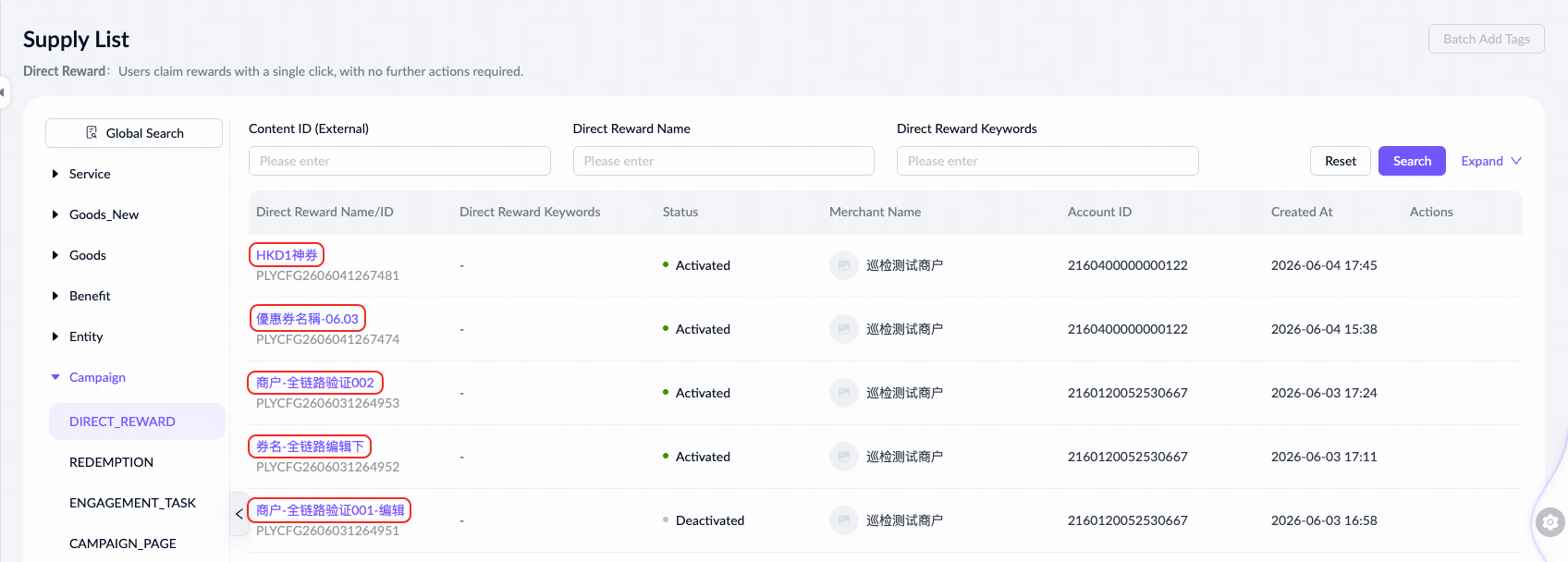
Create campaign page
CAMPAIGN_PAGE can be created via API import or manual entry, each with distinct workflows:
- API Import: Items are non-editable and do not require manual approval. They are activated automatically upon passing the risk check.
- Manual Entry: Items are editable but require both manual approval and risk check before activation.
To create a campaign page, take the following steps:
- Navigate to Asset > Supply Management > Supply List > Campaign > CAMPAIGN_PAGE, select the Manual Entry tab, then click Create in the top-right corner.
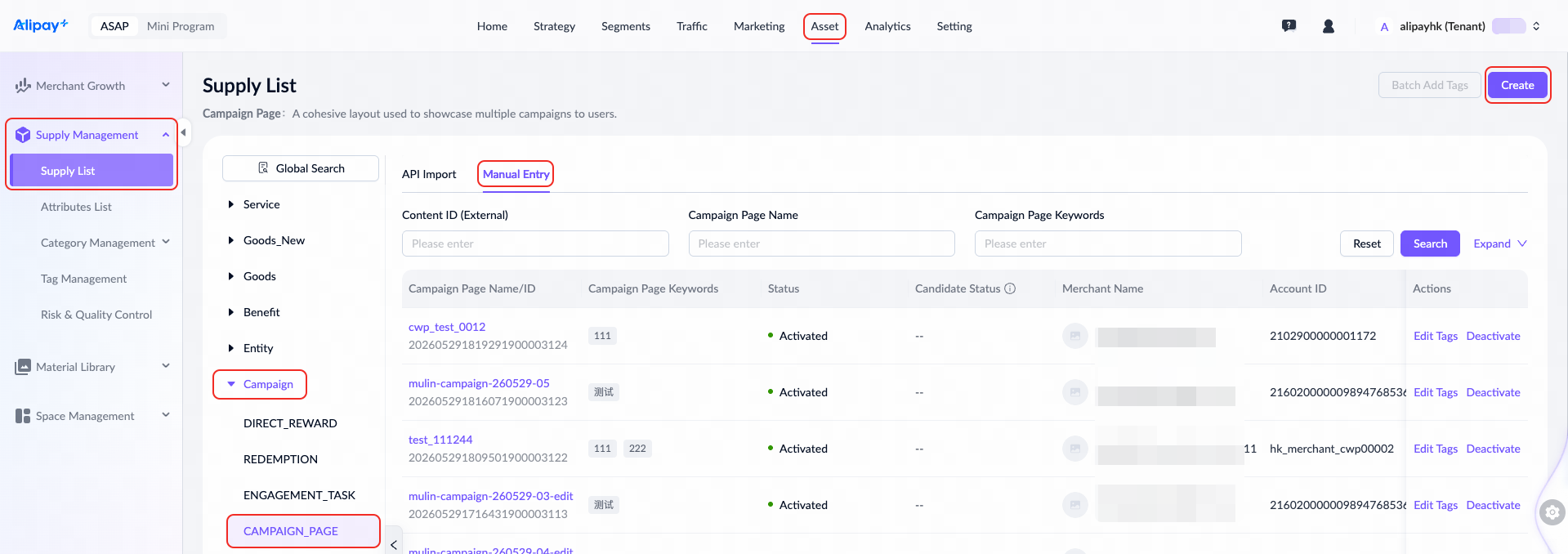
- Complete the required information on the Create Campaign page.
Note:
- The Marketing Library Creation/Edit/Delection approval workflow must be configured beforehand.
- The newly created campaign page will appear on the list after submission. If not, refresh the page.
- For first-party and second-party service providers, identify the corresponding merchant entity and account ID before creating the campaign page. For example, in the Alipay+ HK, the merchant entity for Amap Taxi is ALIPAYHK, and its account ID is the ID used for signing and settlement in Hong Kong.
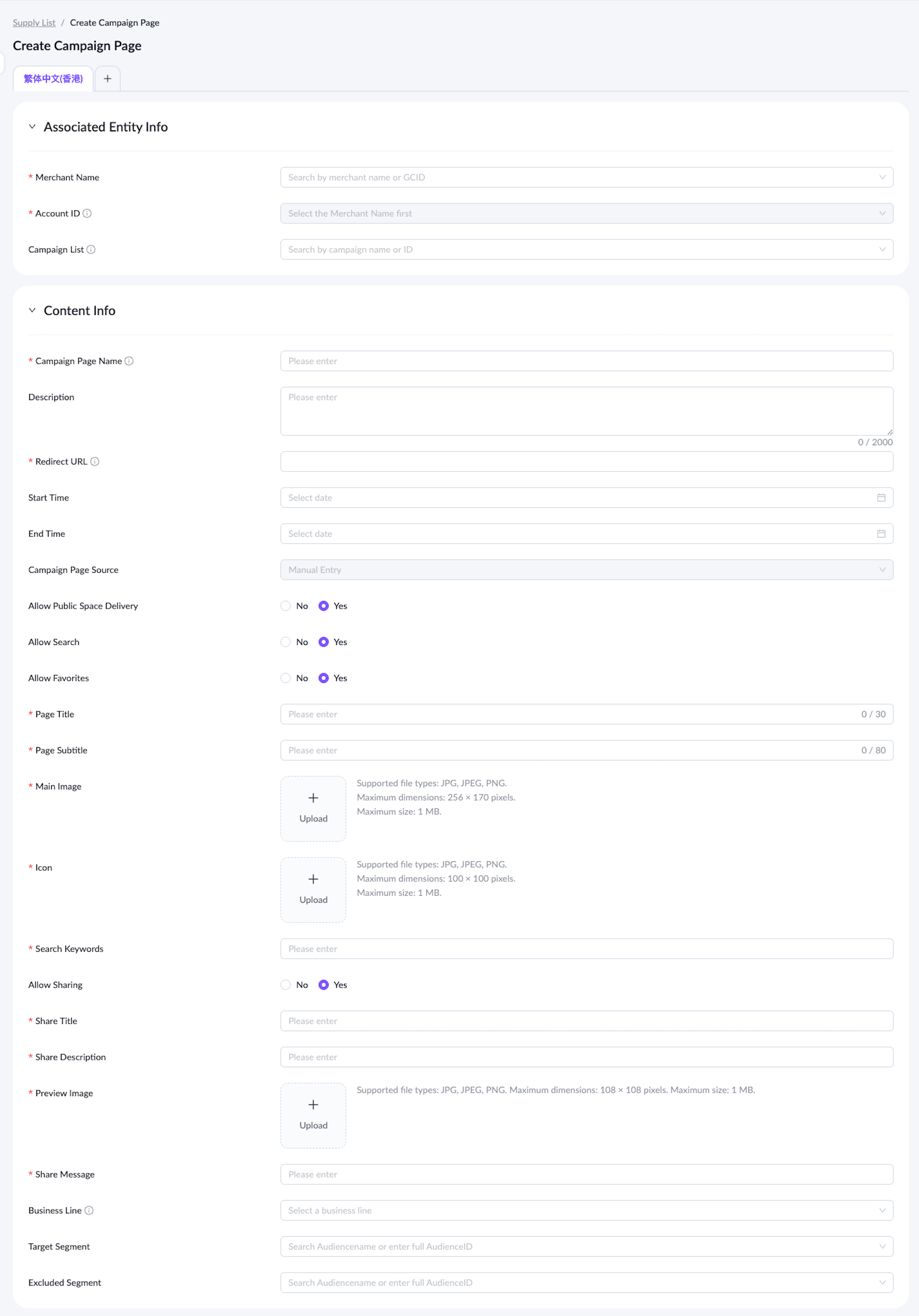
For a detailed explanation of each field, see the following table:
Field name | Description |
Merchant Name | Enter and select the merchant name or display name. This field cannot be edited after submitting. |
Account ID | Enter the unique identifier for the operational account used for fund settlements. A single merchant can have multiple account IDs. |
Campaign List | Enter the unique identifier of direct reward, redemption or engagement task campaigns associated with this page. |
Campaign Page Name | Enter a campaign page name up to 1024 characters. This field is for internal use only and is not visible to end-users. |
Description | Enter the details up to 2000 characters. |
Redirect URL | Enter a link that starts with http:// or https:// for the mini program or H5/native app. Up to 2048 characters allowed. |
Start Time | Enter the start time of this campaign page. |
End Time | Enter the end time of this campaign page. |
Campaign Page Source | Defaults to Manual Entry for manually created campaign pages. |
Allow Public Space Delivery | Set whether the campaign page can be delivered to public spaces. If Yes, Page Title, Page Subtitle, and Main Image are required. |
Allow Search | Set whether the campaign page can be found through search. If Yes, Page Title, Page Subtitle, Icon, and Search Keywords are required. |
Allow Favorites | Set whether users can add the campaign page to their favorites. If Yes, Page Title and Icon are required. |
Page Title | Enter the main title of the campaign page. Up to 30 characters allowed. |
Page Subtitle | Enter the subtitle of the campaign page. Up to 80 characters allowed. |
Main Image | Upload a main image for the campaign page to be displayed in public space. |
Icon | Upload an icon for the campaign page. It is displayed in common user scenarios, such as Search and Favorites. |
Search Keywords | Enter the search keywords for the campaign page. Up to 50 keywords allowed. |
Allow Sharing | Set whether users can share the campaign page. If Yes, Share Title, Share Description, Preview Image, and Share Message are required. |
Share Title | Enter the title that appears when the campaign page is shared. |
Share Description | Enter the description that appears when the campaign page is shared. |
Preview Image | Upload the preview image that appears when the campaign page is shared. |
Share Message | Enter the message that appears when the campaign page is shared. |
Business Line | Select the business line that the campaign page belongs to. Only one selection is allowed, and only business lines with no further subdivisions can be selected. |
Target Segment | Select the segments to whitelist for the campaign page. Supports multiple segments. |
Excluded Segment | Select the segments to blacklist for the campaign page. Supports multiple segments. |
- After completing all required fields, click Save to submit the content for activation approval. Once approved, the campaign page undergoes a risk check. If it passes, the campaign page will be activated.
Edit campaign page
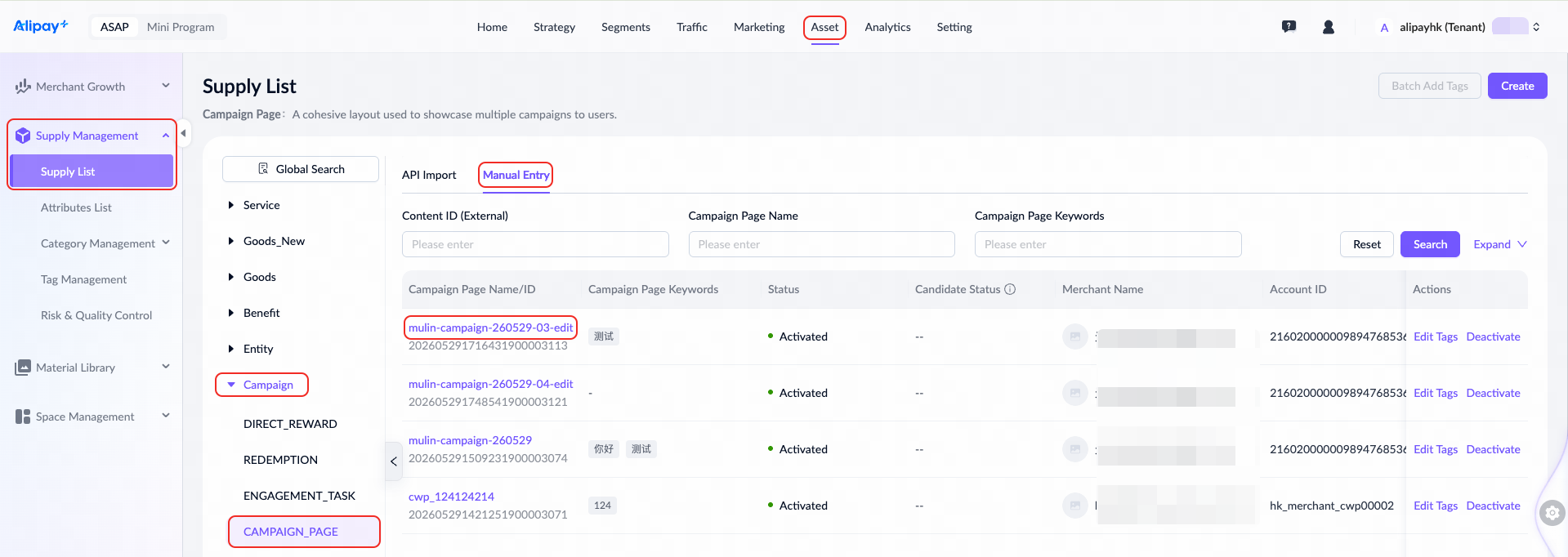
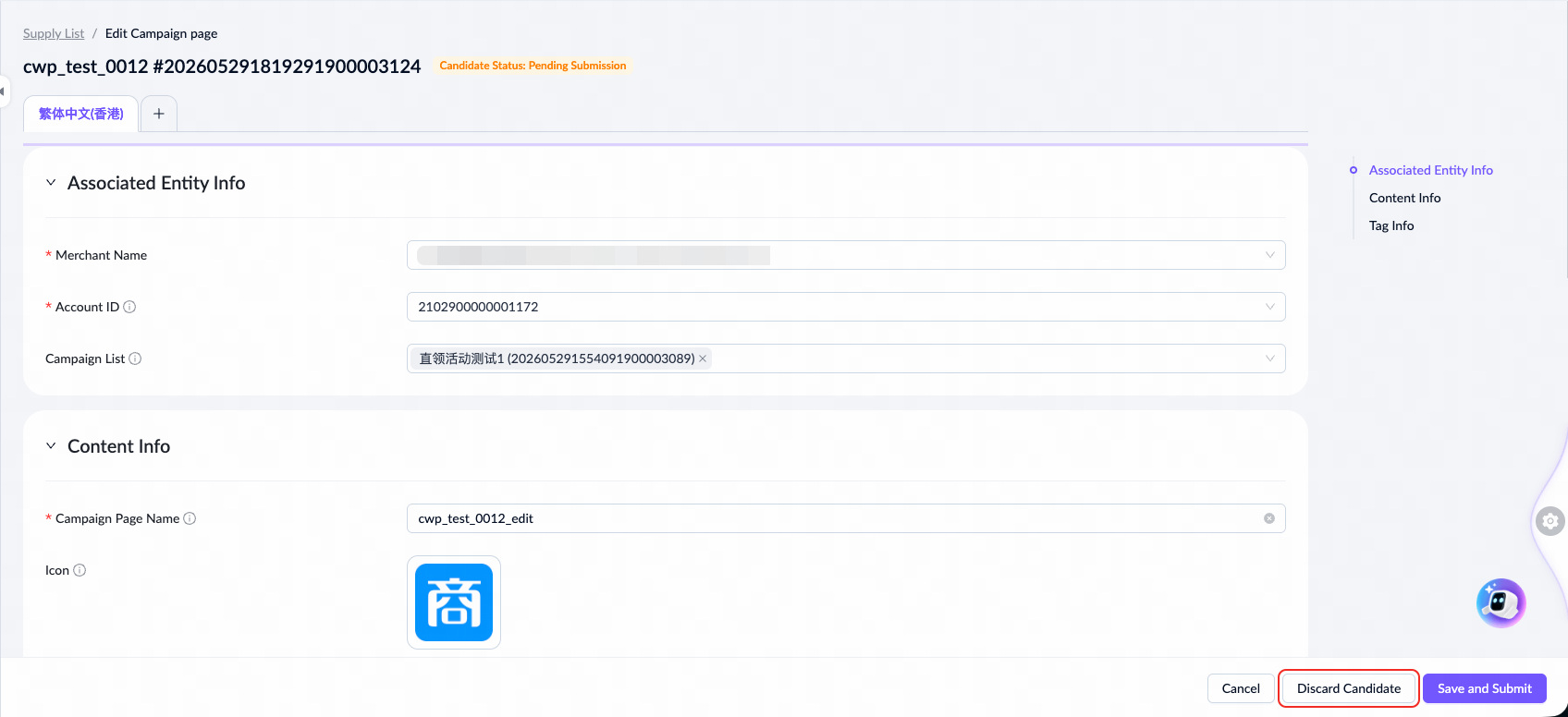
To edit a campaign page, navigate to Asset > Supply Management > Supply List > Campaign > CAMPAIGN_PAGE, select the Manual Entry tab, then click the name under Campaign Page Name/ID to start.
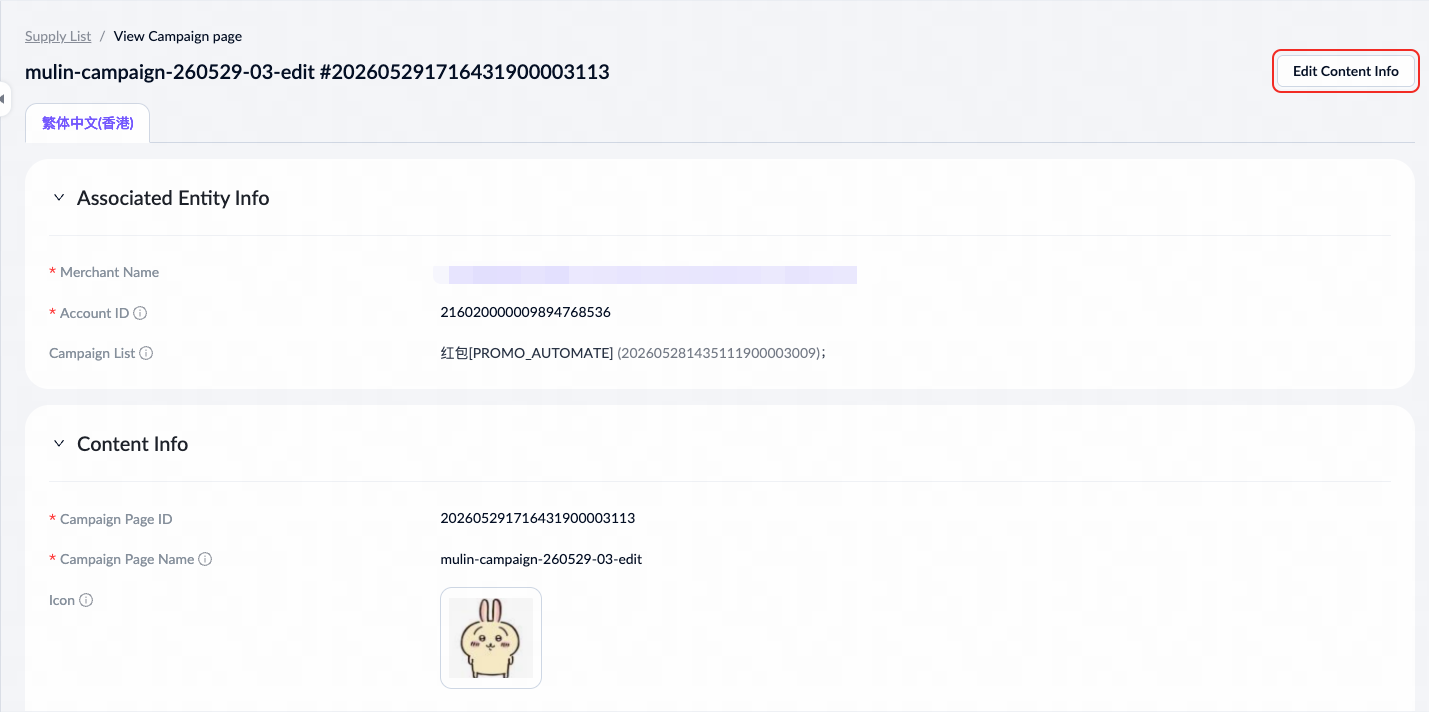
On the detail page, click Edit Content Info to open the editing page.
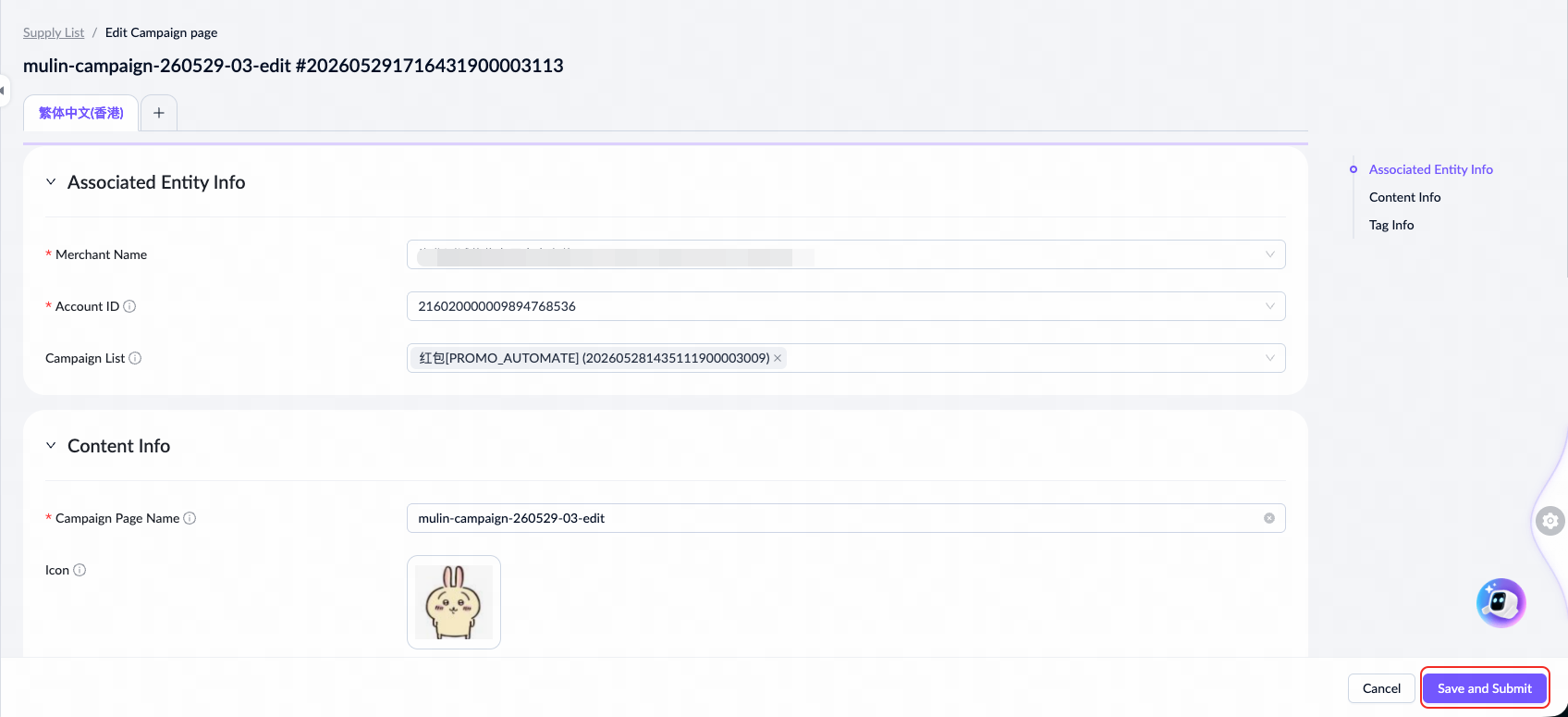
After completing all required fields, click Save and Submit, and a confirmation dialog will appear. The changes take effect after you confirm.
You can discard a candidate campaign page while it is in any of the following statuses:
- Pending Submission
- Rejected by Risk Check
- Approval Rejected
Discarding a candidate permanently deletes its data. Discard candidates when they are no longer needed.
Activate campaign page
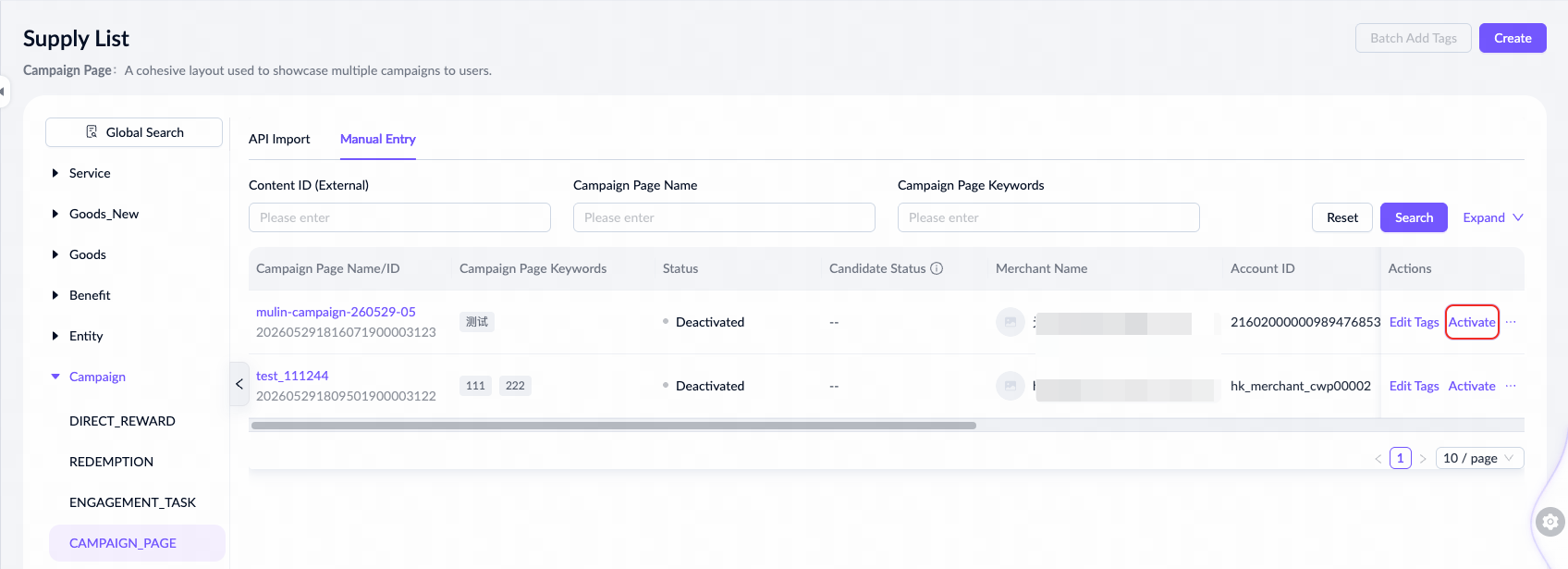
To activate a campaign page, navigate to Asset > Supply Management > Supply List > Campaign > CAMPAIGN_PAGE, select the Manual Entry tab, then click Activate to start.
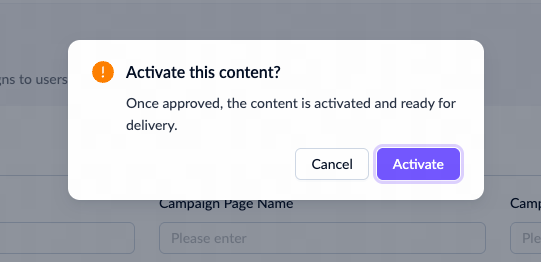
A confirmation dialog will appear. Click Activate to initiate the approval request.
Deactivate campaign page
To deactivate a service, navigate to Asset > Supply Management > Supply List > Campaign > CAMPAIGN_PAGE, select the Manual Entry tab, then click Deactivate.
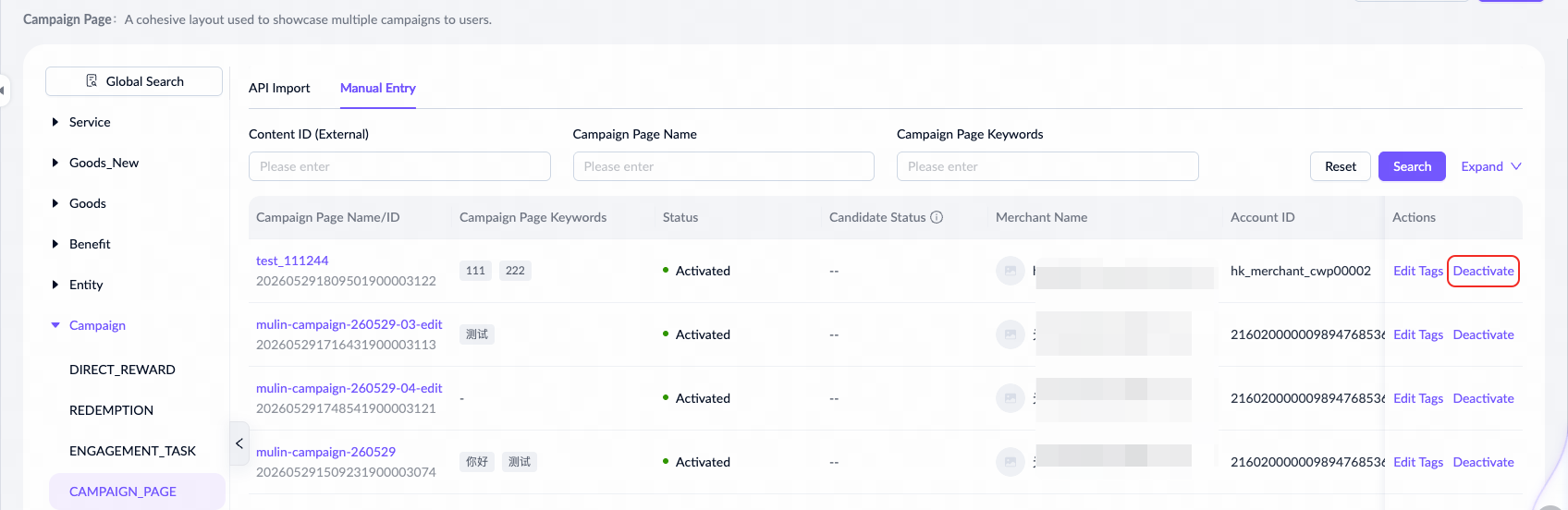
A confirmation dialog will appear. Click Deactivate to initiate the approval request.
Manage other content types
For content categories, such as benefits and tickets imported via the API, you can only view their details and edit or add keywords and custom tags for them.
View content details
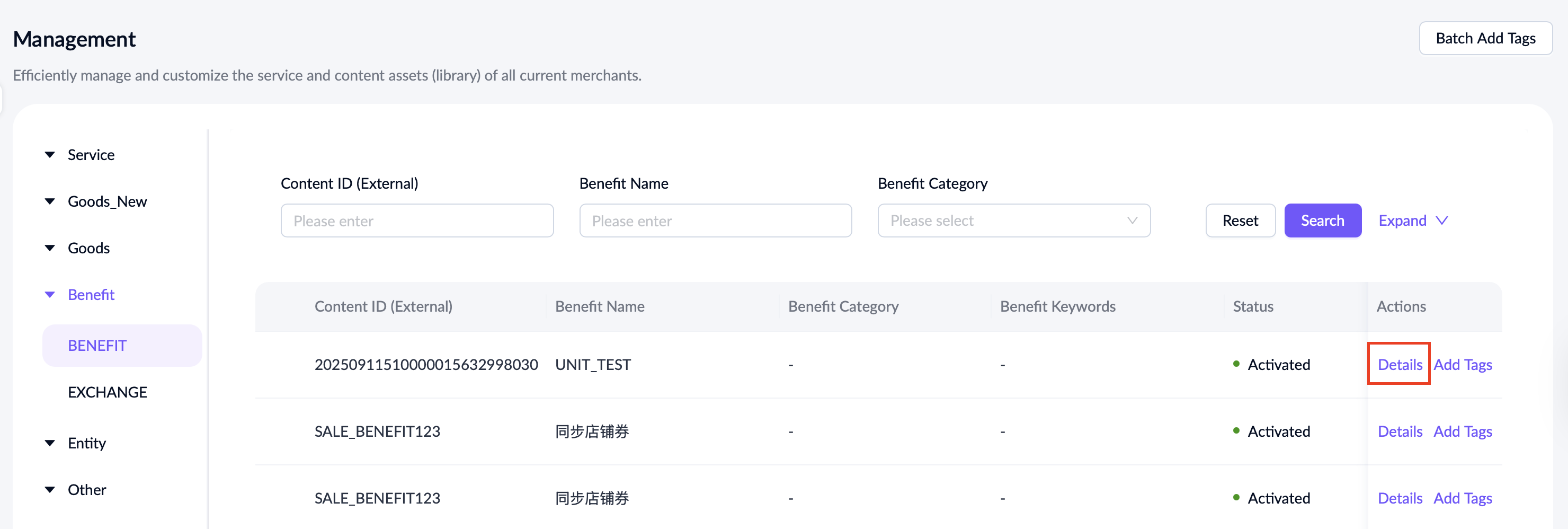
To view the details of content types excluding services, click the corresponding tab, such as Benefit, and click Details in the Actions column.
Add keywords or custom tags
To add or edit keywords and custom tags for content types excluding services, take the following steps:
- On the Management page, click the corresponding tab, such as Sale_benefit under Goods.
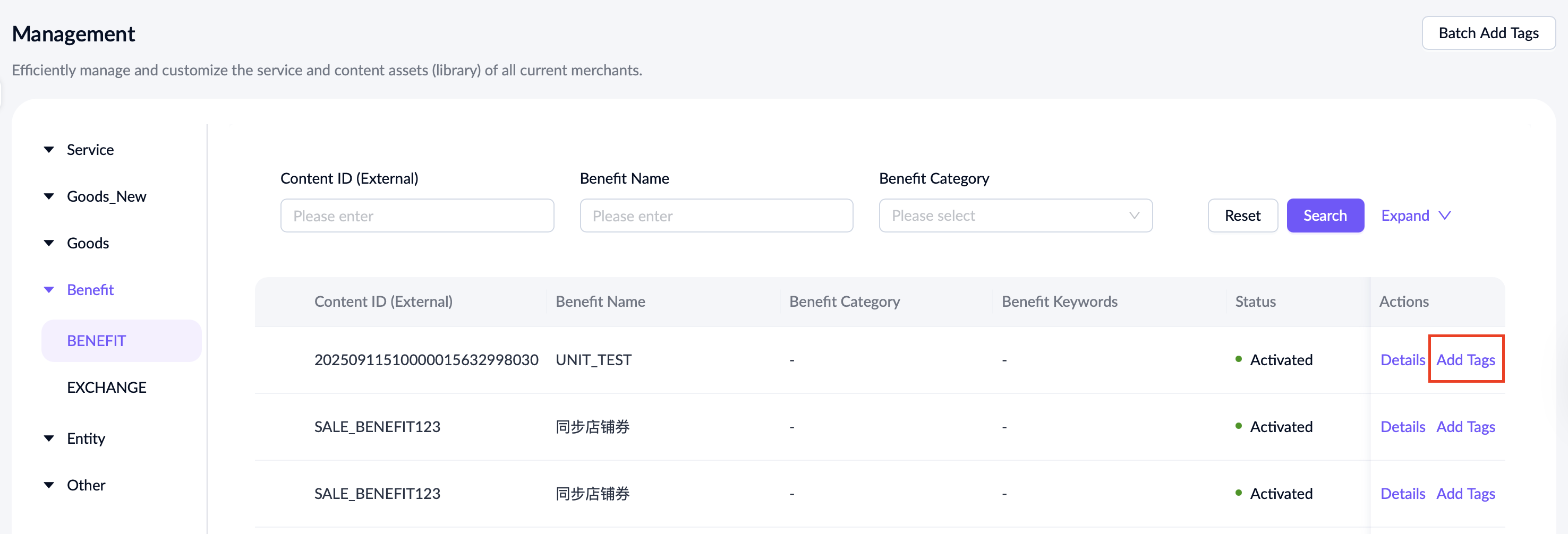
- Locate the content item and click Add Tags in the Actions column.
- On the subsequent page, configure the keywords and custom tags as needed. You can customize keywords or select AI-recommended keywords for the content item.
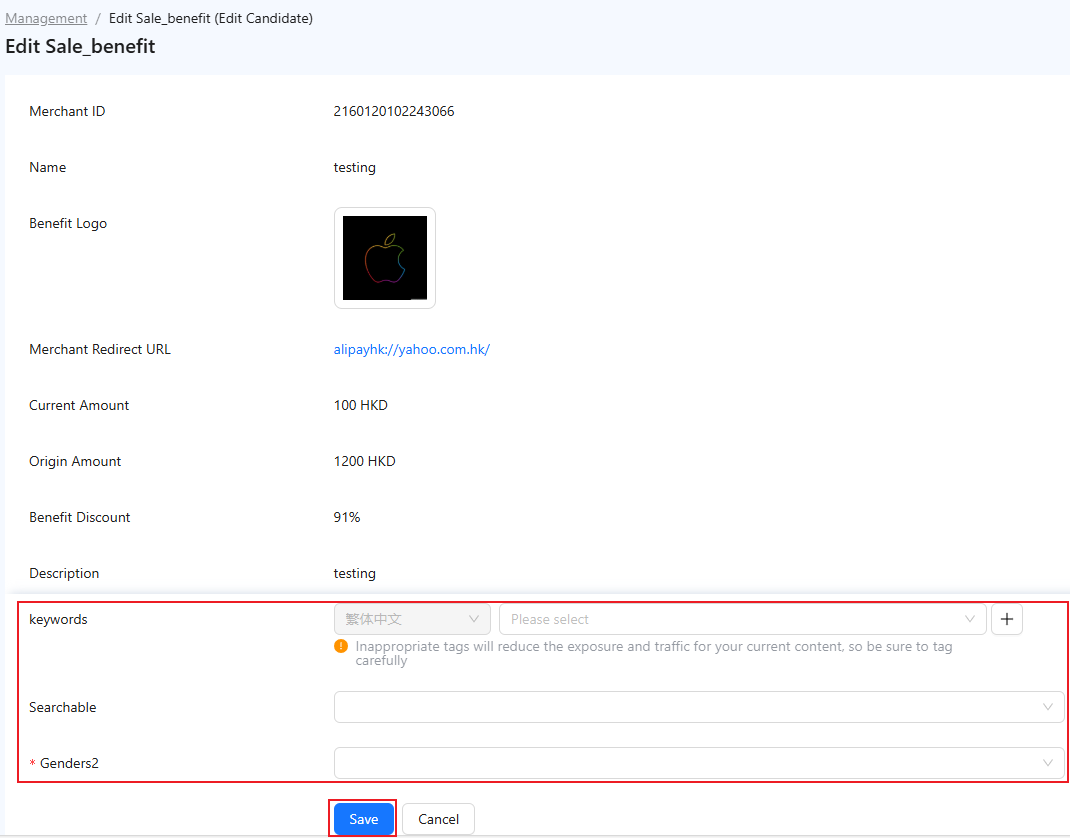
- Click Save.
Note:
- Once saved, any edits to keywords and custom tags for content types excluding services and campaigns (only available for AlipayHK) will take effect immediately.
- If you add keywords and custom tags for campaigns (only available for AlipayHK), the changes will take effect only after the submitted request is approved. This requires that AlipayHK has configured the Keywords & Custom Tag Edit process on the Admin > Approval Management > Approval Processes page.
- You cannot add keywords and custom tags for content items in Under Review status.
Batch add tags
The Supply Management page also provides a functionality that allows you to add tags for your content assets in batches. For more information, see Batch add tags.