Space management
To deliver tasks to specific display spaces, it is essential that you configure these spaces before setting up delivery tasks. This document outlines the relationship between space areas and display spaces and how to create and manage both.
Basic concepts
Terms | Definition |
Space Area | A specific location within an app (for example, top-left or bottom-right). It represents an area that can support different display spaces, with simple spatial attributes. |
Space/Display Space | A carrier for displaying and delivering various types of content. Each display space must be configured with specific attributes and styles before it can be used for content delivery. |
Operational Space | Spaces used to deliver static content that requires detailed manual configuration by operators. This includes space types such as banners, badges, and cards. |
Recommended Space | Spaces used to deliver both dynamic and static content, using specific criteria for content filtering and employing algorithms for intelligent task delivery. This includes space types such as cards and feeds. |
Commercial Capability | The ability of operational and recommended spaces to support delivering profit-oriented tasks, including paid advertising and merchant partnership projects. |
Content | Business content, including standard content supply such as services, benefits, merchants, and static creatives. |
Distribution Rule | Rules for distributing content to display spaces, including task ranking, slot setting, etc. |
Display Rule | Rules related to the view of display space, including the view attributes and view styles. |
Rendering Rule | Rules for rendering content, including manual configuration and content mapping. |
Space area
A space area defines a specific position in an app. A single space area can support various display spaces.
Access the space area list
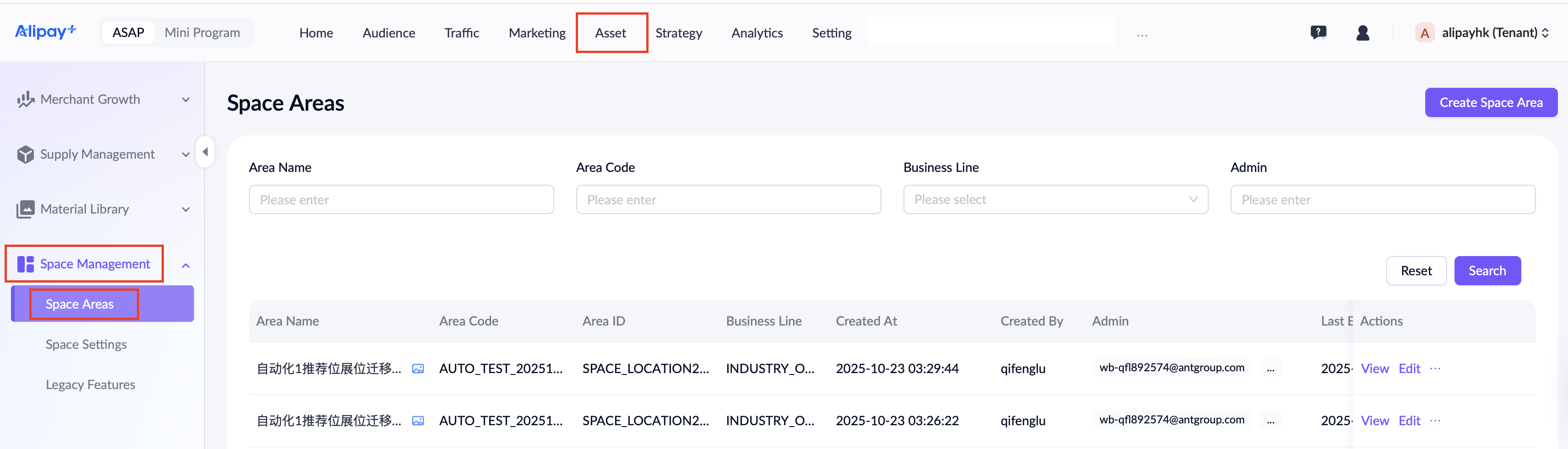
To access the space area list, go to Asset > Space Management > Space Area. Here, you can view all space areas and search for specific ones using various criteria, such as area name, area code, business line, and admin.
View a space area
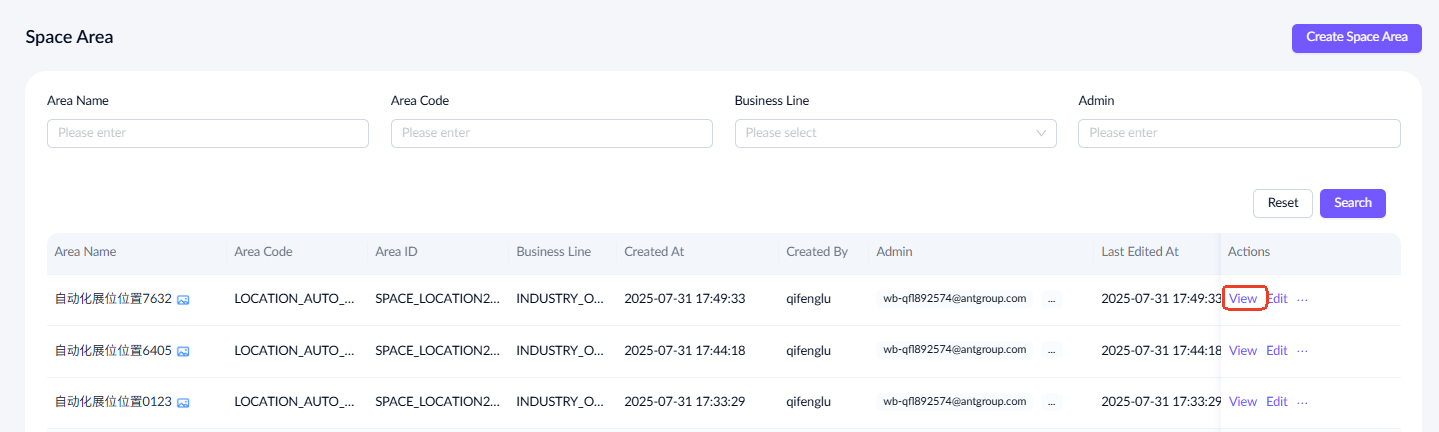
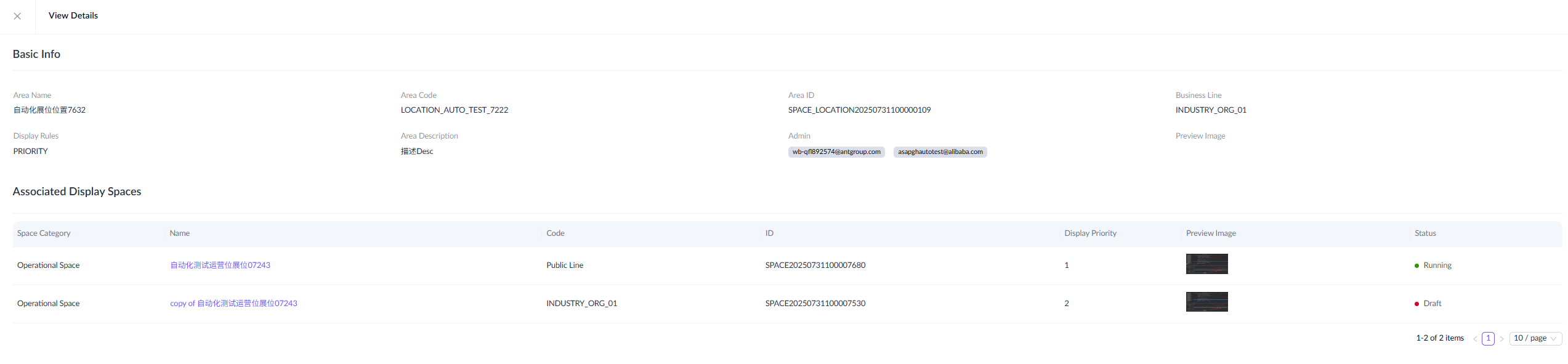
To view a space area, go to the space area list page and select a specific space area. Click View in the Actions column to access the details page, where you can see the basic information about this space area and all display spaces associated with it.
Create a space area
Take the following steps to create a space area:
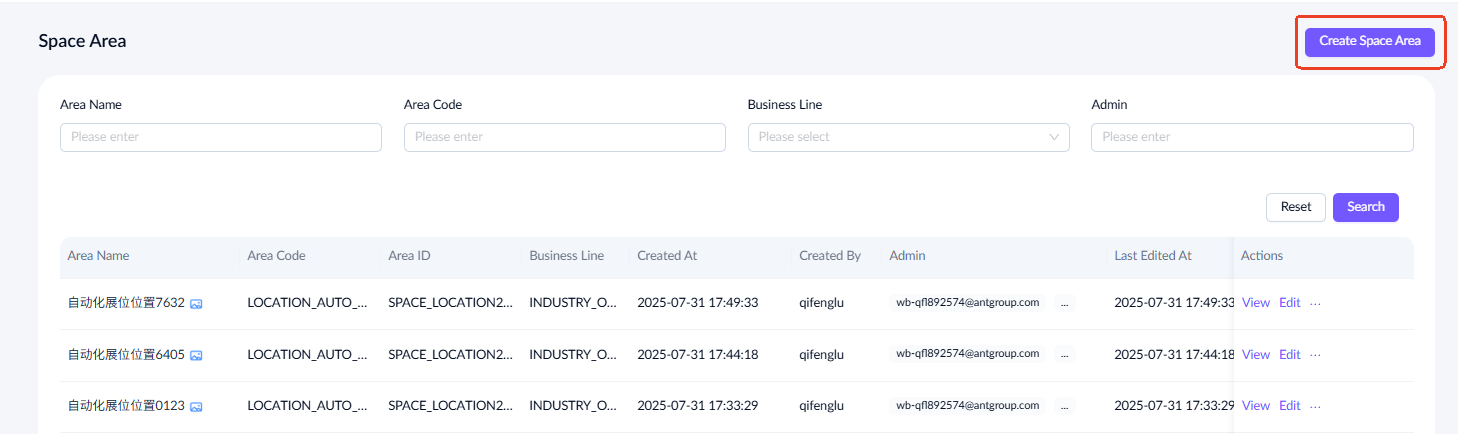
- Click Create Space Area at the top right corner to start.
- Complete the required information to create a space area.
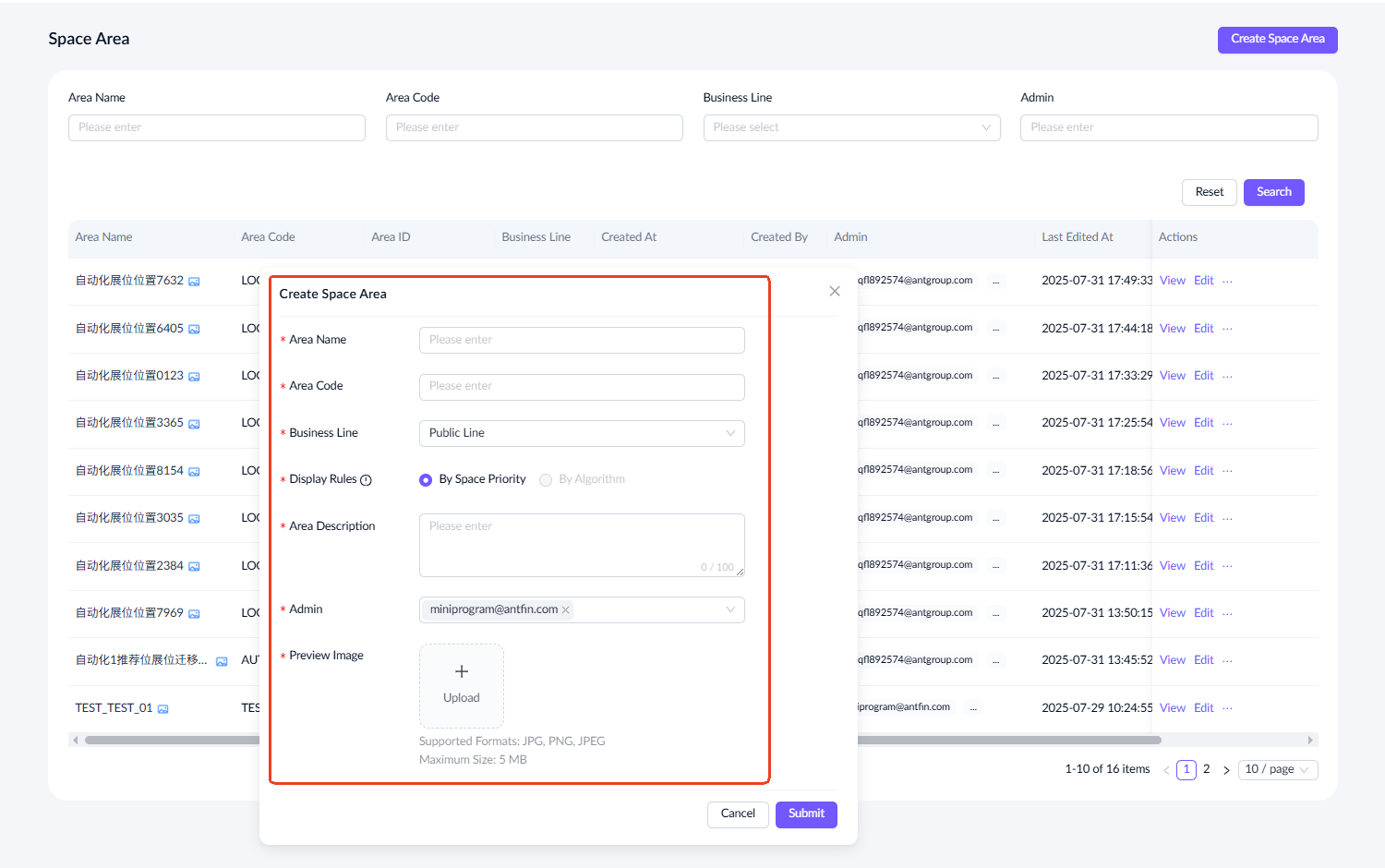
For a detailed explanation of each field and the fill-in instructions, see the following table:
Field name | Description |
Area Name | The unique name of the space area. |
Area Code | A unique identifier for the space area.
|
Business Line | The business line that the space area belongs to. If a tenant does not have a specific business line, select the default value of Public Line. |
Display Rules | The rule that determines which display space associated with this area will be chosen. There are two options:
|
Area Description | A description of a space area. |
Admin | The admin user of the space area, defaulting to the creator. You can add up to 10 admin emails. |
Preview Image | An image for previewing the space area. The image must be in JPG, PNG, or JPEG format and no larger than 5 MB. |
Edit a space area
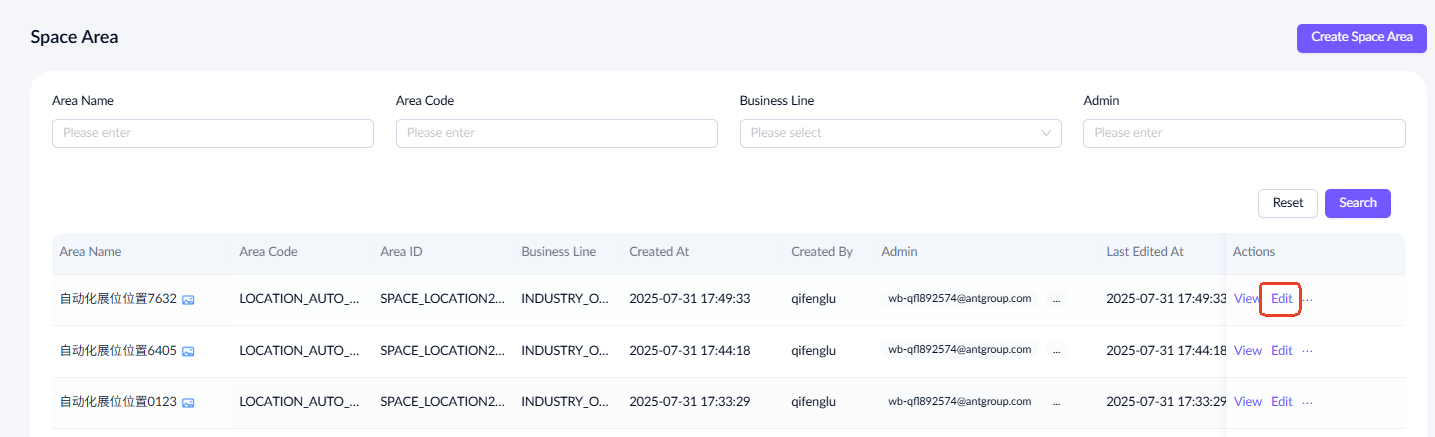
To edit a space area, go to the space area list page and select a specific space area. Click Edit in the Actions column to access the editing page. Note that the space area can only be edited in Draft status.
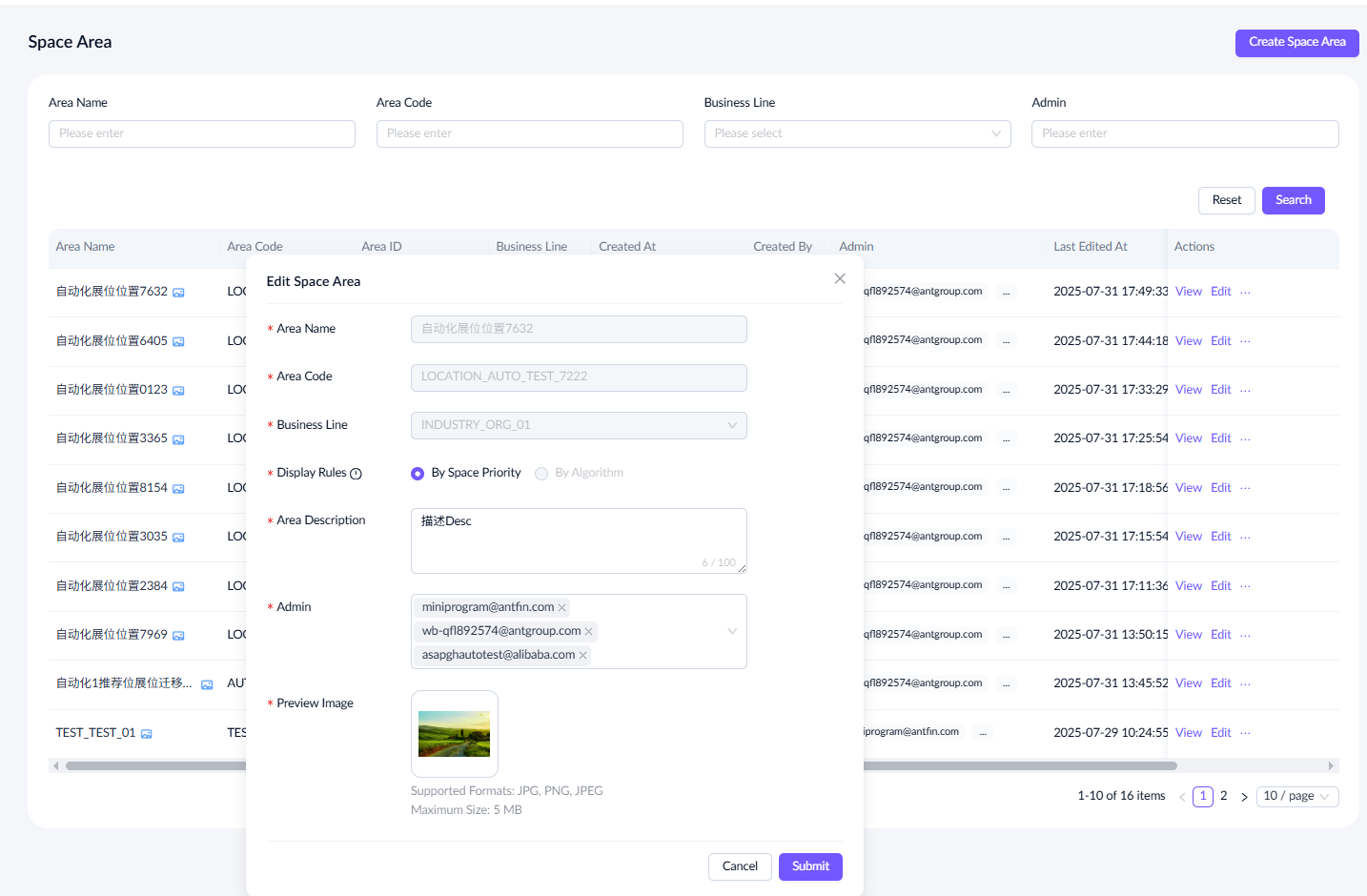
Refer to the following table for editing details:
Field name | Editable |
Area Name | No |
Area Code | No |
Business Line | No |
Area Description | Yes |
Display Rules | Yes |
Admin | Yes |
Preview Image | Yes |
Associated Display Spaces | No |
Duplicate a space area
To duplicate a space area, go to the space area list page and select a specific space area. Click Duplicate in the Actions column to access the duplication page.
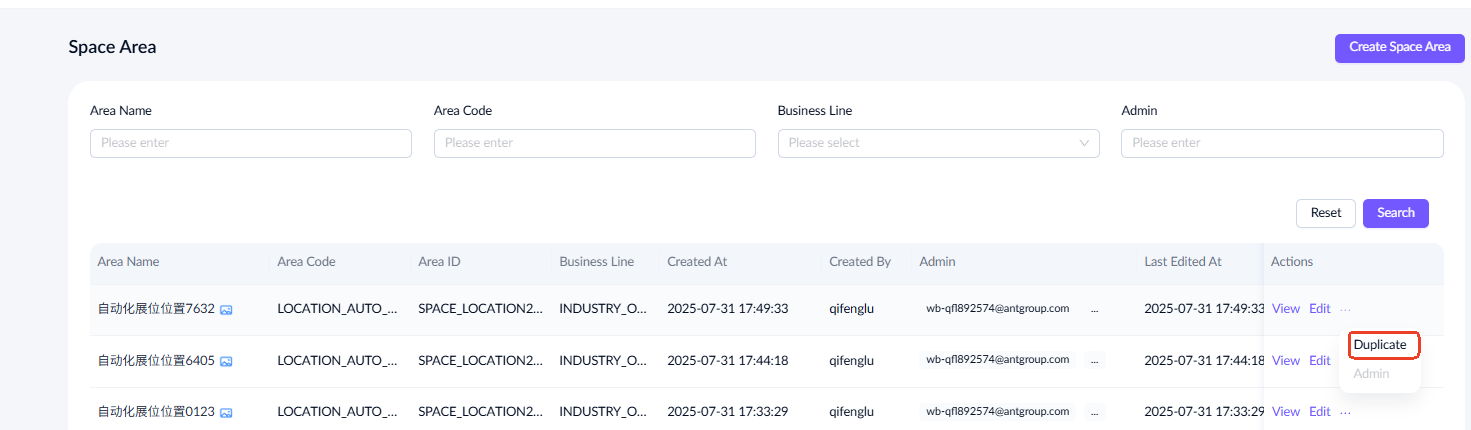
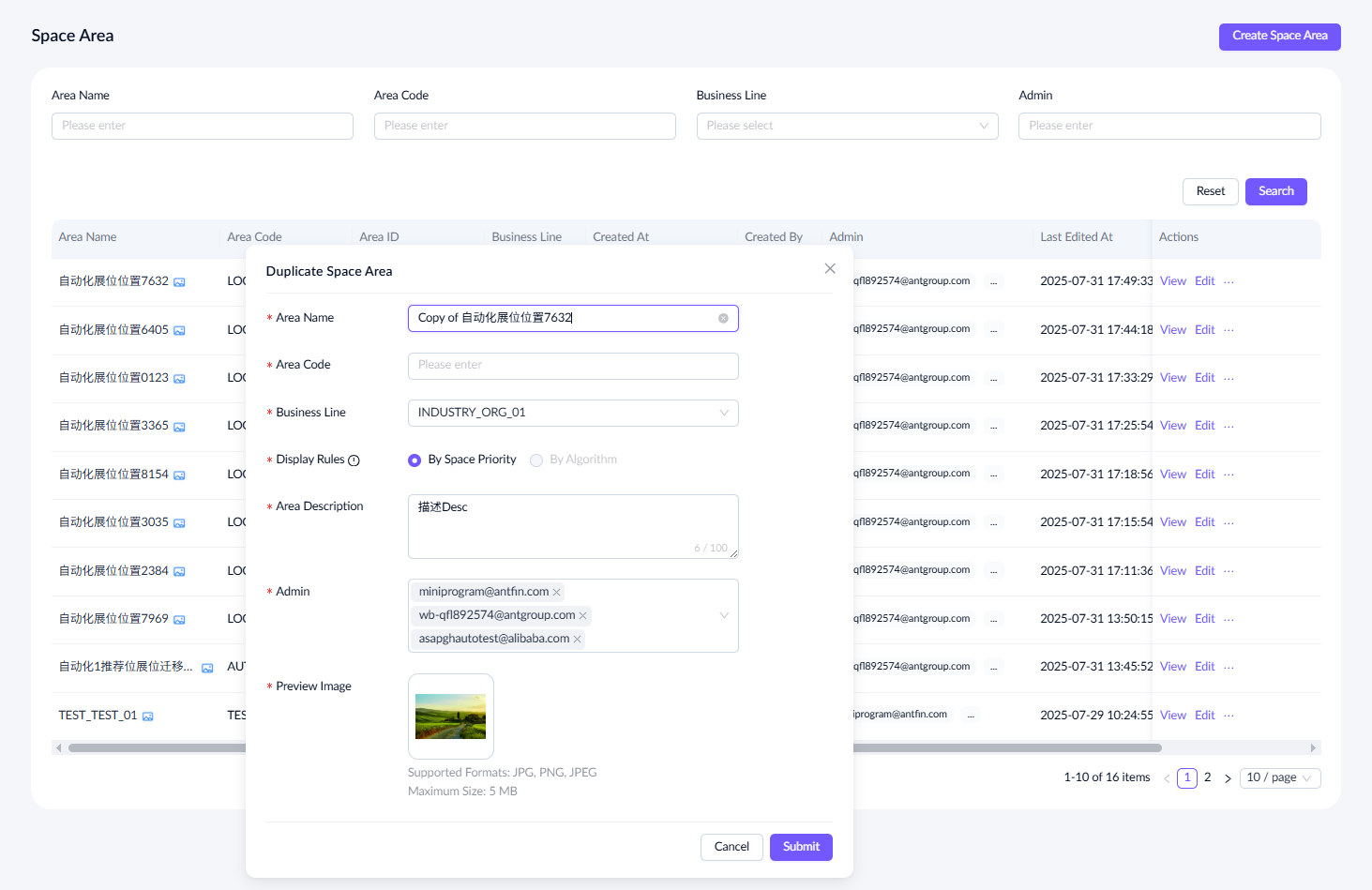
Refer to the following table for duplication details:
Field name | In duplicate |
Area Name | Yes |
Area Code | No |
Business Line | Yes |
Area Description | Yes |
Display Rules | Yes |
Admin | Yes |
Preview Image | Yes |
Associated Display Spaces | Yes |
Display space
Display spaces serve as carriers for showcasing and delivering a variety of content. Before creating a delivery task, it's essential to select a suitable display space. Additionally, each display space requires specific attributes and style configurations to ensure optimal performance.
Access the space list
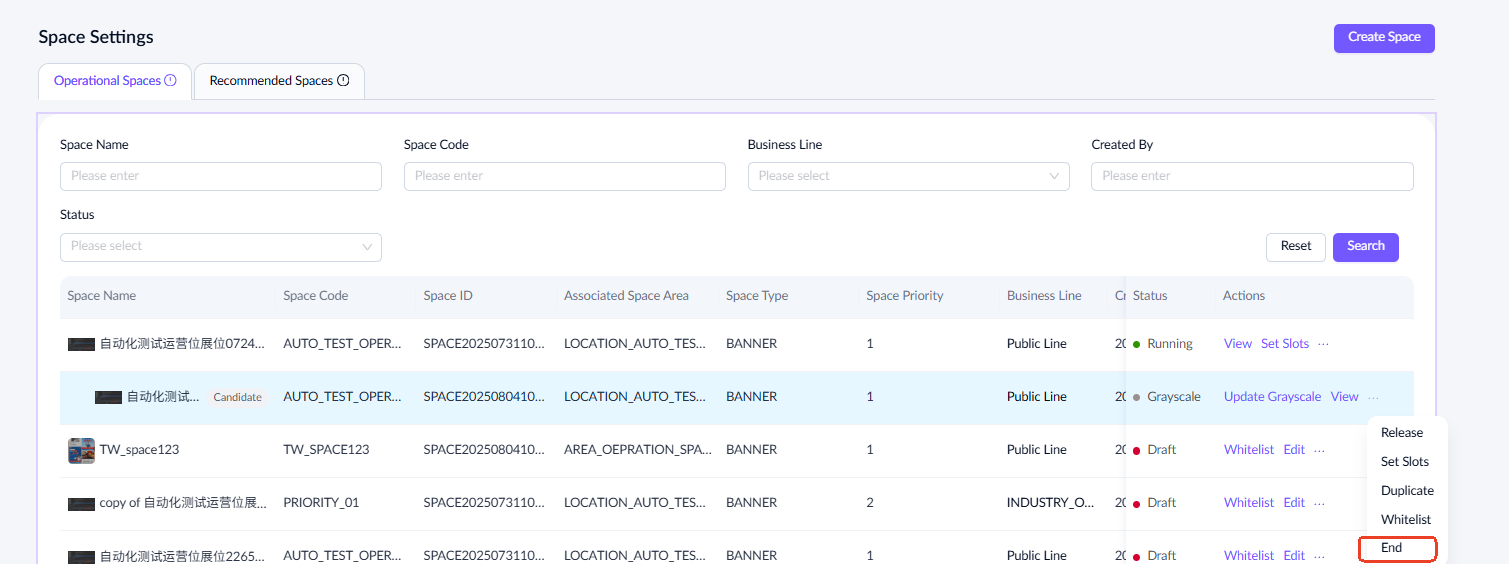
To access the space list, go to Traffic > Space Management > Space Settings. Here, you can view two types of display spaces: Operational Spaces and Recommended Spaces. You can also search for specific ones using criteria such as space name, space code, space status, and so on.
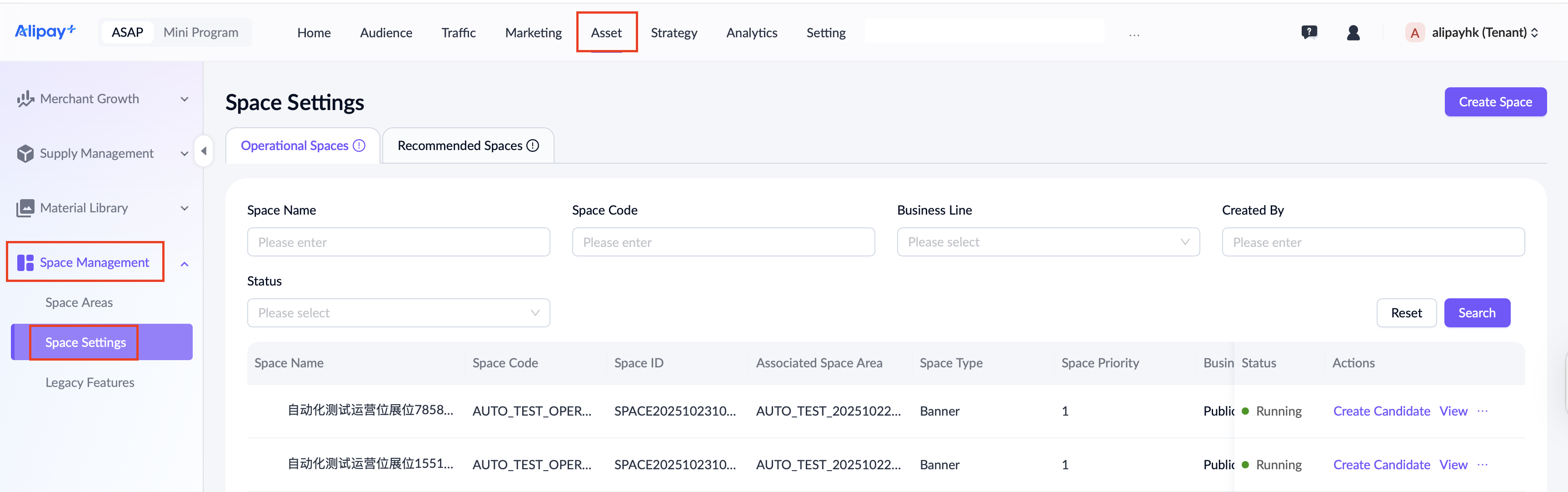
Spaces in different statuses support various operations:
Status | Supported actions |
Draft | Whitelist / Edit / Duplicate / Set Slots / End |
Whitelist | Grayscale / View / Set Slots / Duplicate / Return To Draft / End |
Grayscale | Update Grayscale / View/Release / Set Slots / Duplicate / Whitelist / End |
Running | Create Candidate / View / Set Slots /Duplicate |
Create a display space
Click Create Space at the top right corner to start. This process involves four essential sections, which we will illustrate using the creation of Operational Spaces as an example.
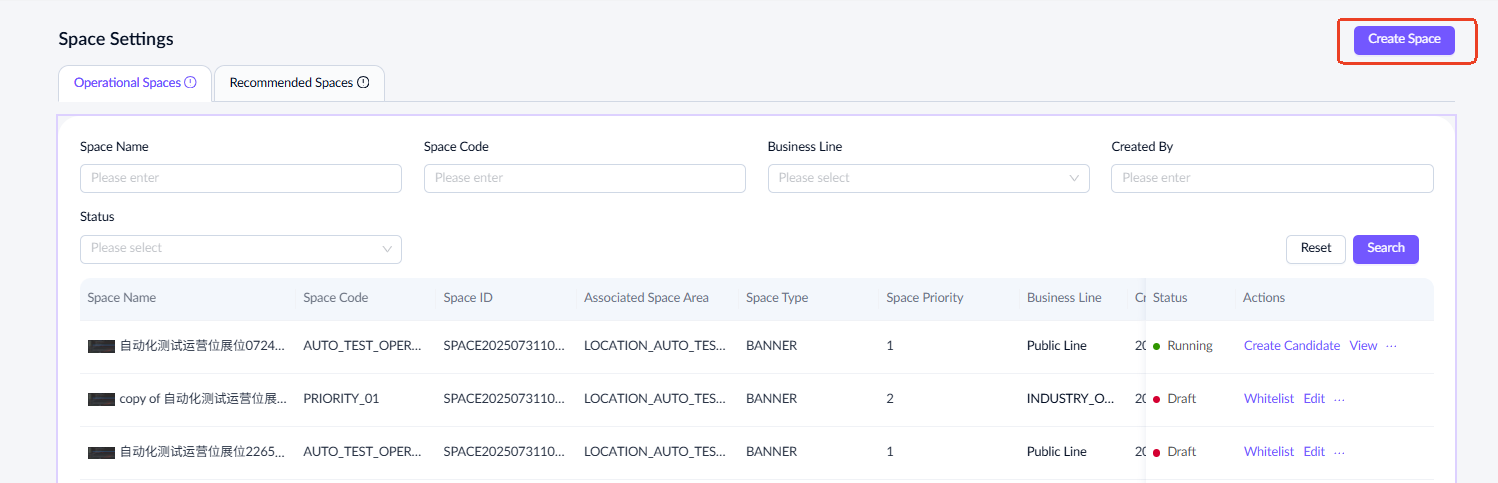
Step 1: Configure basic info
The first step is to configure the basic information for the display space.
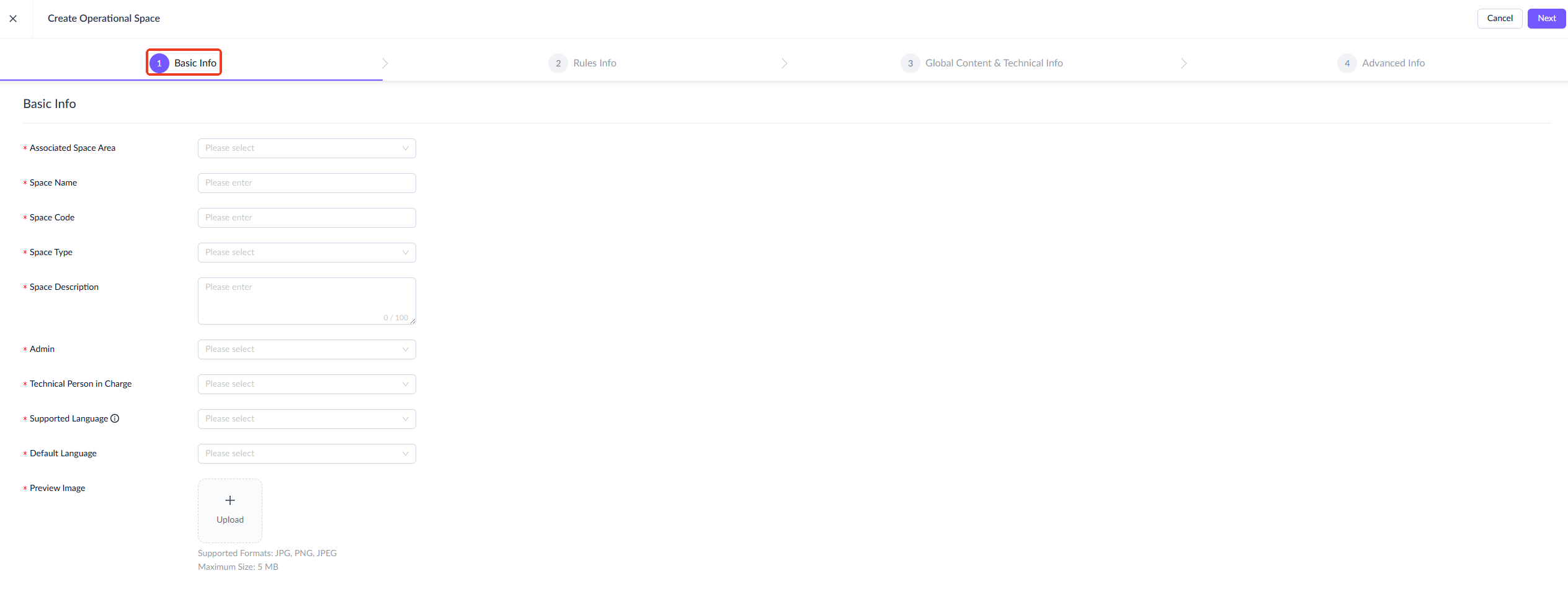
For a detailed explanation of each field and the fill-in instructions, see the following table:
Field name | Description |
Associated Space Area | The space area associated with this display space. Only activated display spaces can be selected. |
Space Priority | The priority of the display space, with a default value of 1. Note that this field appears only after you select the associated space area. |
Space Name | The name of the display space. |
Space Code | The unique identifier for the display space.
|
Space Type | The category of the display space.
|
Space Description | A description of the display space |
Admin | The administrator of the space area, defaulting to the creator. You can add up to 10 admin email addresses. |
Technical Person in Charge | The technical contact responsible for the display space. You can add up to 10 email addresses. |
Supported Language | The languages supported by this display space. Multiple selections are allowed. |
Default Language | The language used to display content by default. When a user selects a space-supported language that is not available for the delivery content, the content will be displayed in the default language of the display space.
|
Preview Image | An image for previewing the display space. The image must be in JPG, PNG, or JPEG format and no larger than 5 MB. |
After completing the basic information for the display space, click Next in the upper-right corner.
Step 2: Configure rules info
The second step is to configure content delivery rules and display rules for the display space.
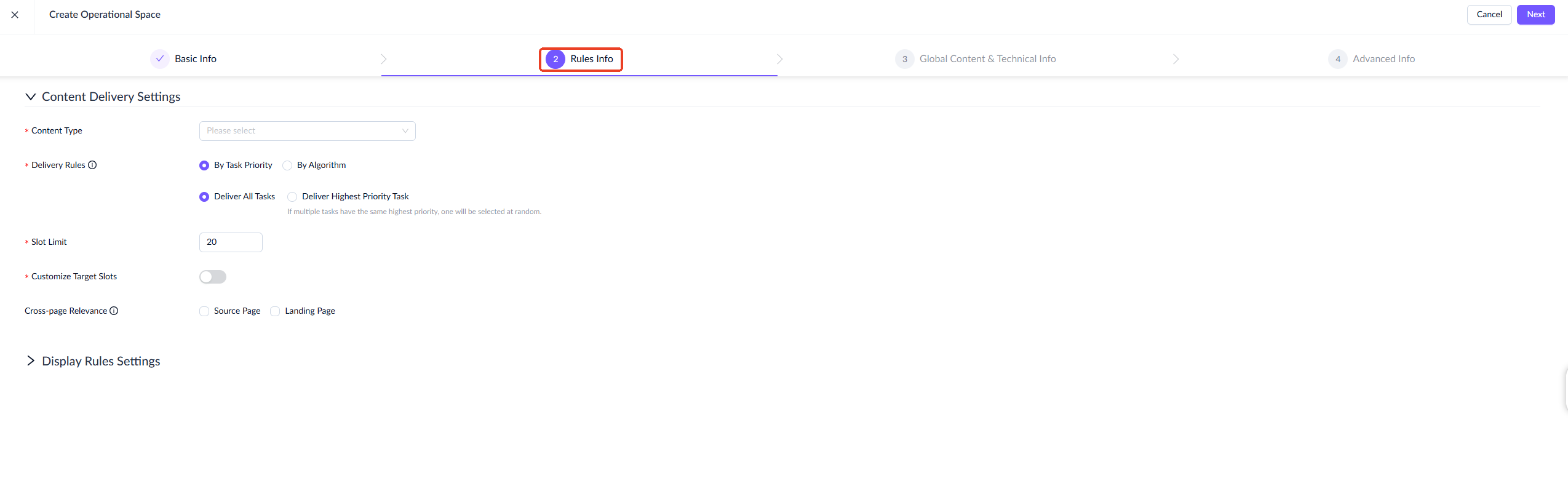
For a detailed explanation of each field and the fill-in instructions, see the following table:
Content delivery settings
Field name | Description |
Content Type | The type of content that the display space supports. It includes static creatives and standard content types such as benefits, merchants, mini apps, etc.
|
Delivery Rules | The delivery rule of tasks associated with this display space. There are two options:
|
Algorithm ID | This field is required only when By Algorithm is selected as the delivery rule. Click Select Algorithm ID to open the algorithm list page and select one. |
Slot Limit | The maximum number of slots in a display space, indicating how much content or how many creatives can be delivered simultaneously to a display space. The default value is 20, with a maximum limit of 200. |
Customize Target Slots | A feature that allows you to assign a specific slot within a display space for task delivery. Slots are sorted from left to right and top to bottom. You can specify the exact slot position by entering its sequence number.
Once enabled, you must determine which slots are designated for operational/recommended space tasks and commercial tasks:
|
Cross-page Relevance | A feature designed to ensure that the content between pages is seamlessly connected, creating a cohesive user experience.
|
Display rules settings
The final presentation of the display space to end users is defined by a set of view rules, which consists of three components: attribute settings, style settings, and rendering settings. You can create multiple rule groups, each with a custom name.
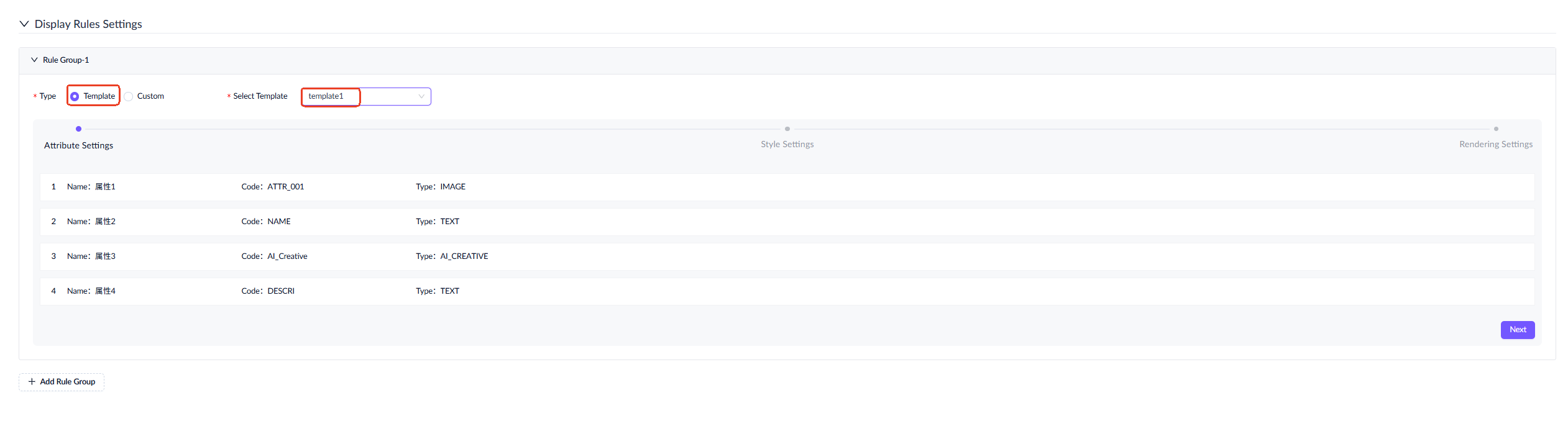
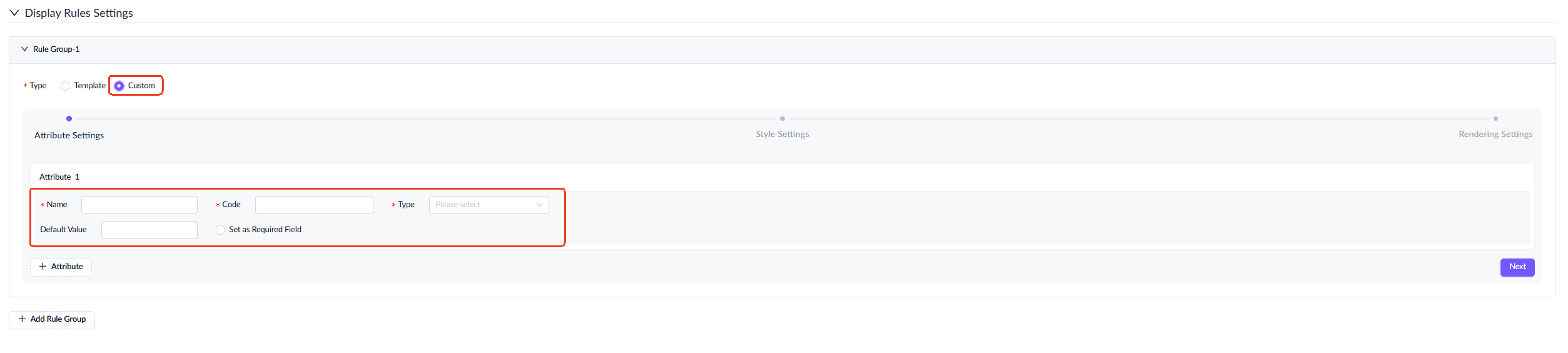
- Select a rule group type: Template and Custom.
- Template: View attributes are automatically displayed and cannot be modified.
- Custom: Define each attribute manually (name, code, type).
- Click Next to configure styles. Choose a template style or customize styles for the attributes from the previous step. Attribute information carries over automatically.
- Style: Predefined template styles for attributes. You can still modify them.
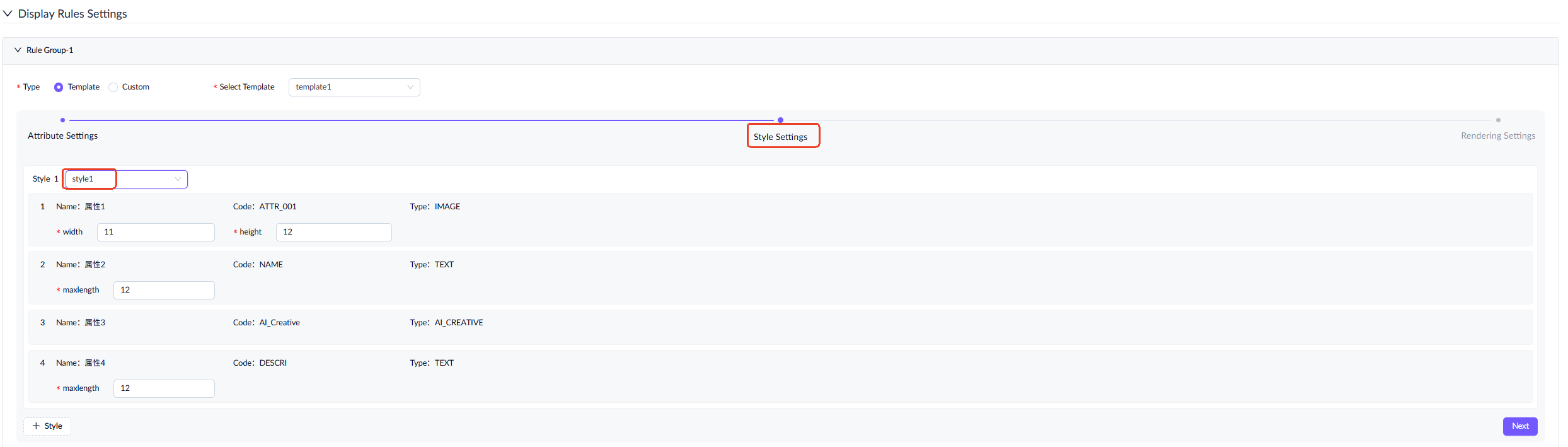
- Custom style: Specify styles for each attribute based on its type. For example, set width and height for image attributes. You can add multiple styles and name each one.

- Once you have completed the style settings, click Next to configure the rendering rules for each attribute. If you select both static content and standard content types, you will need to configure rendering rules separately for each content type. Begin by selecting the content type.
There are three configuration modes:
- Manual Configuration: This mode allows you to specify values for attributes. Static creatives default to this configuration method. Any attribute that selects manual configuration as its rendering rule will be displayed in the Creative Settings section when you create a delivery task using this display space.
- Dynamic Mapping: This mode allows you to associate specific content fields with attributes. The rendering results are based on these mapped fields.
- Import from API: This mode allows the attribute information to be rendered by importing from APIs. Note that this mode is only applicable to the recommended spaces.
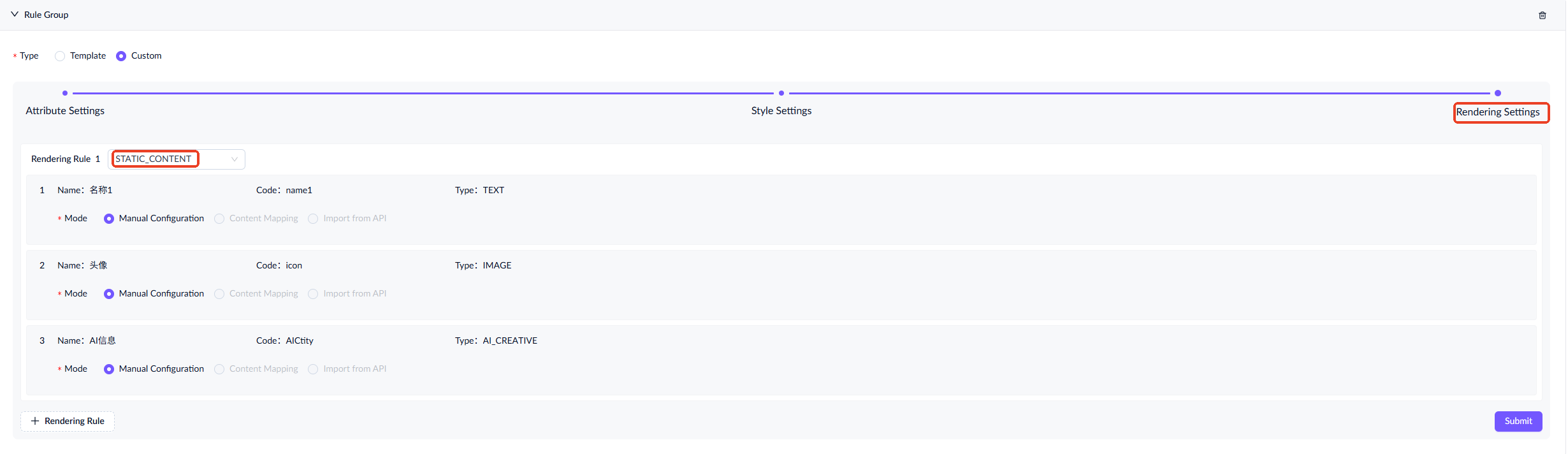
- Click Submit, then click Next to proceed to the next step.
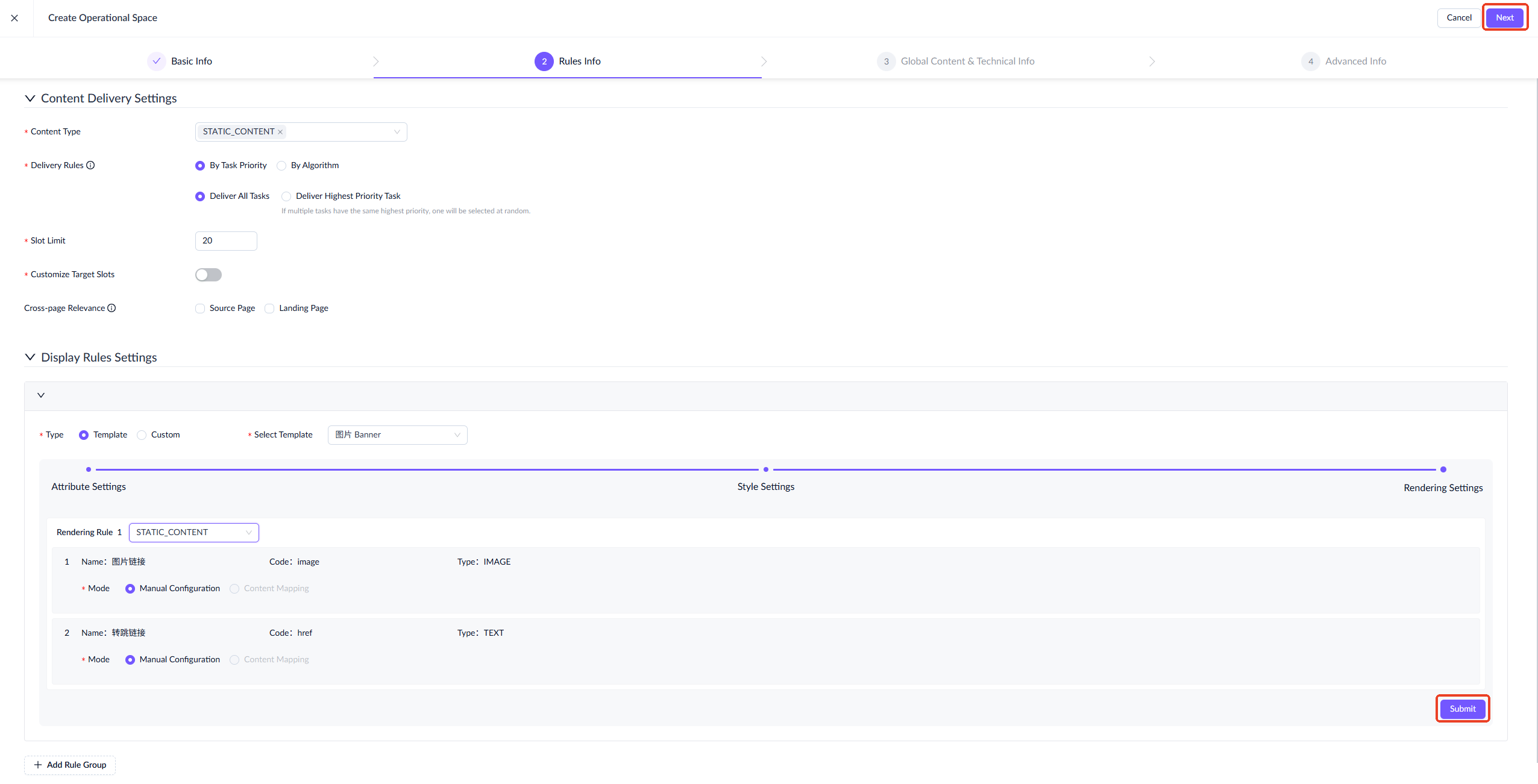
Step 3: Configure global content and technical info
The third step is to configure the global content and technical rules for the display space.
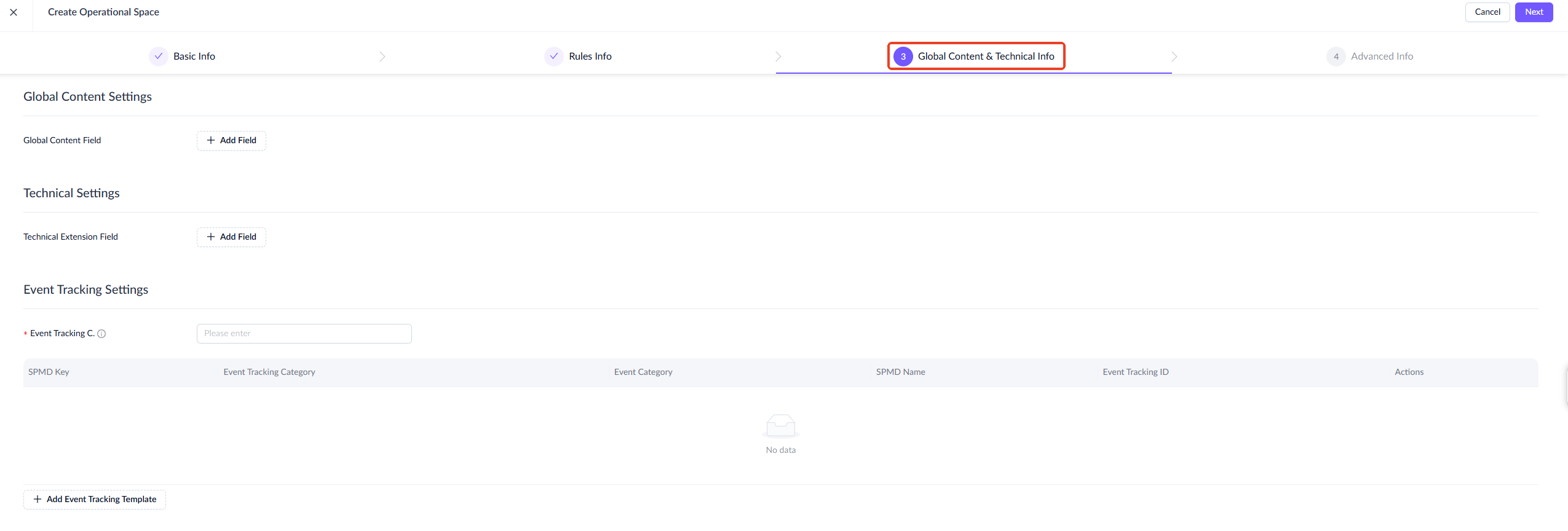
For a detailed explanation of each field and the fill-in instructions, see the following table:
Field name | Description |
Global Content Field | Fields designed to display global information for display spaces, such as enabling tab text configuration in the feed space. Click Add Field to add global content fields. Each field group consists of a key, data type, and value. The value will be displayed to end users and supports multiple languages. The default and supported languages for the display space will be retrieved, and input fields will appear according to the number of available languages. |
Technical Extension Fields | Additional fields required for the display space. Click Add Field to add technical extension fields. Each field group consists of key-value pairs, and you can add multiple groups. |
Event Tracking Code | The position of tracking pixels or tags for monitoring user interactions within the display space. |
Event Tracking List | A list displaying tracking information, including:
You can add new tracking events by clicking Add Event Tracking Template. |
Step 4: Configure advanced info
The final step in creating a display space is to configure advanced info, such as settings for delivery rules, display frequency, and approval requirements.
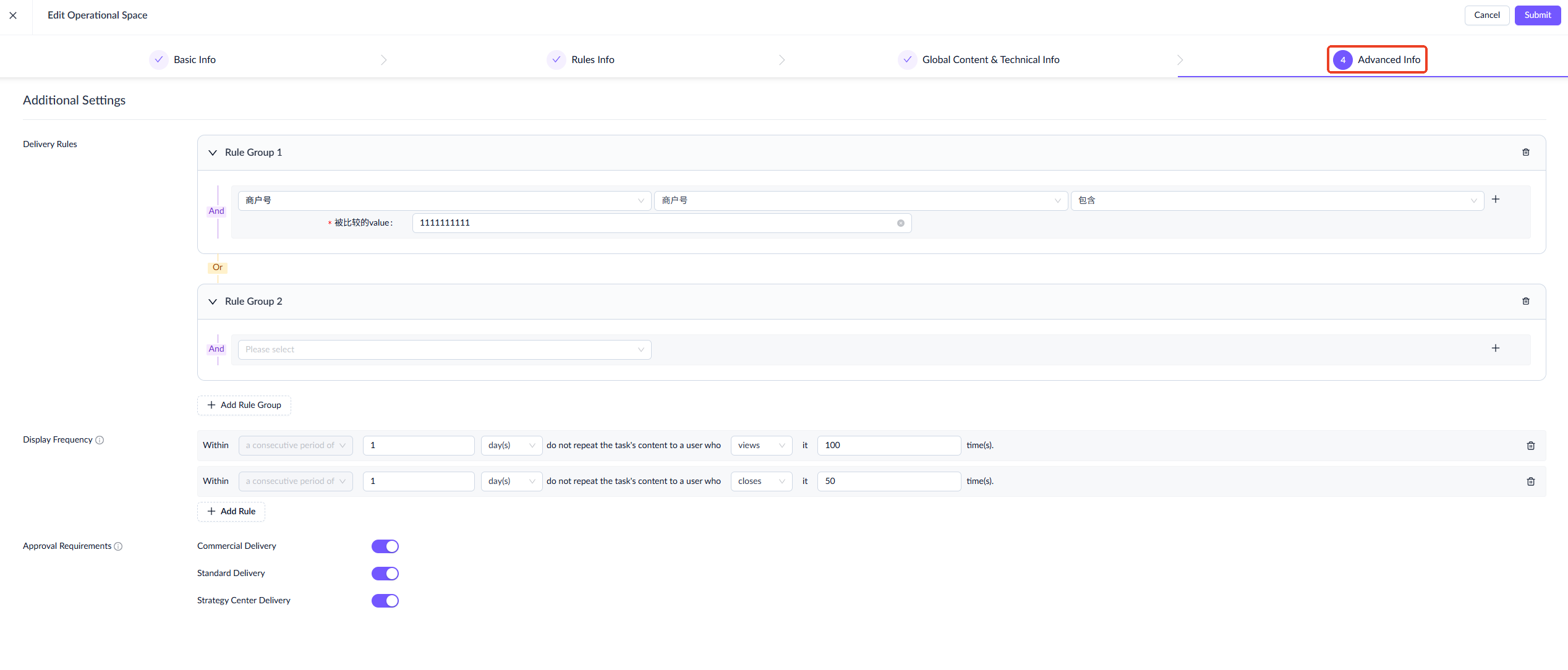
- Delivery Rules: Defines how display spaces are delivered. You can configure multiple rules using And/Or relationships. The Or relationship allows any of the specified rules to be satisfied, while the And relationship requires all selected rules to be satisfied simultaneously.
- Display Frequency: Limits how often the same content appears to reduce user fatigue. Configure the time period and the method of calculating content exposure.
- Approval Requirements: Defines when approval is required for different delivery types.
- Commercial Delivery: Requires approval for task delivery that consumes commercial budget.
- Standard Delivery: Requires approval for tasks not from the Strategy Center and that do not consume commercial budget.
- Strategy Center Delivery: Require approval for tasks sourced from Strategy Center.
After completing the four steps, click Submit. The display space is created in Draft status and appears on the space list page.
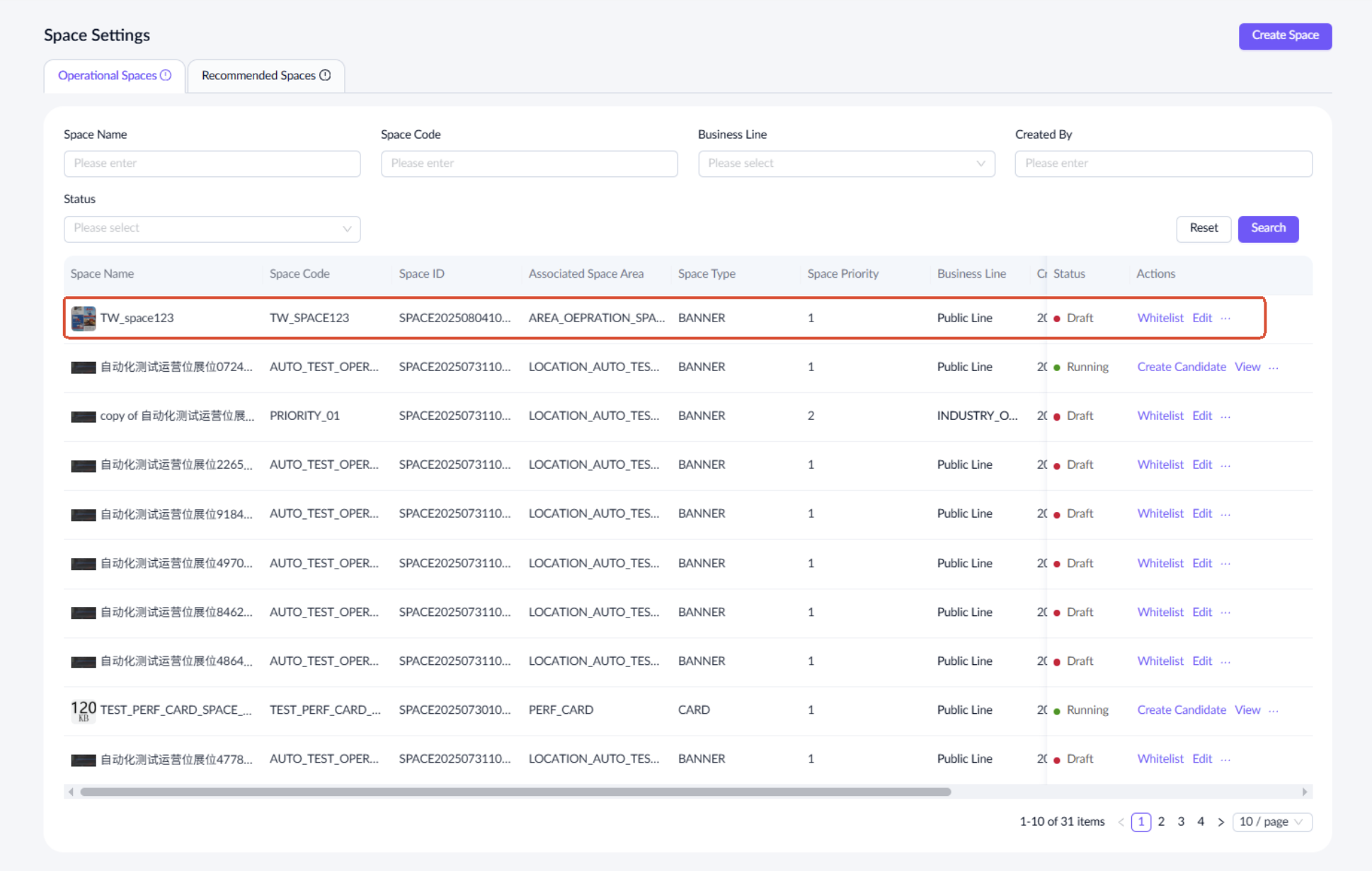
Edit a display space
To edit display spaces, go to the space list page and select a specific space. Click Edit in the Actions column to access the editing page. Please note that the display space can only be edited in Draft status.
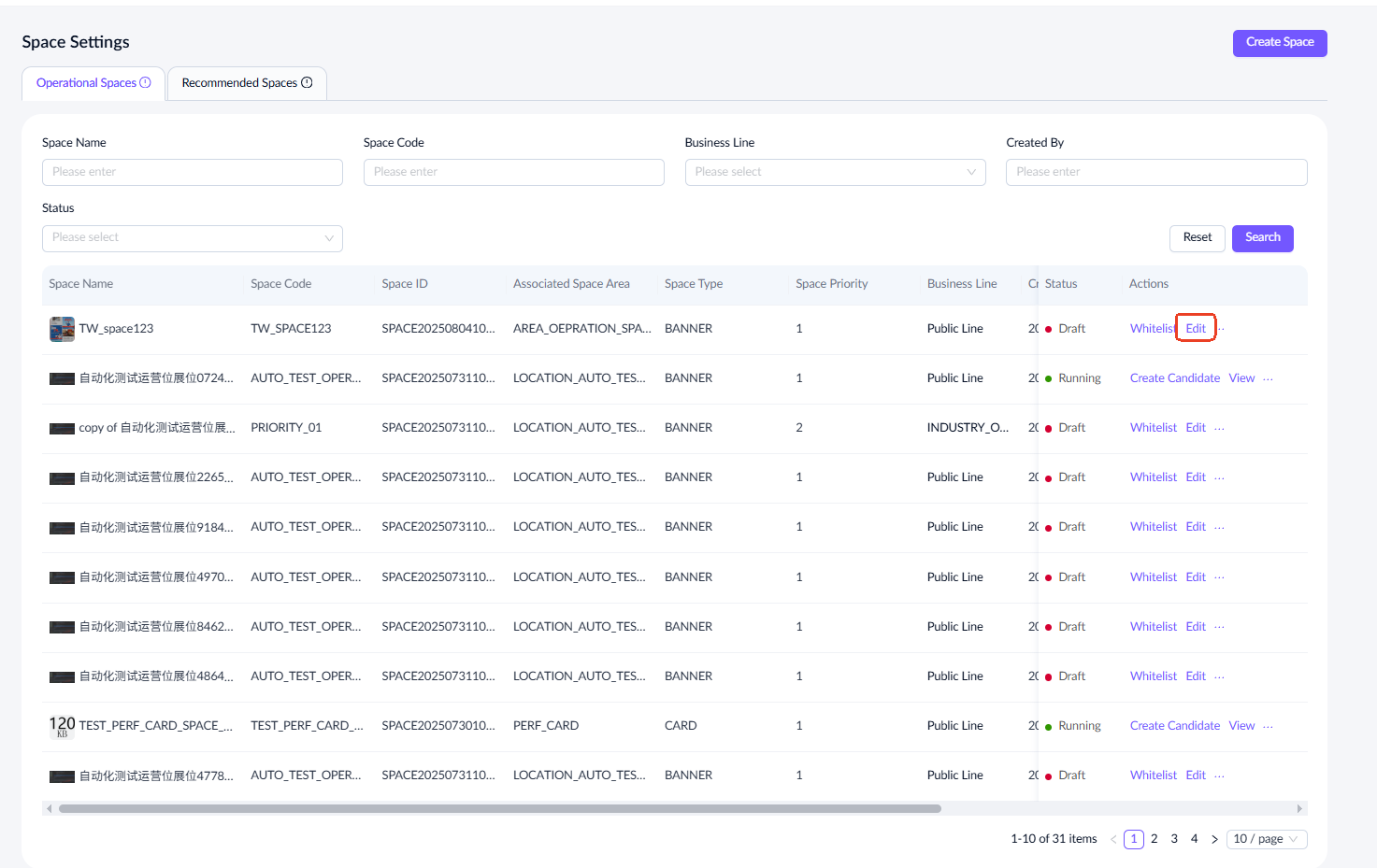
Refer to the following table for editing details:
Field name | Editable |
Associated Space Area | Yes |
Space Priority | Yes |
Space Name | Yes |
Space Code | No |
Space Type | Yes |
Space Description | Yes |
Admin | Yes |
Technical Person in Charge | Yes |
Supported Language | Yes |
Default Language | Yes |
Preview Image | Yes |
Content Type | Yes |
Delivery Rules | Yes |
Algorithm ID | Yes |
Slot Limit | Yes |
Customize Target Slots | Yes |
Customize Target Slots-Commercial Tasks | Yes |
Contextual Relevance | Yes |
Type | Yes |
Attribute Settings | Yes |
Style Settings | Yes |
Rendering Settings | Yes |
Global Content Field | Yes |
Technical Extension Fields | Yes |
Event Tracking Code | Yes |
Event Tracking List | Yes |
Display Rules | Yes |
Display Frequency | Yes |
Approval Requirement | Yes |
View a display space
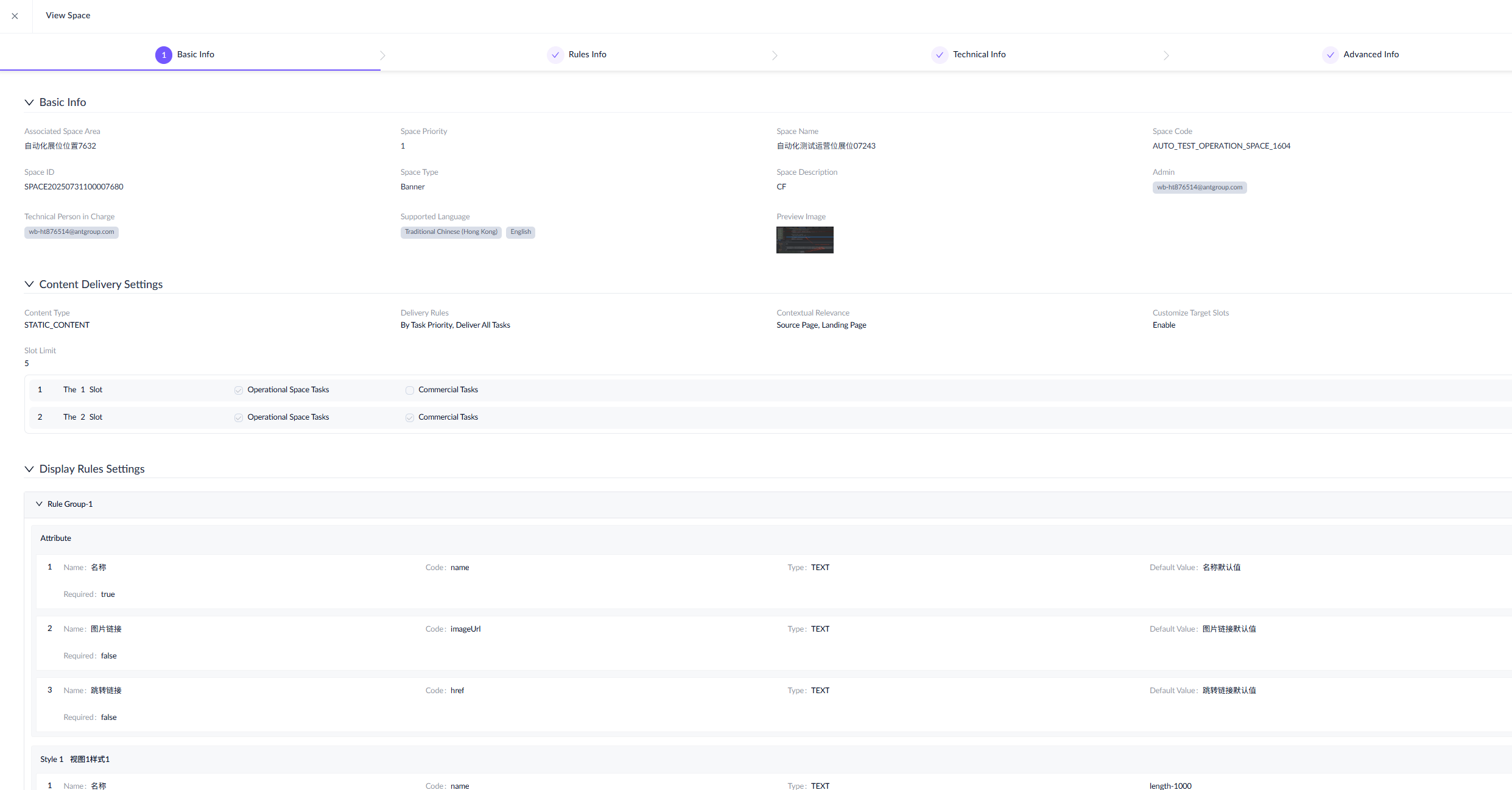
To view display space details, go to the space list page and select a specific space. Click View in the Actions column to access the details page. Note that display spaces can be viewed in all statuses except Draft.
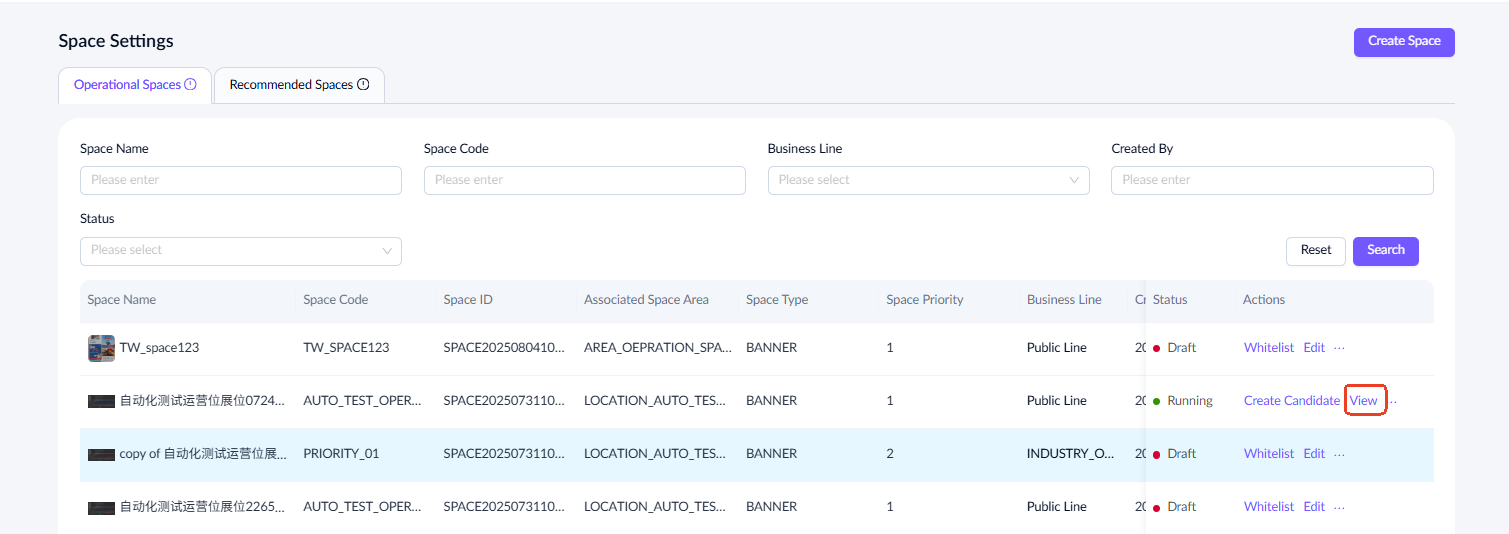
Create a candidate for a display space
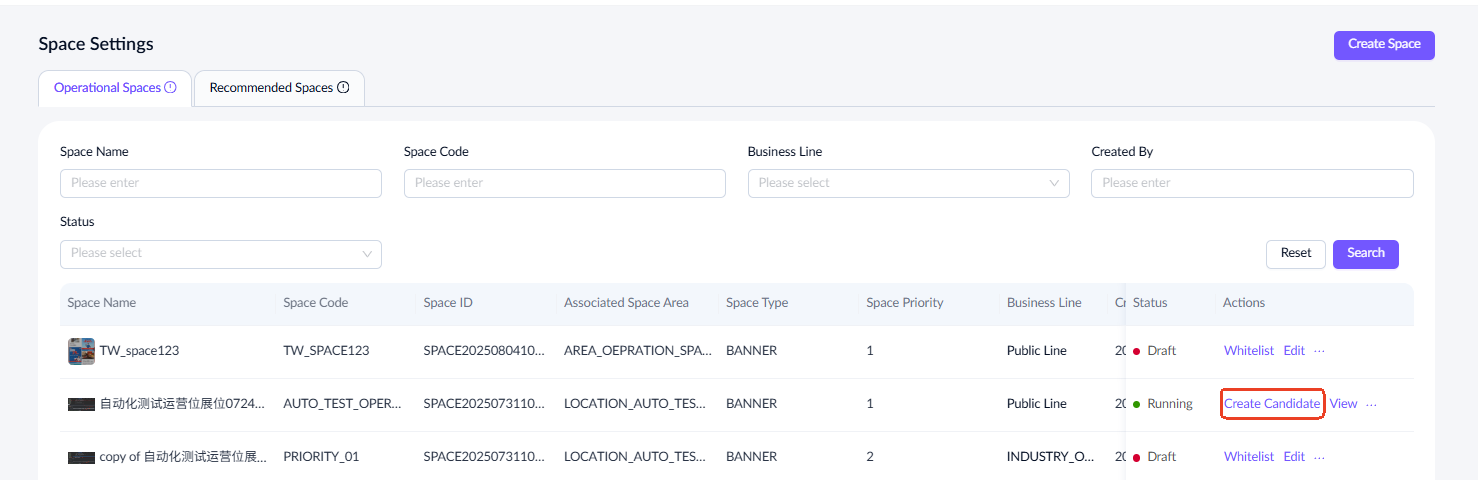
Display spaces in Running status can be upgraded by creating a candidate. Once the candidate is released, it will replace the original version. Take the following steps to create a candidate:
- Select a specific display space in Running status and click Create Candidate in the Actions column.
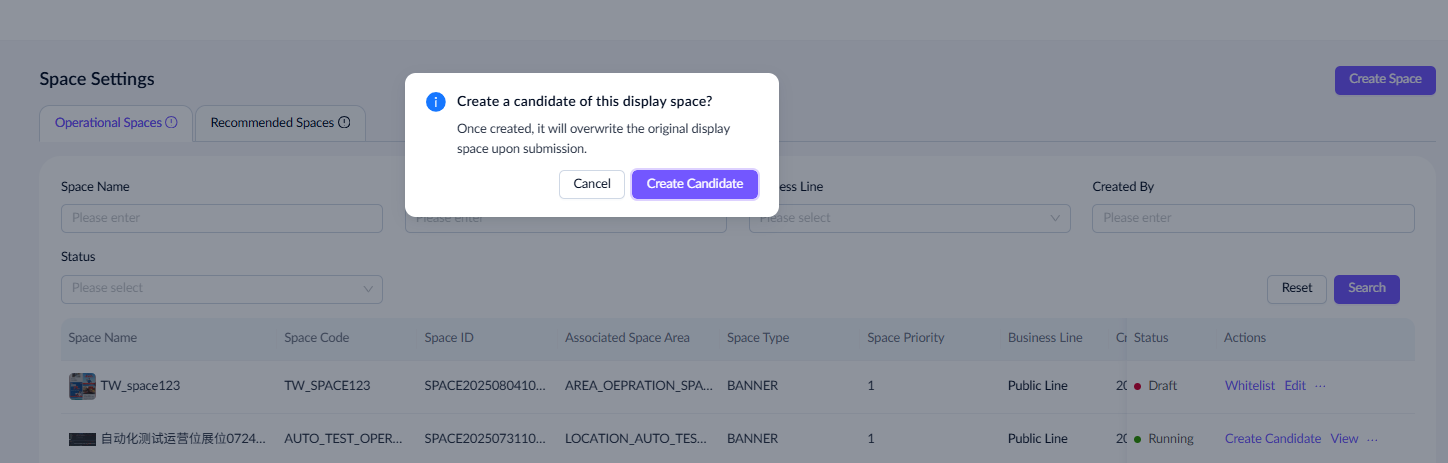
- Confirm and click Create Candidate again.
- A draft version appears beneath the original, marked with a Candidate tag. Once the candidate completes the entire publishing process and is released, it replaces the original version.
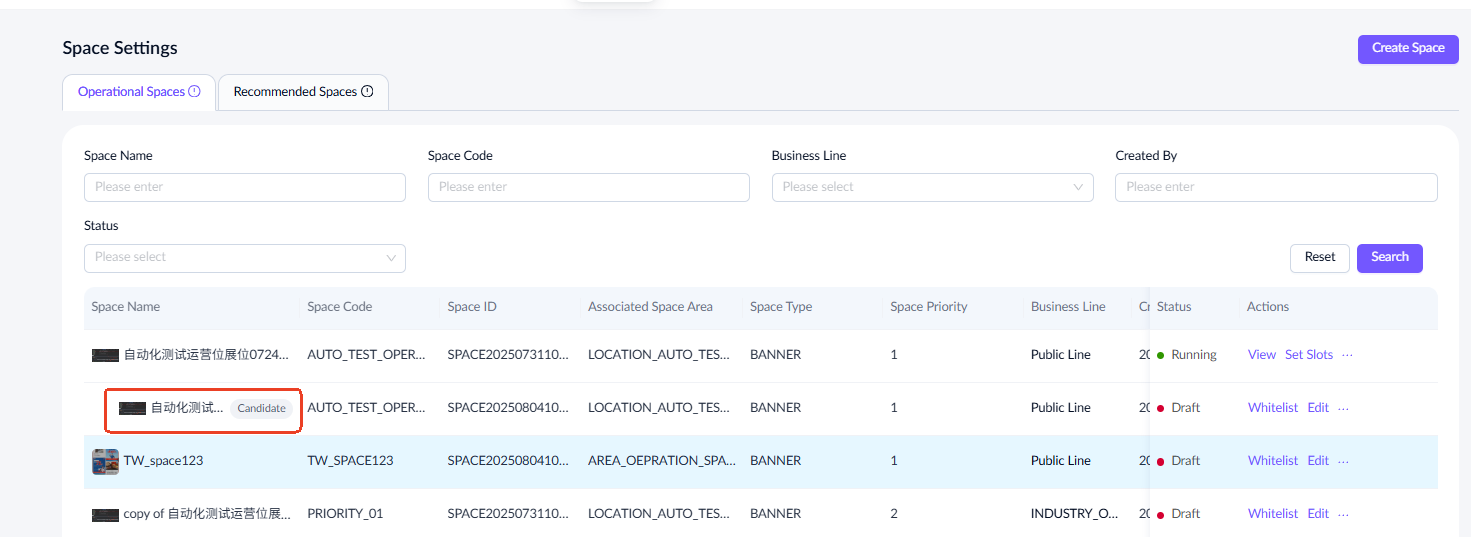
Note: Replacing the original version does not affect any active delivery tasks in the display space; the changes apply only to tasks that have not yet been released.
Duplicate a display space
You can create new display spaces by duplicating existing ones. Refer to the following table for duplication details:
Field name | In duplicate |
Associated Space Area | Yes |
Space Priority | Yes |
Space Name | Yes |
Space Code | No |
Space Type | Yes |
Space Description | Yes |
Admin | Yes |
Technical Person in Charge | Yes |
Supported Language | Yes |
Default Language | Yes |
Preview Image | Yes |
Content Type | Yes |
Delivery Rules | Yes |
Algorithm ID | Yes |
Slot Limit | Yes |
Customize Target Slots | Yes |
Customize Target Slots-Commercial Tasks | Yes |
Contextual Relevance | Yes |
Type | Yes |
Attribute Settings | Yes |
Style Settings | Yes |
Rendering Settings | Yes |
Global Content Field | Yes |
Technical Extension Fields | Yes |
Event Tracking Code | Yes |
Event Tracking List | Yes |
Display Rules | Yes |
Display Frequency | Yes |
Approval Requirement | Yes |
Status flow of display spaces
A display space must undergo whitelist testing and grayscale testing before it can be released. After going live, the display space can also be taken offline.
Whitelist testing
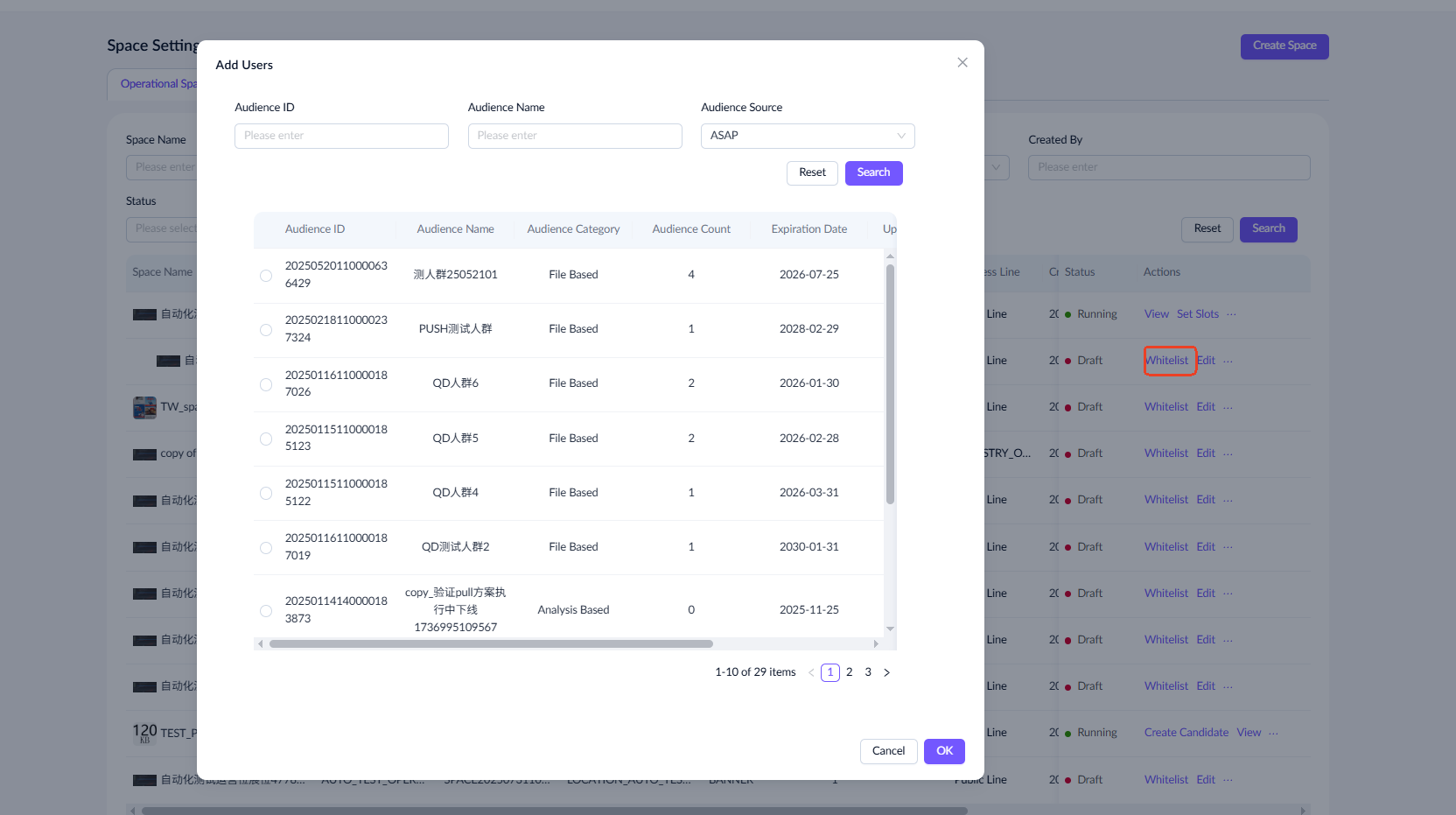
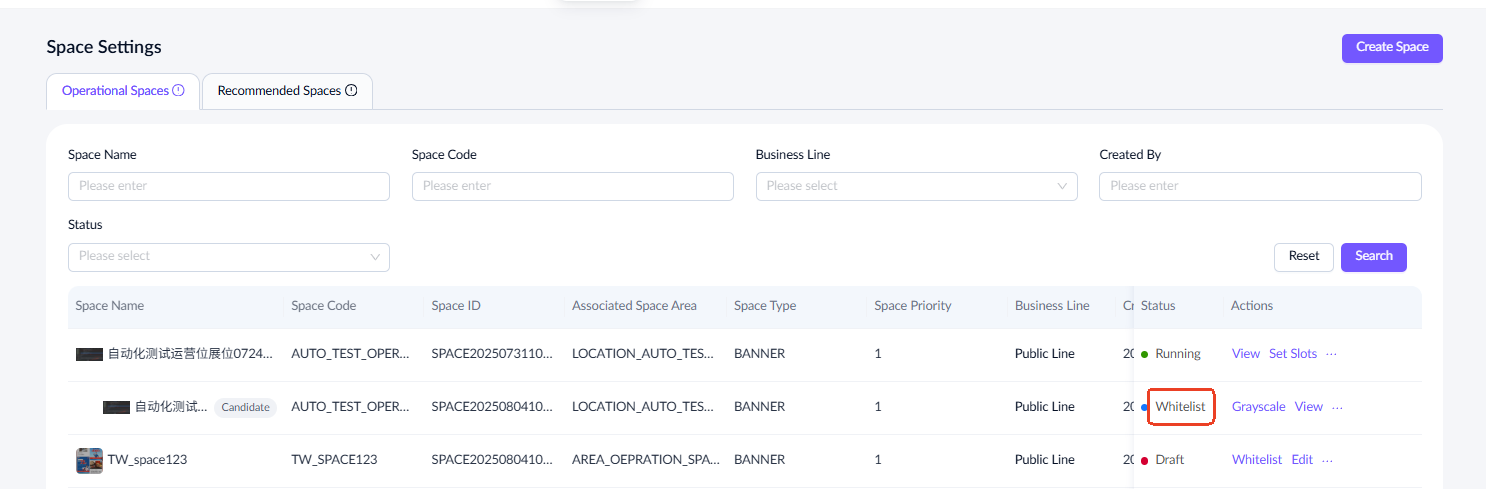
Select a display space in Draft status and click Whitelist in the Actions column to add the testing audience. When selecting an audience, you can search using the audience ID, audience name, or audience source. Once you have selected the desired audience, click OK, and the display space status is changed to Whitelist.
Grayscale testing
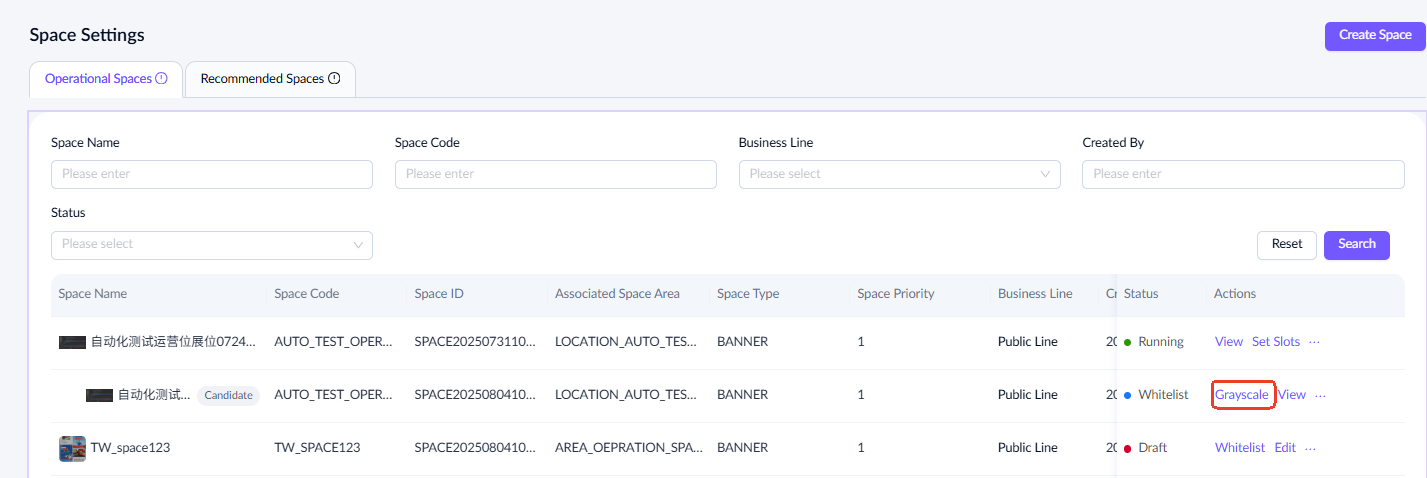
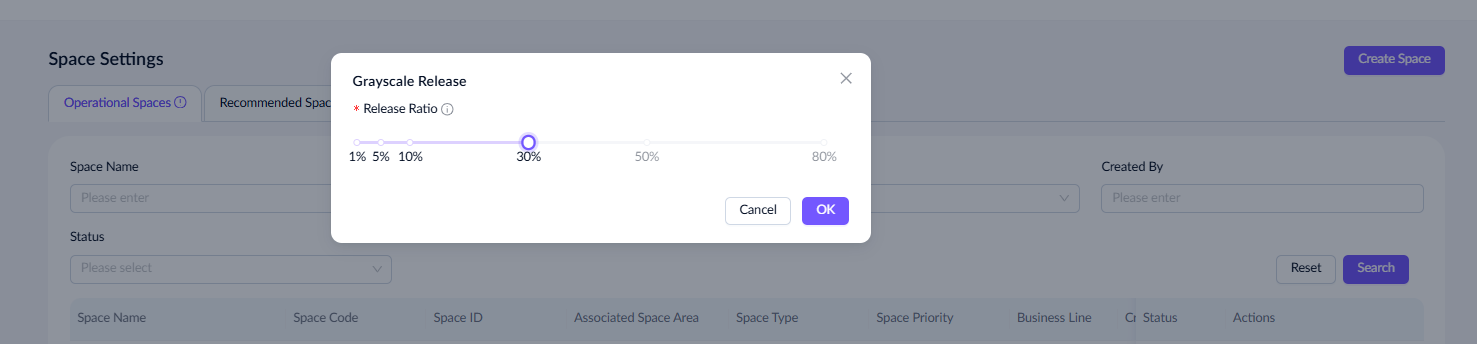
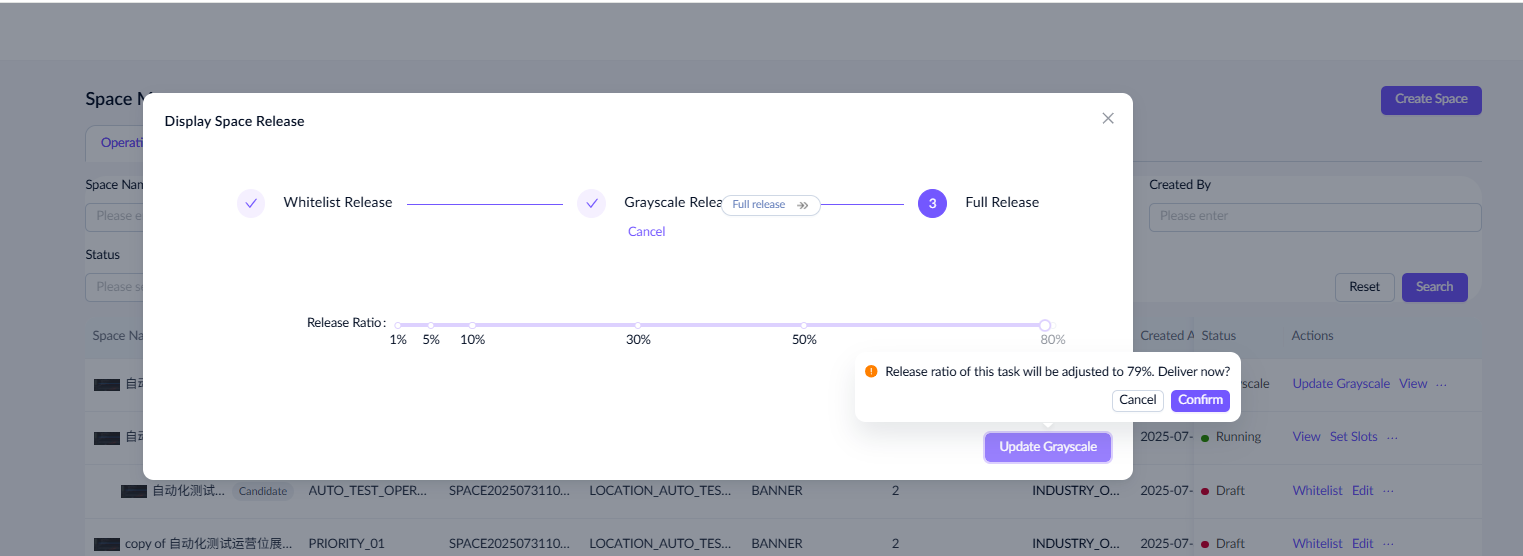
For display spaces in Whitelist status, click Grayscale, and a grayscale testing dialog appears. After confirming the release ratio, the display space enters Grayscale status. You can revert the display space to Whitelist status, update the grayscale ratio, or proceed to release it.
Note: The grayscale ratio can be either a fixed reference or a custom ratio as needed, up to 80%. You can update the ratio multiple times, and each time you configure the grayscale ratio, a confirmation dialog appears for double confirmation.
Release display spaces
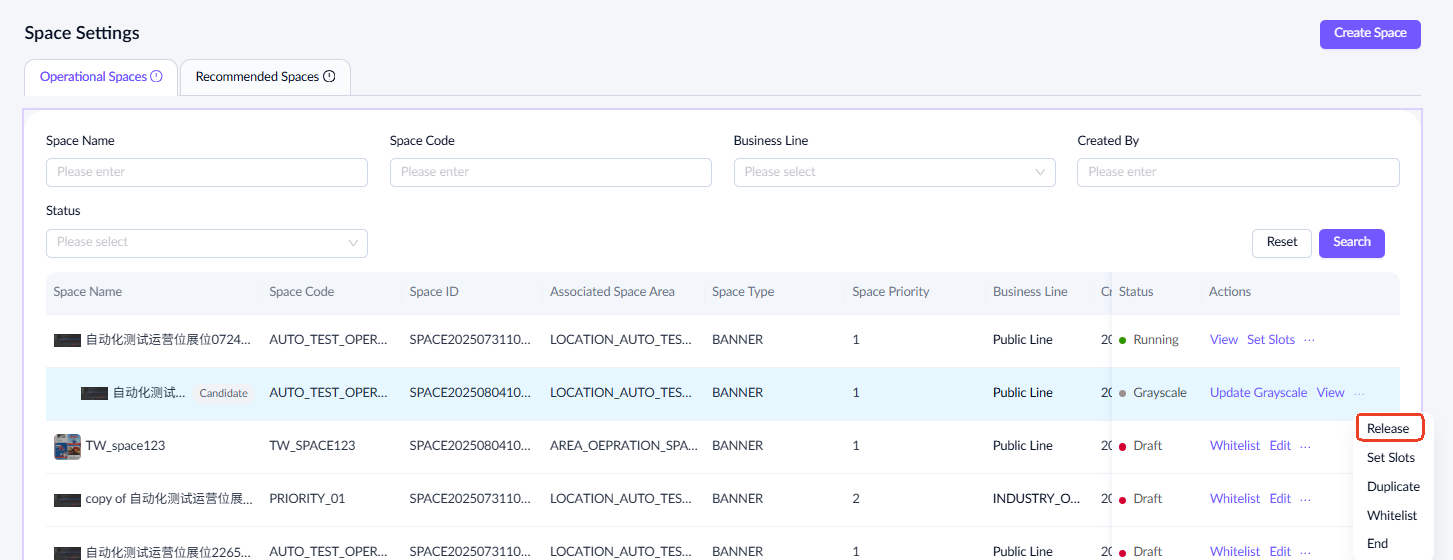
For display spaces in Grayscale status, click Release to release them. Adjust the release ratio of the display space as needed, and then click Confirm. This action transitions the display space to Running status. Running display spaces support viewing, duplicating, and creating candidates.
End display spaces
For display spaces that are not in Running status, you can click End to deactivate them, and they no longer appear in the delivery task list. However, their related information remains stored in the database.