Cross-wallet tasks
Cross-wallet tasks enable merchants across multiple wallets to distribute their content to public display spaces, including homepage feeds and banners on partner wallets. This document provides step-by-step guidance for merchants and target wallet operators on how to create, configure, and manage cross-wallet content distribution tasks.
How it works
The cross-wallet task workflow involves two major parties:
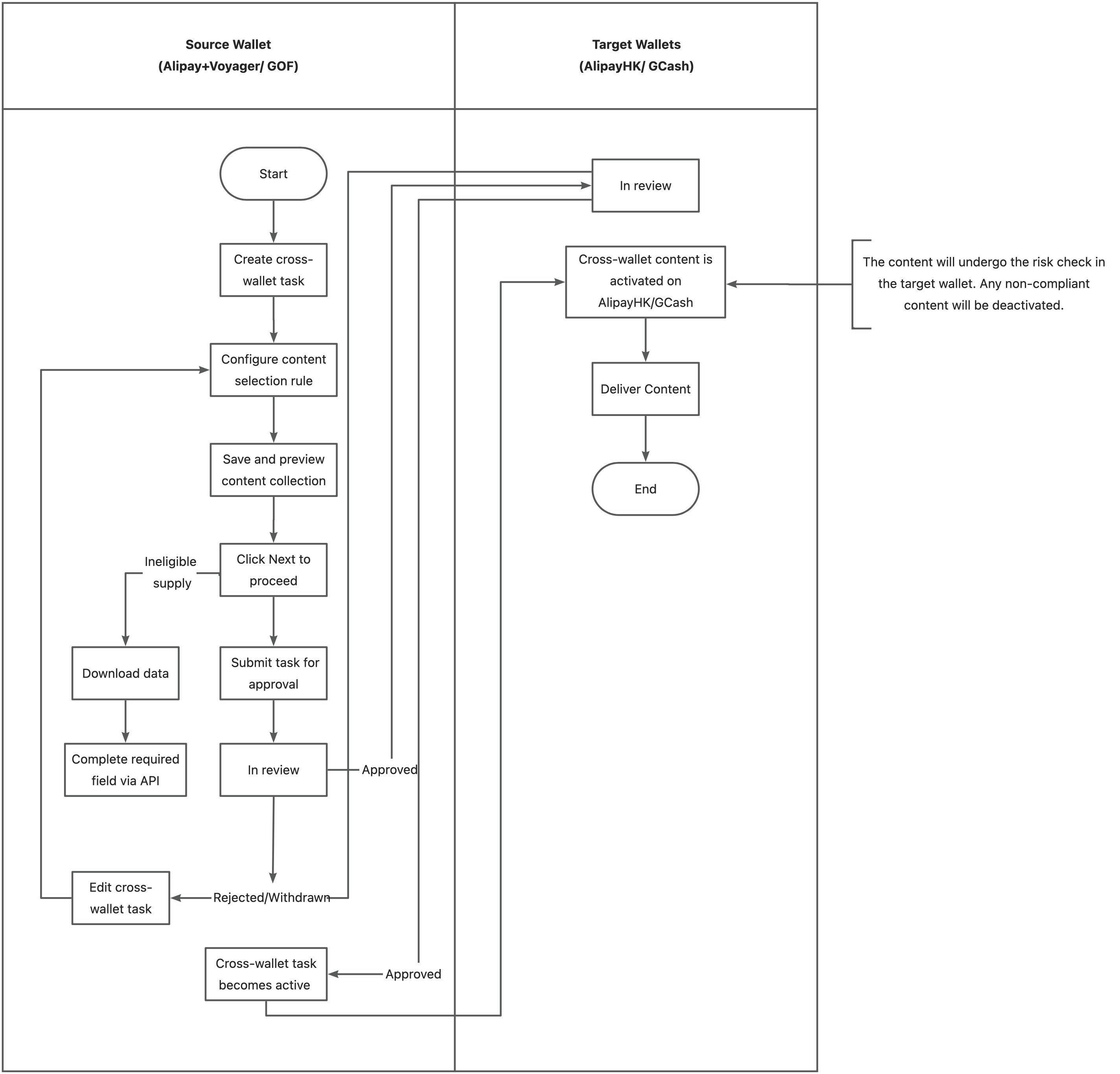
- Source wallet: Merchants such as Alipay+Voyager and GOF can create, edit, initiate, or terminate cross-wallet tasks to distribute their content across multiple target wallets.
- Target wallet: Wallets such as AlipayHK and GCash can review the content delivered by merchants and deactivate any content that violates their risk control policies.
Refer to the following diagram for the complete workflow:
Initiate Cross-wallet Task
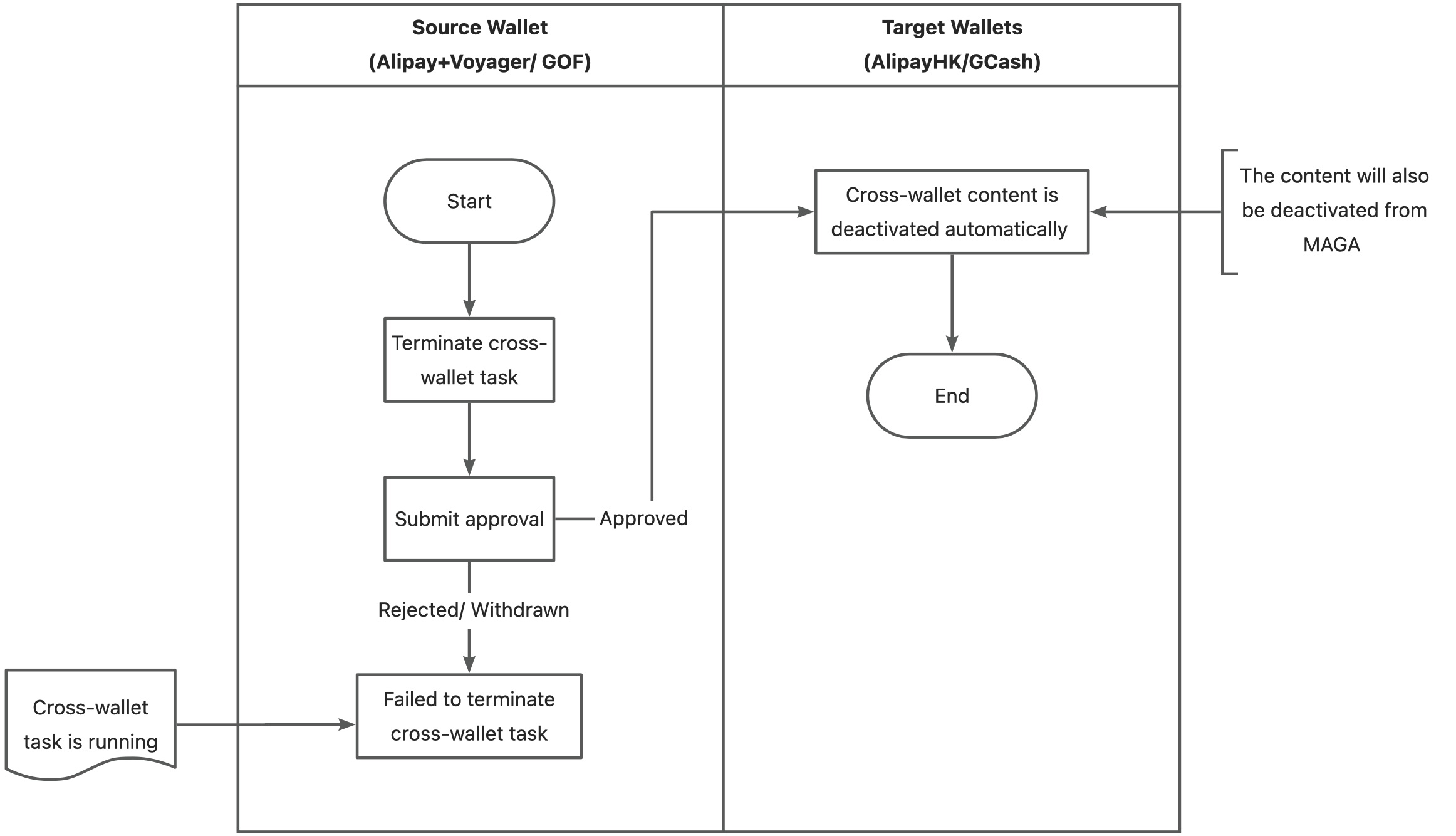
Terminate Cross-wallet Task
Source wallet
View cross-wallet task
View task list
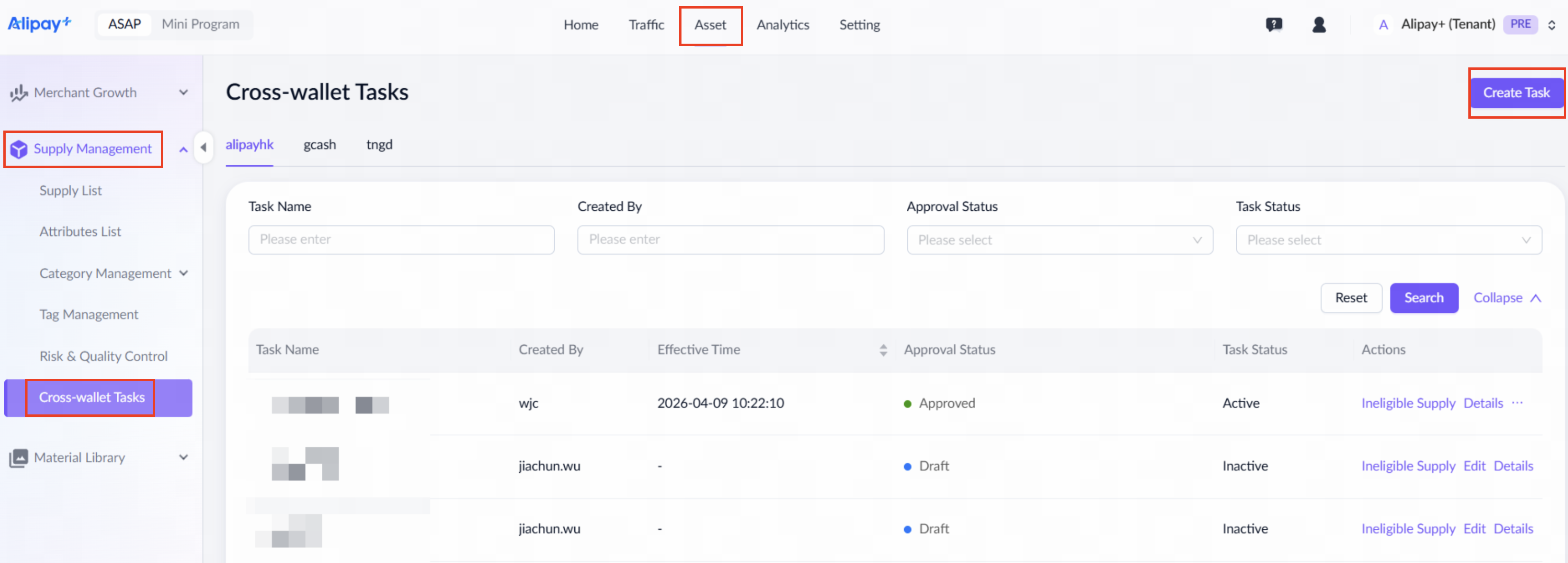
Navigate to Asset > Supply Management > Cross-wallet Tasks. Select any target wallet tab, such as alipayhk or gcash to view all cross-wallet tasks for that specific wallet.
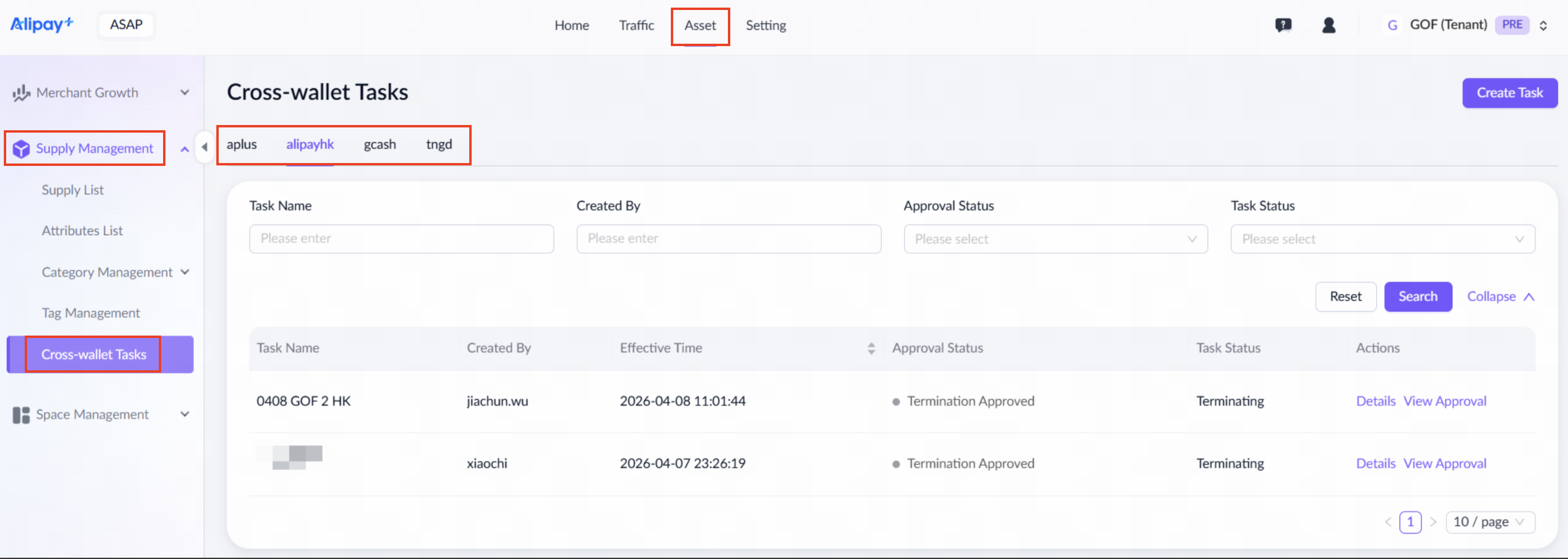
For a detailed explanation of each field, see the following table:
Field name | Description |
Task Name | Name of the cross-wallet task. |
Created By | The account that created the cross-wallet task and submitted it for approval. |
Approval Status | Status of the approval request. Valid values are:
|
Task Status | Status of the cross-wallet task. Valid values are:
|
Under the Actions column, you can perform the following operations:
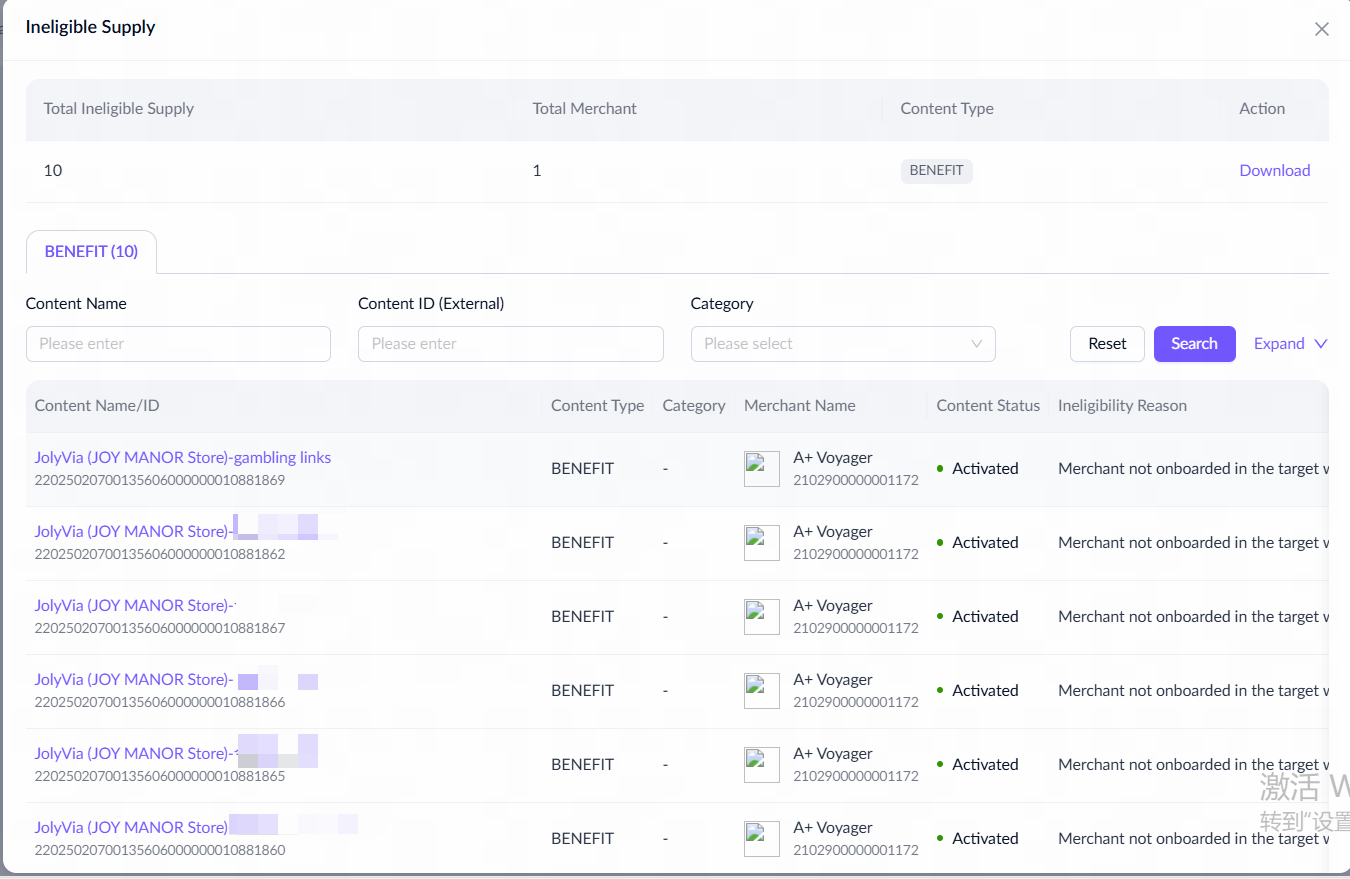
- Ineligible Supply: View the included content missing required fields.
- Edit: Modify task in Draft status.
- Details: View the task details.
- View Approval: View approval ticket details.
- Withdraw Approval: Withdraw pending approval request when the approval status is Under Review or Termination Under Review.
- Terminate: Submit a termination approval request when the task status is Active or Activating.
View ineligible supply
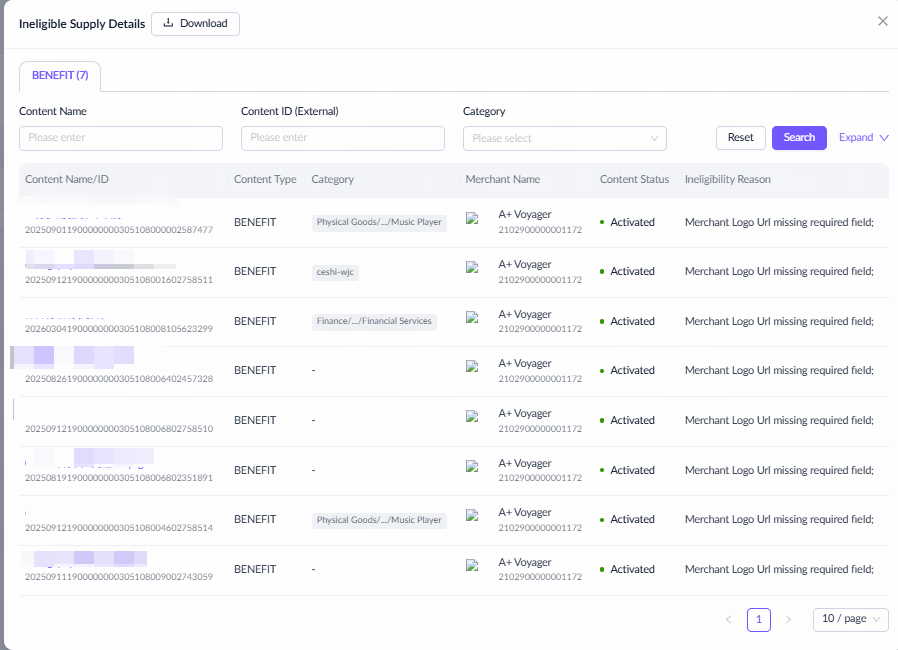
To view the ineligible supply, click Ineligible Supply in the Actions column. A dialog box will display the ineligible items categorized by content type, along with the specific reasons for ineligibility.
You can download this data and contact the merchant's technical team to provide the missing required fields via API passthrough. Once updated, the content can proceed with cross-wallet delivery.
View task details
To view the task details, click Details in the Actions column. The details page displays the following information:
- Basic information: The cross-wallet task name and the target wallets.
- Content selection rules: The specific selection criteria categorized by content type.
- Eligible supply list: A list of content that meets the configured selection rules.
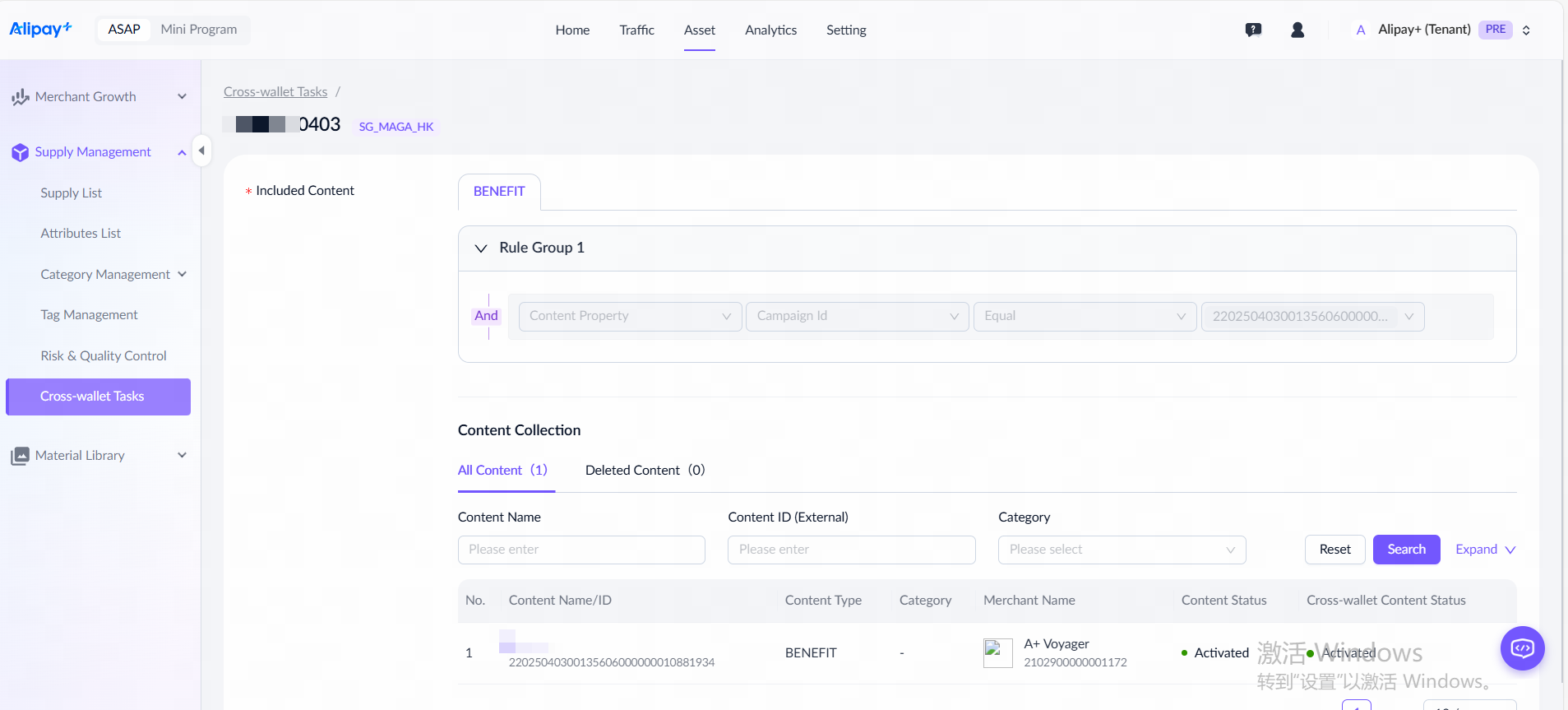
Note: For a deactivated Cross-wallet Content Status, there are three scenarios:
- Deactivated by the tenant providing the cross-wallet content.
- Automatically deactivated by the risk control system as the content violates the target wallet risk control policies.
- Manually deactivated in the risk control approval process.
Create cross-wallet task
Navigate to Asset > Supply Management > Cross-wallet Tasks. Select the target wallet, such as alipayhk, to which you wish to distribute the content, and click Create Task in the upper-right corner.
 On the Create Cross-wallet Task page, complete the following steps.
Step 1: Configure task settings
For instructions on how to fill in each field, refer to the following table:
Field name | Description |
Task Name | Enter a unique name for the cross-wallet task. |
Content Selection Method | Select the method to include content:
|
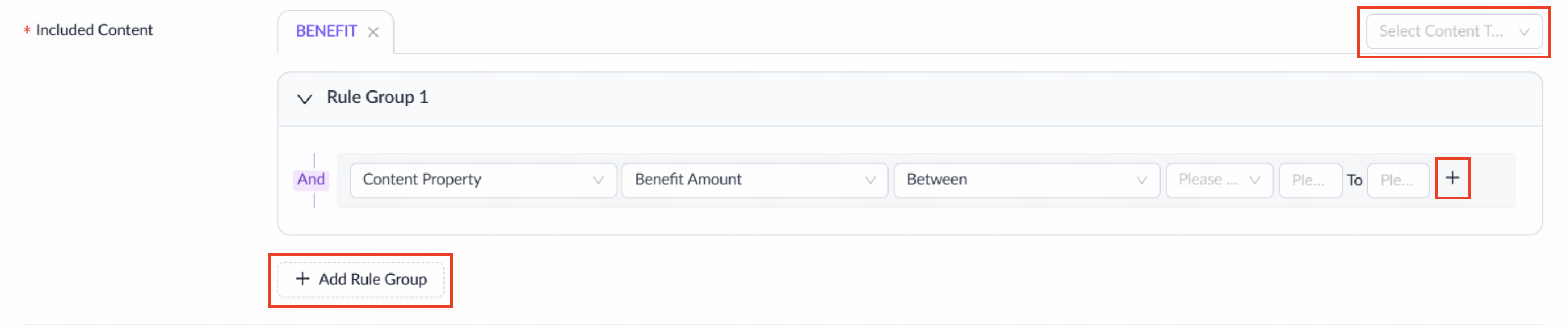
Included Content |
You can click + on the right to add rules to Rule Group 1 and click + Add Rule Group to add more rule groups to filter the content included in your cross-wallet task.
|
Content Collection | After configuring the selection rules, click Create and Preview to load the content collection.
In this section, you can perform the following operations:
|
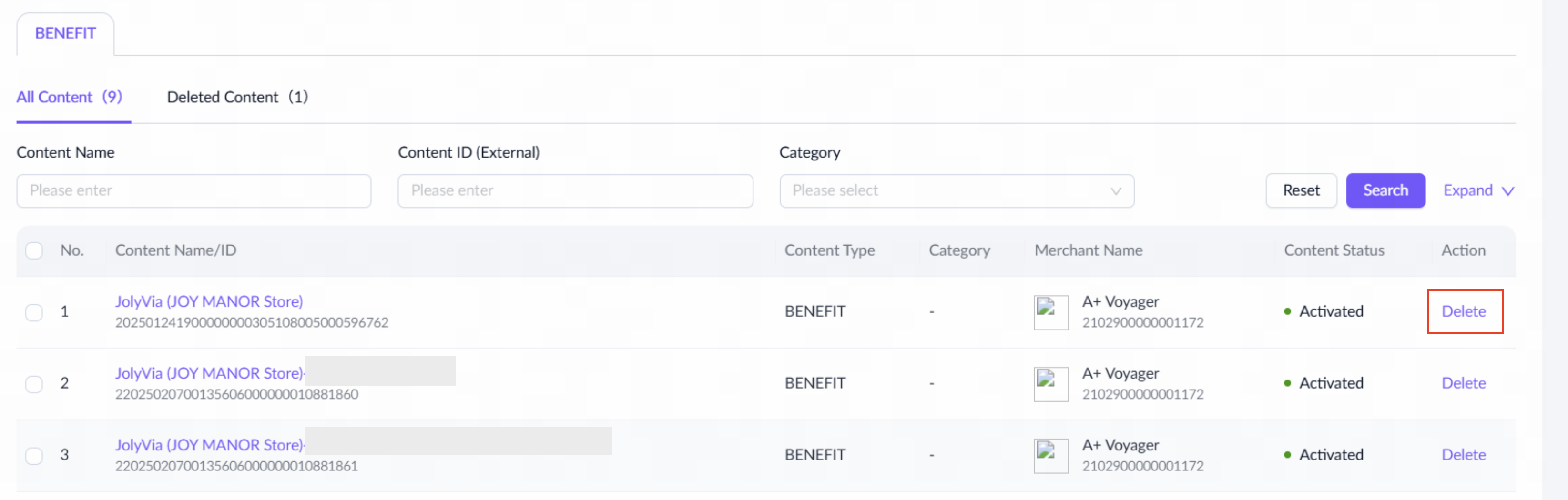
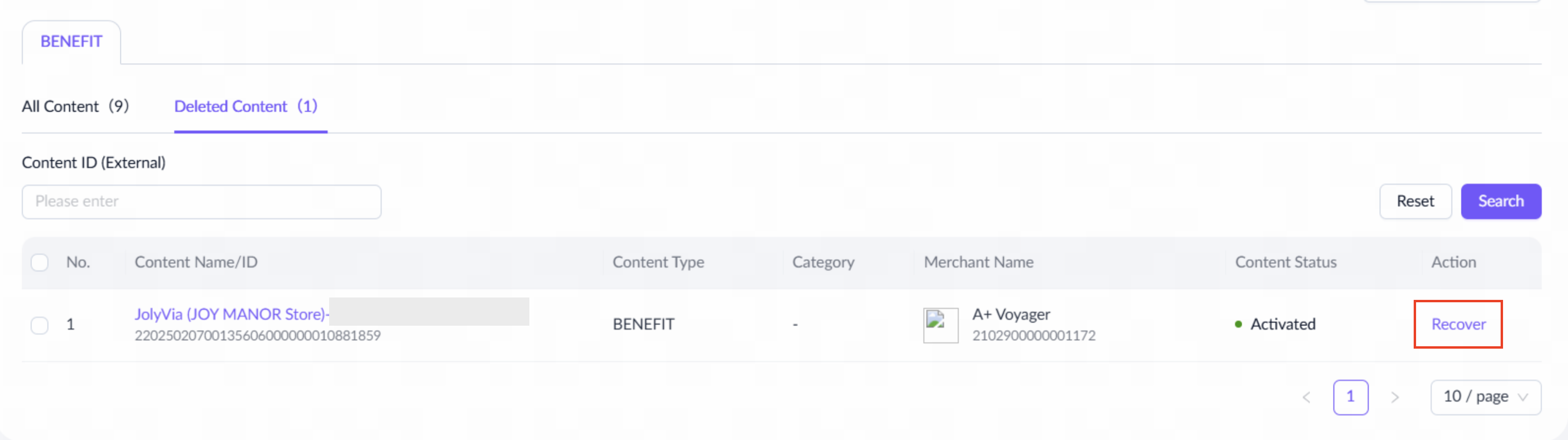
Click Next to verify the supply. The process takes a few minutes.
Step 2: Verify supply
This page displays ineligible supplies, if any.
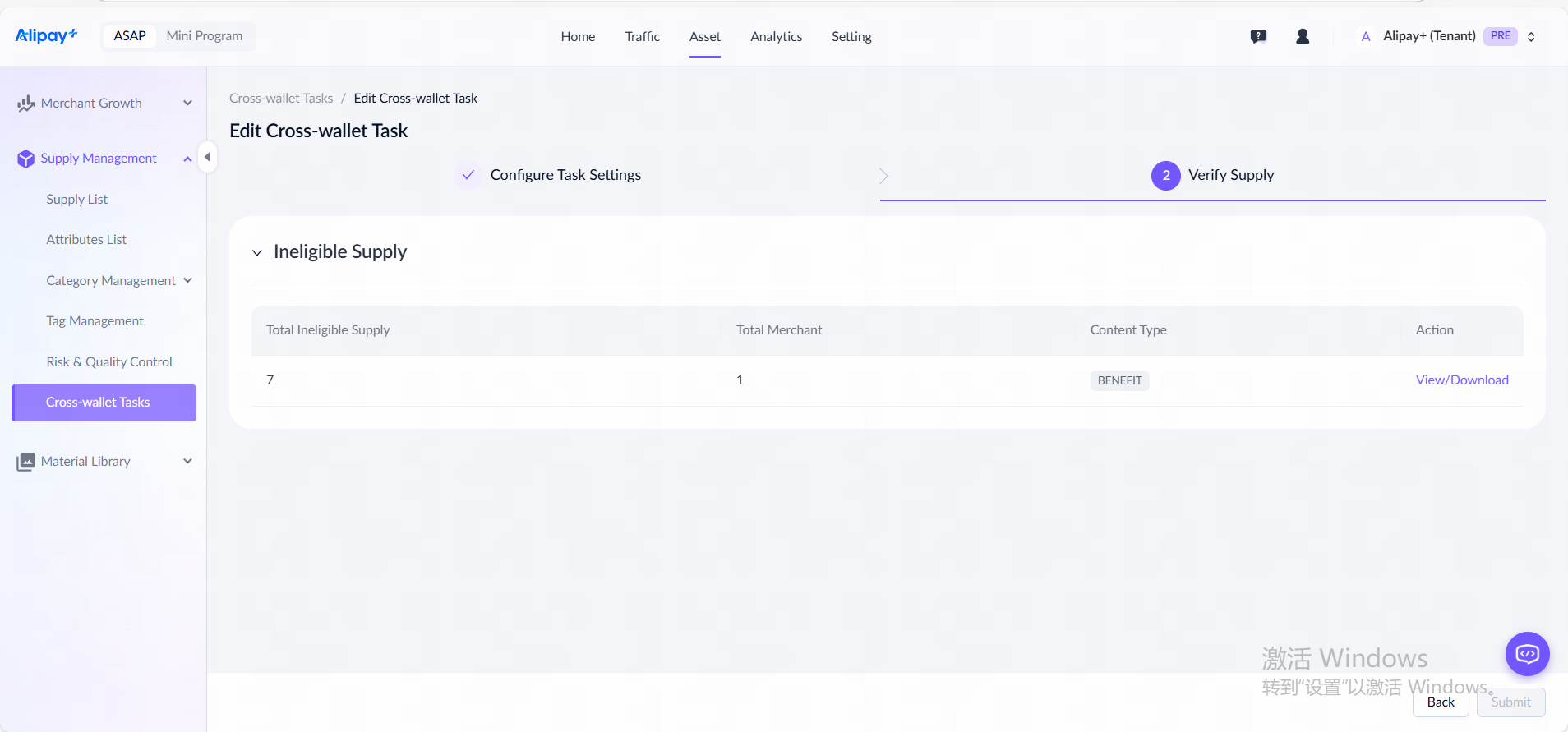
There are two types of issues:
- Items missing required fields: For supplies that meet the selection rules but lack required fields, download the file to view details. Once the missing fields are completed via API passthrough, cross-wallet delivery can proceed.
- Merchant onboarding failures: For supplies that fail delivery because the merchant has not been onboarded to the target wallet, the system will display specific merchant details. Contact ASAP Operations to resolve this issue.
Click Submit to request approval. If all content matching the selection rules is ineligible, the Submit button is disabled.
Bulk import content
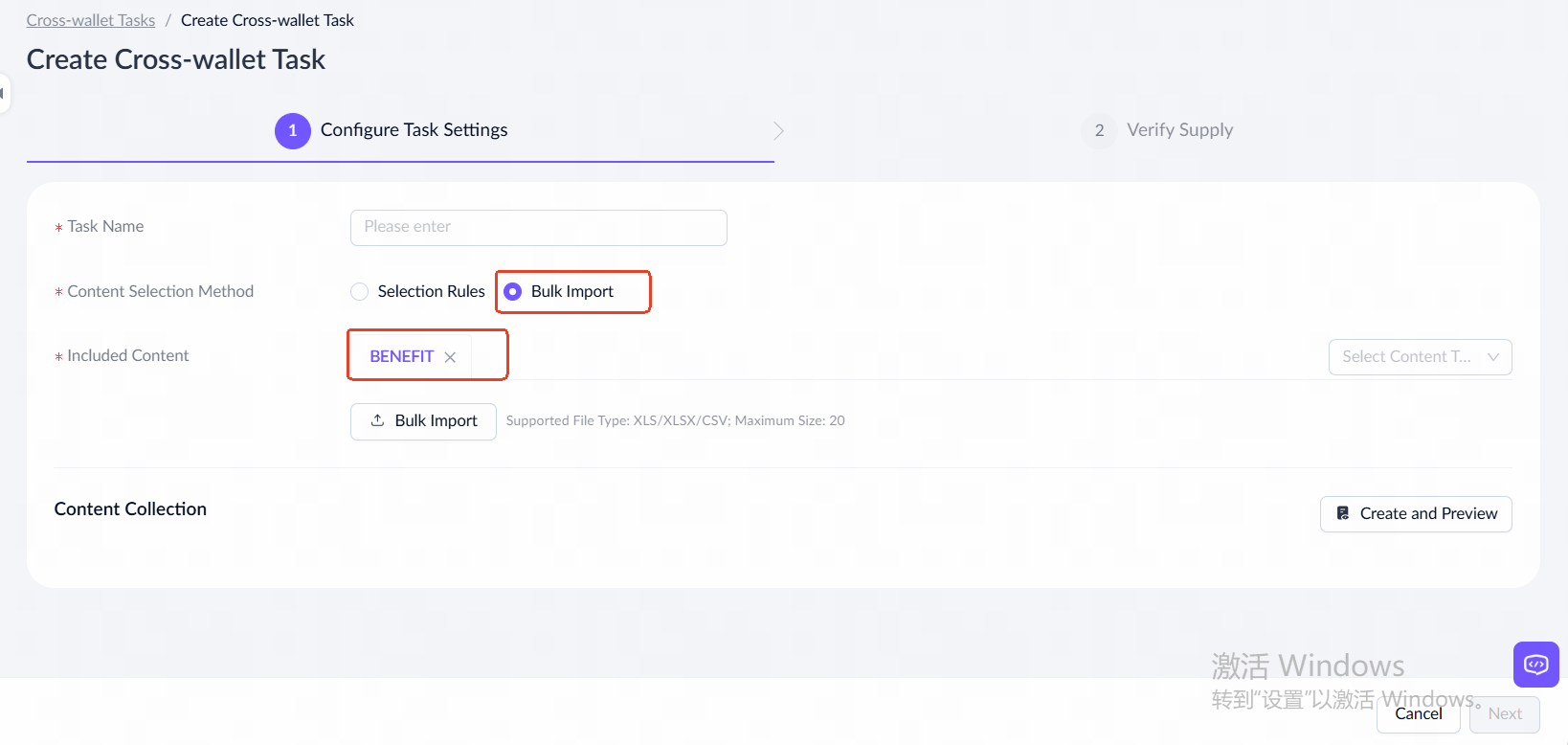
The Bulk Import feature allows creating or editing a cross-wallet task when using a large volume of external supply IDs as selection criteria.
Navigate to Asset > Supply Management > Cross-wallet Tasks. Click Create Task, or click Edit in the Actions column, to open the configuration page.
- Under Content Selection Method, select Bulk Import.
- For Included Content, select a content type to import, such as BENEFIT.
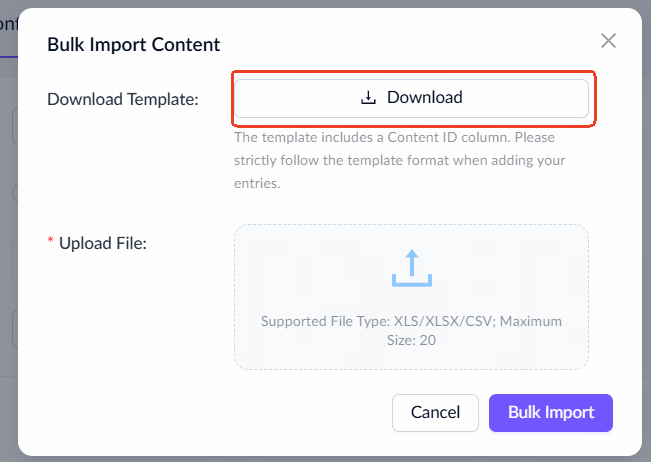
- Click Bulk Import to open the dialog, then click Download to save the import template file.
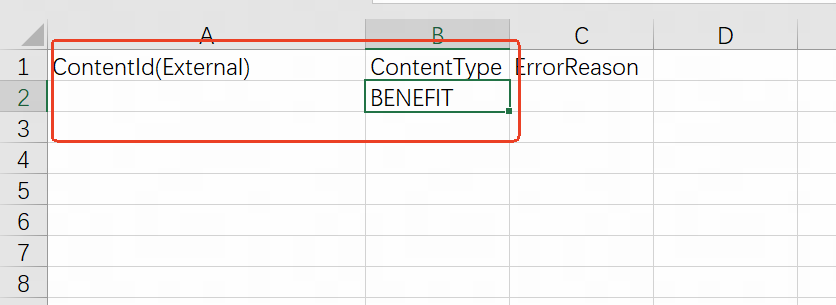
- In the template, enter the Content ID (External) and Content Type for the target supply.
- Upload the completed template file to the system, and click Bulk Import.
Note: Reimporting a new file will overwrite the existing content collection.
- Once the file is successfully uploaded, click Create and Preview (or Save and Preview when editing) to view the imported content collection.
- Continue with Step 2: Verify supply to verify supply and submit for approval.
Edit cross-wallet task
Navigate to Asset > Supply Management > Cross-wallet Tasks, and click Edit in the Actions column.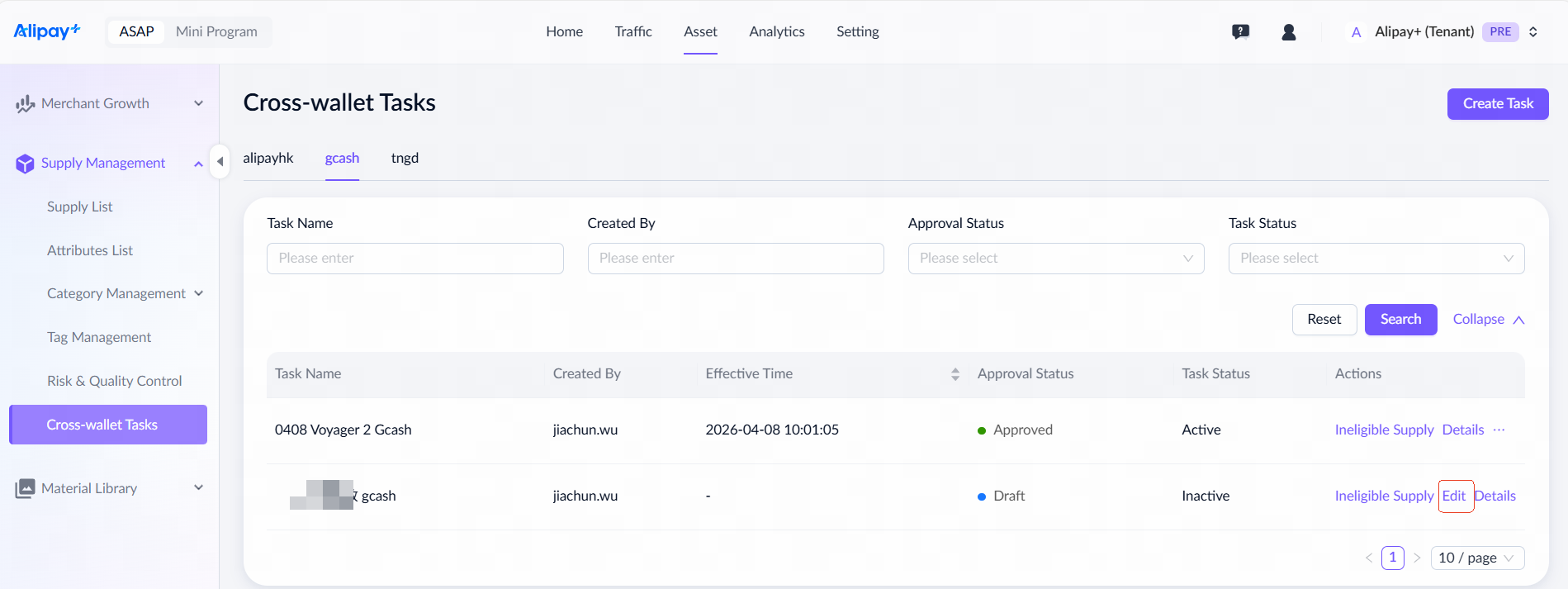
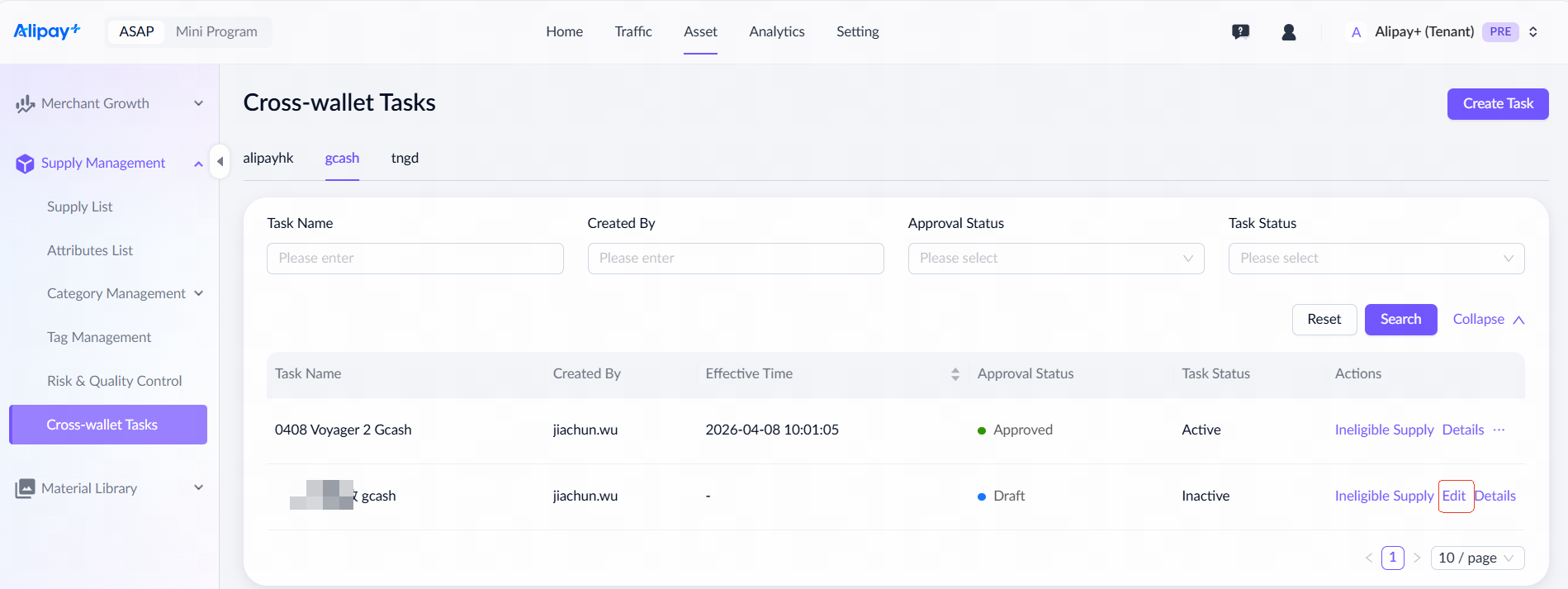
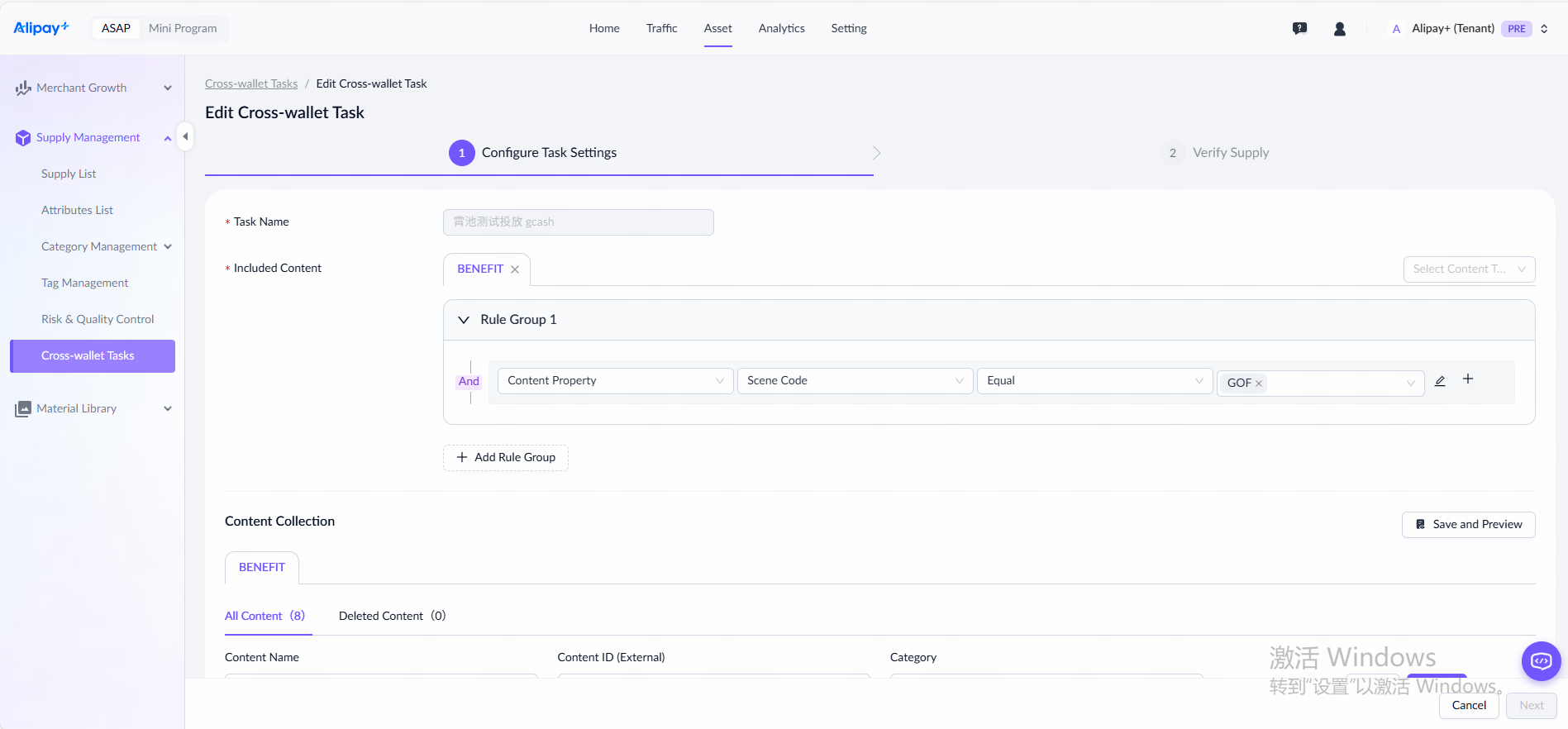
The Edit Cross-wallet Task page displays available content that match the current content selection rule. After modifying the criteria, click Save and Preview to apply changes and view updated results.
Terminate cross-wallet task
Navigate to Asset > Supply Management > Cross-wallet Tasks, and click Terminate in the Actions column.
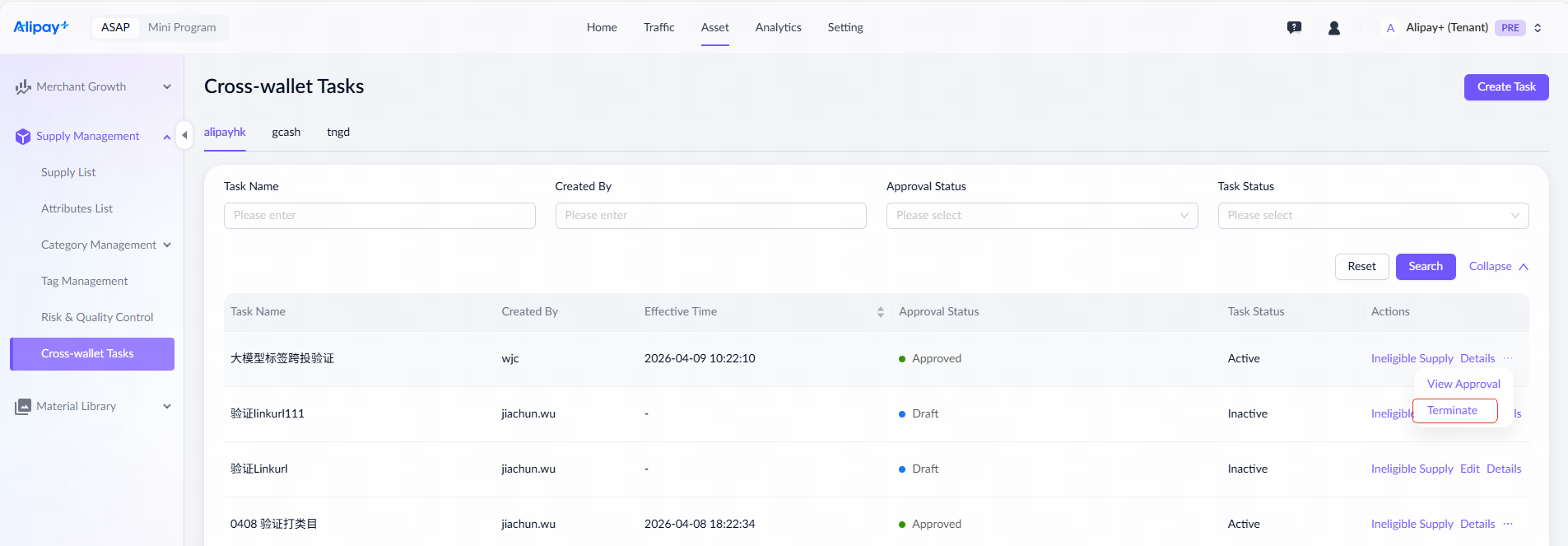
After clicking Terminate, it enters the termination approval workflow. After approval, the task is terminated, and the content is automatically deactivated in the target wallet.
Note: Only tasks in Active or Activating status can be terminated.
Approve cross-wallet task
An approval process is required for requests to create or terminate a cross-wallet task. Refer to the following table to identify the approver at the source wallet and the target wallet for different scenarios.
Scenario | Source-wallet approver | Target-wallet approver |
Deliver cross-wallet task | Business supervisor | Platform supply operator |
Terminate cross-wallet task | Business supervisor | Not required |
To view the approval ticket for a cross-wallet task, use one of the following methods:
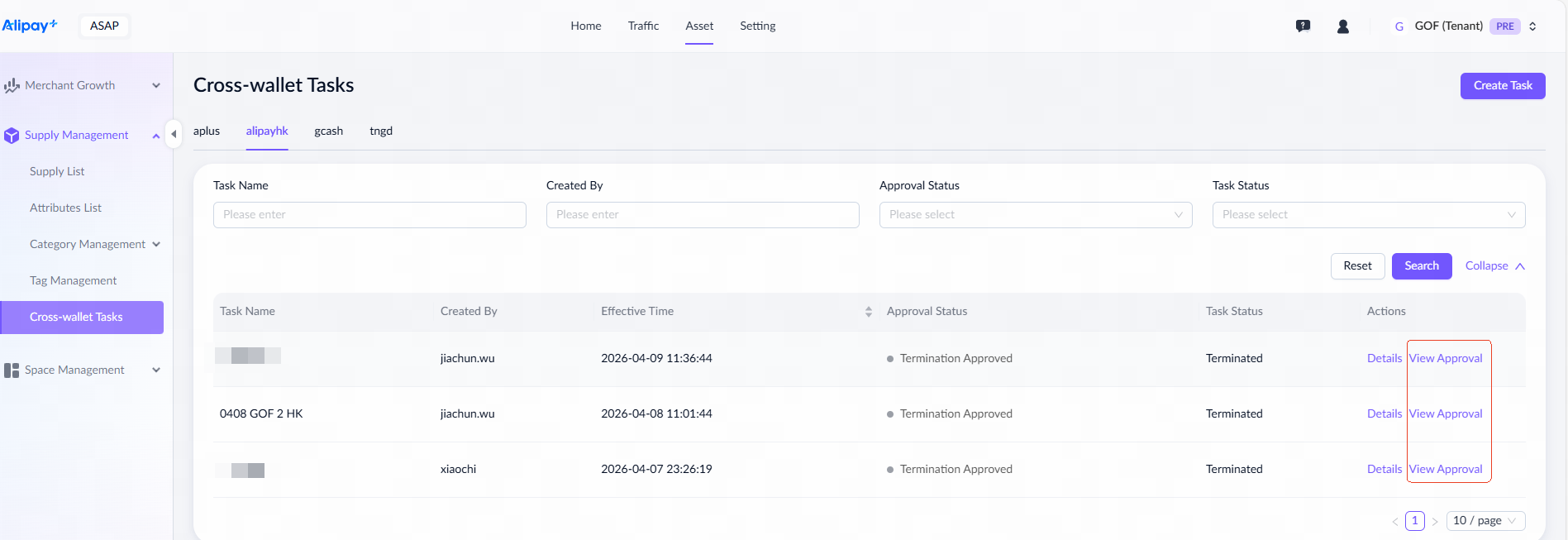
- Method 1: Navigate to Asset > Supply Management Tasks > Cross-wallet Tasks, and click View Approval in the Actions column.
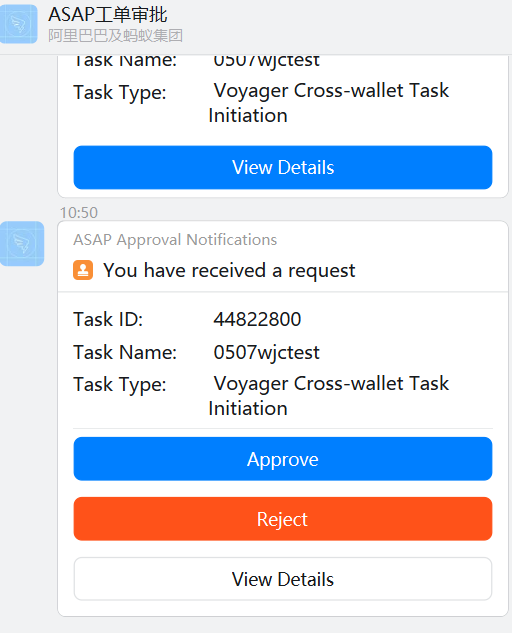
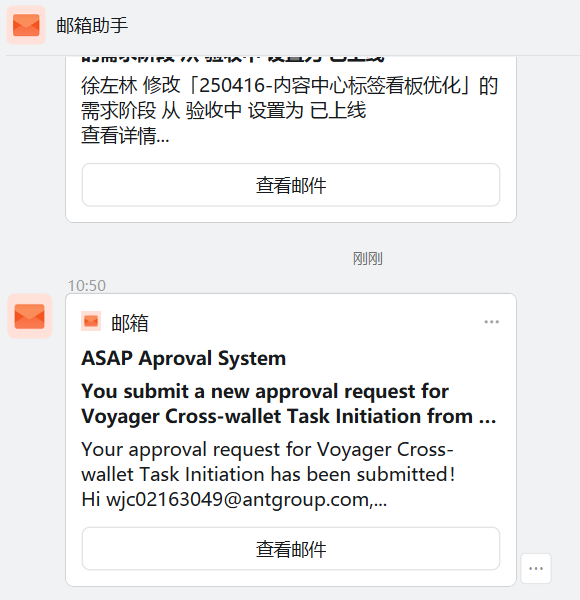
- Method 2: Check via DingTalk or email notification.
Note: You must link your email address and employee ID in Approval Notifications in advance.
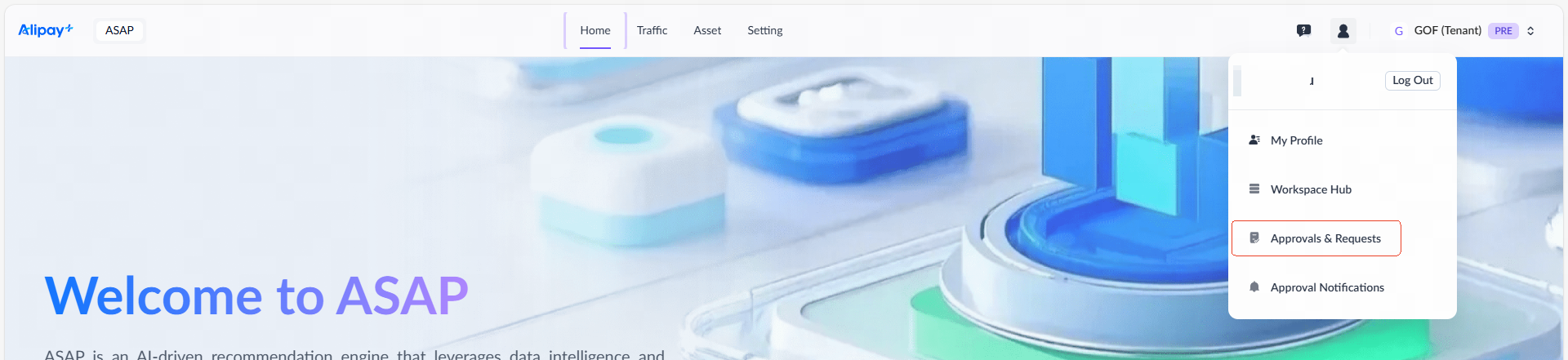
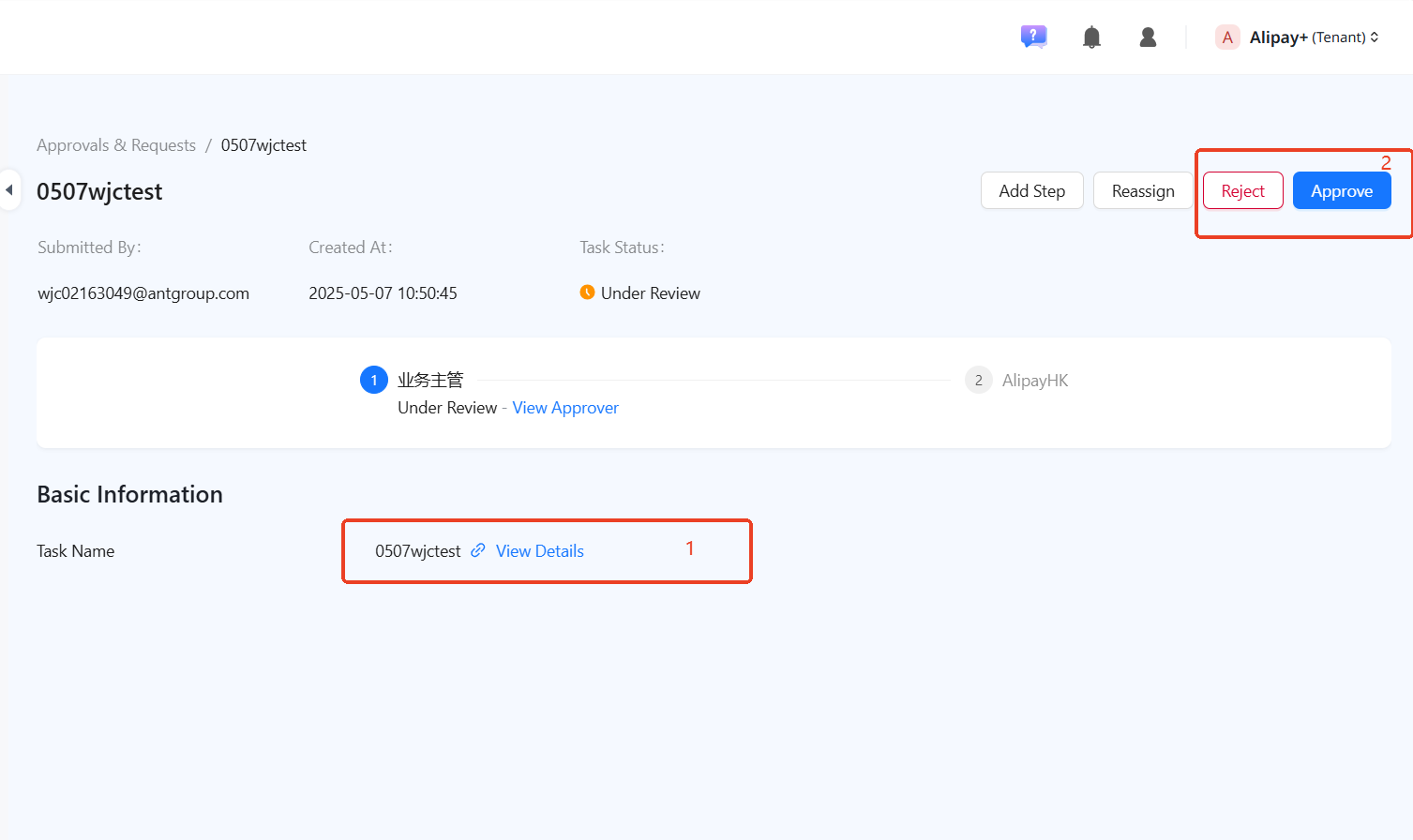
- Method 3: Navigate to Approvals & Requests, select the Content Management tab, and click the specific cross-wallet task ID.
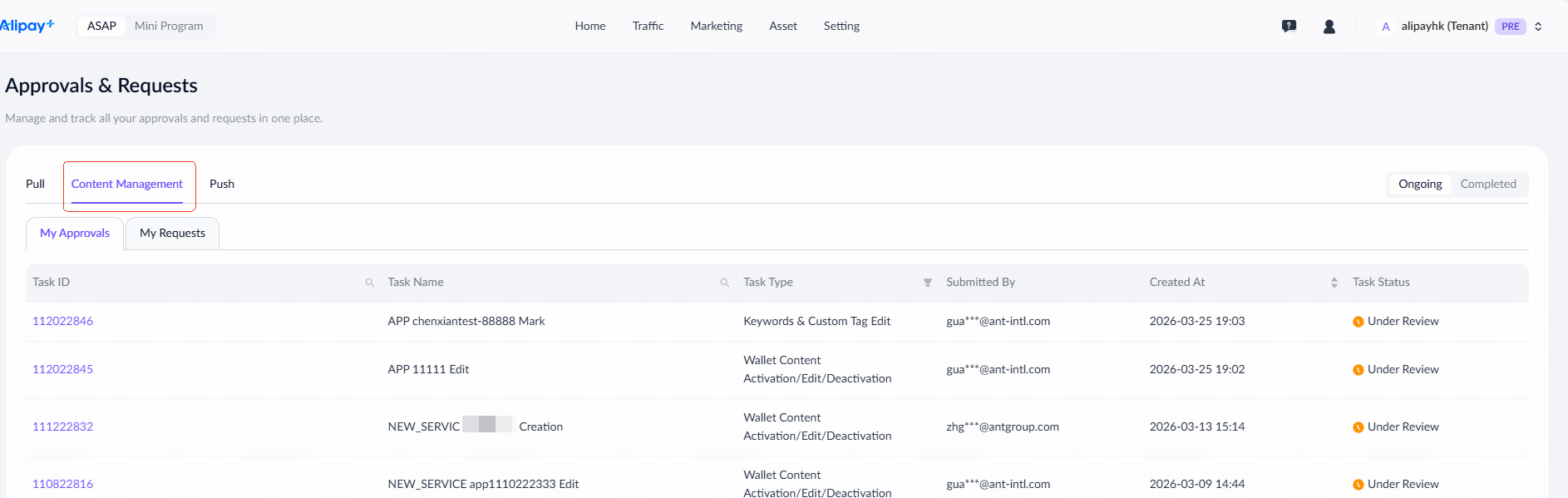
After reviewing the cross-wallet task, click Approve or Reject the request on the approval ticket based on the actual business context.
Target wallets
View the delivered content
Target wallets can view delivered content on both the Merchant Hub page and the Supply List page. The following sections use the Alipay+ merchant Voyager as an example:
Merchant hub
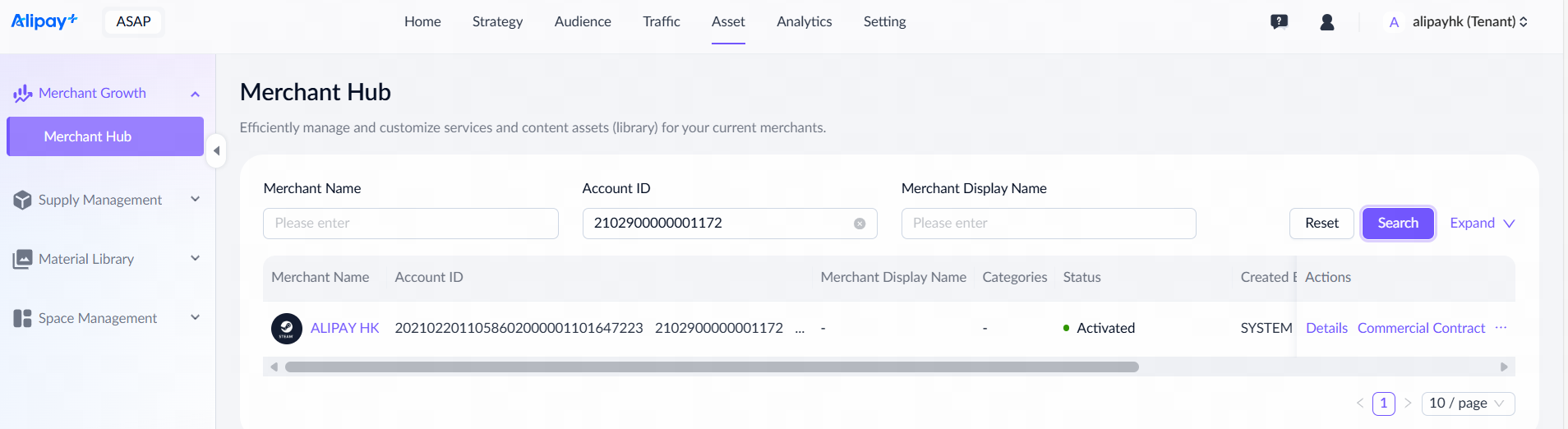
- Navigate to Asset > Merchant Growth > Merchant Hub.
- Enter Voyager Account ID
2102900000001172and click the Search button. - Click the merchant name to view all supplies delivered by Alipay+ Voyager.
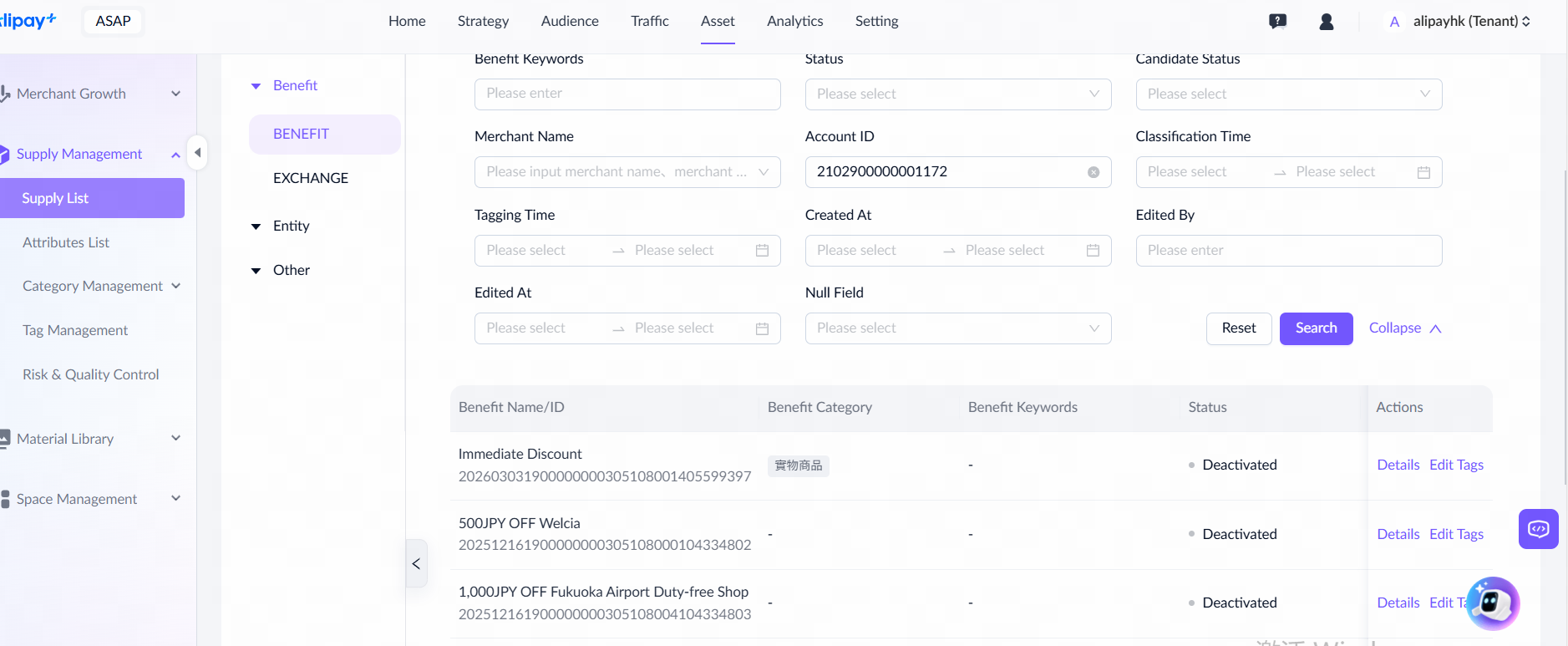
Supply list
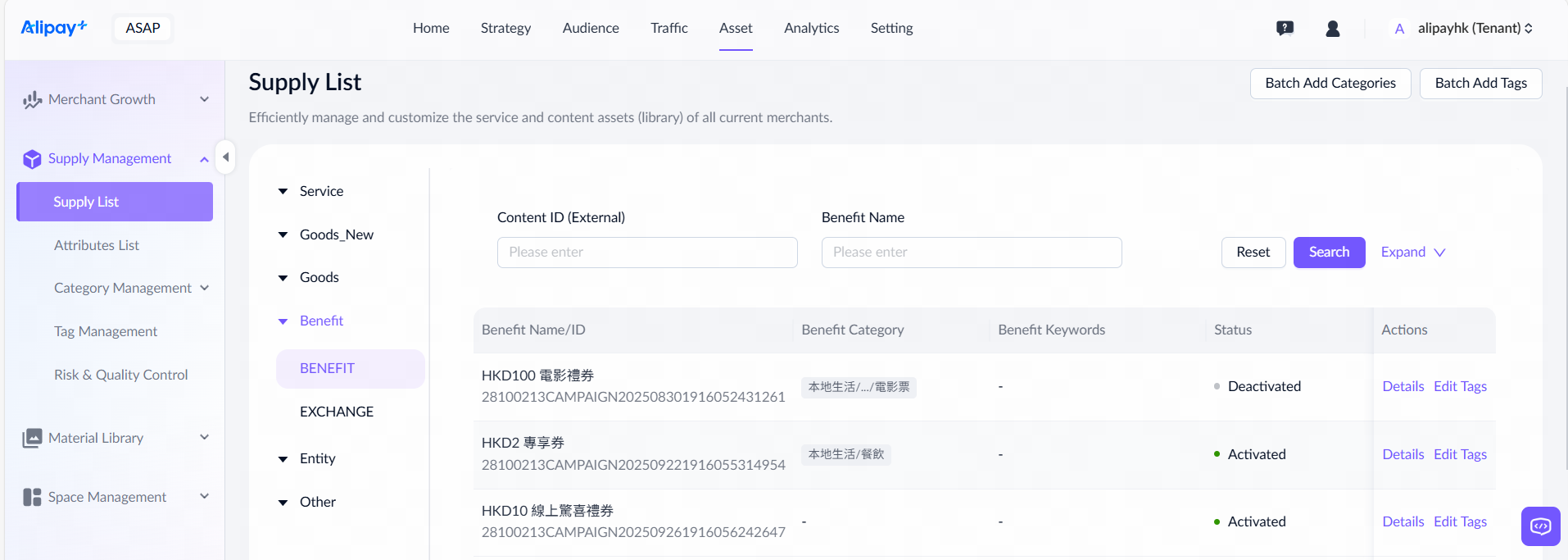
- Navigate to Asset > Supply Management > Supply List.
- Select a content category from the left-side navigation tree, such as BENEFIT.
- Enter Voyager Account ID
2102900000001172and click the Search button. - The page displays all supplies delivered by Alipay+ Voyager.