Goods attributes
Goods Attributes help you manage supplies more efficiently. Merchants can customize these attributes for template generation and seamlessly integrate them into content selection and delivery workflows. The guide below will walk you through the steps to create, edit, and deactivate goods attributes.
Create attributes
To create an attribute, take the following steps:
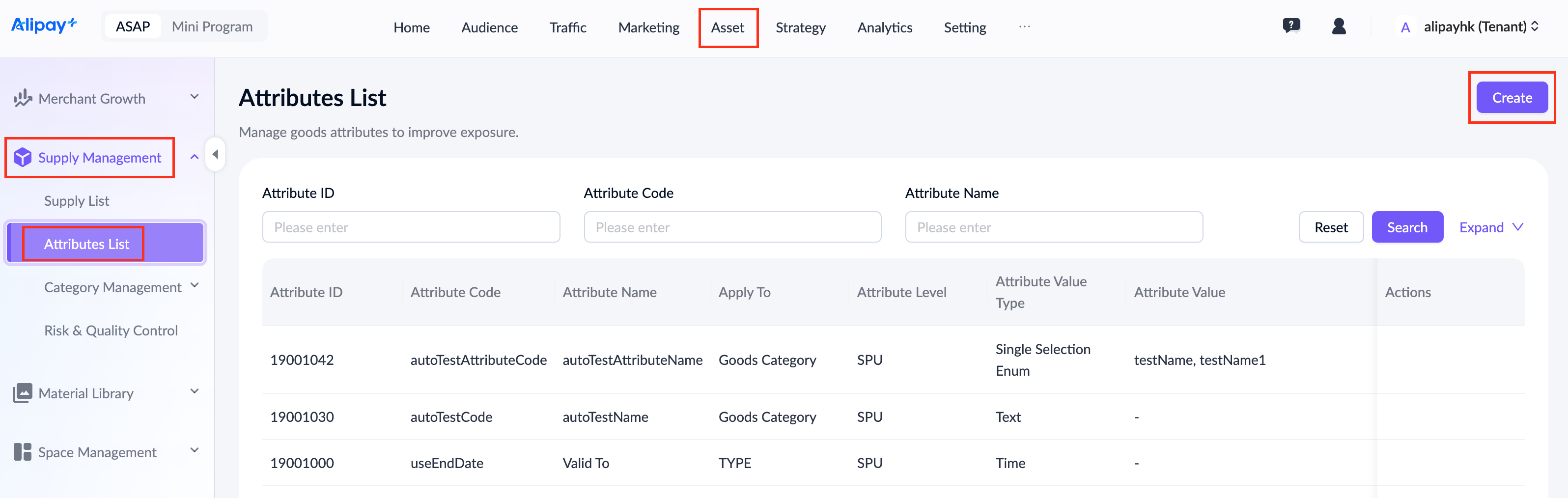
- Log in to the ASAP console and go to Asset > Supply Management > Attributes List, then click Create in the top-right corner.
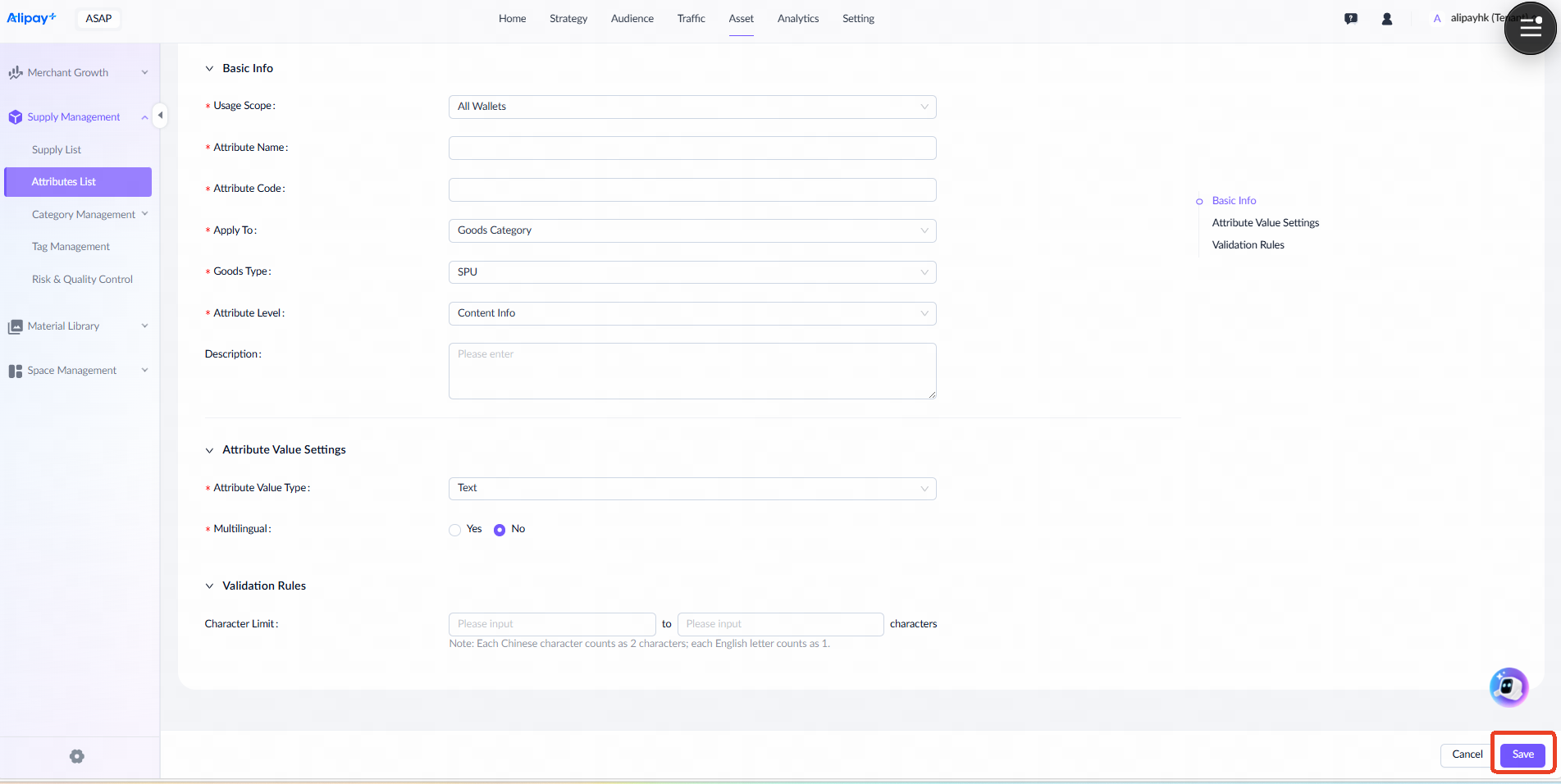
- Complete the required information on the Create Attribute page.
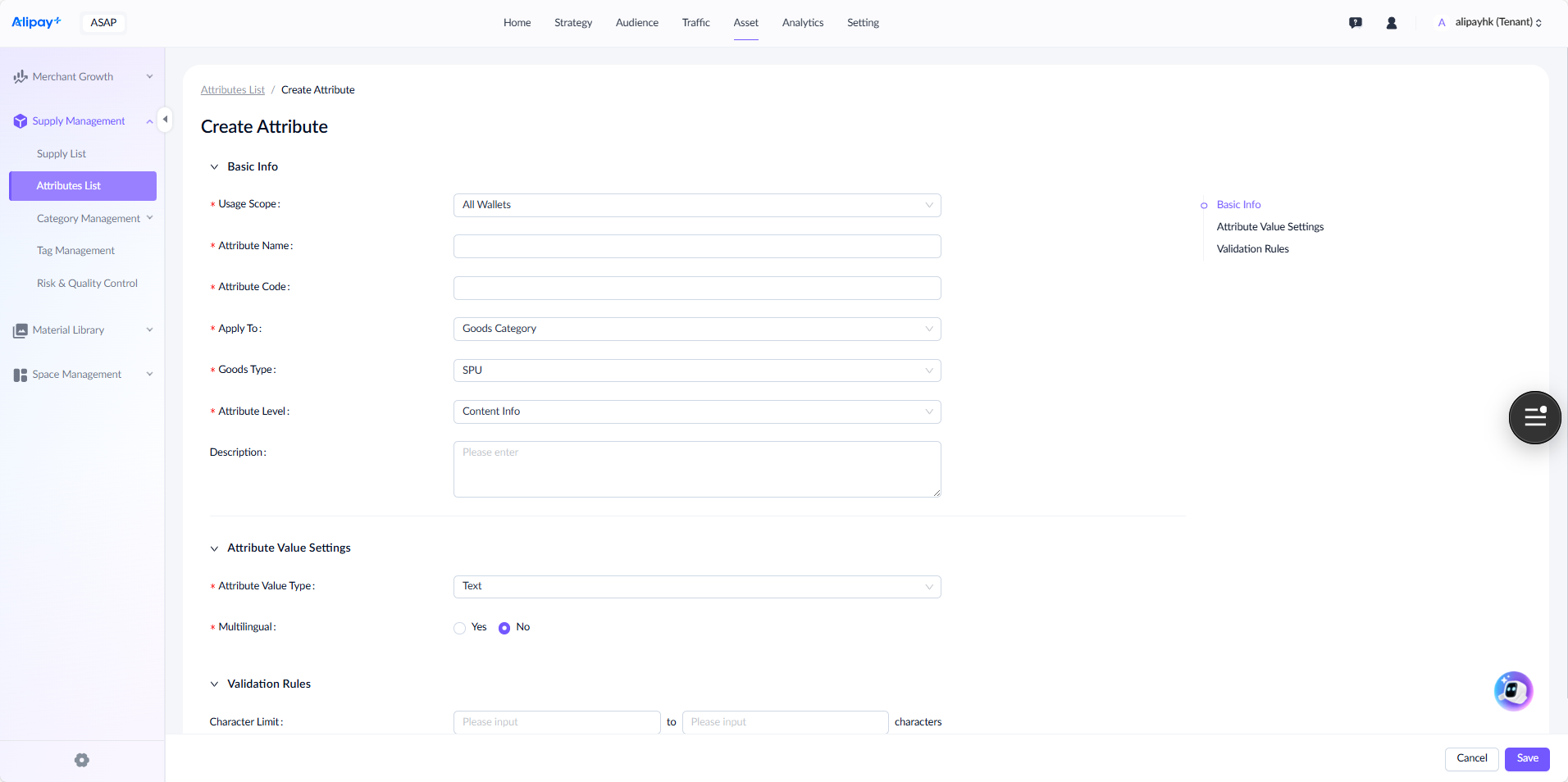
For a detailed explanation of each field, see the following table:
Field name | Description |
Usage Scope | Select either All Wallets or Specific Wallet.
|
Attribute Name | Enter a name for the attribute, such as Applicable Region, which can be edited later. |
Attribute Code | Enter a unique code for system recognition. Supports only letters, numbers, and underscores (_). This code cannot be changed once created. |
Apply To | Select either Goods Category or Goods Type.
|
Goods Type | Attribute can be configured as SPU, SKU, or both. |
Attribute Level | Assign the attribute to one of the following modules:
|
Description | Enter a description for the attribute. |
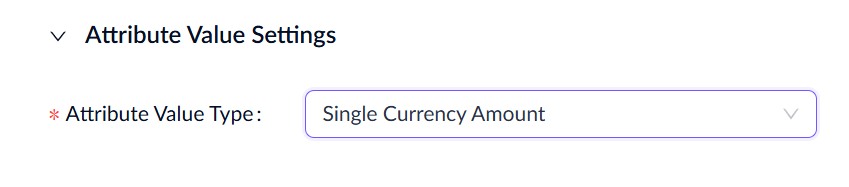
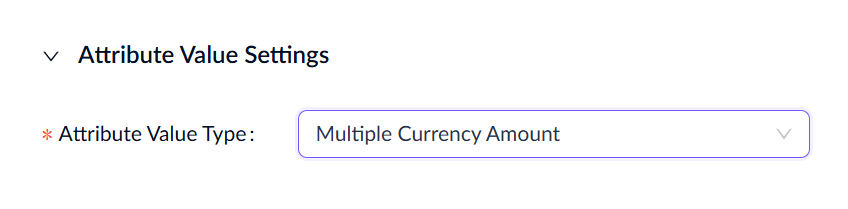
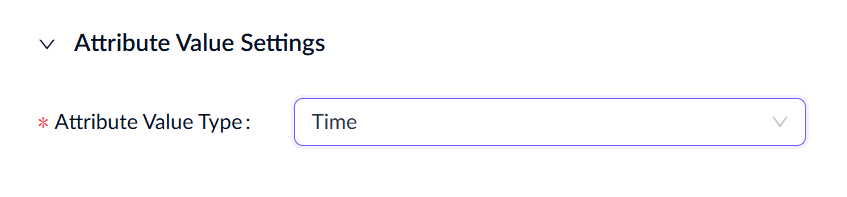
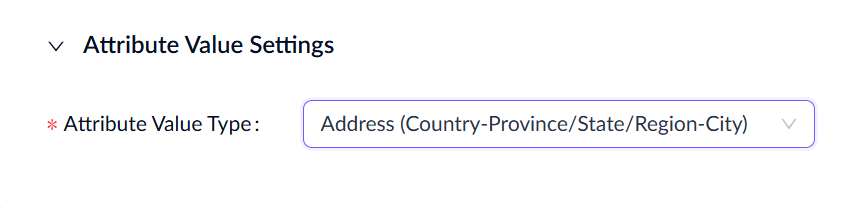
Attribute Value Type | Select the attribute type. There are 14 types, each with different multilingual settings, validation rules, and basic configurations. Refer to the validation rules guidelines for details. |
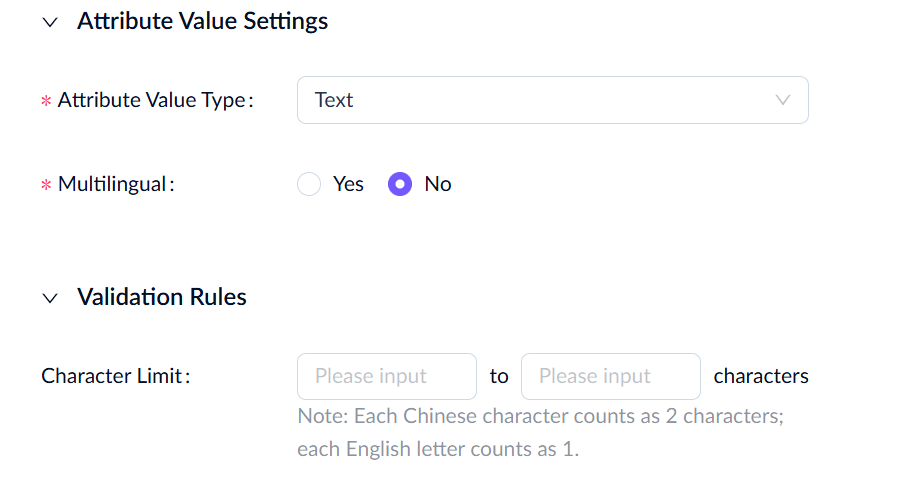
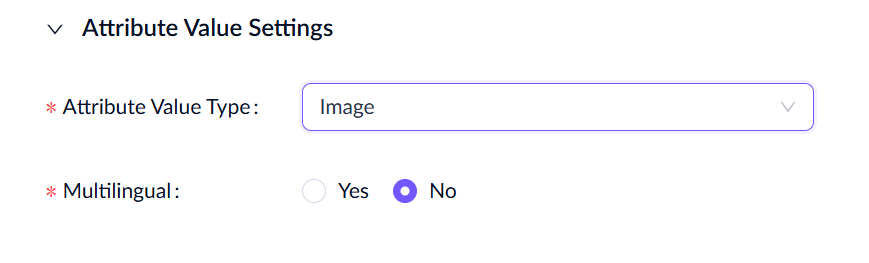
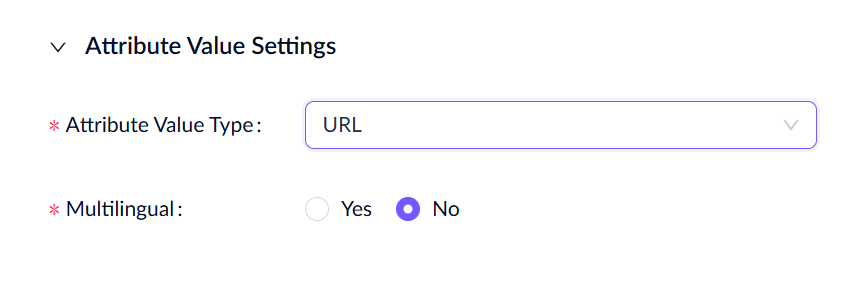
Multilingual | Multilingual options are available only when you select Text, Image, or URL attribute types. |
Validation Rules | Verify whether supplies meet the required standards at import. Different attribute types use different validation rules, and any supply that fails these rules will be blocked. |
Validation rules guidelines
Attribute value type | Validation rules |
Single Selection Enum
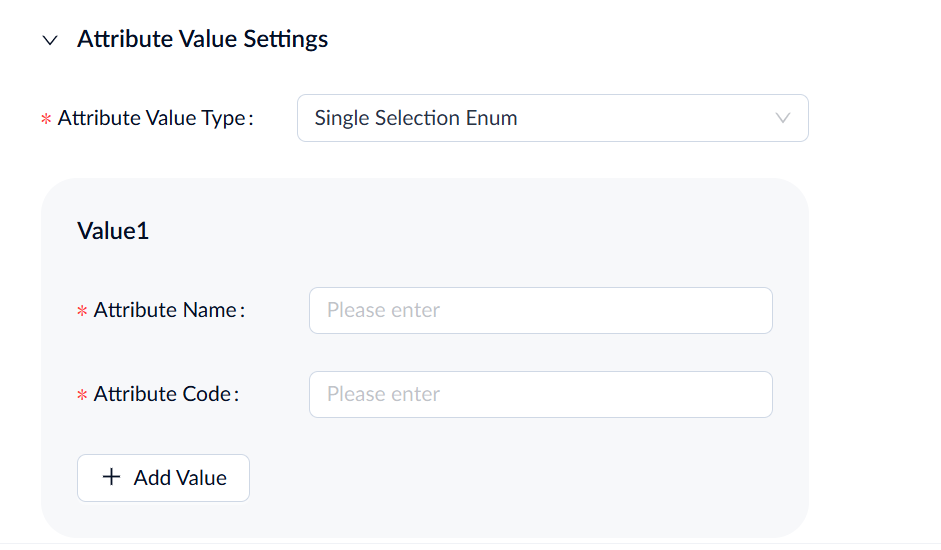
| Configure an enumeration for each value.
You can add or delete values as needed, but Attribute Name and Attribute Code cannot be edited once saved. |
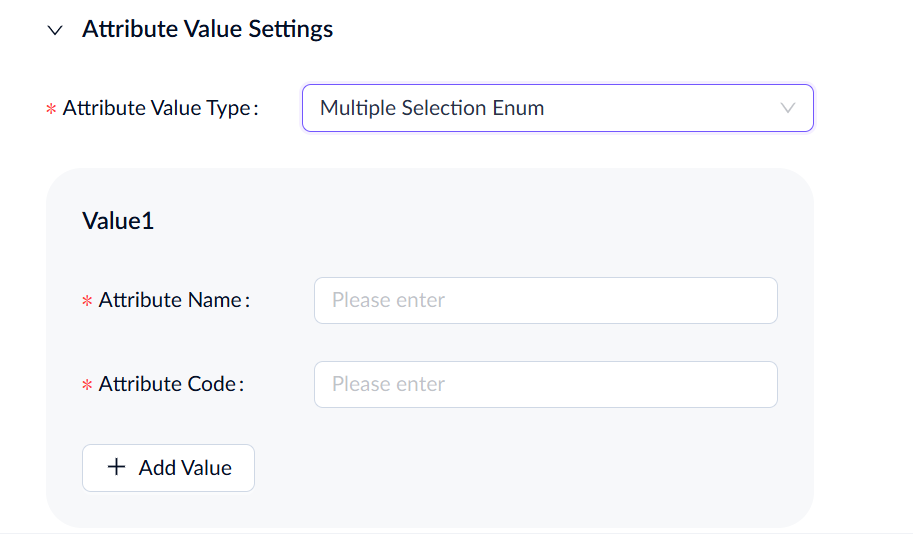
Multiple Selection Enum
| Configure an enumeration for each value.
You can add or delete values as needed, but Attribute Name and Attribute Code cannot be edited once saved. |
Text
| Define character length limits using integers only. Both minimum and maximum values must be provided; the first value must be greater than the second. |
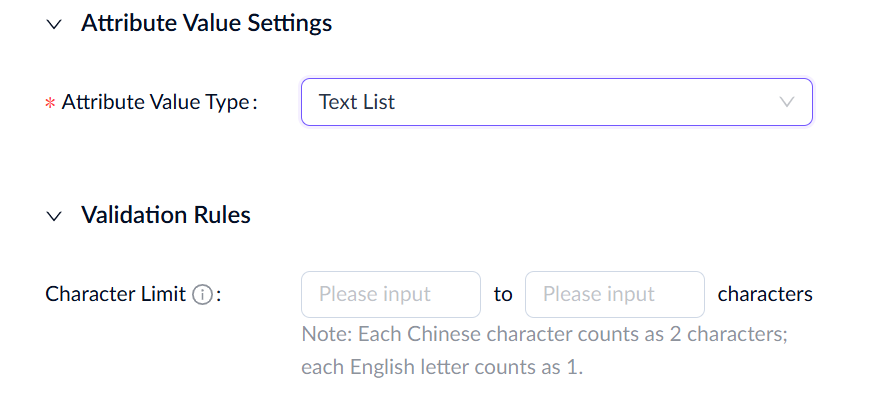
Text List
| Applies to single text validation in the list. Define character length limits using integers only. Both minimum and maximum values must be provided; the first value must be greater than the second. |
Image
| No validation required. |
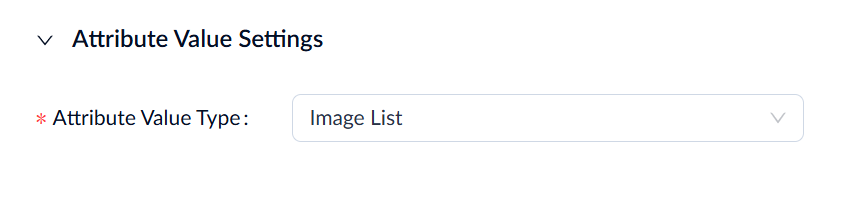
Image List
| No validation required. |
URL
| No validation required. |
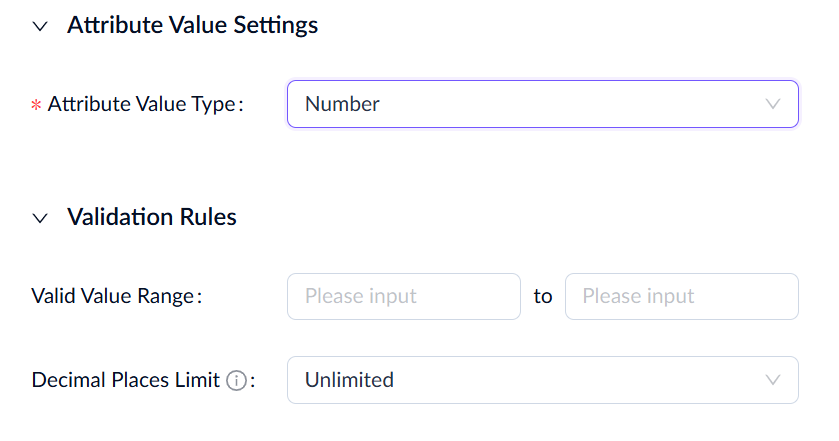
Number
| Configure the value range and the allowed decimal places for the number.
|
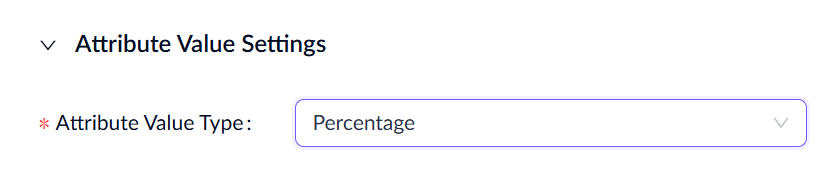
Percentage
| No validation required. |
Single Currency Amount
| No validation required. |
Multiple Currency Amount
| No validation required. |
Time
| No validation required. |
Address (Country-Province/State/Region-City)
| No validation required. |
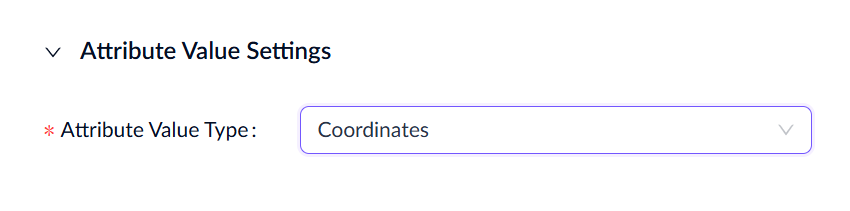
Coordination
| No validation required. |
- After entering the required attribute information, click Save to create the attribute.
Edit Attribute
To edit an attribute, take the following steps:
- Navigate to Asset > Supply Management > Attributes List, locate the target attribute, and click Edit under the Actions column.
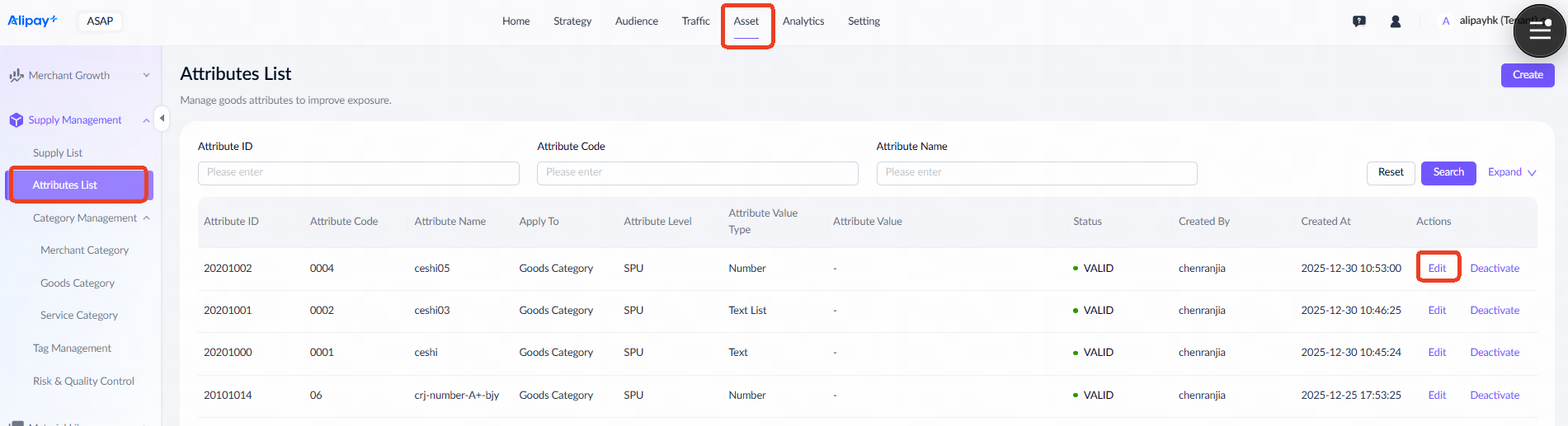
Note: Wallet operators can only edit attributes under the Specific Wallets usage scope.
- On the editing page, the fields you can modify include Attribute Name, Attribute Level, Description, and Validation Rules.
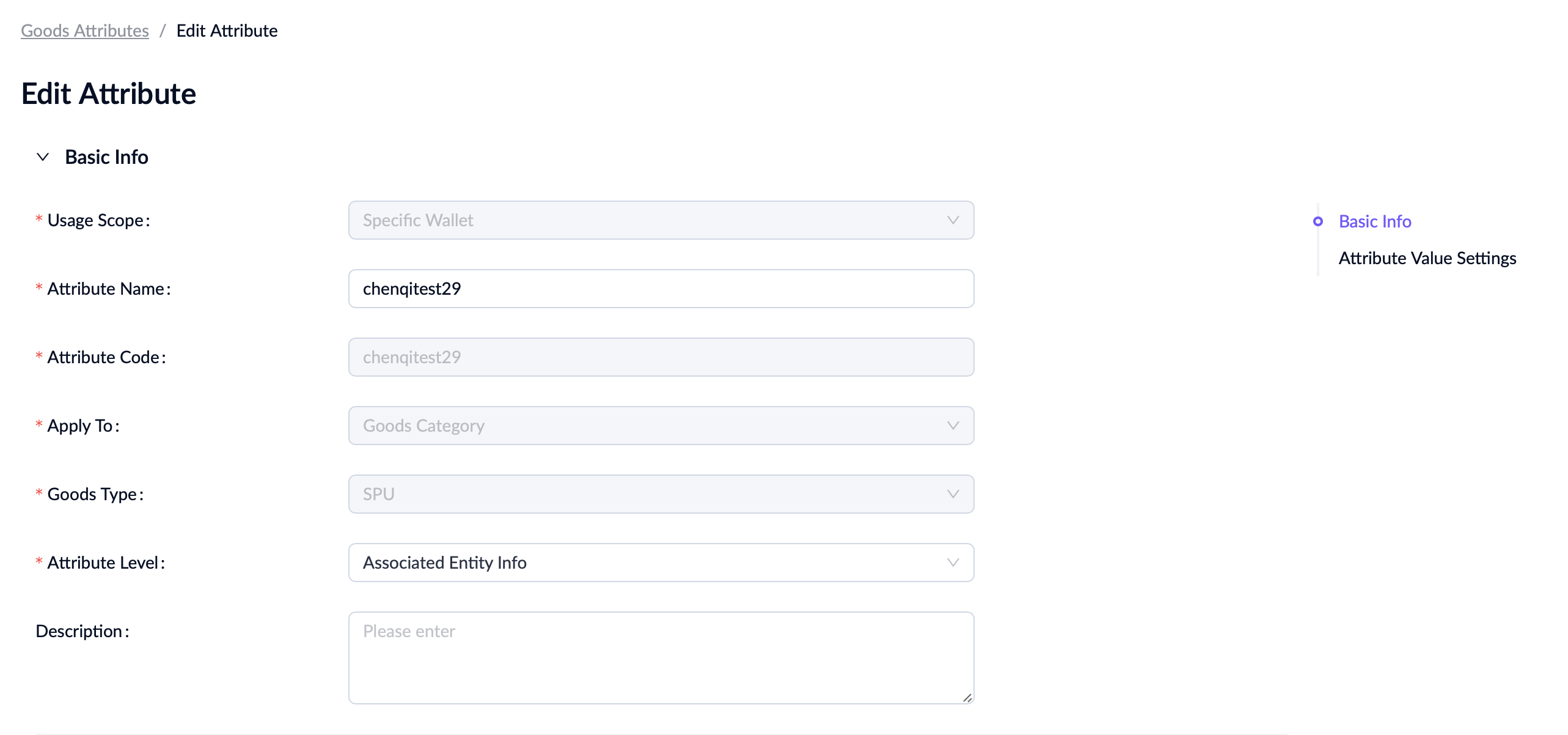
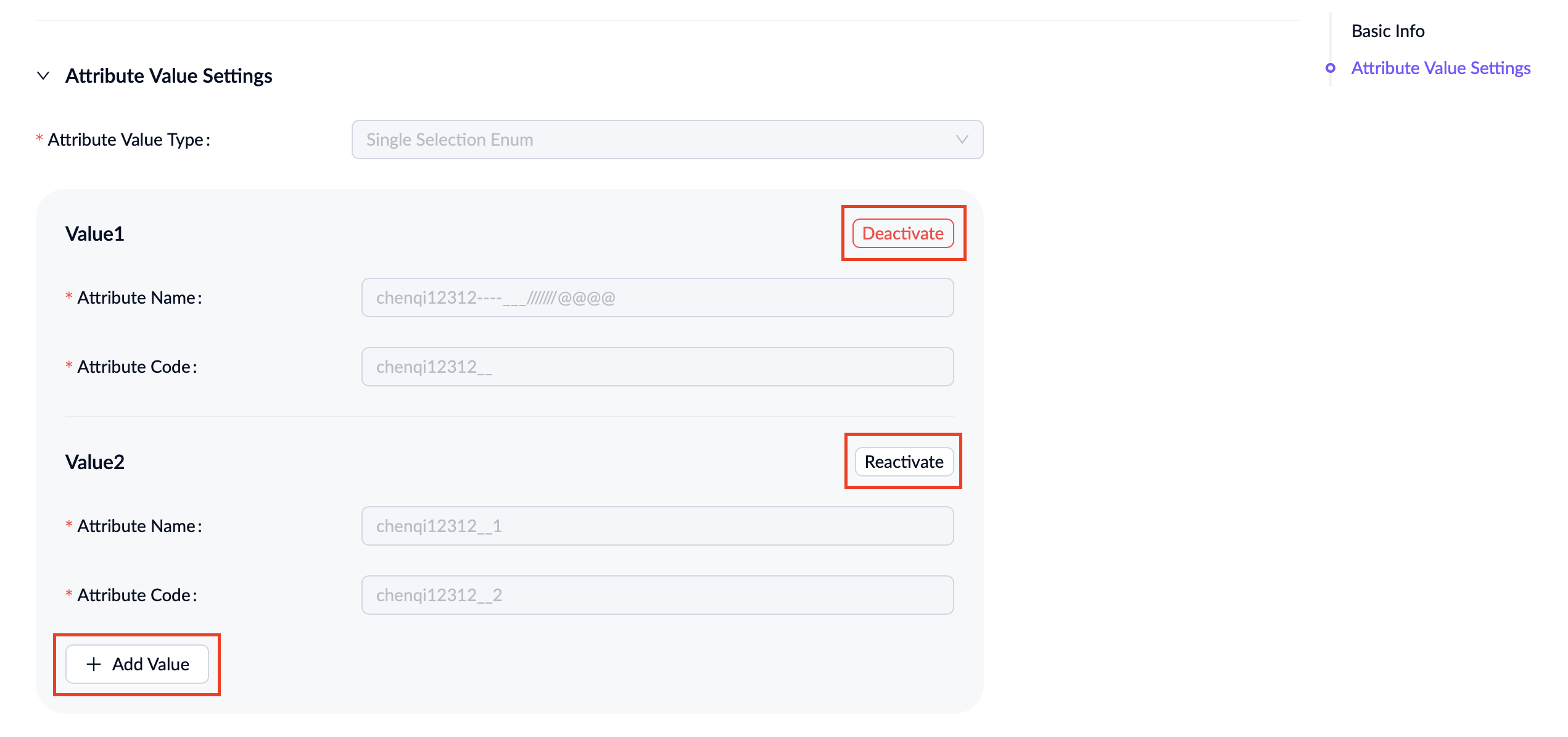
The existing attribute values cannot be edited. However, you can improve exposure by adding new values to the attribute. You can also choose to deactivate or reactivate current values based on your strategy.
- Click Save in the bottom-right corner to apply your changes.
Deactivate attribute
To deactivate an existing attribute, take the following steps:
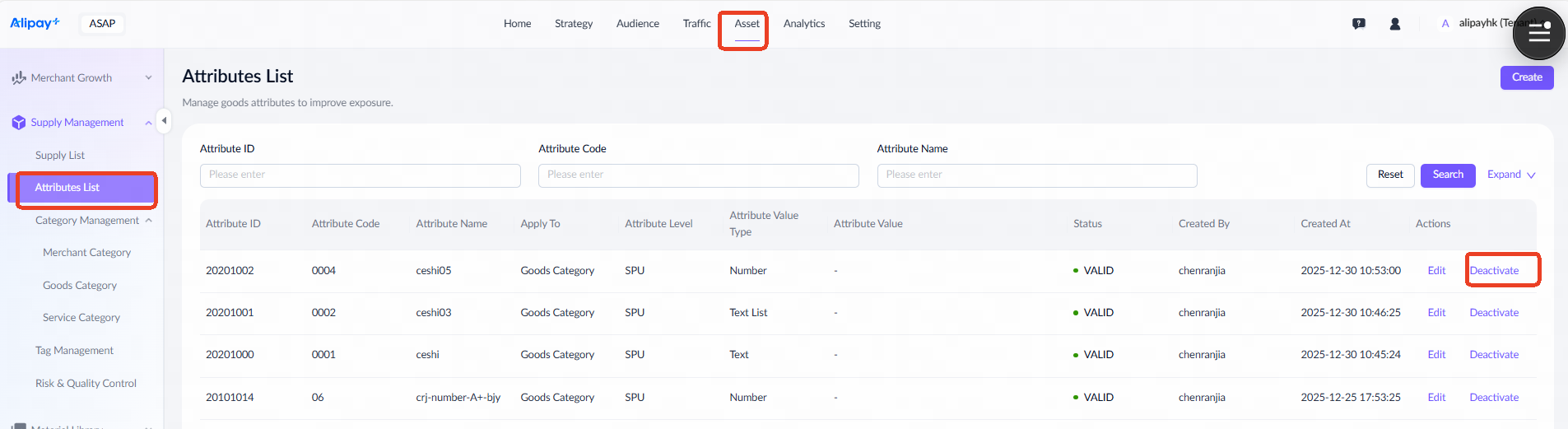
- Navigate to Asset > Supply Management > Attributes List, locate the target attribute, and click Deactivate under the Actions column.
Note: Wallet operators can only deactivate attributes under the Specific Wallets usage scope.
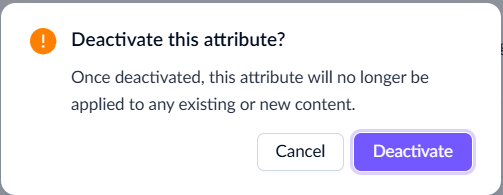
- In the confirmation dialog, click Deactivate. Once deactivated, the existing attribute will no longer apply to any current or new content.